How to fix
Windows 10 Mail App Sync Error 0x86000c09
on Windows
Resolve the Windows 10 Mail App Sync Error 0x86000c09 quickly and efficiently. Get expert-tested solutions that fix the issue in minutes!

What causes How to Fix Windows 10 Mail App Sync Error 0x86000c09?
- Connection problems to the server
- Broken EAS sync partnership
- Mail server issues
- Network connection issues
- Registry problems
Repairs Windows system files, removes malware, and restores a clean OS state — without reinstalling.
I tried to add Outlook account to the Mail app; however, the synchronization has failed because of the Error code 0x86000c09 claiming about connection problems to the server. Is there a way to fix this issue?
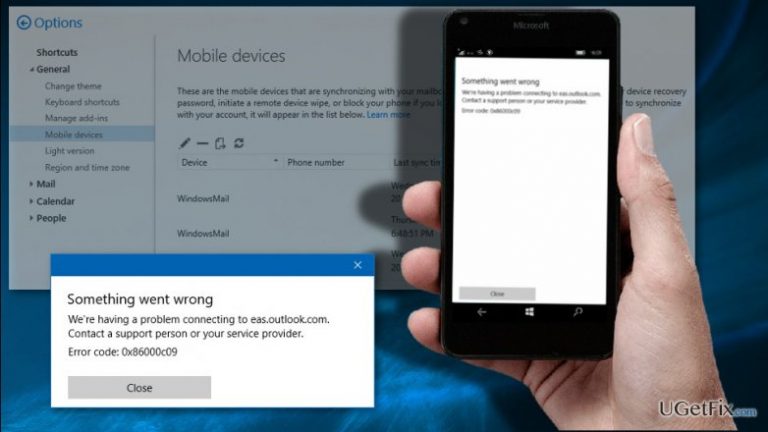
Windows 10 Mail App Sync Error 0x86000c09 is another error which prevents users from syncing both sent and received emails in the mail application. This error often shows up on the mobile devices, especially smartphones. However, in some cases, the error may occur on the desktop devices as well. Nevertheless, this issue is not dangerous and cannot cause damage; it may be bothersome. Inability to sync several email accounts or access them via particular devices may cause inconveniences for the users. When some sync issues arise, people receive an error message:
Something went wrong
We’re having a problem connecting to eas.outlook.com.
Contact a support person or your service provider.
Error code: 0x86000c09
This particular error may inform about broken EAS sync partnership, and this issues cannot be solved by troubleshooting the mail application. The reason why this error occurs is that the mail server is broken. Fortunately, outlook.com, Exchange, and Office 365 Exchange Online mailbox users can reset this partnership via Outlook Web Access (OWA) or Outlook on the Web. The error may also occur when email services are down or because of network connection issues. However, these two reasons are rarely the cause for the Error 0x86000c09. Though, you should check these two things first when the error shows up.
In same rare occasions, Windows 10 Mail App Sync Error 0x86000c09 may be related to various registry problems. We do not recommend trying to fix registry issues manually because you may accidentally delete a crucial entry and make even more problems. In order to check the registry issues and fix them, install [rev id=”RegCure Pro”] and scan the system. Within several minutes the program completes the scan and provides the list of found and repaired issues. If you do not see error code 0x86000c09 fixed too, follow the steps below.
How to fix Windows 10 Mail App Sync Error 0x86000c09?
Fortunately, this error is not hard to fix manually. All you have to do is to remove the device which causes sync error 0x86000c09.
Login to Outlook on the Web.
- Outlook Mail users should login on outlook.com.
- Office 365 Exchange Online users should login on outlook.office.com.
- Exchange on premises users should check the URL provided by the company by going to File -> Info in Outlook 2010.
2. Once logged in, select the Gear icon in the top right corner and open the Options page.
- Outlook Mail users should choose Options.
- Office 365 Exchange online users should choose Mail located near the bottom of the Settings.
- Exchange on premises users should choose Options.
3. When in Options, go to General and then, Mobile devices.
- Exchange 2010 and Exchange 2013 users have to select Phone.
4. Now you should see the list of devices that are synced with your mail. The pencil icon may help you to find the device with causes your trouble.
5. Once you find the device, select Remove icon and delete the device.
6. In the appeared dialogue box confirm that you want to remove this partnership.
7. When the device is removed, re-sync it again in your Mail app.
Bottom line
To fix the Windows 10 Mail App Sync Error 0x86000c09, users can reset the EAS sync partnership via Outlook Web Access or check for network issues. Additionally, scanning for registry problems with a tool like RegCure Pro may help. If these solutions do not resolve the issue, further troubleshooting may be necessary.
Frequently asked questions
The sync error 0x86000c09 is typically caused by issues with your email account settings, network connection, or corrupted app data.
You can reset the Mail app by going to Settings > Apps > Apps & features, selecting Mail and Calendar, and then clicking on 'Advanced options' followed by 'Reset'.
Yes, you can often resolve the error by checking your account settings, ensuring your Windows 10 is updated, or running the Windows Store Apps Troubleshooter.




Report an issue
What's wrong with this guide? We review every report and update or remove content.
Report received — thank you. We'll review and fix it.
You need a free account to submit a report.
Be the first to comment