How to fix
Windows 10 Stuck at Restarting Screen
on Windows
Resolve the Windows 10 restarting issue quickly with our expert-tested solutions. Get your system up and running smoothly in minutes!

What causes How to Fix Windows 10 Stuck at Restarting Screen?
- Outdated Drivers
- Startup Problems
- Fast Startup Function
- SoftwareDistribution Packages
- Upgrade Issues
Repairs Windows system files, removes malware, and restores a clean OS state — without reinstalling.
Hello all, I cannot install any updates because restart doesn’t work. I can shut down my PC manually, but when I try to restart, the system gets stuck with a spinning dot wheel. This started happening soon after the upgrade to Windows 10. Any solutions?
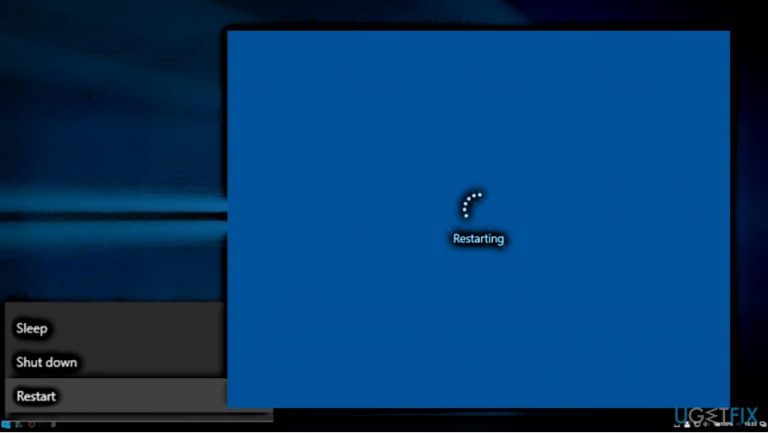
Many Windows 10 users encounter a quite unusual problem – they cannot restart the system. While the shut down function works properly, the attempt to restart the system ends up with a blue screen with a spinning dot wheel, which leads to nothing. To get from the stuck screen, the PC’s owner has to press and hold power button to shut the system down by force.
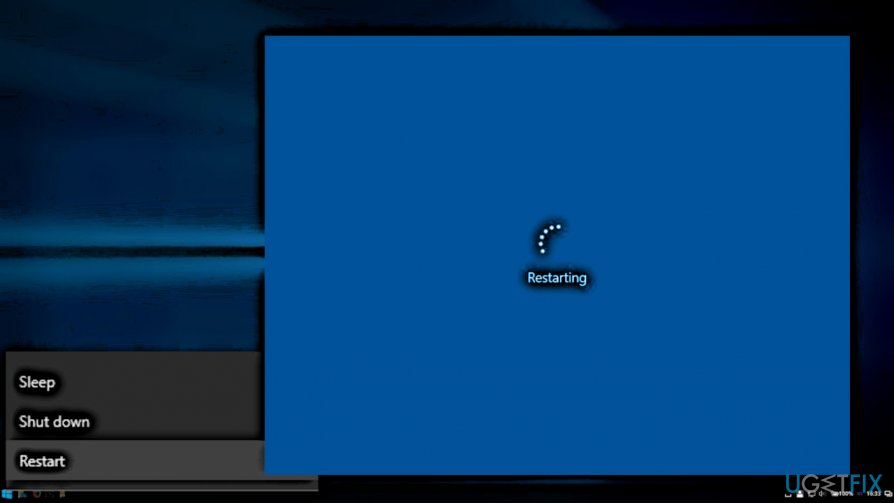
In most of the cases, restart fails to work soon or right after the upgrade to Windows 10 from Windows 7, 8 or 8.1. Although it seems that the culprit of the freezing Windows 10 restart is the upgrade/update, such version hasn’t been officially confirmed. According to experts, the problems may vary from outdated drivers, startup problems, Fast Startup function or SoftwareDistribution packages.
Before you start with the fixes, please try to restart your PC and leave the blue stuck screen overnight. It might be that the spinning wheel comes to an end, but you are too impatient to wait. If that did not help, please try the following methods:
Instructions on How to Fix Windows 10 Restart That Doesn’t Work
Method 1. Run Power Troubleshooter
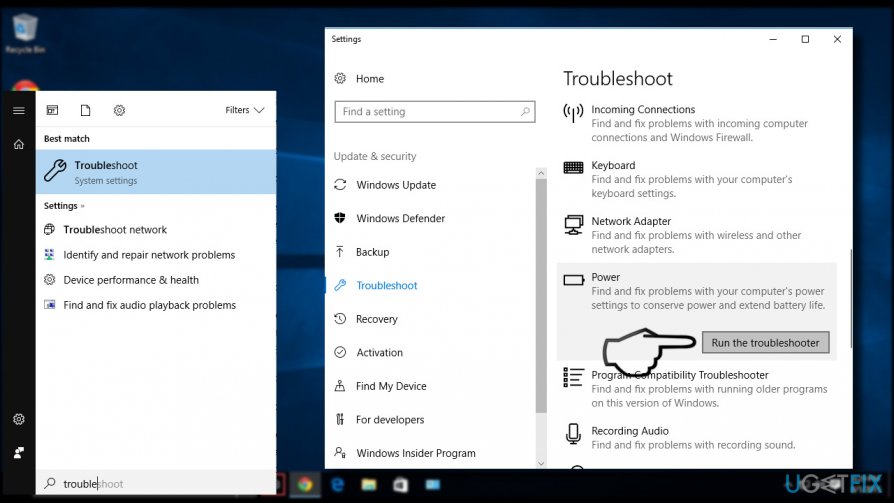
1. Open Windows search and type Troubleshooter.
2. Select Troubleshoot from the list and click Power.
3. Click Run troubleshooter button and see if it detects any problems.
Method 2. Reset Power Plan to Default
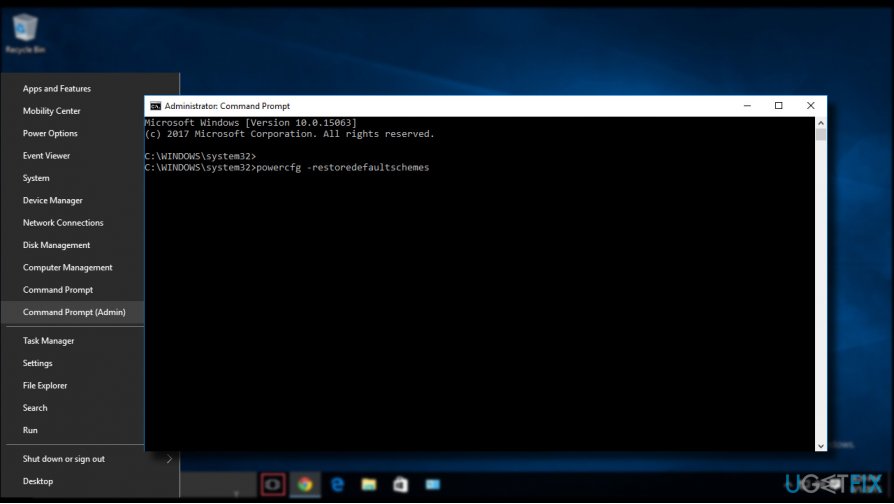
1. Right-click Windows key and select Command Prompt (Admin).
2. Copy and paste the powercfg –restoredefaultschemes command in the Command Prompt window.
3. Press Enter to execute the command.
NOTE: the steps above will reset the power plan, so all customized power plan settings will be deleted.
Method 3. Restore the SoftwareDistribution Package in Windows Update
1. Right-click on Windows key and select Command Prompt (Admin).
2. Copy and paste the following commands and press Enter after each:
net stop wuauserv
cd %systemroot%
ren SoftwareDistribution SD.old
net start wuauserv
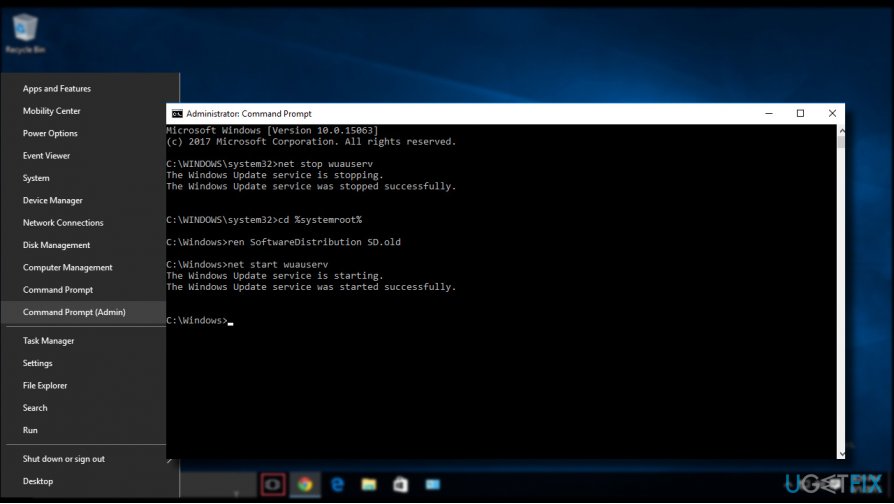
The execution of the above-indicated commands will stop the update service and direct the Command Prompt to the installation directory of Windows OS. Then the SoftwareDistribution folder gets renamed and the Windows Update service restarted.
In addition, we would recommend clearing the content of the SoftwareDistribution and Downloaded Installation folders.
Method 4. Disable Fast Startup
1. Right-click on Windows key and select Power Options.
2. Select Power & Sleep option on the left pane.
3. Under Sleep section, select Never.
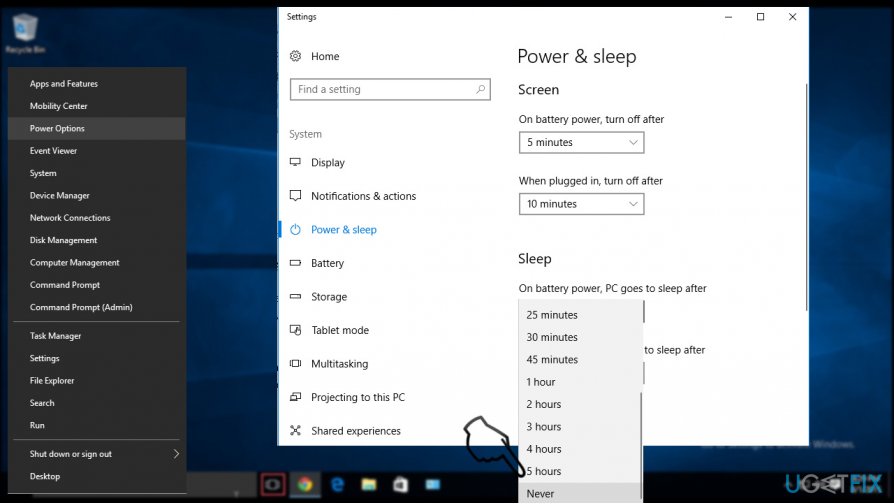
4. Click the Additional power settings link and select Choose what the power buttons do option on the left pane.
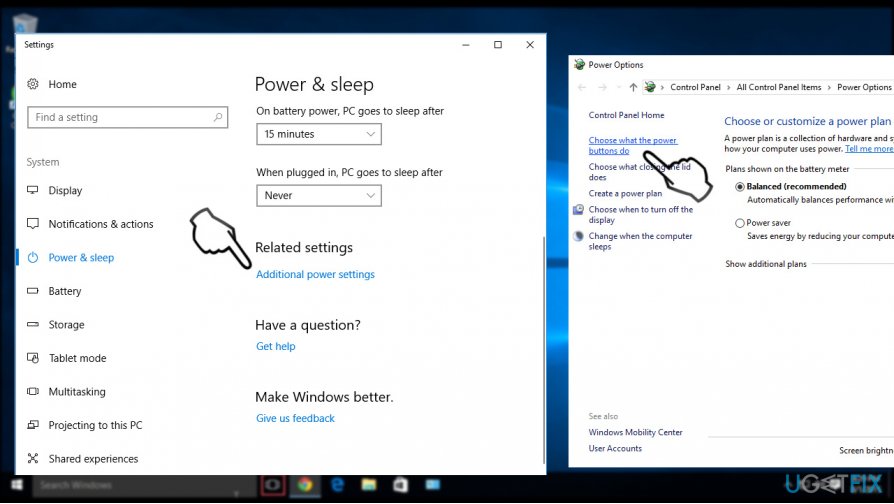
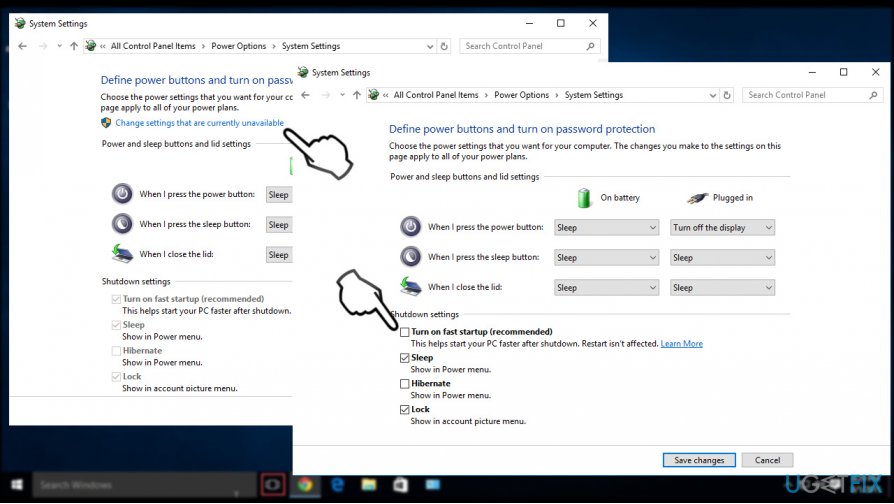
5. Now click Change settings that are currently unavailable link.
6. Under Shutdown settings, unmark the Turn on fast startup checkbox.
7. Finally, click Save button.
If none of the methods helped, open Device Manager and check for malfunctioning device drivers. After all, you can always enable Restore Point or roll back the update that might have triggered Windows 10 stuck at restart screen.
Bottom line
To fix the Windows 10 stuck at the restarting screen issue, you can try running the Power Troubleshooter, resetting the power plan to default, or restoring the SoftwareDistribution package in Windows Update. If these methods do not resolve the problem, consider leaving the system on the stuck screen overnight or seeking further assistance.
Frequently asked questions
Try performing a hard reboot by pressing and holding the power button until your PC powers off, then turn it back on. If the issue persists, boot into Safe Mode and uninstall the recent updates.
You can try accessing the Advanced Startup Options by holding the Shift key while selecting Restart. From there, choose Troubleshoot > Advanced options > Startup Settings, and select Restart.
Yes, you can use the System Restore feature if you have a restore point set up, which will allow you to revert your system to a previous state without losing your personal files.




Report an issue
What's wrong with this guide? We review every report and update or remove content.
Report received — thank you. We'll review and fix it.
You need a free account to submit a report.
Be the first to comment