How to fix
Windows 10 Taskbar not responding
on Windows
Resolve Windows 10 Taskbar issues quickly and effectively. Follow our expert-tested tips for a smooth user experience and regain full control today!


What causes How to fix Windows 10 Taskbar not responding?
- Corrupt graphics drivers
- Auto-hide issues
- Software conflicts
- Taskbar freezes
- Taskbar crashes
Repairs Windows system files, removes malware, and restores a clean OS state — without reinstalling.
Hello. I have an incredibly annoying problem on my laptop, and I hope you will be able to help me fix it. The Windows 10 taskbar is not working, i.e., none of the buttons in it work, including Cortana, notifications, battery, etc. Right-clicking on the menu works, so does the task menu. The only way to fix this problem (temporary) is to reboot my PC, which takes time and effort. Is there any way you can help me with non-responsive taskbar issue? Thanks.
Windows 10 Taskbar[ref en-1] is a very old concept that has been around for many years and, with the latest Windows 10 release, was improved drastically. Probably the most significant change was the addition of personal assistant Cortana and a built-in search box.
These enhancements vastly improved users' experience while using the operating system on a daily basis. Unfortunately, the new functionality came with certain problems that users started experiencing. Windows 10 Taskbar not working is one of the problems that can be particularly annoying to deal with until it is solved for good.
Many users who updated to Windows 10 in 2015 experienced Taskbar freezes, crashes, non-responsiveness and similar issues. Because Cortana is a part of the Taskbar, some users noted that they are unable to use her help also. Nevertheless, our team compiled a list of solutions that you can try in order to fix Windows 10 Taskbar not responding problem.
Windows 10 Taskbar not working issue can be caused by many reasons, such as corrupt graphics drivers[ref en-2], auto-hide issues, software conflicts, etc. Therefore, you should try every solution one after another and see if it helps to fix the non-responsive taskbar.
Before you proceed with these steps, we suggest you perform full system scan using [d1]. It is security software that can scan your Windows 10 machine and make sure that no malware[ref en-3] is hiding inside. Additionally, the application is capable of detecting Windows errors and fixing them automatically, meanwhile preventing crashes, lag, BSODs, and other issues.
Nevertheless, if you do not wish to pay for additional software and are more computer-savvy, you should proceed with our suggestions below.
We have also prepared a free guide to fix unresponsive taskbar:
[youtube _CcB4dQ0qK4]
Solution 1. Restart Windows Explorer
If your taskbar is having some minor problems, like certain buttons are not responsive or sometimes freeze, restarting Windows Explorer could be an easy solution for you. Please follow these steps:
- Simultaneously press Ctrl + Shift + Esc to open the Task Manager
- Scroll down and find Windows Explorer in the list
- Select Windows Explorer and click Restart in the bottom-right corner of the window
- Wait till Windows restarts Windows Explorer and see if problem persists.
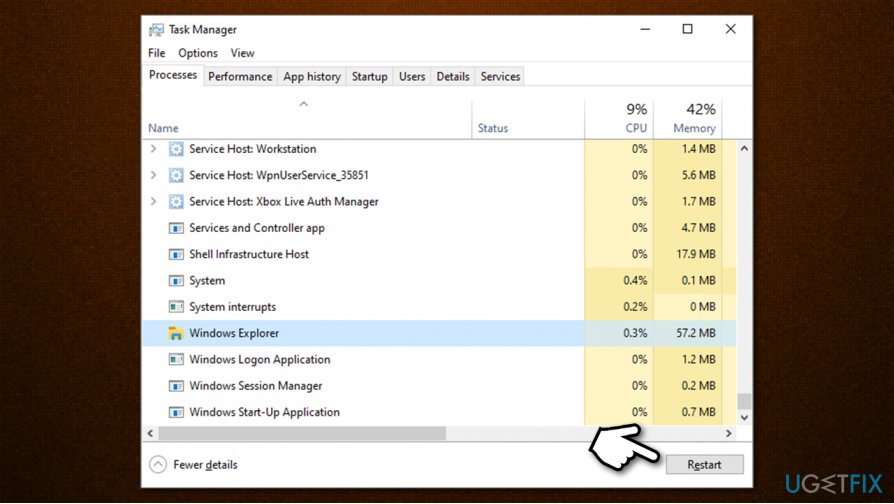
How to fix windows 10 taskbar not responding restart windows exporer
Solution 2. Update Windows
If you forgot about such an important Windows features as updates you should immediately apply this fix.
- Press Win + R and type in ms-settings:
- Hit Enter
- Select Update & Security
- Click Check for updates and wait for Windows to download and install all the newest updates
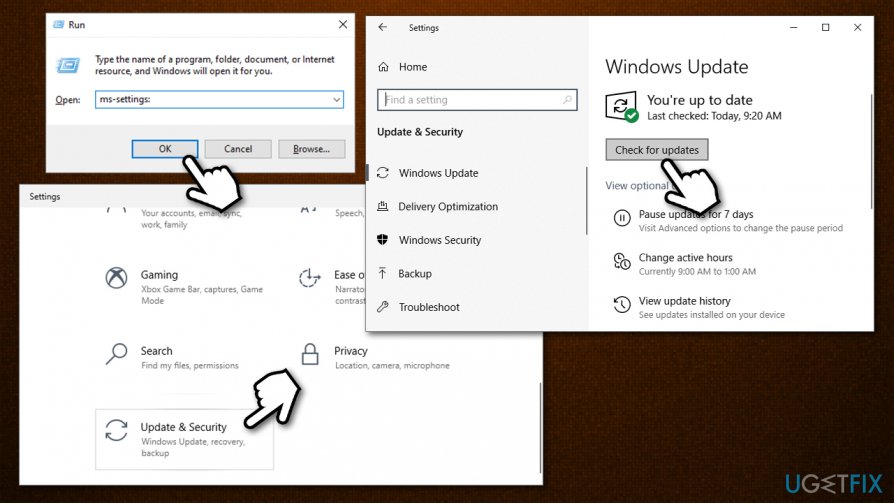
How to fix windows 10 taskbar not responding update windows - Restart your PC and see if the problem is solved.
Solution 3. Perform computer scan using System File Checker
System File Checker[ref en-4] is a built-in tool in Windows operating systems. It is capable of scanning the machine, finding errors and then fixing them automatically. To get rid of issues causing why does Windows 10 Taskbar not working, you need to enter Command Prompt with admin rights:
- Press Ctrl+ Shift + Esc simultaneously to open up the Task Manager
- Select File > Run new task
- Type in CMD and tick Create this task with administrative privileges
- Type sfc /scannow command and press Enter.
- Wait till Windows finishes the scan. It will let you know if anything is found, and what was fixed.
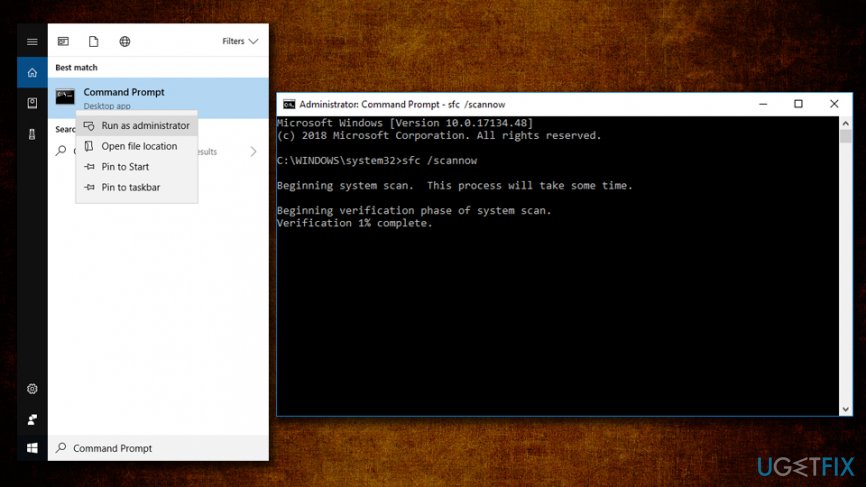
Taskbar not responding run system file checker
If that did not help, open Command Prompt (Admin) once again, and run DISM command that will check the system image files:
DISM.exe /Online /Cleanup-image /Restorehealth
Solution 4. Re-register your Taskbar via PowerShell
Many users reported that re-registering the taskbar worked. To do that, you will have to enter Power Shell with admin rights:
- Press Ctrl + Shift + Esc to launch Task Manager
- In the Menu bar, click on File > Run new task
- Type in powershell and tick the Create this task with administrative privileges box
- Click OK and open PowerShell window
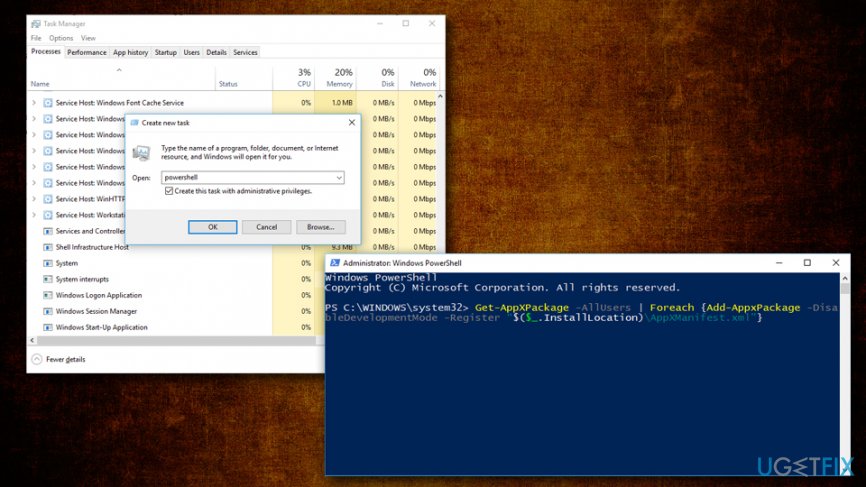
Windows taskbar not responding reregister taskbar - Copy the following text into the window and press Enter:
Get-AppXPackage -AllUsers | Foreach {Add-AppxPackage -DisableDevelopmentMode -Register “$($_.InstallLocation)\\AppXManifest.xml”}
- Close down PowerShell and navigate to C:/Users/XXX/AppData/Local/ (XXX is your username)
- Detect TileDataLayer folder and delete it (in case you can't delete this folder, press Windows key + R, find Tile Data model server and stop it. Then, try to delete the folder again)
Solution 5. Uninstall the latest graphics drivers
Some users reported that uninstalling the latest drivers helped them to resolve the Windows 10 Taskbar not working issue:
- Press Ctrl + Shift + Esc to launch Task Manager
- In the Menu bar, click on File > Run new task
- Type-in Control panel and in newly opened window select Device manager
- Expand your Display adapters and select your graphics card
- Rick-click on it, choose Properties and go to Driver tab
- Click on Roll back driver, select the reason for uninstallation and click Yes
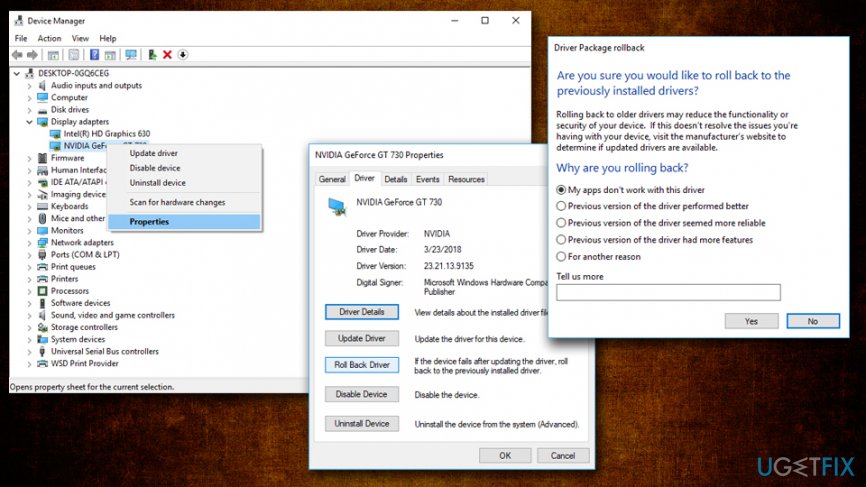
Taskbar not responding roll back graphics drivers
In some cases, it might be difficult to determine which driver is causing you problems and errors. If that is the case for you and you don't want to mess up drivers, we recommend you employ [rev id="DriverFix"] instead - it can take care of all driver-related problems automatically. Besides, thanks to its driver backup feature, you will also be secure from unexpected issues related to driver incompatibility.
Solution 6. Disable Startup items
When you boot your PC, Windows automatically boots programs that are set to run in the background. This setting is usually implemented during the installation of software, hence many users don't even know how many programs are enabled via Startup. Therefore, you should check the list and disable apps that have Medium/High impact on your OS:
- Press Ctrl + Shift + Esc to open Task Manager
- Go to Startup tab
- Right-click on a program and select Disable
- Keep Cortana enabled!
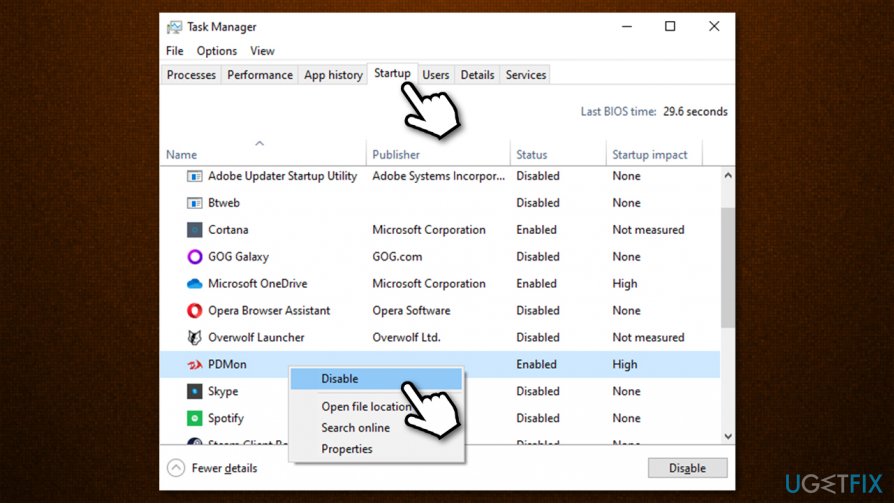
How to fix windows 10 taskbar not responding disable startup items
Solution 7. Enable Application Identity Service
Services are important for any Windows operation. In this case, try to enable Application Identity service and see if that helped you fix taskbar issues.
- Press Win + R on your keyboard
- Type in services.msc and press Enter or click OK
- Right-click on Application Identity and select Start.
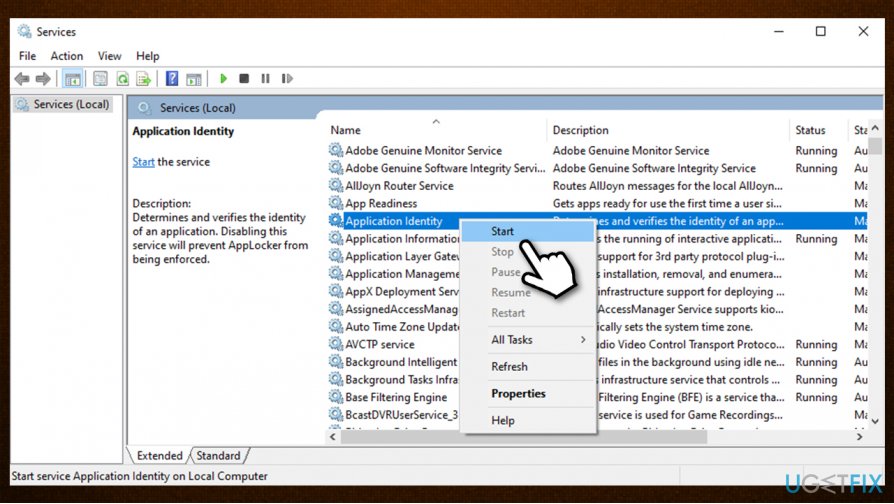
How to fix windows 10 taskbar not responding enable application identity service
Solution 8. Use System Restore
If none of the above solutions helped, you can try using System Restore. Keep in mind that you might have to re-install some applications that were installed recently. Your personal files will remain intact, however.
- Press Win + R on your keyboard
- Type in rstrui.exe and press Enter or click OK
- Select Choose a different restore point and click Next
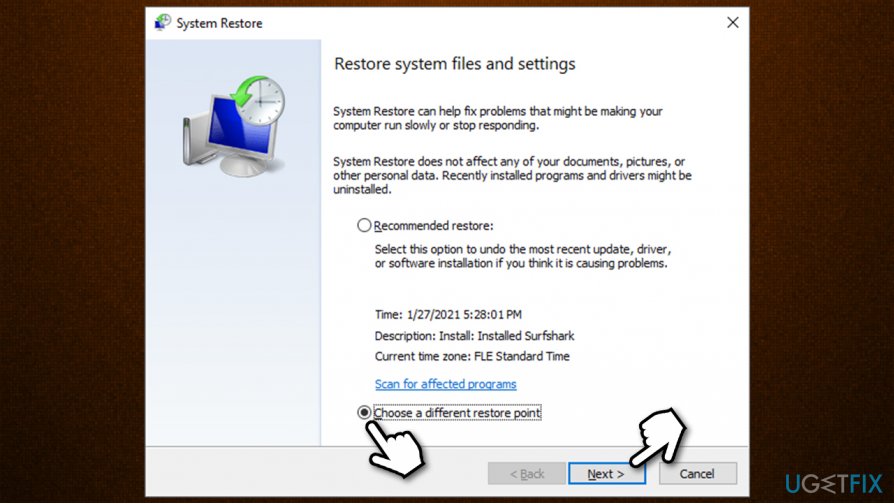
How to fix windows 10 taskbar not responding use system restore - Tick the Show more restore points option at the bottom
- Pick an appropriate restore point
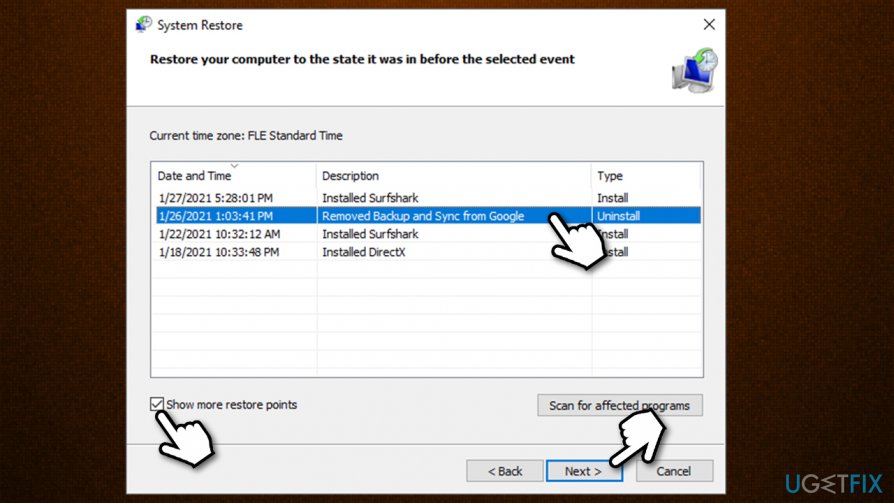
How to fix windows 10 taskbar not responding use system restore2 - Click Next and then Finish
- Windows will restart automatically.
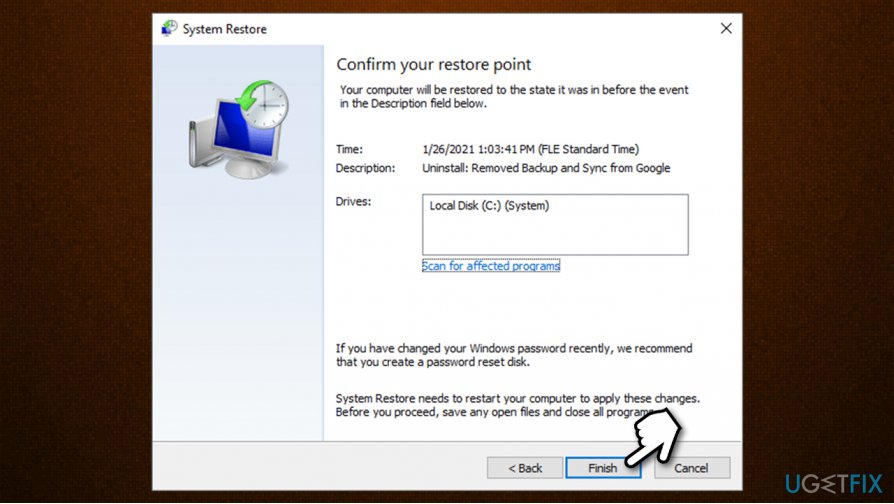
How to fix windows 10 taskbar not responding use system restore3
Bottom line
To fix the Windows 10 Taskbar not responding issue, you can try performing a full system scan for malware, updating your graphics drivers, and checking for software conflicts. If these solutions do not resolve the problem, consider rebooting your PC or seeking further assistance.
Frequently asked questions
Try restarting Windows Explorer from the Task Manager, as this often resolves temporary glitches after updates.
Ensure that the Taskbar settings are correctly configured by right-clicking on the Taskbar and selecting 'Taskbar settings' to review options.
You can use the keyboard shortcut Ctrl + Shift + Esc to open Task Manager, then find Windows Explorer, right-click it, and select 'Restart' to refresh the Taskbar.




Report an issue
What's wrong with this guide? We review every report and update or remove content.
Report received — thank you. We'll review and fix it.
You need a free account to submit a report.
Be the first to comment