How to fix
Windows 10 Update Error 0x800736B3
on Windows
Resolve Windows 10 Update Error 0x800736B3 quickly and efficiently. Follow our expert-tested solutions for a seamless experience. Fixed in minutes!


What causes How to Fix Windows 10 Update Error 0x800736B3?
- Failure of Windows Update service
- Missing .Net Framework
- Corrupted Windows Update components
- Issues with BITS service
- Corrupted system files
Repairs Windows system files, removes malware, and restores a clean OS state — without reinstalling.
I cannot install any updates on my Windows 10 Enterprise. The installation returns error code 0x800736B3. Could you please help?
Are you installing Windows Updates regularly? Hopefully, the answer is yes. Outdated Windows OS is more vulnerable, sluggish, lacks of improvements, and may return various errors. Sadly, the latest Windows version, Windows 10, can’t be updated because the download and install of the updates end up with various error messages, for example, Error Code 0x800736B3.
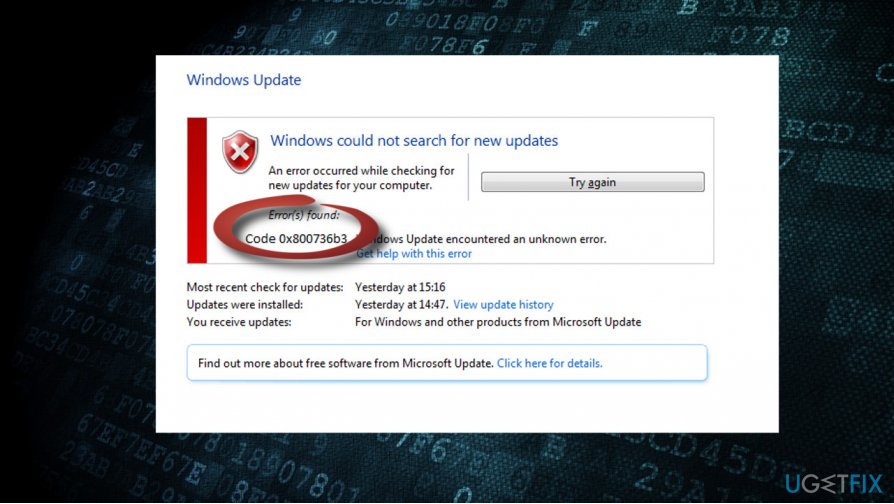
Like most of the Windows Update errors, usually the 0x800736B3 error shows up due to the failure of Windows Update service. Nevertheless, the system may also return this bug due to the missing or corrupted .Net Framework. The only way to isolate the culprit is to try diverse error 0x800736B3 fixes, so we’ll provide a couple of applicable fixes. Before you perform the fixes, try to reboot your PC, check the system for malware, and run a scan with a professional optimization utility, such as [d1]. If that did not help, please follow these steps:
Method 1. Restart Windows Update Components
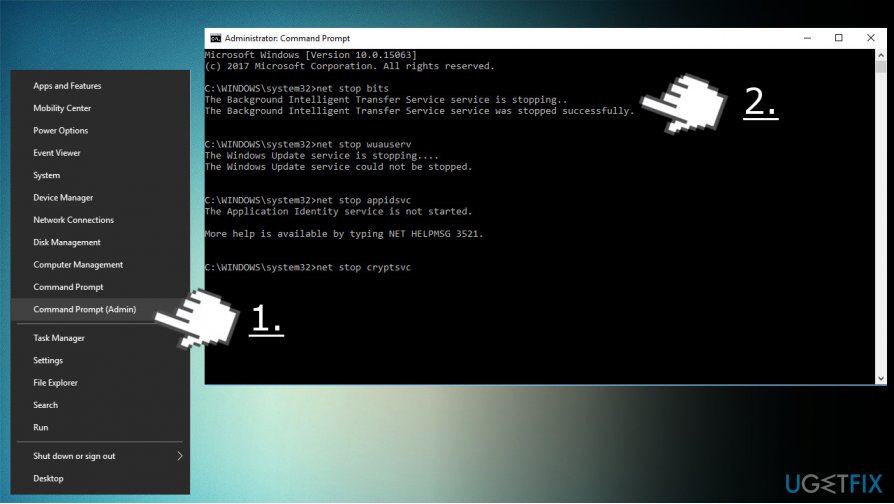
- Right-click on Windows key and select Command Prompt (Admin).
- If a UAC shows up, click OK to proceed.
- By typing the following commands you will stop BITS, Windows Update, Cryptographic, MSI Installer services. Don't forget to press Enter after each of them:
net stop bits
net stop wuauserv
net stop appidsvc
net stop cryptsvc
- Then type Del %ALLUSERSPROFILE%\\Application Data\\Microsoft\\Network\\Downloader\\qmgr*.dat command to delete qmgr*.dat files.
- Once done, copy and paste cd /d %windir%\\system32 command and press Enter to execute the command.
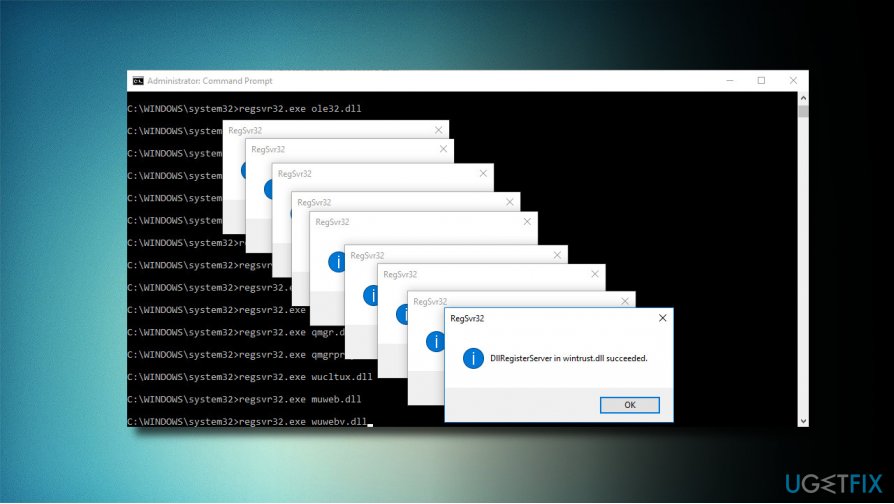
- To re-register BITS and Windows Update files, you will have to type all the commands (followed by Enter) provided below:
regsvr32.exe atl.dll
regsvr32.exe urlmon.dll
regsvr32.exe mshtml.dll
regsvr32.exe shdocvw.dll
regsvr32.exe browseui.dll
regsvr32.exe jscript.dll
regsvr32.exe vbscript.dll
regsvr32.exe scrrun.dll
regsvr32.exe msxml.dll
regsvr32.exe msxml3.dll
regsvr32.exe msxml6.dll
regsvr32.exe actxprxy.dll
regsvr32.exe softpub.dll
regsvr32.exe wintrust.dll
regsvr32.exe dssenh.dll
regsvr32.exe rsaenh.dll
regsvr32.exe gpkcsp.dll
regsvr32.exe sccbase.dll
regsvr32.exe slbcsp.dll
regsvr32.exe cryptdlg.dll
regsvr32.exe oleaut32.dll
regsvr32.exe ole32.dll
regsvr32.exe shell32.dll
regsvr32.exe initpki.dll
regsvr32.exe wuapi.dll
regsvr32.exe wuaueng.dll
regsvr32.exe wuaueng1.dll
regsvr32.exe wucltui.dll
regsvr32.exe wups.dll
regsvr32.exe wups2.dll
regsvr32.exe wuweb.dll
regsvr32.exe qmgr.dll
regsvr32.exe qmgrprxy.dll
regsvr32.exe wucltux.dll
regsvr32.exe muweb.dll
regsvr32.exe wuwebv.dll
- To reset Winsock, type netsh winsock reset and netsh winhttp reset proxy commands. Press Enter after each of them as usually.
- Finally, restart BITS, Windows Update, Cryptographic, MSI Installer services by entering the following commands each followed by Eter:
net start bits
net start wuauserv
net start appidsvc
net start cryptsvc
Method 2. Download .Net Framework installer
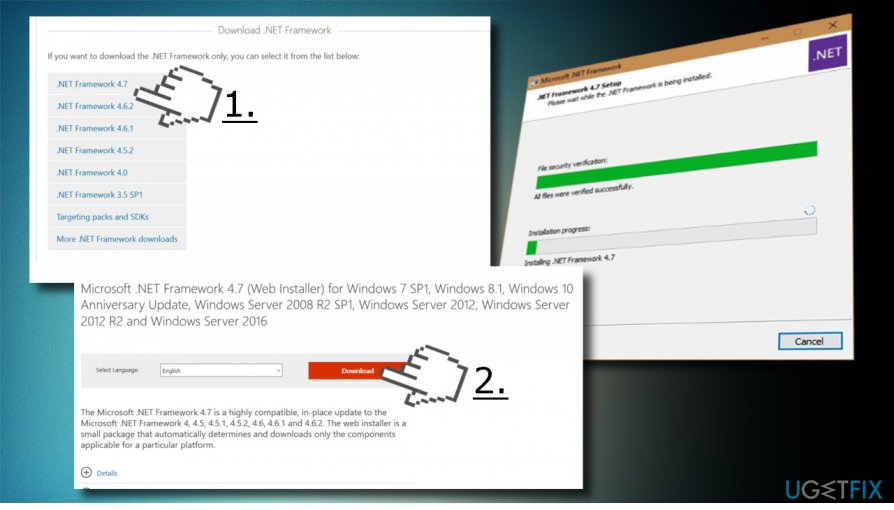
- Navigate to this website.
- Find the version compatible with your Windows version and download it.
- Run the setup file and confirm the installation. Don’t worry if the process lasts up to 10 minutes.
- Once installed, try to install needed Windows Updates.
Method 3. Use Bootable Windows 10 Installation Media (USB/DVD)
If you don’t have a bootable USB or DVD drive with Windows 10 setup, please follow the instructions given on this page to create one. Once you are ready, insert the DVD or USB media and follow these steps:
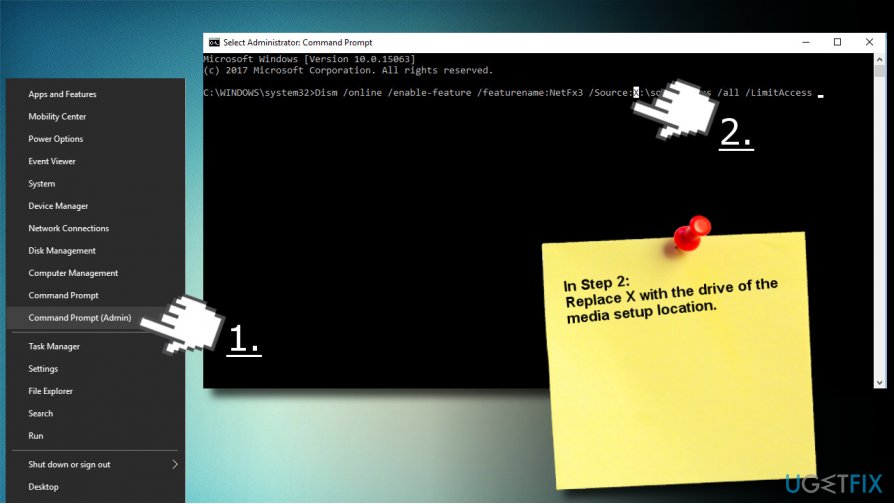
- Right-click on Windows key and select Command Prompt (Admin).
- Copy the Dism /online /enable-feature /featurename:NetFx3 /Source:X:\\sources\\sxs /all /LimitAccess command. NOTE: replace the X letter with the letter of the drive of the installation media setup location.
- Paste it in the command line and press Enter.
Bottom line
To fix the Windows 10 Update Error 0x800736B3, you can restart Windows Update components, re-register essential DLL files, and reset Winsock and proxy settings. If these methods do not resolve the issue, consider rebooting your PC, checking for malware, or using a professional optimization utility.
Frequently asked questions
The error 0x800736B3 typically indicates that a file required for the update process is either missing or corrupted in Windows 10 or Windows 11.
You can try running the Windows Update Troubleshooter and performing a system file check using the command 'sfc /scannow' in the Command Prompt to resolve error 0x800736B3.
Yes, manually resetting Windows Update components is a safe method and can effectively fix error 0x800736B3 on both Windows 10 and Windows 11.




Report an issue
What's wrong with this guide? We review every report and update or remove content.
Report received — thank you. We'll review and fix it.
You need a free account to submit a report.
Be the first to comment