How to fix
Windows 10 update error 0x800f081e
on Windows
Resolve the Windows 10 update error 0x800f081e quickly with our expert solutions. Get your system running smoothly again—fixed in minutes!

What causes How to fix Windows 10 update error 0x800f081e?
- Windows Update bug
- Media Player causing update problems
- Issues with Media Creation Tool
- System problems hindering installation
- Failed installation during SAFE_OS phase
Repairs Windows system files, removes malware, and restores a clean OS state — without reinstalling.
Hello all. I'm struggling with Windows 10 sping creators update install. The processes keep failing with an error 0x800f081e. Could someone please help me to sort out this problem? Thanks in advance!
Windows 10 April 2018 Update[ref en-1] is rolling out for more than a month. However, no one can try the latest features that Microsoft is offering due to the update installation problems. One of the errors that are reported by Windows 10 users frequently for the last three weeks is 0x800f081e.[ref en-2]
Our team has submitted research on it and can assure that it's a new Windows Update bug, which hasn't been approved by Microsoft and cannot be found in Windows error database.[ref en-3]
Just like most of the update errors, it emerges on the screen when the PC's owner attempts to install the update. In this particular case, people cannot install Windows 10 v1803, a.k.a. Windows 10 April 2018 Update. The process gets stuck at some point (approximately 16%) and a message saying "Restoring to the previous version" occurs. The others encounter the following alert:
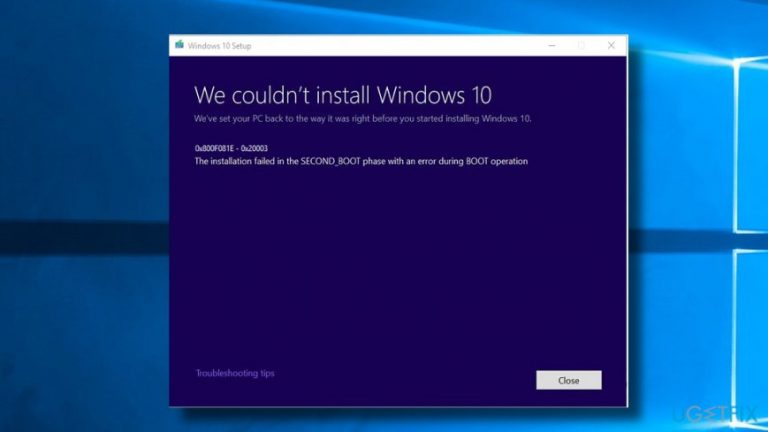
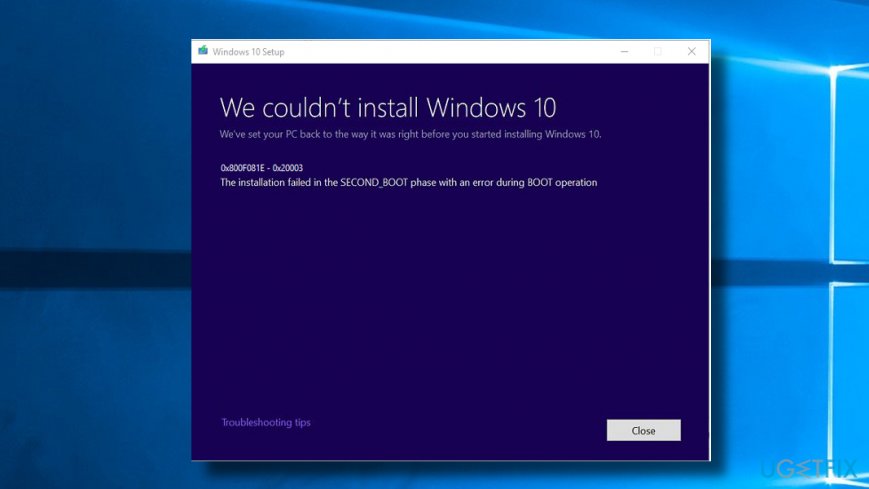
We couldn't install Windows 10
We've set your PC back to the way it was right before you started installing Windows 10.
0x800f081e - 0x20003
The installation failed in the SAFE_OS phase with an error during INSTALL_UPDATES operation
Initially, we thought that the 0x800f081e error strikes people when they try to download the update via Windows Update feature, which performs the entire update process automatically. However, closer analysis shows that the same bug check may occur when updating with the Media Creation Tool.[ref en-4]
Since it's not clear what system's problems hinder Windows 10 v1803 installation, we will provide the fixes that worked for most of the users who encountered it. If you have attempted to download the update using automatic Windows Update service only, try to fix the 0x800f081e error by creating an ISO file and launching it.
Uninstall Media Player
Many Windows 10 users reported a Media Player to be the culprit of continuous update problems. Therefore, try to fix 0x800f081e Windows 10 April 2018 update error this way:
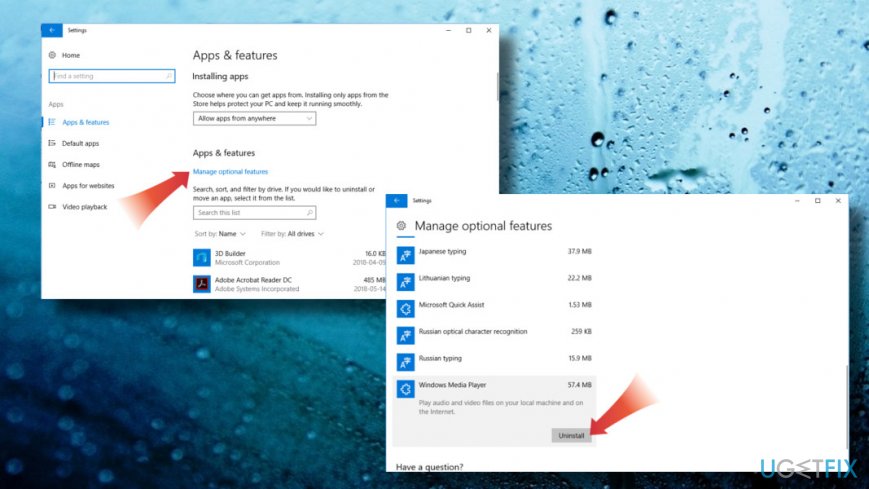
- Press Windows key + I to open Settings.
- Heed to Apps & Features and open Manage optional features section.
- Locate Media Feature Pack or WFP, click on it, and select Uninstall.
- Then go back to Settings page and open Update & Security section.
- Click Check for Updates button and try to install the latest Windows 10 build.
If that did not help, we recommend you to restart your PC, disable anti-virus software temporarily, and try to install the update using the Media Creation Tool (a guide below). If you eventually installed the update, don't forget to reinstall Media Feature Pack. For this purpose, you should:
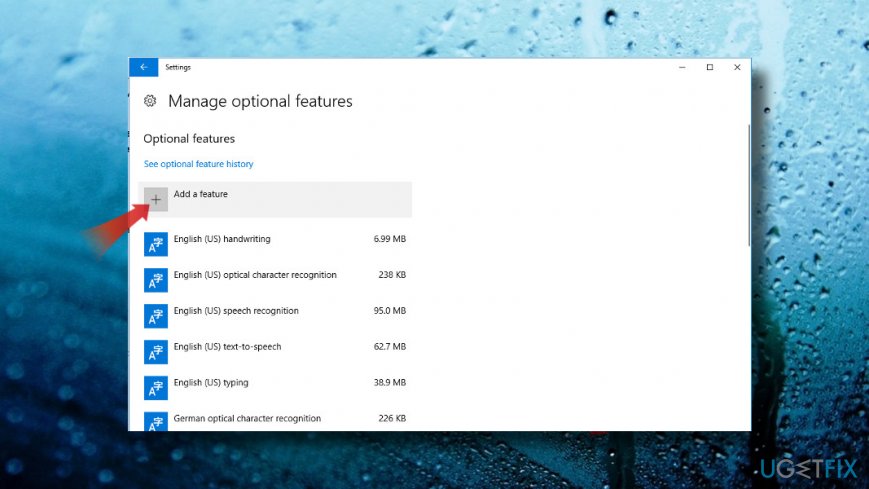
- Open Settings -> Apps & Features -> Manage optional features.
- Find Windows Media Player, click on it, and select Add Feature.
- Then find Windows Media Player on the list of apps and install it.
Delete the update cache manually
- Right-click on Windows key and select Command Prompt (Admin).
- Alternatively you can open Search and type Command Prompt.
- Right-click on the entry and select Run as Administrator.
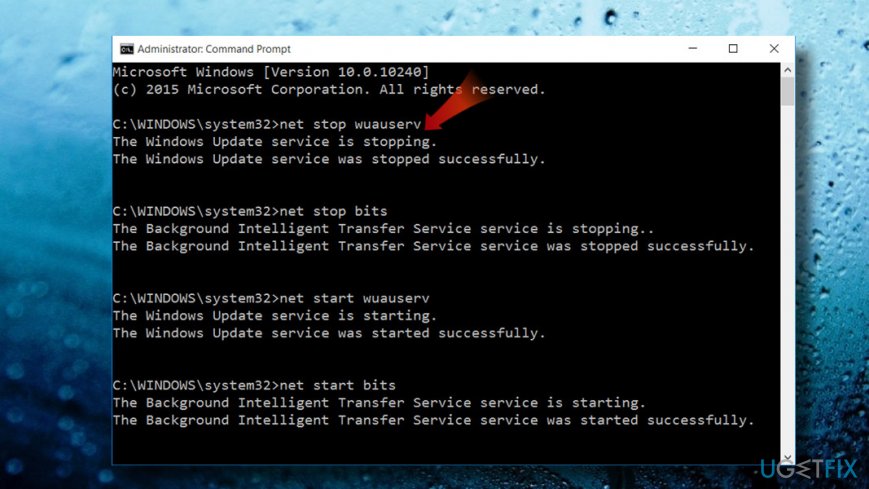
- Now type the following command and press Enter after each:
net stop wuauserv
net stop bits
- Now press Windows key + R to open Run.
- Find the C:\\Windows\\SoftwareDistribution path in File Explorer and open it.
- Select all its content, right click on it, and select Remove or merely click Delete button on the keyboard.
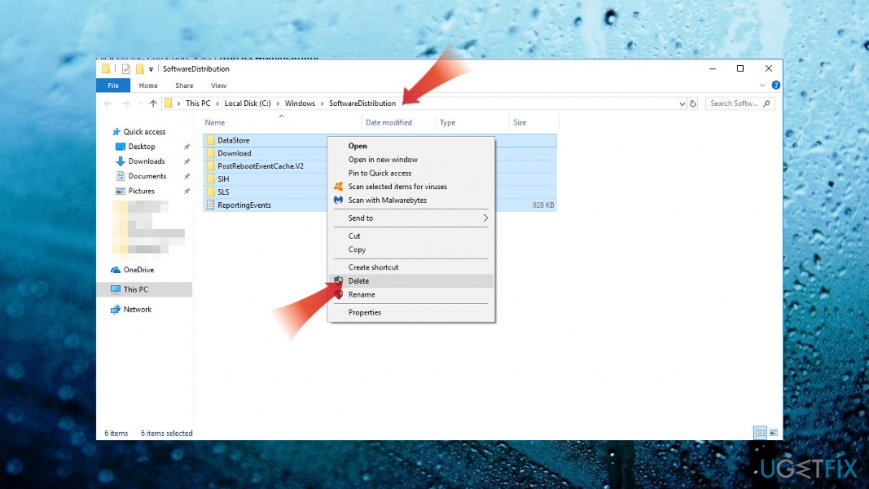
- After that, open Command Prompt window as explained above and enter the following commands. Make sure to click Enter after each:
net start wuauserv
net start bits
Note: if you are not allowed to remove the entire content of the SoftwareDistribution folder, try to restart your PC and repeat the procedure mentioned above.
Install the update using Media Creation Tool
If you cannot install Window 10 April 2018 Update, navigate to the official Microsoft's website and click the Install Tool Now button. Then launch the tool and select Update This PC Now.
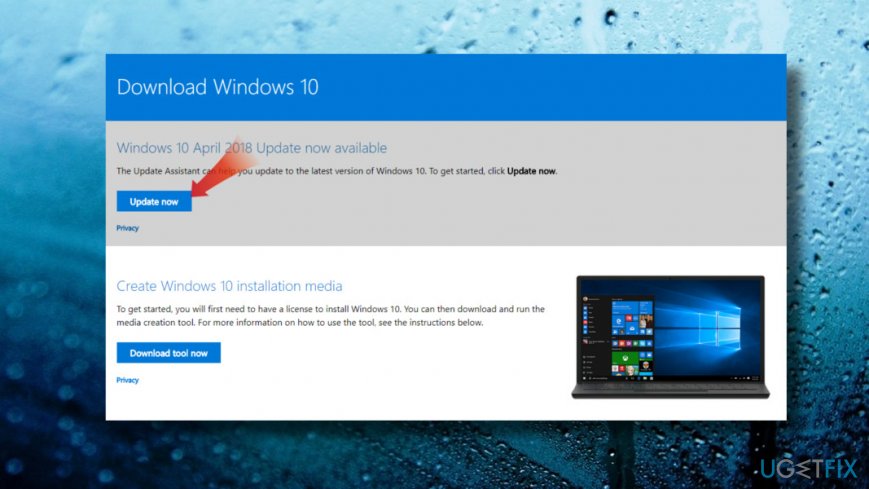
If that doesn't work either, try running Windows 10 Update Assistant. You can find it here.
Bottom line
To fix the 0x800f081e error, users can try creating an ISO file and launching it, or uninstalling Media Player. If these solutions do not resolve the issue, further troubleshooting may be necessary.
Frequently asked questions
The error code 0x800f081e indicates that Windows 10 is unable to find the necessary files to complete the update process. This usually happens when the update components are corrupted or missing.
To troubleshoot the 0x800f081e error on Windows 11, you can run the Windows Update Troubleshooter and use the DISM tool to restore the health of your system. This may help repair any corrupted system files that are causing the update failure.
Yes, you can manually fix the 0x800f081e error in Windows 10 by downloading the missing update files directly from the Microsoft Update Catalog and installing them. Additionally, resetting the Windows Update components can also resolve this issue.




Report an issue
What's wrong with this guide? We review every report and update or remove content.
Report received — thank you. We'll review and fix it.
You need a free account to submit a report.
Be the first to comment