How to fix
Windows 10 Update Error 0xc1900107
on Windows
Resolve Windows 10 Update Error 0xc1900107 quickly with our expert-tested solutions. Get your system running smoothly again in no time! Fixed in minutes.


What causes How to fix Windows 10 Update Error 0xc1900107?
- Conflicting security programs
- Computer does not meet minimum requirements
- Previous operating system files present
- Insufficient hard drive space
- Network connection issues
Repairs Windows system files, removes malware, and restores a clean OS state — without reinstalling.
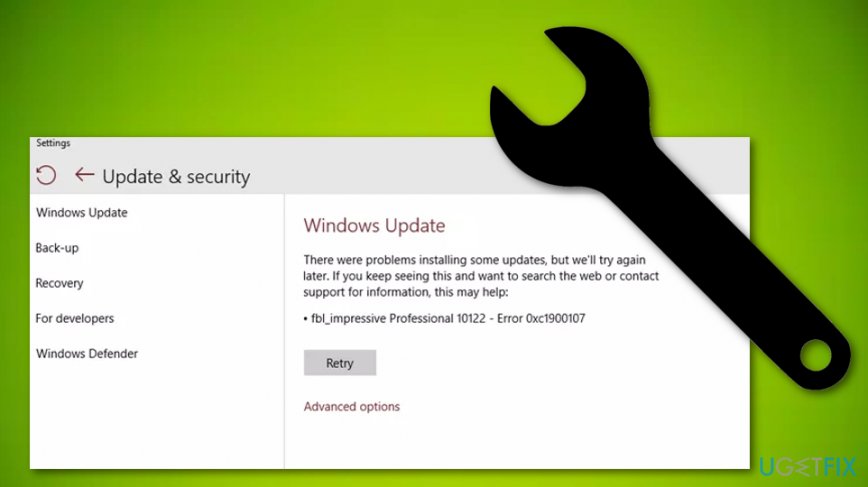
When Windows 10 attempts to run the update, the process fails to start due to the error -- 0xc1900107. I tried to update it manually but to no avail. It‘s getting bothersome already.
Windows 10 Update Error 0xc1900107 is a recurring problem common for Windows 10 Anniversary upgrade.[ref en-1] Though this problem was first encountered last year, there is still quite a number of users who face this issue. It is necessary to note that the error is not caused by any malware.[ref en-3] It may be triggered due to several conflicting security programs.
Another reason for such an occurrence might be that your computer does not reach the minimum requirements. Indeed, Windows 10 Anniversary Update Error 0xc1900107 might cause frustration but its solution is much easier than expected. So let us begin with the common method which helped the majority solve this unpleasant issue.
How to fix Windows 10 Update Error 0xc1900107?
It would be useful to troubleshoot any possible problems with a reputable software, e.g. [rev id=”Reimage”], if the offered solution does not work. After the folder is deleted or renamed, run the update again. It should complete without any disturbances.
Lastly, if you encounter 0xC1420127 error, you need to enlarge the free space of your hard drive. In the case of Windows Update error 0x80070490, run Windows Update Troubleshooter. Proof-check the Internet connection and the performance of your network adapters.
Solution No 1. Remove $WINDOWS.~BT folder.
This solution includes deleting the aforementioned folder. Do not hesitate to eliminate it thinking that it may cause registry failure. As a matter of fact, the folder contains the files related to your previous operating system. In short, whenows 7[ref en-2] to Windows 10, the system itself created temporary files to perform a successful update.
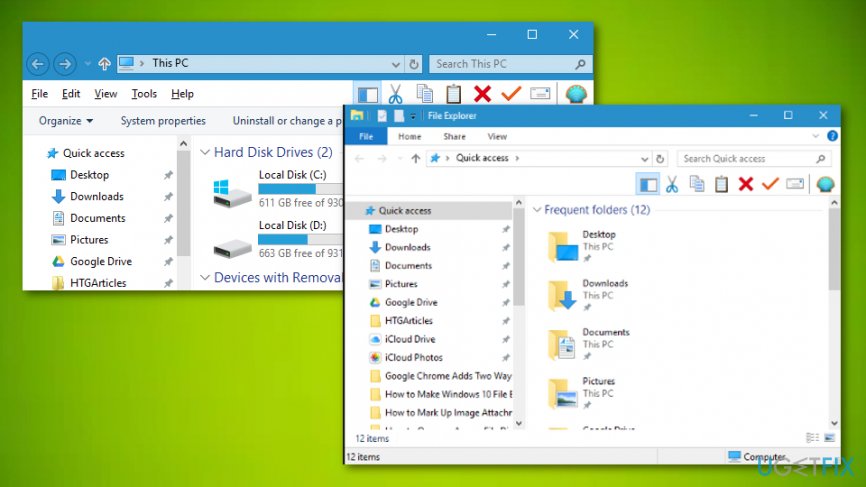
In case, the message pops up declaring that the folder cannot be eliminated, just give it an alternative name, for example, “Windows 10 update error 0xc1900107.” However, this folder may not be visible. To access it, you need to perform the following steps.
- Press Start and simply type Folder Options.
- Once File Ex/li>
- Once File Explorer Options folder opens, enter View section.
- There, check Show hidden files, folders, and drivers box.
- Exit this window and enter File Explorer.
- Choose Local Disk C and find $WINDOWS.~BT folder. Delete or rename it.
Solution
Solution No 2. Reset Windows Update objects via Command Prompt
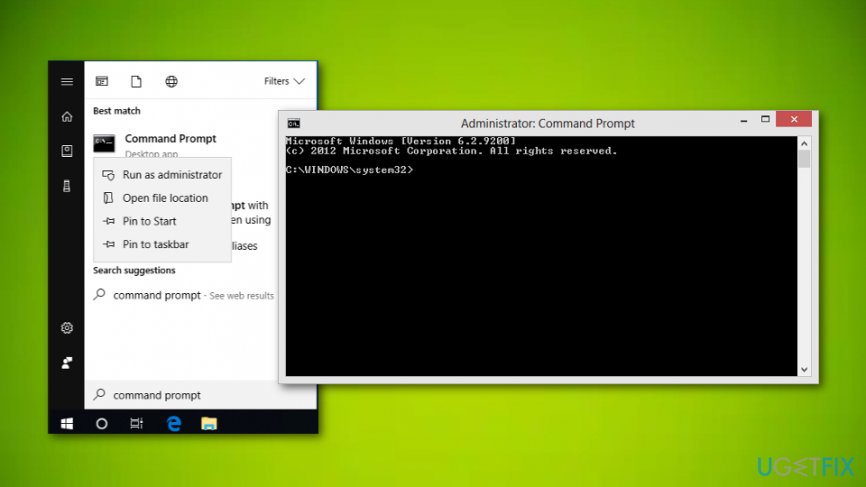
- Go to the Windows Start menu.
- Type "cmd" in the search zone.
- Enter Command Prompt and select to Run as Administrator.
- Once the black window appears, write the following commands by hitting Enter after each one: net stop bits, net stop wuauserv, net stop appidsvc, net stop cryptsvc, ren %systemroot%\\SoftwareDistribution SoftwareDistribution.bak, ren %systemroot%\\system32\\catroot2 catroot2.bak, net start bits, net stop wuauserv, net stop appidsvc.
- Close the window and reboot.
If you have completed all of the above-given actions and they still did not help you to get rid of Windows 10 update error 0xc1900107, you can try to solve the problem by completing the below-provided solutions.
Solution No 3. Run an SFC scan with cmd
If you have been running into the Windows 10 update error 0xc1900107 problem lately, you can check your system files for possible corruption as this might also be the case why you are seeing the error code frequently. In order to complete all actions correctly, continue by following the guidelines below:
- Go to your Windows Search section.
- Locate Command Prompt and make sure that it has Administrative privileges.
Solution - Type "sfc /scannow" in the cmd window.
- Press Enter on your keyboard.
- Wait until the scan is finished and reboot the system.
Solution No 4. Run the troubleshooting item
- Go to Windows Search.
- Find Troubleshooting.
- Choose the View all option.
- Locate Windows Update troubleshooter.
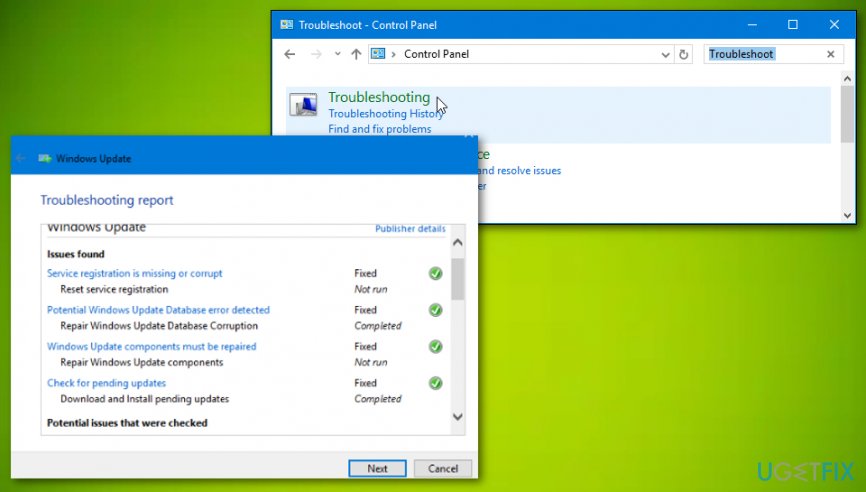
Solution 4 - Follow the commands.
We hope that these solutions have helped you to fix Windows 10 update error 0xc1900107 on your Windows computer. If you have tried all of these techniques and the problem still remains in the system, you should go back to using reputable anti-malware and performing a full system scan to identify if there is any malicious cause for the error to appear.
Bottom line
To fix Windows 10 Update Error 0xc1900107, you can remove the $WINDOWS.~BT folder, check your hard drive space, and troubleshoot your network connection. If these solutions do not resolve the issue, consider using reputable software to troubleshoot further.
Frequently asked questions
The error 0xc1900107 typically indicates that there is not enough space on your device to download and install the latest updates for Windows 10 or Windows 11.
You can free up space by deleting unnecessary files, uninstalling unused applications, or using the Windows Disk Cleanup tool to remove temporary files.
Yes, you can manually download the Windows 10 or Windows 11 update from the Microsoft Update Catalog website and install it to bypass the error.




Report an issue
What's wrong with this guide? We review every report and update or remove content.
Report received — thank you. We'll review and fix it.
You need a free account to submit a report.
Be the first to comment