How to fix
Windows 10 Update Error 0xc1900209
on Windows
Resolve Windows 10 Update Error 0xc1900209 quickly with our expert-tested solutions. Get back on track with detailed guidance and proven methods. Fixed …

What causes How to Fix Windows 10 Update Error 0xc1900209?
- Wrong apps
- Improper installation of certain programs
- Registry issues
- Virus
- Incompatible apps
Repairs Windows system files, removes malware, and restores a clean OS state — without reinstalling.
Windows 10 Update giving error code 0xc1900209. What can I do to get rid of this bug?
Windows 10 Update Errors are by far the most common subject of discussions on the IT forums. We have already described quite a lot Windows 10 update bugs and helped lots of people, but it seems that the list of Update Errors is longer than expected. This time, people have reported about Error Code 0xc1900209. It seems that there are quite a lot of users who are facing this issue, so we will try to help them all.
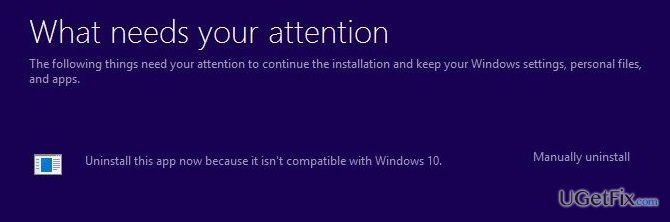
Error 0xc1900209 always appears when trying to install Windows 10 using Media Creation Tool. Users download ISO file and run it as Administrator successfully. After that, they receive the following sequence of messages during the Windows 10 installation setup:
What needs your attention.
The following things need your attention to continue the installation and keep your windows setting, personal files and apps.
Uninstall this app now because it isn't compatible with windows 10.
After receiving these messages, users cannot proceed with the Windows 10 upgrade/installation, which is why they try to close Media Creation Tool. Unfortunately, but they cannot do that because this tool throws an error code 0xc1900209 and then freezes. Is this situation familiar to you? If it is, we will try to help you by providing a step-by-step tutorial that explains how to resolve 0xc1900209 error.
By the way, it’s not clear yet what factors trigger this issue. However, it is assumed that 0xc1900209 error may be caused by wrong apps, improper installation of certain programs, registry issues, virus and similar issues. Most of the OS inconsistencies that we have just mentioned can be detected and fixed automatically by a professional optimization tool. Therefore, the first thing that you should do is to run a complete Windows scan with [d1]. In case this program did not help to fix 0xc1900209 error, the you have to do the following:
Uninstall the apps that are incompatible with your OS:
As we have already noted, one of the possible 0xc1900107 error causes is incompatible apps that you have recently installed. Try to remember what the last application was that you installed before receiving 0xc1900107 error. If you can’t remember what apps you have installed lately, open Control Panel, and click Add/Remove Programs under Programs. Now you should see the list of programs that are running on your device. Go through the list and check when each of them was installed. Try to uninstall them one by one and check if 0xc1900209 error is gone. If you are not willing to experiment, you can try another solution.
Sign in to Hidden Windows Administrator Account
- Go to Start, type Msconfig in the search bar, and click Enter.
- At the bottom of the window, uncheck the option Load Startup Items.
- Click OK to save the changes and then Restart your PC.
- Once your PC is booted right-click on the Start button and select Command Prompt (Admin).
- When the black Command Prompt window opens, type net user administrator /active:yes command and hit Enter.
- After that, type net user administrator (Password xxx), hit Enter, and close Command Prompt.
NOTE: instead of (Password xxx) you have to type the password that you prefer using for hidden Administrator’s account sign in. - Once you set it, log out of your user account and sign in to Administrator account.
- If you successfully connected to this account, try to run the update now.
Bottom line
To resolve the 0xc1900209 error, users should first run a complete Windows scan with a professional optimization tool. If the issue persists, they need to uninstall incompatible apps. If none of these solutions work, further troubleshooting may be necessary.
Frequently asked questions
The error 0xc1900209 typically indicates that there is a compatibility issue with an installed application or driver that prevents Windows 10 from updating properly.
To fix the 0xc1900209 error on Windows 11, uninstall any incompatible software or drivers, and then attempt the update again.
Yes, certain security software or third-party applications, such as VPN clients, can cause the 0xc1900209 error on Windows 10 and Windows 11 during updates.




Report an issue
What's wrong with this guide? We review every report and update or remove content.
Report received — thank you. We'll review and fix it.
You need a free account to submit a report.
Be the first to comment