How to fix
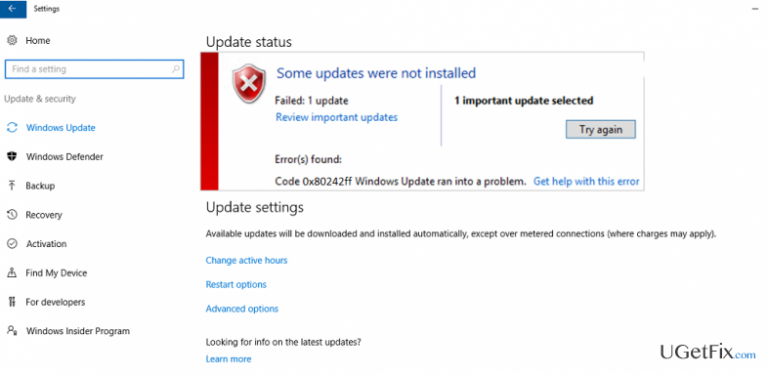
Windows 10 Update Error Code: 0x80242ff
on Windows
Resolve Windows 10 Update Error Code: 0x80242ff quickly and effectively with our expert-tested solutions, ensuring a smooth update experience. Fixed in …

What causes How to Fix Windows 10 Update Error Code: 0x80242ff?
- Malware infections
- Incomplete download of preceding updates
- Damaged files
- Damaged registry entries
- Recent upgrade from older Windows versions
Repairs Windows system files, removes malware, and restores a clean OS state — without reinstalling.
Windows 10 Update service end up with a failure each time I try to run KB4010672 update. In fact, none of the pending updates, including Flash Player, Microsoft Edge, and Windows Defender, are installed. Windows Update service throws an error code: 0x80242ff all the time. How should I fix that?
Microsoft releases updates for Windows 10 on a regular basis. Cumulative updates show up approximately once a week and there are loads of software and driver updates emerging separately. The installation of available updates is a must to maintain a proper PC’s performance, prevent security loopholes and stick to the latest Windows 10 innovations. However, Windows Update is a complicated service, which frequently crashes or fails to work properly. The list of issues related to Windows updates consists of a near-hundred of errors. Each day we come up with a new Windows Update service issue, so this time we are going to describe Error Code 0x80242ff.
In general, its specificities are analogous to the other Windows Update bugs that we have already described in our blog. Usually, it harasses those Windows 10 users who have recently upgraded from older Windows versions. Nevertheless, according to other victims, it gets clear that 0x80242ff error may also show up for people who are using Windows 10 for a long time. The problem might have been fostered by malware, incomplete download of preceding updates, damaged files/registry entries and so on. Since the exact trigger hasn’t been detected, to concentrate one solution method is not enough. In this post, we will provide four 0x80242ff error fixes that turn out to be the most effective.
Method 1. Run a system scan with a powerful anti-malware
No need to expand in terms of the consequences that virus or malware infections may lead to. Therefore, if you start encountering any error on Windows 10, including the failure of Windows Update service, it’s highly advisable to run a complete system scan with a professional anti-malware. Ugetfix team recommends using [d1] due to the fact that it combines system’s optimization, virus/malware removal, prevention of infections, and system errors.
Method 2. Restart Windows Update service
- Click Win key + R, type services.msc, and click Enter.
- Locate Windows Defender service.
- If the status of Windows Defender is not indicated (the column is blank), right-click on it, and select Start.
- It might be that force start of Windows Defender ends up with an error. In this case, find the option Startup Type, and set it to Automatic.
- Finally, restart the system and try to run the update.
Method 3. Run DISM and sfc / scannow tools
- Click Win key + X and select Command Prompt (Admin).
- Type sfc /scannow command and press Enter.
- Then type the following commands and hit Enter after each of them:
DISM.exe /Online /Cleanup-image /Scanhealth
DISM.exe /Online /Cleanup-image /Restorehealth - Close Command Prompt and reboot the system.
Method 4. Check the status of Windows Firewall
It often comes out that the Windows Update errors, including 0x80242ff bug, are triggered by Windows Firewall clash with the third-party anti-virus. If you are using one (Norton, Avast, Avira, etc.), try to disable it temporarily and perform the following steps:
- Click Win key + R, type Firewall.cpl, and press OK.
- Select Turn Windows Firewall On or Off option.
- Go to Private network Settings and select Turn off Windows firewall (not recommended).
- Once done, navigate to the Public network Settings and select Turn off Windows firewall (not recommended).
- Click OK to save the changes.
Once done, navigate to the Windows Update and check if the service works fine. If it’s not, then our last recommendation would be to try using a System Restore Point. This last solution would work if the update service has been working properly and crashed as if out of nowhere. A System Restore should fix Windows Update Error 0x80242ff completely.
Bottom line
To fix the 0x80242ff error, you can run a system scan with a powerful anti-malware tool, among other methods. If these fixes do not resolve the issue, further troubleshooting may be necessary.
Frequently asked questions
The error code 0x80242ff indicates a problem with the Windows Update service, often due to corrupted files or connectivity issues. This can prevent your Windows 10 system from downloading and installing updates.
To resolve the 0x80242ff error on Windows 11, you can try running the Windows Update Troubleshooter and resetting the Windows Update components. This often helps to fix the underlying issues preventing updates.
Yes, you can use commands like 'sfc /scannow' and 'DISM /Online /Cleanup-Image /RestoreHealth' in the Command Prompt to repair corrupted system files that might be causing the 0x80242ff error in Windows 10.




Report an issue
What's wrong with this guide? We review every report and update or remove content.
Report received — thank you. We'll review and fix it.
You need a free account to submit a report.
Be the first to comment