How to fix
Windows 10 Update Error Code 0x80248014
on Windows
Resolve Windows 10 Update Error Code 0x80248014 quickly and easily with our expert-tested solutions. Get back to seamless computing in no time!


What causes How to fix Windows 10 Update Error Code 0x80248014?
- Corrupted Windows Update service
- Faulty system files
- Antivirus software interference
- Update data clashes
- Malware presence
Repairs Windows system files, removes malware, and restores a clean OS state — without reinstalling.
Hello, I have an issue with Windows. When I try to upgrade my Windows 10, I receive an error code: 0x80248014. I’ve tried to run the upgrade many times, but each time ends up with the same bug. Could you please specify what does this error mean and what is the problem in my upgrade?
Windows Update Error 0x80248014 (originally 0x8024001D) is yet another Windows 10 update error, which occurs when trying to upgrade the system using Windows Update feature.[ref en-1] Windows Update works fine until the user hits the button Check for Updates.
Immediately after a short scan, the process ends up with an error code 0x80248014, which prevents updates from being downloaded and installed. In addition to Windows Updates, this bug check may also occur on Windows Store while trying to install purchased apps or when trying to upgrade Microsoft Security Essentials.
The culprit of the 0x80248014 bug may be related to the corrupted Windows Update service, faulty system files, antivirus software and the update data clashes, and so on. In fact, each instance is different and may be triggered by different provocative. Nevertheless, we will try to list several 0x80248014 error fixes that have been approved by many Windows 10 users to be working.
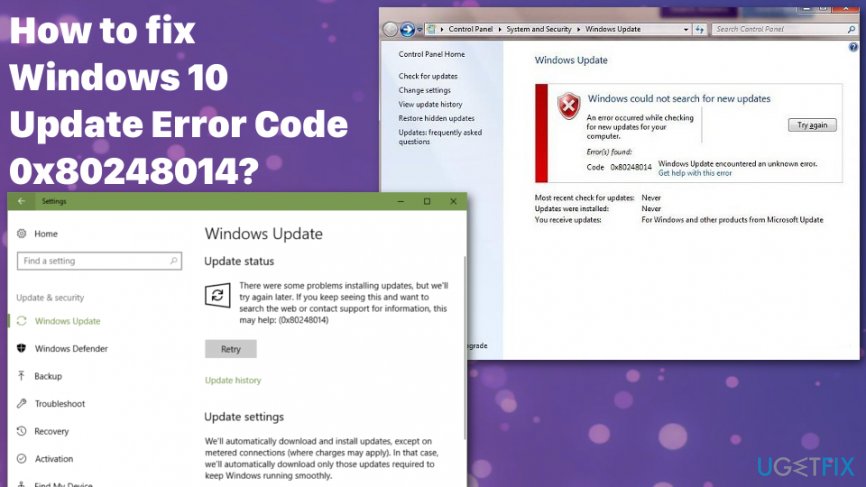
Since more recent Windows 10 updates had bugs, Microsoft had to take measures to fix them immediately.[ref en-2] When the issue with the computer comes because of the operating system update, you have a solution - wait for the more recent and bug-free update. If you have already tried other options, try updating the system yet again with the newer version. You can also try our suggestions below in the meantime.
How to Fix Windows 10 Upgrade Error 0x80248014?
To start with, it’s advisable to install [d1] and run a full system scan with it. This will ensure that the system is virus-free and that all its files and registries are correct. Malware gets more and more advanced, so its existence may affect significant parts of the system.[ref en-3]
Run an SFC scan to fix error code 0x80248014
It’s advisable to run sfc /scannow in case there are some corrupted system files.
For this purpose:
- Click Win key + R;
- Type regedit;
- Press Enter.
- After that, type sfc / scannow command and hit Enter to execute it.
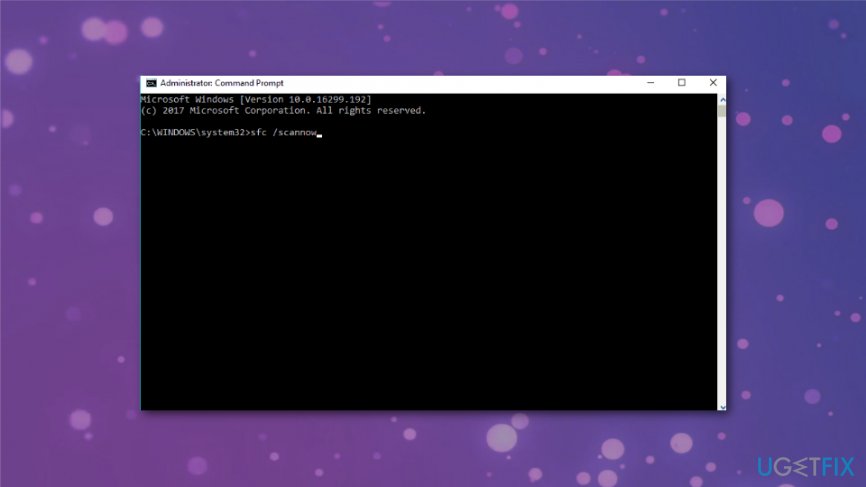
How to fix windows 10 update error code 0x80248014 sfc scan
Rename temporary folder SoftwareDistribution
- Right-click on Win key and select Command Prompt (Admin).
- Type net stop WuAuServ command in the run dialogue box and press Enter.
- Once done, click Win key, type %windir%, and click on the search results.
- Locate SoftwareDistribution folder and rename it to SDold.
- After that, right-click on Win key and select Command Prompt (Admin).
- Type net start WuAuServ command and press Enter.
Restart Windows Update services
- Click Win key + R, type services.msc, and click Enter.
- Locate Windows Defender service.
- If Windows Defender is disabled (the column is blank), then right-click on it, and select Start.
- In case Windows Defender startup throws another error, find an option Startup type and set it to Automatic.
- Finally, restart the system and try to run the update.
Manually reset Windows Update components
- Click Win key + X and select Command Prompt (Admin).
- Disable BITS, Cryptographic, MSI Installer, and the Windows Update Services. For that, type the following commands in the Command Prompt window and press Enter after each of them:
net stop wuauserv
net stop cryptSvc
net stop bits
net stop msiserver - After that, type the following commands to rename SoftwareDistribution and Catroot2 folders. Don’t forget to type Enter after each of them:
ren C:\\Windows\\SoftwareDistribution SoftwareDistribution.old
ren C:\\Windows\\System32\\catroot2 Catroot2.old - After that, enable BITS, Cryptographic, MSI Installer and the Windows Update Services (disabled before). This can be done by inputting the following command and pressing Enter after each of them:
net start wuauserv
net start cryptSvc
net start bits
net start msiserver - Finally, close Command Prompt window and reboot your PC.
Run a troubleshoot to find the reason for error code 0x80248014
- Go to Settings.
- Choose Updates & Security.
- Then Troubleshoot.
- Click Windows Update and Run the troubleshooter.
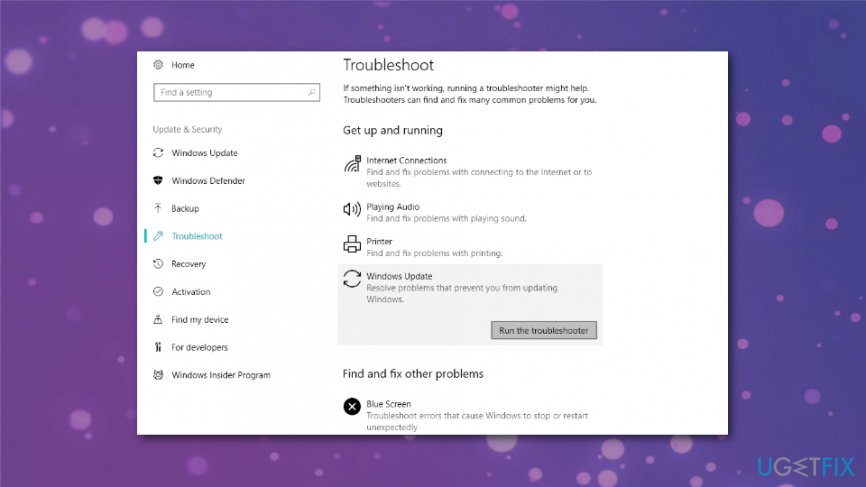
How to fix windows 10 update error code 0x80248014 update troubleshoot - Follow instructions on the window further.
Bottom line
To fix the Windows 10 Update Error Code 0x80248014, you can run a full system scan to ensure your system is virus-free, and perform an SFC scan using the command 'sfc /scannow'. If these solutions do not resolve the issue, consider waiting for a more recent and bug-free update from Microsoft.
Frequently asked questions
The error code 0x80248014 typically indicates a problem with the Windows Update service, often due to corrupted files or issues with the update components in Windows 10 or Windows 11.
You can reset the Windows Update components by running a series of commands in the Command Prompt, such as stopping the Windows Update service, deleting temporary update files, and then restarting the service.
Yes, you can use the Windows Update Troubleshooter, which is built into Windows 10 and Windows 11, to automatically detect and fix issues related to Windows Update, including error 0x80248014.




Report an issue
What's wrong with this guide? We review every report and update or remove content.
Report received — thank you. We'll review and fix it.
You need a free account to submit a report.
Be the first to comment