How to fix
Windows 10 Upgrade Error Code 0x8007000D-0x90002
on Windows
Resolve the Windows 10 upgrade error code 0x8007000D-0x90002 quickly and effectively with our expert-tested solutions. Fixed in minutes!


What causes How to Fix Windows 10 Upgrade Error Code 0x8007000D-0x90002?
- File crucial for Windows upgrade process is damaged
- File crucial for Windows upgrade process is missing
- Issues with the Media Creation Tool
- Corrupted system files
- Incompatibility with the device
- Problems during the ISO download process
Repairs Windows system files, removes malware, and restores a clean OS state — without reinstalling.
I tried to use the Media Creation Tool for upgrading Windows 8 to Windows 10. However, when I ran the tool, selected the language and other settings, the verification processed ended up with an error code 0x8007000D-0x90002.
Am I doing something wrong? Is there a fix for this problem? Thanks in advance!
While initially the upgrade process of older Windows versions to Windows 10 seems to be an easy task, for many it may become a tough nut to crack. The success of upgrading depends on many factors, for example, the age of the device, compatibility, system’s requirements, and the upgrade technique.[ref en-1]
The best tool for updating, fixing, and upgrading older versions to Windows 10 is the Media Creation tool. The tool can be launched directly on the current system or installed into the USB or DVD drive and ran it onto another device. Creating or running a Media Creation Tool is not a difficult task, but, unfortunately, that doesn’t determine the success of the upgrade process.
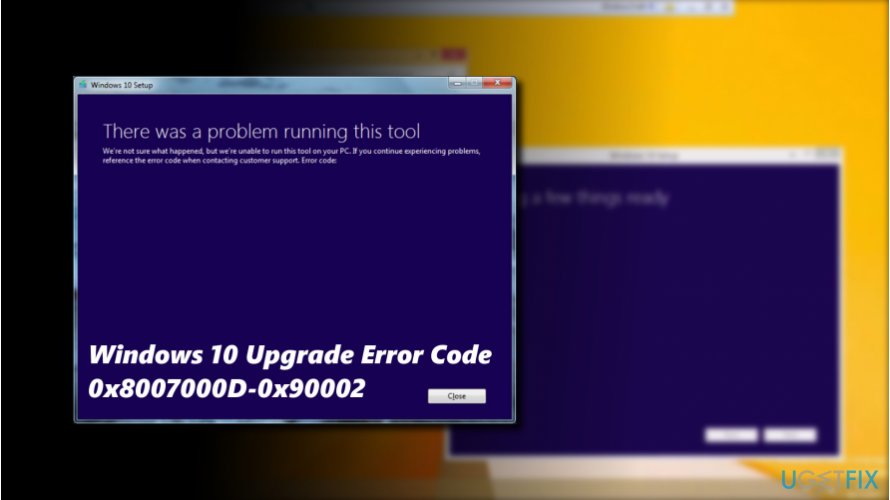
The upgrade process to Windows 10 using Media Creation Tool fails for many computer owners. One of the commonly encountered Windows 10 upgrade errors is 0x8007000D-0x90002.
The error usually pops-up at the end of the ISO[ref en-2] download process, while verifying the download or during the setup process. The culprit of the 0x8007000D-0x90002 error may vary from device to device, but usually it indicates the fact that that the file, which is crucial for Windows upgrade process is damaged or missing.
If you are using a bootable Windows 10 installation media, you should re-download the Media Creation Tool on another device and try to re-run it.
In case you cannot upgrade to Windows 10 when running the Windows 10 ISO file directly, but the process fails with an error code 0x8007000D-0x90002, try the following methods:
Method 1. Repair Corrupted System Files
To perform this option you can either run an optimization utility, such as [d1], or run System File Checker and Dism utilities:
- Right-click on Windows key and select Command Prompt (Admin).
- Copy and paste the following commands into Command Prompt environment (on at a time). Press Enter after each:
sfc /scannow
dism.exe /online /cleanup-image /scanhealth
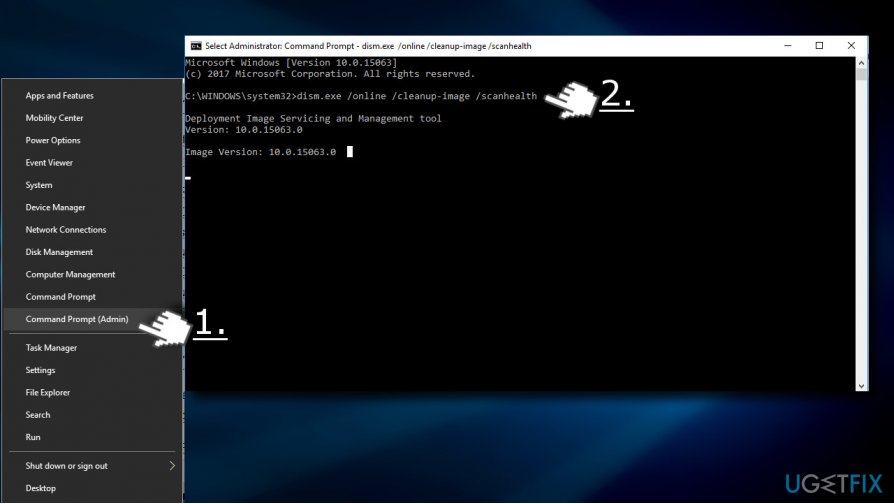
- Once you get the message “The operation completed successfully,” type the following command and press Enter:
dism.exe /online /cleanup-image /restorehealth - Finally, close Command Prompt and reboot your PC.
Method 2. Clean the Download Folder
If you are trying to upgrade Windows for the second or third time, the Download folder may contain a mix up of the upgrade files. Therefore, try to fix 0x8007000D-0x90002 error by removing the content the Download folder.
- Press Windows key + R to open Run.
- Copy and paste the %SystemRoot%\\SoftwareDistribution\\Download path into the run dialogue and press OK.
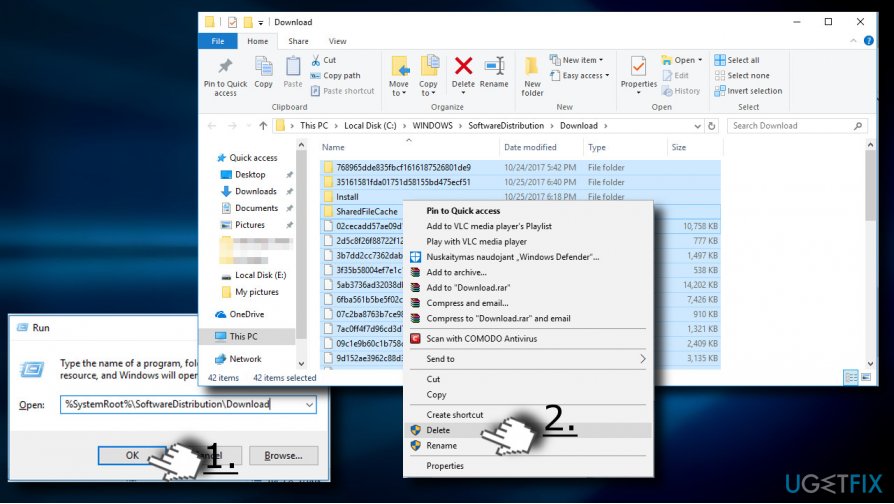
- Remove all content, including files and sub-folders.
- The reboot is no required, so please try to run Windows 10 upgrade file again.
Method 3. Empty the Microsoft’s temp folder
- Press Windows key + R to open Run.
- Copy and paste the C:\\$Windows.~BT and click OK. If C: drive is not the root drive of your OS, change the driver letter to the appropriate one.
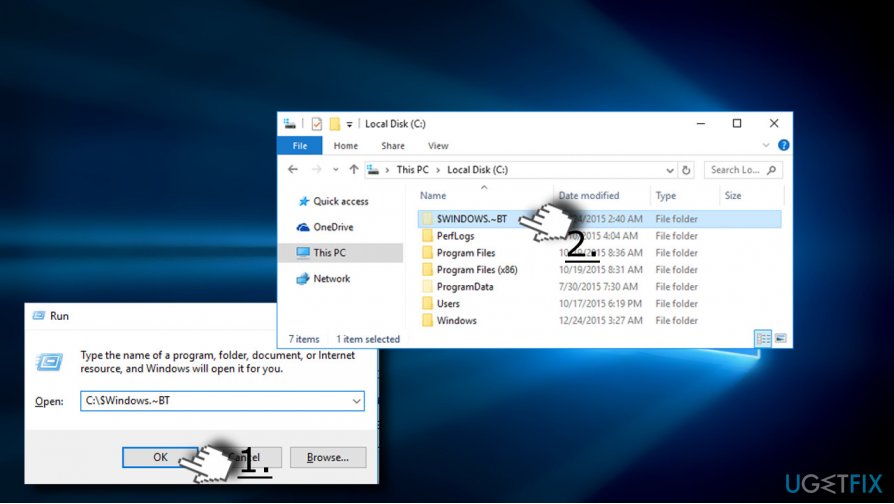
- Remove all content of the C:\\%Windows.~BT folder and try to run the Media Creation Tool.
Method 4. Change Your Language Settings
- Open Control Panel and select Language.
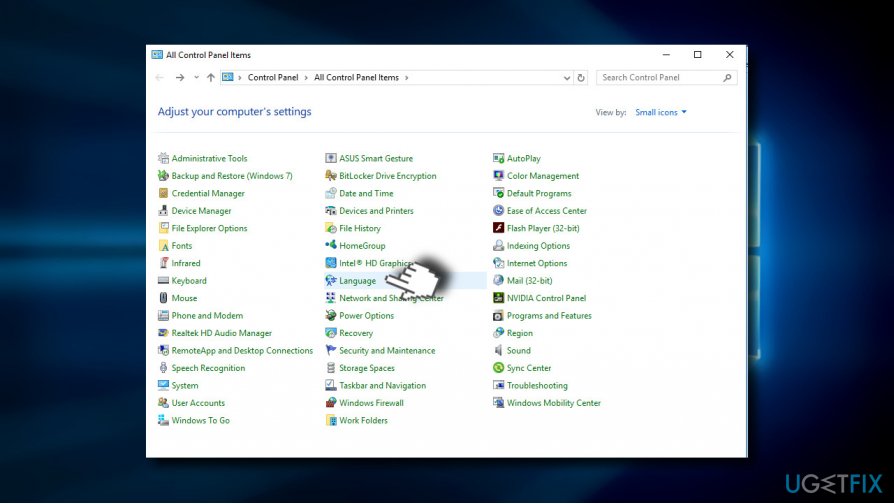
- The language should be set correctly with the keyboard layout. If the settings are incorrect, for example, the language is set to UK, but corresponding keyboard layout is US, make sure to unify them.
- Besides, to run the Media Creation Tool successfully, make sure to set it to the language of your operating system. If such language is not included into the list of languages, add it manually.
- Press Add button and select Add language.
- Do the same with the keyboard layout and select from the list of languages.
- Save the changes and close Control Panel.
Method 5. Modify Registry Entries
- Press Windows key + R, type regedit and hit Enter.
- Click File at the top of the window and select Export.
- Select the location on the left pane.
- Type the name of the backup in the File Name field and click Export.
- When the backup is ready, navigate to the DDHKEY_LOCAL_MACHINE\\SOFTWARE\\Microsoft\\Windows\\Current Version\\WindowsUpdate\\OSUpgrade key using the left pane.
- Right-click on the empty space and select New -> DWORD.
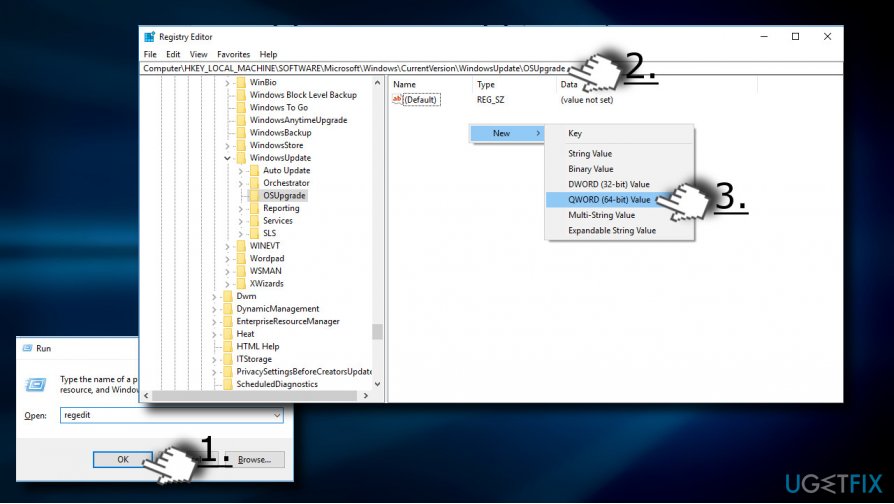
- Name it AllowOSUpgrade and set its value to 1.
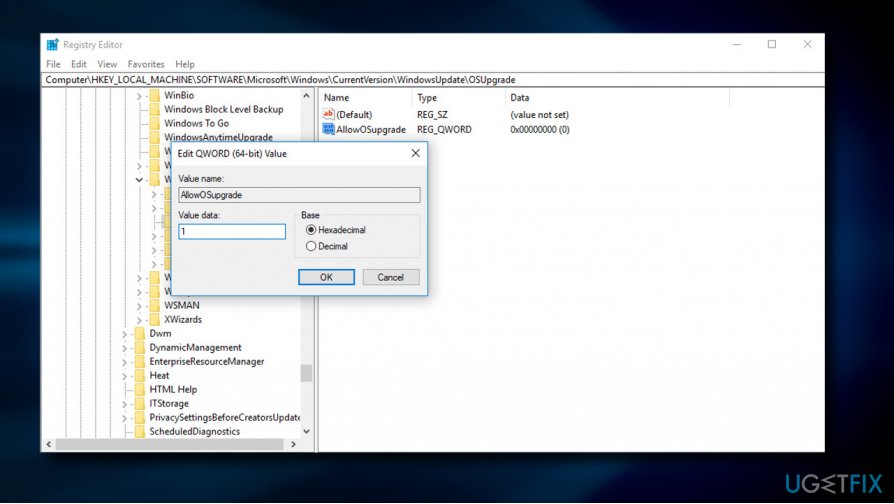
- Close Registry Editor and restart the PC.
If none of the methods provided above, think about an option to perform a Clean Windows[ref en-3] install. However, before doing so, backup all important data because it will be wiped out.
Bottom line
To fix the error code 0x8007000D-0x90002, you can repair corrupted system files using the System File Checker and Dism utilities, or re-download the Media Creation Tool on another device. If these methods do not resolve the issue, consider checking for device compatibility or seeking further technical support.
Frequently asked questions
This error code typically indicates that there is a problem with the installation files or the system files are corrupted, preventing the upgrade from completing successfully.
To fix this error, try running the Windows Update Troubleshooter and ensure that your system files are intact using the System File Checker tool by running 'sfc /scannow' in Command Prompt.
Yes, you can attempt to repair the installation using the Windows 10 Media Creation Tool, which can help to replace missing or corrupted files without a full reinstall.




Report an issue
What's wrong with this guide? We review every report and update or remove content.
Report received — thank you. We'll review and fix it.
You need a free account to submit a report.
Be the first to comment