How to fix
Windows 10 Upgrade Error Code 0x80070015
on Windows
Resolve Windows 10 upgrade error code 0x80070015 effortlessly. Follow our expert-tested solutions to get your system running smoothly again, fixed in mi…


What causes How to Fix Windows 10 Upgrade Error Code 0x80070015?
- Misconfigured system files
- Incompletely installed/uninstalled applications
- Antivirus interference
- Registry issues
- Expired Windows 10 upgrade offer
Repairs Windows system files, removes malware, and restores a clean OS state — without reinstalling.
I’m trying to install Windows 10 Anniversary Update, but instead of an upgrade I continuously receive a pop-up message saying “Make sure all files required for installation are available and restart the installation. Error Code: 0x80070015.” Please help!
0x80070015 error can be encountered when either upgrading the system to Windows 10, when trying to install Windows updates or when trying to download applications from Microsoft Store (formerly Windows Store). In this article, we will discuss all three cases, and provide solutions to fix 0x80070015 error.
How to fix 0x80070015 error when upgrading Windows?
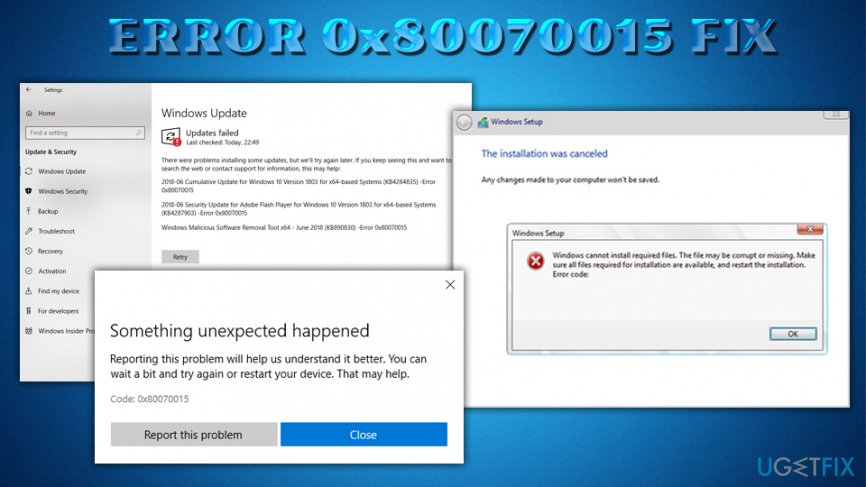
0x80070015 error code belongs to the list of Windows 10 Update errors. While several people reported that this error code showed up when installing Windows 10 from scratch or when running Windows 7 updates, the vast majority of the 0x80070015 error code pop-up instances has been registered when running a free Windows 10 or Windows 10 Anniversary updates. The message typically says:
Windows cannot install required files. Make sure all files required for installation are available and restart the installation. Error Code: 0x80070015
If this bug emerges once, you may try to run the update as many times as you want, but that will give no effect unless you fix the inconsistencies that trigger the bug. At the time of writing, Microsoft hasn’t provided an apparent reason why this may happen. Nevertheless, experts speculate that Windows 10 Update Error Code 0x80070015 may be related to misconfigured system files, incompletely installed/uninstalled applications, antivirus, registry issues, and similar.
Besides, an expired period of Windows 10 Anniversary Update offer may also be the cause. Down below, we will provide several of the fixes that may be useful for in 0x80070015 error code removal.
Before you start performing 0x80070015 error fixes, you should check whether the free Windows 10 upgrade offer is still valid. People were able to run Windows 10 upgrade until 29th of July, 2016. Therefore, if you are running Windows 7, 8 or any other version and try to upgrade to Windows 10 just now, most probably 0x80070015 error appears because your free upgrade offer has expired. If that’s not the case, then you should try one of the following fixes.
Fix 1. Disable antivirus
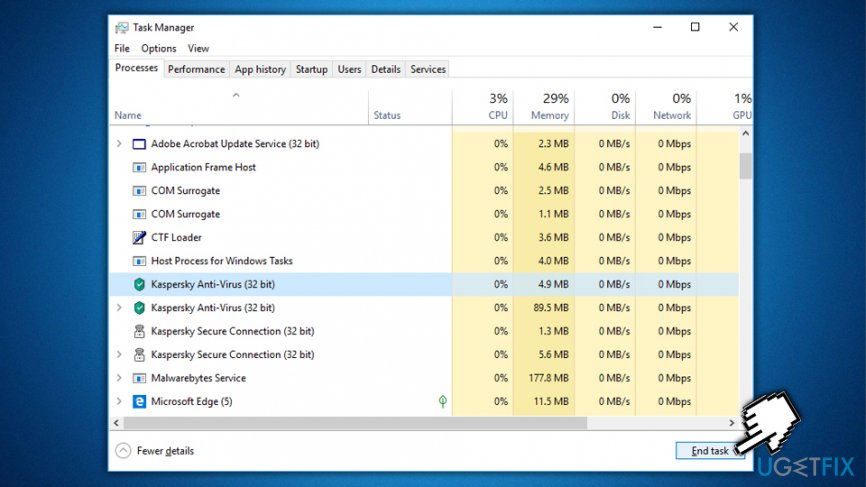
Very often antivirus software files conflict with the system files, which is why disabling your anti-virus is worth trying in the first place. Thus, right click on the icon of your antivirus, which should be placed on the taskbar and select Disable from the drop-down menu. To check if it has successfully been stopped, access Task Manager (click Ctrl + Alt + Delete simultaneously) and check if your antivirus has gone from the running processes' list. After that, try to run Windows 10 Update. If it shows 0x80070015 error, go to the next fix.
Fix 2. Run available system updates
It might be that you haven't installed needed Windows drivers[ref en-1] or crucial software, which is why the system faces some missing updates while upgrading to Windows 10 and cannot proceed for this reason. Thus, check if any updates are pending:
- Click on Start menu and type Windows Update
- Select Windows Update or Check for Updates
- Now wait for the system to complete system scan for missing updates
- If you receive the list of updates that are recommended running, click Run the Update and let the system install them automatically
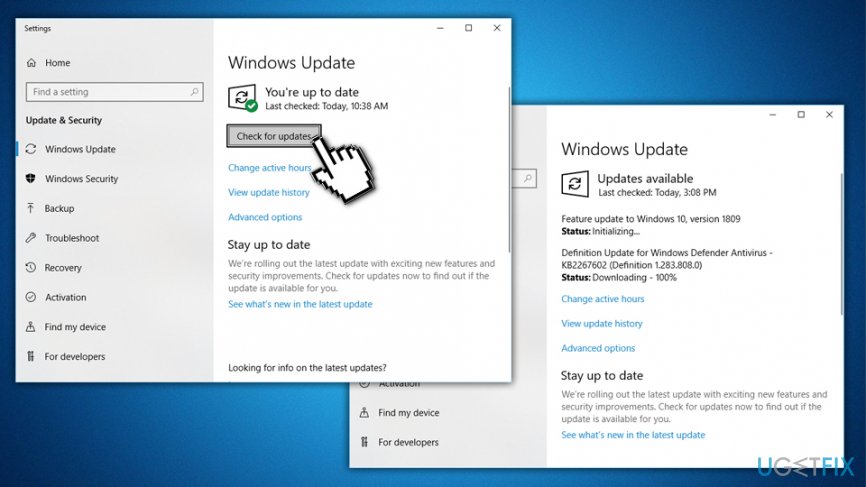
0x80070015 error update windows
Fix 3. Clean up the system
To ensure that all things are in their places, run a scan with a professional optimization tool. By doing this, you'll provide clean registries,[ref en-2] no duplicate files, no malware, and similar inconsistencies that may be preventing Windows 10 update from running smoothly. We recommend installing [d1], but if you prefer another PC optimization tool, you can always follow your preference.
Fix 4. Download Media Creation Tool
If none of the above fixes appeared to be useful, then the last chance for you to fix 0x80070015 error is to download and run Media Creation Tool. For this purpose, you have to do the following:
- Navigate to the official Microsoft's website and search for the Media Creation Tool there
- Once you detect it, click on Download Tool option to start downloading ISO file
- When the file is downloaded, right-click on it and select Run as Administrator
- On the first window, click Accept to proceed with the installation
- After that, select Upgrade this PC now and click Next
- If you are upgrading for the first time, you will have to enter the Product License Key
- After that, click Change in order to set what data you want to keep (Keep personal files and apps, Keep personal files only, or Nothing)
- Finally, select Install and let the upgrade run
How to Fix 0x80070015 Error Code when using Microsoft Store?
0x80070015 error can also appear when using the Microsoft store. The error message appears every time users are trying to download or update apps in Microsoft store. The error message reads the following:
Something unexpected happened
Reporting this problem will help us understand it better. You can wait a bit and try again or restart your device. That may help.
Code: 0x80070015
To fix 0x80070015 error when using Microsoft Store, follow steps below.
Fix 1. Uninstall PowerISO or end the related processes
Users reported virtual drive program PowerISO[ref en-3] was causing a 0x80070015 error. Thus, you can either uninstall it or close down the processes related to it via the Task Manager:
- Press Ctrl + Shift + Esc to open Task Manager
- Click on More details
- Locate PowerISO processes that are running, click on them, and press End Task in the bottom-right corner
Fix 2. Run Windows Store Troubleshooter
Troubleshooter is a great tool that can identify problems within certain area of Windows functionality. Thus, if you are having problems with the store, perform the following:
- Right-click on the Start button and select Settings
- Go to Update & Security and click on Troubleshoot
- Scroll down to locate Windows Store Apps and then select Run the Troubleshooter
- Run the on-screen instructions
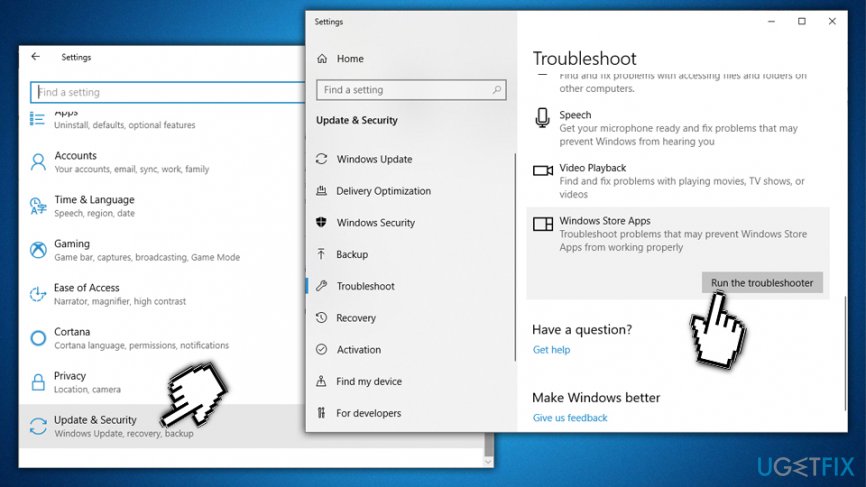
0x80070015 error run windows store apps troubleshooter
Fix 3. Clear Windows store cache
Multiple users reported that clearing Windows Store cache[ref en-4] helped them fix 0x80070015 store-related error:
- Type in wsreset into the search bar and hit Enter
- You will see an empty black window, simply wait and do nothing
- Once the reset will be complete, the store will be re-opened for you
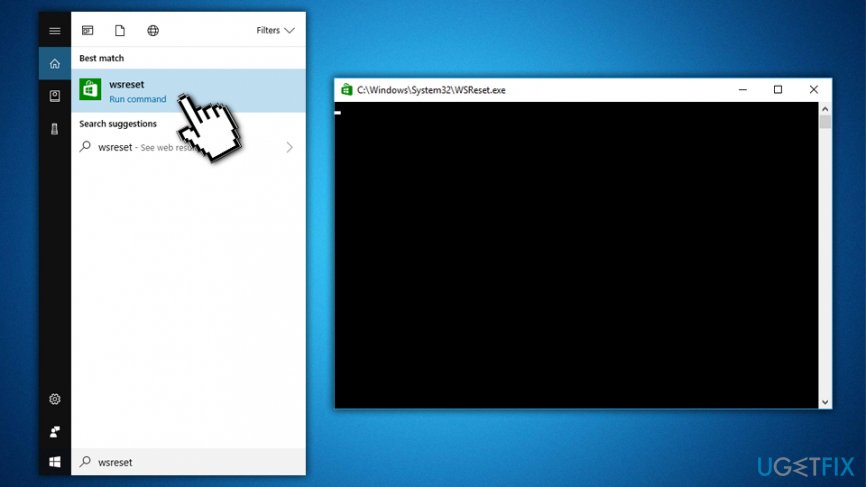
0x80070015 error run ws reset reset store
How to fix 0x80070015 error when downloading Windows updates?
Finally, we found some complaints that users receive the 0x80070015 error when trying to update Windows itself. Here is the solution to the problem:
- Type cmd into the search box
- From the search results, right-click on Command Prompt and pick Run as administrator
- Type in net localgroup Administrators /add networkservice and hit Enter
- Next type in net localgroup Administrators /add localservice and press Enter again
- Finally, type Exit and hit Enter one more time
- Reboot your PC
- Type in services.msc into the search box and press Enter
- Locate Diagnostic Policy Service and make sure the task is Running
- If not, right-click on the service and select Properties
- Under Startup type, select Automatic and click OK
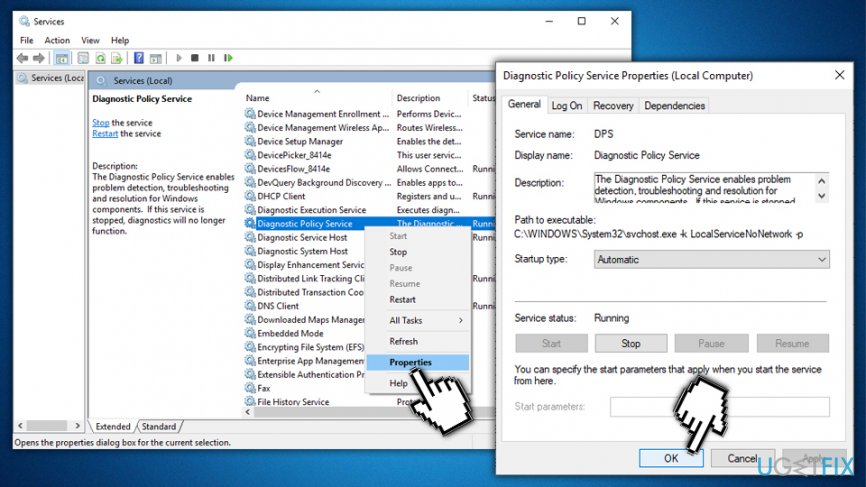
0x80070015 error launch diagnostic policy service
Bottom line
To fix the 0x80070015 error, you can check the validity of the free Windows 10 upgrade offer, ensure all required files are available, and address any potential issues with system files or applications. If these solutions do not resolve the issue, consider seeking further technical support.
Frequently asked questions
The error code 0x80070015 typically indicates a device is not ready, often due to issues with connected hardware or storage devices. This can happen when attempting to upgrade to Windows 10 if the system cannot access necessary files.
To fix the error, disconnect any unnecessary external devices and run the Windows Update Troubleshooter. Additionally, ensure your system is fully updated and check for any disk errors using the built-in Check Disk tool.
Yes, the 0x80070015 error can also occur when upgrading to Windows 11, as it involves similar system checks and hardware readiness. Following the same troubleshooting steps can help resolve the issue.




Report an issue
What's wrong with this guide? We review every report and update or remove content.
Report received — thank you. We'll review and fix it.
You need a free account to submit a report.
Be the first to comment