How to fix
Windows 10 Upgrade Error Code 0x80070070
on Windows
Resolving Windows 10 upgrade error code 0x80070070 is simple. Follow our expert-tested solutions for a smooth upgrade experience, fixed in minutes!

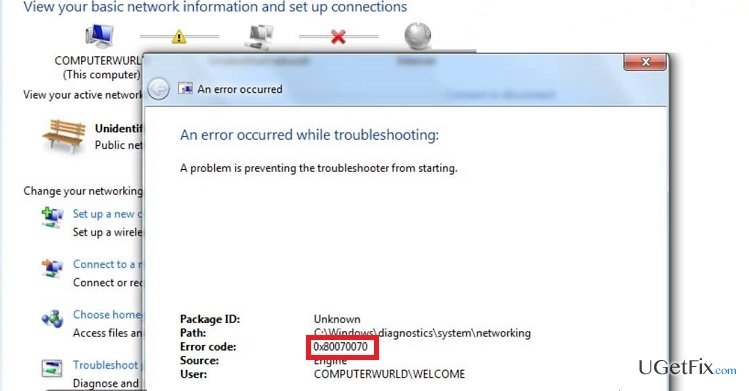
What causes How to Fix Windows 10 Upgrade Error Code 0x80070070?
- Insufficient storage on hard drive
- Virus infection
- Audio/video driver corruption
- Clogged registry
Repairs Windows system files, removes malware, and restores a clean OS state — without reinstalling.
I want to install Windows 10 Anniversary Update, but it fails all the time by showing 0x80070070 error. It claims that my hard drive is full. I’ve checked that and was surprised that there are more that 300gb of free space on it. Could you please explain what’s the matter?
No need to say that Windows 10 is extremely prone to system errors. Luckily, Microsoft is continuously working on improving the system and has presented tens of patches to help irritated users fight against BSOD and misconfig errors. On top of that, an huge Anniversary Update has been released, which was supposed to reduce the amount of errors occurring, as well as to add some extra features that were awaited by thousands of Windows system fans. Unfortunately, but the update brought new errors alongside one of which is 0x80070070 – 0x50011 error, which can be shown under the codes 0x80070070 – 0x50012 or 0x80070070 – 0x60000 as well. This particular error prevents Windows 10 Anniversary Update from installing completely. It is noted that 0x80070070 error may be caused by insufficient storage on a hard drive, virus infection, audio/video driver corruption or clogged registry. In this post, we will present you with several methods that should help you to fix 0x80070070 – 0x50011 error while updating Windows 10.
How to Fix Windows 10 Upgrade Error 0x80070070 – 0x50011?
We will start introducing 0x80070070 – 0x50011 error fixes from the simplest ones and going to the more intricate ones furthermore.
Solution 1. Free up your hard disk
To start with, navigate to This PC, right click on your hard disk, and check how much free space it has. If it’s on the shortage of the free space, you will have to free it up in order to run Windows 10 Anniversary Update. For this purpose, go to Start menu and type Disk Cleanup. Click on this selection and let the system to free up hard drive automatically. After that, check for applications that you are not using and remove them via Control Panel. Besides, if you have loads of personal files, like photos, documents, videos, etc., use cloud storage as an alternative.
Solution 2. Run a full system scan with a professional anti-malware
In some of the cases, Windows 10 update error 0x80070070 has been triggered by virus or malware. Therefore, run a full system scan with a reliable antivirus and remove all infections if it detects any.
Solution 3. Optimize your OS
As we have already pointed out, clogged registry may also be the cause of 0x80070070 error code. Therefore, check for junk, cookies, corrupted registries, startup problems, and similar issues that prevent your system from working smoothly. For that, install a reliable PC optimization tool, such as [d1] or [rev id=”RegCure Pro”].
Solution 4. Run Windows Update Troubleshooter
Windows Update Troubleshooter is a function, which is used for detection and automatic fix of the operating system. Although this function does not guarantee a hundred percent system fix, there is a high probability that this Troubleshooter remove 0x80070070 error causes. For that, you have to navigate to the Microsoft’s official website and download Windows Update Troubleshooter right there.
Solution 5. Reset Windows Update Components
In case some of the Windows Update Components went corrupt, resetting them manually would help to get rid of 0x80070070 error. Therefore, if the above listed methods did not help, you should try to perform the following steps:
- Right-click on the Win key and select Command Prompt (Admin).
- Once a run dialogue opens, type the following commands to it and hit Enter after each of them:
net stop wuauserv
net stop cryptSvc
net stop bits
net stop msiserver - After that, you have to rename SoftwareDistribution and Catroot2 folders. For this purpose, type the following commands in the Command Prompt window and hit Enter after each of them:
ren C:\Windows\SoftwareDistribution SoftwareDistribution.old
ren C:\Windows\System32\catroot2 Catroot2.old - Finally, you have to launch services that you have turned off by typing the above given commands. Thus, type the following commands in the run dialogue and hit Enter after each of them:
net start wuauserv
net start cryptSvc
net start bits
net start msiserver - Now you can close Command Prompt window and reboot your PC.
Hopefully, these methods helped you to fix 0x80070070 error and now you can successfully run Windows 10 Anniversary update.
Bottom line
To fix the 0x80070070 error, you can start by freeing up hard disk space using Disk Cleanup and removing unused applications. Additionally, consider checking for virus infections and addressing any driver or registry issues. If these solutions do not resolve the problem, further troubleshooting may be necessary.
Frequently asked questions
Error code 0x80070070 indicates that there is not enough disk space available on your system drive to complete the Windows 10 upgrade. You may need to free up space or extend your partition.
You can free up space by using the Disk Cleanup tool, uninstalling unnecessary applications, or moving files to an external drive. Additionally, consider deleting temporary files and old Windows installations.
Yes, if your PC encounters insufficient disk space during the upgrade process to Windows 11, you may also see the error code 0x80070070. Ensure that you have at least 64 GB of available storage before attempting the upgrade.




Report an issue
What's wrong with this guide? We review every report and update or remove content.
Report received — thank you. We'll review and fix it.
You need a free account to submit a report.
Be the first to comment