How to fix
Windows 11 beeping, lagging and stuttering
on Windows
Resolve beeping, lagging, and stuttering issues on Windows 11 effortlessly. Get expert-tested solutions to enhance your PC's performance today. Fixed in…

What causes How to fix Windows 11 beeping, lagging and stuttering?
- Software conflict
- Recent program or update installation
- Operating system issues
- Faulty hardware
- Failing memory or hard drive
Repairs Windows system files, removes malware, and restores a clean OS state — without reinstalling.
Hello. I have a Windows 11 PC and I experience an issue constantly that causes my computer to beep, lag and stutter. Restarting the computer gets rid of the problem for a few hours but then it reappears. What should I do?
If a user's Windows 11 computer is beeping and stuttering, it could be caused by a variety of different issues. Some common causes of this problem include hardware problems, software conflicts, and issues with the operating system itself.
A possible cause of beeping and stuttering in Windows 11 is a software conflict. If the user has recently installed a new program or update, it could be interfering with the operating system or other programs, causing performance issues and strange noises. In this case, users can try uninstalling the program or update to see if that fixes the problem.
If the beeping and stuttering persists, it could be caused by an issue with the operating system itself. In this case, users can try restarting their computer or running a virus scan. Some users report that they managed to fix the Windows 11 beeping, lagging and stuttering by disabling the wallpaper slideshow or automatic accent colors.
In this guide, you will find 7 steps that should help you fix Windows 11 beeping, lagging and stuttering. However, the manual troubleshooting process can be lengthy. You can use a maintenance tool like [d1] that can fix most system errors, BSODs,[ref en-1] corrupted files, registry[ref en-2] issues, or clear cookies and cache[ref en-3] automatically.
In case none of the possible solutions fix the issue, you should look into the possibility that it is caused by the computer's hardware. For example, if the computer's memory or hard drive is failing, it can cause the system to malfunction and produce strange noises and performance issues. In this case, users may need to replace the faulty hardware in order to fix the problem.
Method 1. Install Windows Updates
- Press the Windows key + R to open the Run box
- Type ms-settings:windowsupdate in the text box and press Enter
- Click the Check for Updates button
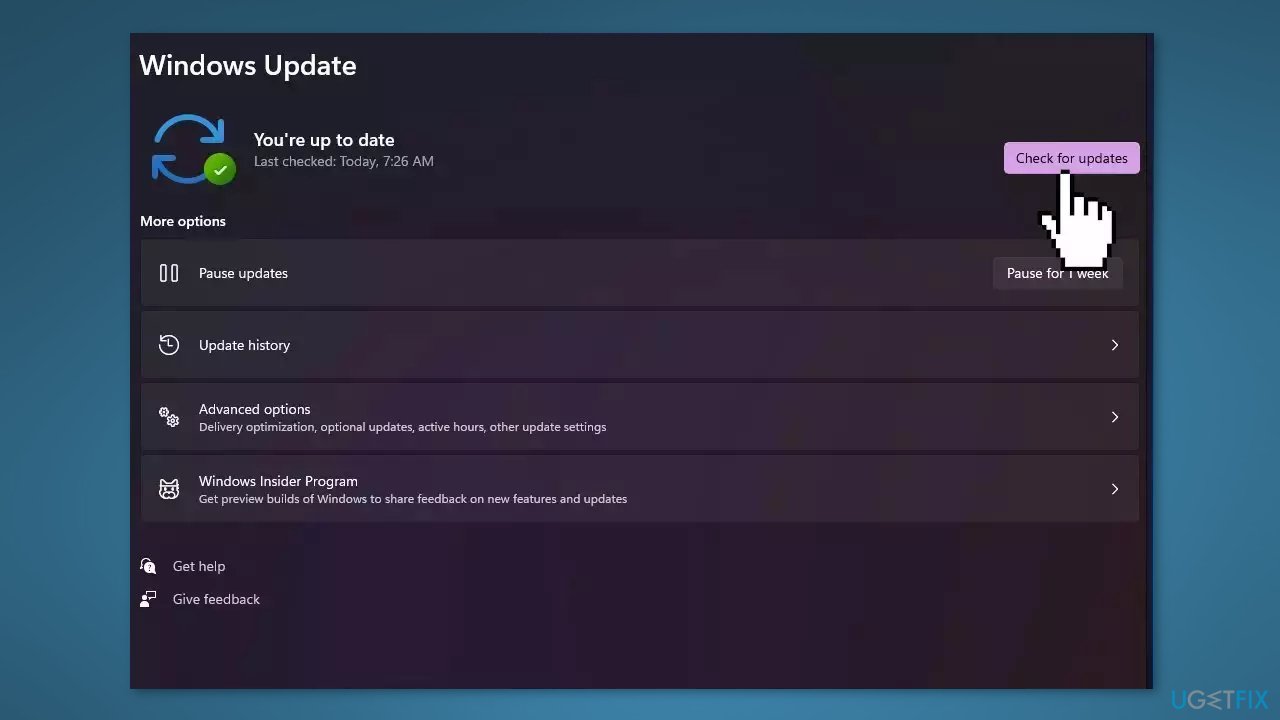
- If a new update is available, click the Download & Install all button.
- Restart your computer after the process is finished and check to see if the problem is fixed
Method 2. Repair Corrupted System Files
Use Command Prompt commands to repair system file corruption:
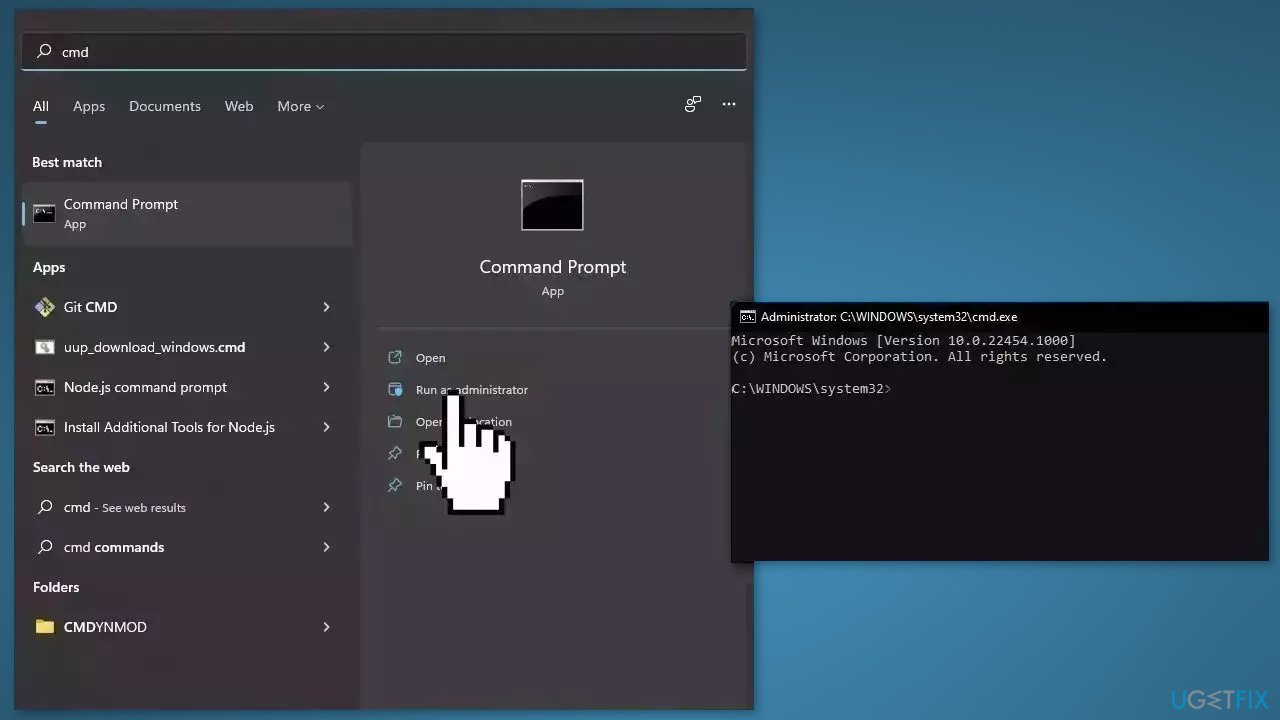
- Open Command Prompt as administrator
- Use the following command and press Enter:
sfc /scannow
- Reboot your system
- If SFC returned an error, then use the following command lines, pressing Enter after each:
DISM /Online /Cleanup-Image /CheckHealth
DISM /Online /Cleanup-Image /ScanHealth
DISM /Online /Cleanup-Image /RestoreHealth
Method 3. Update Drivers
- Open the Settings app
- In the Windows Update tab, click on Advanced options
- Scroll down and press on Optional updates
- Under Driver updates, check all the available boxes
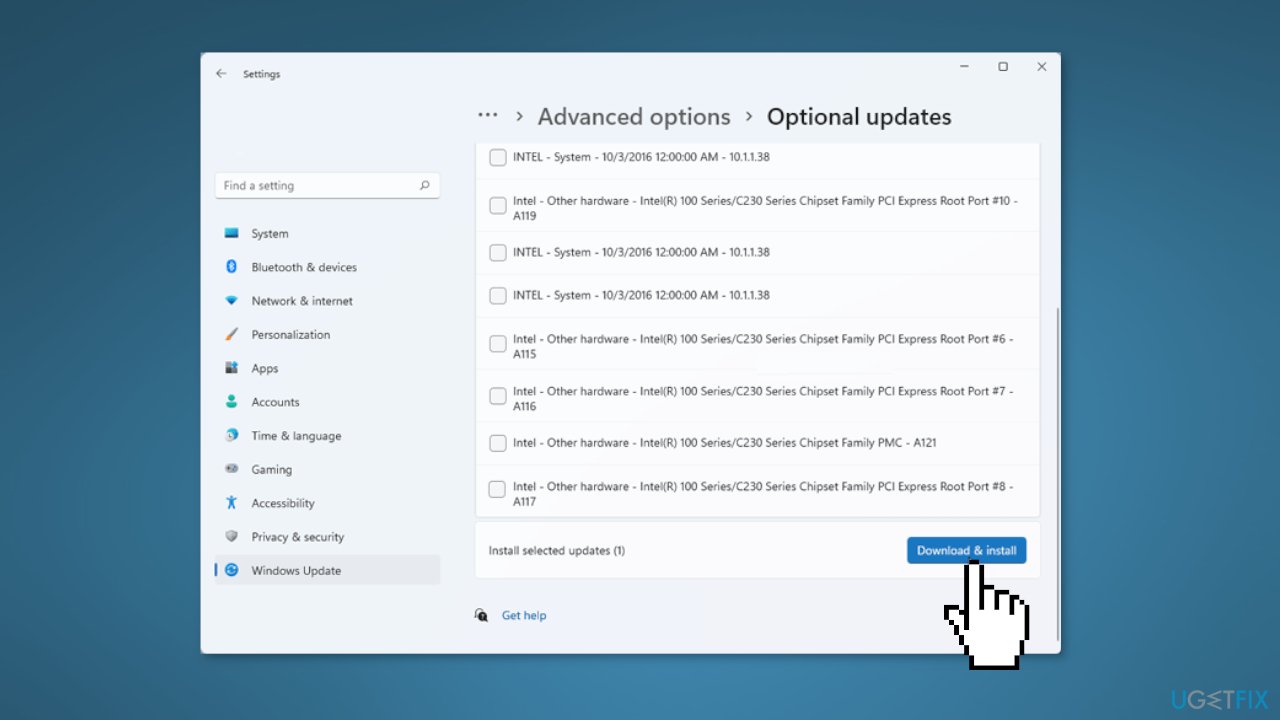
- Click on Download & install button
- Wait for Windows to install all the updates
- Once updated, check to see if the issue is resolved
Method 4. Disable Wallpaper Slideshow
- Right-click on the Start menu and select Settings from the list
- Navigate to the Personalization tab and click on Background
- Use the drop-down menu next to Personalize your background and select Picture
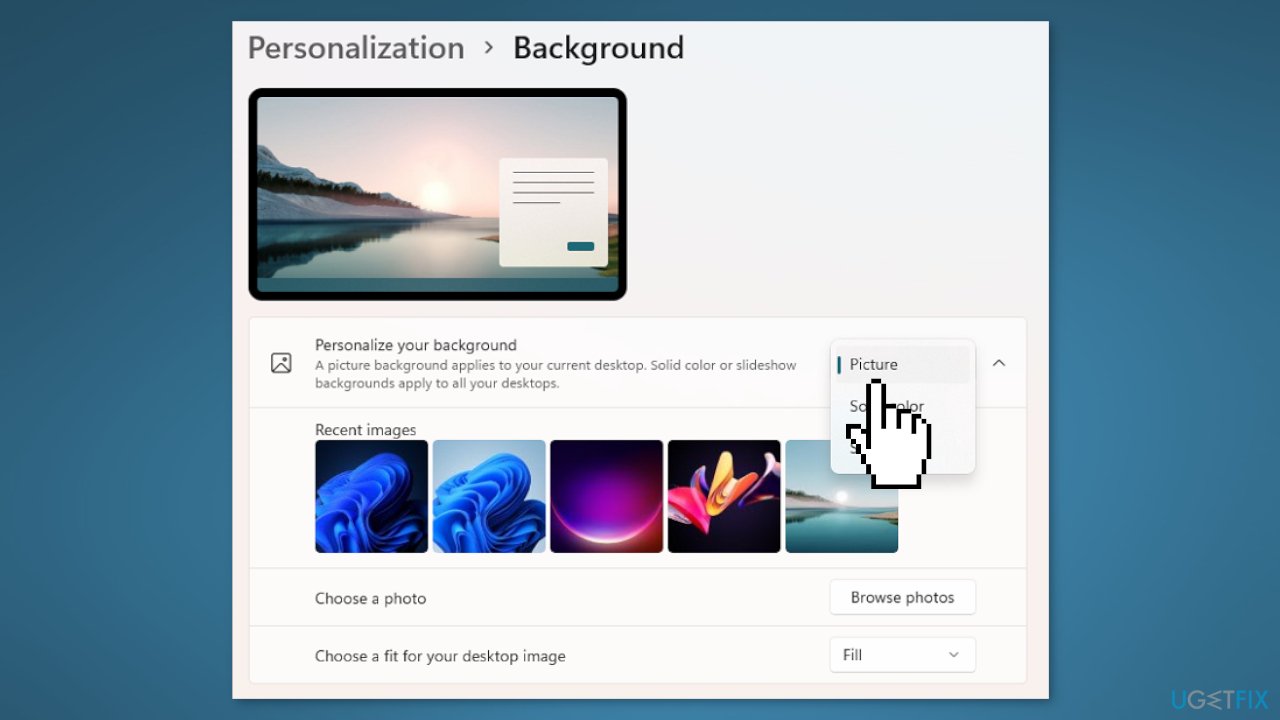
- You can also modify the frequency of the slideshow - use the drop-down menu next to Change picture every and select 1 day
Method 5. Disable Automatic Accent Color
- Open the Start menu and click on the gear-shaped icon to launch the Settings
- In the Personalization tab, click on Colors
- Use the drop-down menu next to Accent color to select Manual
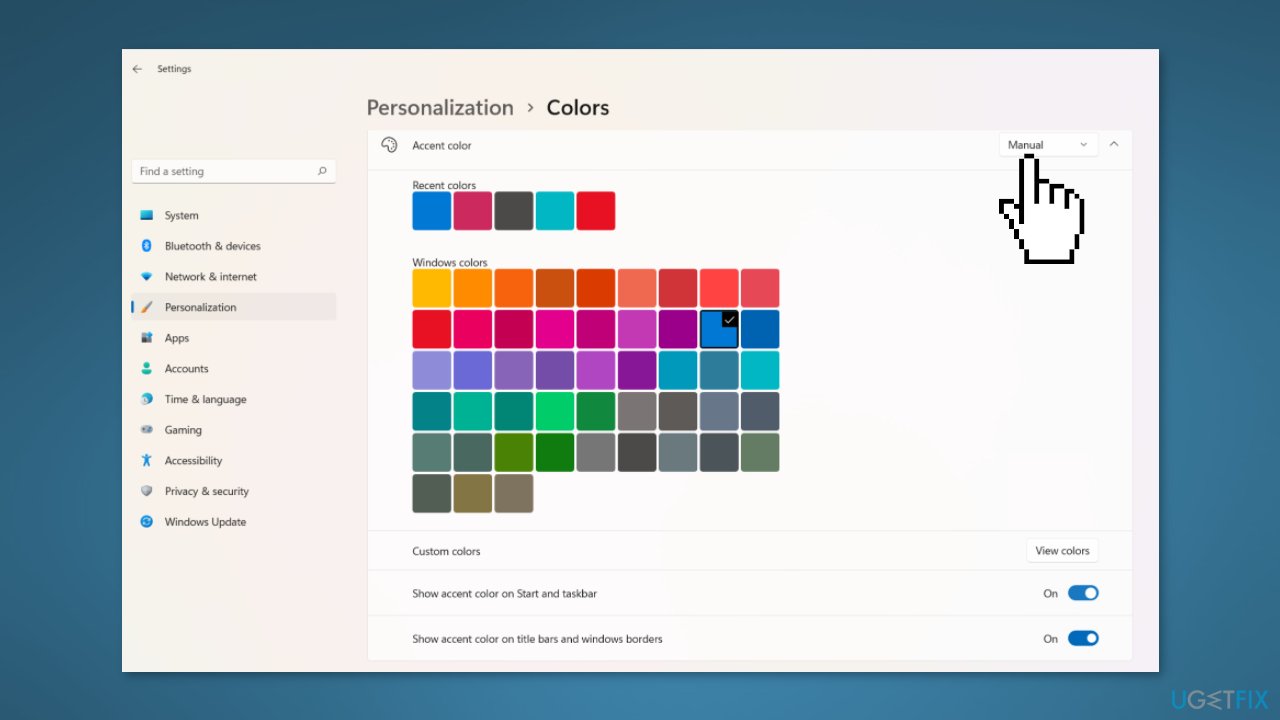
- Scroll down and disable the switch next to Show accent color on title bars and windows borders
Method 6. Disable Filter Keys
- Press the Windows key + I to launch Windows Settings
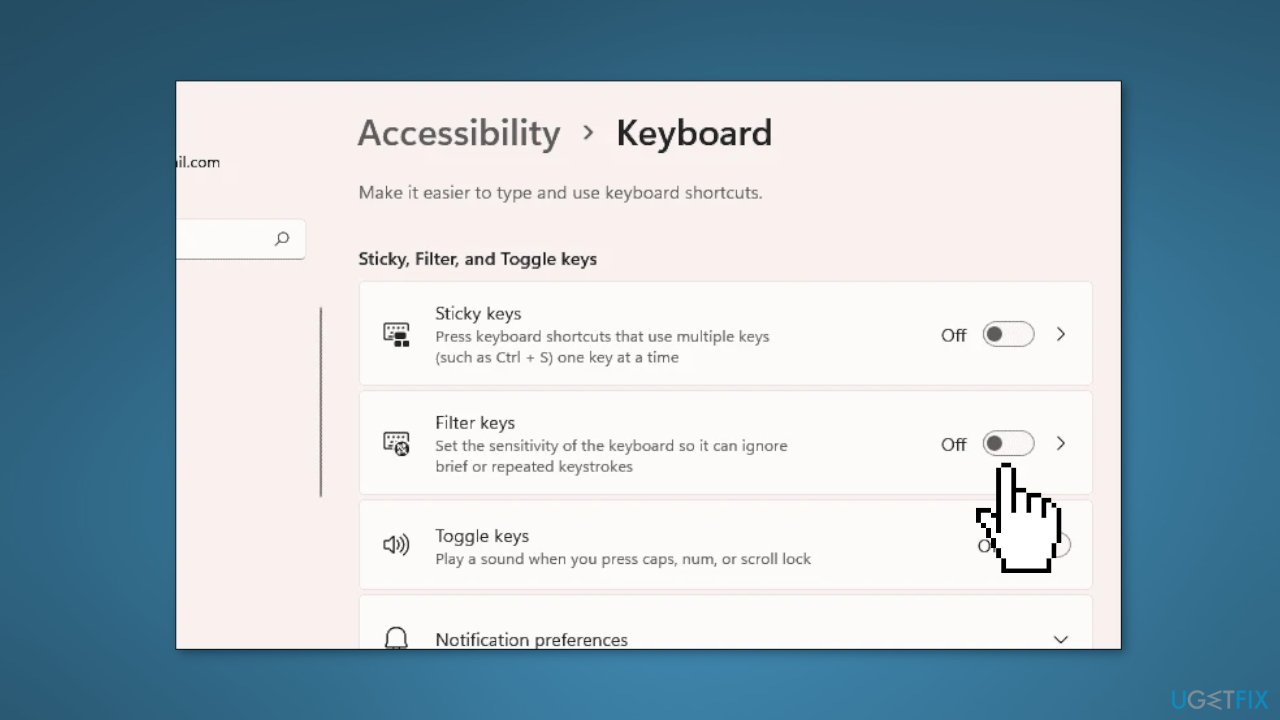
- In the Accessibility tab, click on Keyboard
- Toggle off the switch next to the Filter keys
Method 7. Try Clean Boot
- Open the Search menu, type in system configuration, and press Enter
- Under the Services tab, tick the Hide all Microsoft services box
- Click on Disable all button
- Head over to the Startup tab and click on Open Task Manager
- Select a third-party program and click on Disable at the top
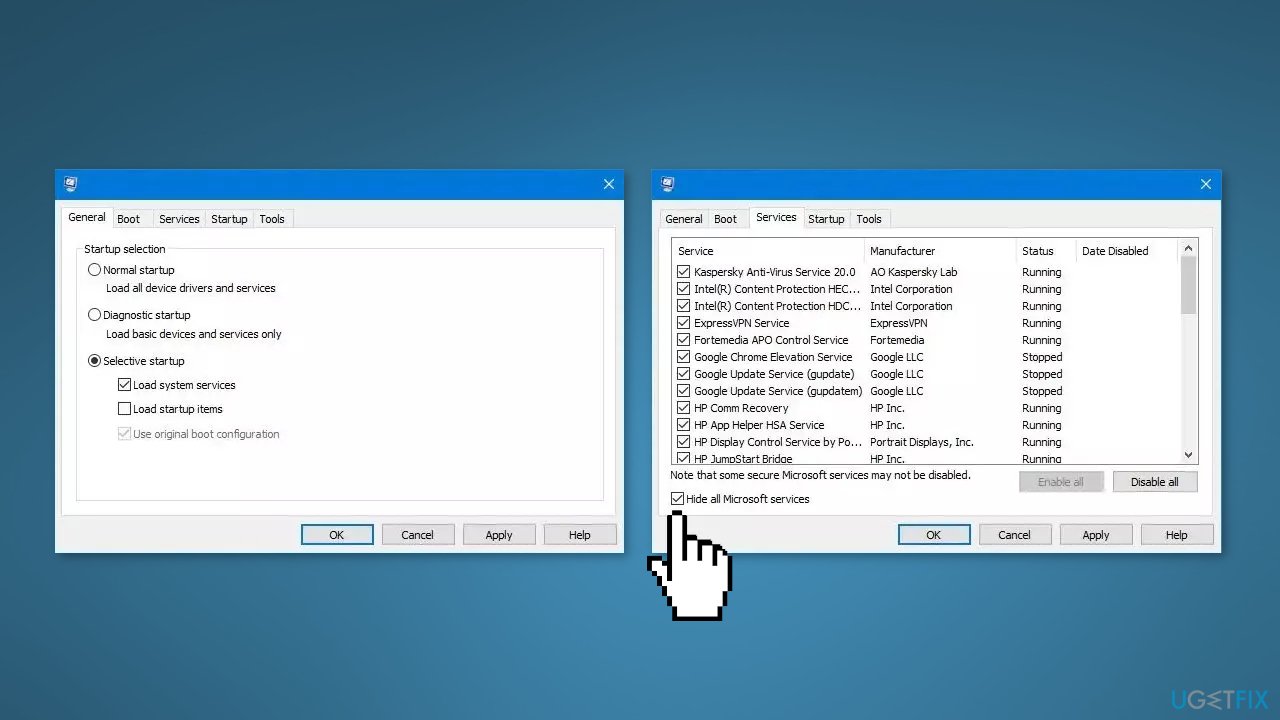
- Repeat this step to disable all third-party apps and programs
- Restart your PC to enter the clean boot state and see if the issue persists
- If Windows functions normally in the clean boot state, then you can be certain that a third-party app is causing the issues
- Go through all recently installed apps or programs and remove them one by one
Bottom line
To fix Windows 11 beeping, lagging, and stuttering, users can try uninstalling recent programs or updates, restarting the computer, running a virus scan, or disabling wallpaper slideshow and automatic accent colors. If these methods do not resolve the issue, it may be necessary to investigate potential hardware failures.
Frequently asked questions
Common causes include hardware issues, such as failing RAM or motherboard problems, as well as software conflicts that may arise from outdated drivers or improperly configured settings.
To resolve lagging issues, try updating your graphics drivers, optimizing startup programs, and checking for Windows updates to ensure your system runs smoothly.
For stuttering during gaming, ensure that your graphics drivers are up to date, adjust in-game settings for performance, and check for background applications that may be consuming resources.




Report an issue
What's wrong with this guide? We review every report and update or remove content.
Report received — thank you. We'll review and fix it.
You need a free account to submit a report.
Be the first to comment