How to fix
Windows 11 freezing at startup
on Windows
Resolve Windows 11 freezing issues at startup effortlessly with our expert-tested solutions. Get back to work in no time, fixed in minutes!

What causes How to fix Windows 11 freezing at startup?
- Faulty hard drive
- Defective RAM module
- Corrupt system file
- Virus
- Outdated drivers
Repairs Windows system files, removes malware, and restores a clean OS state — without reinstalling.
Hello. My Windows 11 computer started freezing at startup. I upgraded from Windows 10 not too long ago. I have never had issues like this before. Is there a way to fix this?
Microsoft has released the latest version of their Windows operating system - Windows 11. It offers several improvements over previous versions, including a redesigned user interface that is easier to use, faster performance, improved security measures, and better compatibility with other devices and online services.
However, some users report that their Windows 11 devices freeze at startup. This can be a frustrating problem as it can prevent people from being able to use their computers. There are a few potential causes for this issue. One possibility is that there is a problem with your hardware, such as a faulty hard drive or a defective RAM module.
Another possibility is that there are issues with your software, such as a corrupt system file or a virus. There is also a chance that Windows 11 freezes at startup because of outdated drivers.[ref en-1] In this guide, you will find 6 steps that should help you fix Windows 11 freezing at startup.
Keep in mind, that the manual troubleshooting process can be lengthy. To avoid it, you can use a maintenance tool like [d1] that can fix most system errors, BSODs,[ref en-2] corrupted files, registry[ref en-3] issues, or clear cookies and cache automatically. Otherwise, follow the step-by-step instructions below.
Solution 1. Unplug Peripherals
If you have any external devices plugged in, such as a hard drive or a Bluetooth device, unplug them now. These devices might interfere with the startup process and cause errors. Therefore, it is recommended that you remove all external devices before you power on your device.
Solution 2. Fix Corrupted System Files
Use Command Prompt commands to repair system file corruption:
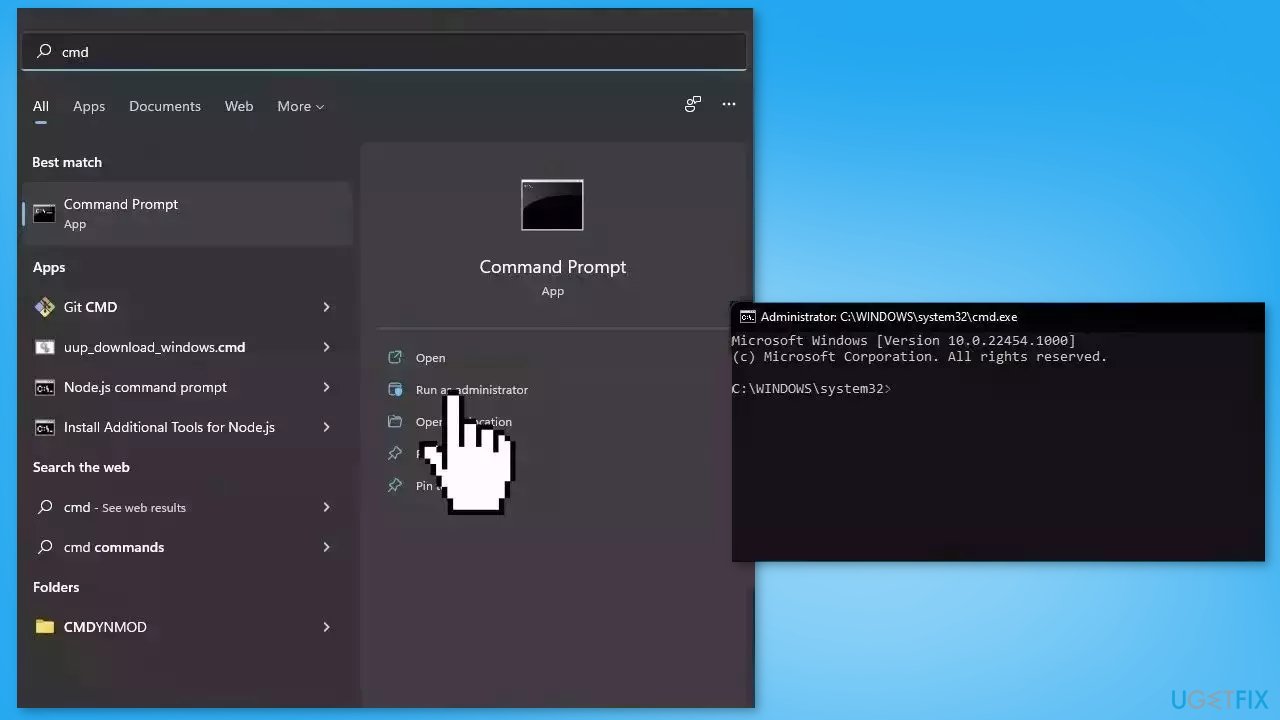
- Open Command Prompt as administrator
- Use the following command and press Enter:
sfc /scannow
- Reboot your system
- If SFC returned an error, then use the following command lines, pressing Enter after each:
DISM /Online /Cleanup-Image /CheckHealth
DISM /Online /Cleanup-Image /ScanHealth
DISM /Online /Cleanup-Image /RestoreHealth
Solution 3. Update Drivers
Outdated drivers could be the cause of this issue. In this case, you can fix it automatically by using [rev id="DriverFix"], which will scan your PC for missing and out-of-date device drivers. Or you can update them manually:
- Open Settings
- Click on Update & Security
- Click on Windows Update
- Click the Check for updates button
- Click the View optional updates option
- Click the Driver updates tab
- Select the driver you want to update
- Click the Download and install button
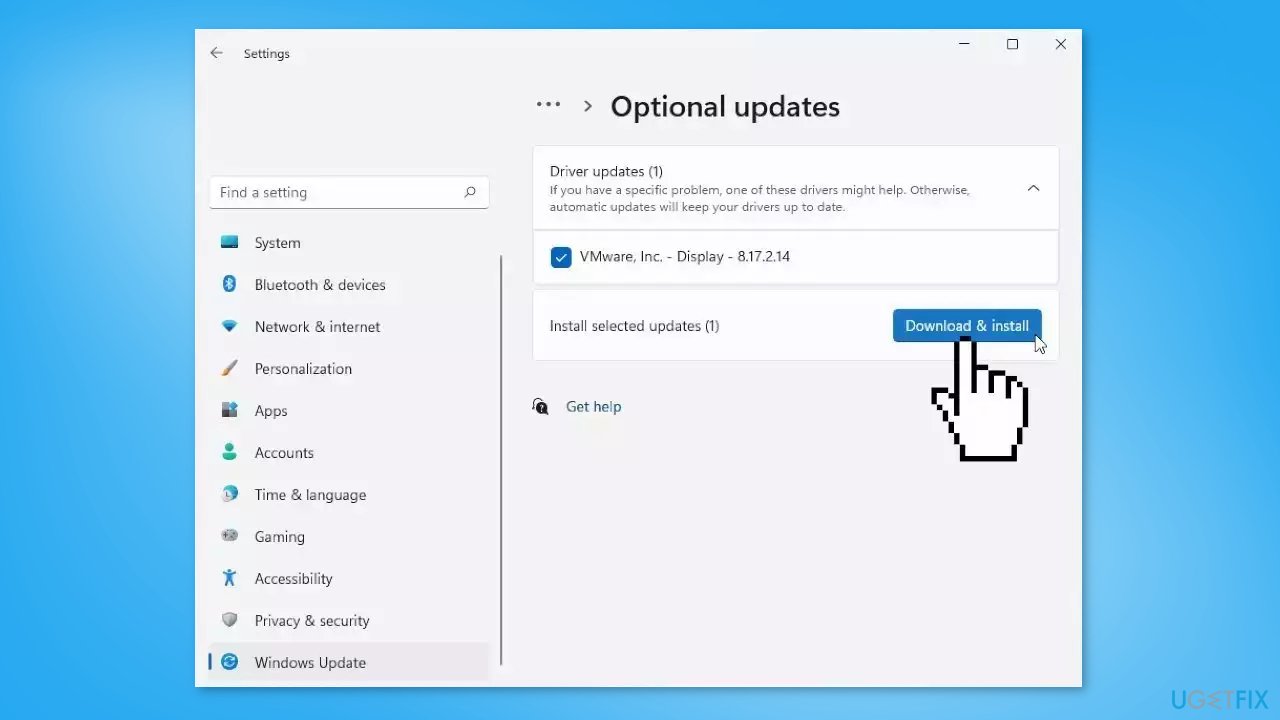
If the View optional updates link is not available after checking for updates, then Windows Update does not have any new drivers or any updates for other products at that particular time.
Solution 4. Disable Fast Startup
- Open the control panel and search for power options
- From the left pane, click on Choose what the power buttons do
- Choose Change settings that are currently unavailable
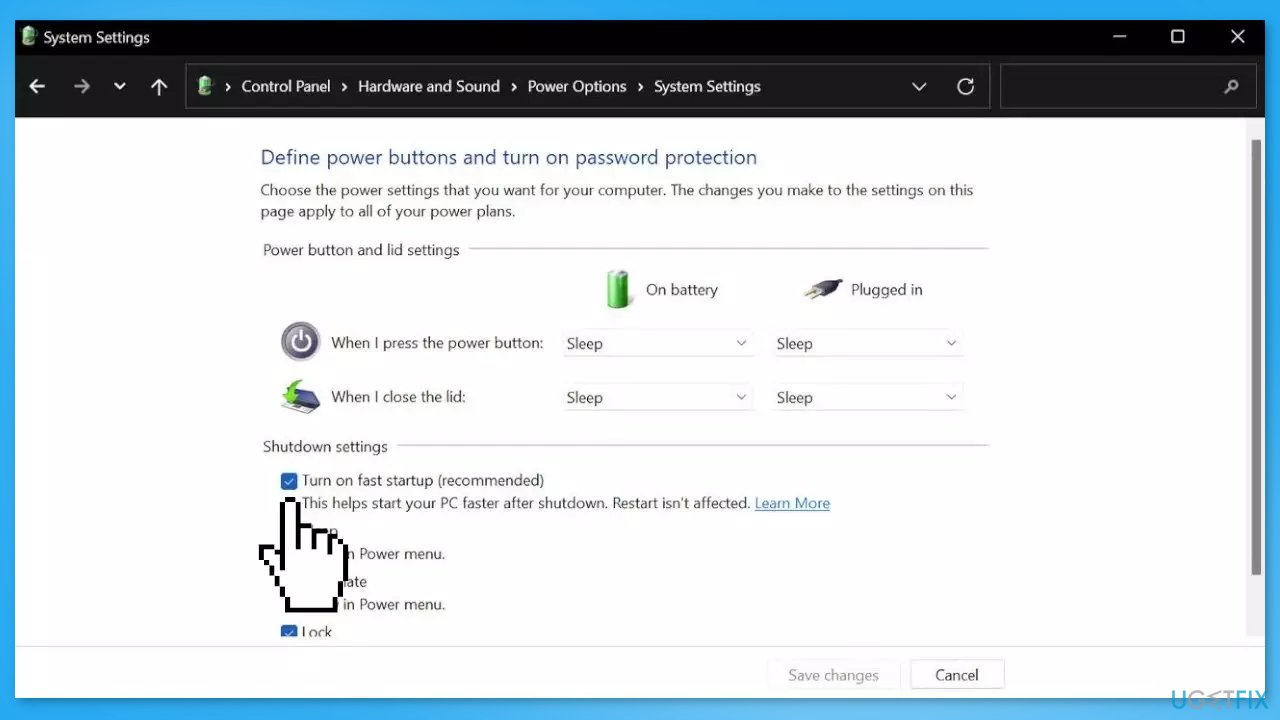
- Make sure the box before Turn on fast startup is unchecked
- Click on Save changes and close the window
Solution 5. Perform Clean Boot
- Open the Search menu, type in system configuration, and press Enter
- Under the Services tab, tick the Hide all Microsoft services box
- Click on Disable all button
- Head over to the Startup tab and click on Open Task Manager
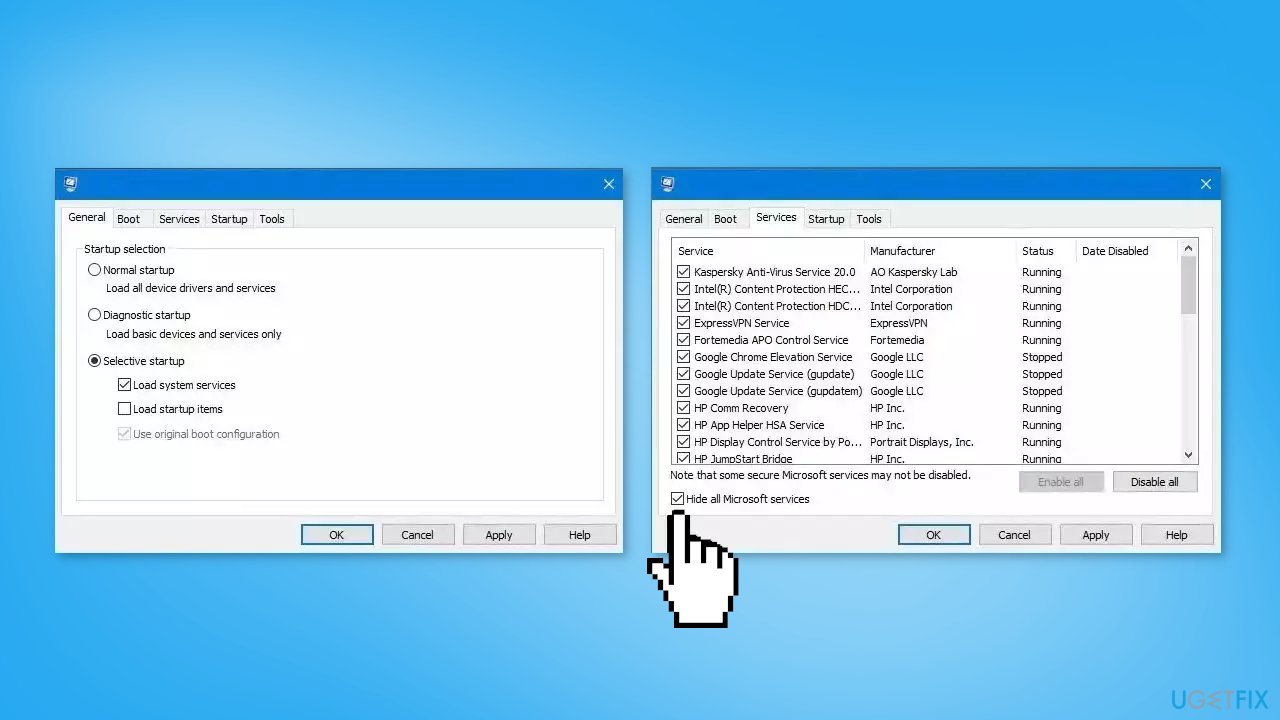
- Select a third-party program and click on Disable at the top
- Repeat this step to disable all third-party apps and programs
- Restart your PC to enter the clean boot state and see if the issue persists
- If Windows functions normally in the clean boot state, then you can be certain that a third-party app is causing the issues
- Go through all recently installed apps or programs and remove them one by one
Solution 6. Repair Install Windows
- Visit the official Microsoft website to download Windows 11 Installation Media
- Run the Media Creation Tool and select Create Installation Media for another PC
- Select your USB drive
- Let the Process complete of writing the Installation files to the USB drive
- Click Finish
- On the PC you wish to upgrade, Press Windows + E to open the File Explorer
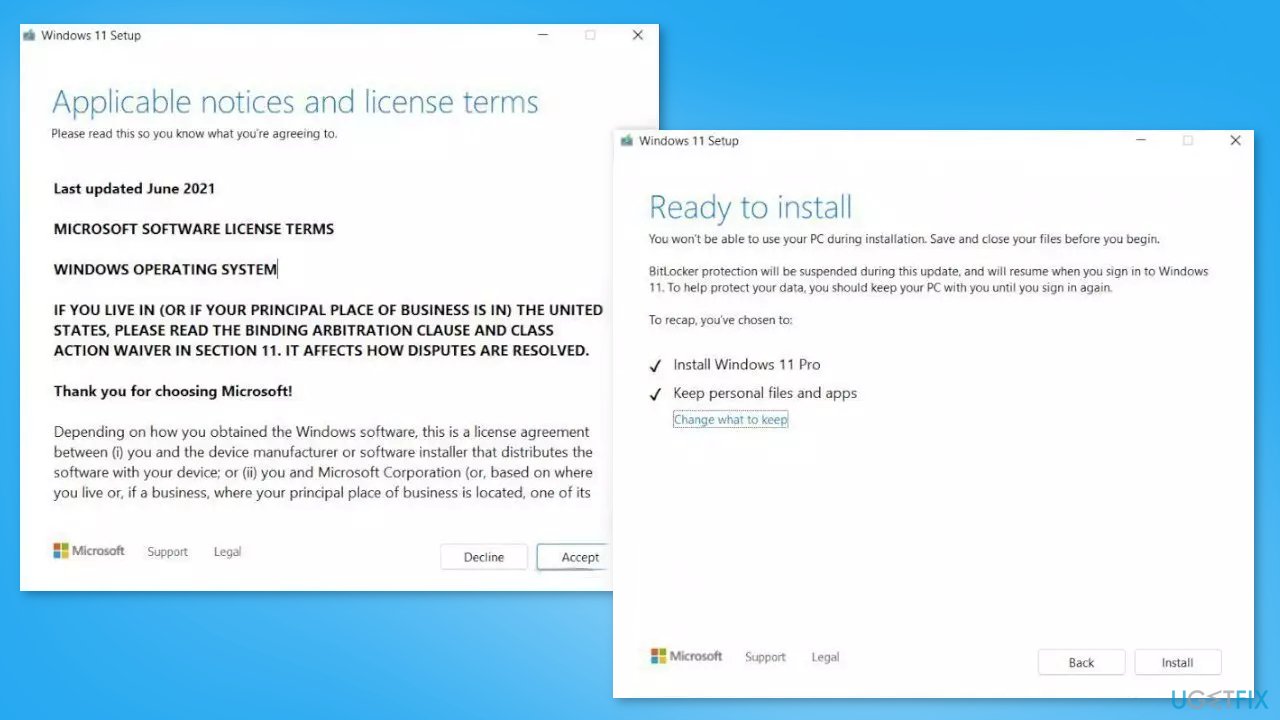
- Open the Removable drive and click Setup.exe
- Accept the license terms on the next screen
- Confirm the Upgrade options – Files, apps and Settings are kept
- Click Install, and the upgrade should start
Bottom line
To fix Windows 11 freezing at startup, you can unplug external peripherals, repair corrupted system files using Command Prompt, and reboot your system. If these solutions do not resolve the issue, consider using a maintenance tool to address system errors automatically.
Frequently asked questions
Try booting into Safe Mode by holding the Shift key while clicking Restart. Once in Safe Mode, you can troubleshoot further or roll back recent updates that may have caused the issue.
You can run a hardware diagnostic test by accessing the BIOS or UEFI settings during startup. Look for an option to run diagnostics, which can help identify any failing components.
Yes, if you have restore points created, you can access them by booting from a Windows 11 installation media and selecting the Repair your computer option. This will allow you to revert to a previous state before the freezing issue occurred.




Report an issue
What's wrong with this guide? We review every report and update or remove content.
Report received — thank you. We'll review and fix it.
You need a free account to submit a report.
Be the first to comment