How to fix
Windows 11 generic taskbar icons for some apps
on Windows
Resolve generic taskbar icons for apps in Windows 11 effortlessly. Get expert-tested solutions to restore your taskbar's functionality in minutes.

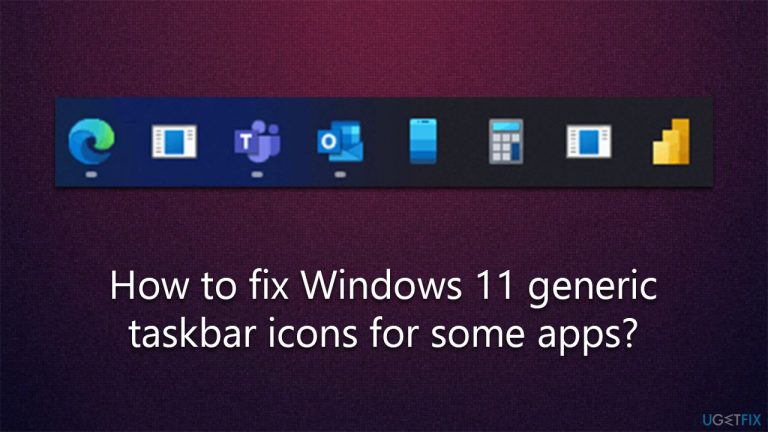
What causes How to fix Windows 11 generic taskbar icons for some apps?
- Icons not cached properly
- Corrupted icon files
- Issues with Windows Explorer
- Recent updates causing conflicts
- User profile corruption
Repairs Windows system files, removes malware, and restores a clean OS state — without reinstalling.
Hi, I have a weird problem with my taskbar icons - some of them are showing as generic icons instead of the default app ones. This is kind of annoying issue to that I'd like to see resolved sooner than later. I'm using Windows 11 version 22H2.
Windows 11 is the latest installment of Microsoft's flagship operating system. Along with the traditional Windows features such as My Computer, Control Panel, and Task Manager, this iteration has been updated with a plethora of new features.
The interface has seen major improvements in terms of usability, allowing users to navigate more efficiently between tasks. Additionally, the Start Menu now supports live tiles, giving user's the ability to pin their favorite apps and websites right on their home screen.
Security has been improved significantly, with features such as two-factor authentication for added protection against hackers. Finally, a new suite of productivity apps, such as Word and Excel, have been added to provide users with powerful tools for creating documents, presentations, and more.
While with these all of these features, Windows 11 makes it easier than ever for users to get the most out of their experience, it is far from a perfect one. Some people complained about drastically changed features such as inability to move the taskbar, changes to the Action Center, and similar.
However, these complaints are just a fraction of bugs that some users have to deal with, and generic taskbar icons is one of them. In Windows 10 or even previous versions, users can pin apps to taskbar, which allows them a quick access, making it extremely convenient.
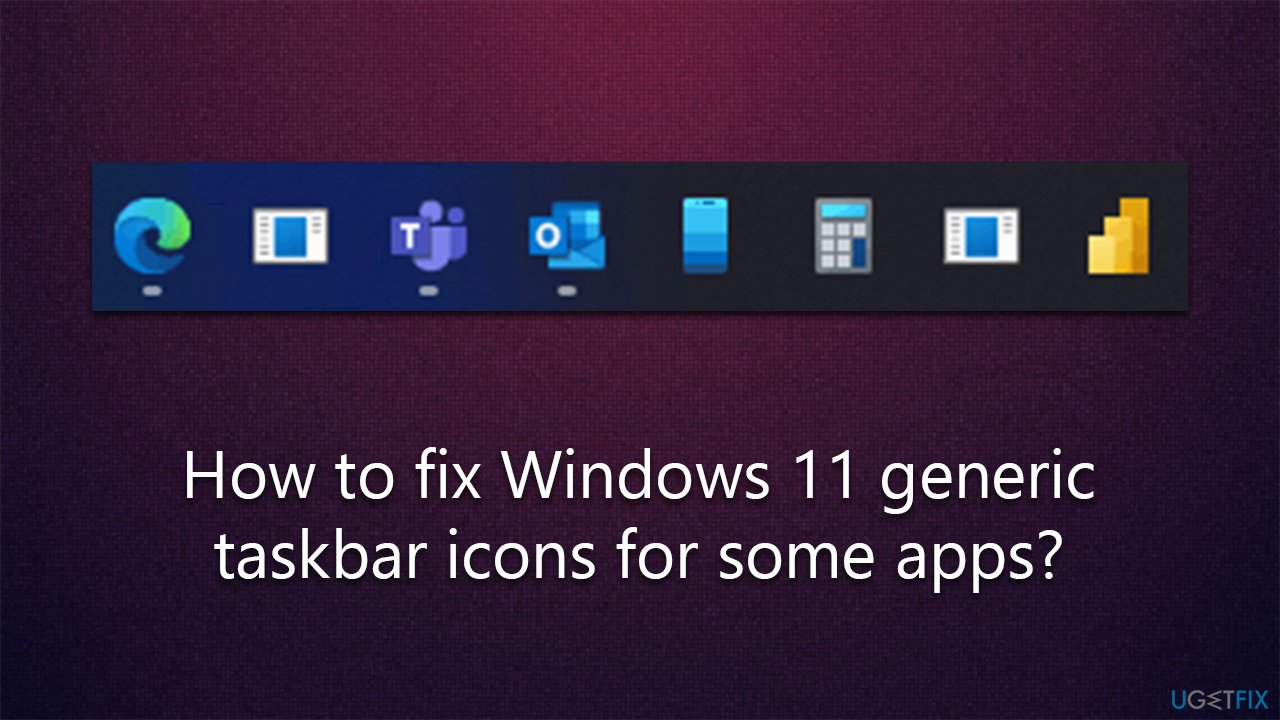
Some people said that not all of the icons were shown correctly, and instead of having a default app icon, they were shown a generic one. While the issue is purely visual (the apps work when the icon is clicked) but it can cause a lot of inconvenience because one has to hover over the icon with a mouse in order to know which app is which.
If your Windows 11 is showing generic icons instead of default ones, try the fixes we provide below. To remove any possibility of malware infections and system corruption, we recommend scanning the device with an automatic PC repair tool [d1] first.
Method 1. Run SFC and DISM
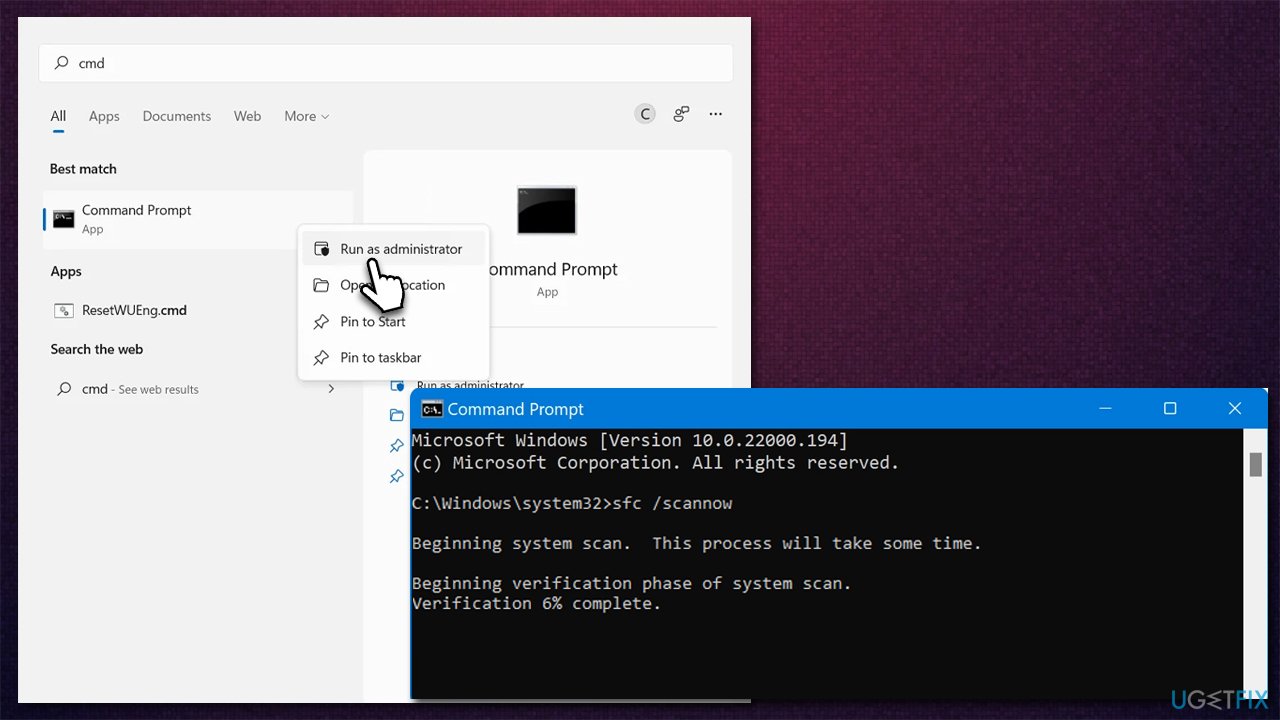
System file corruption is one of the most common reasons for various Windows bugs and errors, so we recommend you run a System File Checker and DISM tools via elevated Command Prompt.
- Type cmd in Windows search
- Right-click on Command Prompt and pick Run as administrator
- When User Account Control shows up, click Yes
- Use the following command lines, pressing Enter after each:
sfc /scannow
DISM /Online /Cleanup-Image /CheckHealth
DISM /Online /Cleanup-Image /ScanHealth
DISM /Online /Cleanup-Image /RestoreHealth - Restart your computer.
Method 2. Install all Windows updates
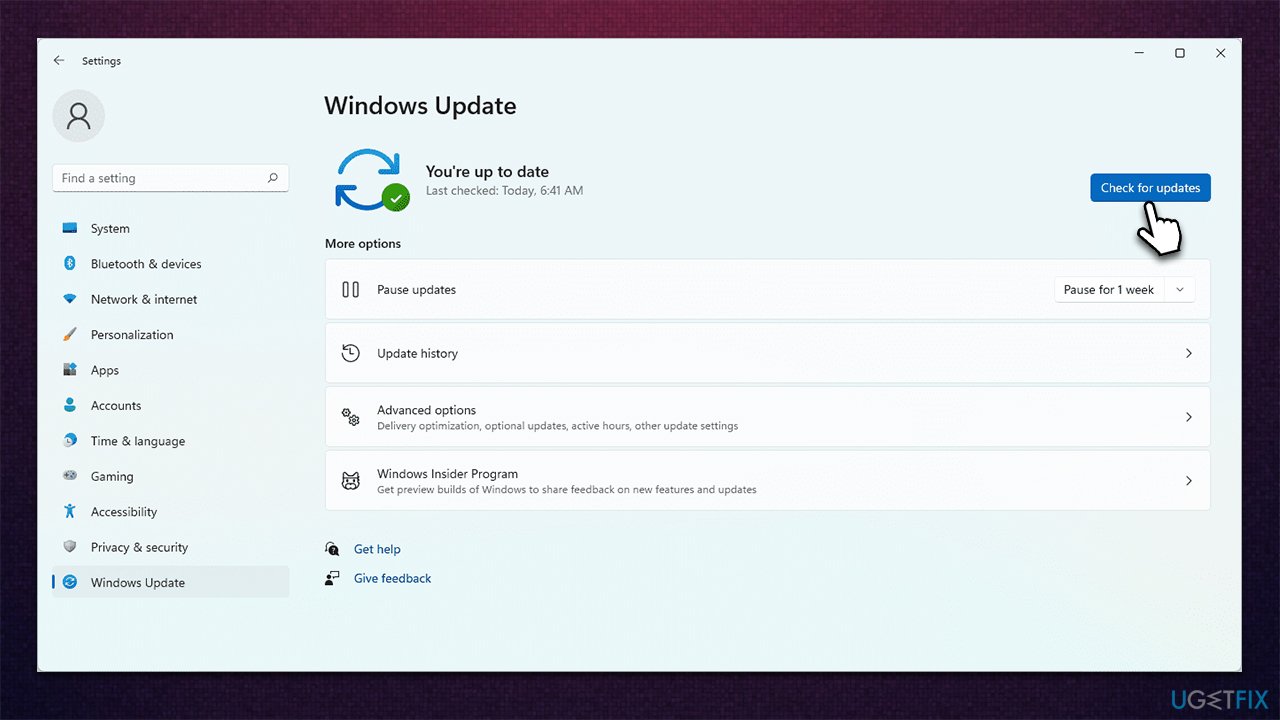
Generic bugs are routinely fixed by Microsoft in the new patches that are usually delivered every second Tuesday of the month, so make sure you have them all installed.
- Click Start and select Settings
- Go to the Windows Update section
- Click Check for updates and wait
- Go to the Advanced options and install optional updates
- Reboot your computer.
Method 3. Rebuild icon cache
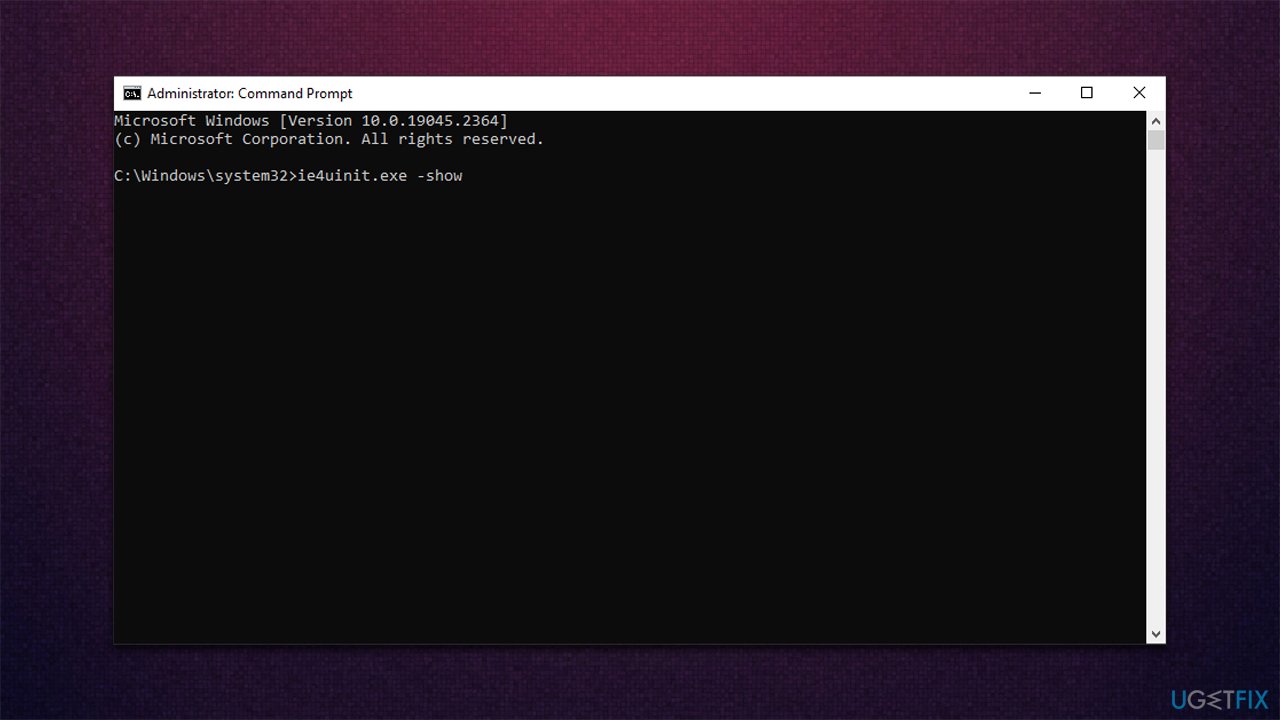
- Type in cmd into Windows Search
- Right-click on Command Prompt result and select Run as administrator
- When Command Prompt window opens, copy and paste each of these command lines, pressing Enter after each:
ie4uinit.exe -show
taskkill /IM explorer.exe /F
del /A /Q "%localappdata%\IconCache.db"
del /A /F /Q "%localappdata%\Microsoft\Windows\Explorer\iconcache*"
shutdown /r /f /t 00 - Your computer will immediately restart.
Method 4. Create a new user account [workaround]
While this method is not the most convenient one, changing your user account managed to fix generic Windows 11 taskbar icons issue.
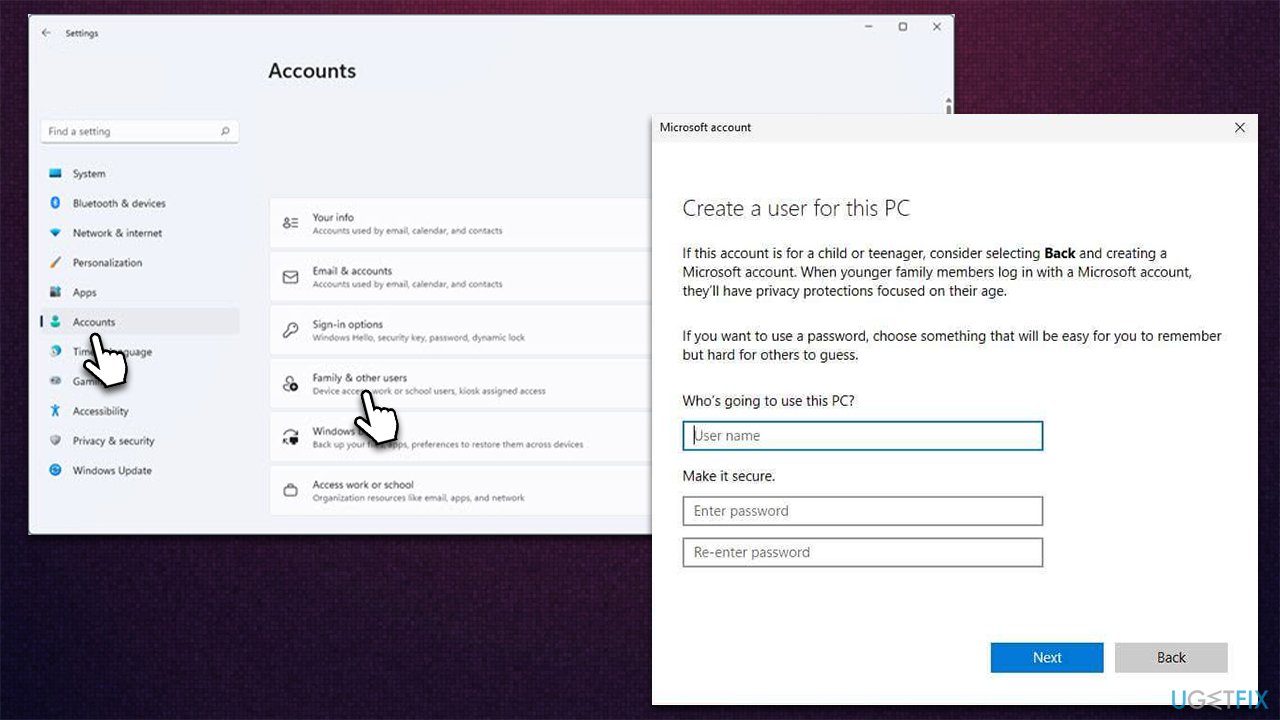
- Select Start/right-click Start and pick Settings
- Go to Family and & other users
- In the Other users section, click the Add someone else to this PC option
- Select I don't have this person's sign-in information, and then pick Add a user without a Microsoft account
- Add the needed info and click Next to finish the process.
Method 5. Manually apply the correct icon
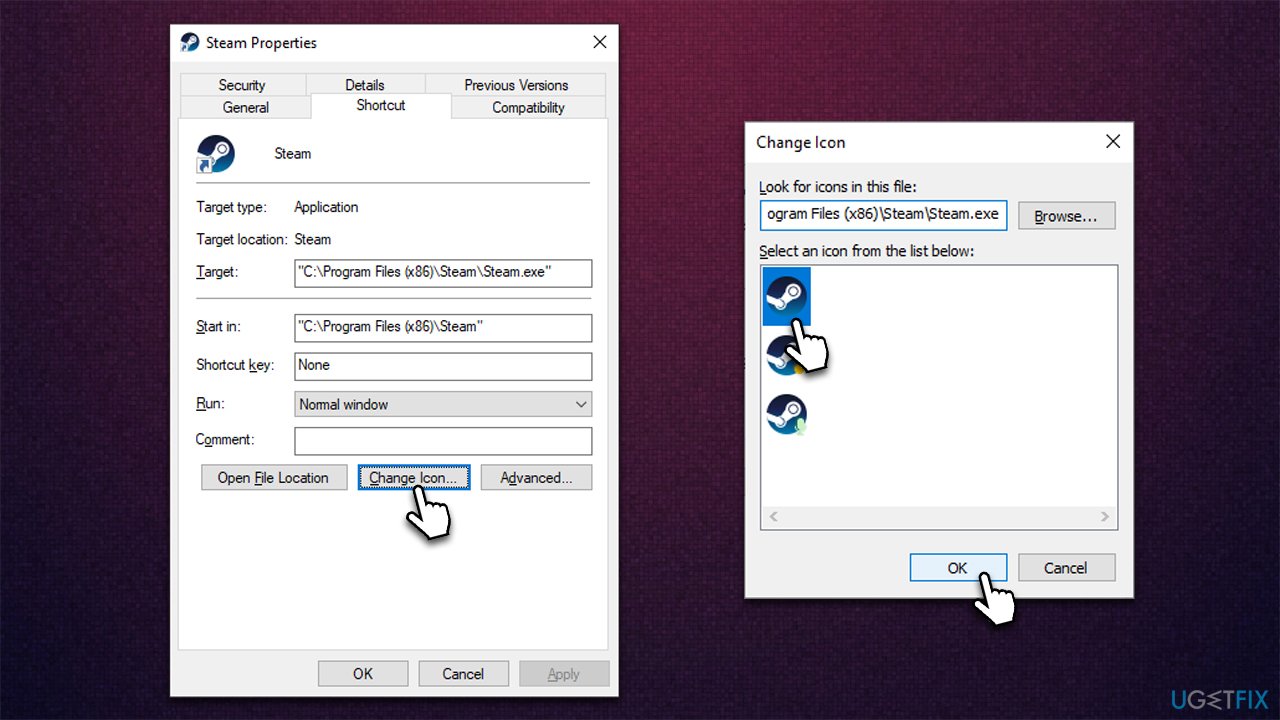
- Right-click on the app that has missing icon and select Properties
- In the Shortcut tab, click Change Icon...
- Select the correct icon and click OK
- Click OK in the Properties window as well.
Bottom line
To fix the generic taskbar icons issue in Windows 11, you can try clearing the icon cache, restarting Windows Explorer, or resetting your user profile. If none of these solutions work, consider checking for system updates or performing a repair installation.
Frequently asked questions
You can try resetting the icon cache by using the Command Prompt to delete the icon cache files, then restart your PC to rebuild them.
Check if the apps are updated and reinstall any problematic applications to restore their icons, or use the Taskbar settings to customize icon visibility.
You can run the 'sfc /scannow' command in the Command Prompt to scan for and repair corrupted system files affecting icon display.




Report an issue
What's wrong with this guide? We review every report and update or remove content.
Report received — thank you. We'll review and fix it.
You need a free account to submit a report.
Be the first to comment