How to fix
Windows 11 is stuck in Dark Mode
on Windows
Resolve the issue of Windows 11 being stuck in Dark Mode with expert-tested solutions. Get your display back to normal in minutes!

What causes How to fix Windows 11 is stuck in Dark Mode?
- High Contrast theme is enabled
- Registry Editor settings are incorrect
- User has changed system settings
- Corrupted system files
- Issues with Windows 10 or Windows 11 versions
Repairs Windows system files, removes malware, and restores a clean OS state — without reinstalling.
Hello. My Windows computer is stuck in Dark Mode. I cannot find the option to change the mode in the Personalization settings. Any suggestions would be appreciated.
Windows has a wide range of customization abilities. All of them can be found in Personalization settings.[ref en-1] People can choose their own background picture, main color, and accent color. Windows also has light and dark modes that are handy in different situations.
The light mode is designed to work well during daylight hours, and the dark mode has colors that are designed to work well in a low-lit environment. This option is for the Start menu, taskbar, and action center. Users should be able to switch between these modes any time they want.
However, some users are experiencing a weird issue that makes them stuck in Dark Mode. The problem was reported on Windows 10 and Windows 11 versions. For some users, the option to change the mode is not visible. There are various things that could be causing this as there is no specific culprit.
Some people found that the issue can be resolved by disabling the High Contrast theme. There is also a possibility that there are problems with the Registry Editor settings. More often than you may think people change settings in their system that should not be messed with and they cause various unwanted symptoms.
In this guide, you will find 4 steps that should help you fix Windows 11 is stuck in Dark Mode issue. Unfortunately, the manual troubleshooting process can be lengthy. If you want to avoid it, we recommend using an automatic maintenance tool like [d1]. It can fix most system errors, BSODs,[ref en-2] corrupted files, and registry[ref en-3] issues. Otherwise, follow the step-by-step instructions below.
Solution 1. Fix Corrupted System Files
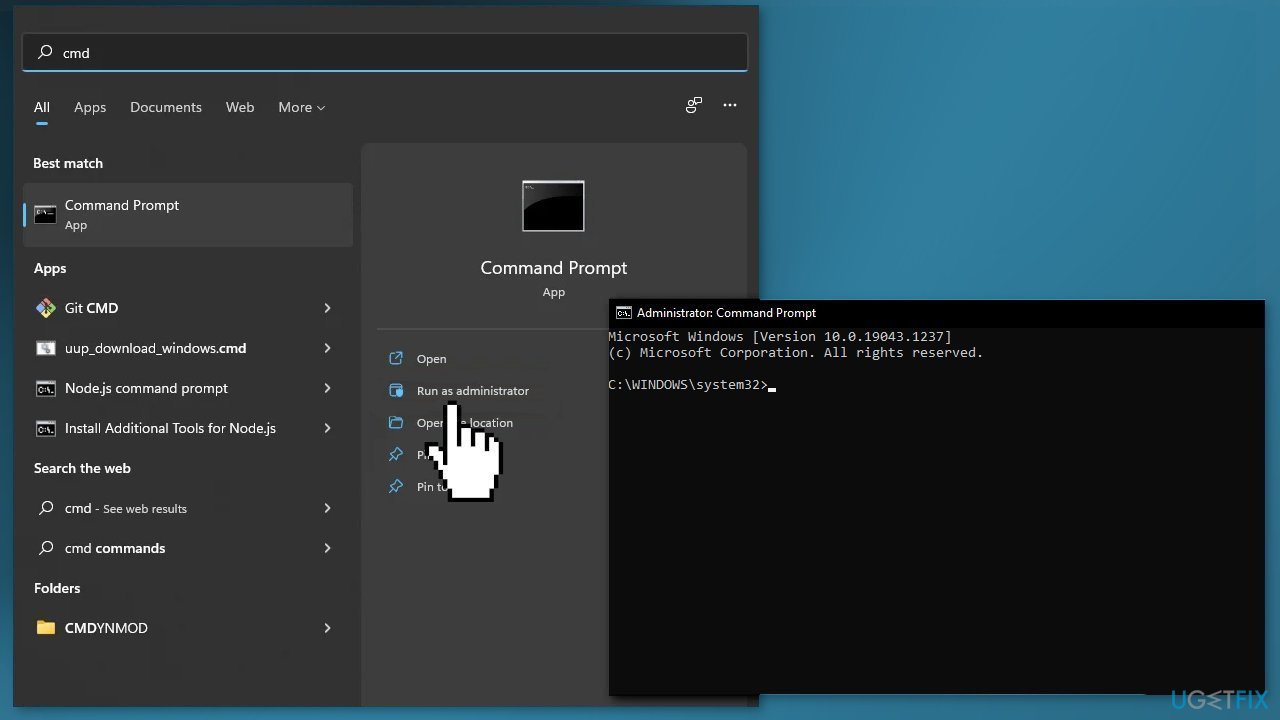
Use Command Prompt commands to repair system file corruption:
- Open Command Prompt as administrator
- Use the following command and press Enter:
sfc /scannow
- Reboot your system
- If SFC returned an error, then use the following command lines, pressing Enter after each:
DISM /Online /Cleanup-Image /CheckHealth
DISM /Online /Cleanup-Image /ScanHealth
DISM /Online /Cleanup-Image /RestoreHealth
Solution 2. Turn off High Contrast Theme
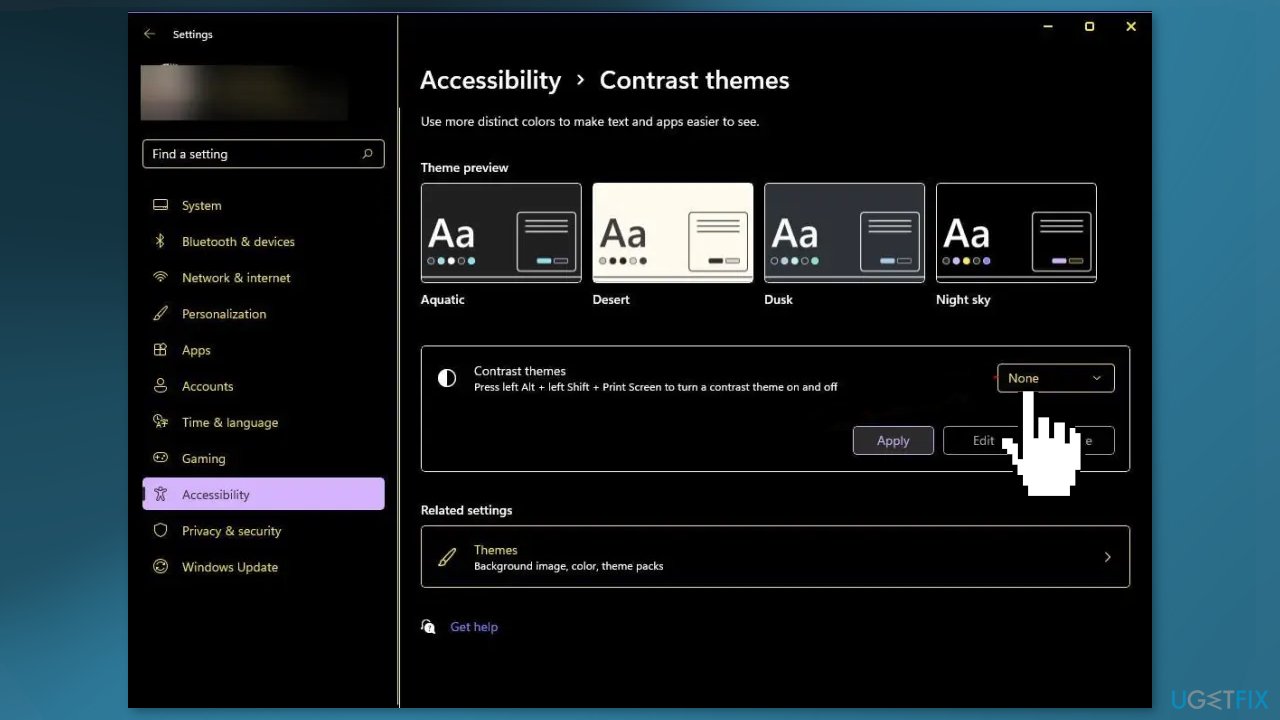
- Open the Settings App
- Go to Accesibility
- If there is a High Contrast Theme set, turn that off
- Now, go to Home
- Then to Personalization, and Colors
- Change Choose your Color settings to Custom
- Then set Windows Mode to Dark
- And set the App Mode to Light or Dark
Solution 3. Restart Windows Explorer
Windows Explorer is a graphical file management utility. However, it also has features unrelated to file management such as playing audio and videos and launching programs, etc. That is why restarting the Windows Explorer process may fix the Dark Mode issue.
- Press the Windows key + X to open the WinX menu
- Select Task Manager from the list
- Find the Windows Explorer process
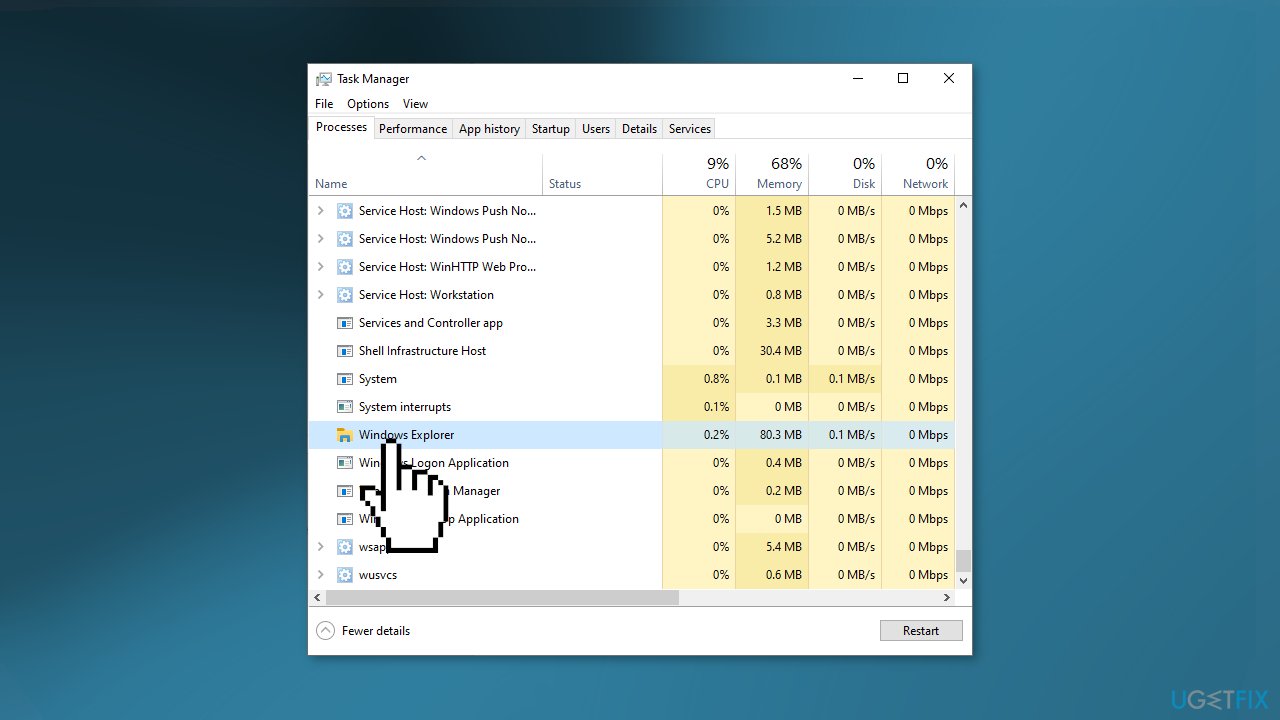
- Click the Restart button
Solution 4. Check the Registry Editor
- Press the Windows key + R to open the Run box
- Type regedit and click on the OK button
- Click Yes in the UAC prompt
- Navigate to the following path:
HKEY_CURRENT_USER\Software\Microsoft\Windows\CurrentVersion\Themes\Personalize
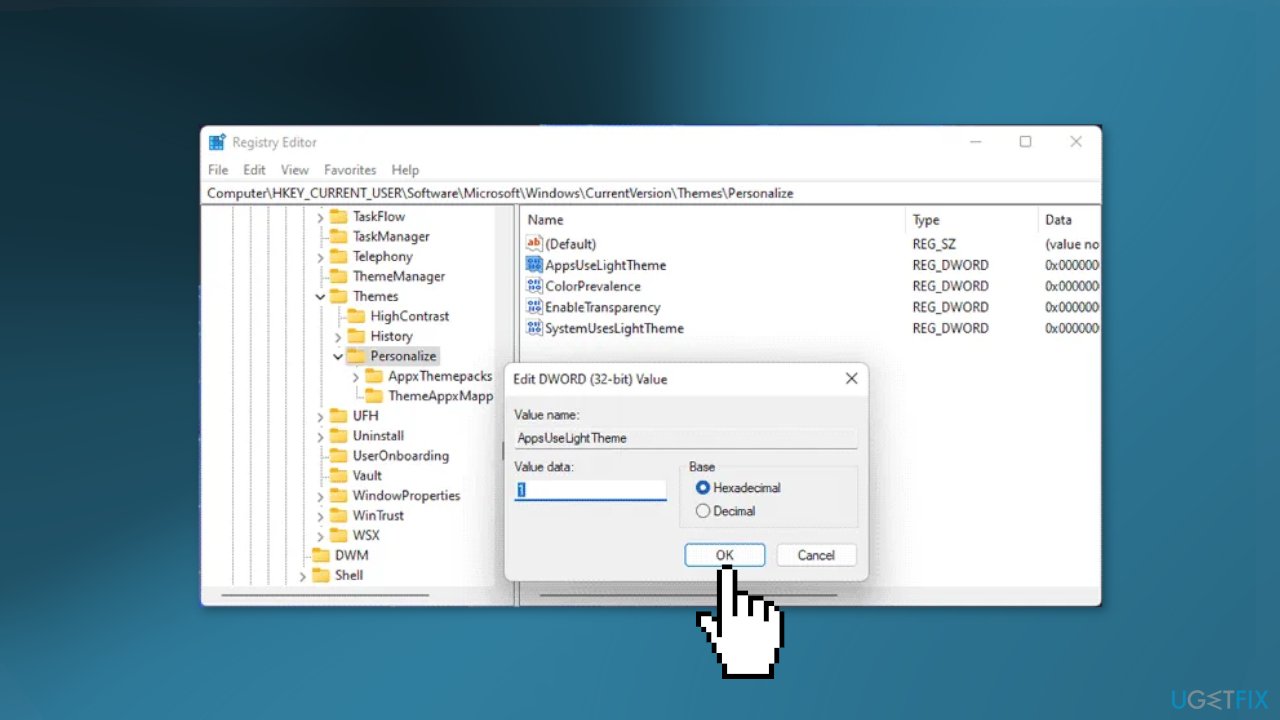
- Find all the REG_DWORD values with a Value data of 1
- Double-click on them and set the Value data as 0
- Click the OK button to save the changes
Bottom line
To fix the issue of being stuck in Dark Mode on Windows 11, you can disable the High Contrast theme, check Registry Editor settings, and repair corrupted system files using Command Prompt. If these solutions do not resolve the problem, consider using an automatic maintenance tool to fix system errors.
Frequently asked questions
Windows 11 may be stuck in Dark Mode due to corrupted settings or a glitch in the theme configuration. You can resolve this by resetting the theme settings or updating your display drivers.
To switch from Dark Mode to Light Mode in Windows 11, go to Settings > Personalization > Colors and select 'Light' under 'Choose your mode.' If it doesn't change, try restarting your computer.
If changing the theme doesn't work, consider running the Windows Troubleshooter for themes or resetting the Windows 11 settings to default. This can help resolve underlying issues causing the Dark Mode to stick.




Report an issue
What's wrong with this guide? We review every report and update or remove content.
Report received — thank you. We'll review and fix it.
You need a free account to submit a report.
Be the first to comment