How to fix
Windows 11 slow after KB5034123 update
on Windows
Resolve Windows 11 sluggishness after the KB5034123 update effortlessly. Get expert-tested solutions for a smooth PC experience, fixed in minutes.

What causes How to fix Windows 11 slow after KB5034123 update?
- Corrupted system files due to failed update procedure
- Problems with the update itself affecting performance
- Conflicts with pre-installed software or settings
- Extended loading times
- Reduced application responsiveness
Repairs Windows system files, removes malware, and restores a clean OS state — without reinstalling.
As soon as I installed the KB5034123 update on my Windows 11 PC, it started being very slow. The apps take forever to open and it start randomly lagging, for example when watching videos. How do I fix this because using my computer has become almost unbearable?
Windows operating systems are updated often to improve security, include new functionality, and address known flaws. These updates - which are denoted by their Knowledge Base (KB) numbers - are necessary to keep the system secure and functional. Notwithstanding the advantages, certain changes could unintentionally result in problems.
One example is the KB5034123 update, which many customers reported causing a discernible delay in their Windows 11 OS after installing. This slowness showed itself as a variety of symptoms, such as extended loading times, overall system latency, and reduced application responsiveness.
Following an update, there may be a variety of underlying explanations for this type of performance deterioration. Occasionally, especially if the update procedure fails, corrupted system files could be the cause. In other cases, there's a chance that the update itself has problems that affect system performance negatively.
Systems may become unstable as a result of the installation process conflicting with pre-installed software or settings. KB5034123 installation-related slowdowns are caused, in part, by these and other reasons.
A number of troubleshooting procedures are advised in order to resolve the slowdown issues following the KB5034123 update. Among these include confirming that system files are intact, making sure the update is installed correctly, and looking for software compatibility problems.
Below you will find detailed instructions on how to fix slow Windows 11 after installing KB5034123 update. Alternatively, you can always rely on automatic resolution with the [d1] repair tool.
Fix 1. Run Windows update troubleshooter
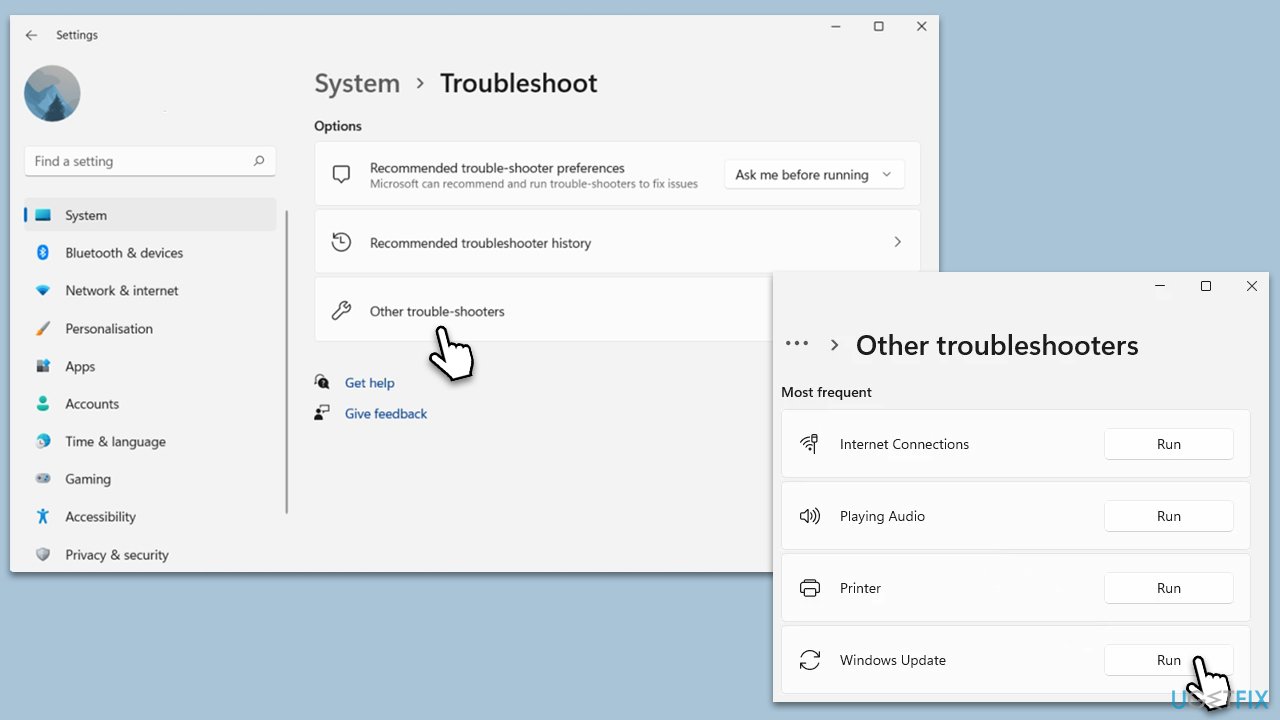
The Windows Update Troubleshooter is a built-in tool that detects and automatically fixes problems related to Windows updates. It works by scanning your system for issues preventing updates from installing correctly and attempts to resolve them without user intervention.
- Type Troubleshoot in Windows search and press Enter.
- On the right side of the window, click Other troubleshooters.
- Scroll down and select Windows update.
- Click Run.
- Wait for the troubleshooter to finish.
- Restart your system once done.
Fix 2. Perform Disk Cleanup
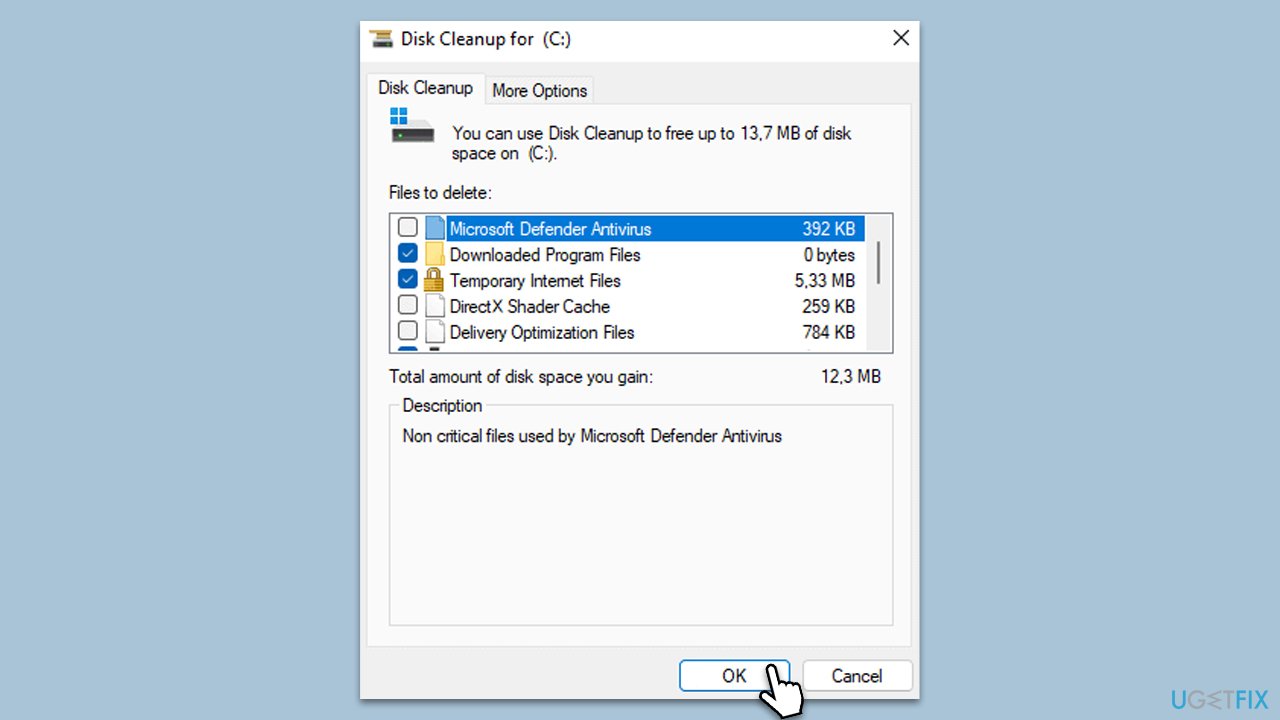
Disk Cleanup is a utility that removes unnecessary files from your hard drive, which can free up space and potentially improve system performance. It can help resolve slowdowns by clearing temporary files that may interfere with Windows operations.
- Open the Windows search bar and type Disk Cleanup. Press Enter to open the Disk Cleanup utility.
- In the Disk Cleanup window, click Clean up system files.
- Select the drive again and click OK.
- In the list of files that can be cleaned up, select the largest portions of data, such as Temporary Internet Files, Windows Update, Temporary Files, and others.
- Click OK to begin the cleanup process.
Fix 3. Fix corrupted files in Windows
System file corruption is among one of the most common reasons for various PC problems, including slowdowns. You can repair them but following these steps:
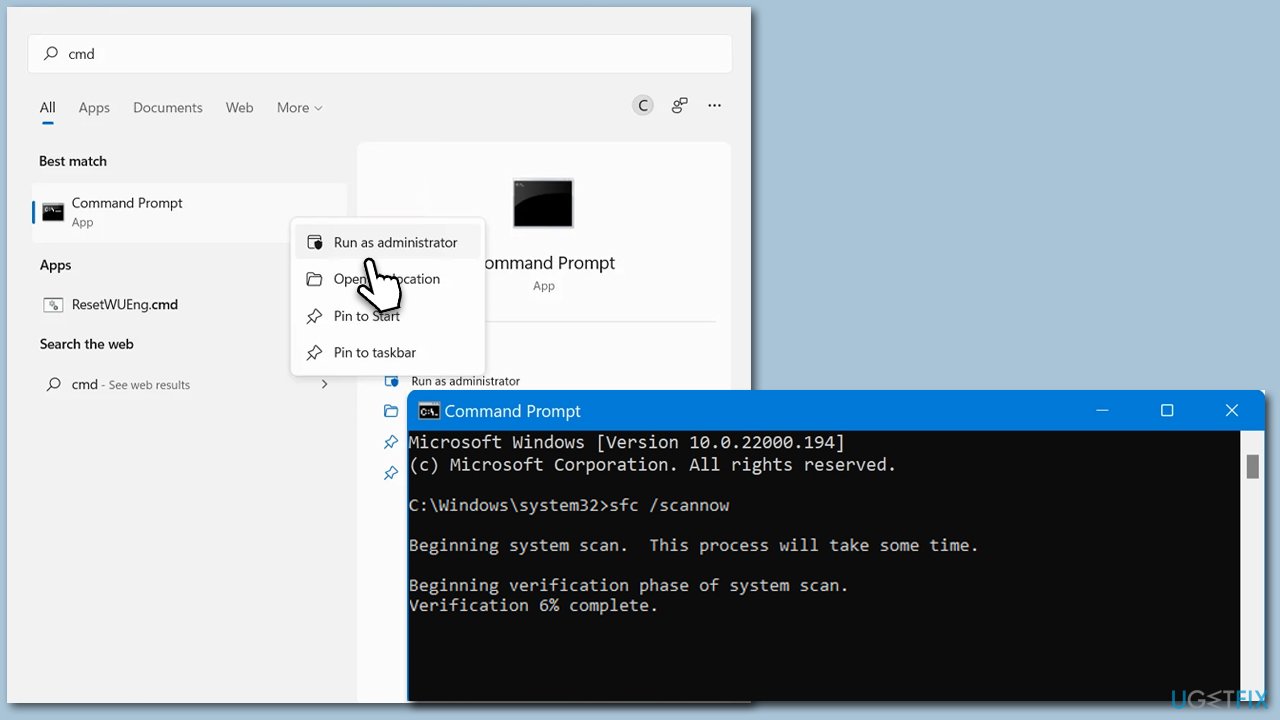
- Type cmd in Windows search.
- Right-click on Command Prompt and pick Run as administrator.
- When UAC asks you whether you want to make changes, agree by pressing Yes.
- Next, copy and paste the following commands, pressing Enter each time:
sfc /scannow
DISM /Online /Cleanup-Image /CheckHealth
DISM /Online /Cleanup-Image /ScanHealth
DISM /Online /Cleanup-Image /RestoreHealth
(Note: if you get an error executing the last command, add /Source:C:\RepairSource\Windows /LimitAccess to it and try again.) - Restart your system.
Fix 4. Uninstall the faulty update
If the KB5034123 update is causing issues, uninstalling it can revert the changes and potentially resolve the slowdown.
- Type Control Panel in Windows search and press Enter.
- Select Programs > Uninstall a program.
- Click on View installed updates on the left side of the window.
- Sort all the updates by date.
- Right-click on the KB5034123 update and select Uninstall.
- Proceed with on-screen instructions, then restart your PC.
- Try reinstalling the update or pausing it while the issue is resolved by Microsoft.
Fix 5. Use Clean Boot
Performing a clean boot starts Windows with a minimal set of drivers and startup programs, which can help identify if background applications are causing the slowdown.
- Press the Win + R to open the Run dialog.
- Type msconfig and press Enter.
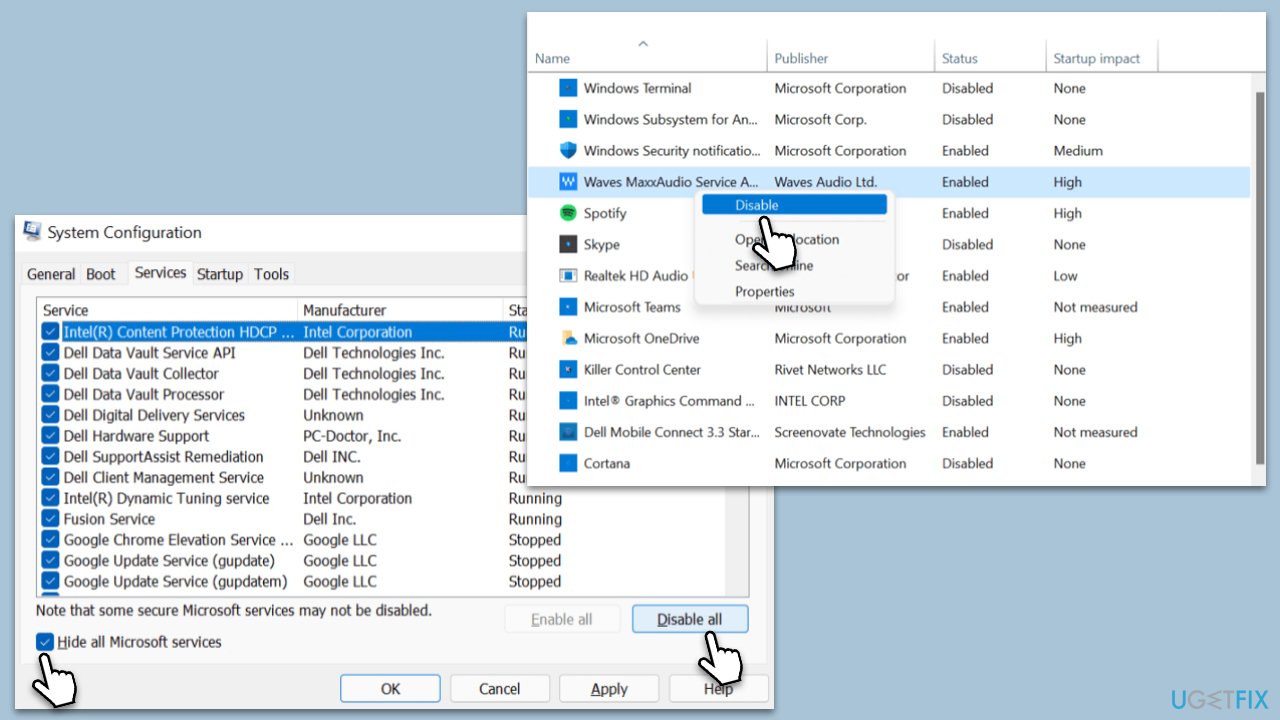
- In the System Configuration window, select Selective Startup, and uncheck Load startup items.
- Go to the Services tab and check the box Hide all Microsoft services, then click Disable all.
- Click on the Startup tab and open Task Manager.
- Disable all the startup items in the Task Manager.
- Click OK, and restart the computer.
- Gradually re-enable services in System Configuration, restarting after each change, to identify the problem source.
- Update or uninstall the problematic software or service.
- In System Configuration, select Normal startup, click OK, and restart.
Fix 6. Reset Windows
Resetting Windows reinstalls the operating system, which can fix many issues by starting fresh while giving you the option to keep your files.
- Click Start and select Settings.
- Go to the Updates & Security section.
- Select Recovery on the left.
- Under Reset this PC, click Get started.
- Select Keep my files and Cloud download.
- Wait till Windows finishes to download the necessary files.
- Your computer will restart to finalize the process.
Fix 7. Reinstall Windows
Repair-installing Windows with the Media Creation Tool allows you to reinstall Windows while preserving your files, settings, and applications. It requires downloading the tool from the Microsoft website.
- Download Windows 11 Installation media from the official Microsoft website. [Windows 10 version]
- Double-click on the ISO file to open it.
- Find and select the setup.exe file within.
- Should User Account Control prompt you, choose Yes.
- Upon reaching the Install Windows screen, opt for Change how Setup downloads updates.
- Choose Not right now to avoid downloading a potentially new build. Then proceed with Next.
- Allow the setup to assess your PC's compatibility and free space.
- In the ensuing license agreement, select Accept.
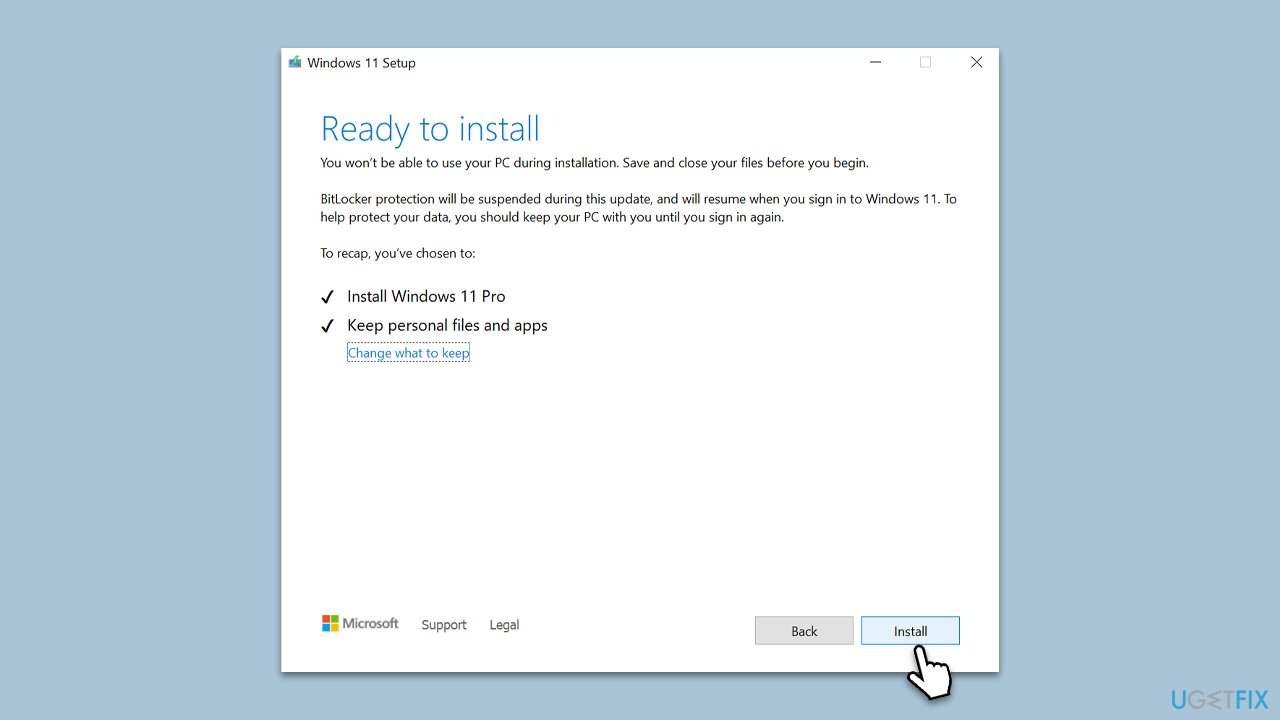
- Once on the Ready to install page, click on Change what to keep.
- You'll be presented with choices: Keep personal files and apps, Keep personal files only, or Nothing.
- Finally, click Install to begin the installation process.
Bottom line
To fix the slow performance after installing the KB5034123 update, you can run the Windows Update Troubleshooter, check for software compatibility issues, and ensure that the update was installed correctly. If these solutions do not resolve the issue, consider using an automatic repair tool.
Frequently asked questions
First, try restarting your device to see if that resolves the issue. If the problem persists, you can consider uninstalling the update through Settings > Update & Security > Windows Update > View update history.
Yes, you can roll back to a previous version by going to Settings > System > Recovery and selecting 'Go back' under the 'Previous version of Windows' section.
You can disable unnecessary startup programs and adjust your power settings to 'High performance' in Windows 11 to improve system speed.




Report an issue
What's wrong with this guide? We review every report and update or remove content.
Report received — thank you. We'll review and fix it.
You need a free account to submit a report.
Be the first to comment