How to fix
Windows 11 upgrade error 0x8007023b
on Windows
Resolve Windows 11 upgrade error 0x8007023b quickly and effectively with our expert-tested solutions. Get your system running smoothly again!

What causes How to fix Windows 11 upgrade error 0x8007023b?
- Corrupted system files
- Outdated drivers
- Third-party security software
- Insufficient disk space
Repairs Windows system files, removes malware, and restores a clean OS state — without reinstalling.
Hello. I have been trying to upgrade to Windows 11 but I receive error code 0x8007023b. How do I upgrade?
Windows 11 was released at the end of 2021 by Microsoft. It is the newest version of the Windows operating system. Many people rushed to upgrade to try out the new user interface, design, and features. However, not all are successful. For whatever reasons, some people fail to install the newest version.
Recently, people encountered another Windows 11 upgrade error with a 0x8007023b code. There are multiple reasons why this could be happening. First, you have to make sure that you have done all the recommended steps before proceeding with the upgrade and that your PC meets the minimum requirements.[ref en-1] Most important, you should disconnect all non-essential peripherals, like SD cards, USB flash drives, microphones, etc.
In this guide, you will find 5 solutions that could help you fix Windows 11 upgrade error 0x8007023b. It may appear because of corrupted system files, outdated drivers, third-party security software, or insufficient disk space. You will learn how to take care of these problems in our instructions.
However, manual troubleshooting can be a lengthy process, so we recommend using a maintenance tool like [d1] that can fix most system errors, BSODs,[ref en-2] corrupted files, and registry[ref en-3] issues. Otherwise, proceed with the steps below carefully and in an orderly manner.
Solution 1. Clear up Disk Space
If you are trying to install Windows on a drive that has low disk space, the installation will fail. You must check the free space on your drive before proceeding. There should a minimum of 30 GB of space.
Solution 2. Fix Corrupted System Files
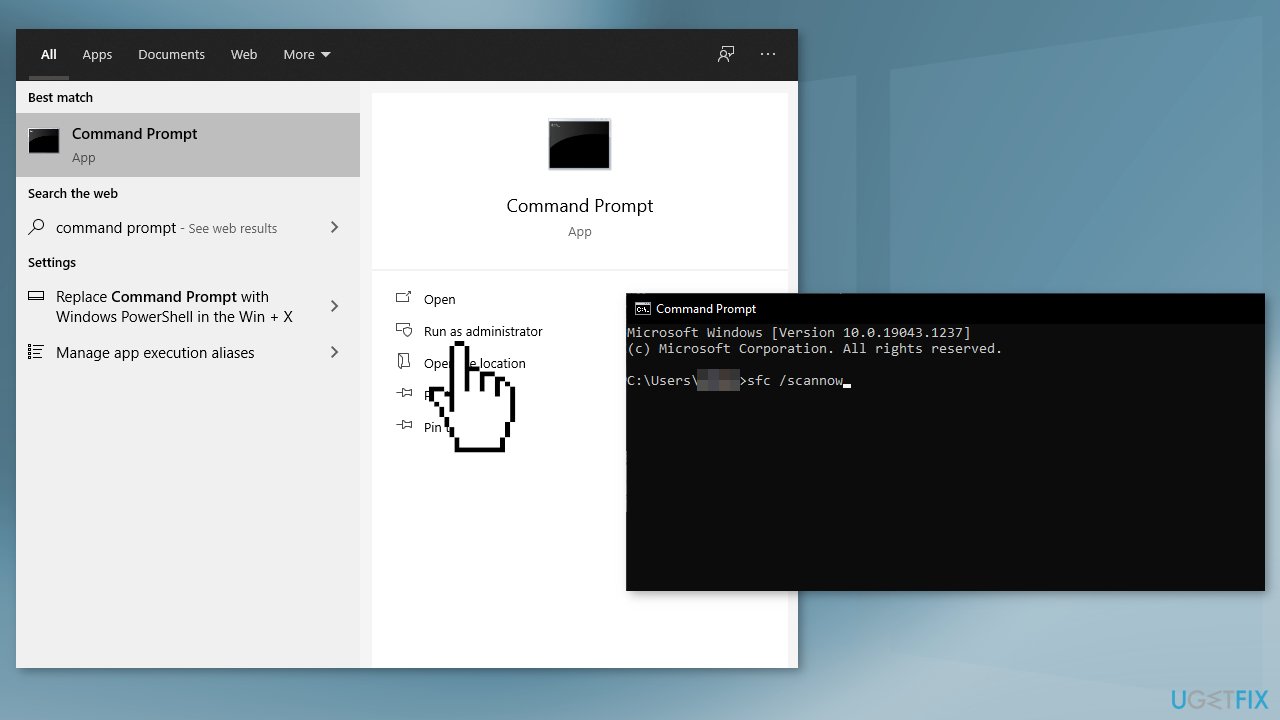
Use Command Prompt commands to repair system file corruption:
- Open Command Prompt as administrator
- Use the following command and press Enter:
sfc /scannow
- Reboot your system
- If SFC returned an error, then use the following command lines, pressing Enter after each:
DISM /Online /Cleanup-Image /CheckHealth
DISM /Online /Cleanup-Image /ScanHealth
DISM /Online /Cleanup-Image /RestoreHealth
Solution 3. Update Drivers
Outdated drivers could be the cause of the error. In this case, you can fix it automatically by using [rev id="DriverFix"], which will scan your PC for missing and out-of-date device drivers. Or you can update them manually:
- Open Settings
- Click on Update & Security
- Click on Windows Update
- Click the Check for updates button
- Click the View optional updates option
- Click the Driver updates tab
- Select the driver you want to update
- Click the Download and install button
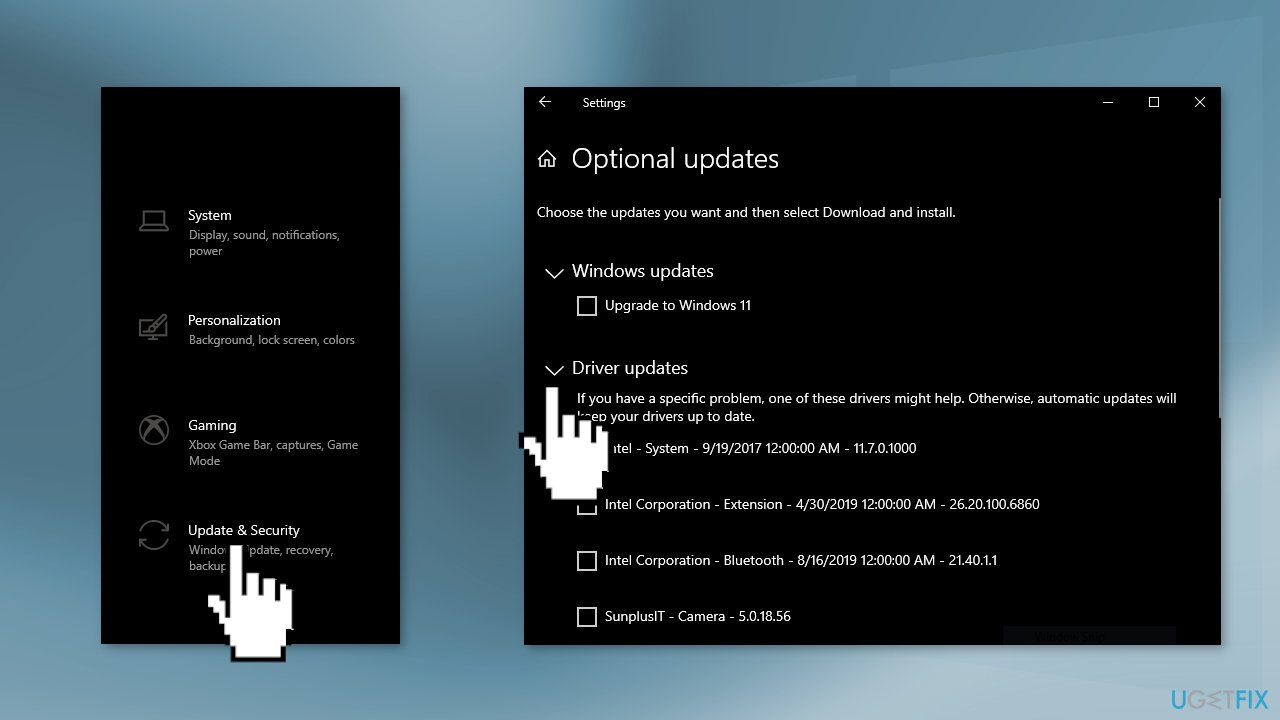
If the View optional updates link is not available after checking for updates, then Windows Update does not have any new drivers or any updates for other products at that particular time.
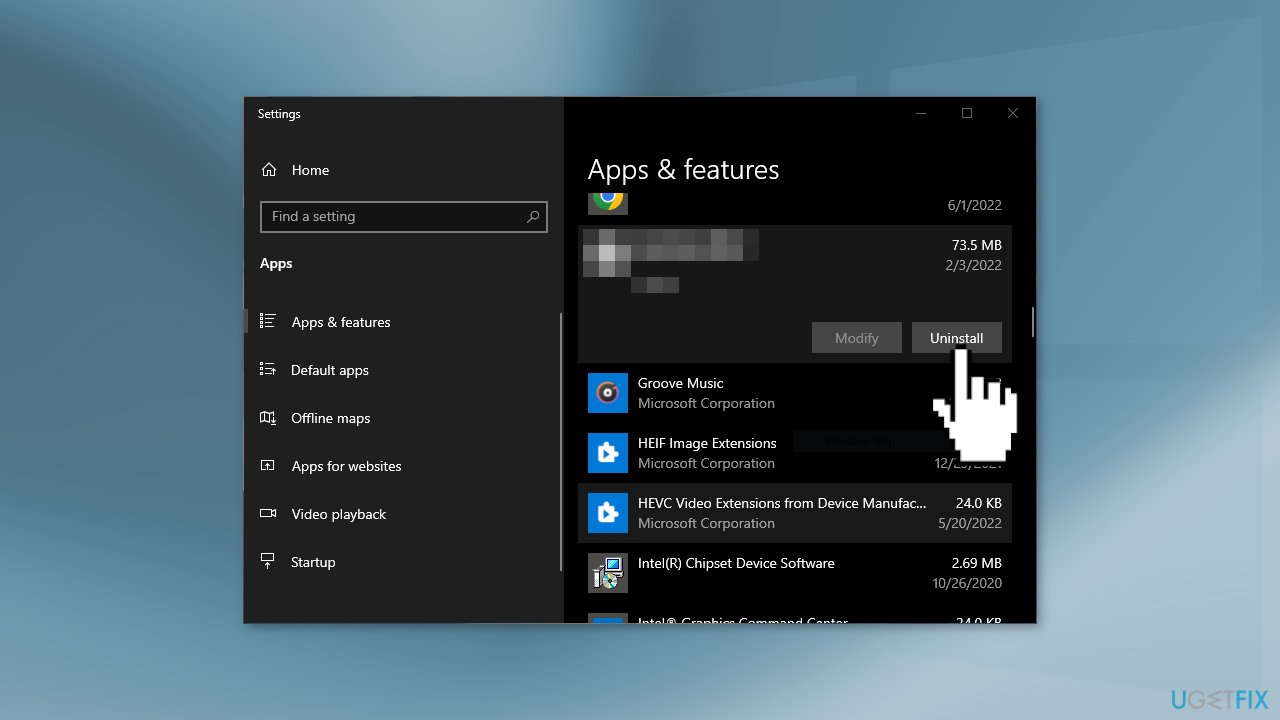
Solution 4. Uninstall Third-Party Security Software
A third-party antivirus program may be the reason why Windows 11 installation fails. Sometimes security software mistakenly blocks safe downloads.
- Go to Apps & Features
- Find the security program, click on it, and choose Uninstall
Solution 5. Use Windows 11 Installation Assistant
- Visit the official Microsoft website to download the Installation Assistant
- Double-click on the setup file
- Click on the Refresh button if you haven’t downloaded the PC Health Check app earlier
- Click the Accept and Install
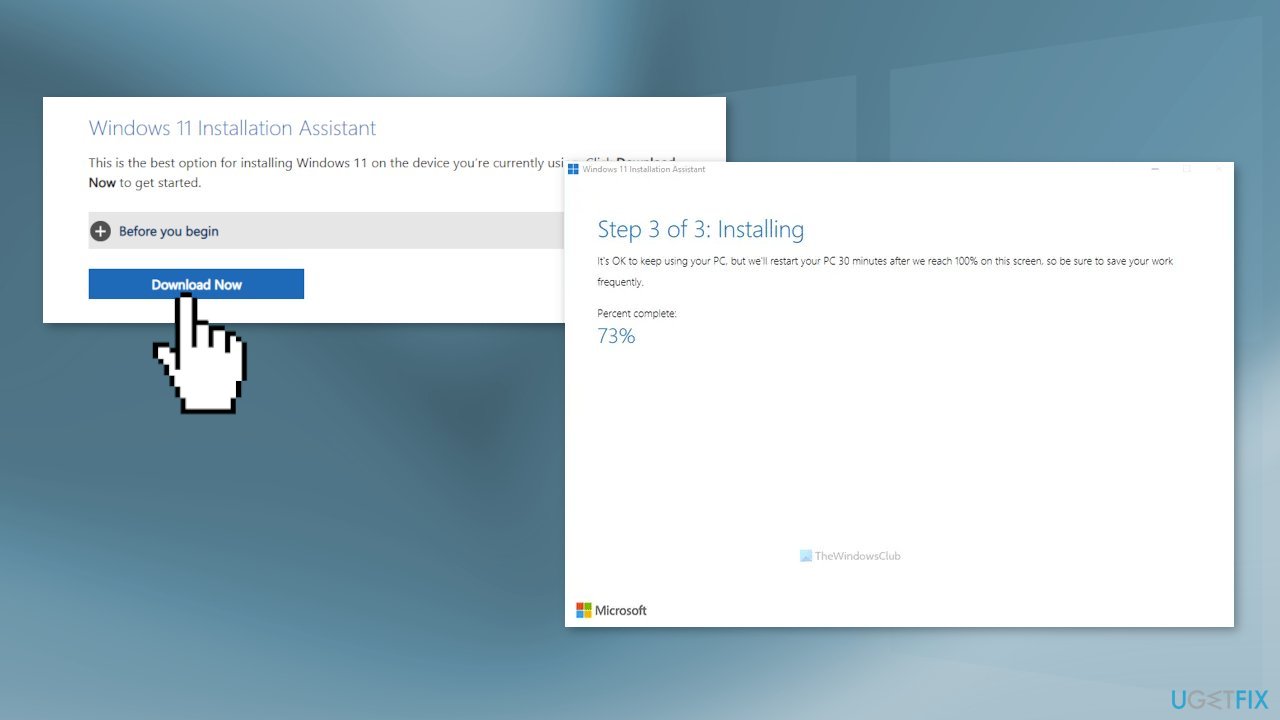
- Let it download and verify everything from the official resource
- Click the Restart now
- Continue with the installation
Bottom line
To fix the Windows 11 upgrade error 0x8007023b, you can clear up disk space, repair corrupted system files using Command Prompt, and update outdated drivers. If these solutions do not resolve the issue, consider using a maintenance tool to address system errors.
Frequently asked questions
The error code 0x8007023b usually indicates a problem with the upgrade process, often related to corrupted system files or compatibility issues with your current settings.
You can resolve this error by running the Windows Update Troubleshooter, checking for system file corruption with the SFC tool, or ensuring that your device meets the minimum requirements for Windows 11.
Yes, resetting your PC can help resolve the 0x8007023b error by restoring your system to its default settings, which may eliminate any underlying issues preventing the upgrade.




Report an issue
What's wrong with this guide? We review every report and update or remove content.
Report received — thank you. We'll review and fix it.
You need a free account to submit a report.
Be the first to comment