How to fix
Windows activation error 0x80041024
on Windows
Resolve the Windows activation error 0x80041024 quickly and efficiently with our expert-tested solutions for Windows 10 and 11. Fixed in minutes!

What causes How to fix Windows activation error 0x80041024?
- Invalid or unrecognized product key
- Corrupted system files
- Damaged licensing-related files
- Windows activation servers not recognizing the digital license
- Incorrect or non-upgraded version of the product key
Repairs Windows system files, removes malware, and restores a clean OS state — without reinstalling.
I have a problem with Windows 11 activation. I used Windows 10 for a while and now decided to move on but now I keep getting 0x80041024 error when trying to activate my Windows license. What can I do to address this?
Windows Activation is a very important step toward making the operating system genuine and functioning as expected. Whether one is activating for a new installation or is reactivating after an upgrade, the process is normally easy.
In some instances, users encounter issues during the activation process, especially when migrating to a new version of Windows, such as Windows 11. This involves various forms of errors that may pop up during the process; one such error is Windows activation error 0x80041024, which prevents the system from successfully completing its activation process.
The 0x80041024 error generally occurs due to some underlying reasons. These could be the use of an invalid/unrecognized product key, corrupted system files, or issues at the end of the activation service itself.
The majority of users encountering this error usually say that it means Windows has failed to activate over an automatic and/or manual basis, and it continues to remain unlicensed. It may occur both on a new install as well as when upgrading from an earlier version.
This error might have several reasons. Sometimes, the users might use an incorrect or non-upgraded version of the product key. Malfunctioning system files may prevent the activation of Windows, and it will not be able to confirm the license. Sometimes, the licensing-related files may get damaged, or Windows activation servers are not able to recognize the digital license.
Normal solutions to the 0x80041024 error: manually entering the proper product key, running the System File Checker to replace corrupt files, or even utilizing the Activation Troubleshooter, which can sometimes find and fix issues with the activation automatically.
Sometimes, one needs to activate Windows over the phone or contact Microsoft support if other methods do not work. They also succeeded when the user checked whether the product key was valid or not and matched with the appropriate version of Windows the system was running.
System-related issues to activation are easily solved by utilizing a trusted [d1] repair tool. Since the process is automated, the trust in your system is restored to ensure smooth activation without any further issues.
Fix 1. Verify the product key
An invalid or incorrect product key is one of the most common causes of error 0x80041024. Verifying that the key is correct for your version of Windows can resolve the issue.
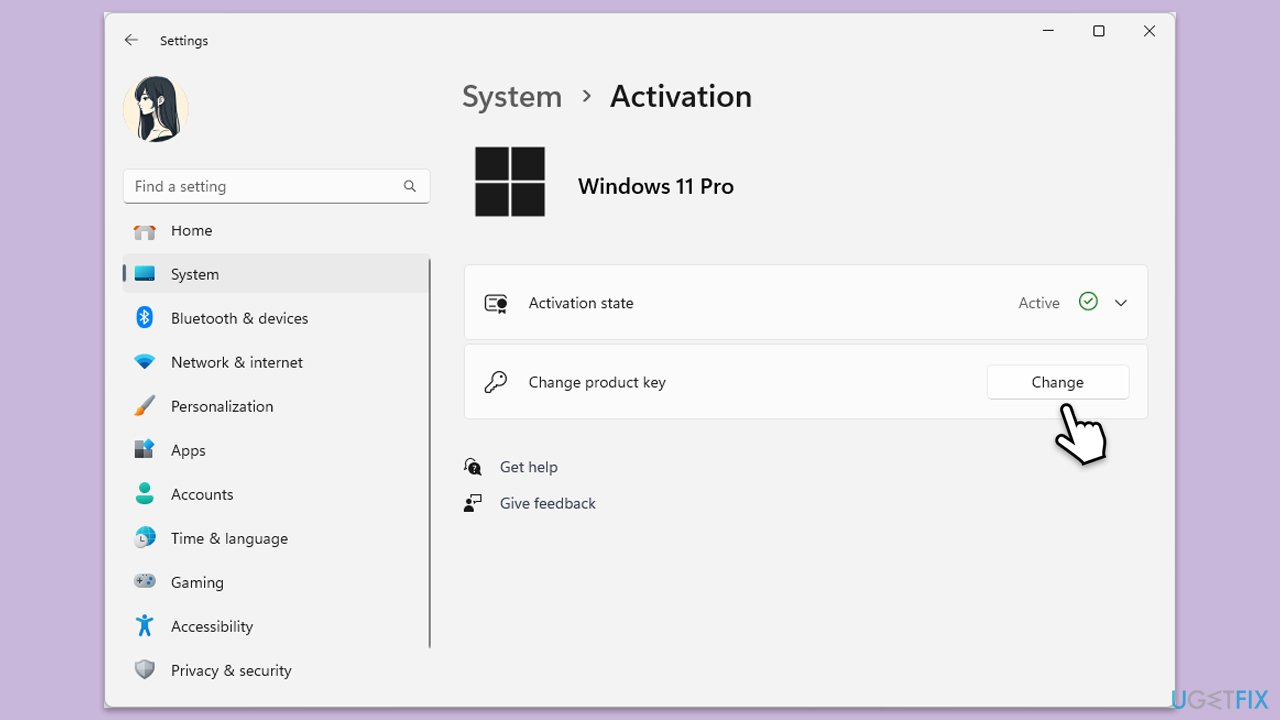
- Right-click on Start and pick Settings.
- Go to Update & Security and select Activation or System > Activation, depending on your Windows version.
- Check if your system displays a valid product key or if it prompts you to Enter a product key.
- Click Change product key and re-enter the correct key, then follow the prompts to activate Windows.
Fix 2. Run the Activation Troubleshooter
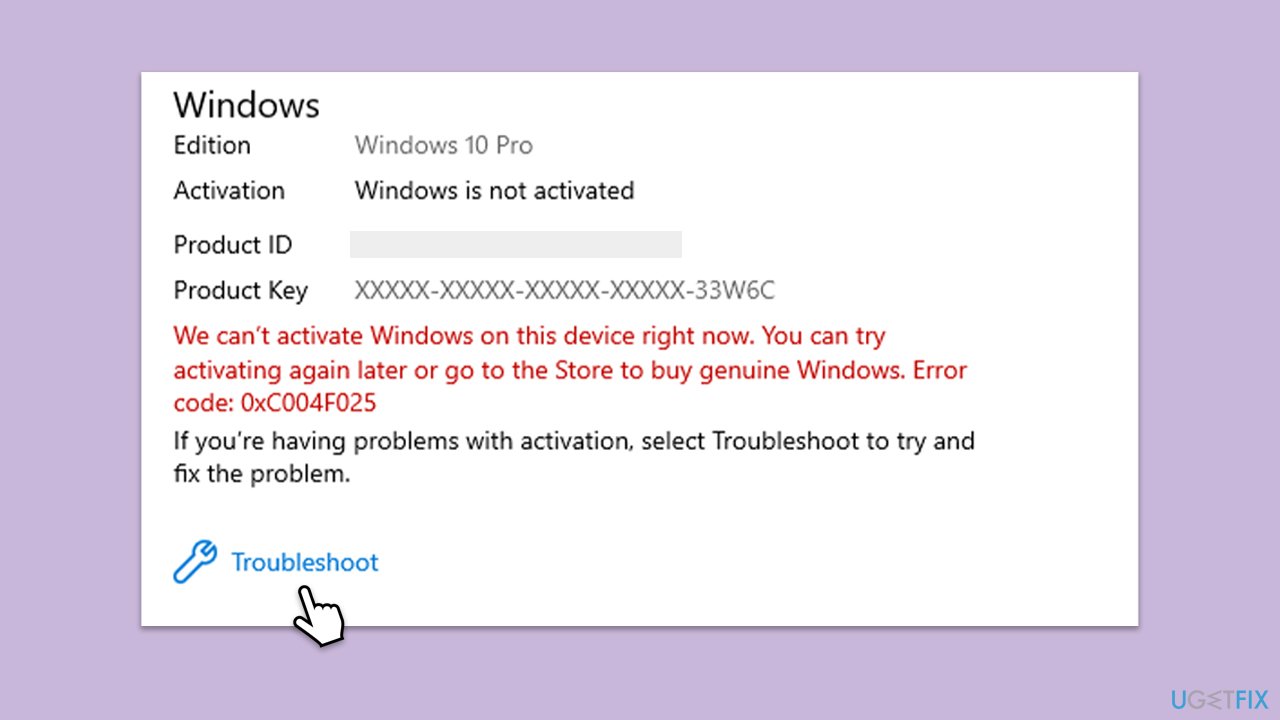
The built-in troubleshooter can automatically detect and fix issues related to activation, such as error 0x80041024.
- Right-click on Start and pick Settings.
- Select Update & Security > Activation on Windows 10 or System > Activation on Windows 11.
- Here you will see the error (click on the Activation State on Win 11).
- Click on Troubleshoot.
- Follow the on-screen instructions.
- Restart your computer as required.
Fix 3. Repair corrupted system files
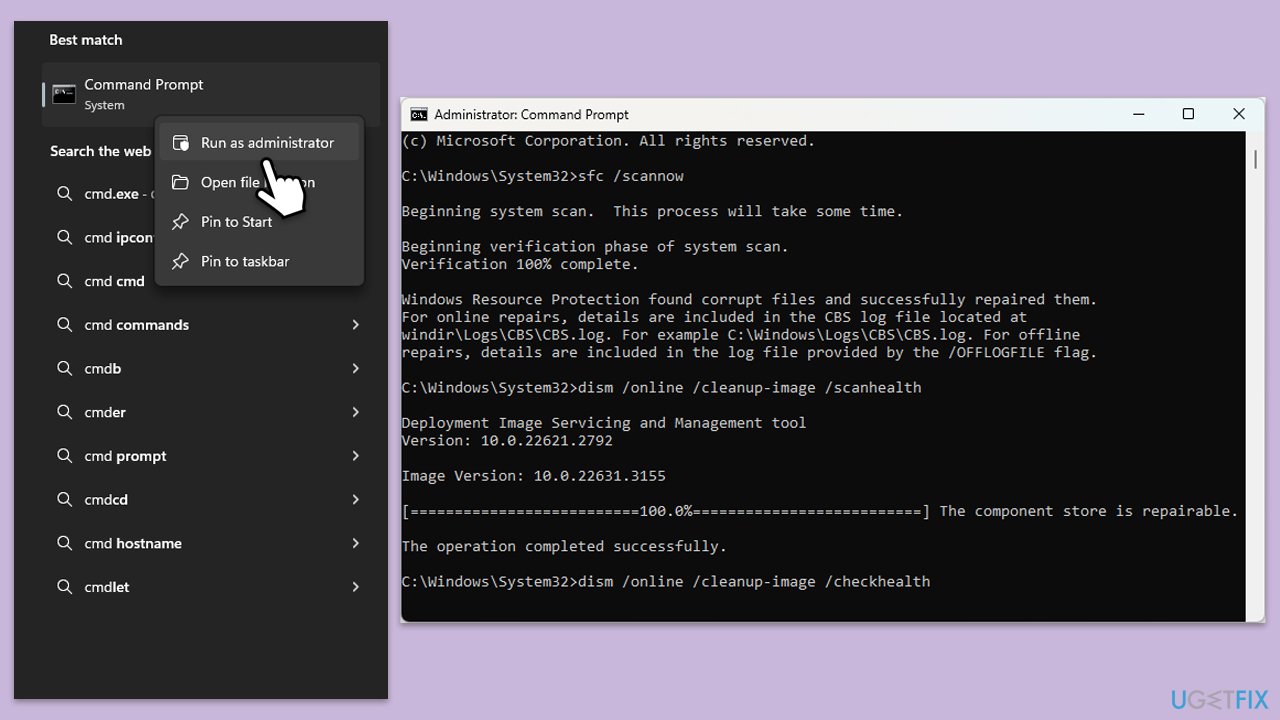
Corrupted system files or issues with the system image can interfere with Windows activation. Running the System File Checker (SFC) and Deployment Imaging Service and Management Tool (DISM) can repair these issues.
- Type in cmd in Windows search.
- Right-click on Command Prompt and select Run as administrator.
- When User Account Control shows up, click Yes.
- In the Command Prompt window, paste the following command and hit Enter:
sfc /scannow - Next, use the following commands, pressing Enter each time:
Dism /Online /Cleanup-Image /CheckHealth
Dism /Online /Cleanup-Image /ScanHealth
Dism /Online /Cleanup-Image /RestoreHealth
(Note: if you get an error executing this last command, add /Source:C:\RepairSource\Windows /LimitAccess to it and try again). - Reboot your computer.
Fix 4. Activate Windows by phone
If online activation doesn’t work, activating Windows via phone can bypass system issues and complete the activation manually.
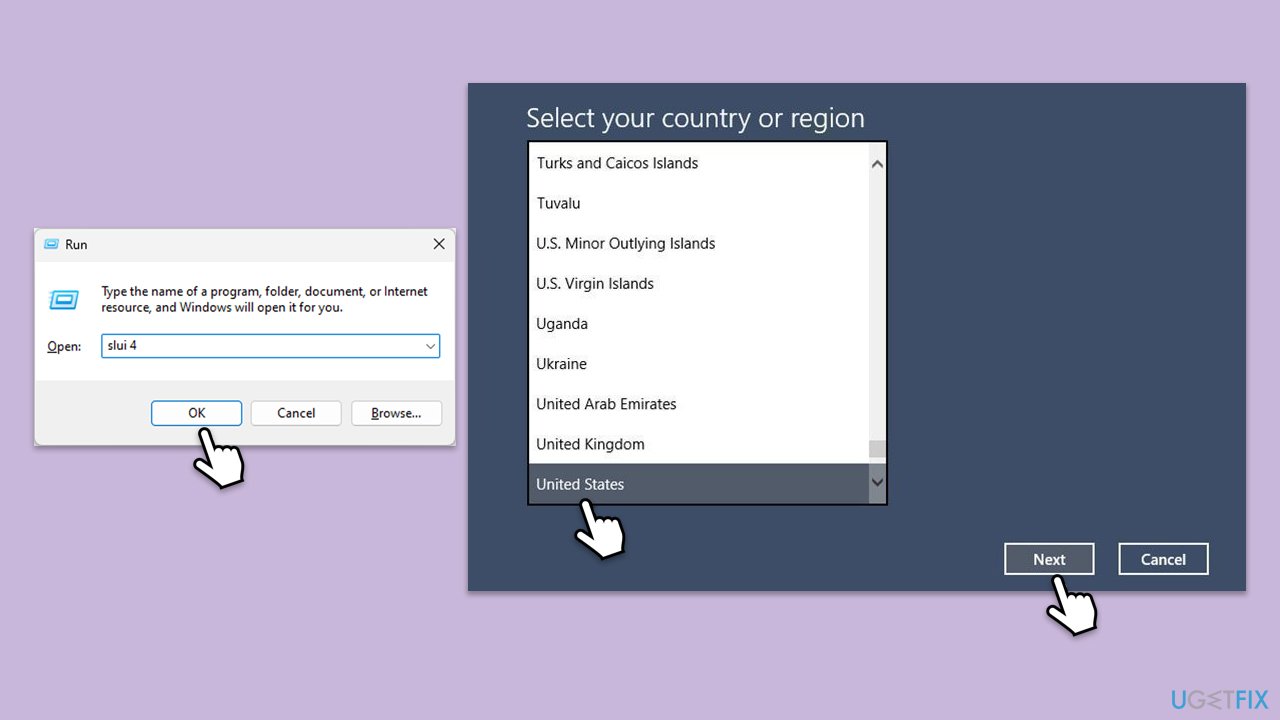
- Press Win + R on your keyboard and type slui 4, then press Enter.
- Select your country and click Next.
- Call the toll-free number provided.
- Follow the automated instructions or speak to a representative. Make sure you have your Windows product key/digital license number ready.
Fix 5. Activate Windows via Command Prompt
First, check what your license type is:
- Type cmd in Windows search.
- Right-click on Command Prompt and pick Run as administrator
- Copy and paste the following command, pressing Enter after:
Slmgr –dli - This should bring up a pop-up window with all the necessary licensing information.
- Check the Description section.
- Proceed with the steps explained in the next fix.
Next, follow the instructions based on what type of license you use:
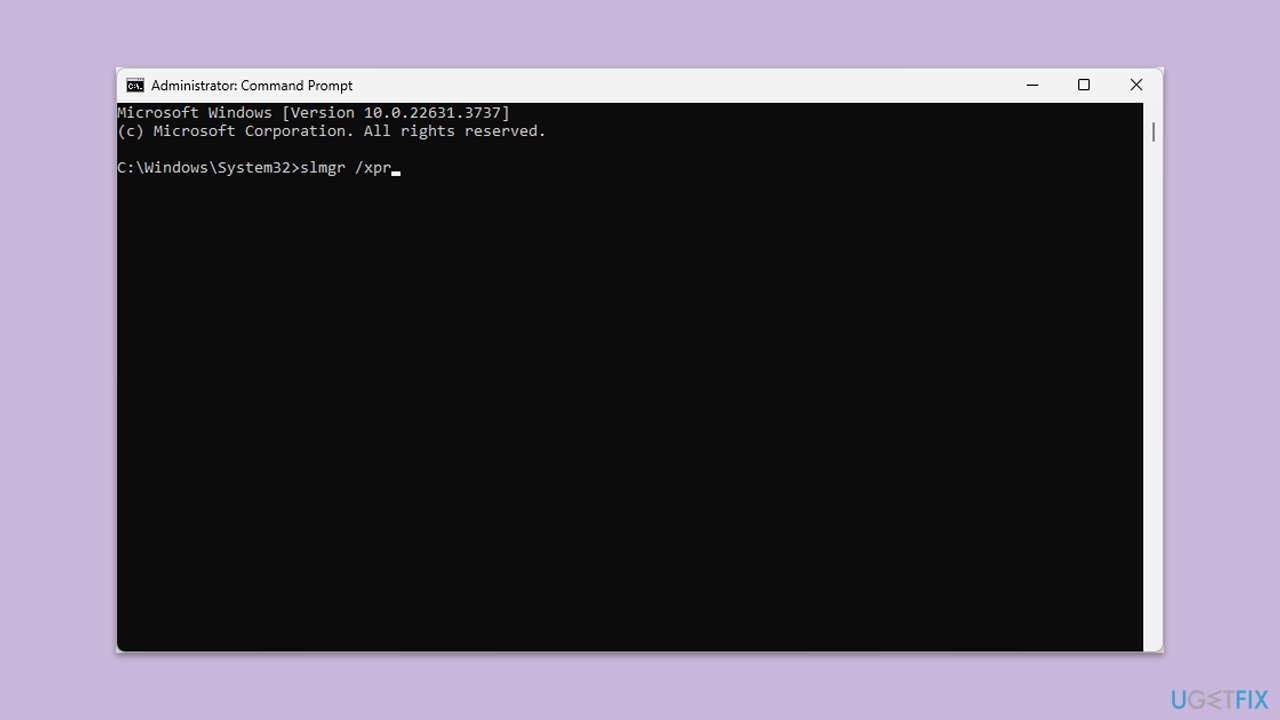
Digital license:
- Open Command Prompt administrator.
- When User Account Control shows up, click Yes.
- Once Command Prompt opens, copy and paste the following command:
slmgr /xpr - Press Enter and click OK.
Product key:
- Open Command Prompt as administrator and use the following command:
wmic path softwarelicensingservice get OA3xOriginalProductKey - Paste the slmgr.vbs.ipk <product key> into the window, and press Enter
- Finally, use slmgr.vbs/ato command and hit Enter
- Restart your PC and see if the problem persists.
Fix 6. Ensure you have the correct edition of Windows
If you have installed the wrong edition of Windows (for example, Windows Home instead of Windows Pro), the activation will fail. Verifying that the product key matches your installed edition can solve this issue.
- Go to Update & Security > Activation on Windows 10 or System > Activation on Windows 11 and check which version of Windows is installed.
- If needed, reinstall the correct edition and enter the appropriate product key.
Bottom line
To address the 0x80041024 error, users can manually enter the correct product key, run the System File Checker to repair corrupt files, or utilize the Activation Troubleshooter. If these methods do not resolve the issue, activating Windows over the phone or contacting Microsoft support may be necessary.
Frequently asked questions
The error 0x80041024 typically indicates that there is an issue with the Windows activation service, preventing your Windows 10 or Windows 11 from being activated properly.
You can troubleshoot error 0x80041024 by running the Windows Activation Troubleshooter available in the Settings app under Update & Security, or by using the command prompt to reset the Windows licensing components.
Yes, you can often resolve error 0x80041024 by performing a system scan using the Command Prompt with commands like 'sfc /scannow' or 'DISM /Online /Cleanup-Image /RestoreHealth' without needing to reinstall Windows 11.




Report an issue
What's wrong with this guide? We review every report and update or remove content.
Report received — thank you. We'll review and fix it.
You need a free account to submit a report.
Be the first to comment