How to fix
Windows activation error 0x803f8005
on Windows
Resolve Windows activation error 0x803f8005 effortlessly with our expert-tested solutions. Get your Windows 10 or 11 running smoothly again! Fixed in mi…


What causes How to fix Windows activation error 0x803f8005?
- Microsoft’s activation servers are temporarily unavailable
- Product key is incorrect or mismatched
- Device has recently undergone hardware changes
- System files are corrupted
- Network connectivity is unstable
- Activation settings are blocked by third-party software
Repairs Windows system files, removes malware, and restores a clean OS state — without reinstalling.
I upgraded my Windows 10 Home machine to Windows 10 Pro through the Microsoft Store in February 2025, and it worked smoothly until just recently, but now it’s prompting me to activate again. When I attempt activation, I get an error message saying "cannot activate at this time, try again later" with error code 0x803F8005.
Windows activation is a critical part of making sure that your copy of the operating system is genuine and licensed. Once activated, users are given access to complete system functionality and all of the fundamental features and updates. There are cases, however, where the activation process has issues - one such issue is Windows activation error 0x803F8005 that has been troubling users with different Windows 10 and Windows 11 builds.
0x803F8005 error typically appears alongside the message: Cannot activate at this time. Try again later. It prevents the system from completing activation, even when the product key is valid or the device has been previously activated. Users often encounter this after a hardware change, system reset, or clean installation. It may also appear on brand-new PCs with digital licenses linked to a Microsoft account.
The 0x803F8005 error can stem from several potential causes, including:
- If Microsoft’s activation servers are temporarily unavailable, then waiting a while and trying again later may resolve it.
- If the product key is incorrect or mismatched, then re-entering the correct key might fix the issue.
- If the device has recently undergone hardware changes, then reactivating using the digital license linked to your Microsoft account may be required.
- If system files are corrupted, then repairing the system could help resolve activation-related failures.
- If network connectivity is unstable, then switching to a more reliable connection or resetting network settings might help.
- If activation settings are blocked by third-party software, then performing a Clean Boot may uncover the conflict.
All manual solutions are listed below to guide you through the most effective ways to fix Windows activation error 0x803F8005. For users looking to avoid time-consuming steps, running a reliable [d1] repair tool is a convenient option for resolving Windows activation problems automatically.

Fix 1. Wait and try again later
Sometimes the error is caused by temporary issues with Microsoft’s activation servers. In these cases, the problem usually resolves on its own.
- Make sure your internet connection is stable.
- Close the Activation window.
- Wait for a few hours.
- Try activating Windows again through settings.
Fix 2. Re-enter your product key
An incorrect or corrupted product key entry can prevent successful activation. Re-entering the correct key may resolve the issue.
- Right-click on Start and pick Settings.
- Select Update & Security > Activation on Windows 10 or System > Activation on Windows 11.
- Here you will see the error (click on the Activation State on Win 11).
- Click on Change Product Key/Change.
- Enter your valid Windows product key.
- Click Next and follow the prompts to complete the process.

Fix 3. Run the Activation Troubleshooter
Windows has a built-in troubleshooter specifically for activation issues. It can detect problems and apply automatic fixes.
- Right-click on Start and pick Settings.
- Select Update & Security > Activation on Windows 10 or System > Activation on Windows 11.
- Here you will see the error (click on the Activation State on Win 11).
- Click on Troubleshoot.
- Follow the on-screen instructions.
- Restart your device as required.
Fix 4. Reactivate using your Microsoft account
If your device has a digital license linked to your Microsoft account, you can use it to reactivate after hardware changes or reinstalling Windows.
- Right-click on Start and pick Settings.
- Select Update & Security > Activation on Windows 10 or System > Activation on Windows 11.
- Here you will see the error (click on the Activation State on Win 11).
- Click on Troubleshoot, then choose I Changed hardware on this device recently.
- Sign in with your Microsoft account.
- Select the device from the list and click Activate.
Fix 5. Activate via Command Prompt
Corrupted Windows files can interfere with activation. Running a system scan can help detect and fix these issues.
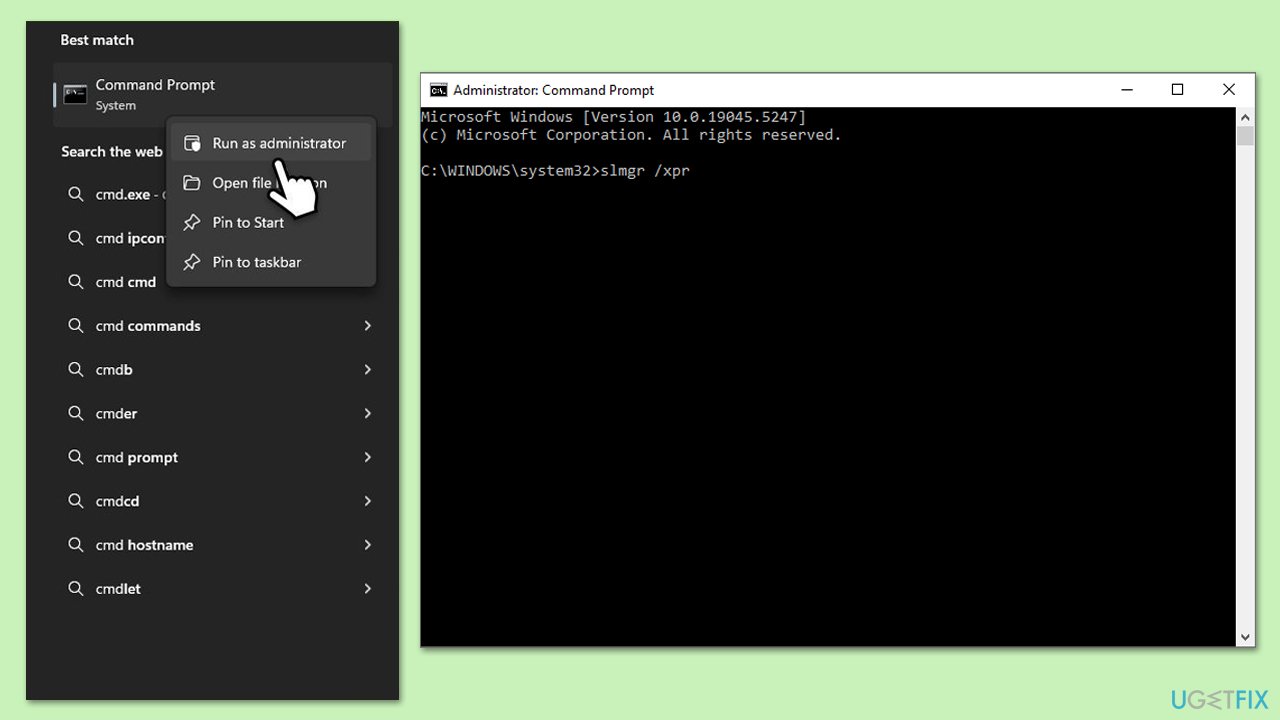
- Type cmd in Windows search, right-click and select Run as administrator.
- User Account Control window will show up - click Yes to proceed.
- In the Command Prompt, type slmgr.vbs /ipk <Your product key> and press Enter.
- After that, type slmgr.vbs /ato and press Enter.
- Close the Command Prompt and restart your computer to complete the activation process.
Please remember to replace <Your product key> with your actual product key when following the command prompt instructions. It's crucial to have the correct and valid Windows product key to successfully perform this activation.
Digital license:
- Open Command Prompt as administrator again.
- Copy and paste the following command:
slmgr /xpr - Press Enter.
- Close the Command Prompt and restart your computer to complete the activation process.
Fix 6. Perform a Clean Boot
Third-party services or software may block activation requests. A Clean Boot starts Windows with only essential services running.
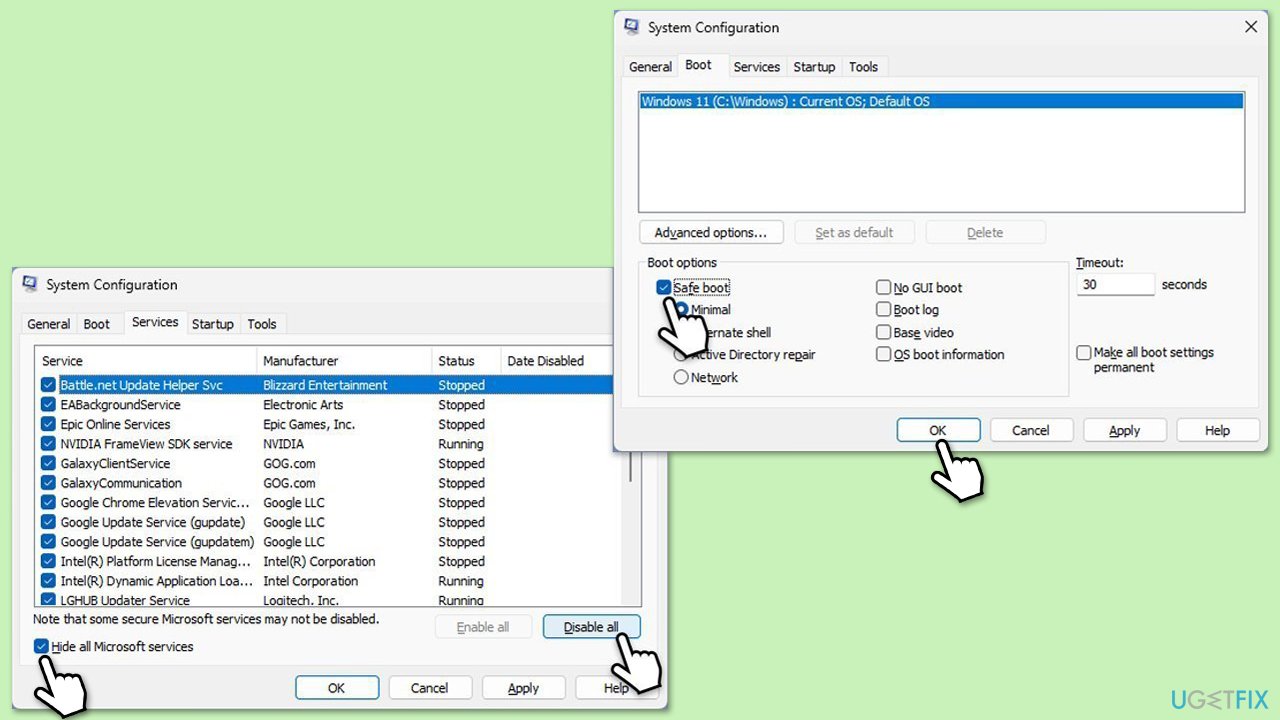
- Type msconfig in the Windows search box and press Enter.
- Pick the Services tab.
- Mark Hide all Microsoft services and select Disable all.
- Select the Startup tab and click Open Task Manager.
- In the Task Manager, right-click on each of the items and select Disable, then close the Task Manager.
- Go to the Boot tab, mark the Safe Boot option, then click Apply and OK.
- On the System Configuration window, click OK.
- To find out which app(s) is causing conflicts, enable each of the processes (or you can do it in groups), restart, and see if the problem persists. Repeat until you find the faulty app, then either update or uninstall it.
Fix 7. Activate by phone
In order to activate Windows over the phone, you must get in touch with the Microsoft Activation Center. There, you will be given a confirmation ID. When the online activation approach doesn't work, this manual way works great.
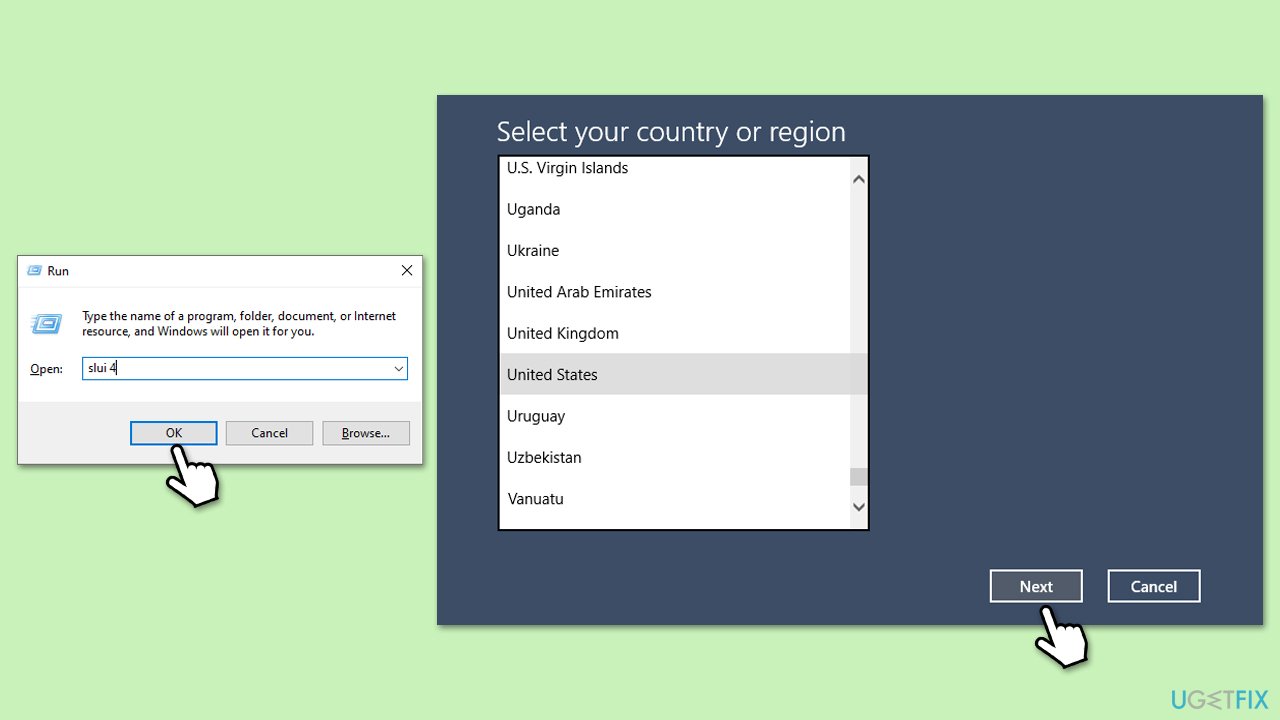
- Press Win + R, type Slui 4, and press Enter.
- In the new window, select your country and press Next.
- This should provide you with a local support number.
- Pick up your phone and follow the provided instructions.
- You might need to provide some information about your Windows license. To acquire it, open Command Prompt as administrator and type in slmgr.vbs /dlv command and hit Enter.
Bottom line
To fix the Windows activation error 0x803F8005, users can try re-entering the correct product key, reactivating using their digital license, repairing system files, improving network connectivity, or performing a Clean Boot. If these solutions do not resolve the issue, consider using a reliable repair tool for automatic troubleshooting.
Frequently asked questions
The error 0x803f8005 typically indicates that Windows 10 or Windows 11 cannot connect to the activation servers, often due to network issues or problems with your Microsoft account.
To troubleshoot this error, try running the Windows Activation Troubleshooter found in Settings under Update & Security, then Activation.
Yes, ensuring a stable internet connection is crucial; you can test this by opening a web browser and visiting a website to confirm connectivity before attempting activation again.




Report an issue
What's wrong with this guide? We review every report and update or remove content.
Report received — thank you. We'll review and fix it.
You need a free account to submit a report.
Be the first to comment