How to fix
Windows activation error 0xc0000002
on Windows
Resolve Windows activation error 0xc0000002 quickly and efficiently. Get back on track with expert-tested solutions tailored for Windows 10 and 11. Fixe…

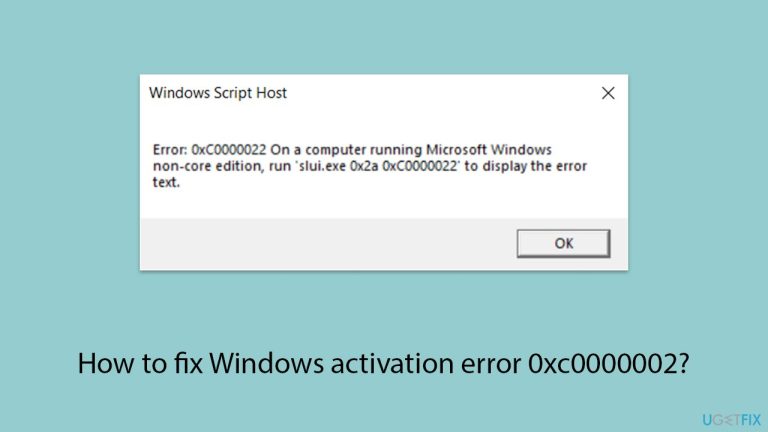
What causes How to fix Windows activation error 0xc0000002?
- Corrupted system files
- Incomplete Windows updates
- Registry conflicts
- Outdated hardware drivers
Repairs Windows system files, removes malware, and restores a clean OS state — without reinstalling.
Out of nowhere, Windows is showing that activation has failed. The error code provided is 0xc0000002. What do I do?
Understanding and resolving Windows activation error 0xc0000002
Windows activation is basically the primary process behind the legitimacy of an operating system; it opens all the features and updates for use. Sometimes, some errors disrupt this process - Windows activation error 0xc0000002 is one such example. This error prevents the system from validating your Windows license appropriately; hence, it creates some functionality issues and prompts for activation continuously.
The nature of error 0xc0000002
This particular error code usually indicates a problem with loading a required system file or component essential for activation. It may arise due to corrupted system files, incomplete installations, or conflicts within the system registry. Such issues can stem from malware infections, improper shutdowns, or failed software updates.
Potential causes
The 0xc0000002 activation error can be attributed to several causes, such as corrupted system files, crashed or incomplete Windows update that may result in critical components missing or damaged, and registry conflicts serving as a database for different system configurations. Lastly, outdated or incorrect hardware drivers can interfere with Windows activation.
Addressing the problem
To resolve this error, it is essential to identify and repair the underlying issues. This may involve repairing corrupted system files, completing any pending Windows updates, and resolving registry conflicts. Ensuring that all hardware drivers are up to date can eliminate compatibility issues that might affect activation.
Encountering Windows activation error 0xc0000002 is definitely annoying. However, the first step toward a solution will be to know what generates such problems; catching up with system file integrity, updating software components, and rectifying registry issues are practical means of restoring full operability to your operating system.
For a comprehensive approach to diagnosing and repairing Windows issues such as corrupted files or DLL errors, consider using [d1] PC repair software. This tool can help streamline the repair process and enhance your system's performance.
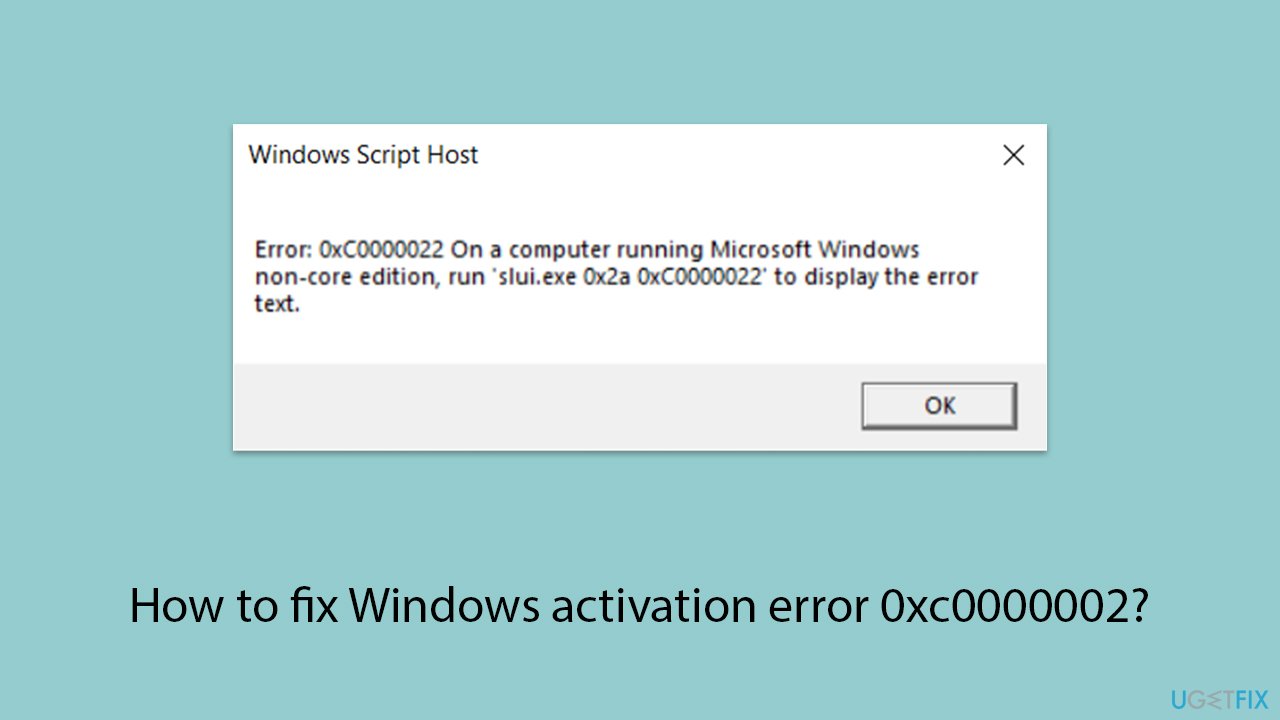
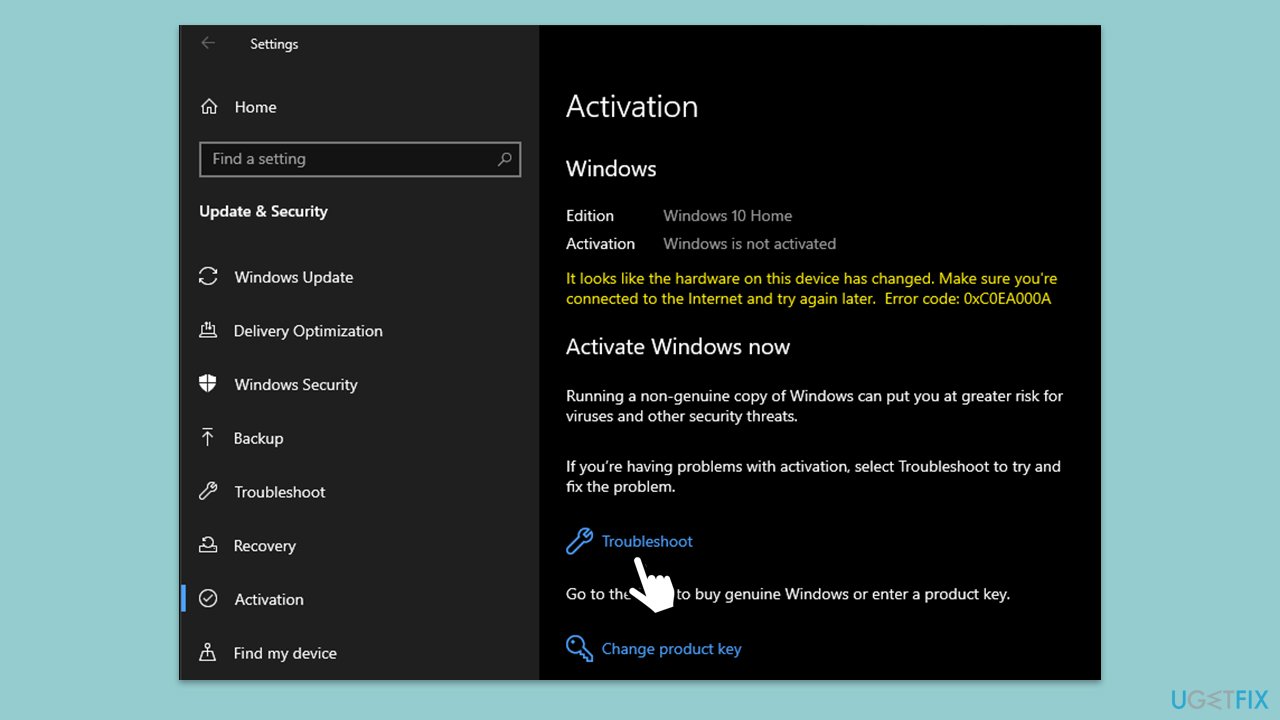
Fix 1. Run the Windows Activation troubleshooter
The Windows Activation Troubleshooter is a built-in tool designed to detect and resolve common activation issues automatically. It can identify problems with your license and attempt to reactivate Windows.
- Right-click on Start and pick Settings.
- Select Update & Security > Activation on Windows 10 or System > Activation on Windows 11.
- Here you will see the error (click on the Activation State on Win 11).
- Click on Troubleshoot.
- Follow the on-screen instructions.
- Restart your device as required.
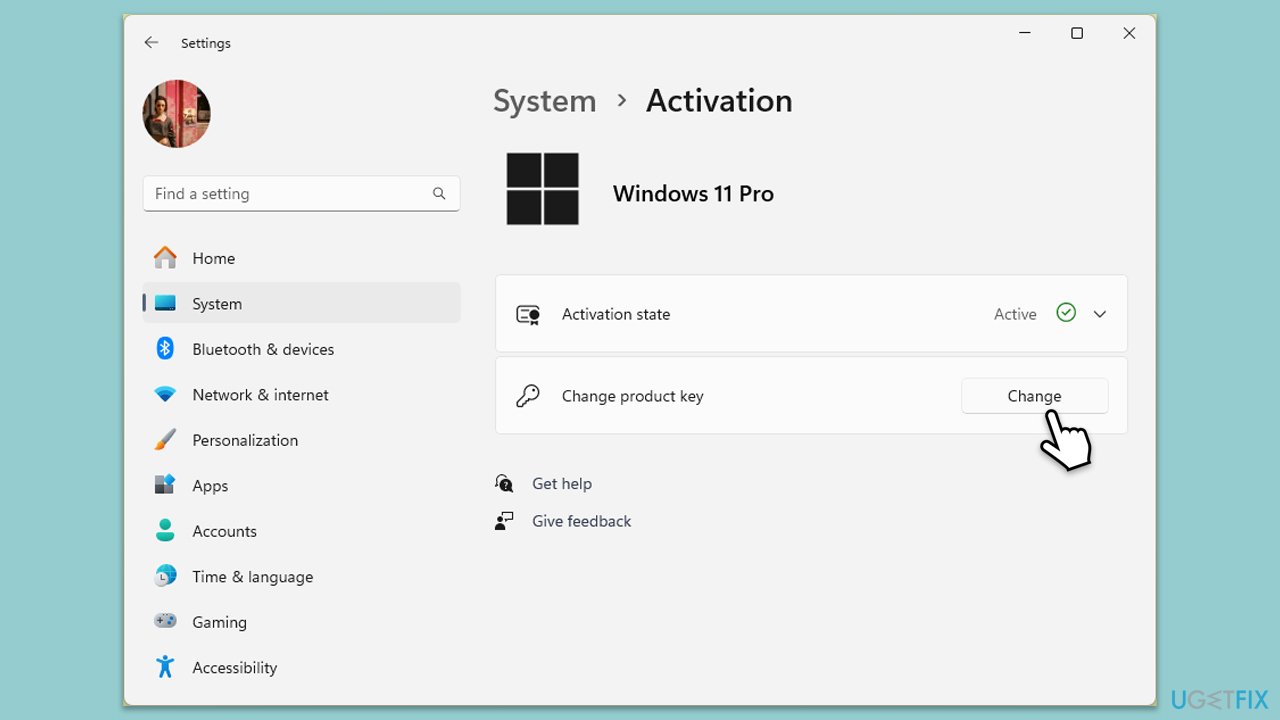
Fix 2. Verify and re-enter the product key
An incorrect or invalid product key will prevent activation. Verifying and re-entering your product key ensures that the system has the correct information to activate Windows.
- Right-click on Start and pick Settings.
- Select Update & Security > Activation on Windows 10 or System > Activation on Windows 11.
- Here you will see the error (click on the Activation State on Win 11).
- Click on Change Product Key.
- Enter your valid Windows product key.
- Click Next and follow the prompts to complete the process.
Fix 3. Repair corrupted system files
Corrupted system files can disrupt the activation process. Repairing these files can restore essential components needed for activation to succeed.
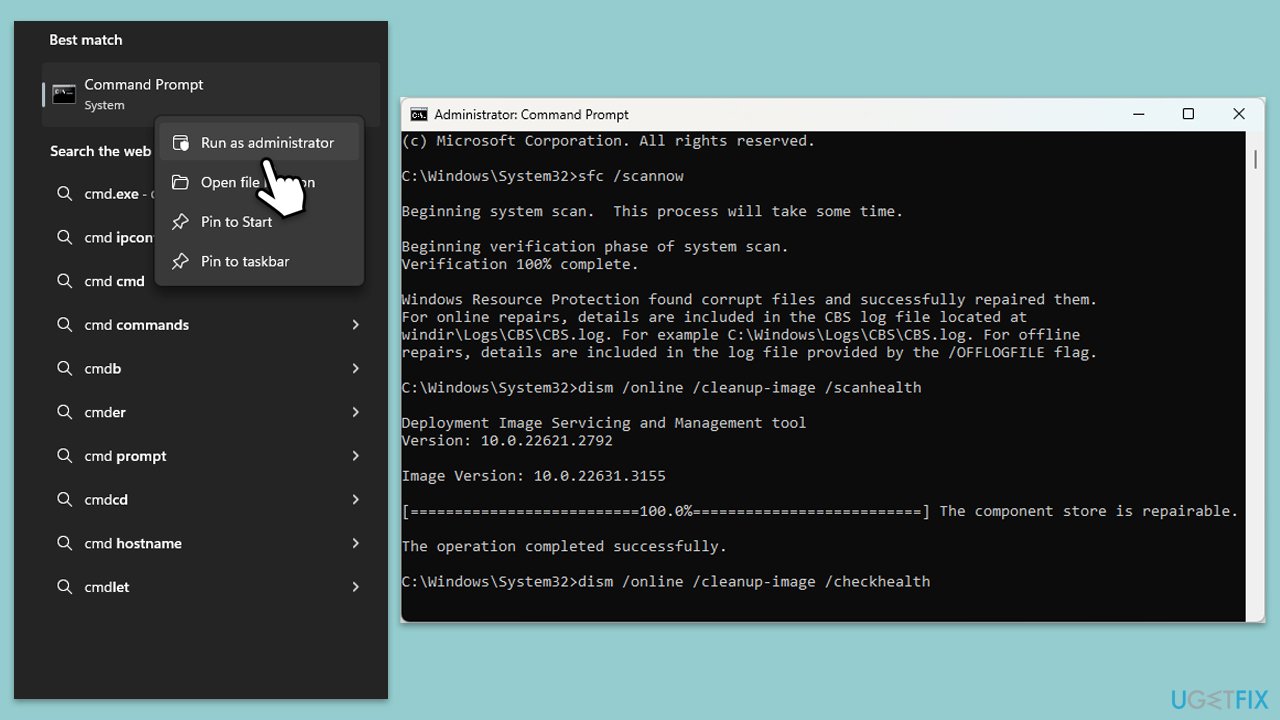
- Type cmd in Windows search.
- Right-click on Command Prompt and pick Run as administrator.
- The User Account Control window will ask whether you want to allow changes - click Yes.
- In the Command Prompt window, paste the following command and hit Enter:
sfc /scannow - Once the scan is complete, use the following commands and press Enter after each:
Dism /Online /Cleanup-Image /CheckHealth
Dism /Online /Cleanup-Image /ScanHealth
Dism /Online /Cleanup-Image /RestoreHealth - (Note: if you get an error executing this last command, add /Source:C:\RepairSource\Windows /LimitAccess to it and try again).
- Restart your device.
Fix 4. Complete pending Windows updates
Incomplete or pending Windows updates may interfere with activation services. Ensuring all updates are fully installed can restore missing components required for activation.
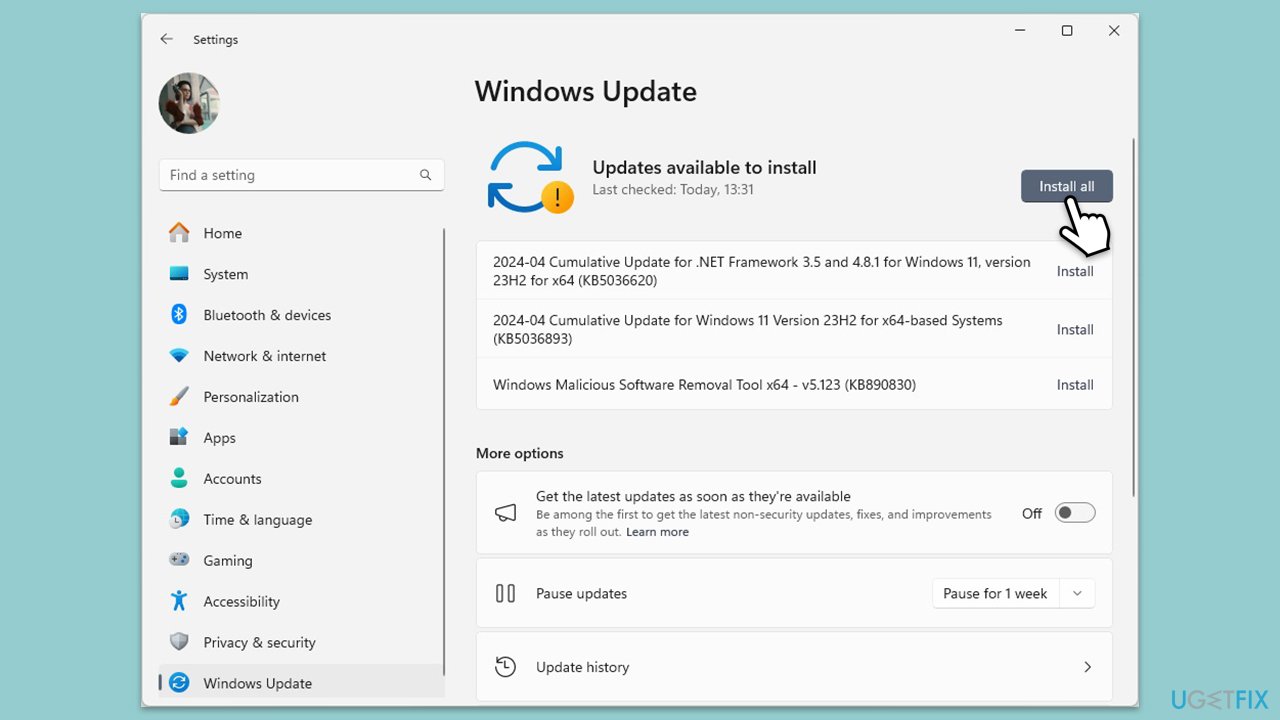
- Type Updates in Windows search and press Enter.
- Here, click the Check for updates or Install updates button.
- Wait till all the available updates are installed - make sure optional updates are installed as well.
- Once done, restart your system.
Fix 5. Reactivate Windows via Command Prompt
Manually reactivating Windows using the Command Prompt can bypass certain errors by forcing the system to attempt activation anew.
- Type cmd in Windows search.
- Right-click on Command Prompt and pick Run as administrator.
- When User Account Control shows up, click Yes.
- Copy and paste the following command, pressing Enter after:
Slmgr –dli - This should bring up a pop-up window with all the necessary licensing information.
- Check the Description section.
For digital license:
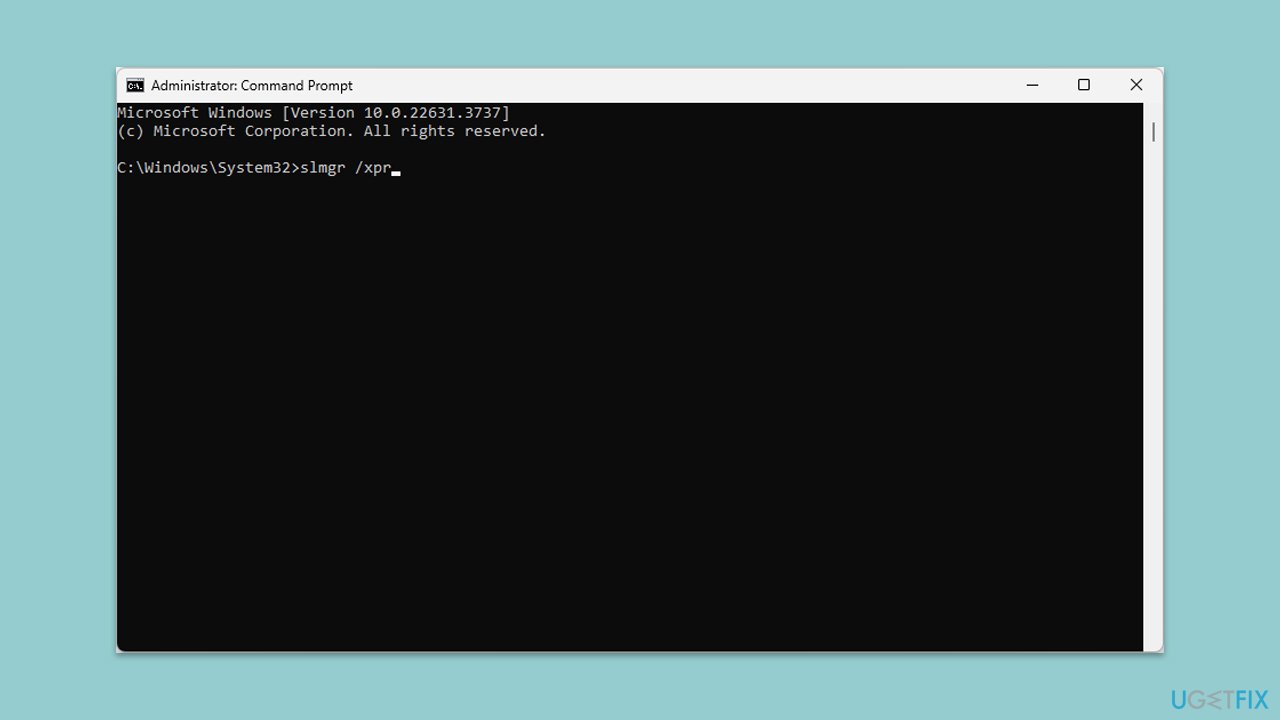
- Open Command prompt as administrator.
- Once Command Prompt opens, copy and paste the following command:
slmgr /xpr - Press Enter.
For product key:
- Open Command Prompt as administrator once again and use the following command:
wmic path softwarelicensingservice get OA3xOriginalProductKey - Paste the slmgr.vbs.ipk <product key> into the window, and press Enter.
- Finally, use slmgr.vbs/ato command and hit Enter.
- Restart your PC and see if your Windows is activated.
Fix 6. Scan for malware and viruses
Malware can corrupt system files and interfere with activation. Performing a thorough antivirus scan can remove malicious software that might be causing the error.
You can use any reliable third-party security software, employ Microsoft Security Scanner, or simply Windows Defender:
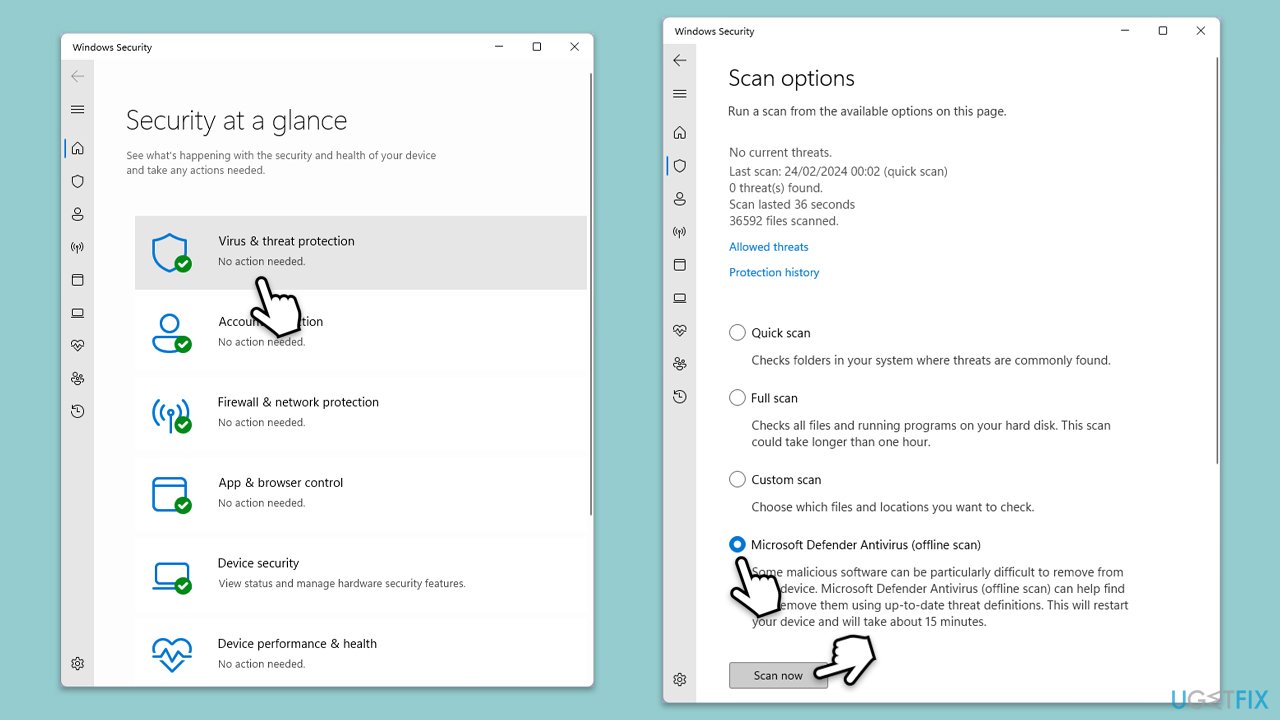
- Type Windows Security in the Windows search bar and hit Enter.
- Select Virus & threat protection.
- Pick Scan options.
- Choose Microsoft Defender Offline scan and click Scan now.
- Your computer will immediately restart to begin a deep scan.
Bottom line
To resolve the Windows activation error 0xc0000002, you should run the Windows Activation troubleshooter, repair corrupted system files, complete any pending updates, and ensure all drivers are up to date. If these steps do not resolve the issue, consider using PC repair software for further assistance.
Frequently asked questions
The error 0xc0000002 indicates a problem with the activation process, often due to corrupted system files or issues with the activation server in Windows 10 or Windows 11.
To fix this error in Windows 10, run the System File Checker tool by opening Command Prompt as an administrator and typing 'sfc /scannow' to repair any corrupted files.
In Windows 11, you can also try using the Activation Troubleshooter found in Settings under Update & Security to help resolve the activation issue.




Report an issue
What's wrong with this guide? We review every report and update or remove content.
Report received — thank you. We'll review and fix it.
You need a free account to submit a report.
Be the first to comment