How to fix
Windows activation error 0xC004E003
on Windows
Resolve the Windows activation error 0xC004E003 quickly and efficiently with expert-tested solutions for Windows 10 and 11. Fixed in minutes!

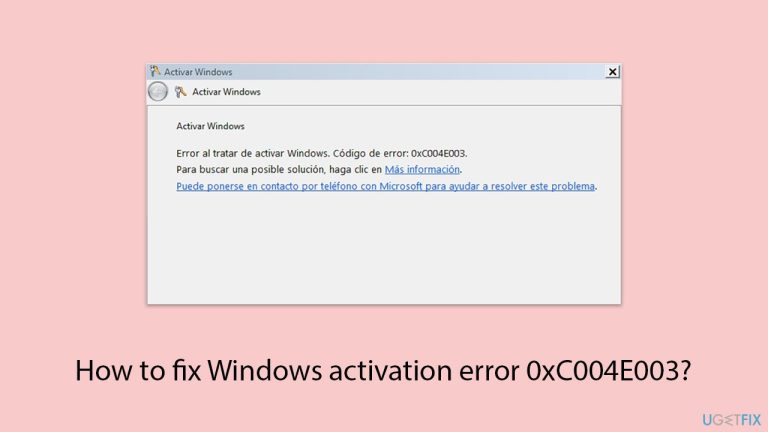
What causes How to fix Windows activation error 0xC004E003?
- Activation service problem
- Invalid or incorrect expiry of product keys
- Hardware change in systems
- Incorrect entry of product key
- Product key already used on another system
Repairs Windows system files, removes malware, and restores a clean OS state — without reinstalling.
I have finally decided to upgrade to Windows 10 (I don't want 11), and I keep getting activation error 0xC004E003 despite having a legitimate license for Windows 8. Can you advise please?
Windows Activation is a very important step towards validation, through which your copy of Windows will be genuine and correctly licensed. It is through this entitlement that one is able to access all the features of the operating system, receives all significant updates, and keeps the system and its data secure. Now, like any other activation process, problems might arise during the process of Windows Activation, and one such issue is connected with the error code 0xC004E003.
Error 0xC004E003 will come up during the activation of Windows either after a fresh installation or reinstallation. It generally arises due to any sort of activation service problem, an invalid or incorrect expiry of the product keys, or basically hardware change in systems. In this context, it might bring an error message that points out the inability for activation and that Windows cannot validate the Product Key.
The 0xC004E003 error is most often caused by either an invalid product key because of an incorrect entry or having already been used on another system. Then again, changes to a critical system component would trigger the hardware mismatch detection mechanism in the activation service, thereby yielding the described error.
Such changes include, but are not limited to, upgrades involving the motherboard or hard drive. This may also happen after the system upgrade, taking into account that the original license was connected to older hardware.
Symptoms of the 0xC004E003 error include messages showing that Windows is not activated, limited personalization capabilities, and constant notifications to activate Windows. This can get annoying, especially if a user feels they have a valid product key in use. Sometimes, this error might continuously pop up due to deeper system issues or even conflicts on the Windows activation service side.
This requires an in-depth understanding of what may cause the activation not to take place, which can be due to product key verification, hardware mismatch, or system-level conflicts. In more complicated scenarios, one may need to use a PC repair tool, like [d1], to search for and automatically fix deeper problems in Windows' activation process.
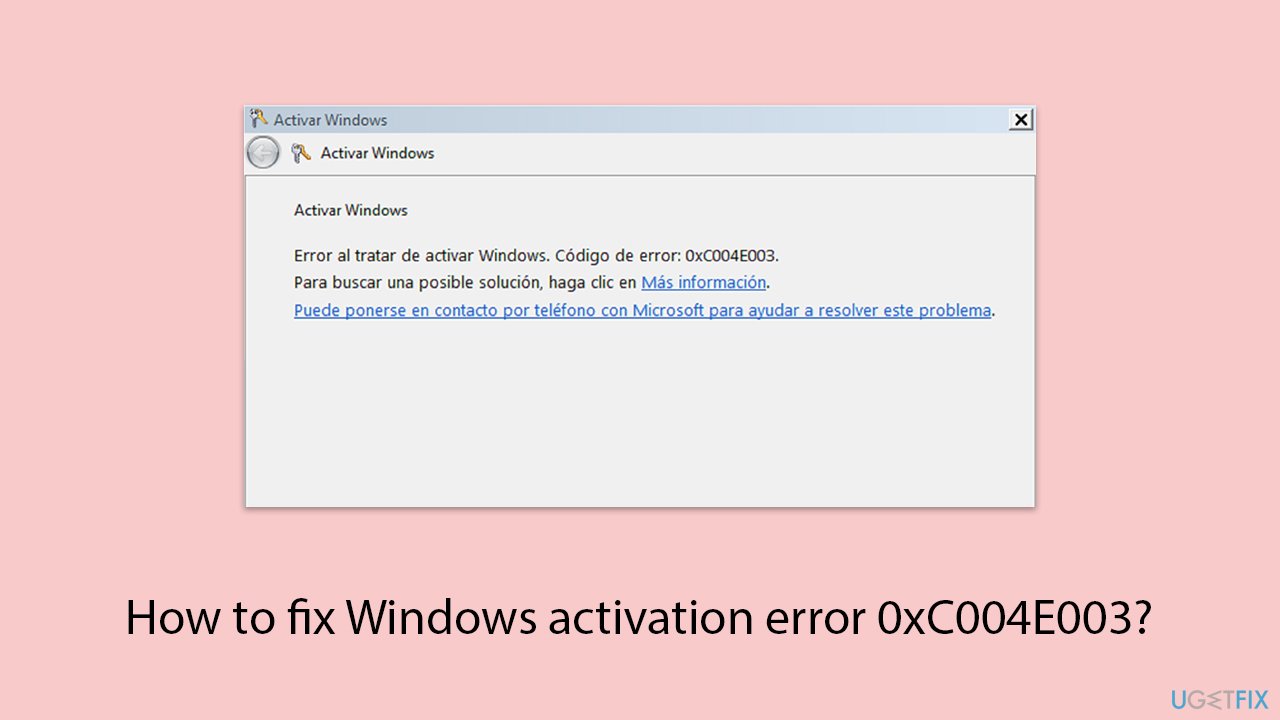
Fix 1. Check the license type
Before proceeding with troubleshooting, first check which type of license you are using.
- Type cmd in Windows search.
- Right-click on Command Prompt and pick Run as administrator
- Copy and paste the following command, pressing Enter after:
Slmgr –dli - This should bring up a pop-up window with all the necessary licensing information.
- Check the Description section.
- Proceed with the steps explained in the next fix.
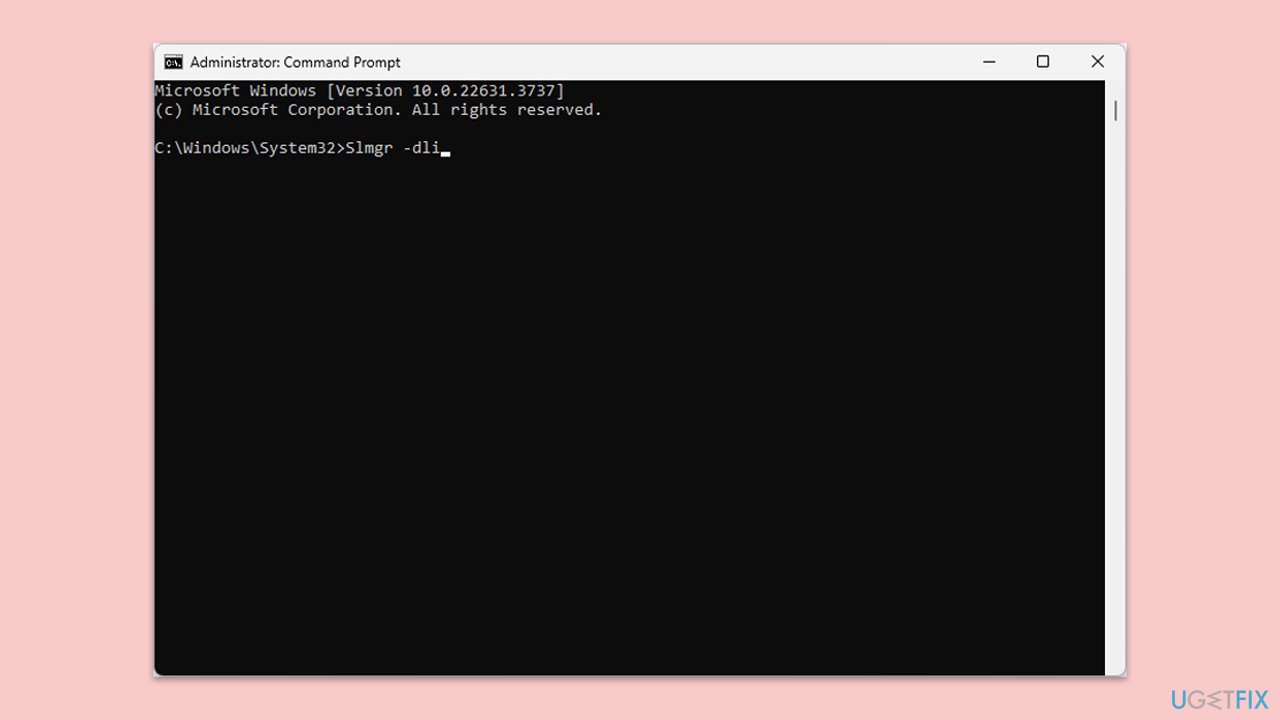
Fix 2. Run Windows activation troubleshooter
The built-in Windows Activation Troubleshooter can detect common activation issues and might automatically fix the 0xC004E003 error.
- Right-click on Start and pick Settings.
- Select Update & Security > Activation on Windows 10 or System > Activation on Windows 11.
- Here you will see the error (click on the Activation State on Win 11).
- Click on Troubleshoot.
- Follow the on-screen instructions.
- Restart your device as required.
Fix 3. Activate using Command Prompt
If activating via the usual method does not work, you can try using Command Prompt instead.
Digital license:
- Open Command Prompt administrator.
- When User Account Control shows up, click Yes.
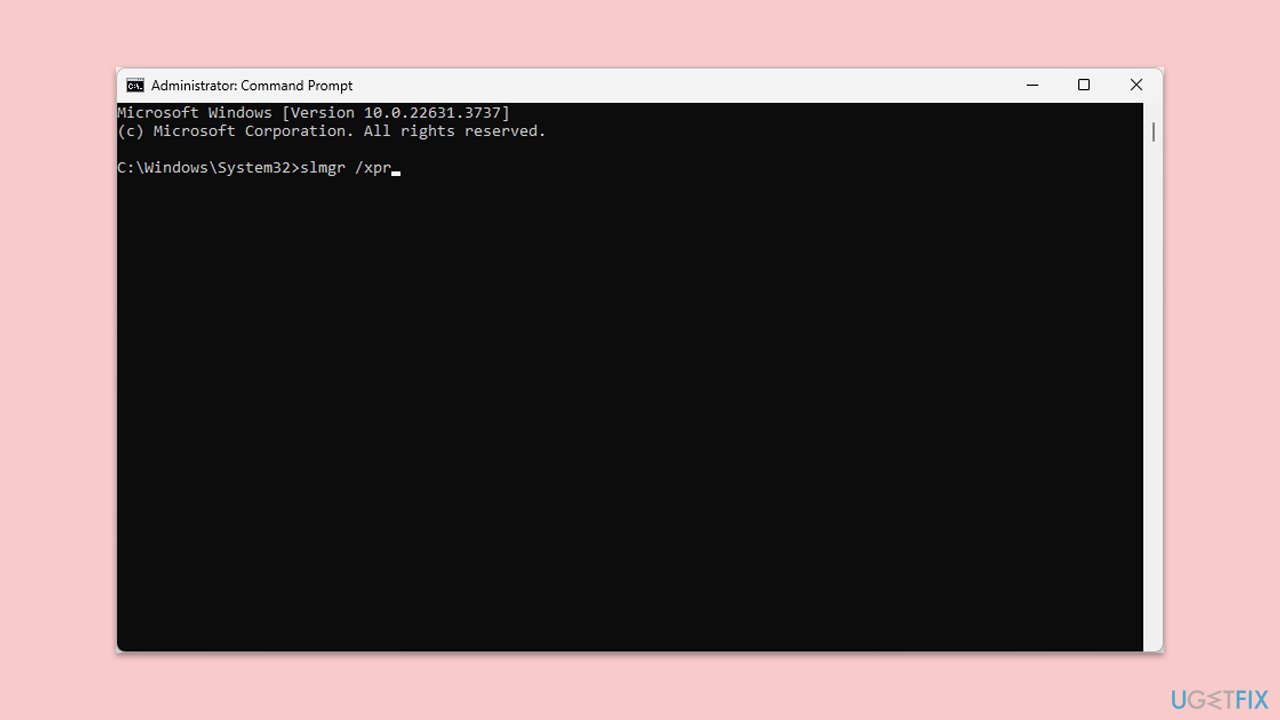
- Once Command Prompt opens, copy and paste the following command:
slmgr /xpr - Press Enter and click OK.
Product key:
- Open Command Prompt as administrator and use the following command:
wmic path softwarelicensingservice get OA3xOriginalProductKey - Paste the slmgr.vbs.ipk <product key> into the window, and press Enter
- Finally, use slmgr.vbs/ato command and hit Enter
- Restart your PC and see if the problem persists.
Fix 4. Check internet connection
A stable internet connection is required to communicate with the activation servers. An unstable or disconnected network may prevent activation from completing successfully.
Windows 11
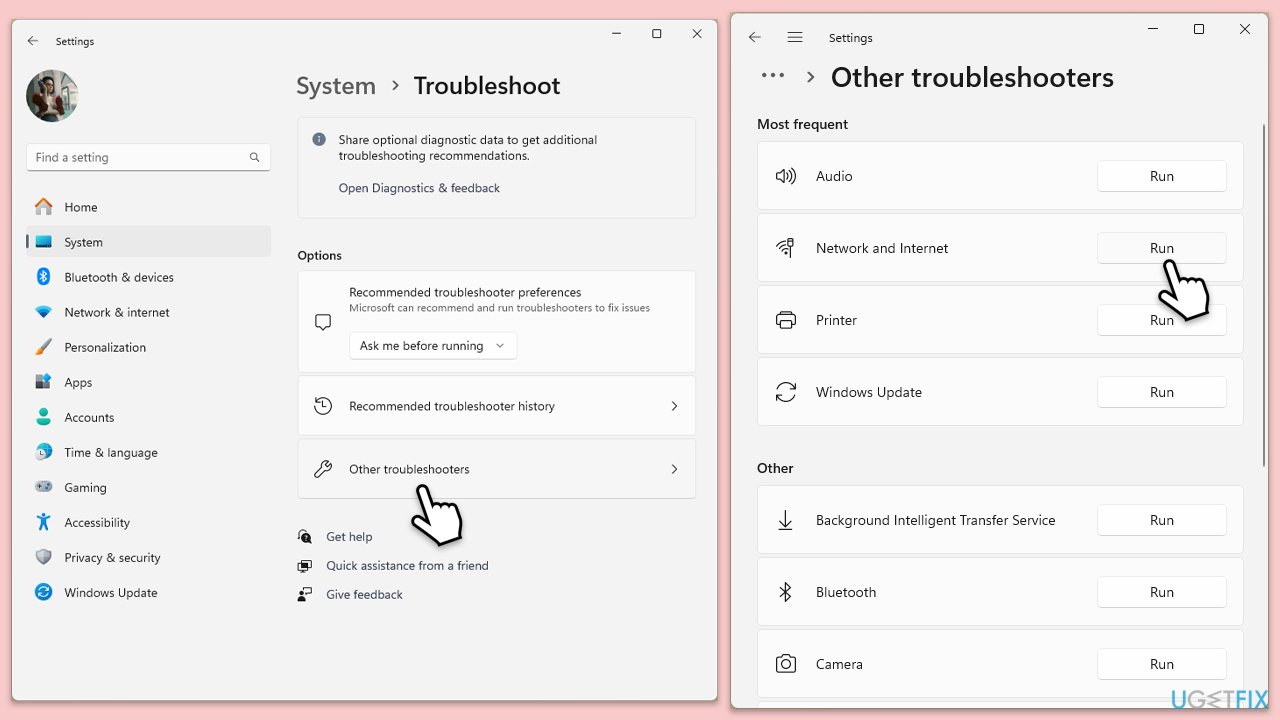
- Type Troubleshoot in Windows search and press Enter.
- Select Other troubleshooters.
- Find Network & Internet troubleshooter from the list and select Run.
- Wait till the process is finished and apply the offered fixes.
- Restart your system.
Windows 10
- Right-click on Start and pick Settings.
- Go to Network & Internet section.
- On the right side, find the Advanced network settings section.
- Click Network troubleshooter, specify the problem, and wait till the scan is finished.
- When done, apply all the recommendations.
Fix 5. Check time and date
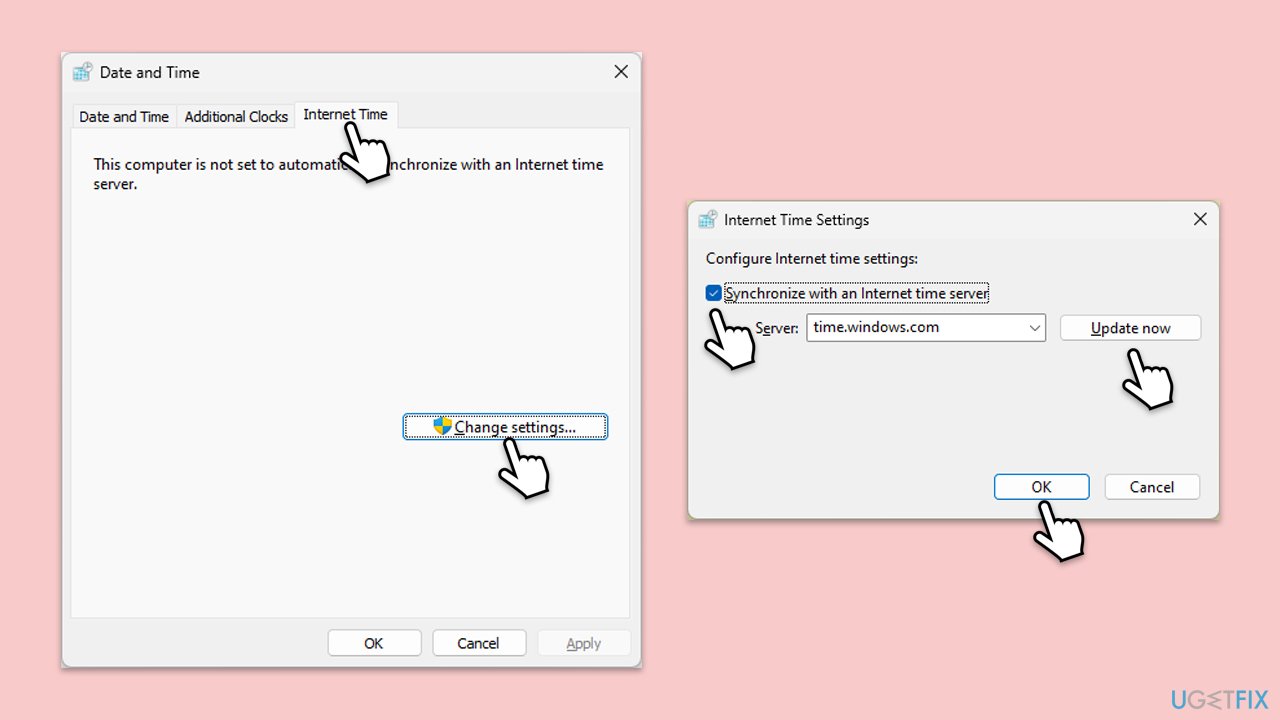
- Type in Control Panel in Windows search and press Enter.
- Go to Clock and Region and click on Date and Time.
- Pick the Internet Time tab and select Change Settings.
- Make sure that Synchronize with an Internet time server box is ticked.
- Click Update now and OK.
Fix 6. Contact Microsoft support
If the product key or digital license is valid and the error persists, contacting Microsoft support via phone may help resolve the issue.
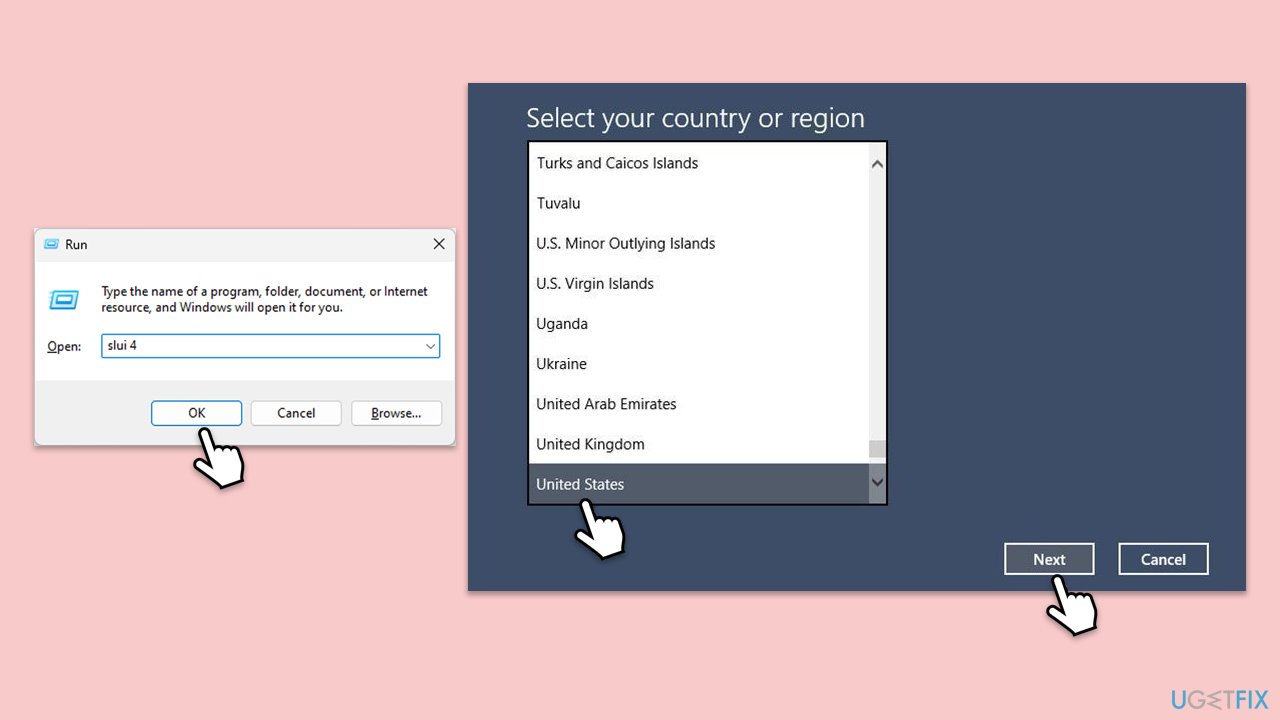
- Press Win + R on your keyboard and type slui 4, then press Enter.
- Select your country and click Next.
- Call the toll-free number provided.
- Follow the automated instructions or speak to a representative. Make sure you have your Windows product key/digital license number ready.
Bottom line
To resolve the 0xC004E003 error, ensure that your product key is entered correctly, check for any hardware changes, and verify that the key has not been used on another system. If the issue persists, consider contacting Microsoft support for further assistance.
Frequently asked questions
The error 0xC004E003 indicates that the activation server is unavailable or that there is an issue with the product key on Windows 10 or Windows 11.
To fix error 0xC004E003 on Windows 10, try running the Activation Troubleshooter from Settings > Update & Security > Activation.
Yes, re-entering your product key might resolve error 0xC004E003; go to Settings > Update & Security > Activation, and select 'Change product key'.




Report an issue
What's wrong with this guide? We review every report and update or remove content.
Report received — thank you. We'll review and fix it.
You need a free account to submit a report.
Be the first to comment