How to fix
Windows activation error 0xC004F078
on Windows
Resolve the Windows activation error 0xC004F078 easily with our expert-tested guide. Get your system running smoothly again in minutes!

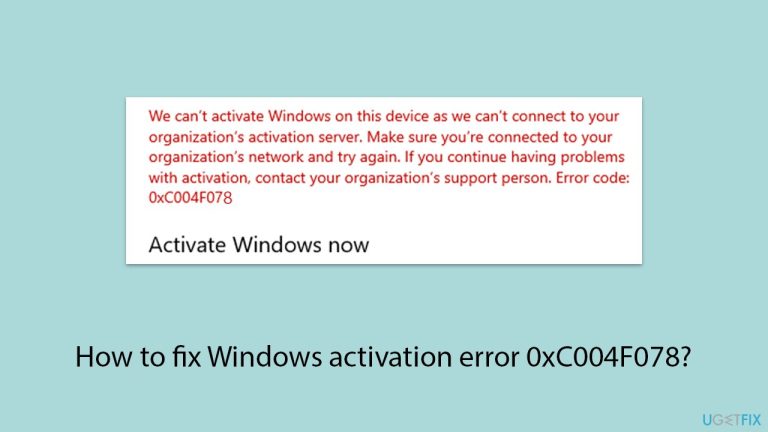
What causes How to fix Windows activation error 0xC004F078?
- Invalid product keys
- Network connectivity problems
- Issues with the Key Management Service (KMS)
- Miscommunication between the Windows server and local machines
- Expired or incorrect KMS key
Repairs Windows system files, removes malware, and restores a clean OS state — without reinstalling.
For some reason, I can't activate my Windows. The error code is 0xC004F078. I use a licensed Windows version but had to reinstall Windows recently and now I'm facing this problem.
Error 0xC004F078 is commonly encountered during the activation process after upgrading to a newer version of Windows, particularly from Windows 7 or 8 to Windows 10 or 11. This error indicates that the operating system cannot communicate with the Microsoft Activation Servers, preventing successful activation.
There are several reasons users may run into this issue, including invalid product keys, network connectivity problems, or issues with the Key Management Service (KMS).
Many users report seeing this error when trying to activate Windows using a volume license key in enterprise environments, often after installing significant updates or hardware changes.
The 0xC004F078 error is also seen when users try to upgrade from a non-genuine version of Windows, as Microsoft enforces stricter activation rules in newer versions. Some have also experienced this issue due to miscommunication between the Windows server and local machines during the activation request.
The problem can often be linked to specific error conditions, such as the Windows KMS server being unavailable or a user trying to activate with an expired or incorrect KMS key. When troubleshooting, users frequently find solutions in reactivating their license through proper server connections, re-entering a valid product key, or temporarily disabling firewalls that might interfere with activation.
To help resolve error 0xC004F078 efficiently, some users have reported success using [d1] PC repair tools to diagnose and fix underlying system or registry issues that may affect the activation process.

Fix 1. Re-enter your product key
Re-entering the product key can refresh the activation process and ensure that Windows has the correct license key to validate. This can be useful when the activation attempt was interrupted or failed due to a minor issue.
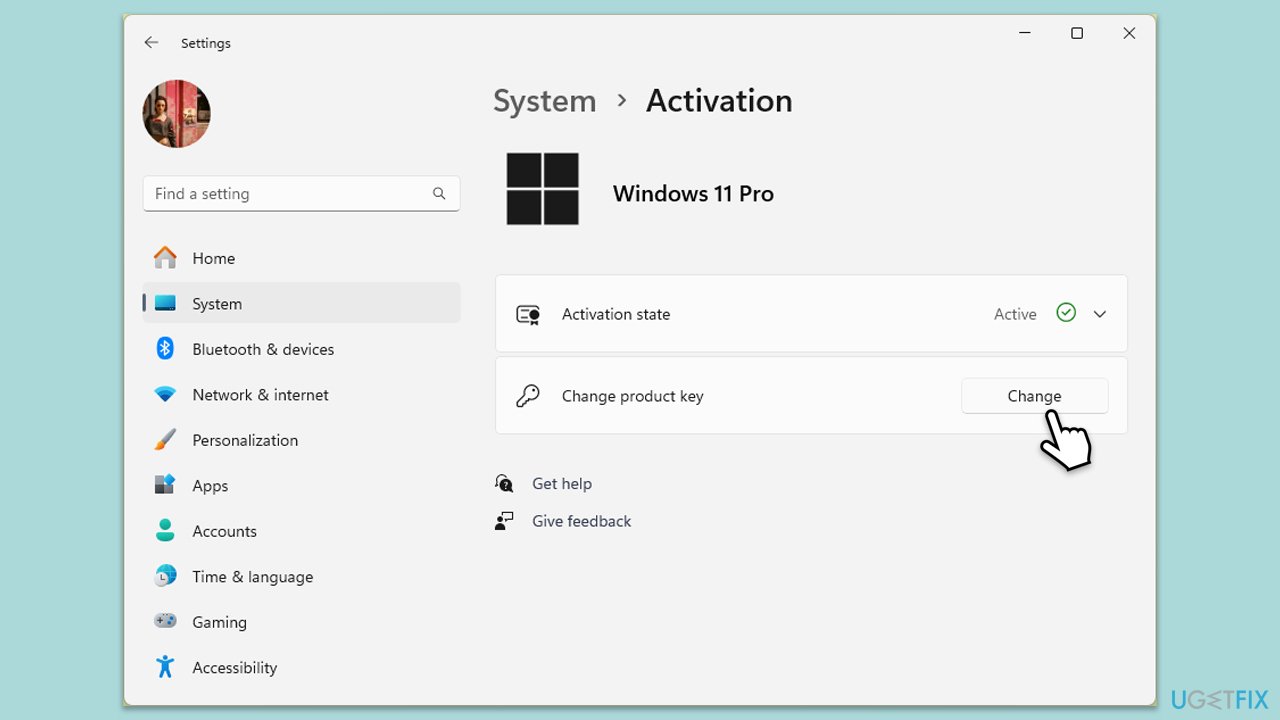
- Right-click on Start and pick Settings.
- Select Update & Security > Activation on Windows 10 or System > Activation on Windows 11.
- Here you will see the error (click on the Activation State on Win 11).
- Click on Change Product Key.
- Enter your valid Windows product key.
- Click Next and follow the prompts to complete the process.
Fix 2. Run the Windows activation troubleshooter
Windows comes with a built-in troubleshooter specifically designed to identify and fix common activation issues. Running this tool can help resolve errors like 0xC004F078 by checking the activation status and re-establishing a connection with the Microsoft servers.
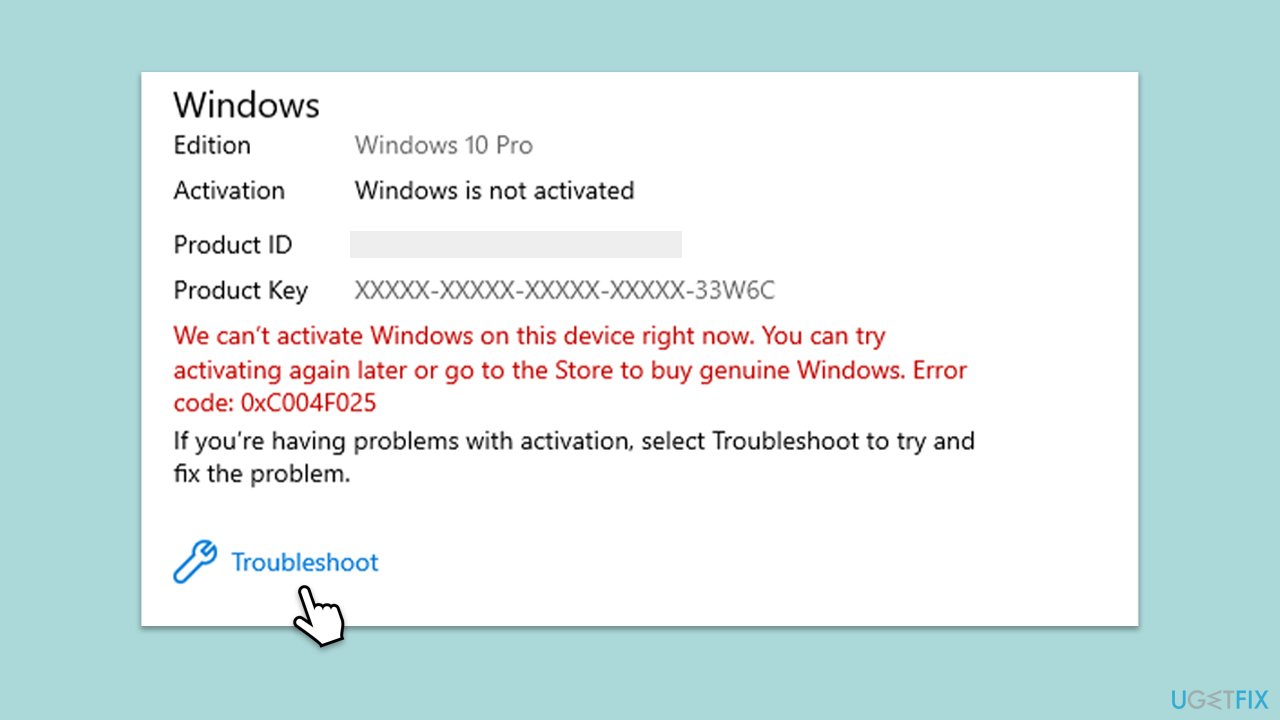
- Right-click on Start and pick Settings.
- Select Update & Security > Activation on Windows 10 or System > Activation on Windows 11.
- Here you will see the error (click on the Activation State on Win 11).
- Click on Troubleshoot.
- Follow the on-screen instructions.
- Restart your device as required.
Fix 3. Check your internet connection
Since activation requires communication with Microsoft’s servers, any interruption in your internet connection can cause error 0xC004F078.
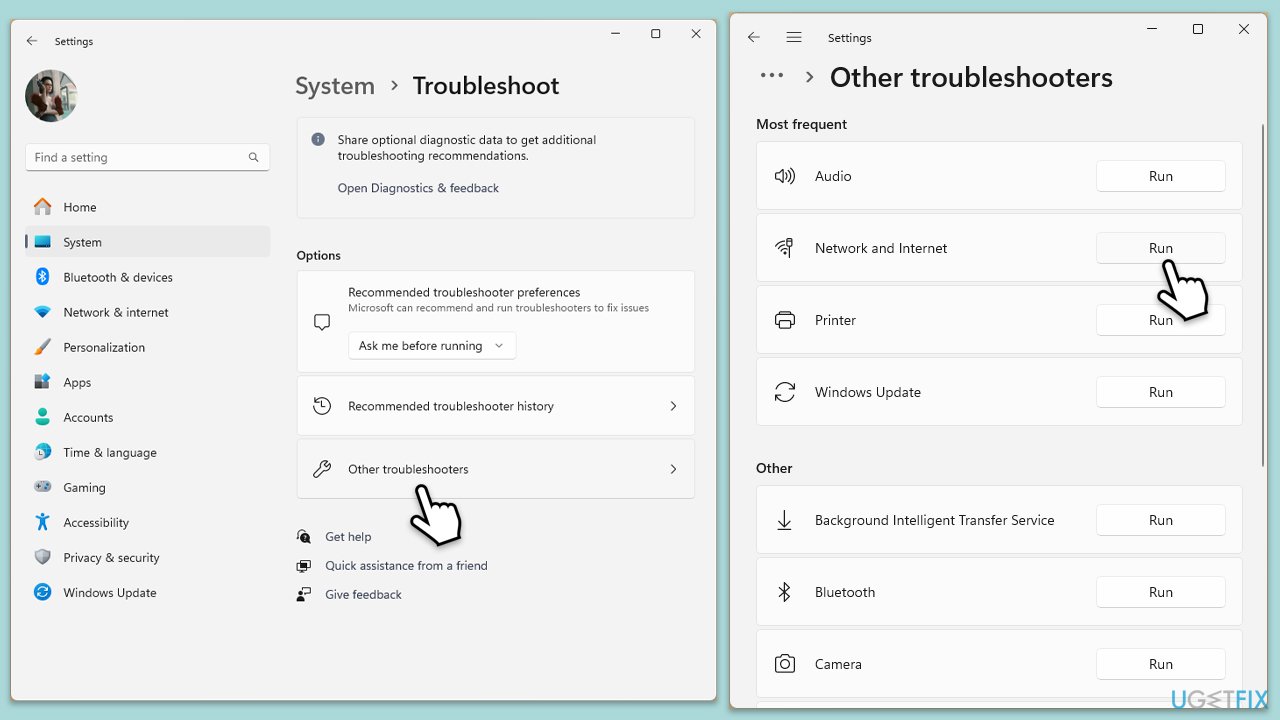
Windows 11
- Type Troubleshoot in Windows search and hit Enter.
- Select Other troubleshooters.
- Find Network & Internet from the list and select Run.
- Wait till the scan is finished - you will be provided with potential causes so you can proceed with fixes.
Windows 10
- Right-click on Start and pick Settings.
- Go to the Network & Internet section.
- On the right side, find the Advanced network settings section.
- Click Network troubleshooter and wait.
- The fixes will be automatically applied.
Fix 4. Disable antivirus or firewall temporarily
Antivirus programs or firewalls can sometimes block communication between your system and Microsoft’s servers, leading to activation errors. Temporarily disabling these protections can allow Windows to complete the activation process.
- Navigate to your security software's settings.
- Temporarily disable the firewall and other real-time scanning features.
- Alternatively, uninstall the security/firewall app.
- Try to perform the upgrade again.
Fix 5. Activate via Command Prompt
Running specific commands in Command Prompt can help clear any lingering activation issues or reset certain components necessary for successful activation.
- Type cmd in Windows search.
- Right-click on Command Prompt and pick Run as administrator.
- When User Account Control shows up, click Yes.
- Copy and paste the following command, pressing Enter after:
Slmgr –dli - This should bring up a pop-up window with all the necessary licensing information.
- Check the Description section.
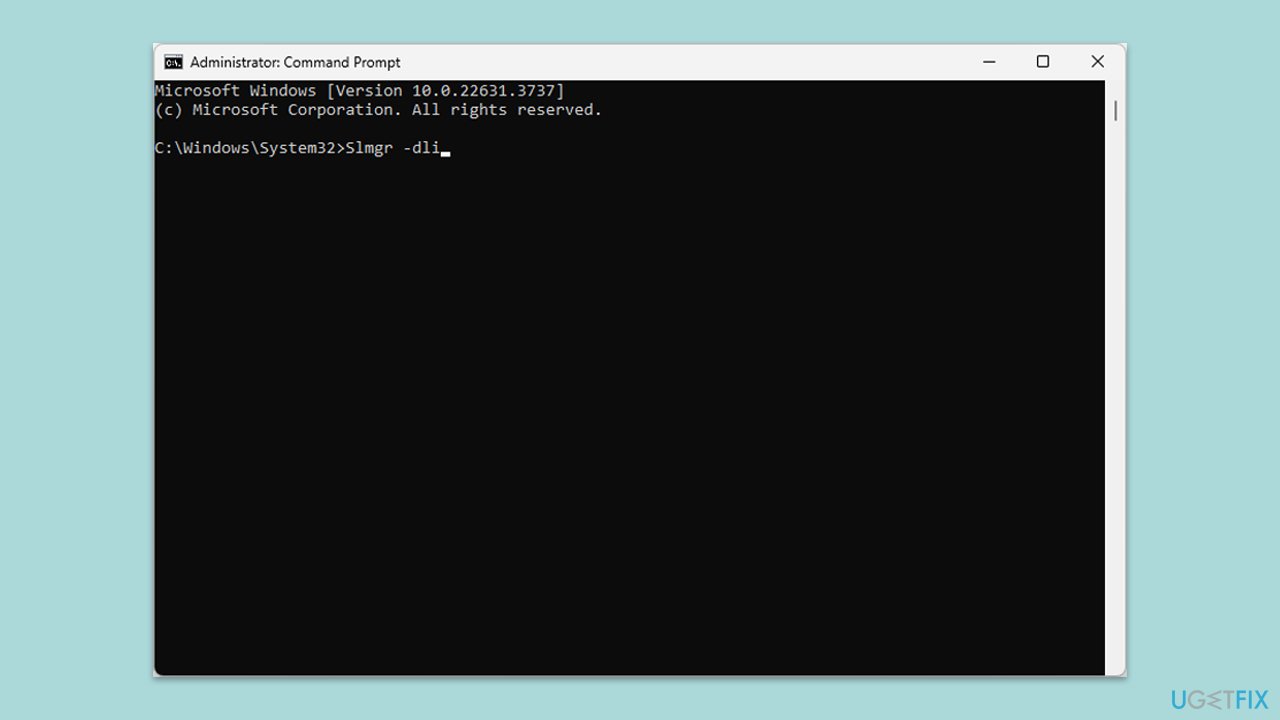
For digital license:
- Open Command prompt as administrator.
- Once Command Prompt opens, copy and paste the following command:
slmgr /xpr - Press Enter.
For product key:
- Open Command Prompt as administrator once again and use the following command:
wmic path softwarelicensingservice get OA3xOriginalProductKey - Paste the slmgr.vbs.ipk <product key> into the window, and press Enter.
- Finally, use slmgr.vbs/ato command and hit Enter.
- Restart your PC and see if your Windows is activated.
Fix 6. Choose to activate after hardware change
Major hardware changes, like replacing your motherboard or CPU, can cause Windows to lose its activation status. Using your Microsoft account to reactivate can help if this is the case.
- Right-click on Start and select Settings.
- Go to Update & Security section.
- On the left side of the window, pick Activation.
- On the right side, you should see the error message, and below it - Troubleshoot.
- Select Troubleshoot, then select I changed hardware on this device recently, and click Next.
- Enter your Microsoft Account details.
- From all the devices your account is linked to, select the computer you are using, mark the This is the device I’m using right now option, and click Activate.
Fix 7. Update Windows
Sometimes, outdated Windows versions or missing updates can interfere with the activation process. Keeping your system updated ensures compatibility with Microsoft’s activation servers.
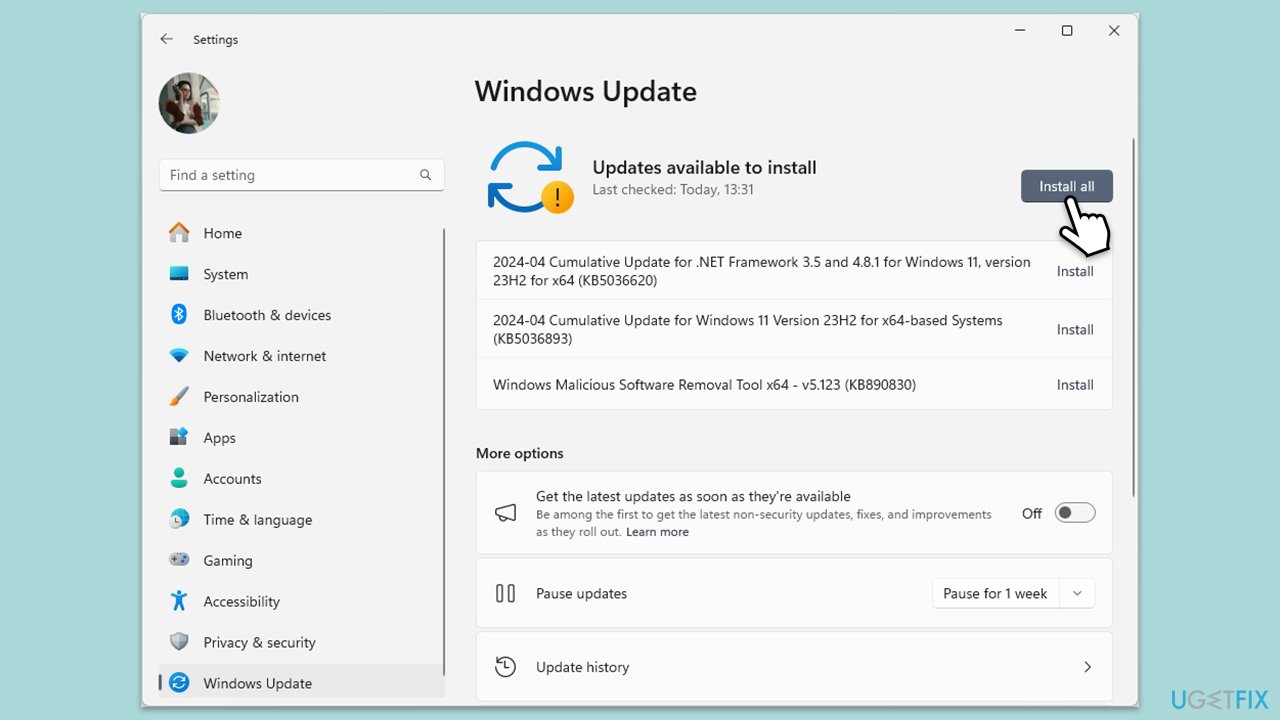
- Type Updates in Windows search and hit Enter.
- If updates are available, click Install updates.
- Otherwise, click Check for updates.
- If optional updates are available, install them as well.
- When all the update processes are complete, restart your device.
- Once updated, try activating Windows again.
Bottom line
To fix the Windows activation error 0xC004F078, you can try re-entering your product key, ensuring proper server connections, or temporarily disabling firewalls that may interfere with activation. If these solutions do not resolve the issue, consider using PC repair tools to diagnose and fix underlying system or registry problems.
Frequently asked questions
The error 0xC004F078 typically occurs when the Software Protection Service is not running or the activation server cannot be reached in Windows 10 or Windows 11.
To restart the Software Protection Service, press Win + R, type 'services.msc', locate 'Software Protection', right-click it, and select 'Restart'.
Yes, you can open Command Prompt as an administrator and run the command 'slmgr.vbs /ato' to attempt activation and resolve the error.




Report an issue
What's wrong with this guide? We review every report and update or remove content.
Report received — thank you. We'll review and fix it.
You need a free account to submit a report.
Be the first to comment