
How to fix Windows activation error code 0xC004F025?

Prefer to fix it yourself? The manual steps follow.
- 5methods
- 2 to 5 minutes
- Easy
Applies to Windows 11, Windows 10, Windows 8.1 and Windows 7 when a product key or activation command runs without elevation
5 methods in this guide
I cannot activate Windows. I get error code 0xC004F025 every single time. I'm using Windows 11.
Error 0xC004F025 means Windows refused an activation action because it ran without administrator rights. It is not a bad key or a server problem. Close the window, open Command Prompt with Run as administrator and run the same command again.
0xC004F025 means the action needs administrator privilege. Microsoft lists it as SL_E_LUA_ACCESSDENIED. Open Start, type cmd, right-click Command Prompt, select Run as administrator and run your slmgr command again (Fix 1). If Windows asks for a password you do not have, your account is a standard user: sign in with an administrator account (Fix 2). The key itself is usually fine.
| Error | 0xC004F025: "The Software Licensing Service reported that the action requires administrator privilege." |
|---|---|
| Where it appears | Mostly in a Windows Script Host box after slmgr /ipk, slmgr /ato, slmgr /rearm or slmgr /upk. Sometimes on Settings > System > Activation (Windows 10: Settings > Update & Security > Activation). |
| Main cause | The command ran in a normal Command Prompt or from the Run box, not in an elevated (administrator) window. |
| Fastest fix | Run the same command in Command Prompt opened with Run as administrator (Fix 1). |
| Also written as | 0xc004f025, "error code: 0xc004f025", "Error: 0xC004F025 Access denied", and in Microsoft's developer docs SL_E_LUA_ACCESSDENIED, "The action requires administrator privilege." |
| Affects | Windows 11, Windows 10, Windows 8.1 and Windows 7, and Office's own licensing script. Windows 10 left support on 14 October 2025. |
| Microsoft's status | Not a bug. It is the licensing service's normal answer to a request without administrator rights. |
| What does not help | Windows updates, system file repair, the date and time, or a generic product key. None of them gives the command administrator rights. |
| Time to fix | About 2 minutes with an administrator account. Longer when you must get the administrator password or ask an IT team. |
Facts checked on 15 October 2026. Steps written for Windows 11 (25H2 and 26H2) and Windows 10 22H2.
What Windows activation error 0xC004F025 means
Microsoft's developer documentation names the code SL_E_LUA_ACCESSDENIED with the value 0xC004F025 and the text "The action requires administrator privilege." The licensing functions that install a product key or remove a licence return it when the caller is not elevated. In the activation window you read the longer form: "The Software Licensing Service reported that the action requires administrator privilege."
In plain words, Windows did not even look at your key. It stopped the request because the window that sent it had standard rights. That is why the error comes back "every single time" until the rights change, and why the right key with the wrong window still fails.
| Where you see it | What you see | What it tells you |
|---|---|---|
A Windows Script Host box after an slmgr command | Error: 0xC004F025 and a line about administrator privilege or access denied | The Command Prompt was not opened as administrator. |
| Settings > System > Activation (Windows 10: Settings > Update & Security > Activation) | Windows is not activated with Error code: 0xC004F025 | The activation request ran without administrator approval, often on a standard account. |
| Office activation scripts | ERROR CODE: 0xC004F025 with the same description | Office's licensing script also needs an administrator window. |
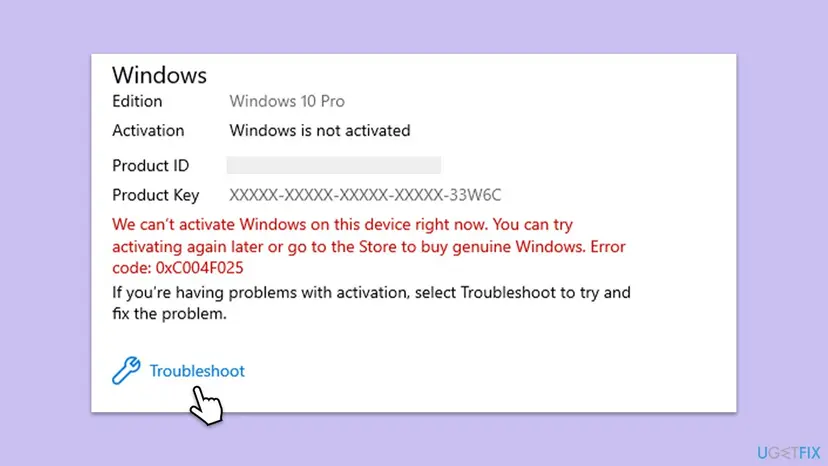
0xC004F025 is about rights, not about the licence. If the key were wrong, Windows would answer with another code, such as 0xC004F010, which Microsoft lists as "The product key is not valid.". Fix the rights first, then read whatever code comes next.
Why error 0xC004F025 appears, from most to least common
Microsoft's slmgr reference says which options need an elevated Command Prompt. They are installing a key (/ipk), online activation (/ato), resetting the timers (/rearm) and removing the key (/upk). Clearing it from the registry (/cpky) and installing licences (/ilc, /rilc) need it too. Reading licence details with /dli, /dlv or /xpr does not need it.
| Cause | How often | How to tell | Fix |
|---|---|---|---|
The slmgr command ran in a normal Command Prompt, PowerShell or the Run box. | Most often | The window title does not start with Administrator: and the prompt shows your user folder. | Fix 1 |
| Your Windows account is a standard user, so the UAC prompt asks for a password you do not have. | Often | Settings > Accounts > Your info does not say Administrator under your name. | Fix 2 |
| Activation through Settings or a tool did not get administrator approval. | Sometimes | The error shows on the Activation page right after Change product key or Troubleshoot. | Fix 3 |
| A key was just changed and the licensing service was not restarted. | Rarely | You ran slmgr /ipk a moment ago and slmgr /ato fails right after. | Fix 4 |
| A work or school PC, where the IT team controls administrator rights. | In companies | The PC is managed and you have no administrator password. | Fix 5 |
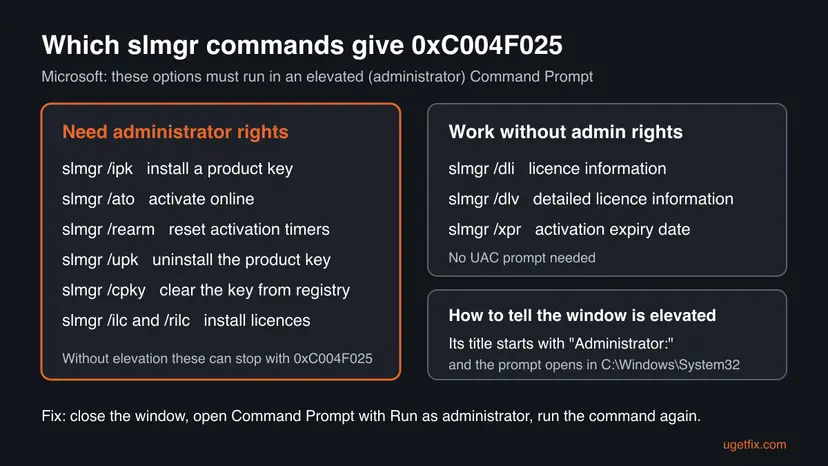
Users also report the code when they try to remove a key from an old PC with slmgr /upk, or after a hardware change. The cause is the same in each case: the command needed administrator rights and did not have them.
How to fix Windows activation error 0xC004F025
Fix 1 solves the error for most people in two minutes. Fix 2 is for a standard account, Fix 3 avoids the command line, Fix 4 is for a key you just changed, and Fix 5 is for work and school PCs. Updates, system file repair and the date and time do not give a command administrator rights, so they are left out.
| What you see or have | Start with |
|---|---|
You typed an slmgr command and got 0xC004F025 in a Windows Script Host box. | Fix 1 |
| Run as administrator asks for a password you do not know. | Fix 2 |
| You prefer not to use commands, or the error is on the Activation page. | Fix 3 |
You just installed a new key with slmgr /ipk and activation fails. | Fix 4 |
| The PC belongs to an employer or school. | Fix 5 |
Fix 1. Run the slmgr command again in an administrator Command Prompt
2 minutesNo riskEveryone who saw the error after typing an slmgr command. This is the fix for most readers.
Microsoft's slmgr reference says /ipk, online /ato, /rearm and /upk must run from an elevated Command Prompt. 0xC004F025 is exactly the answer to a request without that elevation, so the same command in an elevated window goes through.
- Close the Command Prompt or PowerShell window that showed the error.
- Open Start and type cmd.
- Right-click Command Prompt and select Run as administrator.
- Select Yes in the User Account Control window.
- Check that the title bar starts with Administrator: Command Prompt.
- Type the command that failed, for example
slmgr /ipkwith your key orslmgr /ato, and press Enter. - Wait for the Windows Script Host box and read the message.
Opening any program with administrator rights works the same way. Step by step: How to run a program as administrator or in compatibility mode
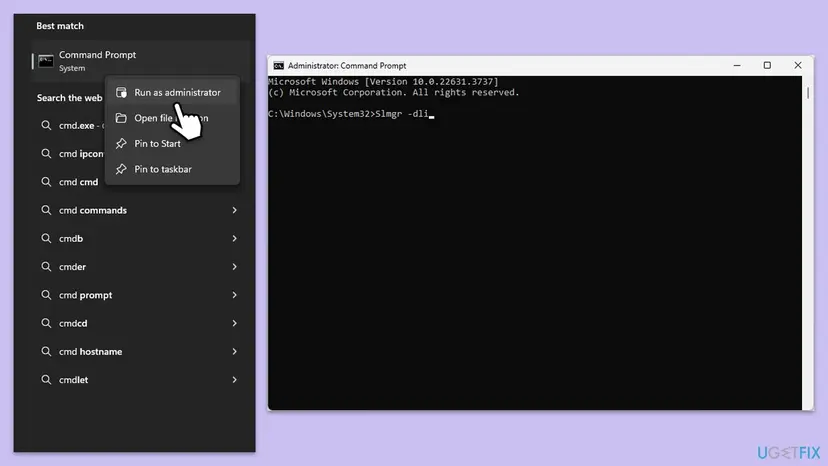
Install your key, then activate, in the administrator window
slmgr /ipk XXXXX-XXXXX-XXXXX-XXXXX-XXXXX
slmgr /ato
slmgr /dli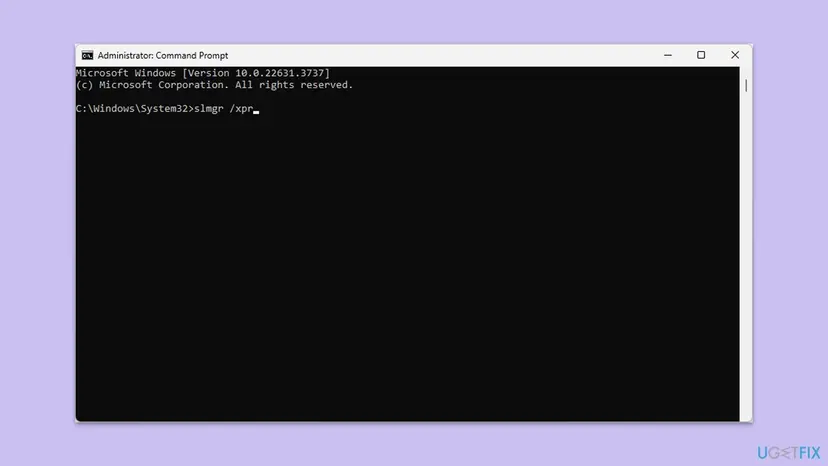
In an elevated window the rights problem is gone. If slmgr /ato now shows a different code, that code names the real problem, for example a key that is not valid or a volume key that needs a company server. Look that code up next.
It worked if: The Windows Script Host box says the key was installed or the product activated successfully, and slmgr /dli shows License Status: Licensed.
If not: If Windows asks for a password at the UAC step, go to Fix 2. If a different error code appears, look up that code.
Fix 2. Use an account with administrator rights
5 minutesNo riskThe UAC window asks for an administrator password instead of showing Yes, or Fix 1 still fails.
Run as administrator only works when an administrator approves it. On a standard account the licensing service keeps refusing the request with 0xC004F025, however often you repeat it.
- Open Settings > Accounts > Your info and check whether Administrator appears under your name.
- If it says Standard user, type the password of an administrator account in the UAC window when you run Fix 1.
- No administrator password? Ask the person who set up the PC to sign in, or to change your account type.
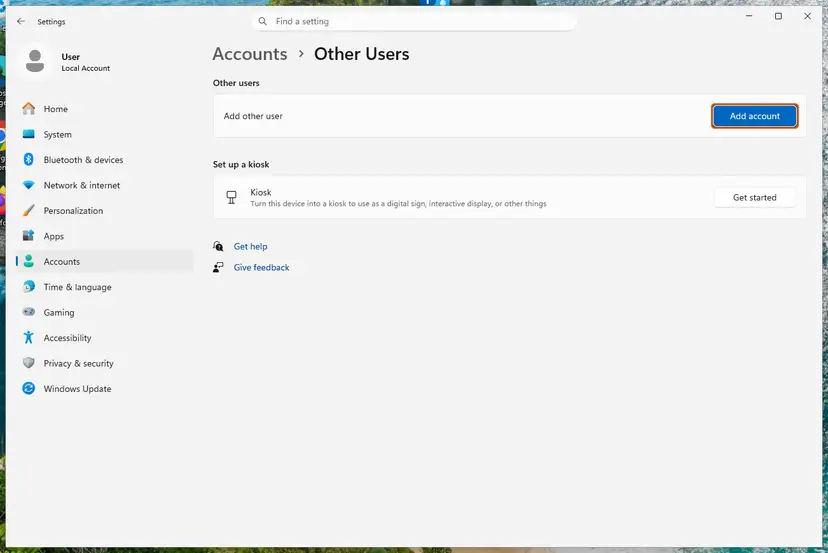
- To change the type from an administrator account, open Settings > Accounts > Other users (Windows 10: Family & other users).
- Select your account, select Change account type, choose Administrator and select OK.
- Sign out, sign back in and repeat Fix 1.
It worked if: The UAC window shows a Yes button, and the slmgr command in Fix 1 completes without 0xC004F025.
If not: If no account on the PC has administrator rights and it is a work PC, go to Fix 5.
Fix 3. Activate from Settings with Change product key or Troubleshoot
5 minutesNo riskYou do not want to use commands, or the error appeared on the Activation page itself.
Change product key and Troubleshoot ask for administrator approval on their own, so the request reaches the licensing service with the right rights. The troubleshooter can also restore a digital licence linked to your Microsoft account.
- Sign in with an administrator account (Fix 2).
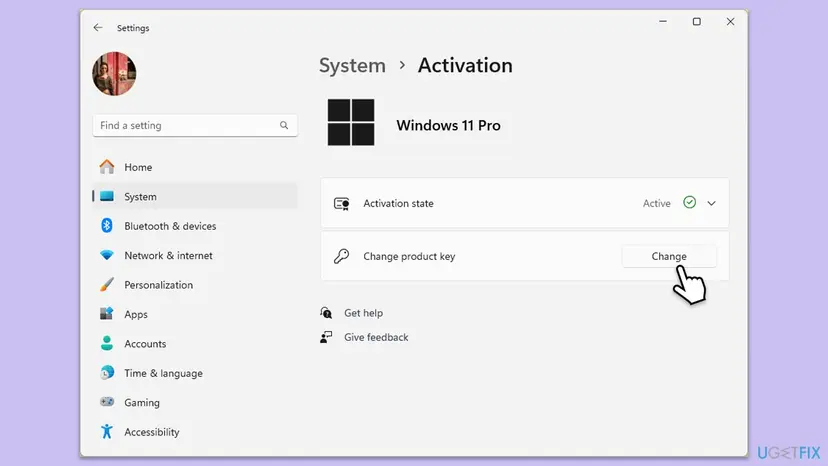
- Open Settings > System > Activation (Windows 10: Settings > Update & Security > Activation).
- To enter a key, select Change next to Change product key, approve the UAC prompt, type your 25-character key and select Next, then Activate.
- To restore a digital licence, expand Activation state and select Troubleshoot, then follow the steps and sign in with your Microsoft account if asked.
- Restart the PC and open the Activation page again.
Older guides told readers to enter a default key published by Microsoft. Those are generic volume keys, and Microsoft says /ato with one installed only tries a company KMS server. On a home PC that does not activate Windows. Use the key you bought or your digital licence.
It worked if: The Activation page shows Active under Activation state, or says Windows is activated.
If not: If you just entered a new key and activation still fails, try Fix 4. A work PC: Fix 5.
Fix 4. Restart after changing the key, then activate again as administrator
5 minutesNo riskYou installed a new key with slmgr /ipk or Change product key a moment ago and activation now fails.
Microsoft says that after /ipk the system or the Software Protection Service should be restarted to keep the licence service stable. A clean start lets the next elevated /ato work on the new key.
- Save your work and restart the PC from Start > Power > Restart.
- Sign in with an administrator account.
- Open Command Prompt as administrator, as in Fix 1.
- Type
slmgr /atoand press Enter. - Type
slmgr /dliand press Enter to check the License Status.
If you cannot restart right now, restarting the Software Protection service does the same job. Step by step: Check and restart Windows services
It worked if: slmgr /ato reports that the product activated successfully, and slmgr /dli shows License Status: Licensed.
If not: If 0xC004F025 is still there, the window was not elevated: check the title bar and repeat Fix 1. Another code means another problem with the key.
Fix 5. Work or school PC: ask the IT team
5 minutes, plus the replyNo riskThe PC belongs to an employer or school and you have no administrator password.
On managed PCs the IT team holds the administrator rights. Microsoft's reference mentions a Standard User Operations registry value that lets standard users run some licensing commands; only the organisation should decide to set it.
- Run
slmgr /dliin a normal Command Prompt. It does not need administrator rights. - Note the Description line and the Partial Product Key.
- Take a screenshot of the error 0xC004F025.
- Send both to your IT team, with the PC name from Settings > System > About.
Granting standard users access to the licensing service weakens a control your IT team set on purpose. We do not give those registry steps here. Let the administrator activate the PC or decide on the setting.
It worked if: The IT team activates the PC, and the Activation page then says Windows is activated.
If not: If the organisation no longer manages the PC, you need your own licence and an administrator account on it: Fix 2 and Fix 3.
If error 0xC004F025 is still there
If 0xC004F025 survives Fix 1, the request is still leaving a window without administrator rights. Check these facts in this order before you contact anyone.
| What to check | Where | What it tells you |
|---|---|---|
| Is the window elevated | The title bar of Command Prompt | It must start with Administrator:. If not, open it again with Run as administrator. |
| Is your account an administrator | Settings > Accounts > Your info | Standard user means you need an administrator's password or help (Fix 2). |
| Which licence Windows uses | slmgr /dli, no administrator rights needed | RETAIL, OEM or VOLUME channel and the licence status, useful for support. |
| The code after an elevated attempt | slmgr /ato in an administrator window | A new code names the next problem. 0xC004F025 again means the window was not elevated. |
With a genuine retail licence and an administrator account, Microsoft's activation support can help with any code that follows. Have the slmgr /dli output, a screenshot and your purchase details ready.
How to avoid error 0xC004F025 next time
The error only appears when an activation command runs without administrator rights. A habit of checking the window title prevents it.
- Open Command Prompt with Run as administrator before any
slmgrcommand that changes the licence. - Check that the title bar says Administrator: before you press Enter.
- Link your digital licence to your Microsoft account, so a reinstall activates by itself.
- Keep one administrator account on every home PC and know its password.
- Run
slmgr /ipkorslmgr /atofrom the Run box or a normal window. - Use a generic product key from a website to activate a home PC.
- Change licensing permissions in the registry to avoid the UAC prompt.
- Run activator tools that promise free activation.
Frequently asked questions
What does error code 0xC004F025 mean?
It means the action requires administrator privilege. Microsoft's developer documentation calls it SL_E_LUA_ACCESSDENIED, and the activation window says "The Software Licensing Service reported that the action requires administrator privilege." Windows refused the request because it came from a window without administrator rights. It does not say anything about your key. Run the same command in an administrator Command Prompt and the error goes away.
How do I fix 0xC004F025 on Windows 10?
The fix is the same as on Windows 11. Open Start, type cmd, right-click Command Prompt, select Run as administrator and select Yes. Then run your slmgr command again. On Windows 10 the Activation page is under Settings > Update & Security > Activation. Windows 10 left support on 14 October 2025, so it no longer gets security updates even when it is activated.
Why do I get 0xC004F025 on Windows 11 every time I activate?
Because every attempt runs with the same rights. If the window is not elevated or your account is a standard user, the licensing service gives the same answer each time. Check that the Command Prompt title starts with Administrator:, and check Settings > Accounts > Your info for the word Administrator. Fix 1 and Fix 2 cover both cases.
What does "Access denied: the requested action requires elevated privileges" mean?
It is another wording of the same error that users report from the Windows Script Host box. "Elevated privileges" means administrator rights that you approved in the User Account Control window. A normal Command Prompt does not have them, even on an administrator account. Close it, open Command Prompt with Run as administrator and run the command again.
Which slmgr commands need administrator rights?
Microsoft's slmgr reference says /ipk, online /ato, /rearm, /upk, /cpky, /ilc and /rilc must run from an elevated Command Prompt. /dli, /dlv and /xpr only read information and do not need elevation. So slmgr /dli can work in a normal window while slmgr /ato in the same window fails with 0xC004F025.
Does slmgr /rearm give 0xC004F025?
It can. Microsoft says /rearm must run in an elevated Command Prompt, so a normal window gets 0xC004F025. Run it as administrator instead. Note that /rearm only resets the activation timers and does not activate Windows. Microsoft also says it does nothing when the SkipRearm registry value is set to 1, which would be a different problem.
I got 0xC004F025 when activating Office. Is the fix the same?
Yes, the cause is the same. Office's licensing script talks to the same licensing service, and users report the same code with the same description when they run it in a normal window. Open Command Prompt as administrator, go to the Office folder that holds the script and run the activation command again from there.
Will Windows Update or SFC fix error 0xC004F025?
No. Neither of them changes the rights of the window you run the activation command in. Older guides listed updates, system file repair and the date and time for this code, but none of them touches the cause. Fix the rights with Fix 1 or Fix 2. If a different activation code appears after that, follow the fixes for that code.
I searched in another language how to fix this. Can this page help?
Yes. Searches such as "how to fix this", "ошибка 0xc004f025" or "شو الحل" lead here because the code is the same in every language of Windows. The short answer: open Command Prompt with Run as administrator and run your activation command again (Fix 1). If Windows asks for a password, sign in with an administrator account (Fix 2).
Sources
- Microsoft Learn: SLInstallProofOfPurchase function (slpublic.h), return codes (learn.microsoft.com)
- Microsoft Learn: Slmgr.vbs options for obtaining volume activation information (learn.microsoft.com)
Did this fix work?
One click, no account. It tells the next reader which guides are worth their time.
Questions and experiences: fix Windows activation error code 0xC004F025
Still broken, or found a fix we did not cover? Ask here: members and our editors answer. Reading is open; writing needs a free account.
…