How to fix
Windows activation fails after 23H2 update
on Windows
Resolve Windows activation issues after the 23H2 update quickly and easily with expert-tested solutions that guarantee a smooth experience.

What causes How to fix Windows activation fails after 23H2 update?
- Windows 23H2 upgrade invalidates existing licenses
- Activation failure is a known bug
- Users are informed to buy new licenses as a solution
- Uncertainty about resolution timeframe from Microsoft
- Financial strain of needing to purchase new licenses
Repairs Windows system files, removes malware, and restores a clean OS state — without reinstalling.
Hello. I updated Windows to 23H2 and now the license is not valid anymore. When I try to activate I get the "We can not reactivate Windows on this device, please try later or pay" error. Is there a way to fix this?
For certain customers, the Windows 23H2 upgrade has resulted in an unforeseen problem, specifically with activation. Several reports have surfaced suggesting that some users are experiencing difficulties activating Windows after the upgrade. It appears that the update is the source of the issue, since it invalidates licenses that are already in place, making it impossible to activate Windows. Users attempting to activate their operating system post-update are confronted with an error message stating, "We cannot reactivate Windows on this device, please try later or pay."
This problem has a big effect on users since it not only interferes with their systems' regular operations but also makes them wonder if their licenses are still valid. Several consumers have described their interactions with Microsoft support, citing a range of replies. In certain cases, users were informed that the activation failure is a known bug that Microsoft is actively working to resolve. Others, on the other hand, claimed to have been informed that buying a new license was their only option.
This issue can cause frustration and inconvenience for users who rely on a valid Windows license for their daily computing needs. The uncertainty surrounding whether the problem will be resolved through updates or if users will need to invest in new licenses adds to the overall dissatisfaction.
Although Microsoft is purportedly working on a patch, impacted users are left in the dark as there is no firm timeframe for resolution. The problems users have with the 23H2 upgrade are exacerbated by the possible financial strain of needing to buy new licenses. Users might look into other options as things develop or wait for official word from Microsoft on how to handle this activation problem and restore the full functioning of their Windows operating systems.
In this guide, you will find 6 steps that should help you fix Windows activation issues after 23H2 update. You can also try running a maintenance tool like [d1] that can fix most system errors, BSODs,[ref en-1] corrupted files, registry[ref en-2] issues, or clear cookies and cache.[ref en-3] Otherwise, follow the step-by-step instructions below.
Solution 1. Fix Corrupted System Files
Use Command Prompt commands to repair system file corruption:
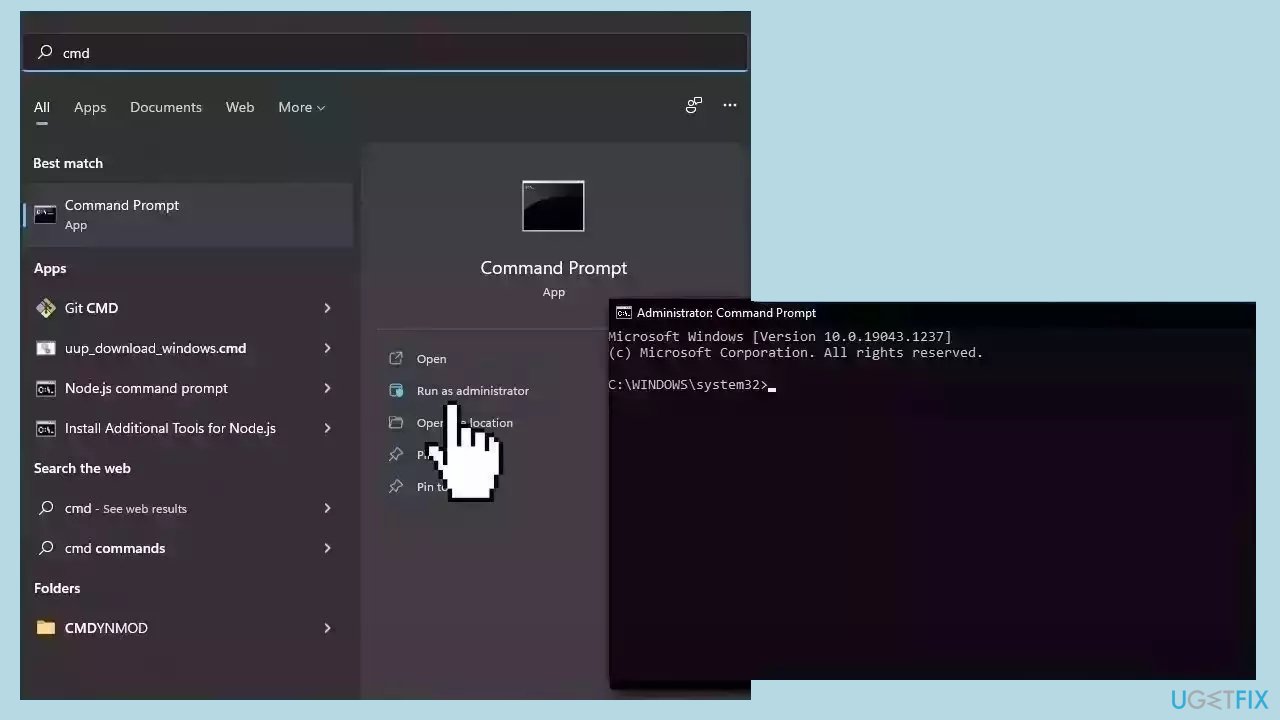
- Open Command Prompt as administrator
- Use the following command and press Enter:
sfc /scannow
- Reboot your system
- If SFC returned an error, then use the following command lines, pressing Enter after each:
DISM /Online /Cleanup-Image /CheckHealth
DISM /Online /Cleanup-Image /ScanHealth
DISM /Online /Cleanup-Image /RestoreHealth
Solution 2. Use the Activation Troubleshooter
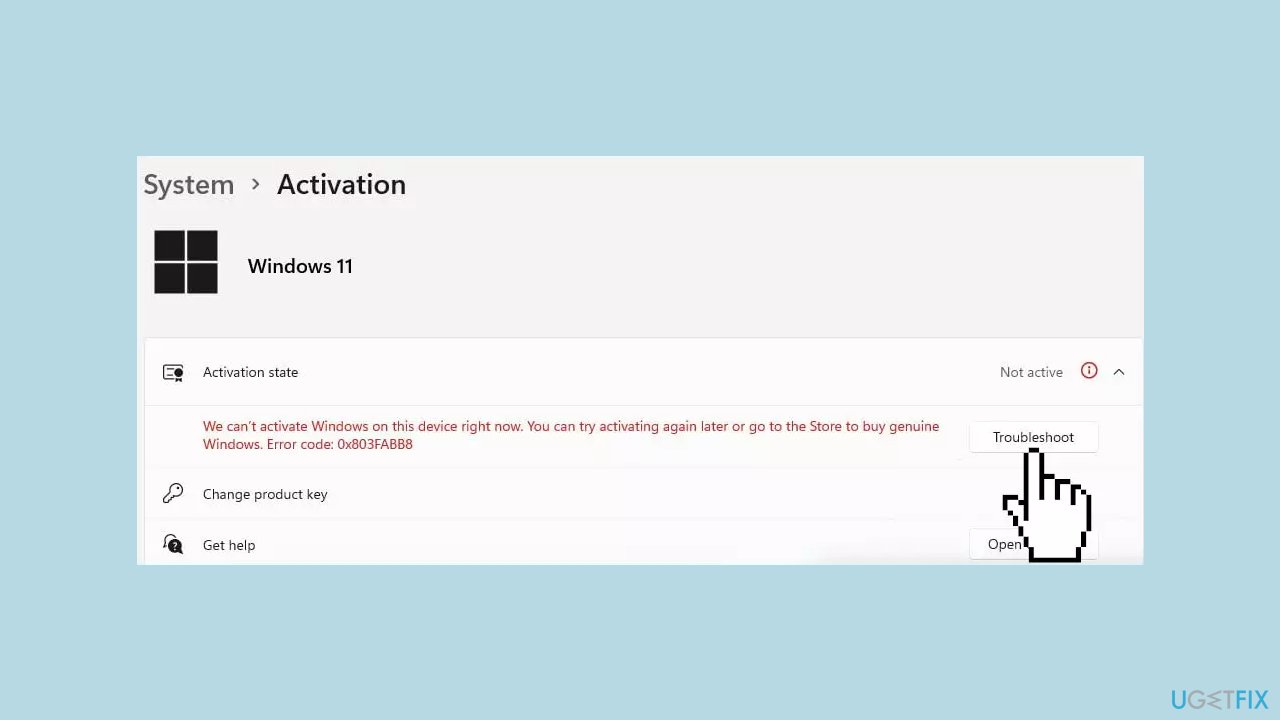
- Launch the Settings app.
- Go to Updates and Security and click Activation.
- If you keep seeing the error, you should see the Troubleshoot button.
- If any problems are found, follow the instructions to fix it.
Solution 3. Use the Key on One Computer Only
Even with a valid activation key and license, it's not permissible to utilize them for multiple computers. Once the key has been used, deactivating Windows 11 requires uninstalling the product key. If this isn't a preferred option, acquiring a new key for each computer intended for Windows 11 use is necessary.
Solution 4. Use System Restore
System Restore is a feature in Microsoft Windows that allows users to revert their computer's state to a previous point in time. This can be helpful if you have made changes to your system that are causing problems.
- Press the Windows key + R on your keyboard to open the Run box.
- Type SystemPropertiesProtection and press Enter.
- Go to the System Protection tab.
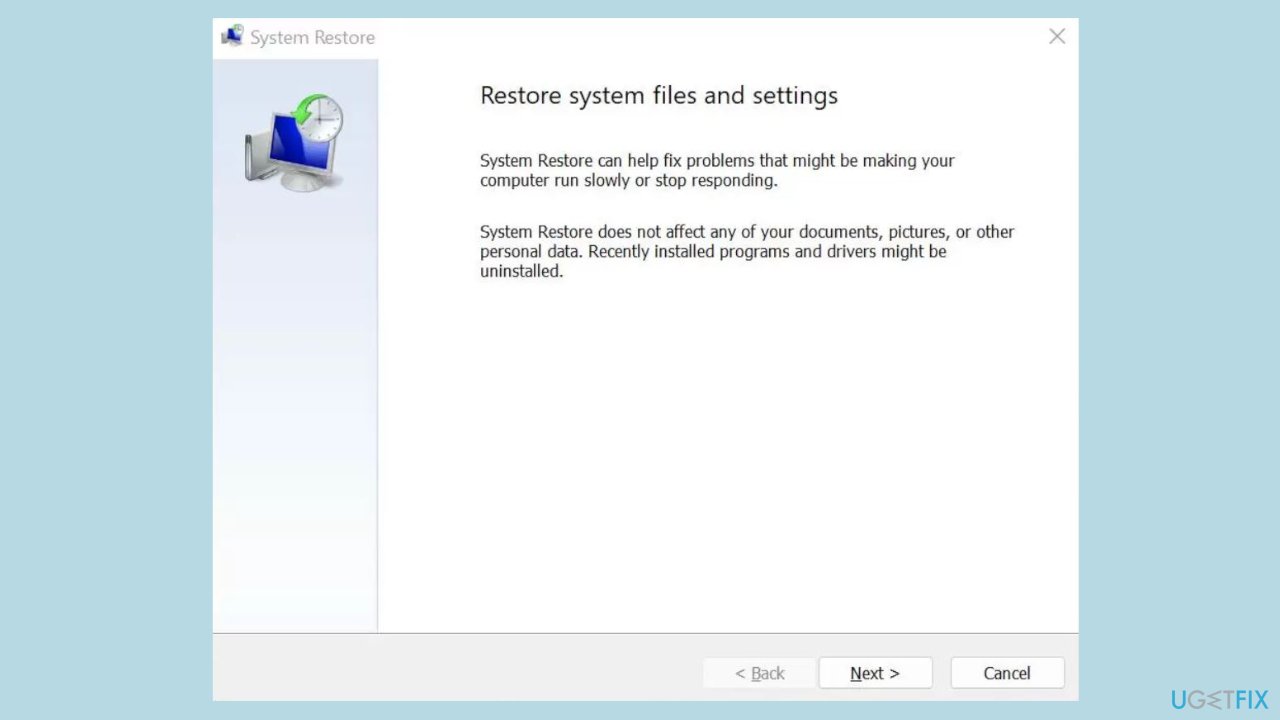
- You will see the System Restore… button. Click it to run System Restore.
- Follow the prompts until you can select a restore point.
- Select the one you want (ideally before the issue started occurring) and go ahead with the process.
Solution 5. Contact Support
- Click the Start button.
- Navigate to the All Apps list.
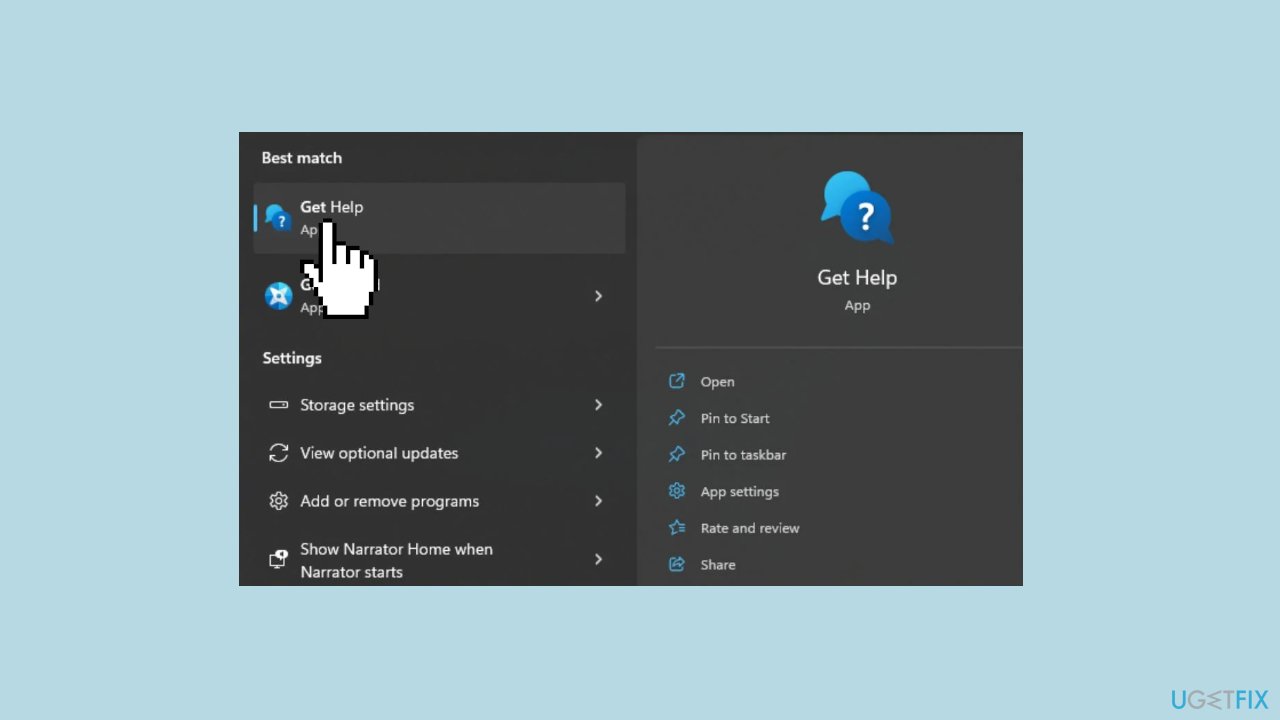
- Click the shortcut for Get Help.
- A Get Help window will appear.
- In the window, a virtual agent will attempt to address your issue.
- Type a description of the problem you're experiencing.
- Press Enter to submit your message.
Solution 6. Perform a Clean Install
- Open the Microsoft Support website.
- Under the Download Windows 11 Disk Image (ISO) section, choose the Windows 11 option.
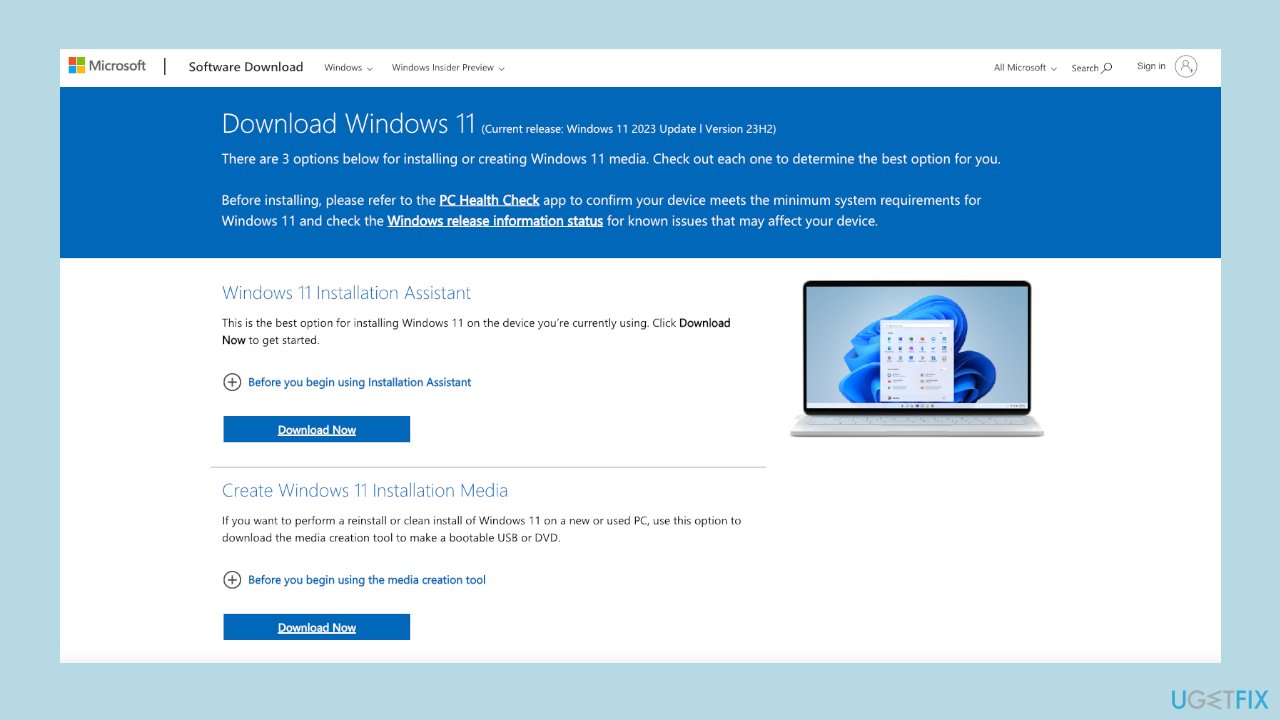
- Click the Download button.
- Select the installation language.
- Click the Confirm button.
- Download the Windows 11 ISO file to your device by clicking the Download button.
- Right-click the ISO file and choose the Mount option. Select the virtual drive from the left navigation pane.
- Double-click the Setup file to initiate the Windows 11 installation.
- Click the Accept button to agree to the terms.
- Follow the on-screen steps to complete the process.
- Once these steps are completed, the clean installation process will begin.
Bottom line
This guide provides 6 steps to help fix the Windows activation issue after the 23H2 update. If these steps do not resolve the problem, users should consider reaching out to Microsoft support for further assistance.
Frequently asked questions
Try running the Windows Activation Troubleshooter by going to Settings > Update & Security > Activation, then select Troubleshoot. If that doesn't work, consider re-entering your product key in the same activation settings menu.
Navigate to Settings > Update & Security > Activation to check your activation status. If it shows 'Windows is not activated,' you may need to troubleshoot or re-enter your product key.
Yes, corrupted system files can lead to activation problems in both Windows 10 and Windows 11; running the System File Checker (sfc /scannow) can help fix these issues.




Report an issue
What's wrong with this guide? We review every report and update or remove content.
Report received — thank you. We'll review and fix it.
You need a free account to submit a report.
Be the first to comment