How to fix
Windows.applicationmodel.store.dll error
on Windows
Resolve the Windows.applicationmodel.store.dll error effortlessly on Windows 10 or 11. Get expert-tested solutions for a seamless experience!

What causes How to fix Windows.applicationmodel.store.dll error?
- Corruption of system files
- Malware infections
- Incomplete software installations
- Abrupt system failures
- Inadvertent deletion of the DLL file
- Issues within the Windows registry
Repairs Windows system files, removes malware, and restores a clean OS state — without reinstalling.
How can I fix Windows.applicationmodel.store.dll error? I have not done anything to my computer and yet it keeps showing up constantly. Could you please advise?
Encountering a Windows.applicationmodel.store.dll error can significantly impede system functionality, affecting the performance of various applications and the overall stability of your system.
The error usually occurs when the DLL file, which is essential for specific applications and Windows services, becomes corrupted or missing. Understanding the causes of this error is crucial for effectively diagnosing and resolving the issue.
Windows.applicationmodel.store.dll error causes
There are numerous factors that may precipitate the occurrence of a Windows.applicationmodel.store.dll error. A prevalent reason for such errors is the corruption of system files. This can result from malware infections, incomplete software installations, or abrupt system failures.
Furthermore, the inadvertent deletion of the DLL file may occur during the manual removal of applications or files. Issues within the Windows registry, characterized by invalid or erroneous entries, can also precipitate DLL errors.
Additionally, software conflicts or incompatibilities, especially in the aftermath of installing new applications or updates, may also be a contributing factor. Lastly, hardware malfunctions or problems with the storage drive can lead to the corruption of files, including DLLs, thereby resulting in such errors.
Potential solutions
Because the reasons for the Windows.applicationmodel.store.dll error can differ, the resolution also varies on an individual basis. One way to resolve the issue is to replace the missing or damaged DLL file with a new one. To fix damaged or corrupted Windows files, including DLLs, you can run SFC and DISM scans.
In addition, you can check for additional solutions, such as installing the latest Windows updates, re-registering the DLL file, running System Restore, or repairing the operating system itself.
Utilizing a comprehensive repair utility, such as [d1], can efficiently fix Windows.applicationmodel.store.dll error automatically, as the tool scans the system and replaces damaged DLLs related to the Windows operating system.
Fix 1. Update Windows
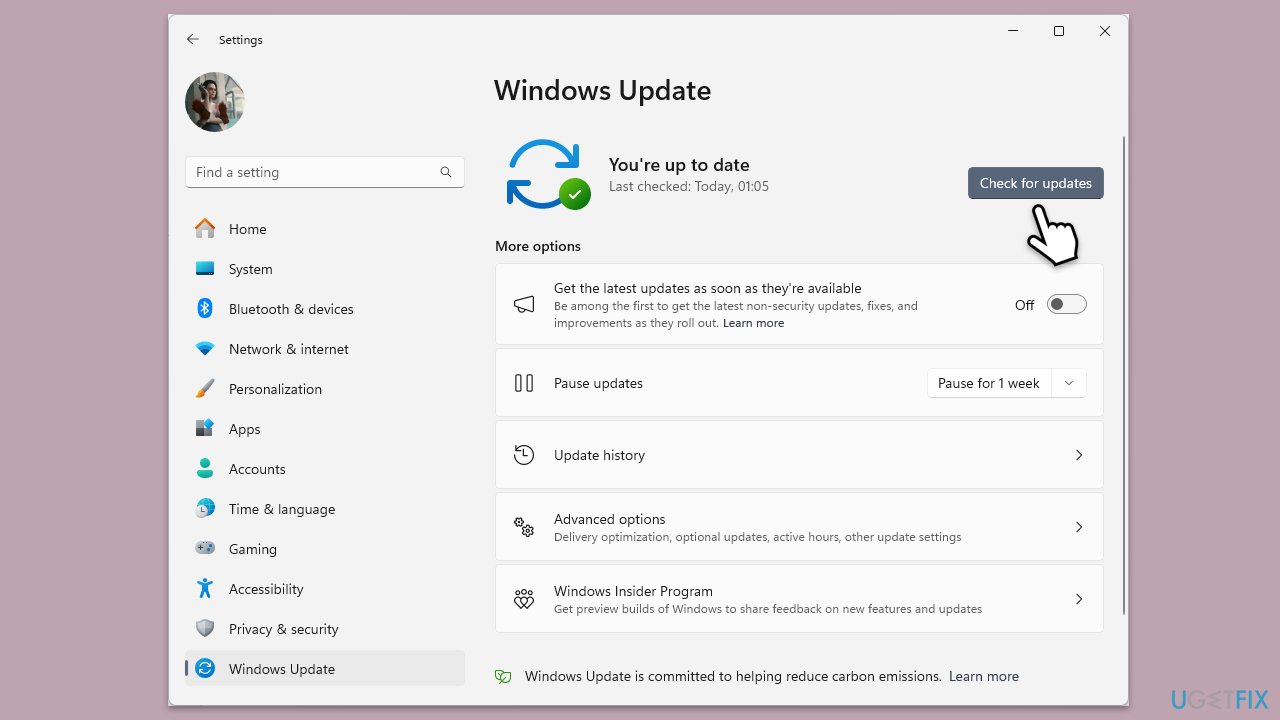
Keeping Windows updated ensures that all system files, including DLLs, are current and not corrupted. Updates often include fixes for known issues and can replace missing or damaged files.
- Type Updates in Windows search and press Enter.
- Here, click Check for updates.
- Wait till Windows downloads and installs all the files.
- If optional updates are available, install them as well.
- Reboot your device.
Fix 2. Re-register the DLL file
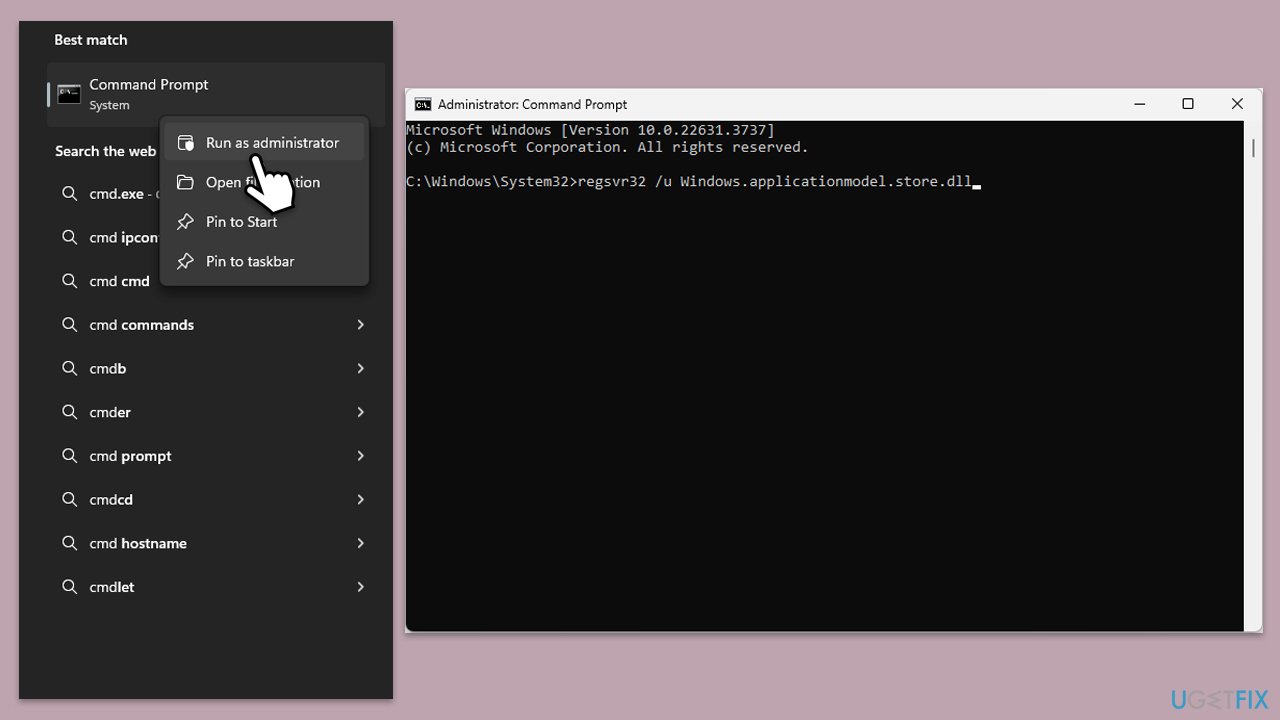
Re-registering the DLL file can resolve issues related to the file being unregistered or incorrectly registered in the system.
- Type cmd in Windows search.
- Right-click on Command Prompt and pick Run as administrator.
- User Account Control window will show up - click Yes when prompted.
- Type the following command and press Enter to unregister the DLL:
regsvr32 /u Windows.applicationmodel.store.dll - Type this command and press Enter to re-register the DLL:
regsvr32 Windows.applicationmodel.store.dll - Restart your computer.
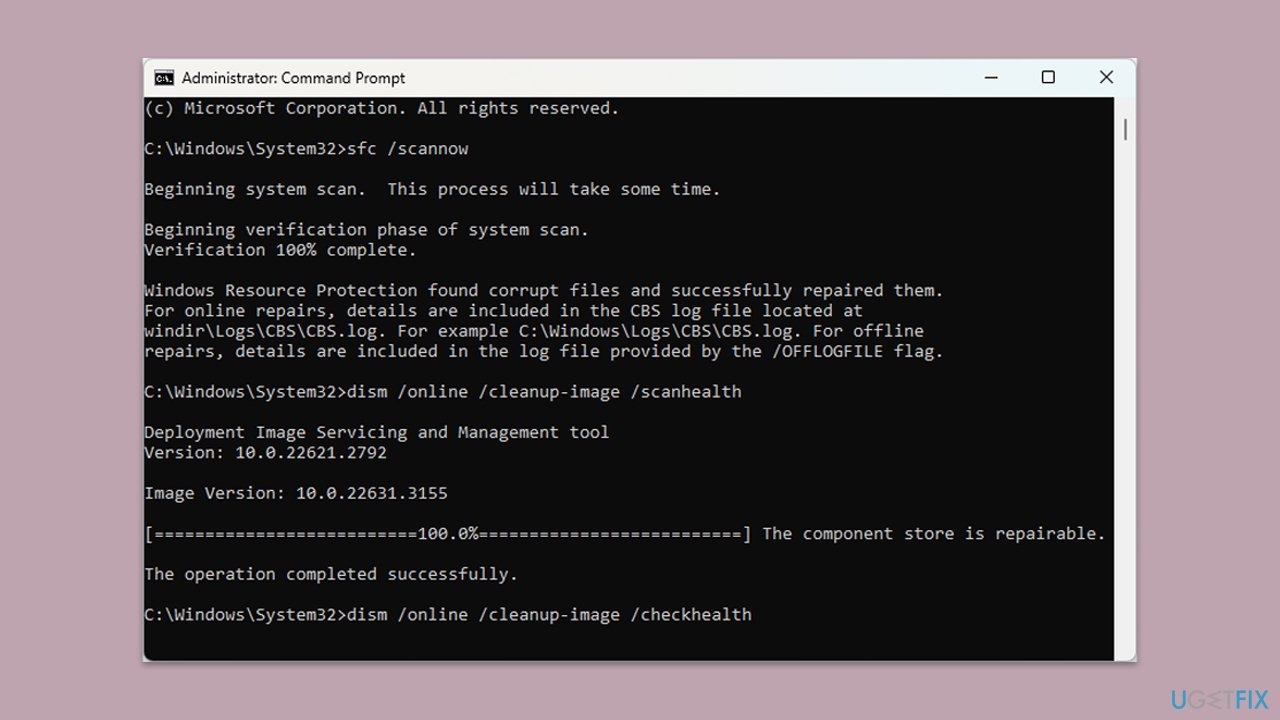
Fix 3. Run SFC and DISM
Run the following scans to repair damaged or corrupted files on Windows:
- Open Command Prompt as an administrator.
- Then, copy and paste the following command, pressing Enter after:
sfc /scannow - Wait till the scan is finished. If Windows finds system file integrity violations, it will attempt to fix them. After this, use the set of the following commands, pressing Enter each time:
DISM /Online /Cleanup-Image /CheckHealth
DISM /Online /Cleanup-Image /ScanHealth
DISM /Online /Cleanup-Image /RestoreHealth - Close down the Command Prompt and restart your device.
Fix 4. Try System Restore
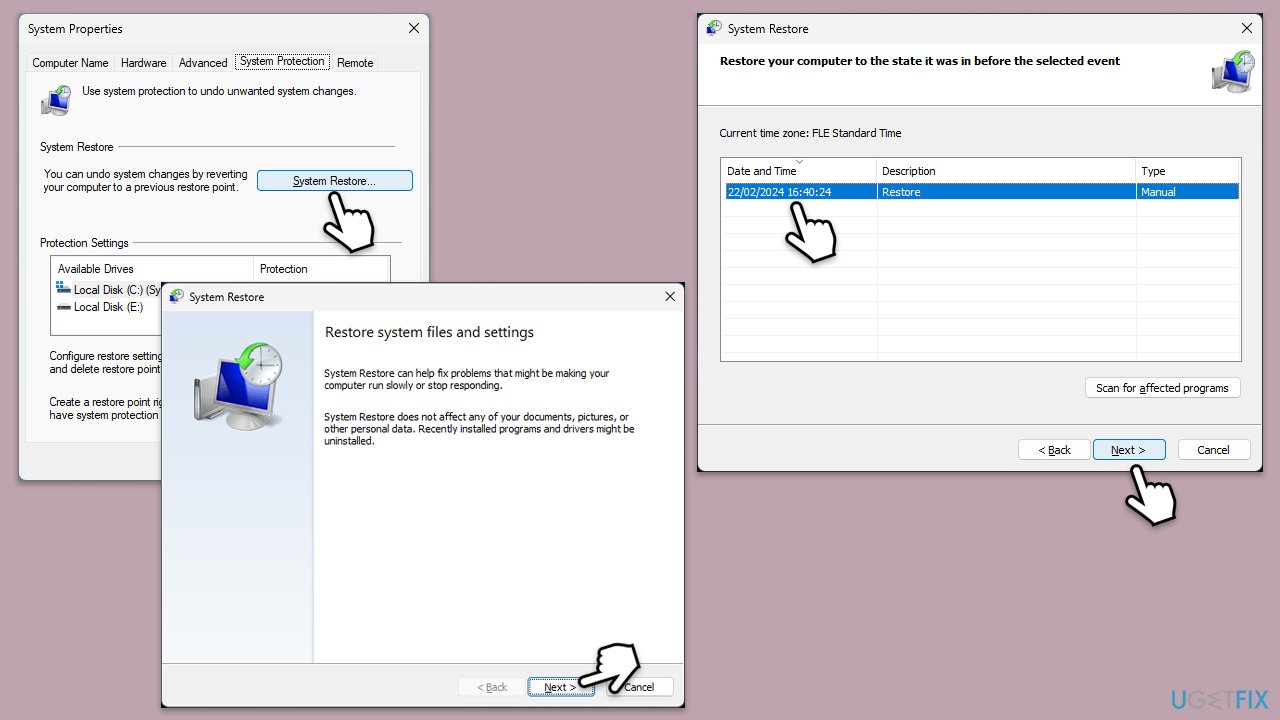
Using System Restore can revert your system to a previous state before the error occurred, potentially resolving the issue.
- Type System Restore in the search box and click Create a restore point.
- In the System Properties window, click System Restore.
- Click Next, choose a restore point from before the issues began, and click Next again.
- Follow the on-screen instructions to complete the restoration.
- Restart your computer after the process is completed.
Fix 5. Repair-install Windows
A repair-install of Windows can fix system issues without affecting your personal files and applications.
- Download Windows 11 Installation media from the official Microsoft website. [Windows 10 version]
- Double-click the MediaCreationTool.exe file to launch it.
- When UAC shows up, click Yes.
- Accept license terms.
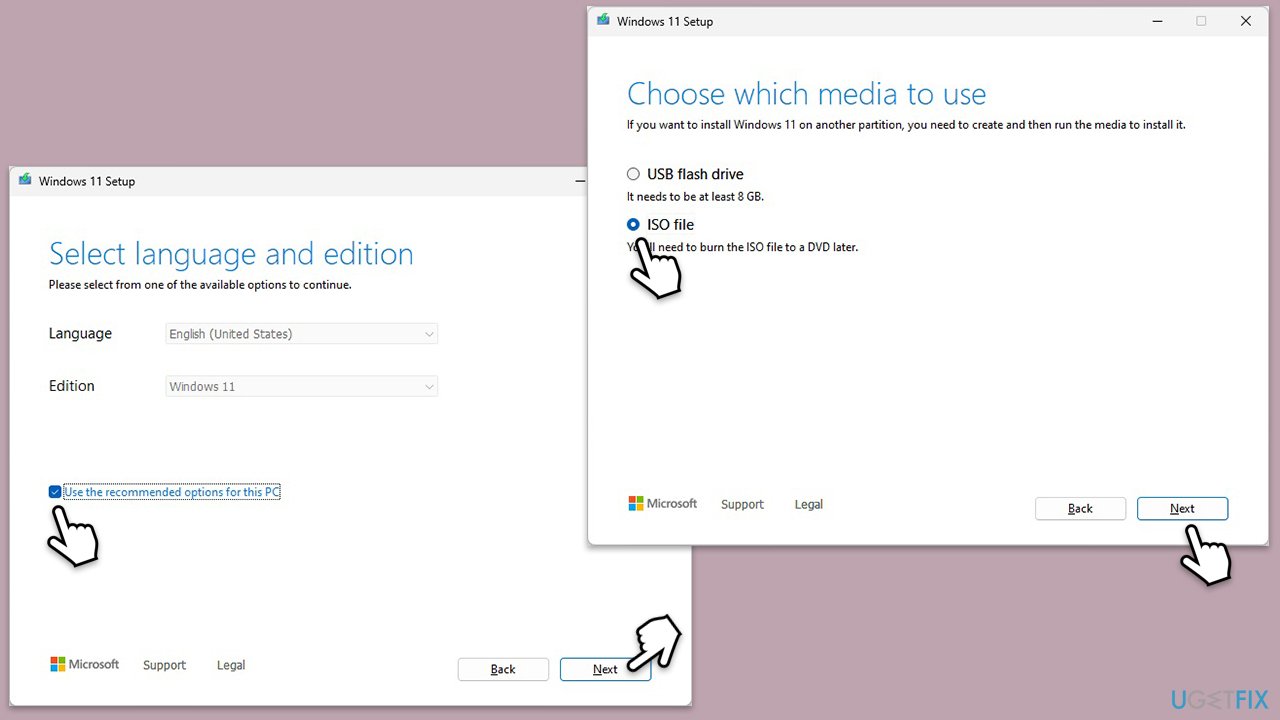
- Select Language and Edition (make sure it matches the one you have currently installed) or simply mark the Use the recommended options for this PC and click Next).
- Select the ISO file and click Next.
- Pick the location for your ISO file and wait till all the needed files are downloaded, then click Finish.
Repair-install Windows
- Go to the location of your ISO file, right-click, and select Mount.
- Run the setup.exe file.
- You will be asked whether you want to update Windows to the latest version - pick Not right now and click Next.
- Accept Terms and Windows will make several checks to ensure everything is fine.
- Click Change what to keep.
- Here, you have several options: Keep your files and apps, Keep files only, or Keep nothing - choose what suits you the best. Click Next.
- Finally, click Install to begin the installation process.
Bottom line
To fix the Windows.applicationmodel.store.dll error, you can replace the missing or damaged DLL file, run SFC and DISM scans, update Windows, re-register the DLL file, or use System Restore. If these solutions do not resolve the issue, consider utilizing a comprehensive repair utility or repairing the operating system itself.
Frequently asked questions
The Windows.applicationmodel.store.dll error can be caused by corrupted system files, issues with the Microsoft Store app, or malware infections. Running a system file check may help resolve these issues.
You can manually replace the Windows.applicationmodel.store.dll file by downloading a clean version from a reliable source and placing it in the C:\Windows\System32 directory, but ensure to back up the original file first.
Yes, resetting the Microsoft Store can often resolve the Windows.applicationmodel.store.dll error by restoring the app to its default state and clearing cached data.




Report an issue
What's wrong with this guide? We review every report and update or remove content.
Report received — thank you. We'll review and fix it.
You need a free account to submit a report.
Be the first to comment