How to fix
Windows backup error 0x8100002F
on Windows
Resolve the Windows backup error 0x8100002F effortlessly. Get your backups running smoothly again with expert-tested solutions and clear screenshots.

What causes How to fix Windows backup error 0x8100002F?
- Files cannot be found due to changes in folder paths
- Corrupted system files
- Hard disk failure
- Malware infection
- Issues with user libraries
Repairs Windows system files, removes malware, and restores a clean OS state — without reinstalling.
Hello. I tried using the Backup and Restore function on my Windows PC. The process was completed but some files were skipped. Error Code 0x8100002F appears. What should I do?
Backup and Restore is the primary backup component of Windows Vista and Windows 7. Using it, people can create file, folder, and system image backups. It was deprecated by Microsoft in Windows 8, and File History[ref en-1] became the recommended app. However, it is still part of all versions of Windows and is very convenient in case of data corruption, hard disk drive failure, and malware infection.
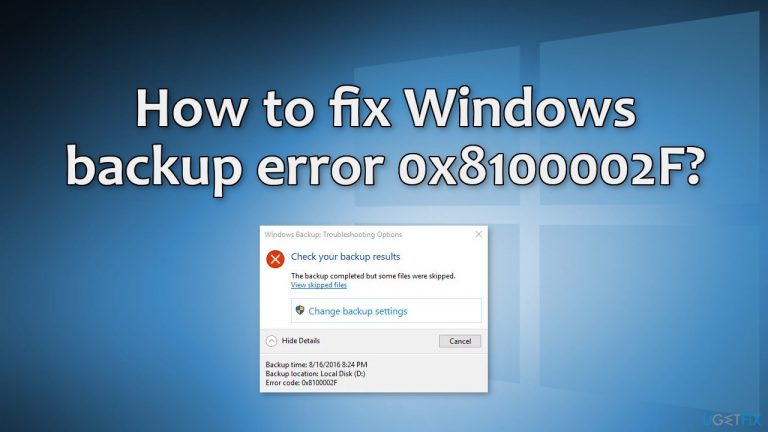
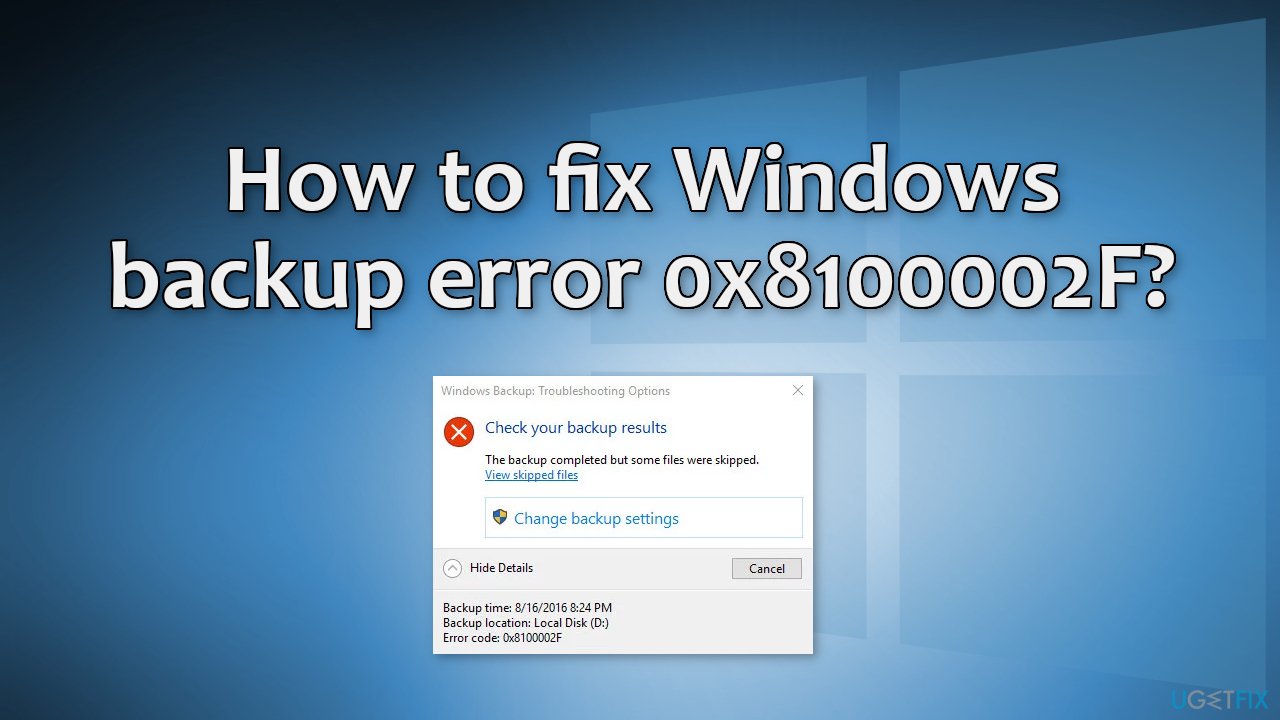
Unfortunately, some users are unsuccessful when they try to back up their files with Backup and Restore. Users report that some files were skipped during the process and excluded from the backup. After the process is complete, they receive an error code 0x8100002F with the message "The backup completed but some files were skipped."
The problem may stem from the fact that Windows Backup skips the files because it cannot find them. Windows backs up the data through user libraries, so if there is any change in the folder paths, then the libraries will not recognize them. Of course, there could be other reasons why the backup is not complete, like corrupted system files, hard disk failure, and so on.
We recommend deploying a maintenance tool like [d1] that can fix various system errors (even BSODs),[ref en-2] registry issues, clear cookies and cache.[ref en-3] It can also optimize the machine increasing its performance by deleting junk files. This software is very useful for everyday use and specific events like virus infections.
If you are ready to proceed with the manual guide that may fix Windows backup error 0x8100002F, follow the steps below very carefully:
Method 1. Check Disk
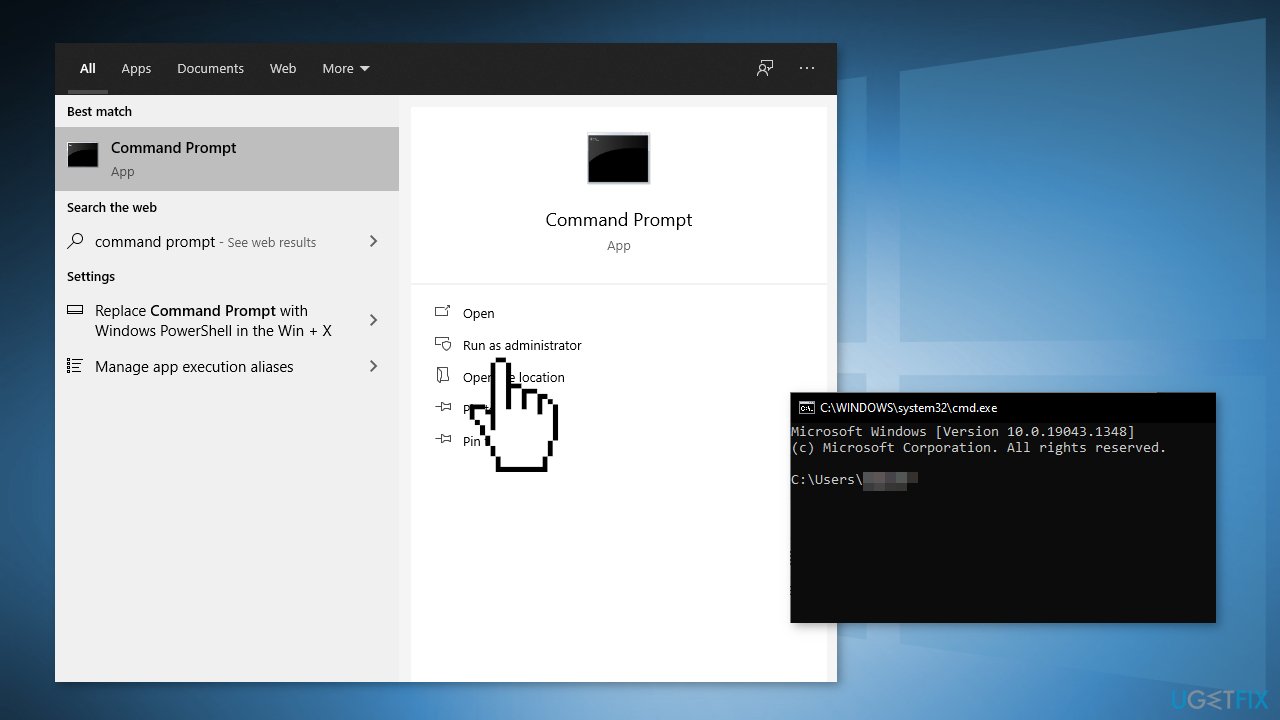
- Ensure that your disk is not damaged. You can perform checks using Administrative Command Prompt:
- If you are using an HDD as your main driver (where your operating system is installed - C: by default), use the following command and press Enter:
chkdsk c: /f
- If you are using SSD, use this command:
chkdsk c: /f /r /x - If you receive an error, type in Y and hit Enter
- Restart your device to perform the check
Method 2. Repair Corrupted System Files
Use Command Prompt commands to repair system file corruption:
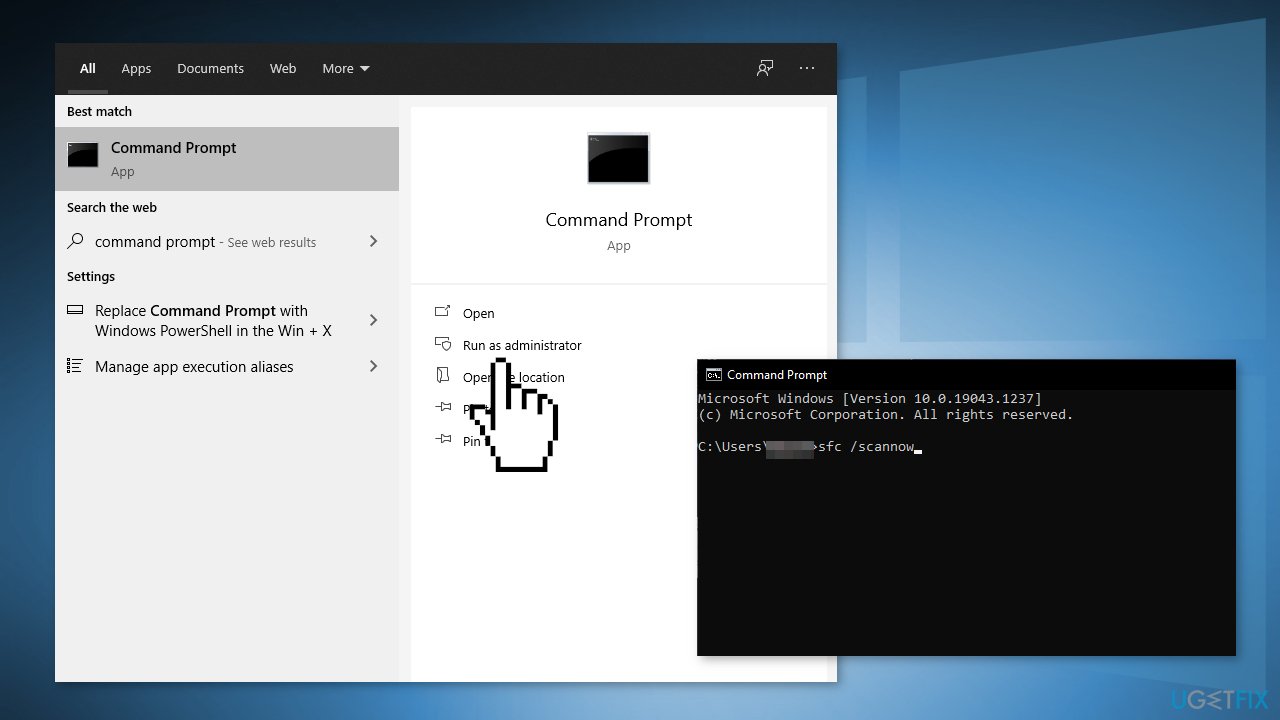
- Open Command Prompt as administrator
- Use the following command and press Enter:
sfc /scannow
- Reboot your system
- If SFC returned an error, then use the following command lines, pressing Enter after each:
DISM /Online /Cleanup-Image /CheckHealth
DISM /Online /Cleanup-Image /ScanHealth
DISM /Online /Cleanup-Image /RestoreHealth
Method 3. Move the Affected Library Folder
- When the error message pops up, look at the location that is being signaled as a path that is unable to be reached
- Open File Explorer, and navigate to the location
- Right-click on the library in question and choose Cut from the context menu
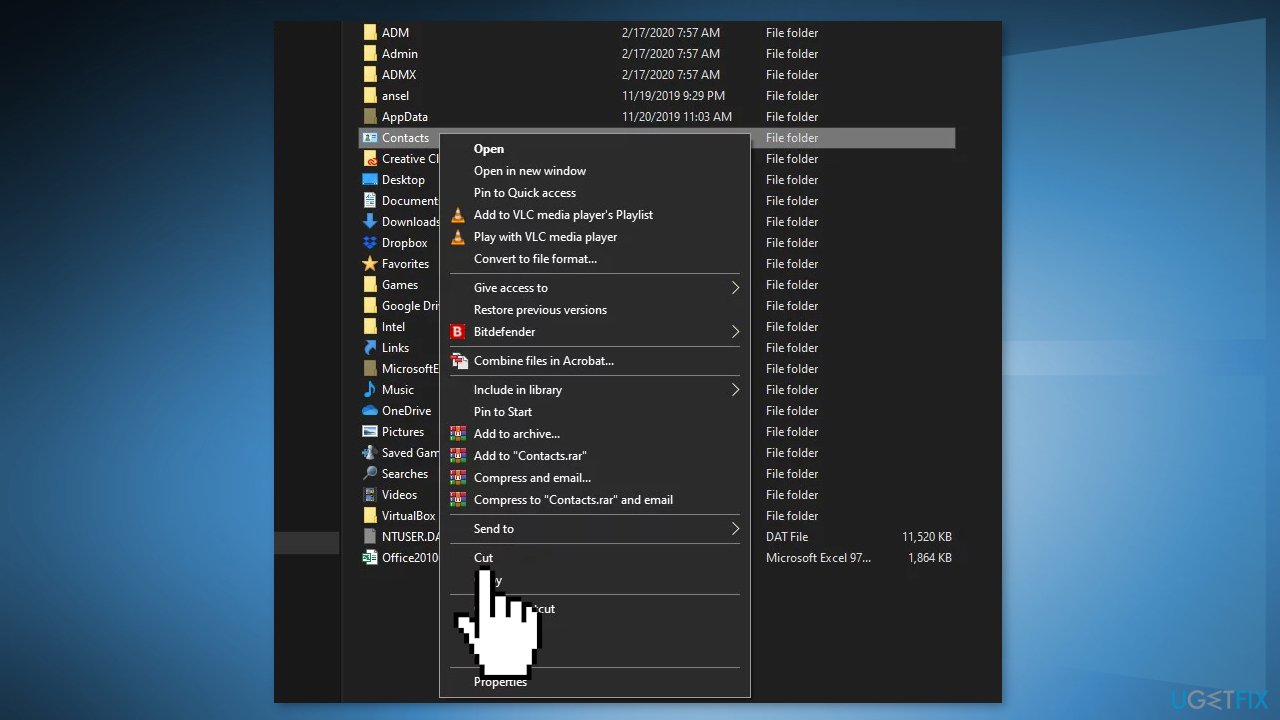
- Move the file outside of the scope of the Windows Backup operation (if you have an external or separate drive, move it there, and create a dedicated folder)
- Once the problematic library is moved, repeat the Windows Backup attempt and see if the issue is now fixed
Method 4. Exclude the Affected Library Folder
- Press Windows key + R to open up a Run dialog box
- Type control and press Enter to open Classic Control Panel
- Search for windows backup, and click on Backup and Restore
- Click on Set up Backup and click Yes when prompted by the UAC prompt
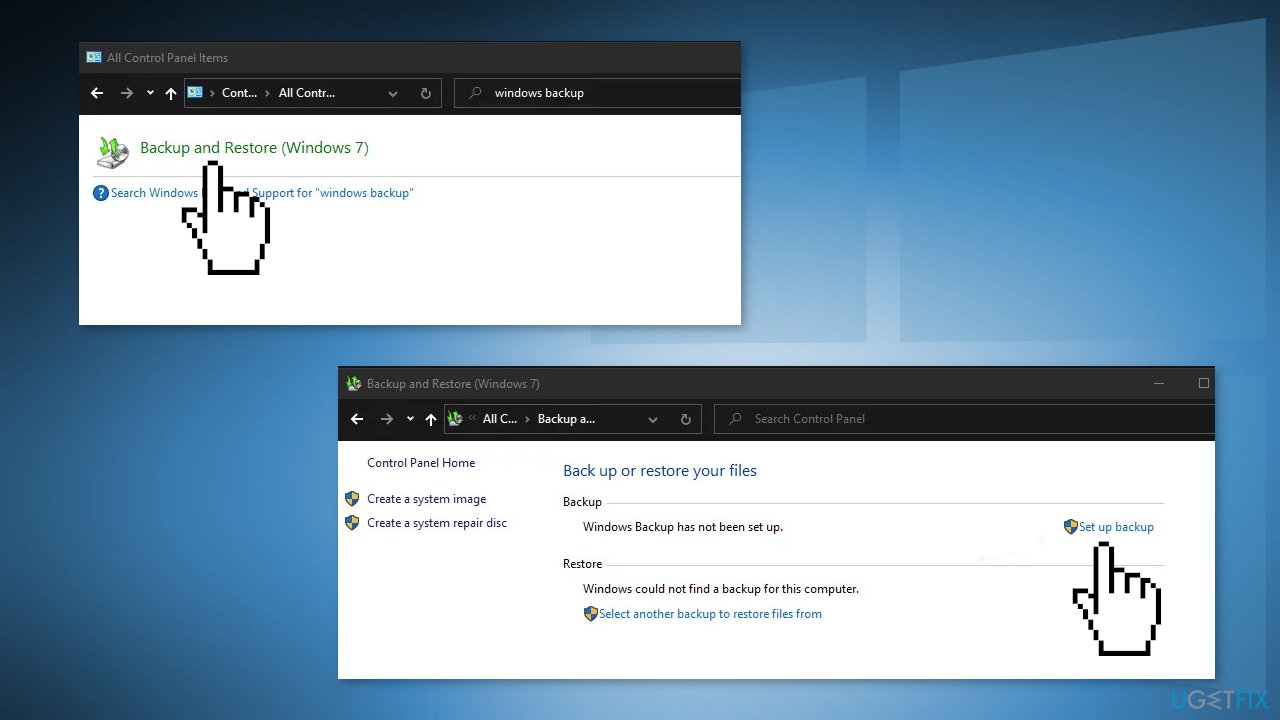
- Select a viable partition to create the backup or save it over the network by clicking on Save on a network
- Select the Let me choose toggle before clicking on the Next menu
- Browse to the location of the library folder that was triggering the error and uncheck the toggle associated with it before clicking on Next
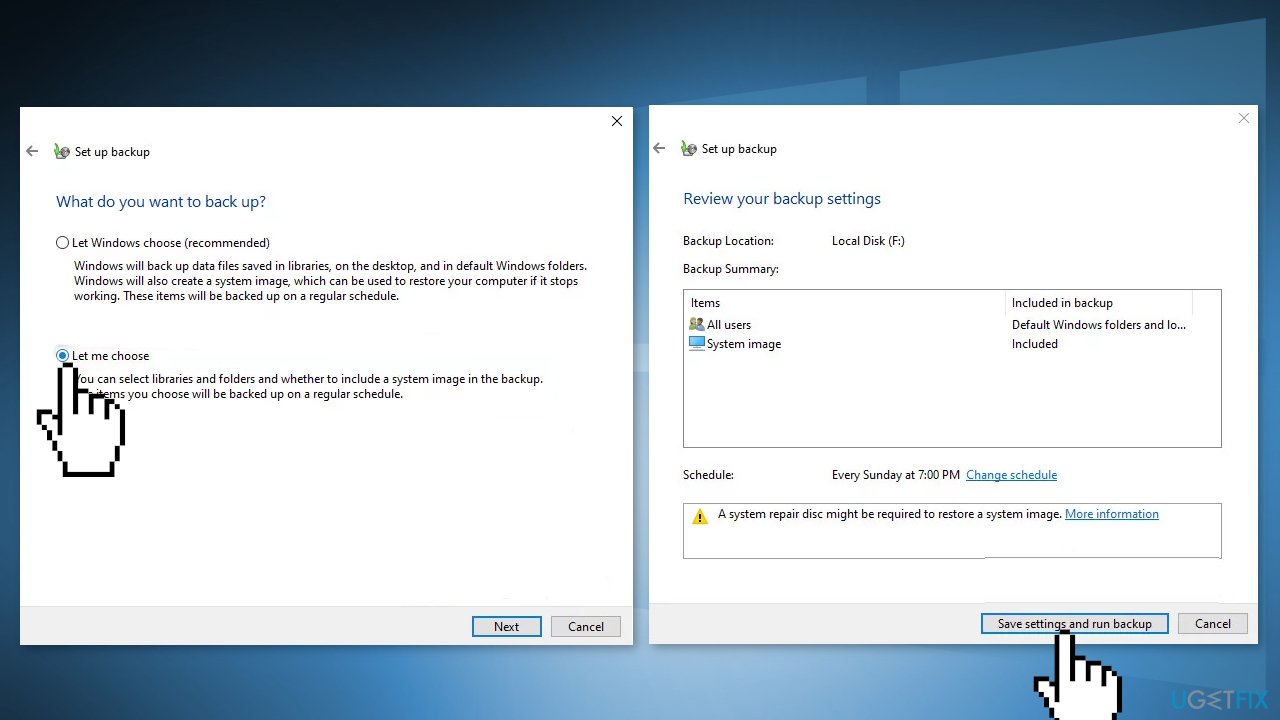
- Click on Save settings and run backup
Method 5. Exclude LocalLow, Contacts, and Searches Folders
- Press Windows key + R to open up a Run dialog box
- Type control inside the text box and press Enter
- Search for windows backup, and then, click on Backup and Restore
- Click on Set up backup
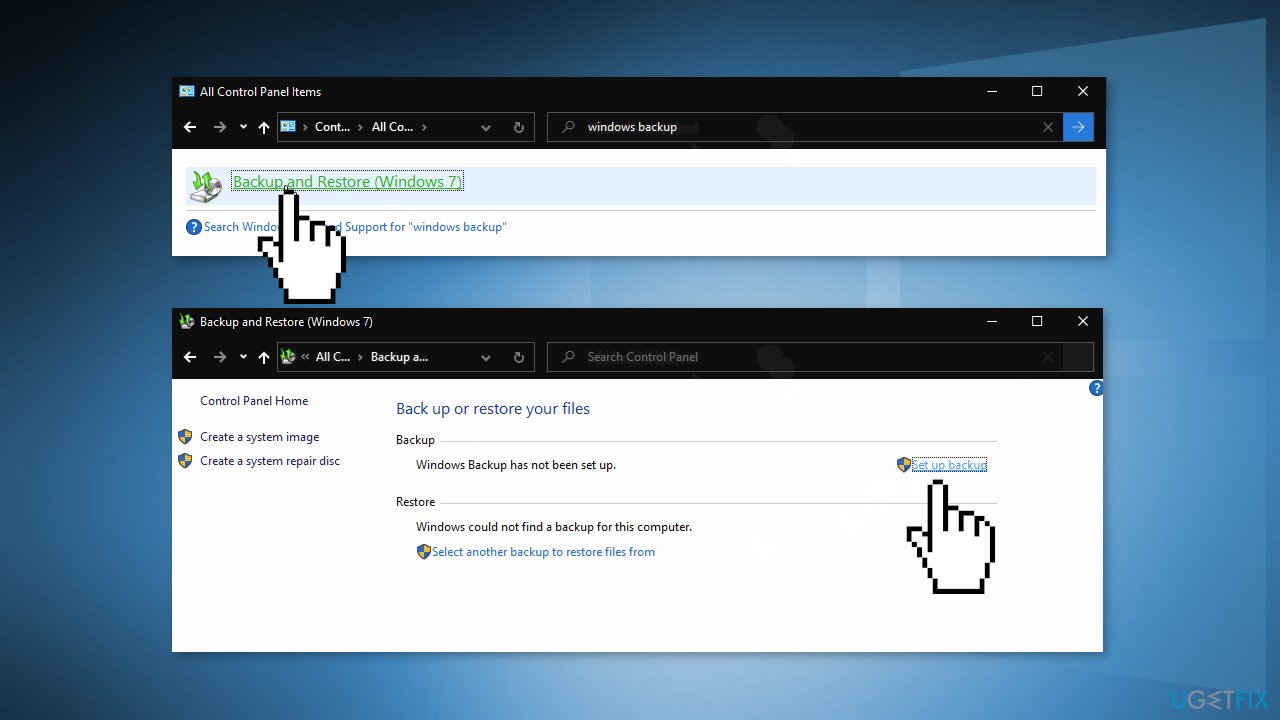
- At the first prompt, select a viable option where you want to save the backup and click Next
- Then select the Let me choose toggle and click on Next once again
- Expand the drop-down menu associated with Data files, then expand Your UserName Libraries
- Expand the Additional Locations drop-down menu, then deselect checkboxes associated with the AppData folder, Contacts, and Searches
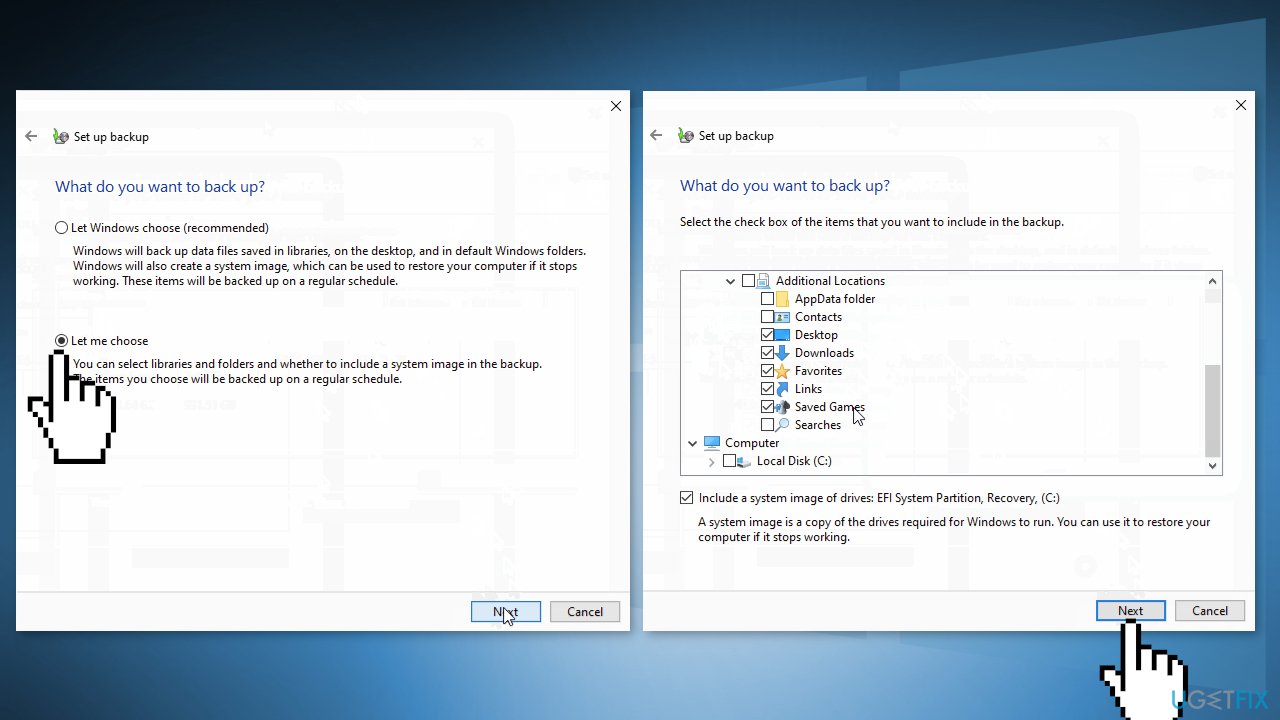
- Expand Computer’s drop-down menu, expand the item for your system drive (for example Local Disk (C:)), then Users > *YourUsername* and then click to select the AppData, Contacts, and Searches checkboxes if they exist
- Click Next, then Save settings and run backup, then wait for the operation to be complete
Method 6. Update the USB Connector Manager
You can employ an automatic updater such as [rev id="DriverFix"] which can be used to quickly update and backup all your drivers without hassle. Otherwise, follow the manual guide:
- Press Windows key +, R to open up a Run dialog box
- Type devmgmt.msc and press Enter
- Expand the drop-down menu associated with USB Connector managers.
- Inside the USB Connector Managers, right-click on NVIDIA USB EHCI chipset entry and choose Update driver
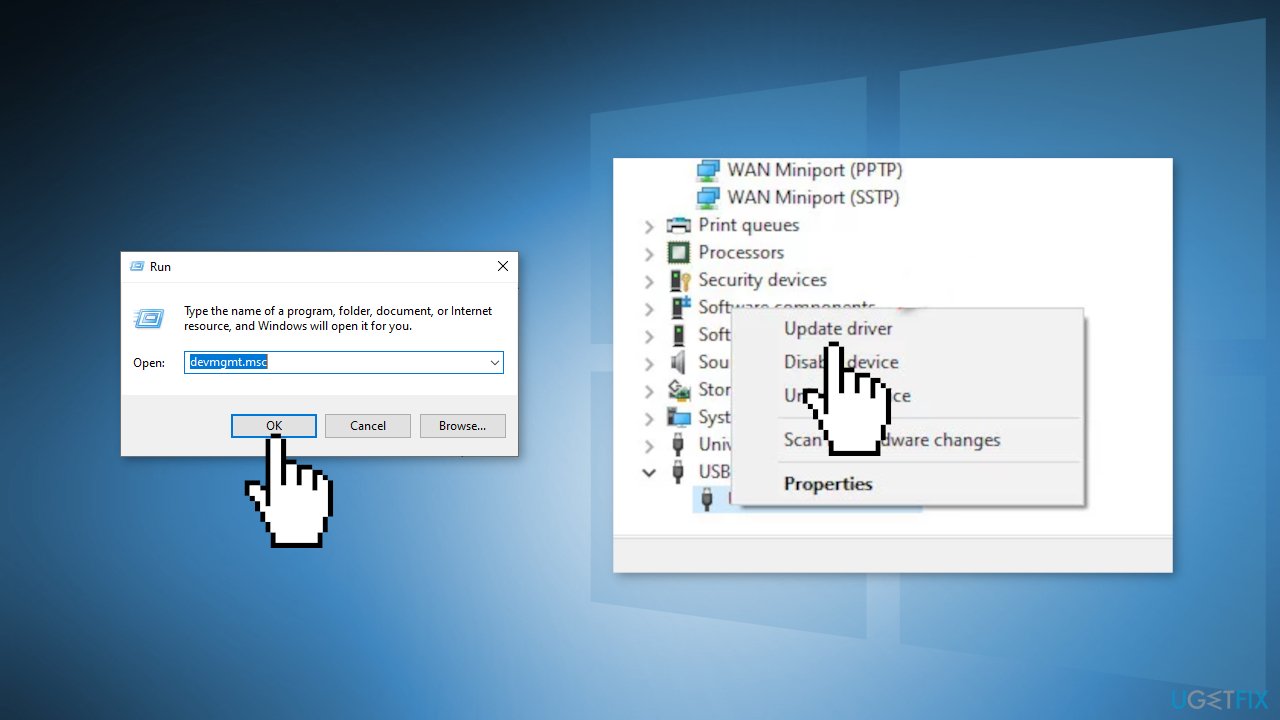
- Click on Search automatically for updated driver software, then follow the on-screen prompts to complete the installation of the new driver version
- Restart your computer and see if the issue is now fixed
Bottom line
To fix Windows backup error 0x8100002F, you can check your disk for damage using the chkdsk command for either HDD or SSD. Additionally, consider using a maintenance tool to address system errors and optimize performance. If these solutions do not resolve the issue, further investigation may be needed.
Frequently asked questions
The error 0x8100002F typically indicates a problem with the Windows Backup service, often due to issues with the backup drive or settings in Windows 10 or Windows 11.
To resolve error 0x8100002F on Windows 10, try changing the backup drive settings, checking for disk errors, and ensuring that the Volume Shadow Copy service is running.
Yes, you can fix error 0x8100002F without losing backup data by adjusting the backup settings and using the built-in troubleshooting tools in Windows 11.




Report an issue
What's wrong with this guide? We review every report and update or remove content.
Report received — thank you. We'll review and fix it.
You need a free account to submit a report.
Be the first to comment