How to fix
“Windows backup failed” error 0x81000031
on Windows
Resolve the "Windows backup failed" error 0x81000031 in Windows 10 and 11 easily. Follow our expert-tested tips for quick fixes. Zero traces left!

What causes How to fix “Windows backup failed” error 0x81000031 in Windows?
- NTFS file system requirement for File History
- BitLocker encryption on the backup drive
- Corrupted system files
- Insufficient disk space
- Third-party antivirus software interference
Repairs Windows system files, removes malware, and restores a clean OS state — without reinstalling.
I can't create a backup because it constantly fails with error code 0x81000031. I have no idea how to deal with it or where to even start. I am using Windows 10 if that's relevant.
Windows Backup operates as an integrated feature in Windows 10 and 11 which enables users to safeguard their data through file copies and system setting backups as well as complete system image preservation. Both systems include File History automated backup for personal documents and photographs and video files to external drives and network locations and the Backup and Restore utility that supports full-size backups, including system image creation.
In other words, backup feature is extremely valuable for those who want to ensure their data security in case of malware infections, hardware failures, system crashes, accidental removal, or other reasons. However, sometimes backing up the system can be more difficult than one might expect, precisely due to the errors that could arise.
"Windows backup failed" error 0x81000031 interrupts the backup process, so users cannot finish the backup operation. The backup failure notification appears before the error 0x81000031 interrupts the process during its execution. It typically appears with a message indicating that the backup failed, often halting the process mid-operation. Users might notice that File History stops backing up new changes, or the Backup and Restore tool fails to create a system image, leaving data unprotected.
The 0x81000031 error occurs most frequently with File History because it needs an NTFS file system to work correctly, yet backup devices often use FAT32 instead. Other causes can include BitLocker encryption on the backup drive, which can prevent File History from writing, or corrupted system files that disrupt the backup service. Insufficient disk space, third-party antivirus software interference, or improper backup settings, such as adding the backup drive to the backup scope, can also trigger the error.
There are a number of steps to troubleshoot the issue based on its root cause. Reformatting the backup device to NTFS, disabling BitLocker temporarily, or repairing system files are good fixes. Modifying backup options or running the backup in a clean boot are also good fixes.
The following are seven step-by-step solutions for Windows Backup to be operational again. For a temporary solution, we recommend that you employ [d1], a fix tool that is expert at fixing underlying Windows issues, such as corrupted files, service failure, or registry problems, that can lead to the 0x81000031 error.

Fix 1. Check the backup drive file system
File History requires the backup drive to be formatted as NTFS, and using FAT32 or exFAT can cause the 0x81000031 error. Reformatting the drive to NTFS can resolve this.
- Connect your backup drive to your PC.
- Press Win + E to open File Explorer.
- Right-click the backup drive and select Properties.
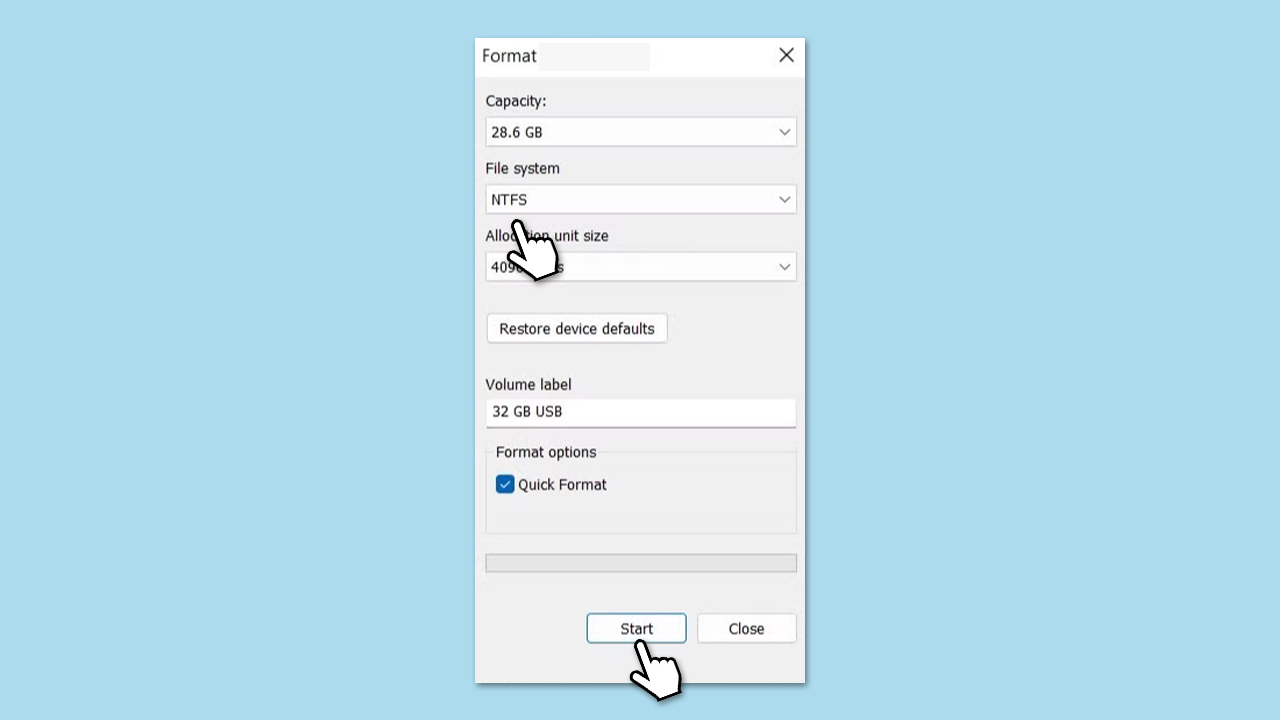
- Check the File system; if it’s not NTFS, right-click the drive again and select Format.
- Choose NTFS as the file system, click Start, and confirm the format (important: this will erase all data on the drive).
- Retry the backup after formatting completes.
Fix 2. Exclude the backup drive from File History
Including the backup drive in the File History scope can create conflicts, stopping the backup process. Excluding it ensures File History doesn’t attempt to back up itself.
- Type File History in Windows search and press Enter.
- Open File History and click Advanced settings.
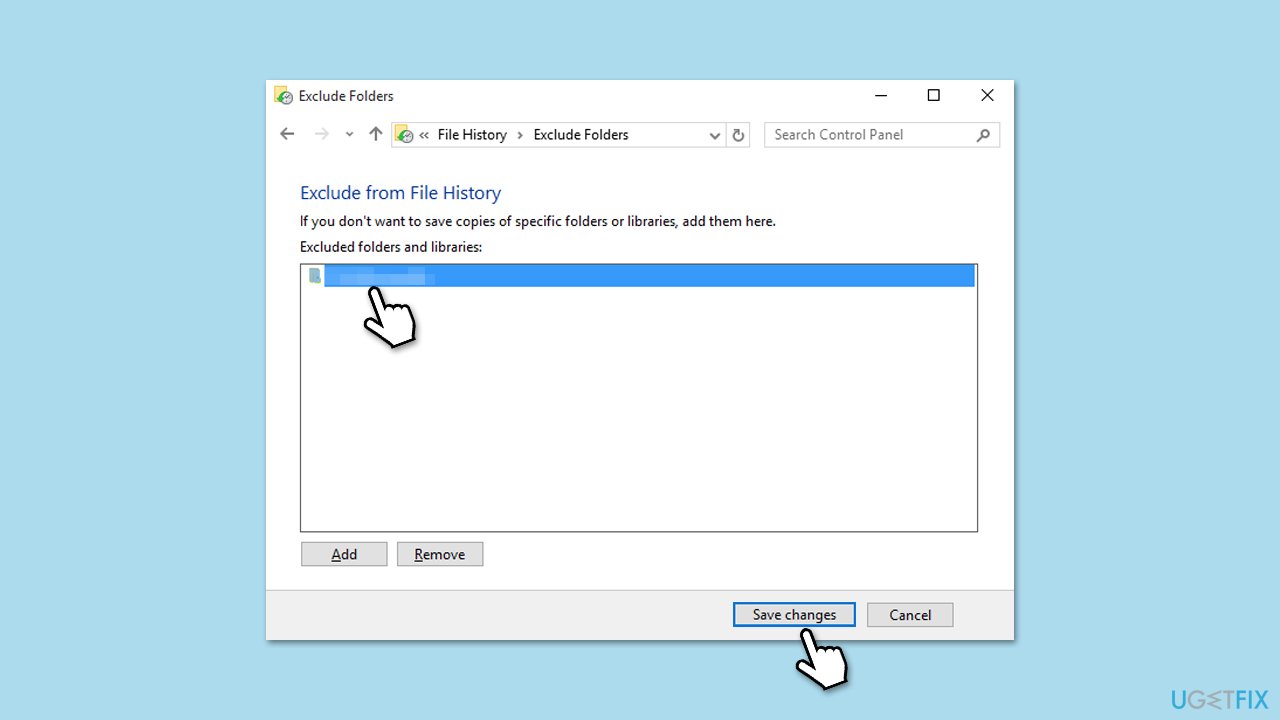
- Under Exclude these folders, click Add.
- Select the backup drive (e.g., E:) and click Select Folder.
- Click Save changes and try running the backup again.
Fix 3. Disable BitLocker on the backup drive
BitLocker encryption on the backup drive can interfere with File History’s ability to write data, leading to backup failures. Temporarily disabling BitLocker may allow the process to complete.
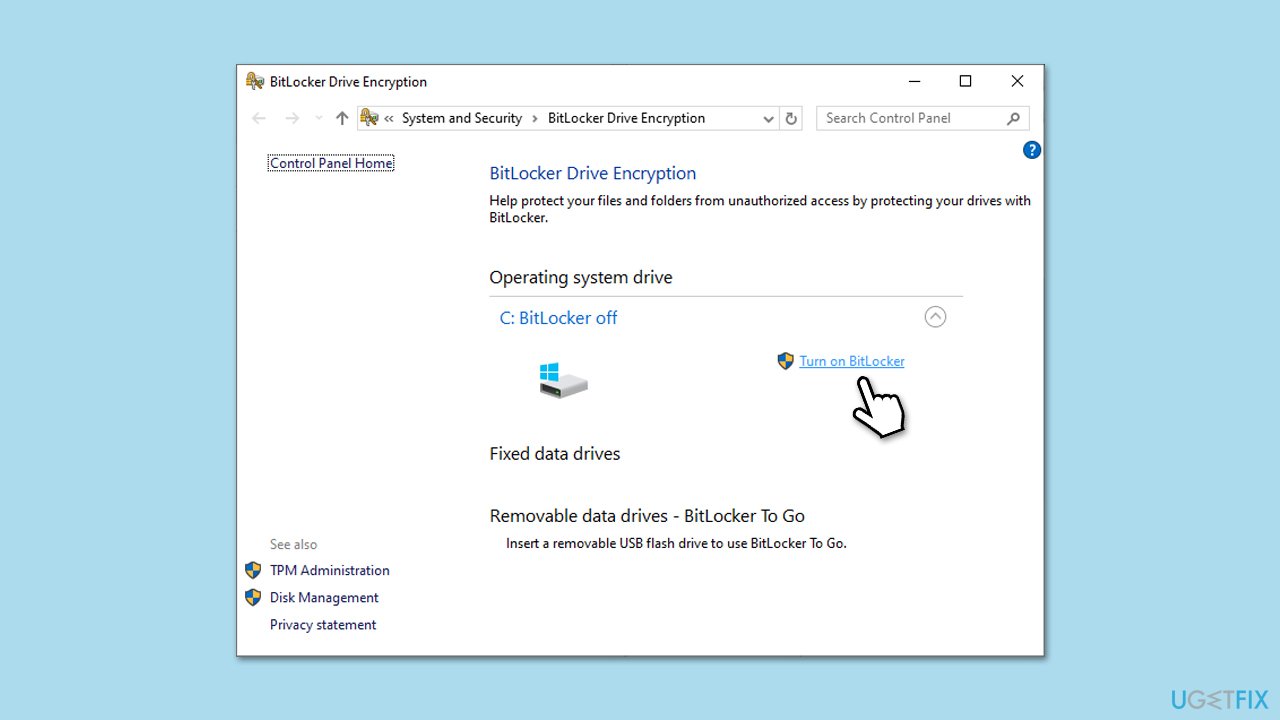
- Type Manage BitLocker in Windows search and press Enter.
- Open Manage BitLocker and locate your backup drive.
- If BitLocker is enabled, click Turn off BitLocker and confirm.
- Wait for the decryption process to complete (this may take some time).
- Retry the backup and re-enable BitLocker afterward if needed.
Fix 4. Repair file corruption
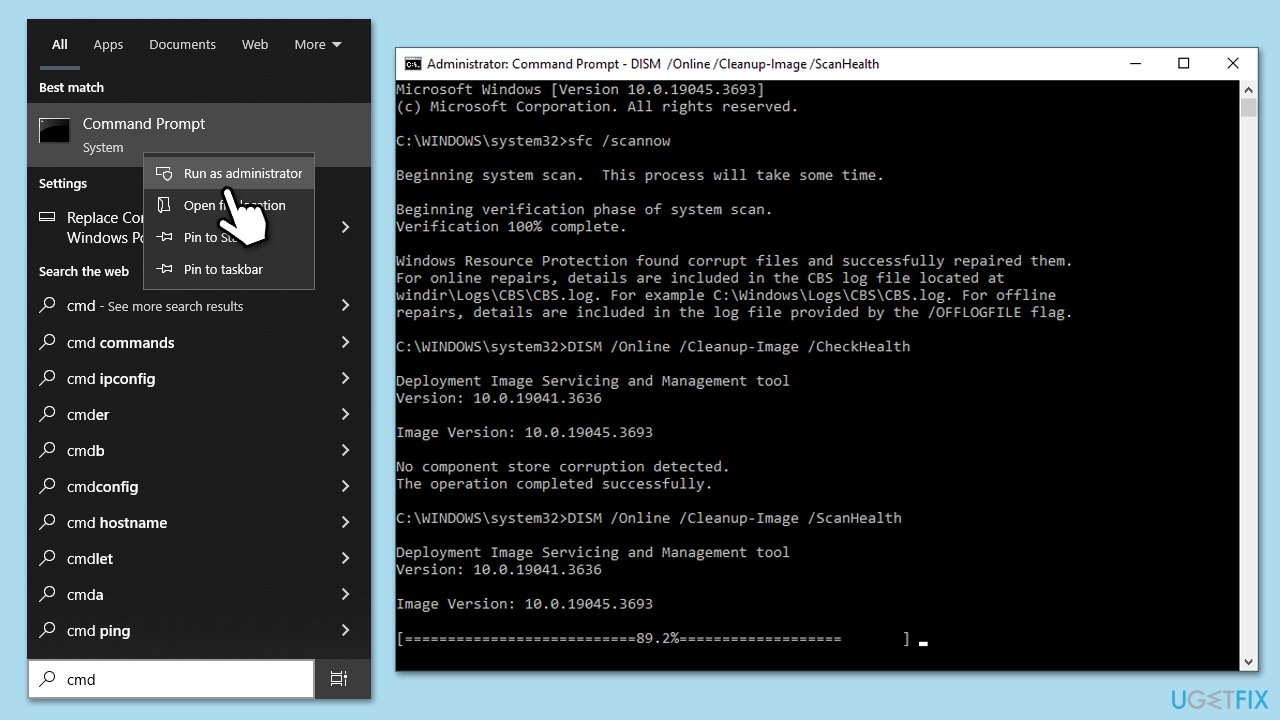
Corrupted system files can disrupt the backup process, causing it to fail unexpectedly. Using SFC and DISM tools can repair these files and restore proper functionality.
- Type in cmd in Windows search.
- Right-click on Command Prompt and select Run as administrator.
- User Account Control will ask you whether you want to allow to make changes to the system - click Yes.
- In the Command Prompt window, paste the following command and press Enter:
sfc /scannow - Wait for the scan to complete.
- Once the SFC scan is finished, run the following set of DISM commands, pressing Enter after each one:
DISM /Online /Cleanup-Image /CheckHealth
DISM /Online /Cleanup-Image /ScanHealth
DISM /Online /Cleanup-Image /RestoreHealth
(Note: if you get an error executing this last command, add /Source:C:\RepairSource\Windows /LimitAccess to it and try again). - After completing the DISM commands, restart your system.
Fix 5. Free up disk space on the backup drive
Insufficient space on the backup drive can halt the backup process, as Windows needs enough room to store the data. Freeing up space can help the backup proceed.
- Connect your backup drive and open File Explorer with Win + E.
- Right-click the backup drive and select Properties.
- If free space is low, delete unnecessary files or move them to another drive.
- Ensure at least 10 GB of free space is available on the backup drive.
- Retry the backup after freeing up space.
Fix 6. Perform a clean boot
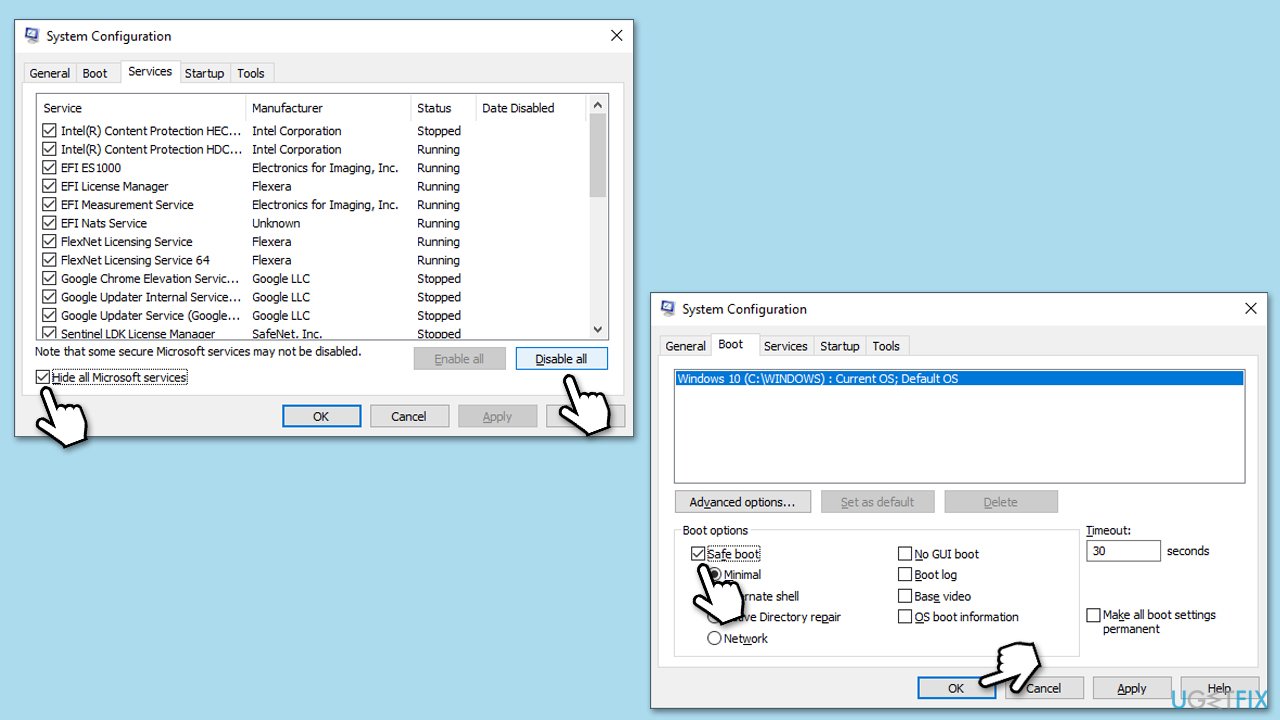
Third-party software, such as antivirus programs, can interfere with the backup process, leading to unexpected failures. A clean boot reduces these conflicts by starting Windows with minimal services.
- Type msconfig in Windows Search and press Enter.
- Click on the Services tab and check the Hide all Microsoft Services box.
- Click Disable all to disable non-Microsoft services, then click the Startup tab.
- Open the Task Manager, disable all startup items, and close the Task Manager.
- Go to the Boot tab and mark the Safe boot option.
- Click OK on the System Configuration window and restart your device.
- Try running the backup again.
Fix 7. Reset File History settings
Corrupted File History settings can lead to persistent backup issues by disrupting the configuration. Resetting them clears these problems and allows a fresh start.
- Type File History in Windows search.
- Open File History and click Advanced settings.
- Under Keep saved versions, click Clean up versions and delete all versions.
- Turn off File History, then turn it back on and select your backup drive.
- Restart your computer and attempt the backup again.
Bottom line
To resolve the error 0x81000031, consider reformatting the backup device to NTFS, disabling BitLocker temporarily, or repairing corrupted system files. Additionally, modifying backup options or running the backup in a clean boot may help. If these solutions do not work, further investigation into the backup settings or consulting support may be necessary.
Frequently asked questions
This error typically arises from issues with the backup storage location or corrupt system files. It can also be triggered by insufficient permissions or conflicts with third-party security software.
To fix this error, ensure that the backup destination is accessible and has enough free space, then run the System File Checker tool to repair any corrupted files.
Yes, regularly check your backup settings, keep your system updated, and ensure that your storage device is functioning properly to minimize the chances of encountering this error.




Report an issue
What's wrong with this guide? We review every report and update or remove content.
Report received — thank you. We'll review and fix it.
You need a free account to submit a report.
Be the first to comment