How to fix
Windows Camera App Error 0xA00F4271 (0x800705AA)
on Windows
Fix the Windows Camera App Error 0xA00F4271 (0x800705AA) effortlessly with expert tips and screenshots. Your camera will be up and running in minutes!


What causes How to Fix Windows Camera App Error 0xA00F4271 (0x800705AA)?
- Outdated camera drivers
- Damaged Windows 10 update files
- Malware infection
- Issues after upgrading from earlier Windows versions to Windows 10
- Problems after installation of monthly Windows updates
Repairs Windows system files, removes malware, and restores a clean OS state — without reinstalling.
Over the last months, I encounter ongoing issues with my inbuilt webcam. Usually, the webcam ends up with an error 0xA00F4271(0x800705AA) or simply stays unresponsive. I wrote to Microsoft, but did not receive a response for a month already. The problem started happening when I upgraded from Windows 8 to Windows 10. I would highly appreciate your help!
Windows 10 often breaks Windows Camera app on PCs, laptops, and tablets. That’s a well-known fact. The official Microsoft website is full of people’s complaints about unresponsive front camera, black camera’s screen, and multiple errors. One of these errors is 0xA00F4271(0x800705AA).
Why am I receiving 0xA00F4271(0x800705AA) error?
Although the exact trigger of the 0xA00F4271(0x800705AA) error hasn’t yet been identified, the long-term analysis of WebCam or Windows Camera application errors showed that the bulk of problems occur due to:
- Outdated camera drivers;
- Damaged Windows 10 update files, which broke the camera app;
- Malware infection.
In most of the cases, the 0xA00F4271(0x800705AA) error shows up after upgrading the system from earlier Windows versions to Windows 10. Nevertheless, it may also occur after the installation of monthly Windows updates. When the Camera app is damaged, the from camera of the laptop or tablet delivers an error message in a grey background or does not respond at all.
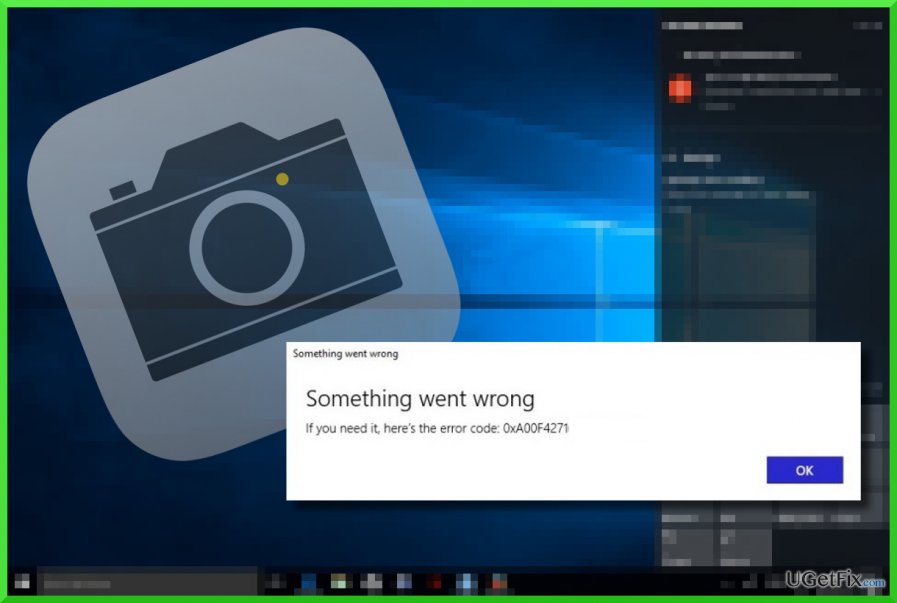
Fixing WebCam Error 0xA00F4271(0x800705AA) on Windows 10
Although malware seldom targets apps like Camera, such a possibility should not be rejected. Thus, the initial step towards 0xA00F4271(0x800705AA) error fix would be a thorough system scan with a professional anti-malware. In this case, we would recommend using [d1] because it will check for malware and optimize the system at the same time.
Option 1. Update WebCam drivers or roll them back
- Right-click on Windows key and select Device Manager.
- Expand Imaging Devices section and right-click on your webcam.
- Select Update Driver Software.
- Close Device Manager and reboot.
If the error 0xA00F4271(0x800705AA) started after the installation of camera drivers, we would recommend undoing the changes:
- Right-click on Windows key and select Device Manager.
- Double-click on Imaging Devices select on your webcam.
- Open Properties and click on Driver tab.
- Click Roll Back Driver and then Yes to confirm the changes.
- Finally, reboot your PC.
Option 2. Reinstall Windows Camera App
- Open Windows search and type PowerShell.
- Right-click on Windows PowerShell and select Run as Administrator.
- Type Get-AppxPackage –AllUsers command and press Enter.
- Find Microsoft.WindowsCamera key and select the PackageFullName of the Camera app.
- Copy the value of the PackageFullName using Ctrl + C hotkey.
- Now type the Remove-AppxPackage PackageFullName command. IMPORTANT: Change PackageFullName with the PackageFullName value of the Camera app by pressing Ctrl + V hotkey.
- Finally, close PowerShell.
- Navigate to the Windows Store and download the latest version of the Windows Camera app.
Hopefully, you have successfully fixed the 0xA00F4271(0x800705AA) error.
Bottom line
To fix the 0xA00F4271(0x800705AA) error, you can update or roll back your webcam drivers and perform a thorough system scan for malware. If these solutions do not resolve the issue, consider seeking further assistance or exploring additional troubleshooting methods.
Frequently asked questions
This error typically arises due to issues with camera permissions, outdated drivers, or conflicts with other applications using the camera.
Go to Settings > Privacy & security > Camera, and ensure that camera access is enabled for the apps you want to use.
Yes, updating the camera driver can often fix compatibility issues and eliminate the error, so check for updates in Device Manager.




Report an issue
What's wrong with this guide? We review every report and update or remove content.
Report received — thank you. We'll review and fix it.
You need a free account to submit a report.
Be the first to comment