Hello, I encountered igfxTray.exe error recently, and it does not let me use diagnostic application for the for the Intel Graphics configuration. Is there any way of fixing this? Thanks in advance.
igfxTray.exe[ref en-1] is a part of Graphics Accelerator Helper Module which is shipped together with Nvidia graphics cards and Windows drivers[ref en-2] for Intel. It allows users to perform various graphics and monitor changes, such as modify screen resolution, color depth, and similar settings. The process does not run on the startup, so users can pick then the program is run. Otherwise, it may impact the computer's performance by using CPU[ref en-3] power.
Nevertheless, many users reported to encounter igfxTray.exe error on their Windows machines, and there might be are several reasons for it, including:
outdated graphics drivers;
outdated operating system software;
corrupted Intel Common User Interface software;
damaged system files;
malware infections, etc.
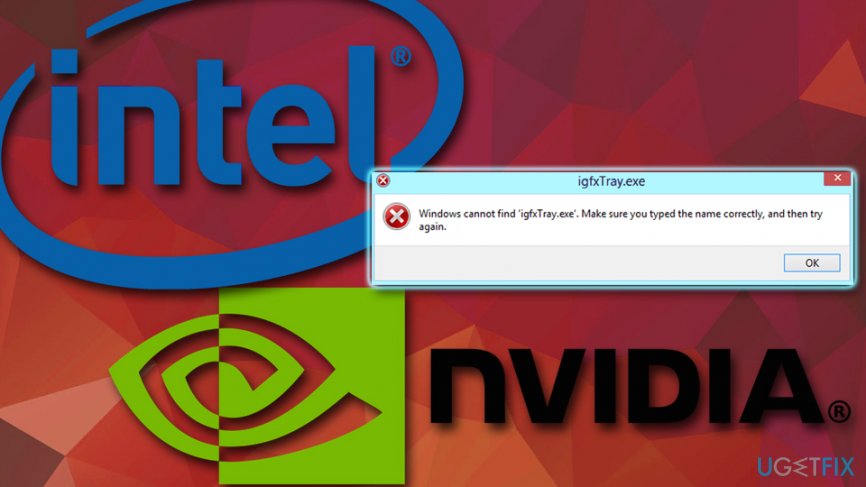
The igfxTray.exe error message states the following:
Windows cannot find 'igfxTray.exe'. Make sure you typed the name correctly, and then try again.
Windows XP users might experience the following:
igfxTray Module has stopped working. A problem caused the program to stop working correctly. Windows will close the program and notify you if a solution is available.
Windows cannot find igfxtray exe error fix
While the igfxTray.exe error can typically be fixed by reinstalling the Graphics Accelerator application, malware infection might be much harder to take care of. Beware that any executable file can be a virus in disguise. Security researchers warn that igfxTray.exe is known to be related to ROJ_SPNR.0BK811, PE_SALITY.RL or Trojan:Win32/Meredrop[ref en-4] malware.
In such cases, users might experience several infection symptoms, like increased CPU/GPU usage, frequent Blue Screens of Death, additional errors, software crashes or/and freezes, increased amount of pop-ups and other adverts, and similar suspicious activities.
To make sure that igfxTray.exe error is not caused by a malware infection, you should scan your computer using security software. We highly recommend using [d1]. The application is also capable of fixing a multitude of Windows errors automatically, as it checks and corrects damaged files from the internal database which contains 25,000 of legitimate Windows files.
As soon as you are sure that malware is not affecting your PC, proceed with the following steps to fix igfxTray.exe error on Windows.
Solution 1. Update or uninstall your graphics drivers
Drivers are quite unpredictable, and can simply stop working one day, even without users doing anything out of the ordinary. Therefore, it is vital to make sure that the drivers are up to date (corrupted or outdated drivers might cause several igfxTray.exe and other errors):
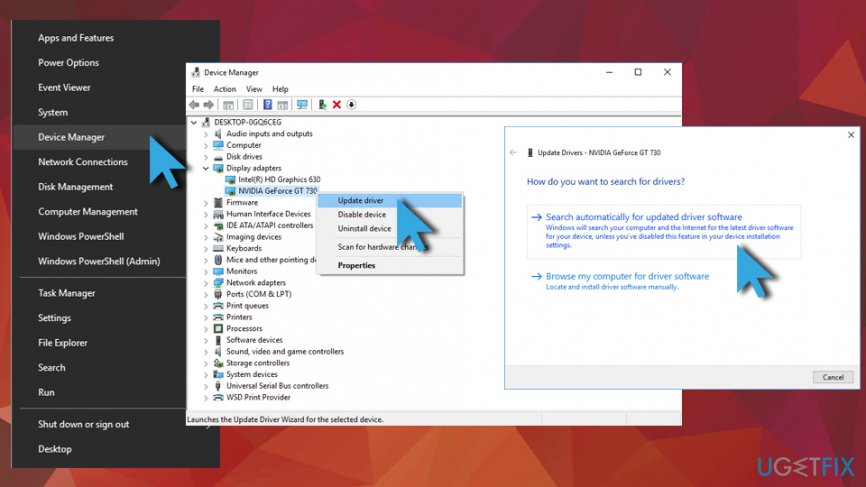
Right-click on the Start button and pick Device Manager
Expand Display adapters category and select the graphics card you are using
Right-click on it and choose Update Driver
Next, pick Search automatically for updated driver software and wait for Windows to install newest drivers automatically
Reboot your PCWindows cannot find igfxtray exe error update drivers
Alternatively, you can uninstall drivers completely and then reboot your PC - Windows will download and update to the newest version automatically.
Updating drivers manually might be a daunting task, especially when several drivers are outdated. Therefore, we suggest you use [rev id=”Smart Driver Updater”] to update all your drivers automatically.
Solution 2. Update your Windows OS
In some cases, outdated operating system might result in software malfunction, like igfxTray.exe is missing error. Therefore, you should check if your Windows is up to date:
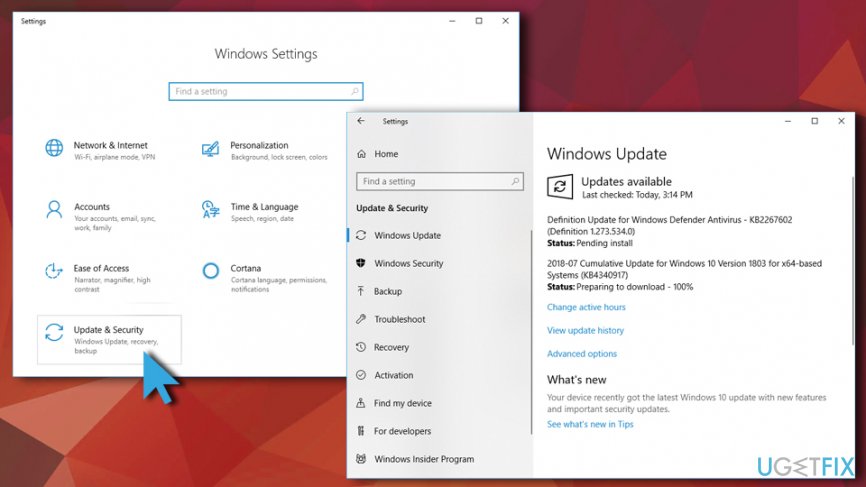
Right-click on the Start button and pick Settings
Scroll down and select Updates and security
Click on Check for updates
Wait till updates are installed and reboot your PCWindows cannot find igfxtray exe error update windows
Solution 3. Run System File Checker
Corrupted Windows files can result in the igfxTray.exe error. System File Checker is capable of detecting and repairing these type of errors automatically:
Type in Command Prompt into the search box
Right-click on the search results and select Run as administrator
As soon as User account control shows up, click Yes
Type in sfc /scannow and press Enter
The scan might take several minutes to complete - wait till it is finished
Solution 4. Run DISM scan
DISM scan is very similar to SFC scan but works a little differently. Follow these steps to perform it:
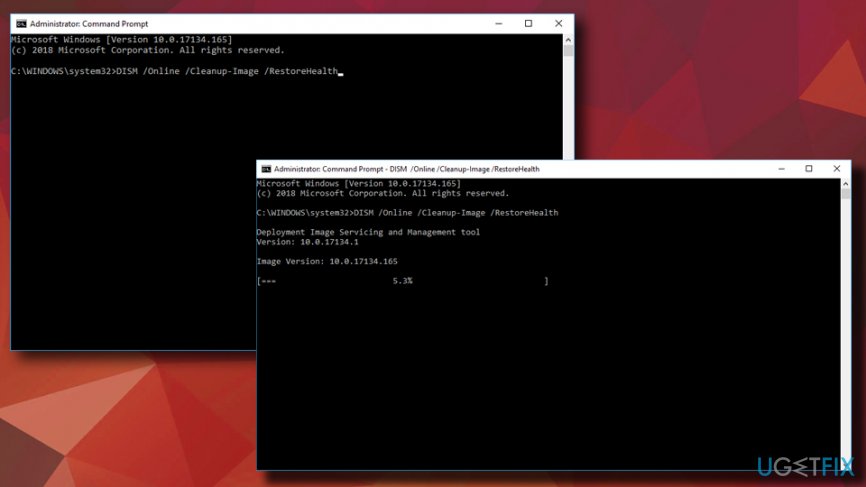
Go to Command Prompt (admin) again
Type in the following command and hit Enter
DISM /Online /Cleanup-Image /RestoreHealth
Windows cannot find igfxtray exe error run dism scan
Solution 5. Use System Restore
If none of the solutions above help you fix igfxTray.exe error, use System Restore to revert the problem:
Type in Control Panel in search bar and open Control Panel
Then pick Recovery > System Restore
Select an appropriate restore point and follow on-screen instructions
Bottom line
The igfxTray.exe error can typically be fixed by reinstalling the Graphics Accelerator application. If the issue is related to malware, it is recommended to scan your computer using security software. If none of these solutions work, further investigation into system files or professional assistance may be necessary.
Frequently asked questions
The igfxTray.exe error typically indicates a problem with the Intel graphics driver or its associated files, which can prevent proper functioning of the graphics interface.
To reinstall the Intel graphics driver, go to Device Manager, find your graphics device, right-click on it, and select 'Uninstall device.' Then, restart your computer and Windows will automatically reinstall the driver.
If the error persists, try running the System File Checker by opening Command Prompt as an administrator and typing 'sfc /scannow' to repair corrupted system files.
Browser troubleshootingExtension conflictsWeb app errorsBrowser performanceCache and cookie issues
Daniel Quinn specialises in browser troubleshooting and web application errors across Chrome, Firefox, Edge, and other major browsers on Windows. He covers browser crashes, extension conflicts, rendering failures, performance degradation, and compatibility errors with web-based tools. Daniel's guides help readers distinguish between a browser-level issue and an underlying Windows problem — narrowing down the cause before recommending a targeted fix. His writing is known for testing fixes across multiple browser versions and Windows editions, ensuring the steps work in real conditions.






Report an issue
What's wrong with this guide? We review every report and update or remove content.
Report received — thank you. We'll review and fix it.
You need a free account to submit a report.
Be the first to comment