How to fix
“Windows cannot find regedit.exe” error
on Windows
Resolve the "Windows cannot find regedit.exe" error quickly on Windows 10 and 11. Get expert-tested solutions and fix it in minutes!


What causes How to fix “Windows cannot find regedit.exe” error?
- Malware targeting the Registry Editor
- Wrongly configured path environment variable
- Missing path environment variable
- Altered registry values
- Prevent access to registry editing tools option enabled
Repairs Windows system files, removes malware, and restores a clean OS state — without reinstalling.
Hello. Every time I try to launch the Registry Editor I receive the "Windows cannot find regedit.exe" error. What should I do to fix this?
The Windows registry is a database that stores important information about a computer's configuration and settings. It is used by the operating system to manage and maintain the various aspects of a computer's hardware and software, including device drivers, user preferences, and system settings. The Registry Editor, or regedit.exe, is a tool that allows users to view and modify the registry.
However, some users may encounter an error when attempting to open the Registry Editor, receiving a message that reads "Windows cannot find C:\Windows\regedit.exe." This error can occur in both Windows 10 and 11, and can prevent users from accessing the registry, causing frustration and inconvenience.
There are several potential causes for the "cannot find regedit.exe" error. It can be caused by malware targeting the Registry Editor, a wrongly configured or missing path environment variable, or altered registry values within the Registry Editor itself.
To fix the "cannot find regedit.exe" error, users can try several different methods. The first step is to run a full antivirus scan, as this error can sometimes be caused by malware. Users should also check to see if the Prevent access to registry editing tools option is enabled in the Group Policy Editor, as this can cause the error to occur. This option is available in Windows Pro and Enterprise editions.
Another potential solution is to edit the Path environment variable. A wrongly configured or missing path environment variable can cause the "cannot find regedit.exe" error, and some users may need to edit this variable in order to resolve the issue. To do this, users can follow the steps outlined in the instructions provided below.
In case you do not want to spend a lot of time trying to manually fix the problem, you can use an automatic maintenance tool like [d1]. It can fix most system errors, BSODs,[ref en-1] corrupted files, registry[ref en-2] issues, or clear cookies and cache.[ref en-3] Otherwise, follow the step-by-step instructions below.
Method 1. Run an Antivirus Scan
- Double-click Windows Security's shield icon in the system tray on the right of the taskbar
- Click the Virus & threat protection tab along the left of Windows Security
- Select Scan options to access all the scanning radio buttons, then click the Full Scan option
- Press Scan now to initiate the scan
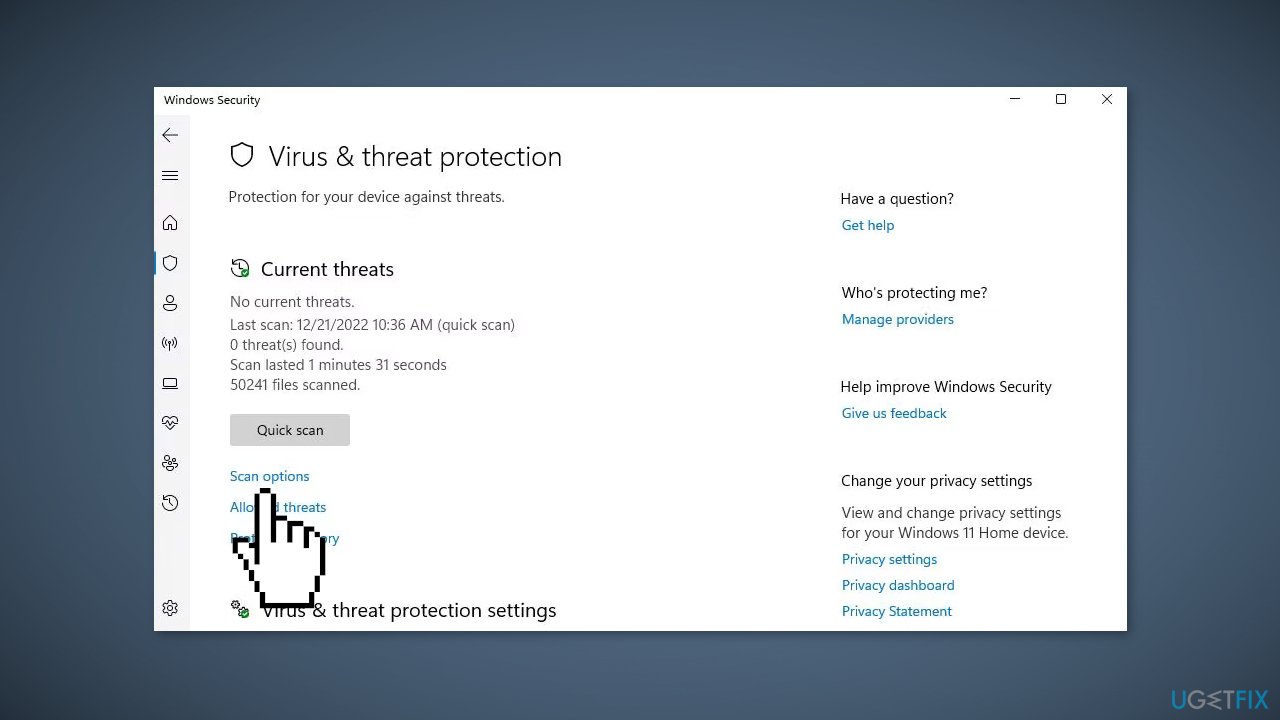
- If Windows Security detects something, select the Remove action options for everything detected, then click Start actions
Method 2. Fix Corrupted System Files
Use Command Prompt commands to repair system file corruption:
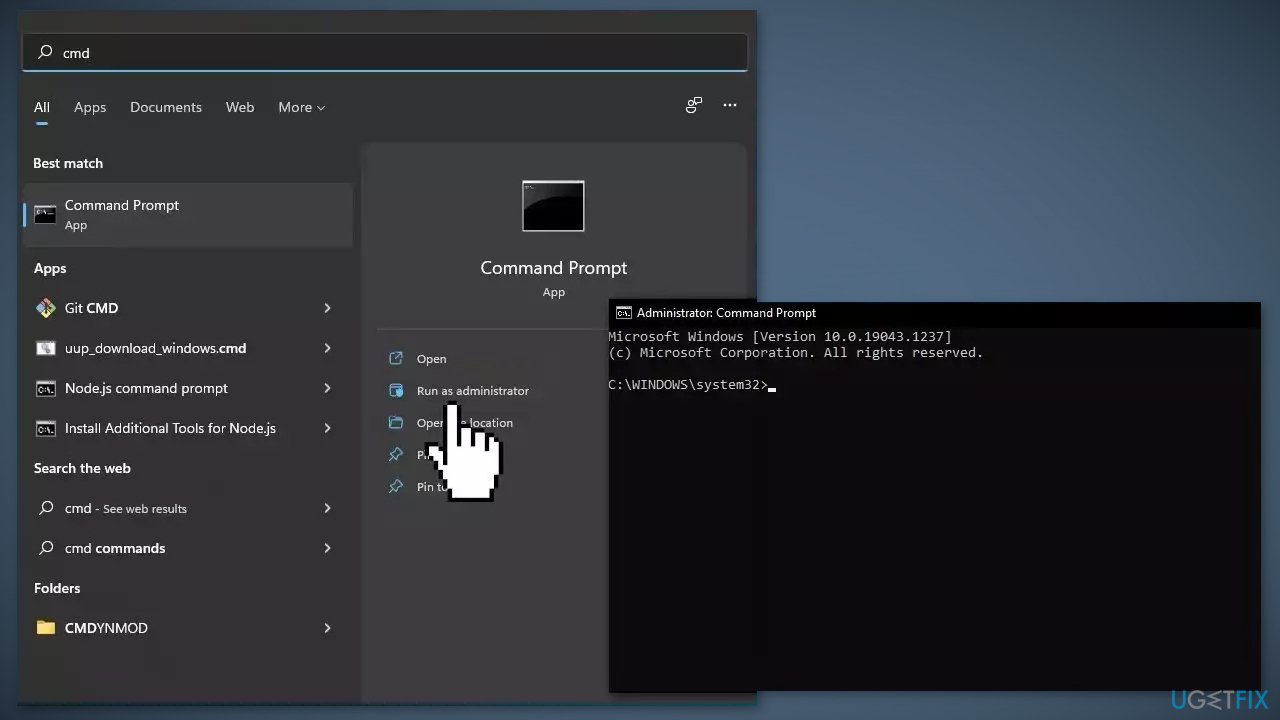
- Open Command Prompt as administrator
- Use the following command and press Enter:
sfc /scannow
- Reboot your system
- If SFC returned an error, then use the following command lines, pressing Enter after each:
DISM /Online /Cleanup-Image /CheckHealth
DISM /Online /Cleanup-Image /ScanHealth
DISM /Online /Cleanup-Image /RestoreHealth
Method 3. Enable Registry Editor Access in Group Policy Editor
- Open Run by pressing the Windows key + R, type gpedit.msc in the command box, and select OK
- Select User Configuration in the Group Policy Editor's sidebar
- Double-click Administrative Templates > System then double-click Prevent access to registry editing tools to bring up the window for that policy setting
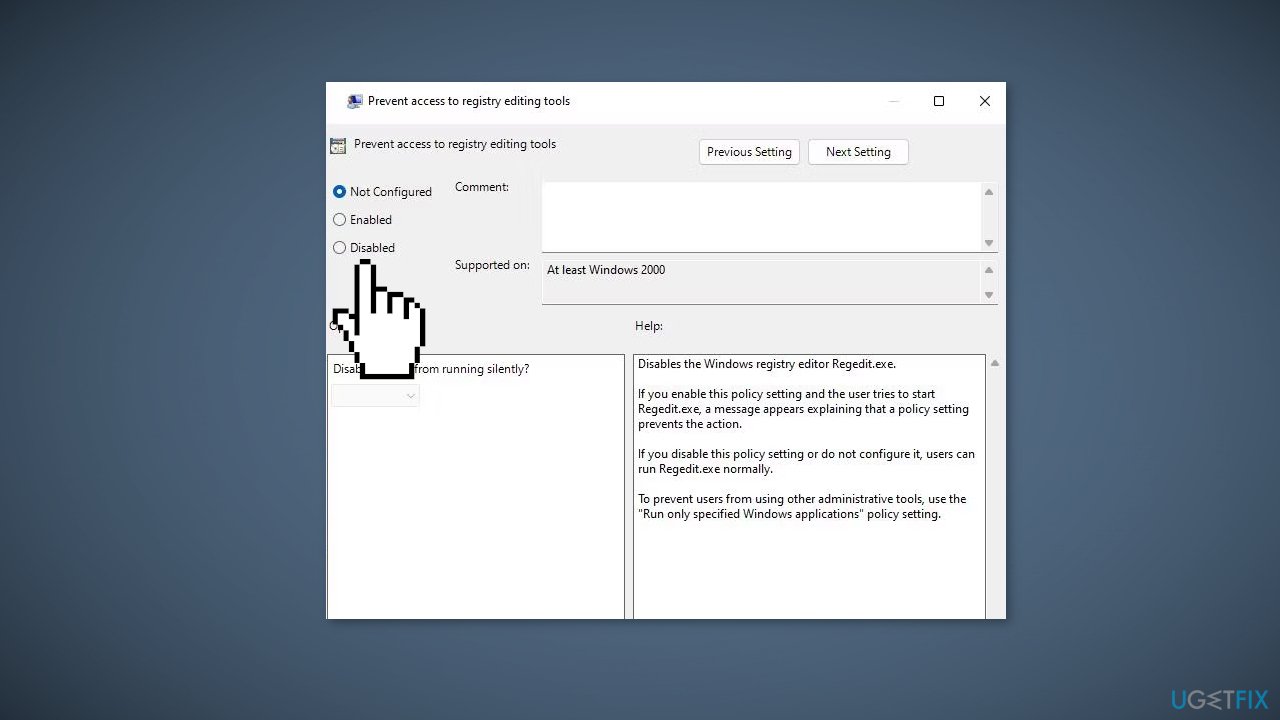
- Select the Disabled option, and click Apply to save
- Press the Prevent access to registry editing tools window's OK button, then exit Group Policy Editor and restart your PC
Method 4. Edit the Path Environment Variable
- Press the Windows key + S to access the search box
- Enter View advanced system settings inside the Type here to search box, then select View advanced system settings to view a System Properties window
- Click Environment Variables to open up that window
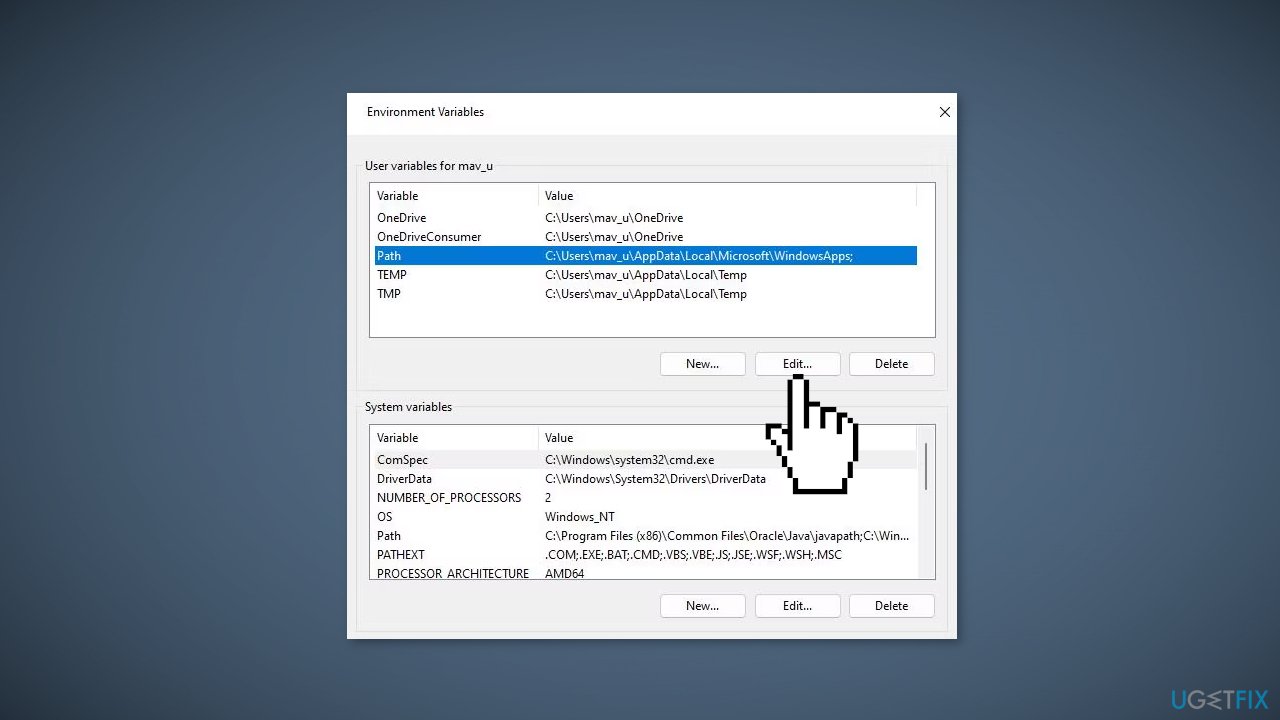
- Select Path, and click the Edit button
- Click Edit on the environment variable window, then input this variable: %USERPROFILE%\AppData\Local\Microsoft\WindowsApps
- Select the OK option, then reboot your Windows desktop or laptop
Method 5. Restore Default Registry Values
- Open the Notepad
- Select the following script code and press the Ctrl + C key combination:
[HKEY_LOCAL_MACHINE\SOFTWARE\Microsoft\Windows\CurrentVersion]
"SM_GamesName"="Games"
"SM_ConfigureProgramsName"="Set Program Access and Defaults"
"CommonFilesDir"="C:\\Program Files\\Common Files"
"CommonFilesDir (x86)"="C:\\Program Files (x86)\\Common Files"
"CommonW6432Dir"="C:\\Program Files\\Common Files"
"DevicePath"=hex(2):25,00,53,00,79,00,73,00,74,00,65,00,6d,00,52,00,6f,00,6f,\
00,74,00,25,00,5c,00,69,00,6e,00,66,00,3b,00,00,00
"MediaPathUnexpanded"=hex(2):25,00,53,00,79,00,73,00,74,00,65,00,6d,00,52,00,\
6f,00,6f,00,74,00,25,00,5c,00,4d,00,65,00,64,00,69,00,61,00,00,00
"ProgramFilesDir"="C:\\Program Files"
"ProgramFilesDir (x86)"="C:\\Program Files (x86)"
"ProgramFilesPath"=hex(2):25,00,50,00,72,00,6f,00,67,00,72,00,61,00,6d,00,46,\
00,69,00,6c,00,65,00,73,00,25,00,00,00
"ProgramW6432Dir"="C:\\Program Files"
Windows Registry Editor Version 5.00
- Press the Ctrl + V key combination to paste the code into the Notepad
- Select File > Save As, then save the file as registry.reg on your Desktop
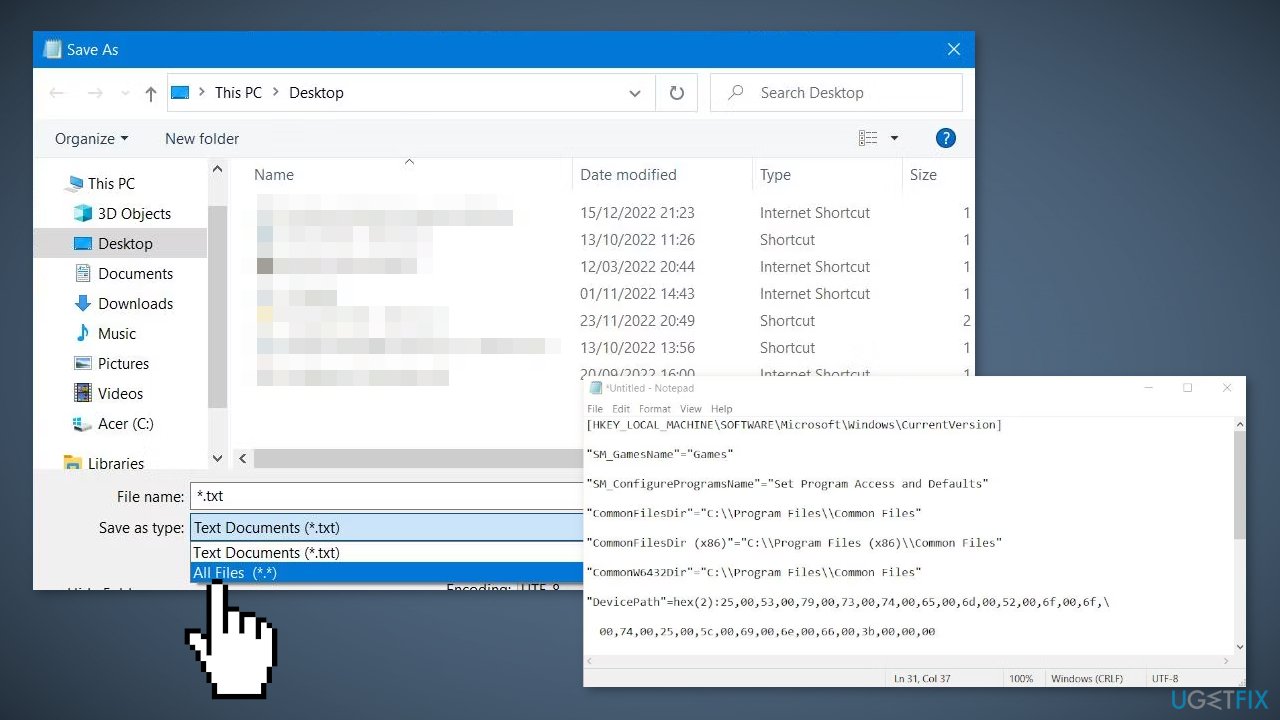
- Close the text editor, then right-click the registry.reg file on your Desktop and select Merge
- When prompted, select Yes to confirm that you want to add the information to the registry
- Restart your PC
Method 6. Use System Restore
System Restore is a feature in Microsoft Windows that allows users to revert their computer's state to a previous point in time. This can be helpful if you have made changes to your system that are causing problems.
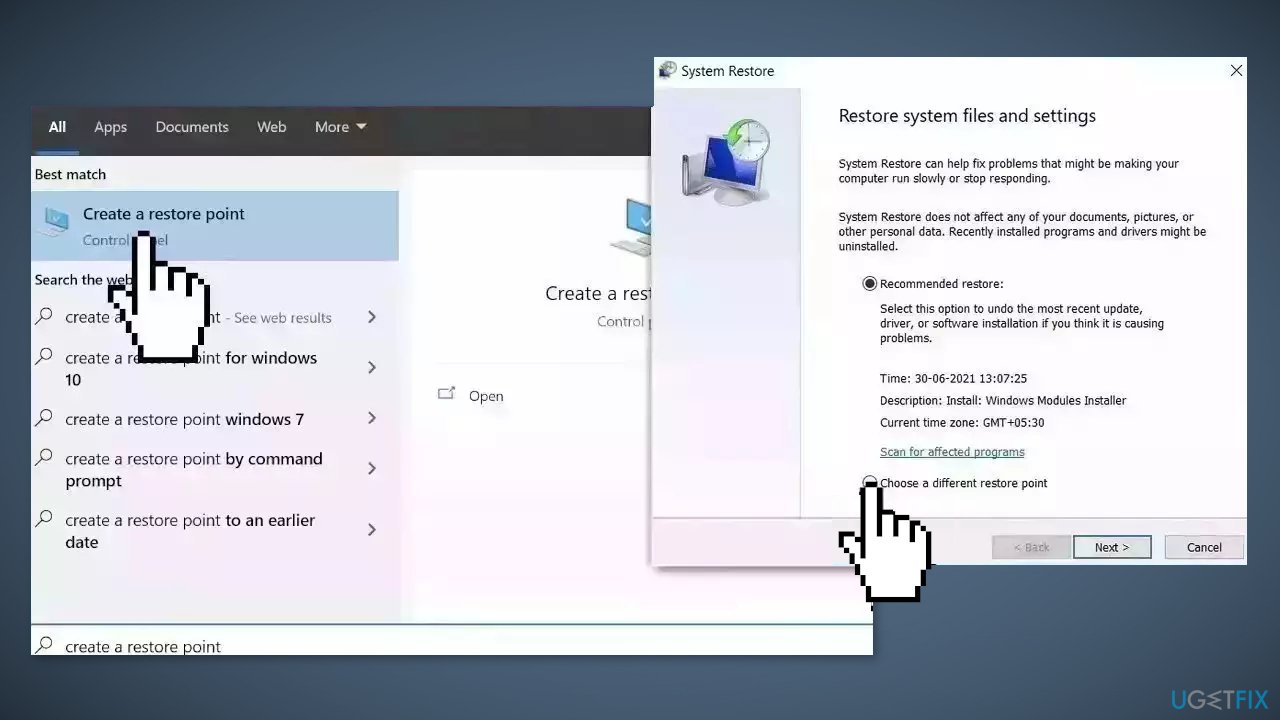
- Go to the Start menu, type restore, and click on Create a restore point
- Click System Restore, then follow the prompts until you can select a restore point
- Select the one you want (ideally before the issue started occurring) and go ahead with the process
Method 7. Reset Windows
The reset option in Windows will reinstall the operating system but will keep your personal files. However, any apps or drivers that you have installed will be removed, as well as any changes you have made to the settings. The reset option is intended to be used as a last resort when other methods of troubleshooting and repair have failed.
- Click Start and select Settings
- Select Recovery on the System tab
- Next, press the Reset PC button
- Select Keep my files in the Reset this PC window
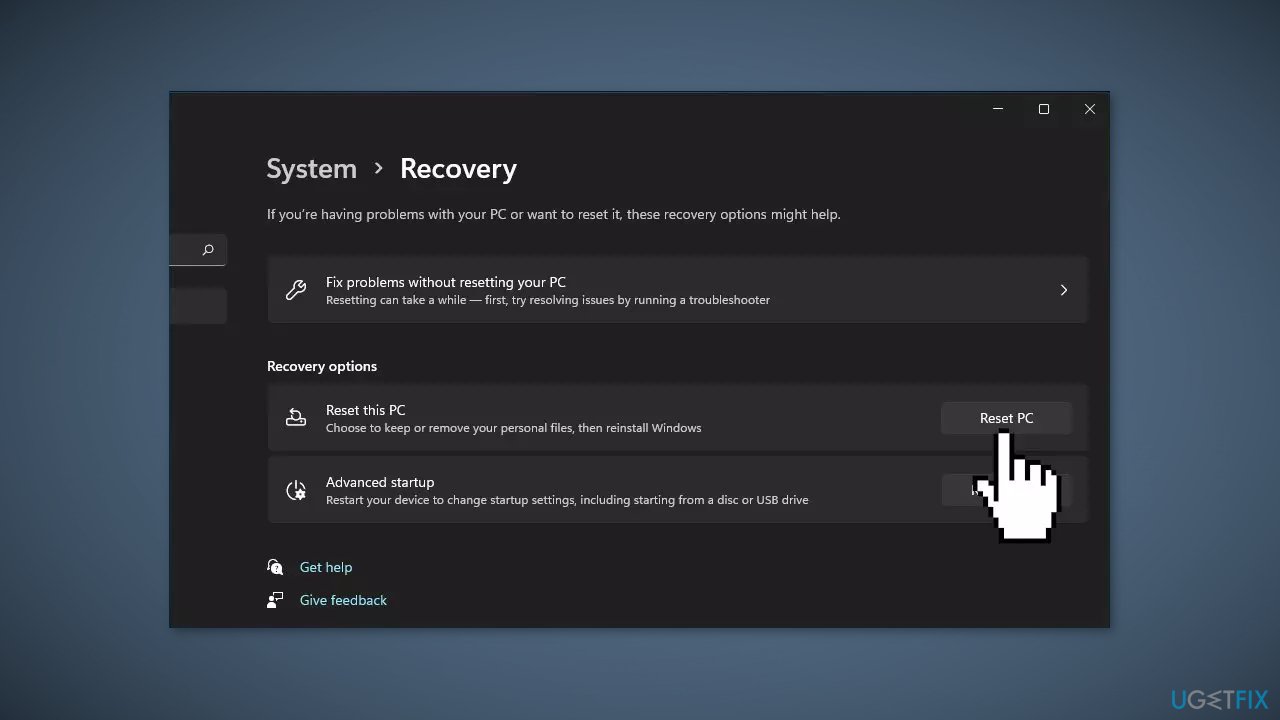
- Choose either the Cloud download or Local reinstall option
- Select the Reset option
- Wait for the process to finish and check if the issue is resolved
Bottom line
To fix the "cannot find regedit.exe" error, users should run a full antivirus scan, check the Group Policy Editor settings, and edit the Path environment variable. If these methods do not resolve the issue, consider using an automatic maintenance tool to fix system errors.
Frequently asked questions
You can try running the System File Checker tool by opening Command Prompt as an administrator and executing the command 'sfc /scannow' to repair any corrupted system files.
Yes, you can restore regedit.exe by performing a system restore to a previous point when it was available or by using installation media to repair your Windows system.
You can search for regedit.exe in the C:\Windows\System32 folder or use the search bar in the Start menu to locate it.




Report an issue
What's wrong with this guide? We review every report and update or remove content.
Report received — thank you. We'll review and fix it.
You need a free account to submit a report.
Be the first to comment