How to fix
Windows cannot find ‘”wt.exe” error
on Windows
Resolve the "Windows cannot find 'wt.exe'" error on Windows 11 quickly and easily. Get expert-tested solutions with screenshots for a smooth fix.


What causes How to fix Windows cannot find ‘”wt.exe” error in Windows 11?
- File name typed incorrectly
- Issues after upgrading from Windows 10 to Windows 11
- File not properly added or corrupted during installation
- Bugs related to upgrades and operating system improvements
- Malware affecting system folders
Repairs Windows system files, removes malware, and restores a clean OS state — without reinstalling.
Hello. I have an issue with the Windows terminal and wt.exe not working. The error message tells about the file name typed incorrectly. I try again and again. I think this is the issue with Windows 11 here. Can you help me with the problem?
Windows cannot find '"wt.exe" error in Windows 11 often appears after the particular update. The newest version of the operating system can have bugs and issues. It is completely normal since the release is fully new and fresh. You can encounter various issues due to the Windows 11 OS installation or upgrade.[ref en-1] Often the issue is appearing when upgrading from Windows 10 to Windows 11.[ref en-2]
Not found file error can indicate that the issue occurred during the upgrade it installation and the file is not properly added or got corrupted. It is a common issue when it comes to bugs related to upgrades and operating system improvements or software installations. Such issues can be solved by repairing file issues or reversing the upgrade, updating the machine again if that is possible.
Reinstalling the operating system can solve the Windows cannot find '"wt.exe" error in Windows 11. Or reinstalling the terminal. Run the tool like [d1] and check for altered or damaged files automatically. This application can help with performance improvements and file issues related to damaged data.
Malware[ref en-3] can be responsible for the damage in system folders and other parts of the machine where issues trigger the failure of the features and issues like Windows cannot find '"wt.exe" error. The issue even appears for people who do not use Windows terminal, but the missing file error appears on the screen. It is because EXE files are needed for various processes and features of the computer.
Method 1. Check Terminal off and on
- Open Windows Settings by pressing Windows + I keys.
- Go to Apps.
- Then locate Apps & features.
- Click App Execution aliases.
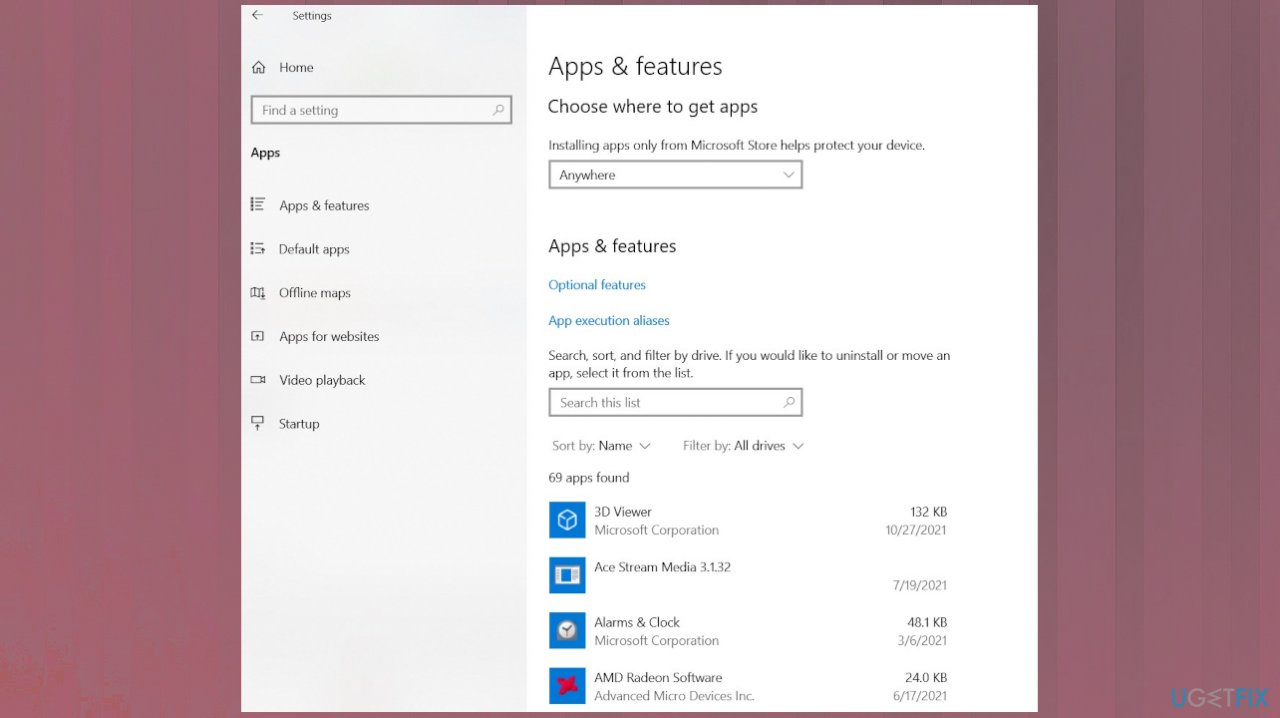
Terminal wt exe missing apps features - On that list, you will find Terminal entry.
- Look for a toggle button on the right of it. If it is set to On, just turn it off and turn it on again, if it is set to Off, then simply turn it on.
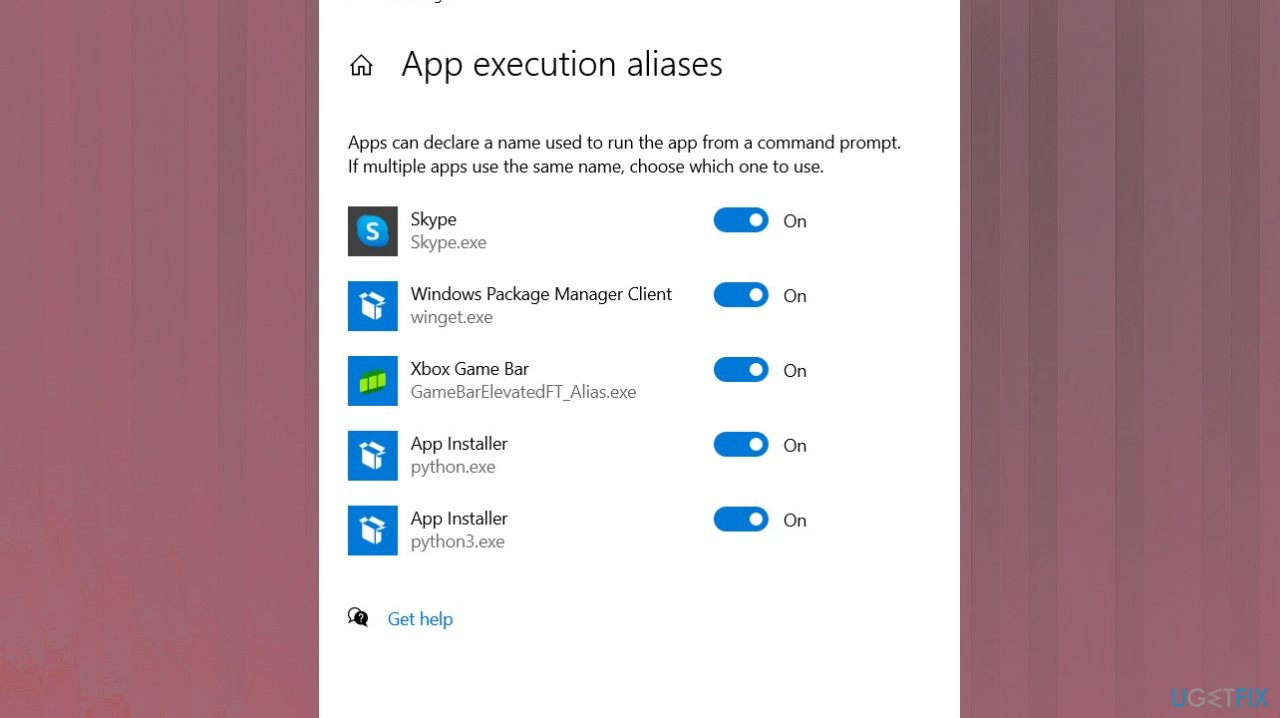
Terminal wt exe missing app executions - Exit the settings.
- Try to access the path below via the Run window (Windows + R):
%USERPROFILE%\\AppData\\Local\\Microsoft\\WindowsApps\\wt.exe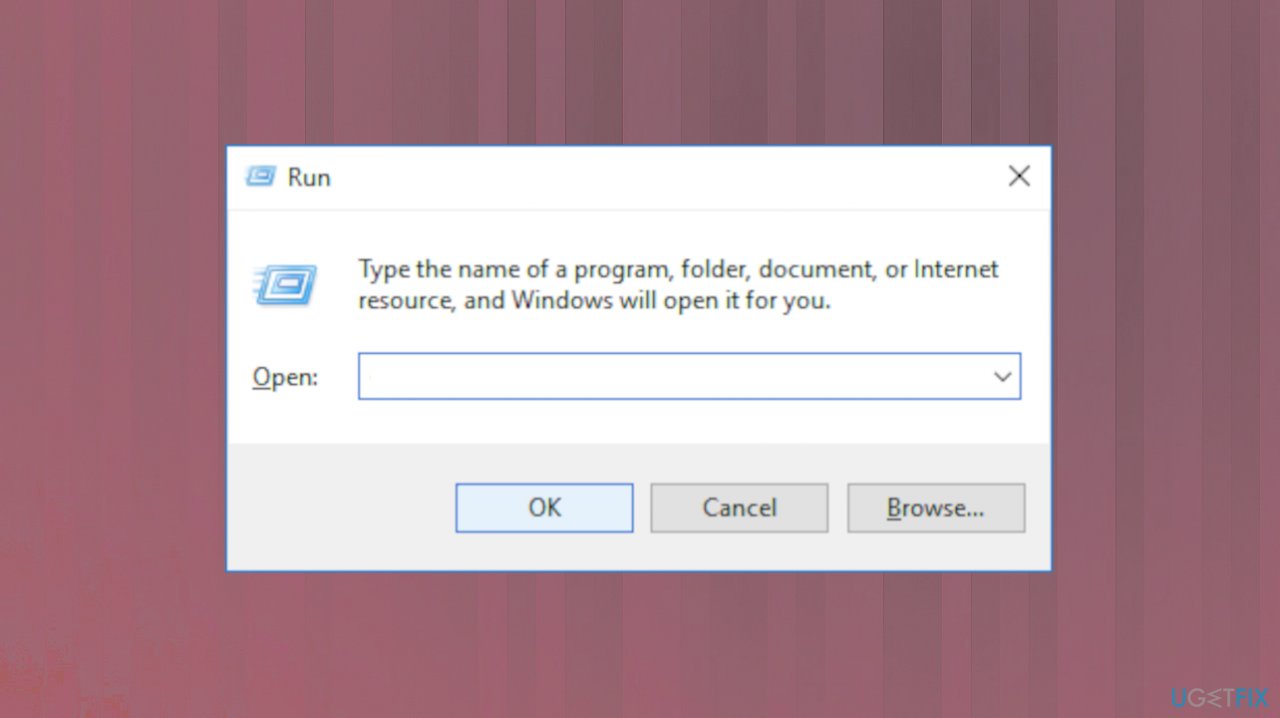
Terminal wt exe missing run box
Method 2. Run a system file checker
- Open the command prompt as administrator.
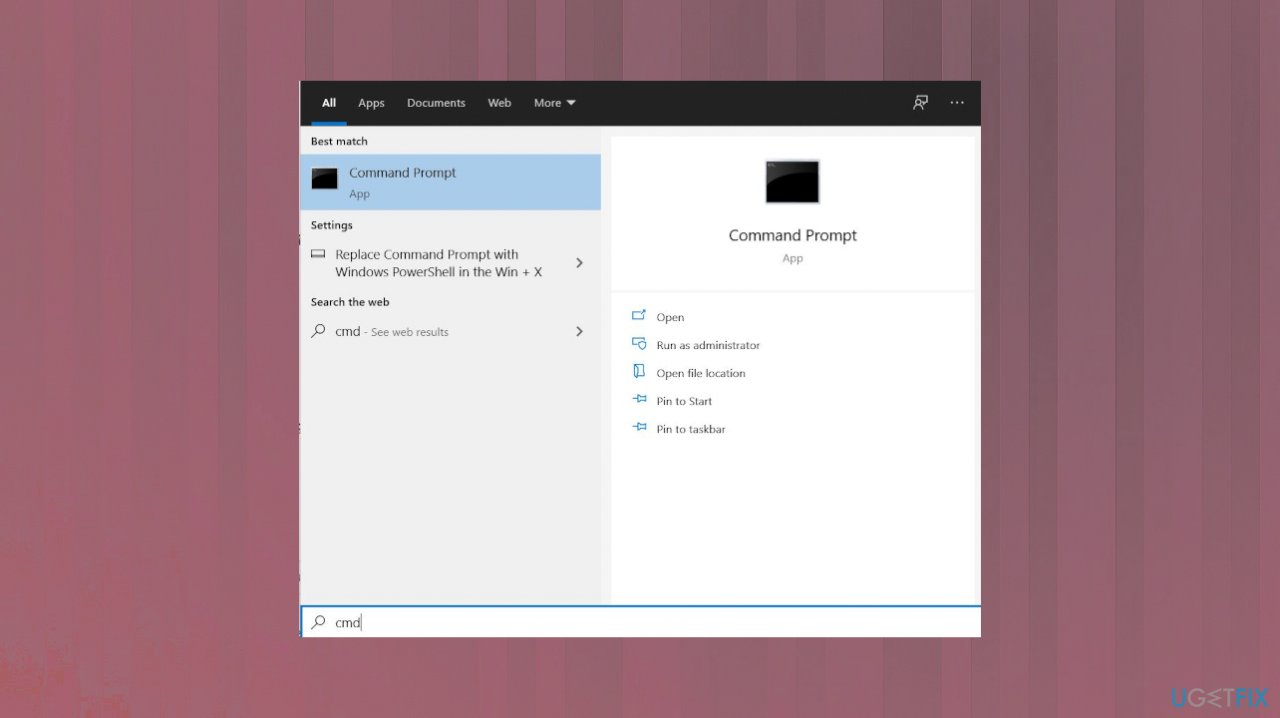
Terminal wt exe missing cmd - Type command: sfc /scannow.
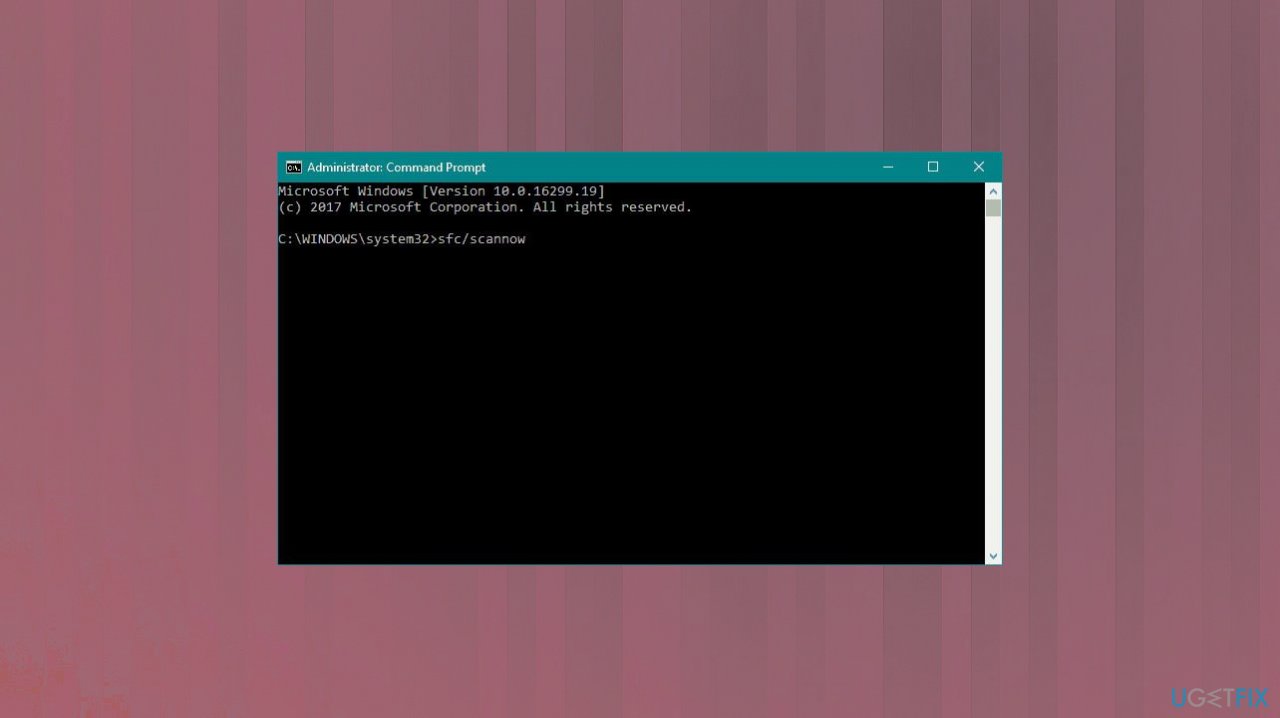
Terminal wt exe missing sfc - Let system file checker utility detect and restore missing system files.
- Restart the machine.
Method 3. Reinstall Windows Terminal
You can reinstall the Windows Terminal full on using the official source like Microsoft Store to solve the issue. Follow the link and perform the process of installation of the machine.
Method 4. Update Windows OS if possible
- Type in Windows Update in Windows Search and press Enter.
- Or go to settings and Update & Security to access Windows updates.
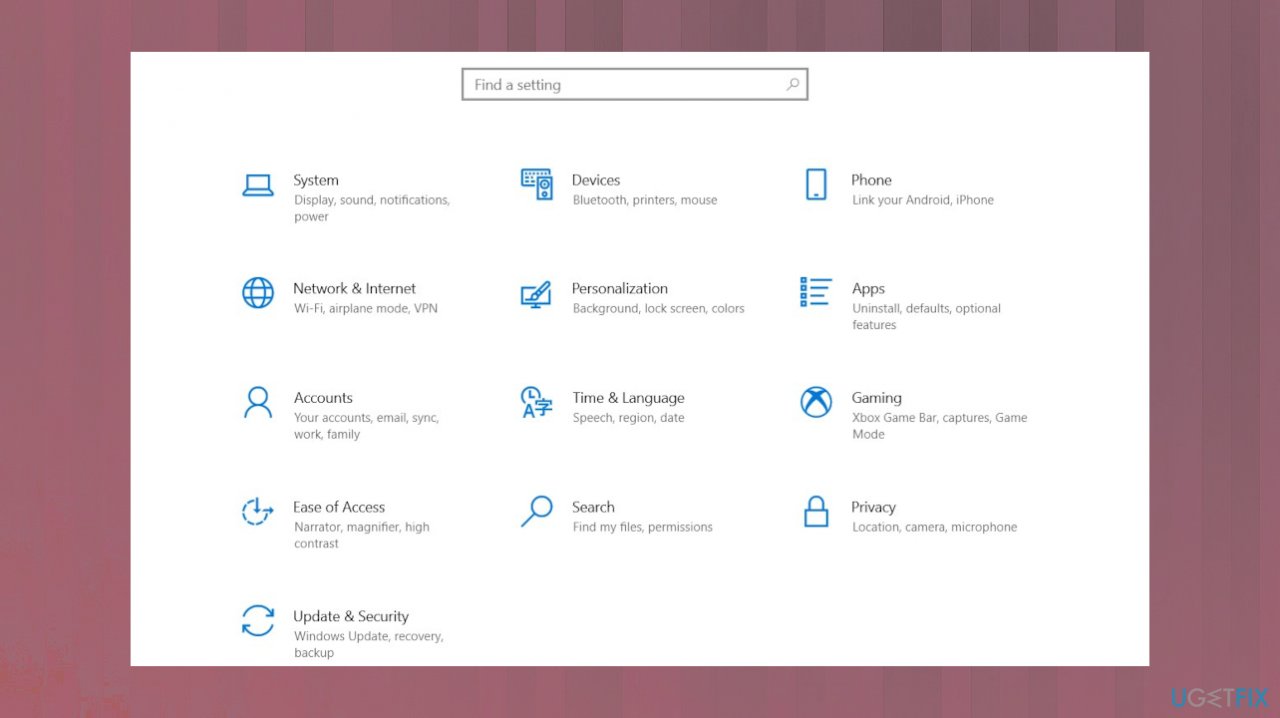
Terminal wt exe missing settings - Click on Check for updates and wait till the updates are installed.
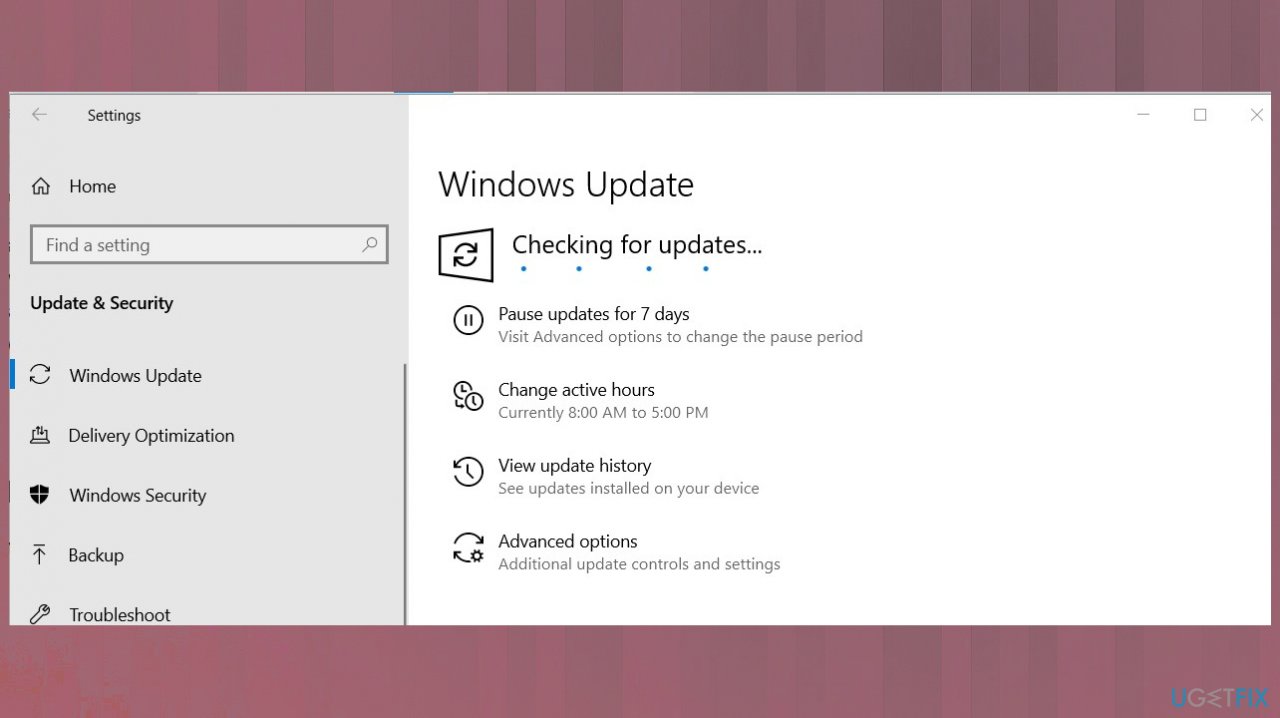
Terminal wt exe missing update - Restart your computer and see if the problem persists.
Bottom line
To fix the 'Windows cannot find "wt.exe"' error, you can try repairing file issues, reversing the upgrade, or reinstalling the operating system or the terminal. Additionally, running a tool to check for altered or damaged files may help. If none of these solutions work, consider seeking further technical assistance.
Frequently asked questions
First, ensure that Windows Terminal is installed on your system; you can check this via the Microsoft Store. If it's installed and the error persists, try resetting the app through Settings > Apps > Apps & features.
You can uninstall Windows Terminal from Settings > Apps, then reinstall it from the Microsoft Store. This can resolve any issues with corrupted files that may be causing the error.
Yes, you can use the command 'sfc /scannow' in the Command Prompt to scan for and repair corrupted system files that might be causing the issue. Additionally, ensure that your Windows 11 is up to date by checking for updates in Settings.




Report an issue
What's wrong with this guide? We review every report and update or remove content.
Report received — thank you. We'll review and fix it.
You need a free account to submit a report.
Be the first to comment