How to fix
Windows can’t find uninstall.exe error
on Windows
Resolve the "Windows can't find uninstall.exe" error quickly and effectively on Windows 10 and 11. Expert-tested solutions await!


What causes How to fix Windows can’t find uninstall.exe error?
- Virus infection
- Inadvertent deletion
- System damage
- Corrupted uninstaller file
- Missing uninstaller file
Repairs Windows system files, removes malware, and restores a clean OS state — without reinstalling.
Hello. I am trying to uninstall an app from my Windows but when I try to remove it, an error message pops up saying that uninstall.exe could not be found. What is this related to and how can I bypass this error?
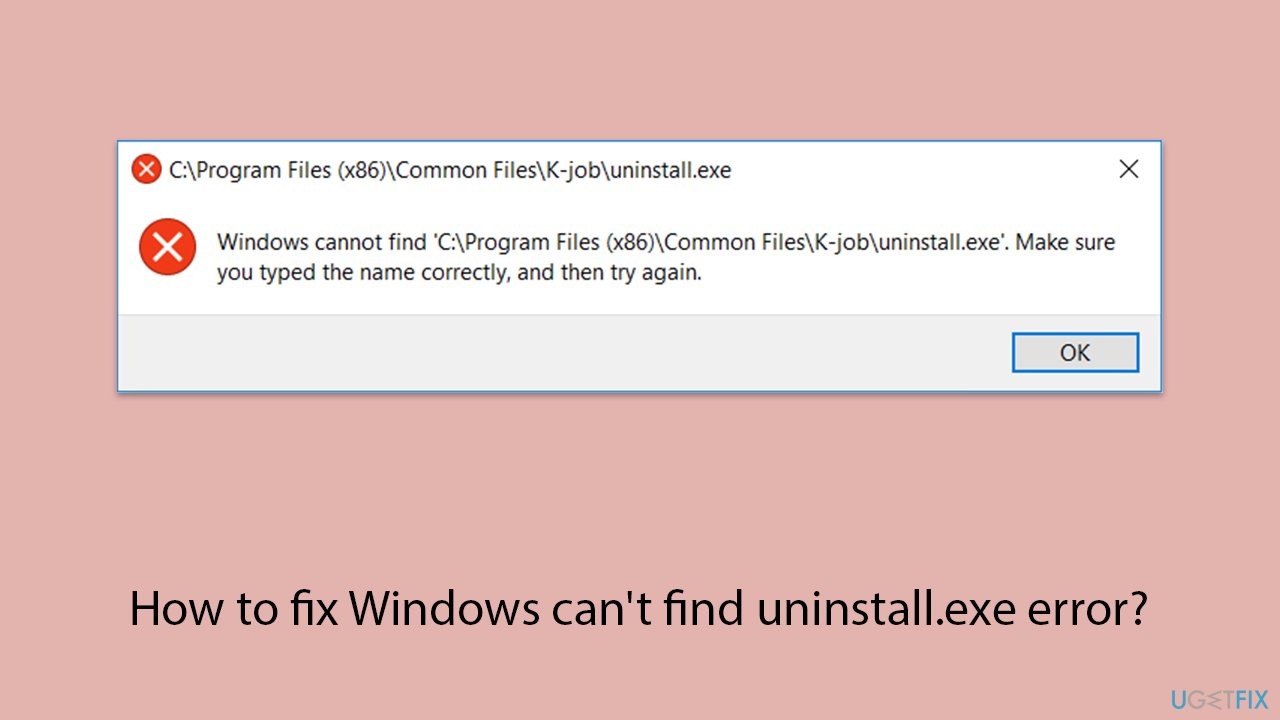
When you install an application on your Windows PC, it sometimes comes with an uninstaller to make it easier to remove. This uninstaller, often known as uninstall.exe, is required for successfully removing programs from your computer. However, seeing the error message "Windows can't find uninstall.exe" or "uninstall.exe could not be found" can slow down the removal procedure.
This error message suggests that the uninstaller file needed to delete the program is either defective or missing - the removal procedure cannot be carried out as intended without it. There are several reasons why Uninstall.exe could be missing or corrupted, such as virus infection, inadvertent deletion, and system damage.
To address the "Windows can't find uninstall.exe" error, you may need to first check if the uninstaller file is indeed missing or damaged. This can be done by searching for the file manually in the installation directory of the affected program.
If the uninstaller file appears to be corrupted, you may need to consider running a malware scan to ensure that your system is not infected. Malware can often tamper with system files, leading to various errors and issues. Once any malware threats have been addressed, you can attempt to repair or replace the corrupted uninstaller file through system maintenance tools or by using the comprehensive manual guide below.
If the "Windows can't find uninstall.exe" error persists or appears to be beyond manual resolution, consider using a PC repair tool like [d1]. This program can automatically detect and fix underlying Windows issues, such as missing or corrupted system files, making it a practical alternative for resolving the "Windows can't find uninstall.exe" error and other difficulties.
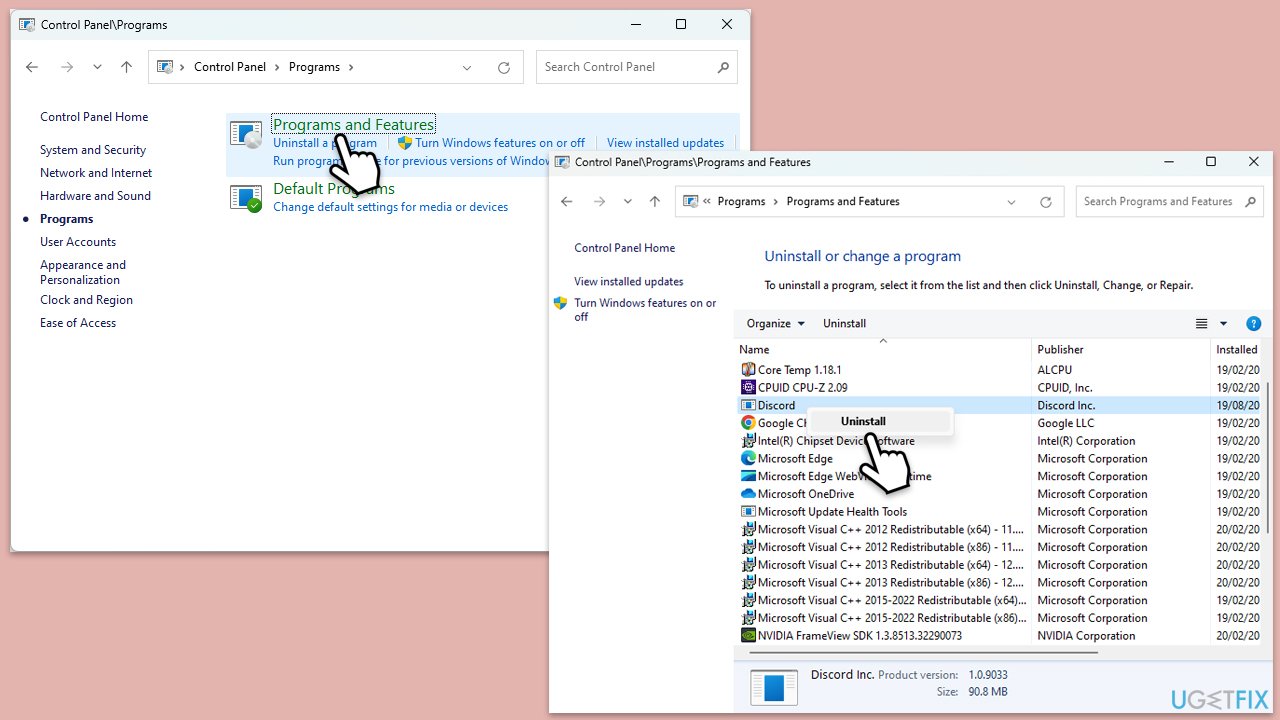
Fix 1. Try uninstalling via the Control Panel instead
Uninstalling an application through the Control Panel provides a systematic approach to removing programs from your system, ensuring all associated files and registry entries are properly deleted.
- Type Control Panel in Windows search and press Enter.
- Click on Control Panel from the search results to open it.
- Navigate to the Programs > Programs and Features section.
- Locate the program you wish to uninstall from the list.
- Select the program and click on the Uninstall button.
- Follow the on-screen prompts to complete the uninstallation process.
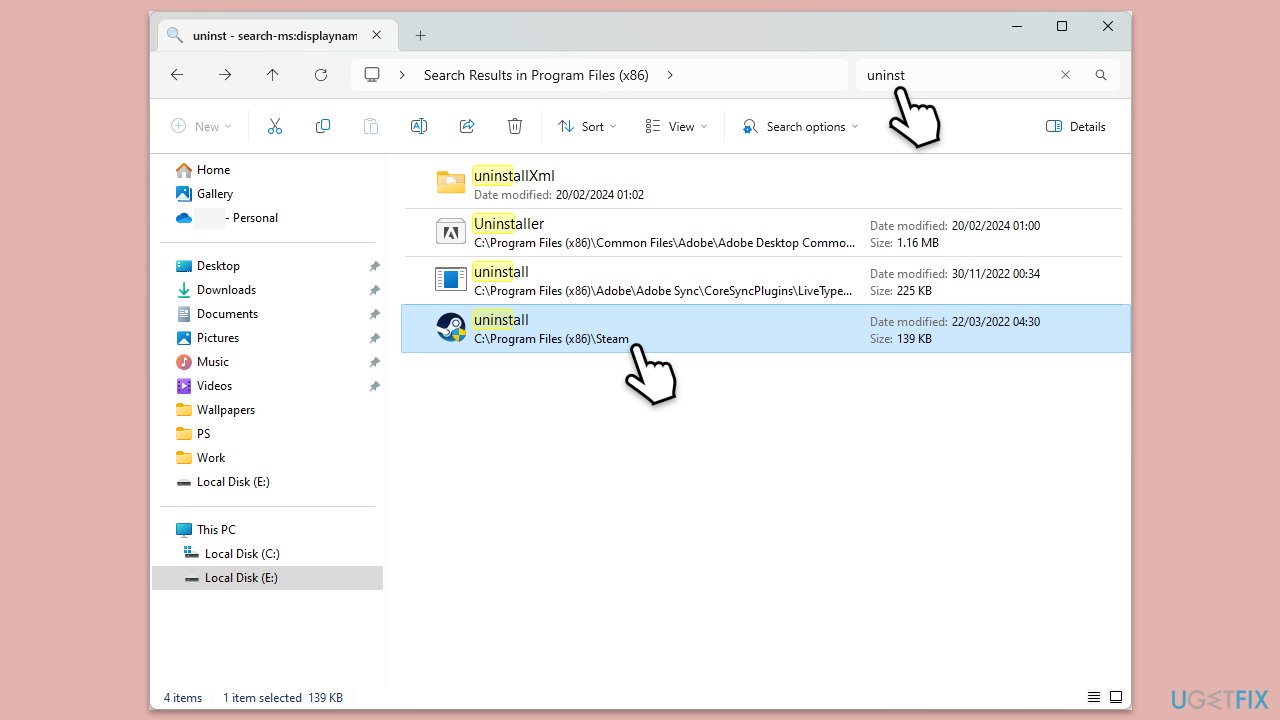
Fix 2. Find the uninstaller manually
Searching for the uninstaller file manually allows you to locate and execute it directly, bypassing any issues with shortcuts or registry entries.
- Open File Explorer by pressing the Win + E on your keyboard simultaneously.
- Navigate to the directory where the program is installed (usually under Program Files or Program Files (x86)).
- Look for the uninstaller file, which is typically named uninstall.exe or similar.
- Double-click on the uninstaller file to initiate the uninstallation process.
- Follow any on-screen instructions to complete the uninstallation.
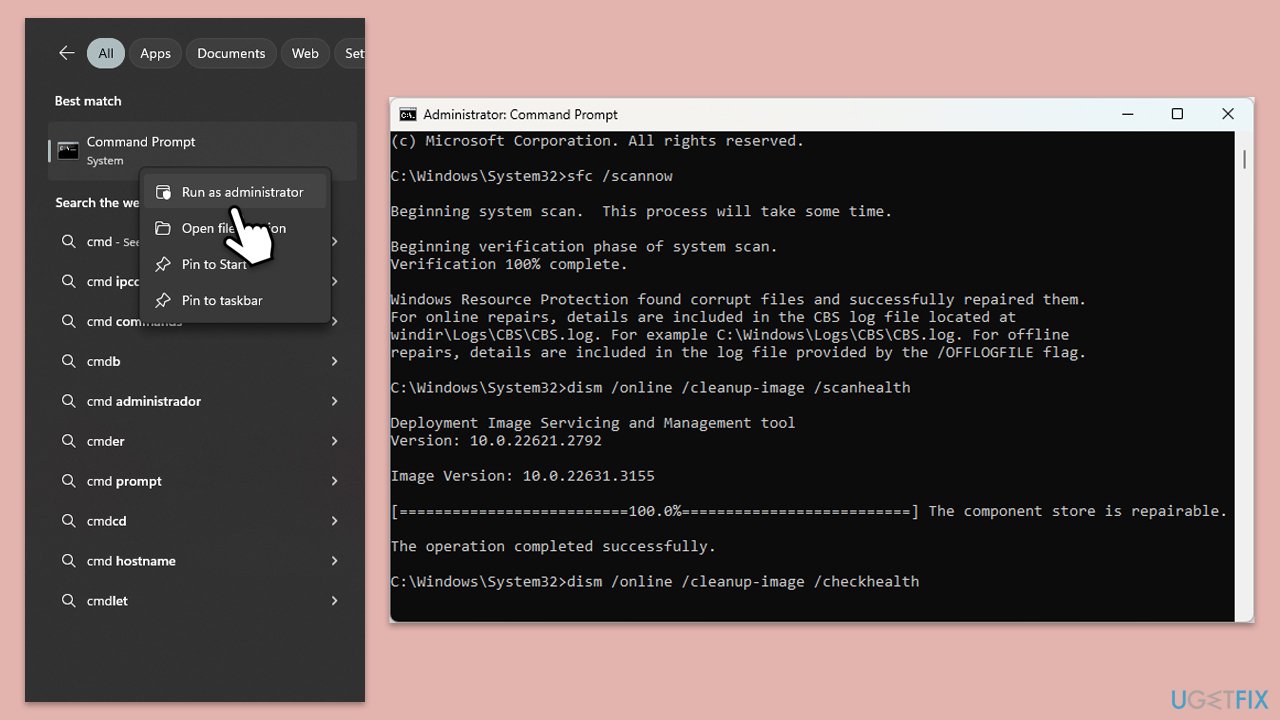
Fix 3. Run SFC and DISM scans
Repair corrupted system files that may be causing the uninstaller error.
- Type cmd in Windows search.
- Right-click on the Command Prompt result and select Run as administrator.
- When User Account Control shows up, click Yes.
- Paste the following command into the new window:
sfc /scannow - Press Enter and wait till the scan is finished
- Once done, run this set of commands, pressing Enter every time:
DISM /Online /Cleanup-Image /CheckHealth
DISM /Online /Cleanup-Image /ScanHealth
DISM Online /Cleanup-Image /RestoreHealth
(Note: if you get an error executing this last command, add /Source:C:\RepairSource\Windows /LimitAccess to it and try again). - Restart your system.
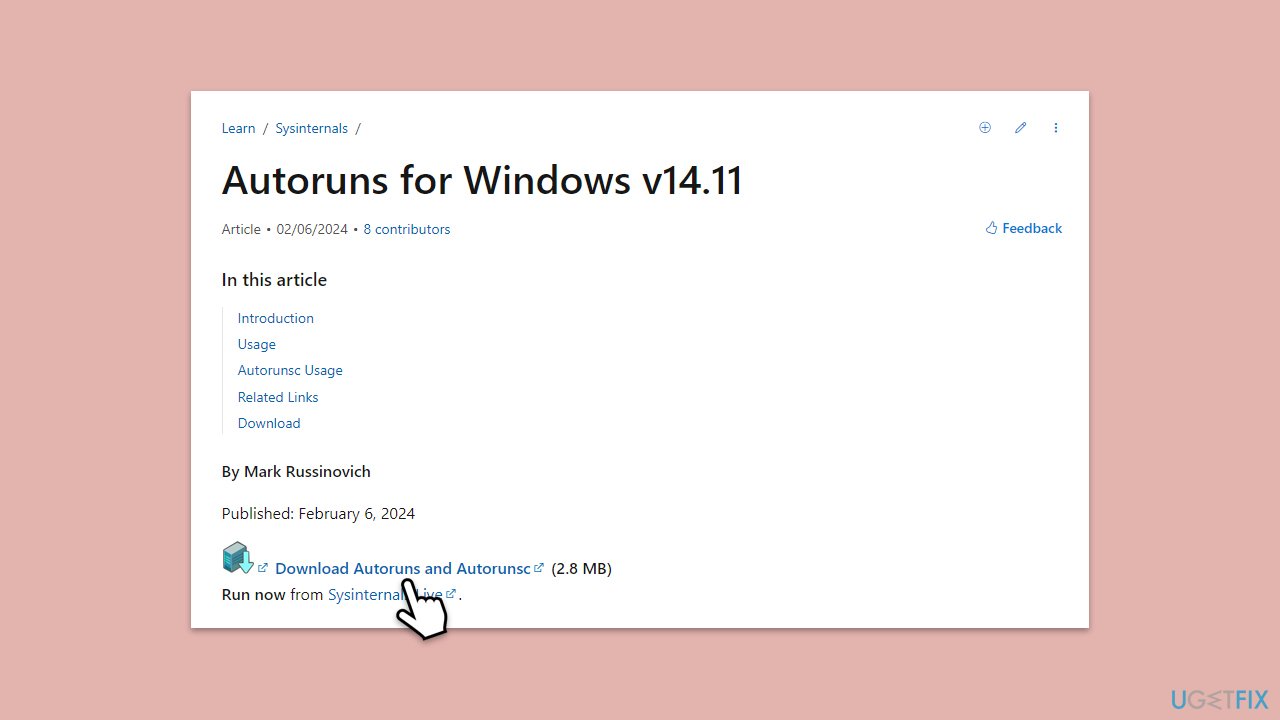
Fix 4. Use Autoruns
Autoruns is a utility that allows you to view and manage startup programs and services, including uninstallers. Using Autoruns, you can identify and disable any startup entries related to the problematic application, potentially resolving the uninstaller error.
- Download and install Autoruns from the official Microsoft website.
- Launch Autoruns and navigate to the Logon tab to view startup programs.
- Locate any entries related to the program you wish to uninstall.
- Uncheck the box next to each entry to disable them temporarily.
- Restart your computer and attempt to uninstall the program again.
- If the uninstaller error persists, repeat the process for other tabs in Autoruns, such as Services and Scheduled Tasks.
Fix 5. Try uninstalling in Safe Mode
Uninstalling the program in Safe Mode can help eliminate any interference from third-party software or services that may be causing the uninstaller error.
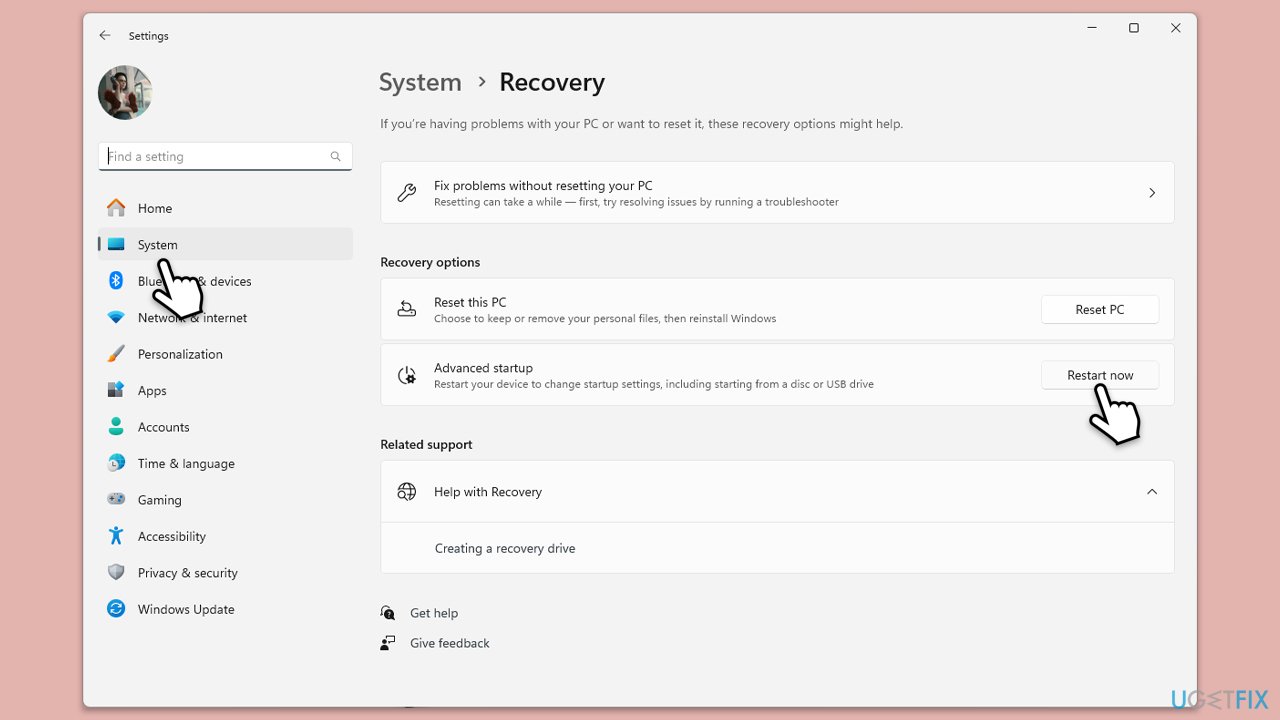
- Open Windows Settings.
- Select System.
- Under Recovery options, next to Advanced Startup, click Restart now.
- After a reboot, you will be presented with several options - pick Troubleshoot.
- Go to Advanced options > Startup Settings and then pick Restart.
- After a reboot, pick either 4/F4 for Safe Mode or 5/F5 for Safe Mode with Networking.
- Once in Safe Mode, try uninstalling the application in question again.
Bottom line
To fix the 'Windows can't find uninstall.exe' error, you can check if the uninstaller file is missing or damaged, run a malware scan, or use system maintenance tools to repair or replace the corrupted file. If the issue persists, consider using a PC repair tool to automatically detect and fix underlying Windows issues.
Frequently asked questions
This error typically occurs when the uninstaller file is missing or corrupted, often due to incomplete software installations or deletions. Additionally, it can arise from registry issues or system file corruption.
To resolve this error, you can try using the built-in Windows Troubleshooter to detect and fix problems, or manually locate the uninstall.exe file in the application folder. If these methods fail, consider reinstalling the application to restore the missing files.
To prevent this error, ensure that you properly uninstall applications using the Control Panel or Settings app in Windows 10 or 11, and regularly maintain your system with disk cleanup and registry repair tools.




Report an issue
What's wrong with this guide? We review every report and update or remove content.
Report received — thank you. We'll review and fix it.
You need a free account to submit a report.
Be the first to comment