How to fix
“Windows can’t stop your Generic Volume device” error
on Windows
Resolve the "Windows can’t stop your Generic Volume device" error effortlessly on Windows 10 or 11. Follow our expert-tested solutions for quick fixes!

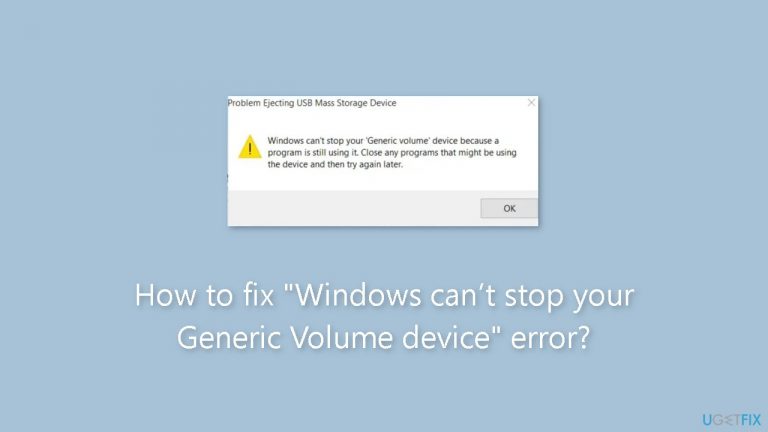
What causes How to fix “Windows can’t stop your Generic Volume device” error?
- USB drive or external hard drive is still in use by a process
- Open files or applications accessing the device
- Lingering connections to the device after usage
- System processes preventing safe removal
- Data being actively read from or written to the device
Repairs Windows system files, removes malware, and restores a clean OS state — without reinstalling.
Hello. I can't remove my USB flash from Windows PC because I get the "Windows can’t stop your Generic Volume device" error. What do I do?
When you try to safely remove a USB drive or external hard drive, the system indicates that it is still in use by a process, resulting in the "Windows can't stop your Generic Volume device" error. This error prevents you from safely ejecting the device, which could result in data corruption or loss if the device is disconnected while being accessed.
This problem may have a number of consequences for users. For starters, it can be inconvenient and frustrating because you may need to disconnect the device quickly or move it to another system. The inability to safely remove the device can also jeopardize data integrity, particularly if files are actively read from or written to the device. Abruptly disconnecting the device in such cases can result in data loss or damage.
There are a few possible solutions that users can try to resolve the issue. These solutions frequently entail identifying and terminating the process that is utilizing the device, allowing for safe removal. However, it is important to note that manually terminating processes can be dangerous, so proceed with caution. Closing open files or applications that may be accessing the device, using the Task Manager to end processes, or restarting the system to release any lingering connections to the device are some common solutions.
Before attempting to safely remove a USB drive or external hard drive, make sure that all data has been saved and that any applications or files that use the device have been properly closed. This guide will walk you through 5 steps to resolve the "Windows can't stop your Generic Volume device" error.
You can also use a maintenance tool like [d1], which can repair most system errors, BSODs,[ref en-1] corrupted files, and registry[ref en-2] issues. Otherwise, proceed with the instructions below.
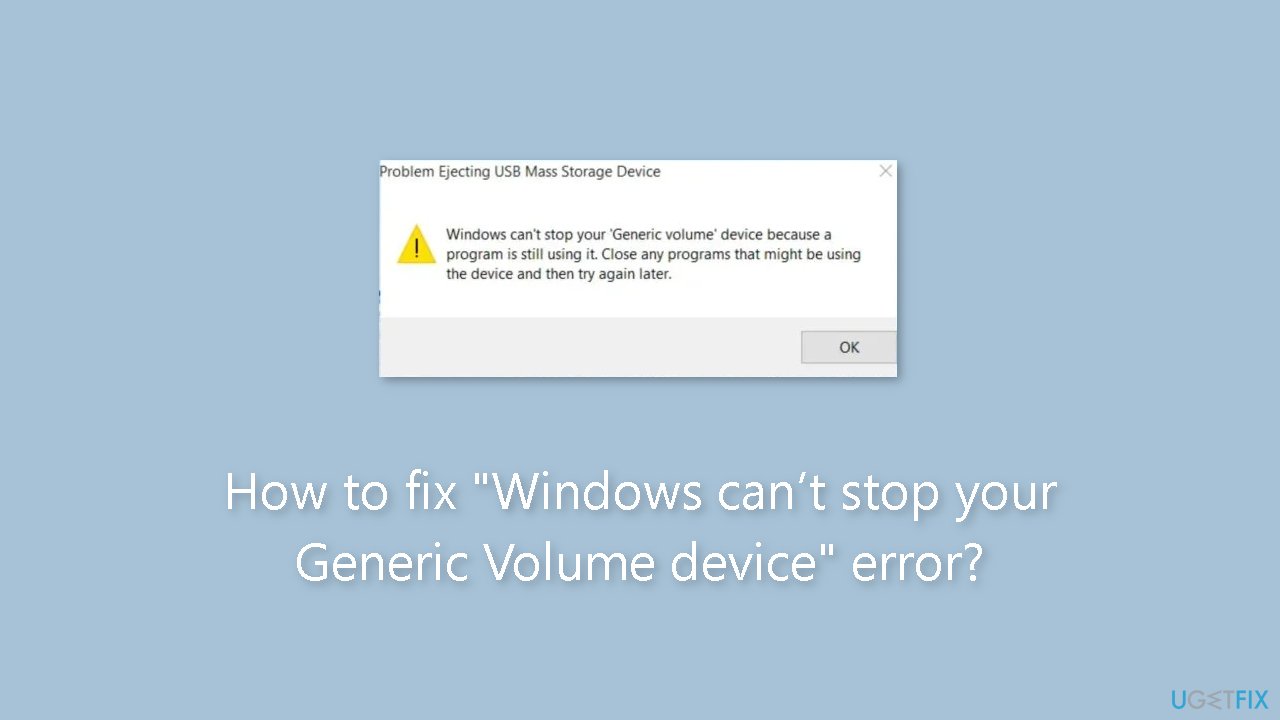
Method 1. End the Explorer.exe Process
- Right-click on the Taskbar.
- Select Task Manager.
- Go to the Processes tab.
- Locate the explorer.exe process.
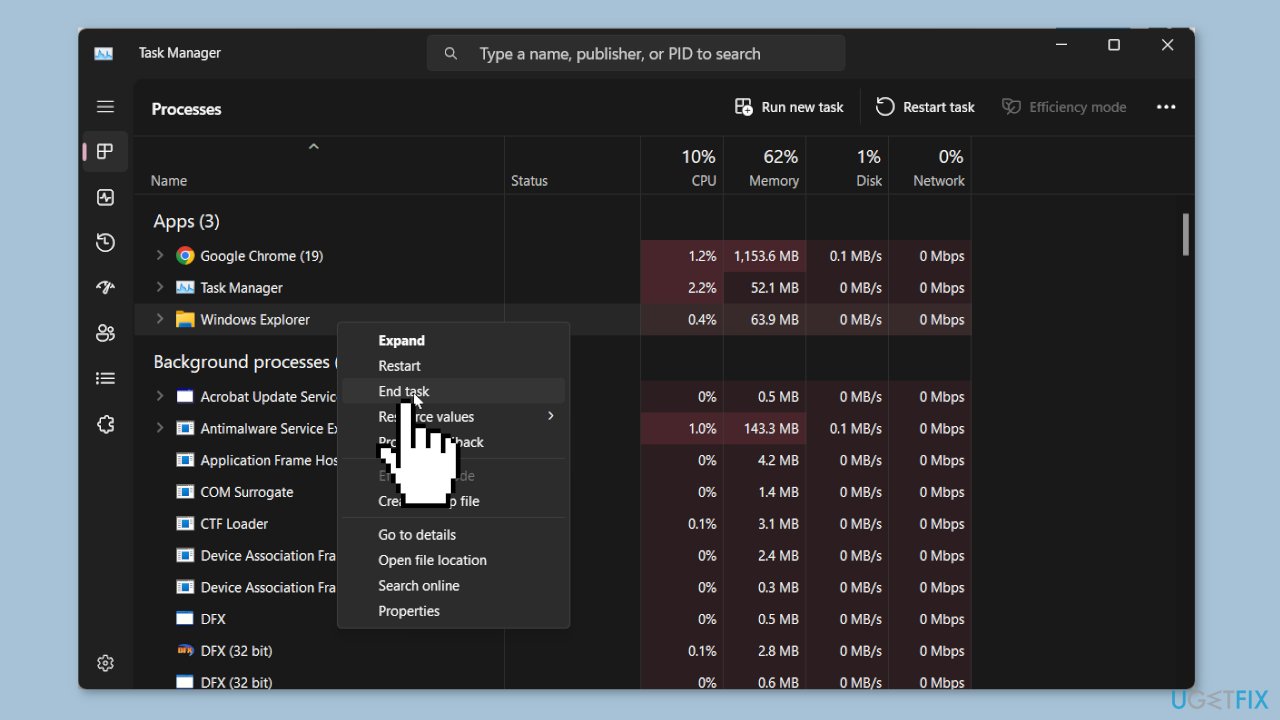
- Right-click on explorer.exe.
- Click on the End task button at the top.
- If necessary, identify and end any other process using the USB drive.
- Eject your external hard drive or USB.
- Check whether this resolves the issue.
Method 2. Configure your USB
- Press the Windows key + E to open the File Explorer.
- Right-click on the USB drive.
- Select Properties.
- Click on the Hardware tab.
- Choose the USB Drive under the All disk drives section.
- Click the Properties button.
- Click on Change settings.
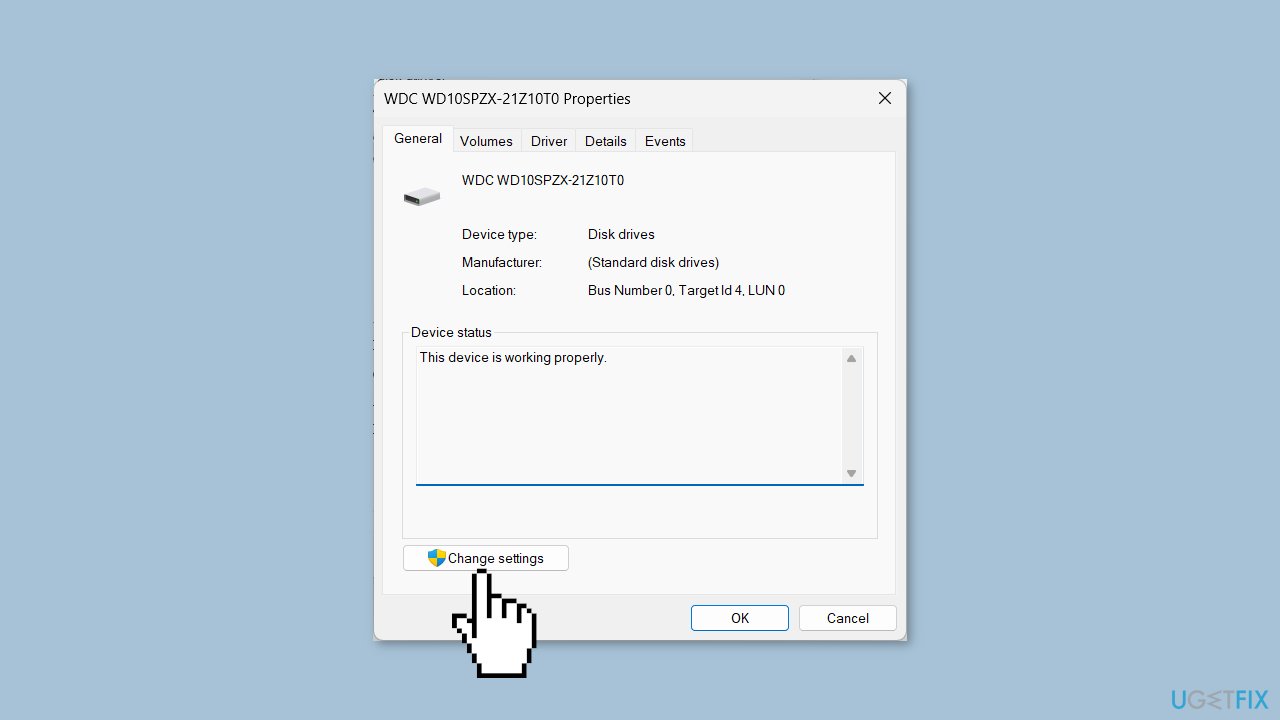
- Switch to the Policies tab.
- Select Quick removal (default) under the Removal policy section.
- Click OK to apply changes.
Method 3. Force the USB to be in Offline Mode
- Open the Start menu by pressing the Windows key.
- Run Command Prompt as an admin.
- Type the following command and press Enter:
diskpart
- Wait for the process to complete.
- Run the following commands to force your USB to be in offline mode and press Enter after each command:
list disk
select disk *
offline disk
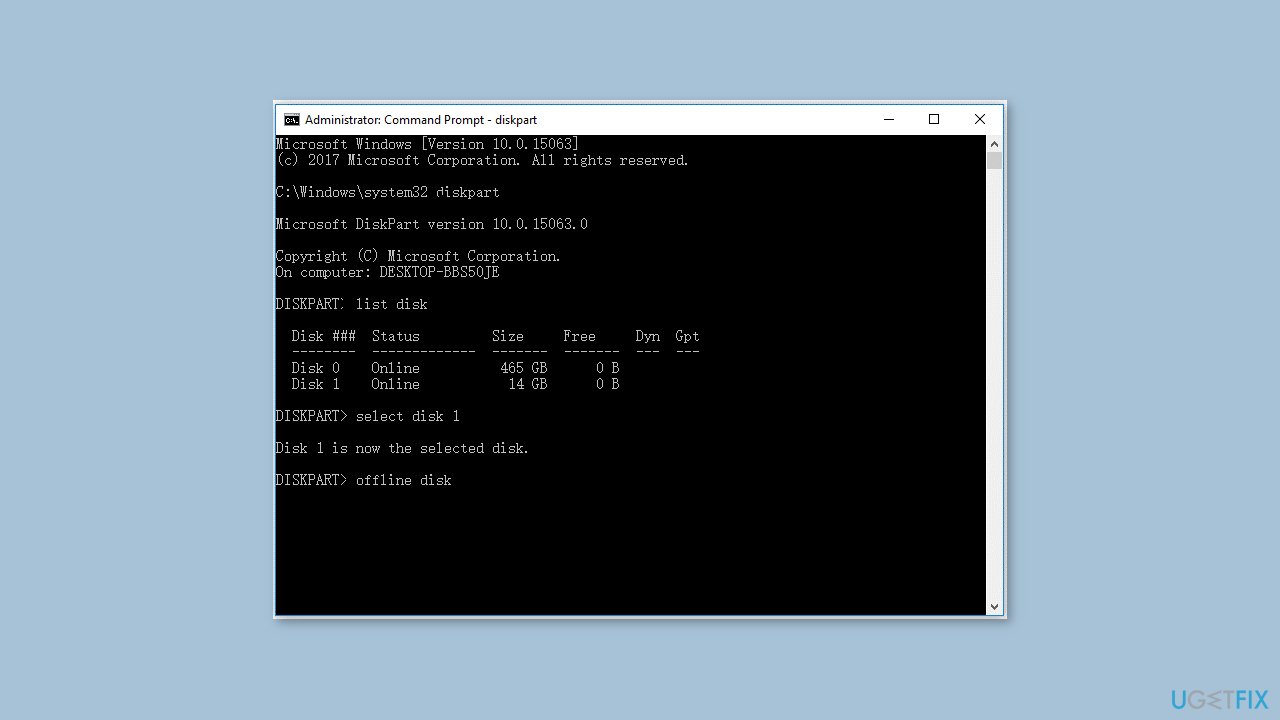
Note: (Replace * with the drive letter)
- Restart your PC.
Method 4. Assign a New Drive Letter
- Press the Windows key to open the Start menu.
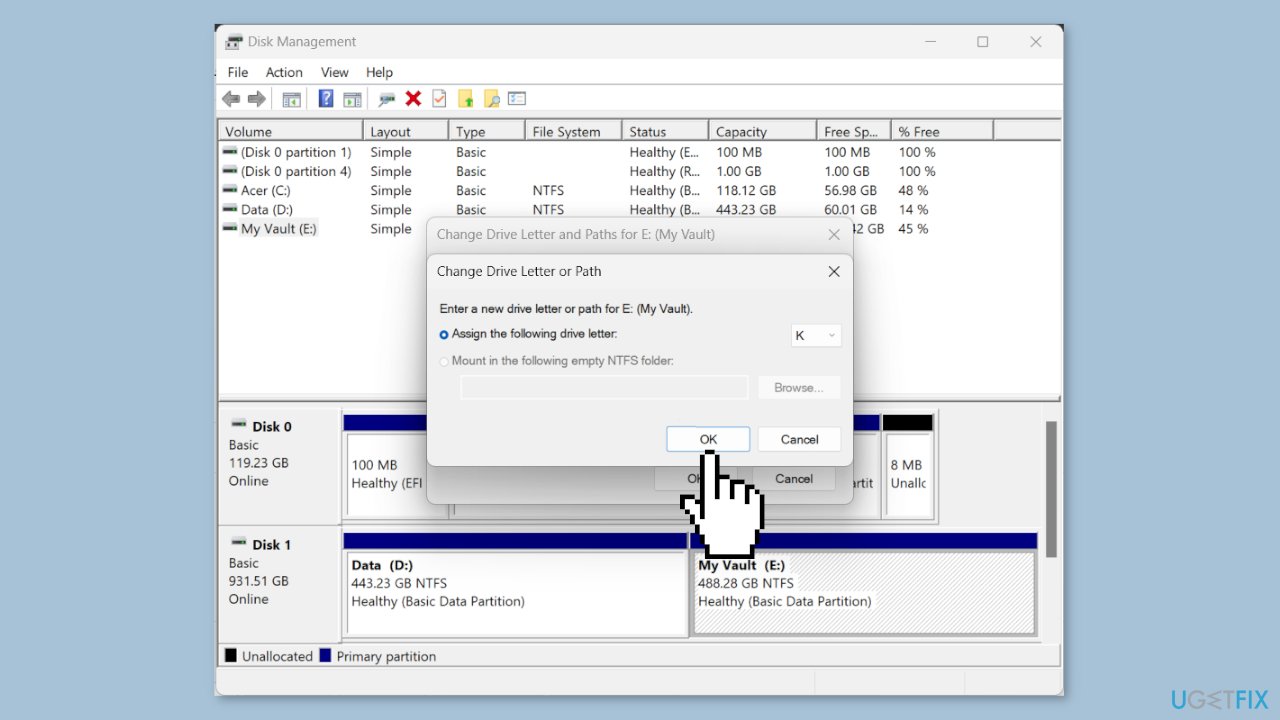
- Type disk management and open the top result.
- Right-click on your USB drive.
- Choose the Change Drive Letter and Paths option.
- Click on Change.
- Select Assign the following drive letter and click OK.
- Hit the Yes button in the prompt that appears.
Method 5. Change the File Format to FAT32
- Open File Explorer by pressing the Windows key + E.
- Right-click on your USB drive.
- Select Format.
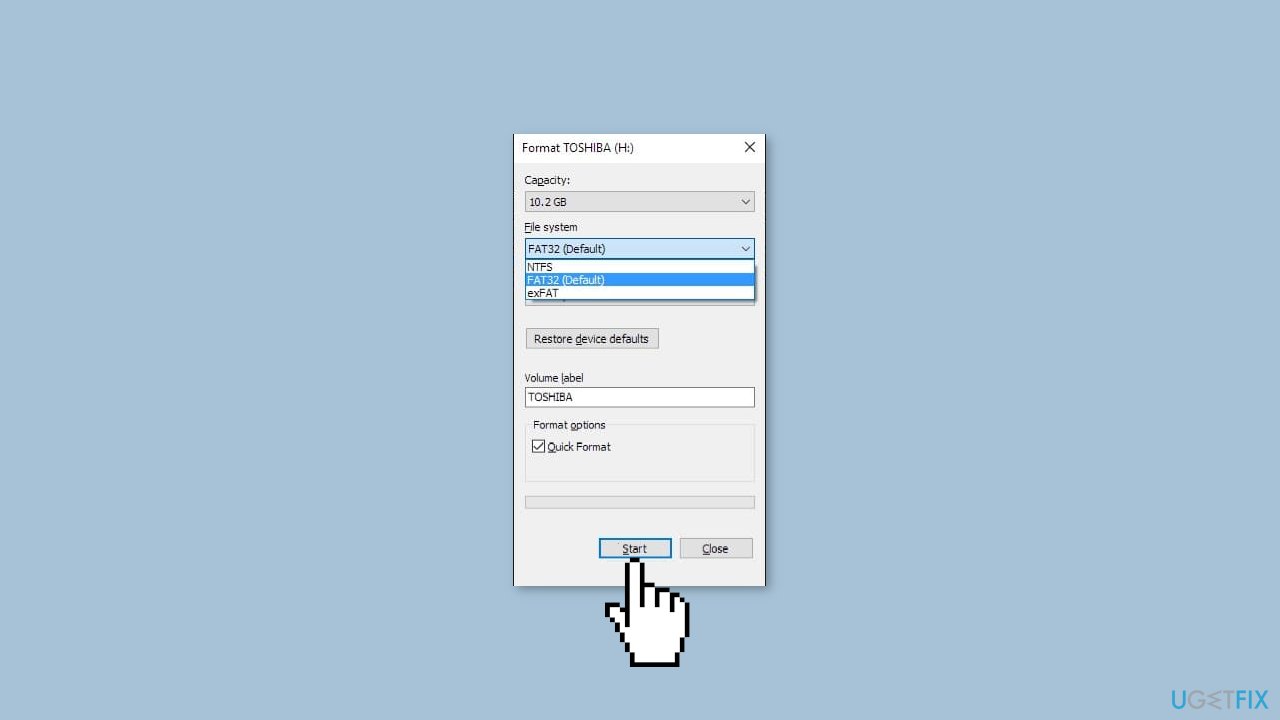
- Under the File System drop-down, select FAT32.
- Hit the Start button.
Bottom line
To resolve the 'Windows can’t stop your Generic Volume device' error, you can try ending the Explorer.exe process, closing open applications, or restarting your system. If these methods do not work, consider using a maintenance tool to repair system errors.
Frequently asked questions
This error typically occurs when a process or application is using the audio device, preventing Windows from stopping it properly. It's often related to audio playback or recording software that hasn't released control of the Generic Volume device.
To fix this error, you can try closing any applications that might be using the audio device or restart your computer to release the device. Additionally, updating your audio drivers from Device Manager may also help.
To prevent this error, ensure that all audio-related applications are closed before shutting down or restarting your PC. Regularly updating your Windows and audio drivers can also minimize the chances of encountering this issue.




Report an issue
What's wrong with this guide? We review every report and update or remove content.
Report received — thank you. We'll review and fix it.
You need a free account to submit a report.
Be the first to comment