How to fix
Windows changing resolution on its own
on Windows
Fix the issue of Windows 10 or 11 changing resolution by following these effective solutions. Expert-tested tips for seamless screen performance.

What causes How to fix Windows changing resolution on its own?
- Outdated graphics driver
- Corrupted graphics driver
- Hardware issues
- Third-party applications
Repairs Windows system files, removes malware, and restores a clean OS state — without reinstalling.
Hello. I recently noticed that Windows changed the resolution settings on its own. What could cause this and how do I fix this?
Windows is a popular operating system used on personal computers and laptops. It is developed and distributed by Microsoft and is designed to provide users with a user-friendly interface and a range of features and tools for managing and using their computers.
However, users may encounter issues with their Windows computer that can affect its performance and functionality. One such issue is when the resolution of the display changes on its own. The resolution of a display refers to the number of pixels that make up the image on the screen. A higher resolution means that there are more pixels, which can result in a clearer and more detailed image. A lower resolution can result in a pixelated or blurry image.
If your Windows computer is changing resolution on its own, it can be frustrating and can make it difficult to use your computer effectively. This issue can be caused by an outdated or corrupted graphics driver,[ref en-1] hardware issues, or third-party applications.
In this guide, you will find 6 steps that should help you fix Windows changing resolution on its own. Keep in mind that the manual troubleshooting process can be lengthy. You can use a maintenance tool like [d1] that can fix most system errors, BSODs,[ref en-2] corrupted files, and registry[ref en-3] issues. Otherwise, follow the step-by-step instructions below.
Solution 1. Reset Screen Resolution
- Right-click anywhere on your desktop and select Display settings
- Now, click on the Display resolution menu and choose a different resolution. If the resolution at this moment is different than the recommended one, switch to that one
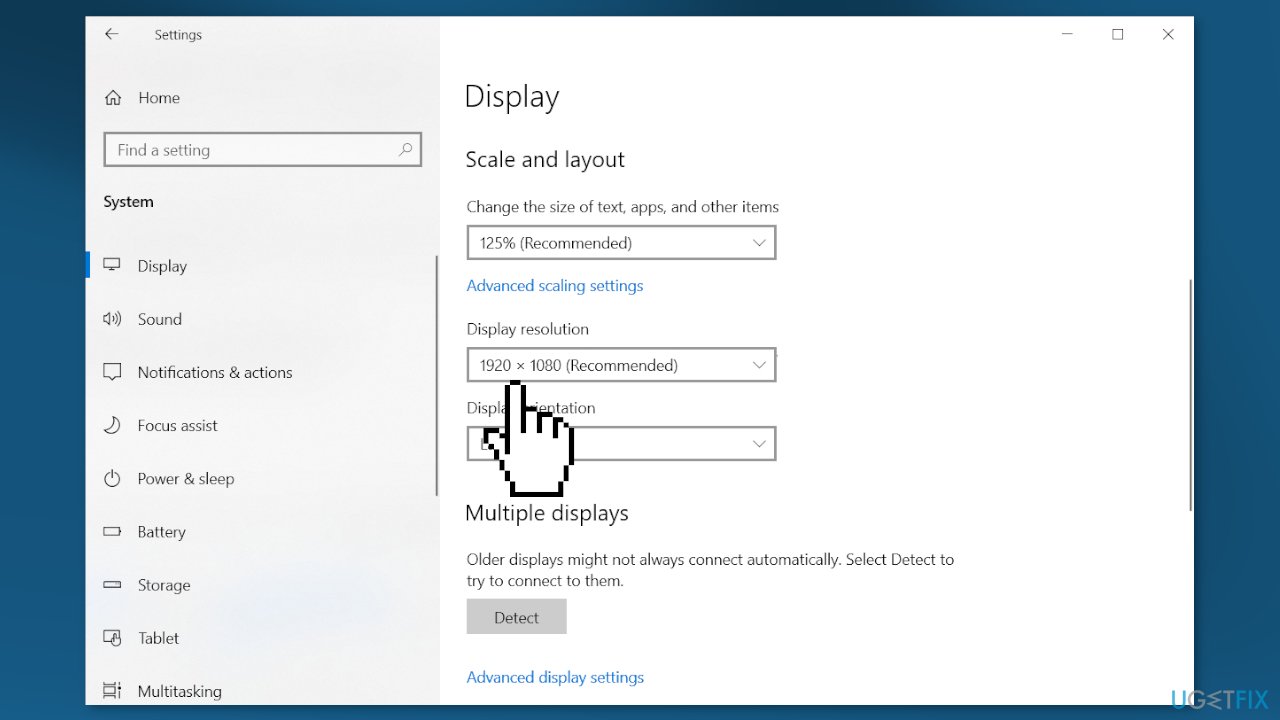
- Click Yes to accept the new resolution
Solution 2. Update Graphics Driver
- Open Device Manager and expand the Display Adapters tab
- Right-click on your graphics driver and select Properties
- Go to the Driver tab and click on Update Driver
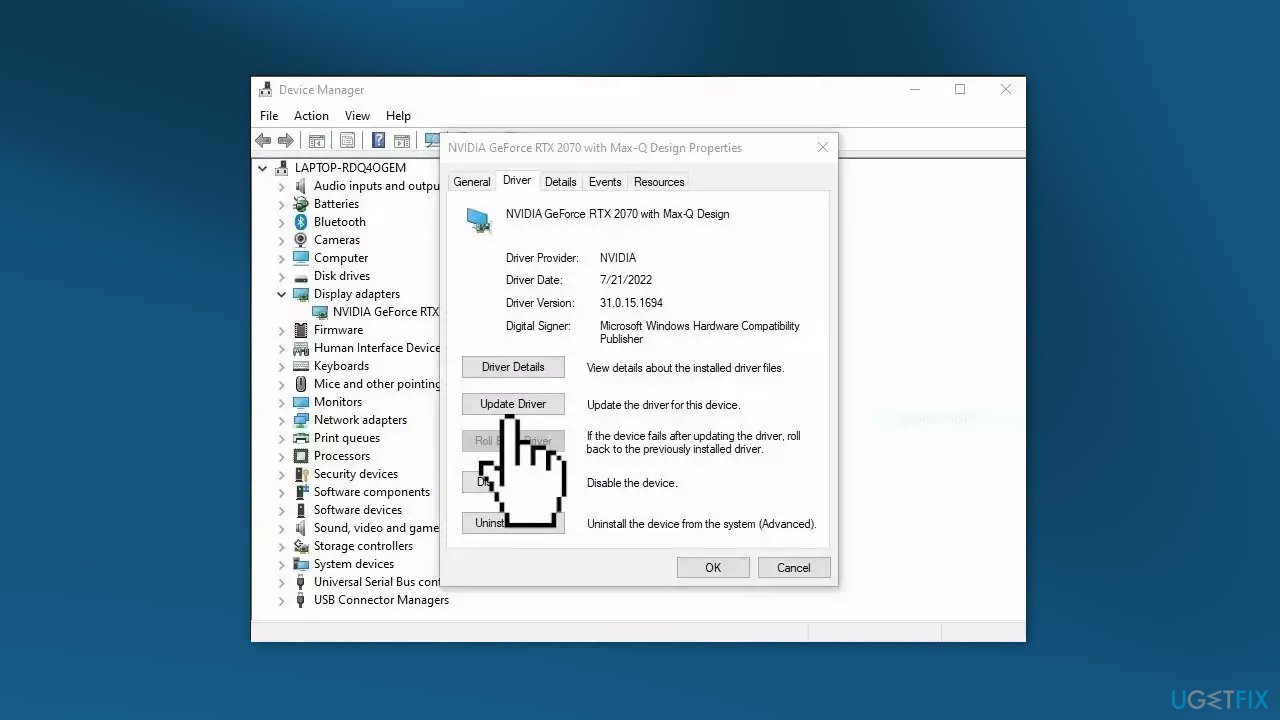
- Press on Search Automatically for Drivers
- If a graphic driver update is available, install it and then restart your PC
- Upon restart, launch the Modern Warfare game and check if it fixed the issue.
- You may also use a dedicated utility like [rev id="DriverFix"] that can find the best drivers for your machine and install them automatically
Solution 3. Disable the Base Video Option
- Press the Windows key + R to open the Run dialog box
- Type msconfig and click on the OK button
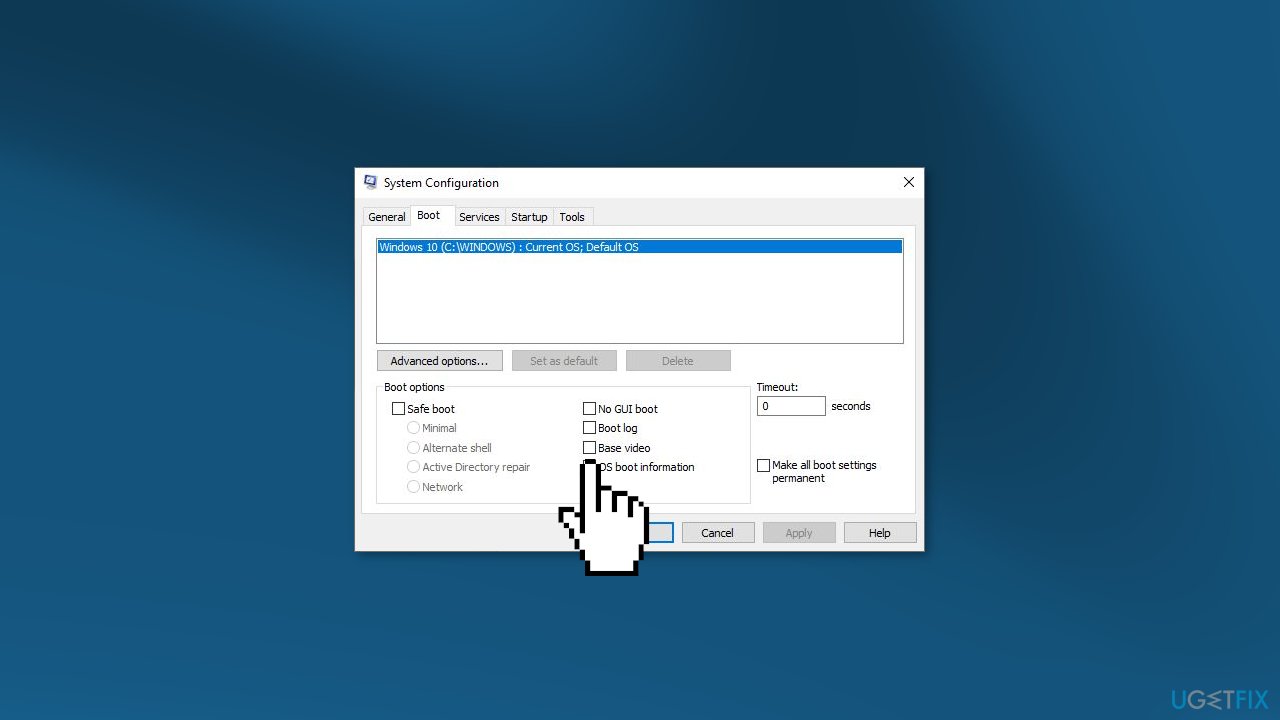
- Then click the Boot tab on the System Configuration window and deselect the Base video checkbox
- Press the Apply button to confirm the new settings and click OK to close the window
- Restart your computer
Solution 4. Try Clean Boot
- Type MSConfig in the Start Menu and hit Enter to open the System Configuration Utility
- Click on the General tab, and then click Selective Startup
- Clear the Load Startup Items checkbox, and ensure that Load System Services and Use Original boot configuration are checked
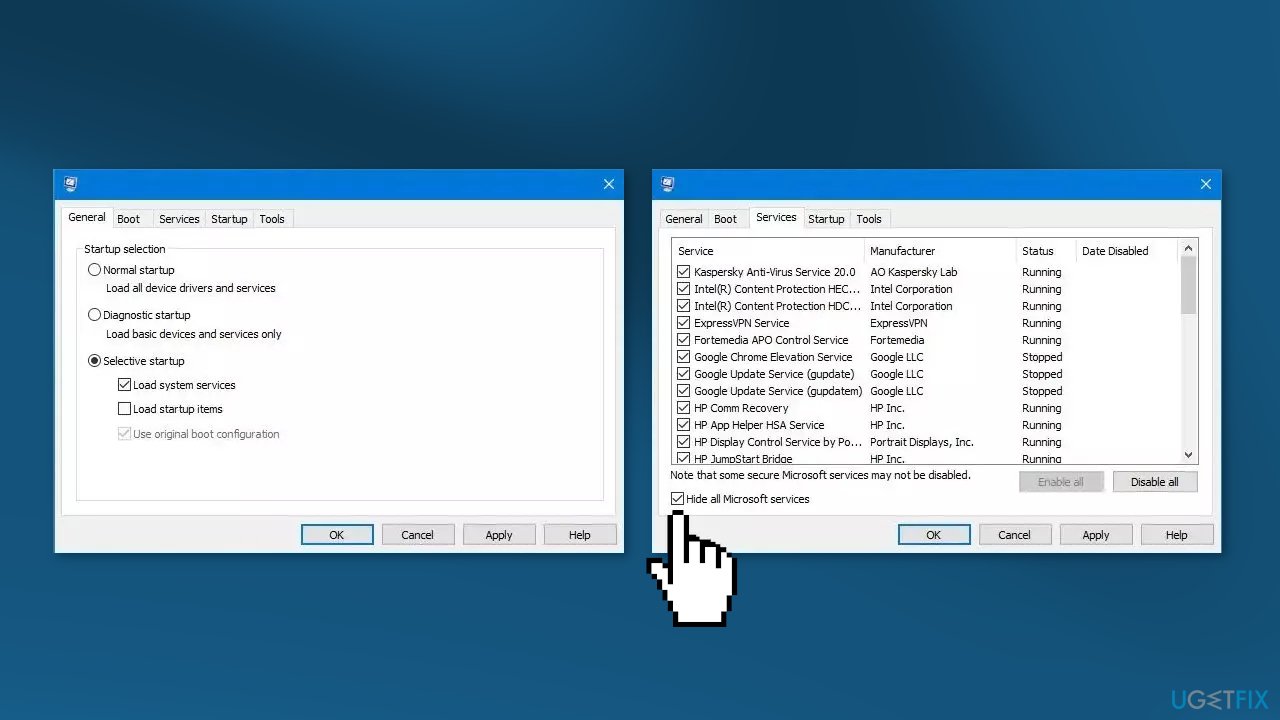
- Next, go to the Services tab
- Select the Hide All Microsoft Services checkbox
- Now click Disable all
- Click Apply and OK and restart the computer
Solution 5. Roll Back Graphics Driver
- Press the Windows key + X and click on Device Manager
- Expand the Display adapters option
- Look for your graphics driver
- Right-click and click Update Driver
- Look for the Browse my computer for drivers option
- Click Let me pick available drivers on my computer
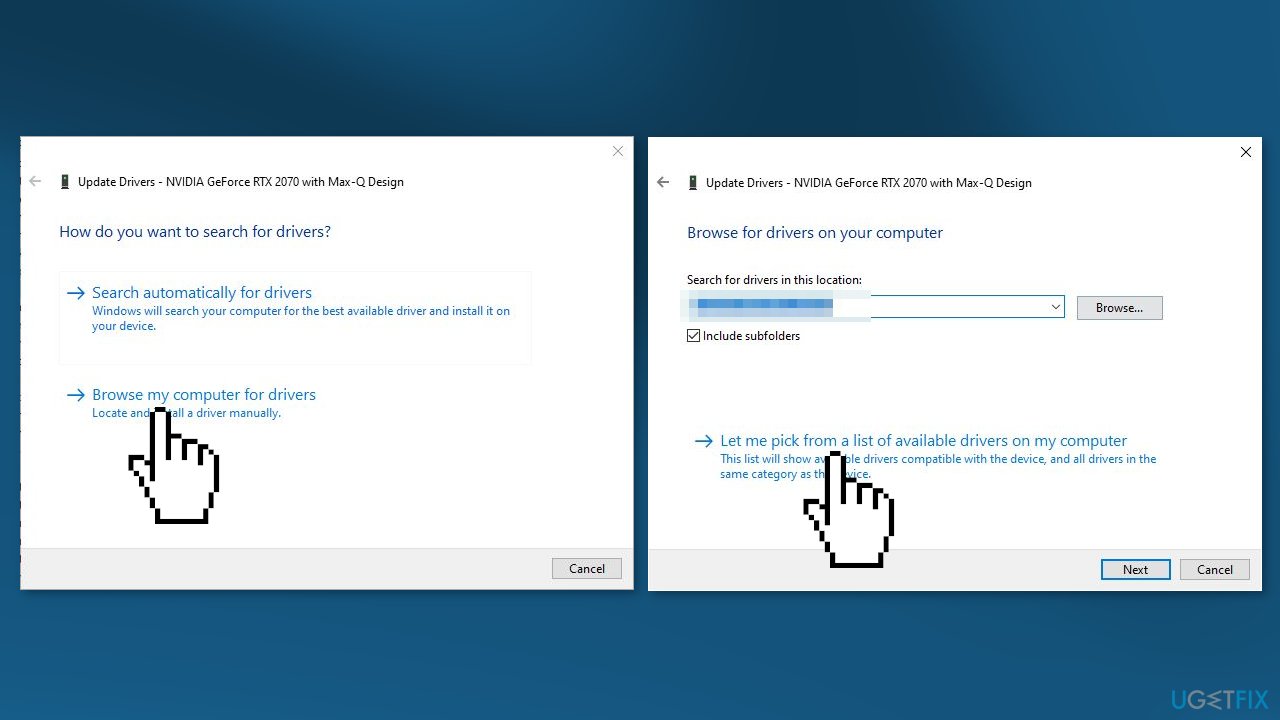
- Choose an old driver or another name of the driver then select it and hit Next until it installs
- Restart your computer
Solution 6. Use System Restore
System Restore is a tool that can revert your system back to a previous point before a specific problem has occurred.
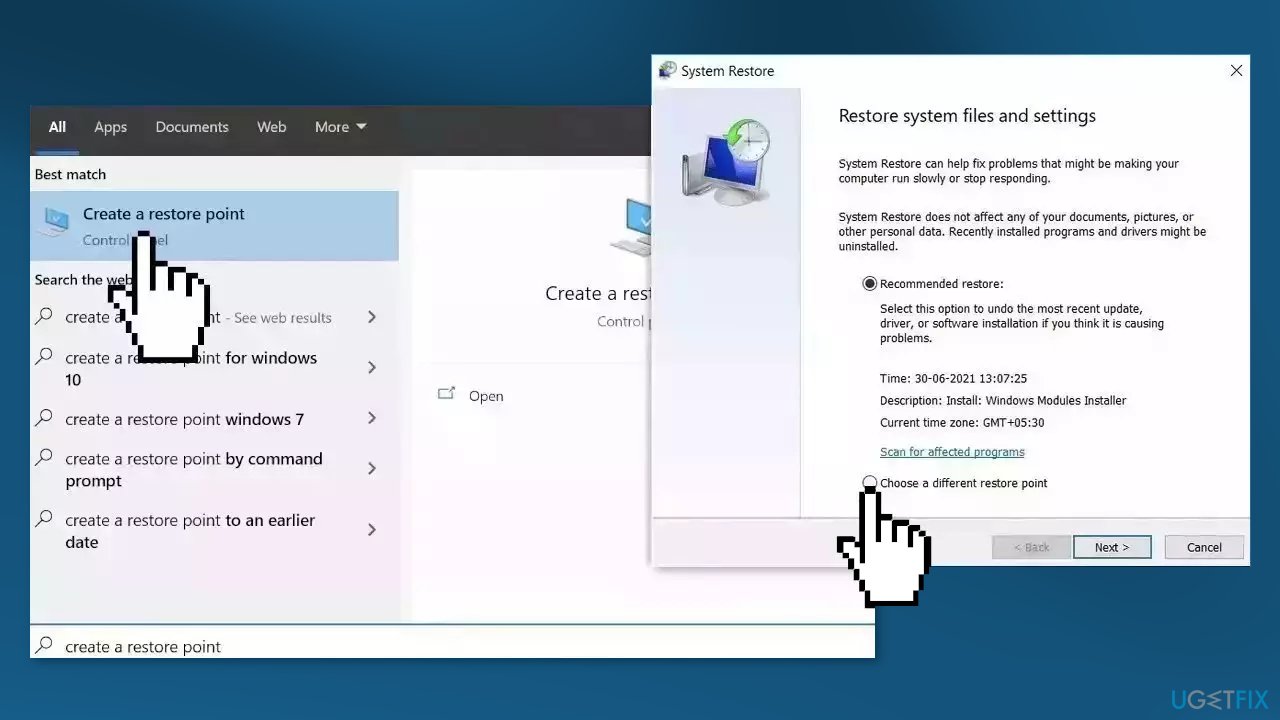
- Go to the Start menu, type restore, and click on Create a restore point
- Click System Restore, then follow the prompts until you can select a restore point
- Select the one you want (ideally before the issue started occurring) and go ahead with the process
Bottom line
To fix the issue of Windows changing resolution on its own, you can reset the screen resolution and update the graphics driver. If these solutions do not resolve the problem, consider using a maintenance tool to address potential system errors.
Frequently asked questions
Windows 10 may change your screen resolution due to incompatible display drivers or a recent Windows update. Check for driver updates or roll back recent updates to resolve the issue.
To prevent Windows 11 from changing the display resolution, disable automatic adjustments in the display settings and ensure your graphics drivers are up to date. Additionally, check for any third-party applications that might be affecting the display.
If Windows keeps resetting your resolution after a reboot, try uninstalling and reinstalling your display drivers, or use the Device Manager to update them. Also, check the display settings to ensure the correct resolution is set as default.




Report an issue
What's wrong with this guide? We review every report and update or remove content.
Report received — thank you. We'll review and fix it.
You need a free account to submit a report.
Be the first to comment