How to fix
“Windows Command Processor has stopped working” error
on Windows
Resolve the “Windows Command Processor has stopped working” error quickly and easily on Windows 10 and 11 with expert-tested solutions. Fixed in minutes!

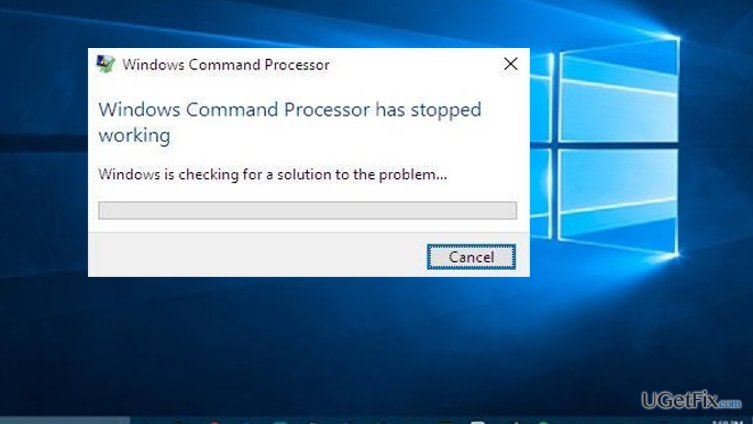
What causes How to fix “Windows Command Processor has stopped working” error?
- Damaged registry
- Corrupted startup files
- Device infection
- Corrupted Windows update from secondary sources
- Interrupted installation process
Repairs Windows system files, removes malware, and restores a clean OS state — without reinstalling.
Recently, after starting the system, a message pops up stating that “Windows Command Processor has stopped working.” I tried to solve it by clicking on the first option. But the Internet does not present any solutions. I’m confused to where I should be looking for the cause of such occurrence. Can you help me?
"Windows Command Processor has stopped working" error might be occasional in the operating systems with a damaged registry or startup files. In addition, users, encountering the issue, should not exclude the possibility that their devices have been infected. Some users reported that they have been noticing other errors following this issue. Additionally, if you installed the update for Windows from secondary sources, it is likely that the original ISO file has been corrupted, lacks essential elements, or the very installation process was interrupted by third parties. Though the problem is often encountered in Windows 10, users of other versions might run into the same problem as well. Thus, we present several options to deal with the problem. In order to ensure that your registry files are all functioning well, run [rev id=”RegCure Pro”].
Option 1. Running System File Checker tool
1. Click Start button and then cmd and hit Enter.
2. In the newly opened window, type sfc /scannow.
3. If the scan completes with no malicious or damaged files found, proceed to the next method.
Option 2. Checking the integrity of hard drives and disks
It is possible to check all the disks using the same Command Prompt window. Do not forget to run it as the administrator. Once the window is open, type
CHKDSK [volume[[path]filename]] [/F] [/V] [/R] [/X] [/I] [/C] [/L[:size]]
This command will check for the errors in all disks. Make sure that all applications are closed, and neither of disks is in use.
Option 3. Refresh the operating system
You might want to refresh or simply reset the system in order to solve the problem. If you cannot complete the process because another system error appears, type dism /online /cleanup-image /restorehealth in the open window of Command Prompt.
Option 4. Disabling all third-party apps running in the background
1. Click Start button and then msconfig.
2. Navigate to Services tab and then tick the box saying Hide all Microsoft services.
3. Now you see the list of third-party programs which have been set automatically to launch at each startup.
4. Click Disable all.
5. After these steps click Apply and then exit System Configuration tool. It will require rebooting the system.
Bottom line
To fix the 'Windows Command Processor has stopped working' error, you can run the System File Checker tool, check the integrity of hard drives, refresh the operating system, or disable all startup programs. If none of these methods resolve the issue, further investigation may be needed.
Frequently asked questions
This error can be caused by corrupted system files, malware infections, or issues with third-party applications interfering with the command processor.
You can run a system file check by opening Command Prompt as an administrator and typing 'sfc /scannow', then pressing Enter to scan and repair any corrupt system files.
Yes, you can try restoring the system to a previous state using System Restore or by performing a clean boot to identify and disable conflicting software.




Report an issue
What's wrong with this guide? We review every report and update or remove content.
Report received — thank you. We'll review and fix it.
You need a free account to submit a report.
Be the first to comment