How to fix
“Windows could not configure one or more system components” error
on Windows
Resolve the "Windows could not configure one or more system components" error on Windows 10 and 11 efficiently. Expert-tested solutions await!

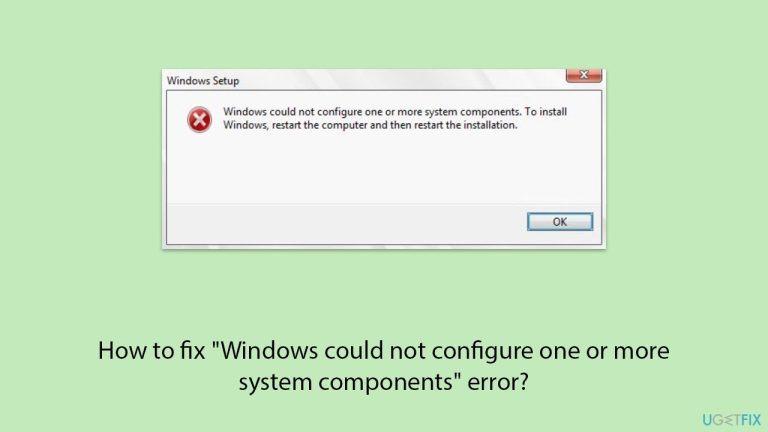
What causes How to fix “Windows could not configure one or more system components” error?
- Corrupted or ill-configured IIS components
- Incompatible drivers
- Third-party software interference
- Corrupted system files
- Hardware issues such as a failing drive
Repairs Windows system files, removes malware, and restores a clean OS state — without reinstalling.
I had been trying to upgrade my Windows 10 to Windows 11. However, when the installation began I received an error message that Windows couldn’t configure one or more system components, and it rolled back to Windows 10. I restarted my computer and tried again, and I was seeing the same error at about 60% through the install.
Upgrading or installing Windows allows users to transition between versions such as Windows 10 to Windows 11 or perform clean installations to enhance system capabilities while improving security and performance through component and configuration integration.
The installation processes require establishing fundamental operating system components that include drivers services and optional features to achieve smooth system operation. The error message "Windows could not configure one or more system components" stops the process when it occurs because of existing system configuration conflicts.
Users encounter the "Windows could not configure one or more system components" error while their Windows upgrade or installation process reaches critical stages before it fails to revert back to the previous system state.
"Windows could not configure one or more system components" message is more likely to be a specific problem pointer for Internet Information Services (IIS), which is a Windows 11/10 web server feature that has the potential to bottleneck the install. This issue has been reported by users of the Microsoft Answers forum, where logs often invoke "iissetup.exe" that leads us to IIS as a common culprit.
The failure can be caused by corrupted or ill-configured IIS components, such as encryption keys used by IIS for the AES provider, or interference with IIS files and services. Incompatible drivers, third-party software (e.g., antivirus programs), or corrupted system files conflicting with the configuration process are additional potential causes. Hardware issues, e.g., failing drive, or peripheral devices can also cause the failure.
Several troubleshooting techniques can fix the "Windows could not configure one or more system components" error, starting with the fixing of IIS-related problems by disabling or uninstalling the feature. System file repair or clean install are other solutions for various root causes. The following procedures provide you with step-by-step solutions to enable you to complete your Windows installation or upgrade.
For a faster fix, we recommend you run [d1], a PC troubleshooting tool that has the ability to automatically fix system file corruption, driver problems, and other Windows issues that could be causing the "Windows could not configure one or more system components" error.

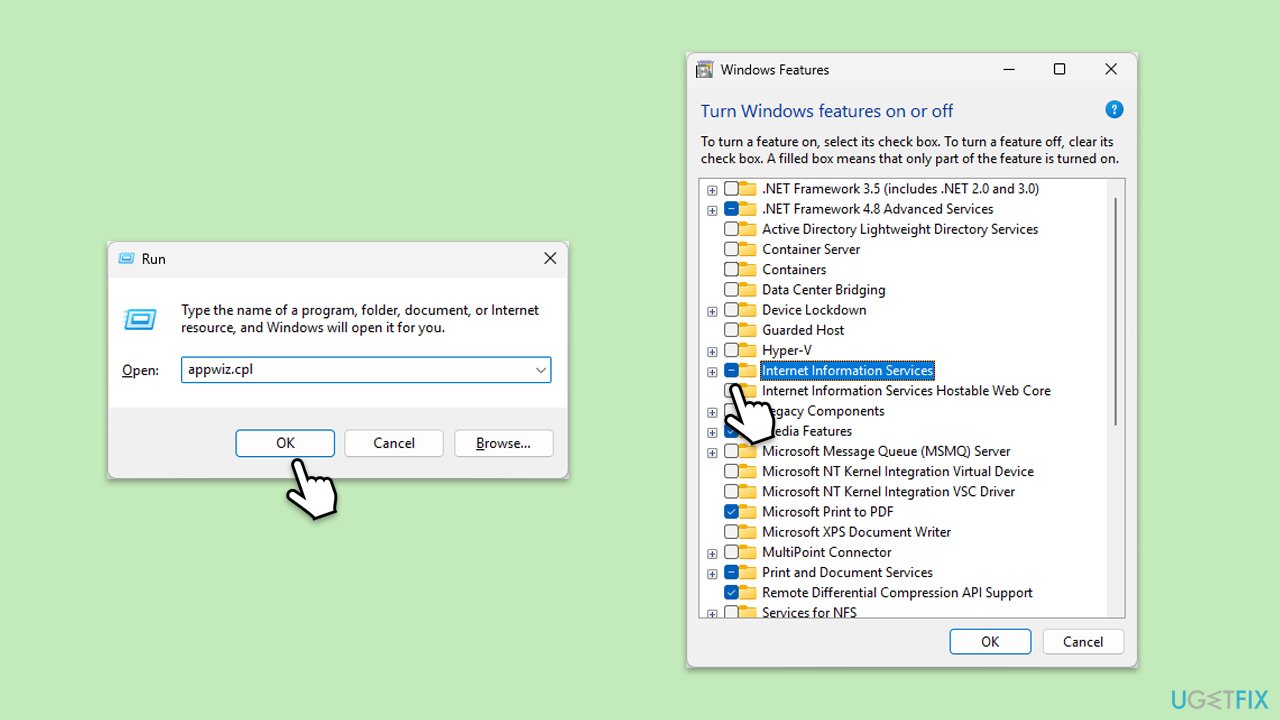
Fix 1. Disable Internet Information Services (IIS)
IIS can interfere with the Windows upgrade process by restricting component configuration, often due to misconfigured or corrupted settings. Disabling it can resolve the issue.
- Press Win + R to open the Run dialog box.
- Type appwiz.cpl and press Enter to open Programs and Features.
- Click Turn Windows features on or off from the left pane.
- Locate Internet Information Services, uncheck the box next to it, and click OK.
- Restart your computer.
Fix 2. Rename the inetsrv folder
The inetsrv folder contains IIS-related files, such as iissetup.exe, which can cause conflicts during upgrades. Renaming it prevents interference.
- Press Win + R to open the Run dialog box.
- Navigate to the following location:
C:\Windows\System32\inetsrv. - Right-click the inetsrv folder and rename it to inetsrv.old.
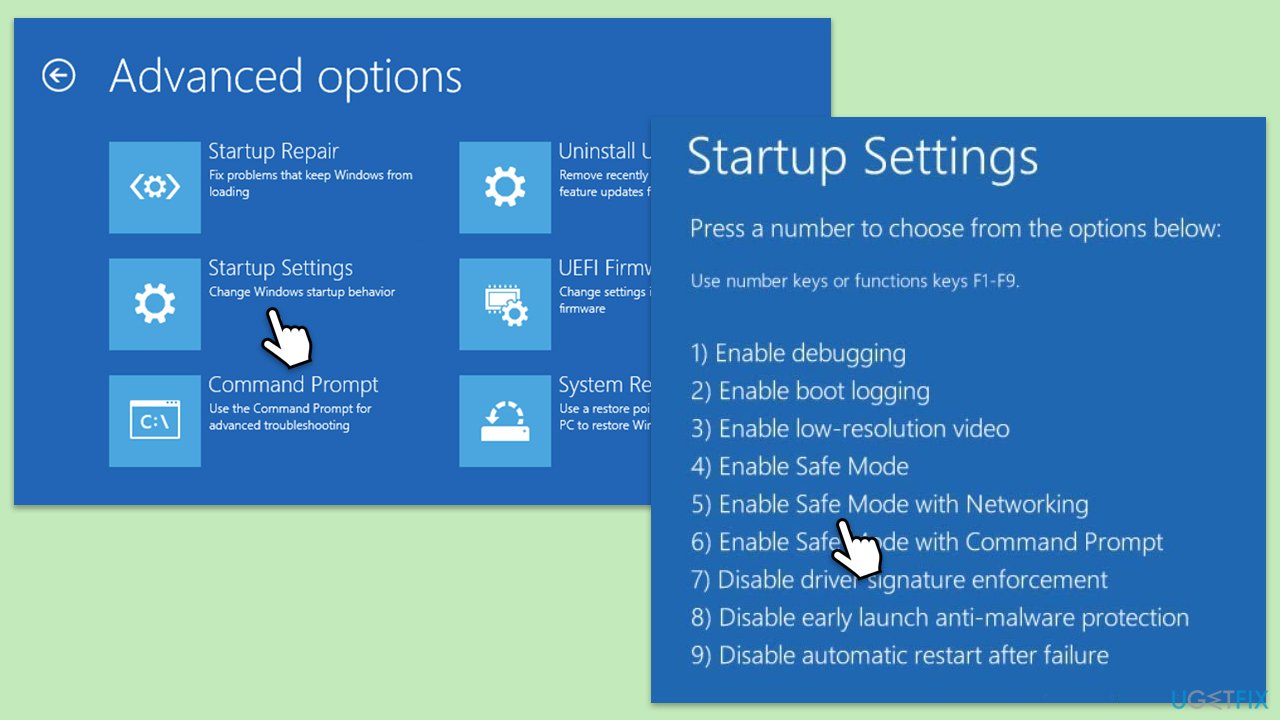
- If you get an Access is denied error, boot into Safe Mode and try again (check below how).
- Restart your computer and attempt the upgrade.
To access Safe Mode:
- Right-click on Start and pick Settings.
- Select System.
- Under Recovery options, next to Advanced Startup, click Restart now.
- After a reboot, you will be presented with several options - pick Troubleshoot.
- Go to Advanced options > Startup Settings and then pick Restart.
- After a reboot, pick either 4/F4 for Safe Mode or 5/F5 for Safe Mode with Networking.
- Restart your PC and try to eject the drive in Safe Mode.
Fix 3. Delete IIS machine keys
Corrupted encryption keys used by IIS can cause the upgrade to fail. Deleting these keys allows Windows to recreate them during the installation.
- Press Win + E to open File Explorer.
- Navigate to the following location:
C:\ProgramData\Microsoft\Crypto\RSA\MachineKeys - Delete files starting with sequences like 6de9cb26d2b98c01ec4e9e8b34824aa2_GUID or similar GUIDs.
- Reboot your computer and retry the Windows upgrade.
- Note that these files will be recreated automatically during the process.
Fix 4. Disconnect external devices
External devices, such as USB drives or SD cards, can interfere with the upgrade process, leading to configuration errors. Disconnecting them can help.
- Unplug all non-essential external devices (USB drives, printers, external hard drives, etc.).
- Restart your computer.
- Attempt the upgrade again without any external devices connected.
- Run the Windows upgrade process again.
Fix 5. Disable third-party antivirus temporarily
Third-party antivirus software can block system changes during the upgrade, causing the configuration to fail. Temporarily disabling it can allow the process to proceed.
- Locate your antivirus icon in the system tray.
- Right-click the icon and look for an option like Disable.
- Select a temporary disable option.
- Try upgrading again.
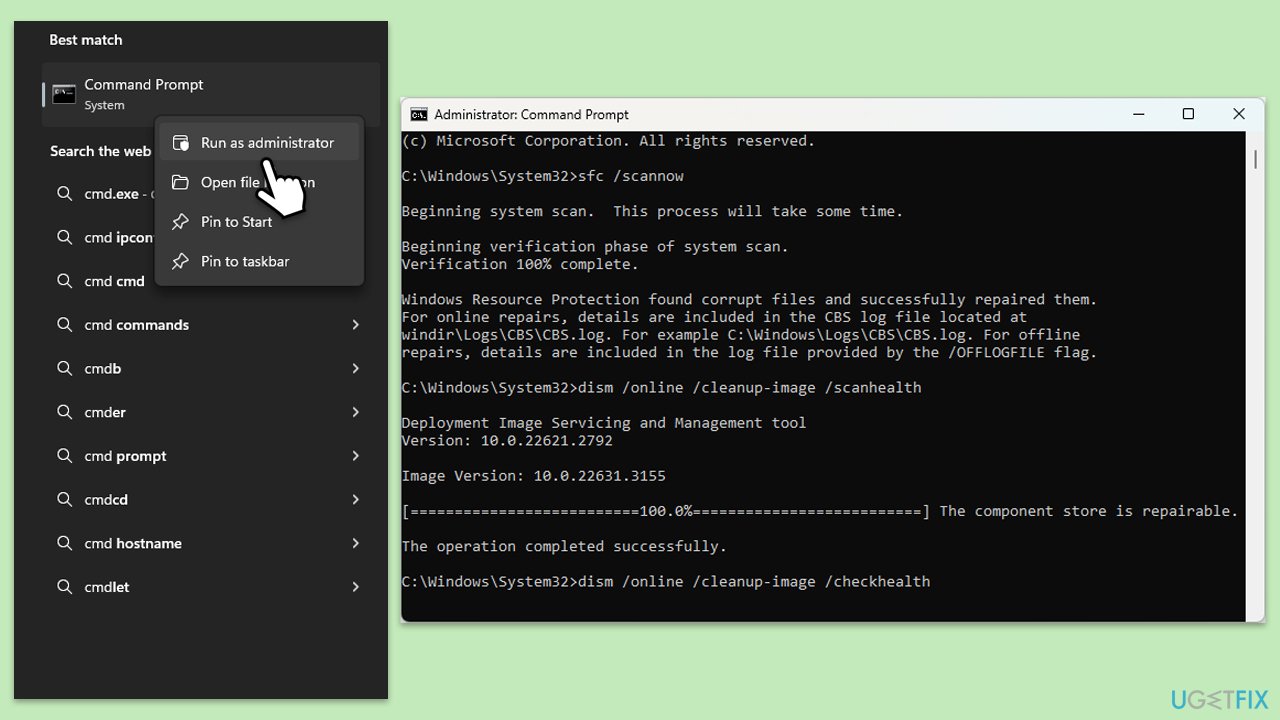
Fix 6. Run SFC and DISM scans
Corrupted system files can prevent Windows from configuring components properly, leading to this error. SFC and DISM tools can repair these files.
- Type cmd in Windows search.
- Right-click on Command Prompt and pick Run as administrator.
- User Account Control window will show up - click Yes when prompted.
- Then, copy and paste the following command, pressing Enter after:
sfc /scannow - Wait till the scan is finished. If Windows finds system file integrity violations, it will attempt to fix them. After this, use the set of the following commands, pressing Enter each time:
DISM /Online /Cleanup-Image /CheckHealth
DISM /Online /Cleanup-Image /ScanHealth
DISM /Online /Cleanup-Image /RestoreHealth - (Note: if you get an error executing this last command, add /Source:C:\RepairSource\Windows /LimitAccess to it and try again).
- Close down the Command Prompt and restart your device.
Bottom line
To fix the 'Windows could not configure one or more system components' error, start by addressing IIS-related problems, which may involve disabling or uninstalling the feature. Additionally, performing a system file repair or a clean install can resolve various root causes. If these solutions do not work, further troubleshooting may be necessary.
Frequently asked questions
This error typically indicates that the Windows installation process has encountered issues with system files or components that are necessary for proper configuration. It can occur during system updates or installations.
You can resolve this error by running the System File Checker tool or performing a DISM scan to repair corrupted system files. Additionally, checking the installation media for errors can also help.
Yes, you can use the Command Prompt to run commands like 'sfc /scannow' and 'DISM /Online /Cleanup-Image /RestoreHealth' to fix the underlying issues causing this error.




Report an issue
What's wrong with this guide? We review every report and update or remove content.
Report received — thank you. We'll review and fix it.
You need a free account to submit a report.
Be the first to comment