How to fix
“Windows Defender Alert” Scam
on Windows
Eliminate the "Windows Defender Alert" scam on Windows 10 & 11 effortlessly with expert-tested solutions. Fix it in minutes and browse safely!

What causes How to Fix “Windows Defender Alert” Scam?
- Corrupted web domain redirection
- Malicious link click
- Potentially unwanted program (adware)
- Tech-support-scam pop-up
- Browser vulnerability
Repairs Windows system files, removes malware, and restores a clean OS state — without reinstalling.
Yesterday I’ve started getting an alert, which claims that Windows Defender detected Zeus virus. It would seem rather convincing, except that it’s displayed while I browse with Chrome. Besides, I was not able to close the window with the Windows Defender Alert, so I had to close web browser entirely. Should I worry about Zeus or another virus infection?
Windows Defender is an anti-virus utility developed by Microsoft. Initially, it was known as Microsoft Security Essentials software available on Windows XP, Windows Vista, and Windows 7 OS. With the release of Windows 8, Microsoft renewed Windows Security Essentials and introduced it as Windows Defender, which now comes as a part of Windows 10 OS and is turned on by default. Just like any other security software, Windows Defender generates warnings if malicious software attempts to slither onto the system or if it’s detected. Such warnings are generated by Windows Defender in a form of pop-up boxes. However, recently people reported a “new type” of Windows Defender Alert, which shows up while the PC’s owner is browsing the web. Such message says:
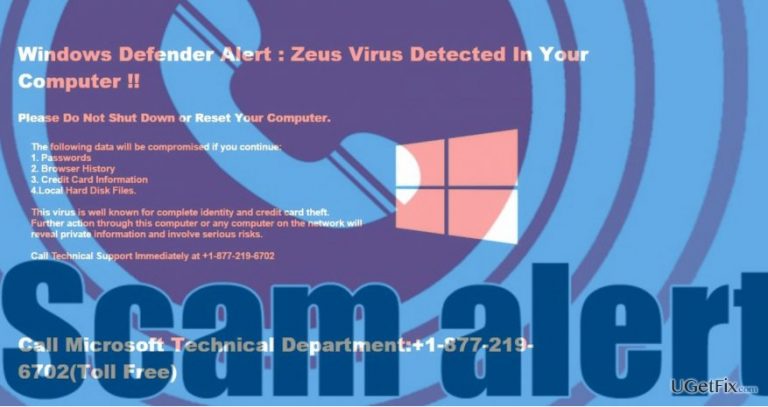
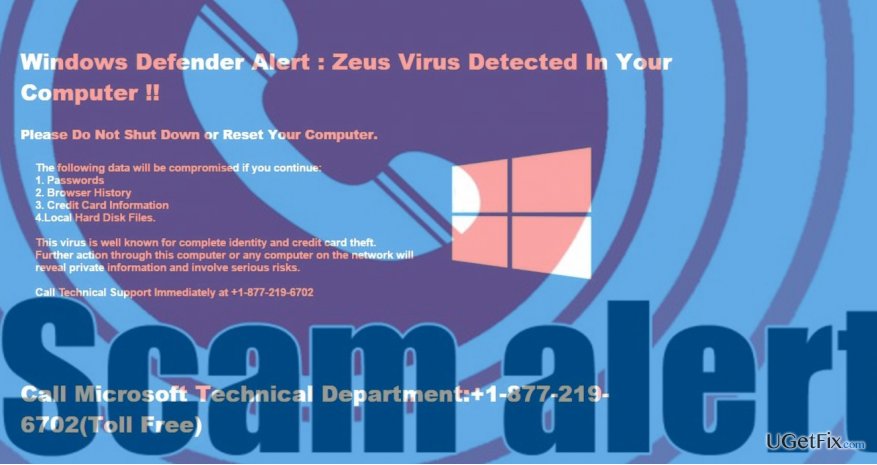
Windows Defender Alert : Zeus Virus Detected In Your Computer !!
Please Do Not Shut Down or Reset Your Computer.
The following data will be compromised if you continue:
1. Passwords
2. Browser History
3. Credit Card Information
4.Local Hard Disk Files.
This virus is well known for complete identity and credit card theft. Further action through this computer or any computer on the network will reveal private information and involve serious risks.
Call Technical Support Immediately at +1-877-219-6702
Why am I seeing the “Windows Defender Alert” pop-up?
“Windows Defender Alert: Zeus Virus Detected In Your Computer” pop-up is generated on a web browser that the PC owner is currently using as default. Although the warning seems to be official, it is not related to the condition of your PC and Windows Defender so far. The “Windows Defender Alert” is a Tech-Support-Scam, which is triggered by a corrupted web domain to which your web browser was redirected after clicking on a malicious link or a potentially unwanted program, namely adware.
The purpose of the “Windows Defender Alert” scam
Scammers distribute warnings like “Windows Defender Alert” pop-up to scare people into thinking that their PCs are infected and seek to convince them that the only reliable solution is to call for Technical Support by dialing the given telephone number. However, any contact with the scammers may lead to serious issues, including identity theft or money loss.
Fixing “Windows Defender Alert” Scam
If your web browser is currently locked with the Windows Defender Alert Scam, you will have to terminate your web browser using Task Manager and then apply some fixes to prevent the alert from getting back again.
1. Press Ctrl + Alt + Del and open Task Manager.
2. Find Google Chrome process, click it, and select End Task.
If your web browser generated Windows Defender scam alert because you have accessed the compromised website, make sure not to restore the last browsing session and be more careful when clicking on doubtful ads and links. Moreover, strengthen your virtual security by ensure that the antivirus you are running has the latest definitions and real-time protection enabled.
Unfortunately, adware infection is more likely to be the culprit of the "Zeus Virus Detected In Your Computer" scam. Therefore, to stolp it from appearing, you'll have to eliminate the adware completely. You can do this automatically or manually. To disable the Windows Defender Alert scam automatically, you can use [d1] or another reliable anti-malware. Otherwise, you'll have to perform these steps:
1. Boot Windows into Safe Mode.
4. Now right-click on Windows key and open Control Panel.
5. Select Programs and Features.
6. Remove applications that look suspicious or you are not familiar with. To do so, click on the app and select Uninstall.
7. Finally, reset Google Chrome's default settings. To start with, open Google Chrome.
8. Press on the menu icon and open Settings.
9. Click on Show advanced Settings option and navigate to Reset Settings.
10. Click Reset on the confirmation window and the restart Chrome.
Bottom line
To fix the 'Windows Defender Alert' scam, you should clear your browser cache, run a full system scan with Windows Defender, and avoid clicking on suspicious links. If these steps do not resolve the issue, consider seeking professional technical support.
Frequently asked questions
Immediately close the pop-up and do not call any phone numbers provided in the alert. Run a full system scan with Windows Defender to ensure your system is clean.
Keep your Windows 11 system updated and enable real-time protection in Windows Defender to reduce the risk of encountering such scams. Additionally, avoid clicking on suspicious links or pop-ups.
No, interacting with these messages can lead to malware installation or personal information theft; always close them immediately.




Report an issue
What's wrong with this guide? We review every report and update or remove content.
Report received — thank you. We'll review and fix it.
You need a free account to submit a report.
Be the first to comment