How to fix
Windows Defender Engine Unavailable error
on Windows
Resolve Windows Defender Engine Unavailable error effortlessly with our expert solutions. Get your protection back in minutes, fully tested and trusted.


What causes How to fix Windows Defender Engine Unavailable error?
- Windows Defender Engine is not updated
- Registry keys are incorrectly set
- Security Intelligence Updates are not installed
- Corrupted system files
- Issues with Windows updates
Repairs Windows system files, removes malware, and restores a clean OS state — without reinstalling.
Hello. When I try to install the latest Windows security updates I receive an error and it shows that Windows Defender Engine is unavailable. How do I fix this?
Windows Defender or Microsoft Defender Antivirus is an anti-malware component of Microsoft Windows. It provides some basic functions when it comes to operating system security. It can warn users about malware[ref en-1] infections and other cybersecurity threats.
When Windows Defender first came out, it only protected users from spyware, so Microsoft has come a long way. People can now feel safe when using Windows without third-party antivirus software. However, people have to install the latest security updates and patches to keep the security as strong as possible.
That is not always successful. Recently, some users reported receiving an error when trying to install the Security Intelligence Update for Microsoft Defender Antivirus. People also say that the Windows Defender Engine is shown as Unavailable, leaving them worried about being exposed to various threats.
While it is unknown what exactly could cause the Windows Defender Engine Unavailable error, we prepared 3 steps that could help you fix it and install the needed updates. Troubleshooting can become a lengthy process, so you can also use a maintenance tool like [d1] that can fix most system errors, BSODs,[ref en-2] corrupted files, and registry[ref en-3] issues. Otherwise, follow the instructions below.
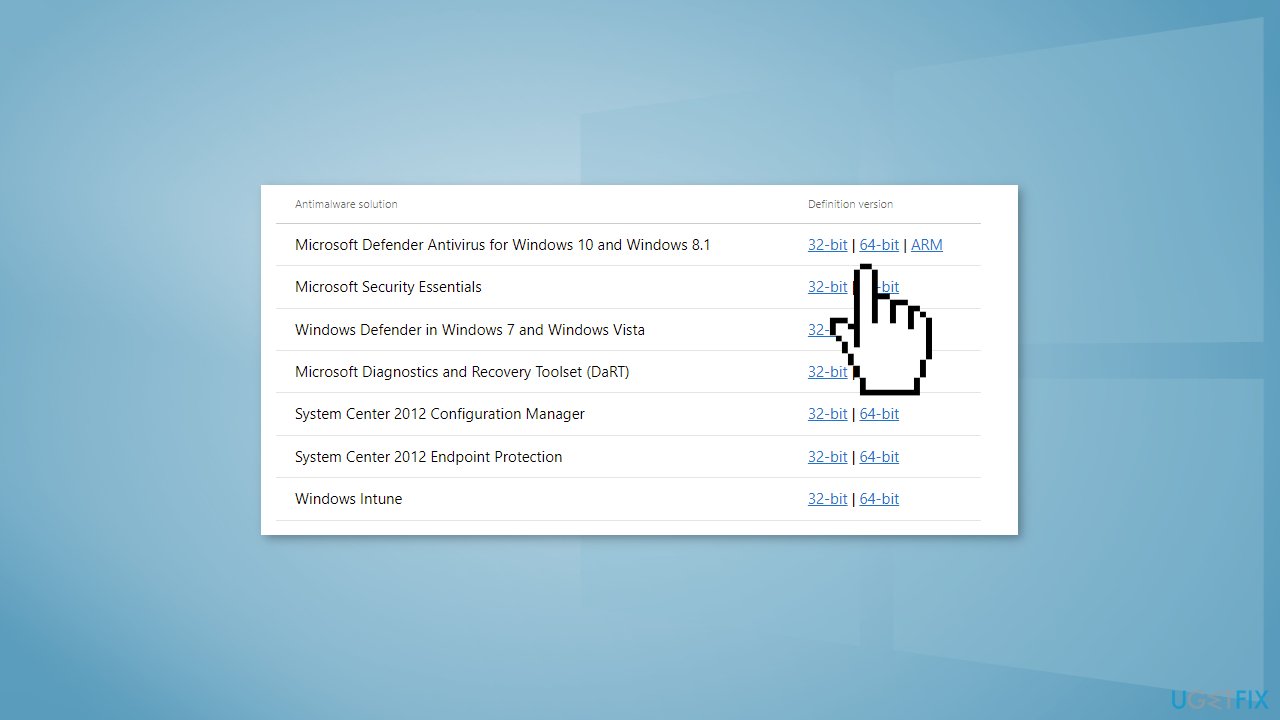
Solution 1. Manually Install Security Intelligence Updates
- Download the updates from the official Microsoft website
- Open the downloaded file and follow the on-screen instructions
Solution 2. Change Registry Key Values
- Press Windows key + R to open the Run box
- Type Regedit and press Enter
- Navigate to HKEY_LOCAL_MACHINE\\SOFTWARE\\Policies\\Microsoft\\Windows Defender
- Change both DisableAntiSpyware and DisableAntiVirus values to 0 by double-clicking
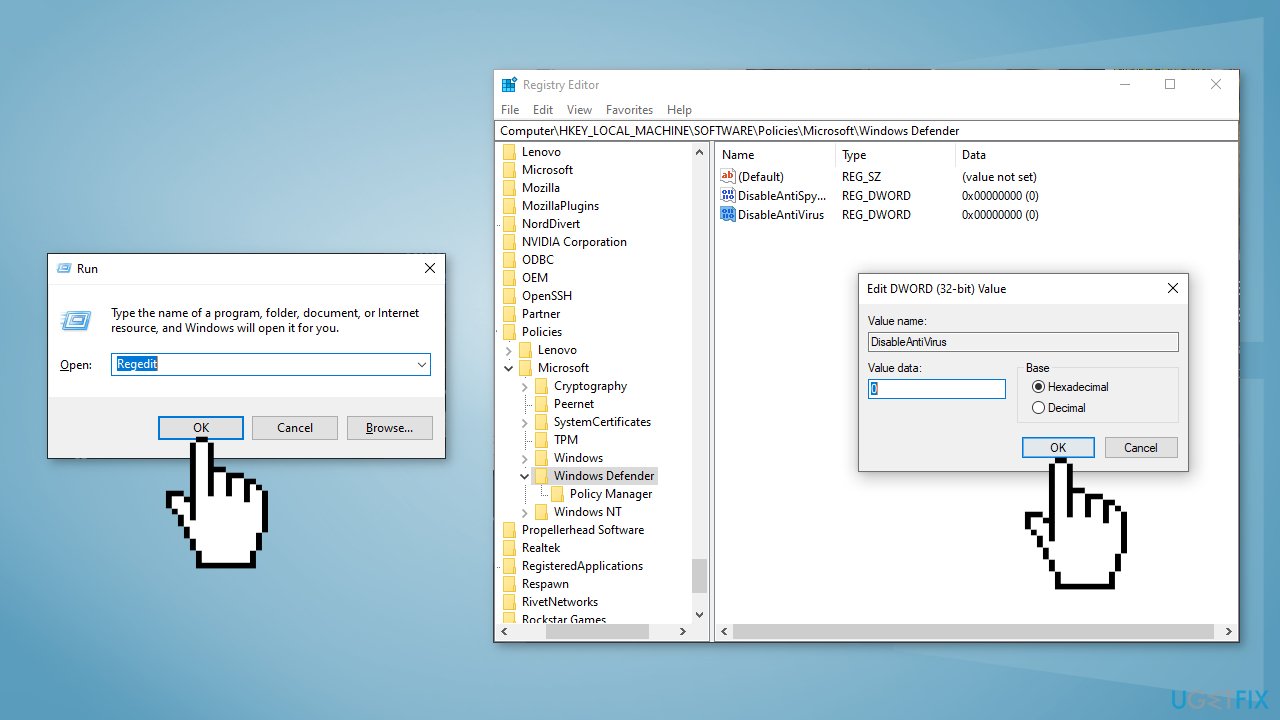
- If the keys are not showing, right-click on an empty space, select New, and click on DWORD (32-bit) Value
- Name the key DisableAntiSpyware and set the value to 0
- Do the same for DisableAntiVirus also
Solution 3. Perform a Repair Upgrade
- Download the Windows 10 ISO file from the official Microsoft website
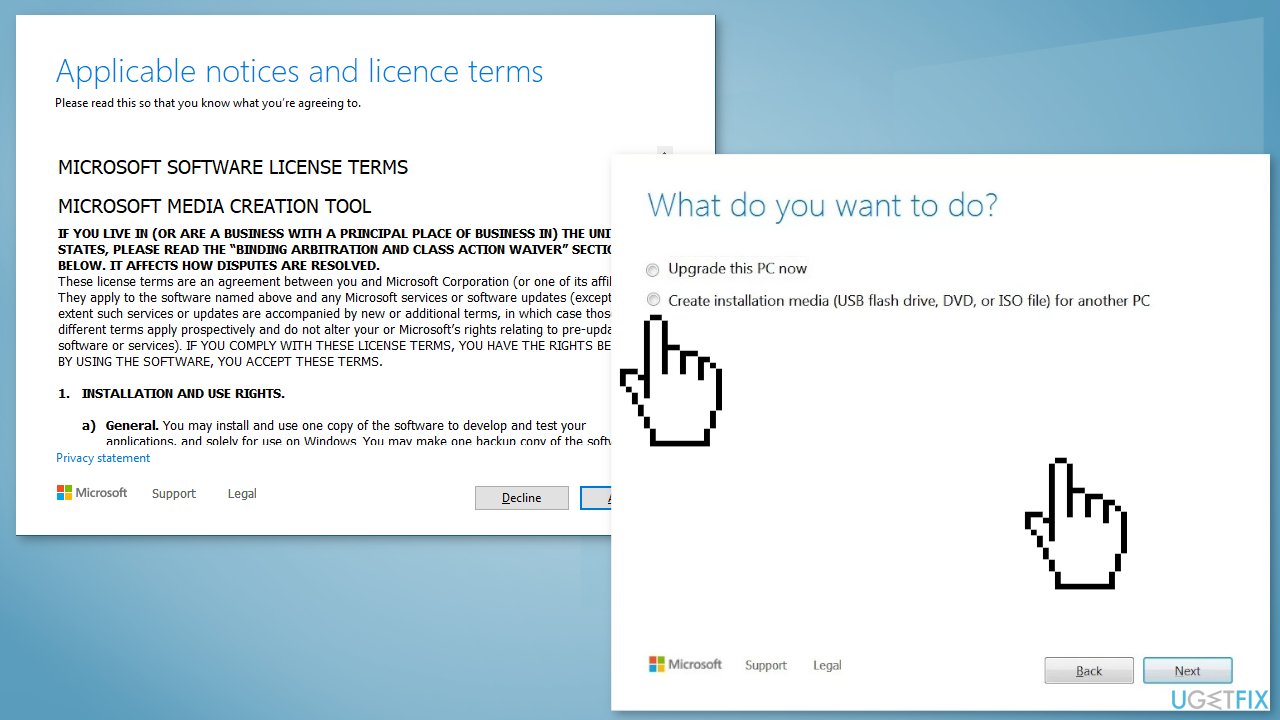
- If you agree to the license terms, select Accept
- On the What do you want to do? page, select Create installation media for another PC and then select Next
- Select the language, edition, and architecture (64-bit or 32-bit) for Windows 10
- In Select which media you want to use, Select ISO file then click Next
- Select the download location then click Save
- Windows 10 ISO file will be downloaded
- Right-click Windows 10 ISO file and click Mount
- Open Setup.exe
- To get important updates, select Download and install updates
- Ensure that Keep personal files and applications is checked
- Click on Install to start the upgrade
Bottom line
To fix the Windows Defender Engine Unavailable error, you can manually install Security Intelligence Updates, change registry key values, or perform a repair upgrade. If these solutions do not resolve the issue, consider using a maintenance tool to fix system errors.
Frequently asked questions
This error can occur due to corrupted system files, outdated antivirus definitions, or conflicts with third-party security software.
You can resolve this by running the Windows Update troubleshooter and ensuring that your Windows Defender definitions are up-to-date.
Yes, you can restart Windows Defender by opening the Services app, finding 'Windows Defender Antivirus Service', and selecting 'Restart'.




Report an issue
What's wrong with this guide? We review every report and update or remove content.
Report received — thank you. We'll review and fix it.
You need a free account to submit a report.
Be the first to comment