How to fix
Windows Defender error 0x8007139f
on Windows
Resolve Windows Defender error 0x8007139f effortlessly with our expert tips. Get your security back on track today, with zero traces left!

What causes How to fix Windows Defender error 0x8007139f?
- Corrupted system files
- Conflicts with other software programs
- Outdated or faulty drivers
- Windows Defender has been disabled
- Issues with the Windows registry
Repairs Windows system files, removes malware, and restores a clean OS state — without reinstalling.
Hi. I wanted to start a routine Windows Defender scan, but I couldn't because it showed an error 0x8007139f. How do I fix this?
Windows Defender, now known as Microsoft Defender, is a built-in antivirus and anti-malware software program that comes with Windows operating systems. It is designed to protect your computer from malicious software, such as viruses, spyware, and other types of malware.
When you attempt to perform a system scan using Windows Defender, you may encounter the error code 0x8007139f. This error typically occurs when the system scan can't be started, and it prevents Windows Defender from functioning properly.
The error code 0x8007139f may also show up in other situations, such as when attempting to install Windows updates or sign in to the Mail app. This can be frustrating and disruptive, especially if you rely on these tools for work or personal use.
Possible causes of the 0x8007139f error code include corrupted system files, conflicts with other software programs, and outdated or faulty drivers. It can also occur if Windows Defender has been disabled or if there are issues with the Windows registry.
To resolve the error code 0x8007139f, it is recommended to run a full system scan using a potent PC repair tool [d1]. This can help identify and fix any underlying issues with your system that may be causing the error. It is also important to keep your computer up-to-date with the latest software updates and security patches to ensure maximum protection against malware and other threats. In some cases, the issue may arise due to software conflicts.
Dealing with the error code 0x8007139f can be a frustrating issue, but it can be resolved by identifying and addressing the underlying causes. Therefore, you will find several troubleshooting steps you can follow to get rid of the issue once and for all.
1. Disable or remove one of the security apps from your device
While Windows Defender is a comprehensive security tool, some users may opt to install third-party options for more thorough protection. Unfortunately, this can create conflicts and prevent one or the other security software from running.
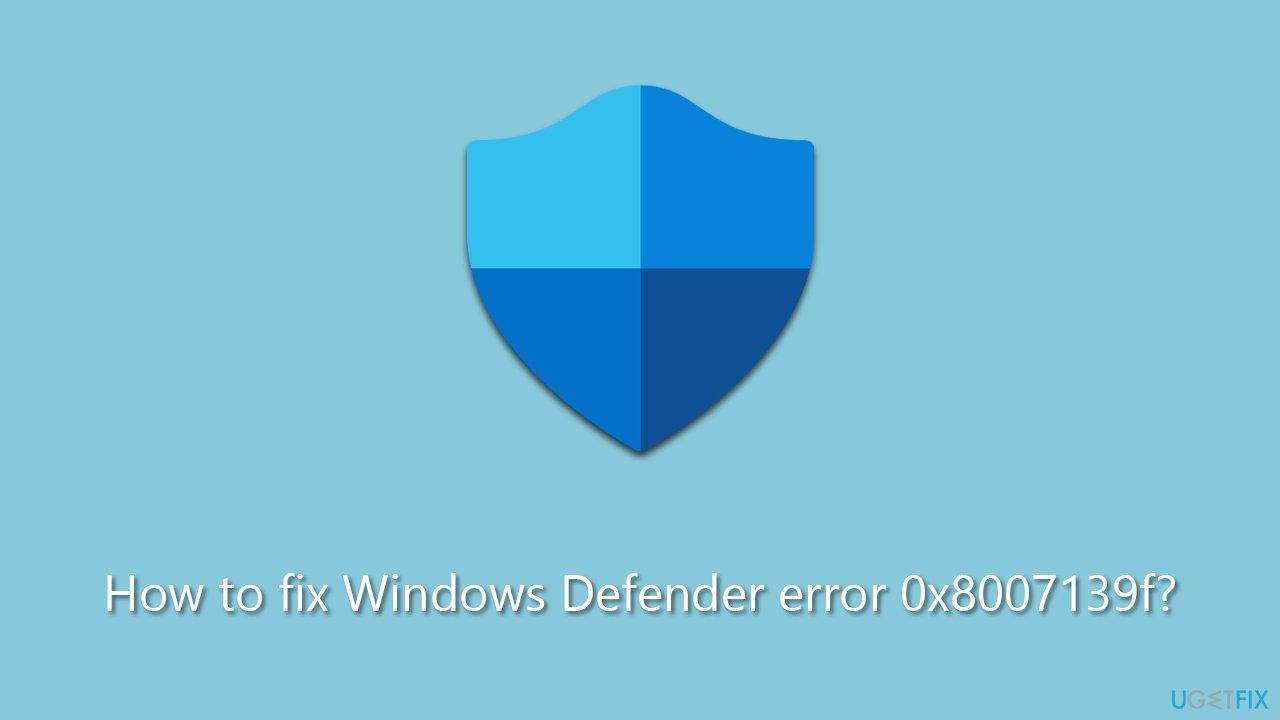
Therefore, we recommend you either disable or uninstall third-party security software. Alternatively, you would have to turn off Windows Defender, which can be done as follows:
- Type Windows Security in Windows search and press Enter.
- Go to Virus & Threat protection section.
- Under Virus & Threat protection, click Manage settings.
- Disable all the switches to the Off position here.
2. Check the service
For Defender to operate smoothly, its service needs to be running. If it is already running, you can try restarting it:
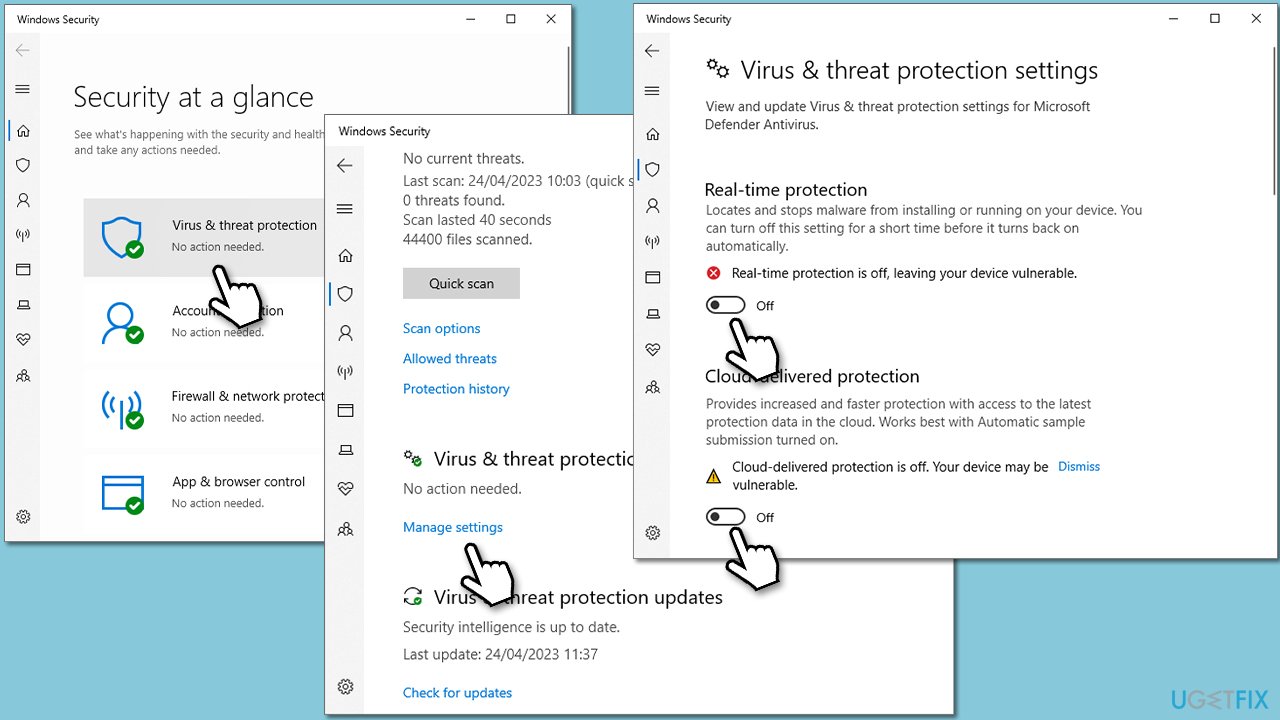
- Type Services in Windows search and hit Enter.
- In the new window, scroll down to the very bottom and find Windows Defender Advanced Threat Protection Service.
- If the service is already running, right-click and select Restart.
- If the service is not running, you will have to enable it.
- Double-click it to open its Properties.
- Under Startup type, select Automatic from the drop-down menu.
- Click Start, Apply, and OK.
3. Check for system file corruption
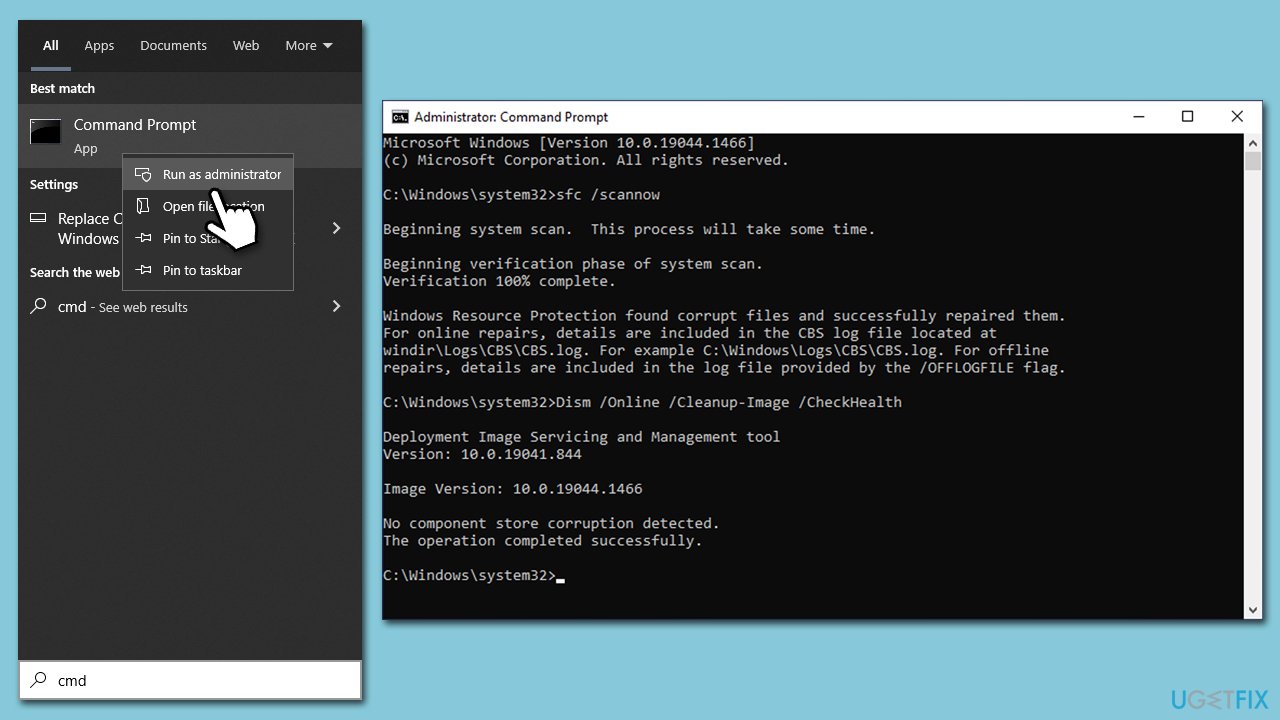
If Windows Defender registry files or other related files are damaged or corrupted, it could result in the app malfunctioning and causing errors. To address this, run SFC and DISM commands via the elevated Command Prompt:
- Type cmd in the Windows search field.
- Right-click on the Command Prompt result and select Run as administrator.
- User Account Control will ask whether you want to allow changes - click Yes.
- Use the following command lines, pressing Enter every time:
sfc /scannow
DISM /Online /Cleanup-Image /CheckHealth
DISM /Online /Cleanup-Image /ScanHealth
DISM /Online /Cleanup-Image /RestoreHealth - When done, restart your PC.
4. Reset Windows Defender
You can reset the app as follows:
- Click Start and scroll down to find the Windows Security entry from the list.
- Right-click on Windows security and go to More, then select App settings.
- Scroll down and click Terminate.
- Next, click Reset and wait.
- Open Windows Defender and see if the problem is gone.

5. Install the updates
Windows is designed as a service, hence improvements, bug fixes, and new features are constantly being introduced by Microsoft via updates. If you are experiencing a 0x8007139f error when trying o launch a Defender scan, you should update it first:
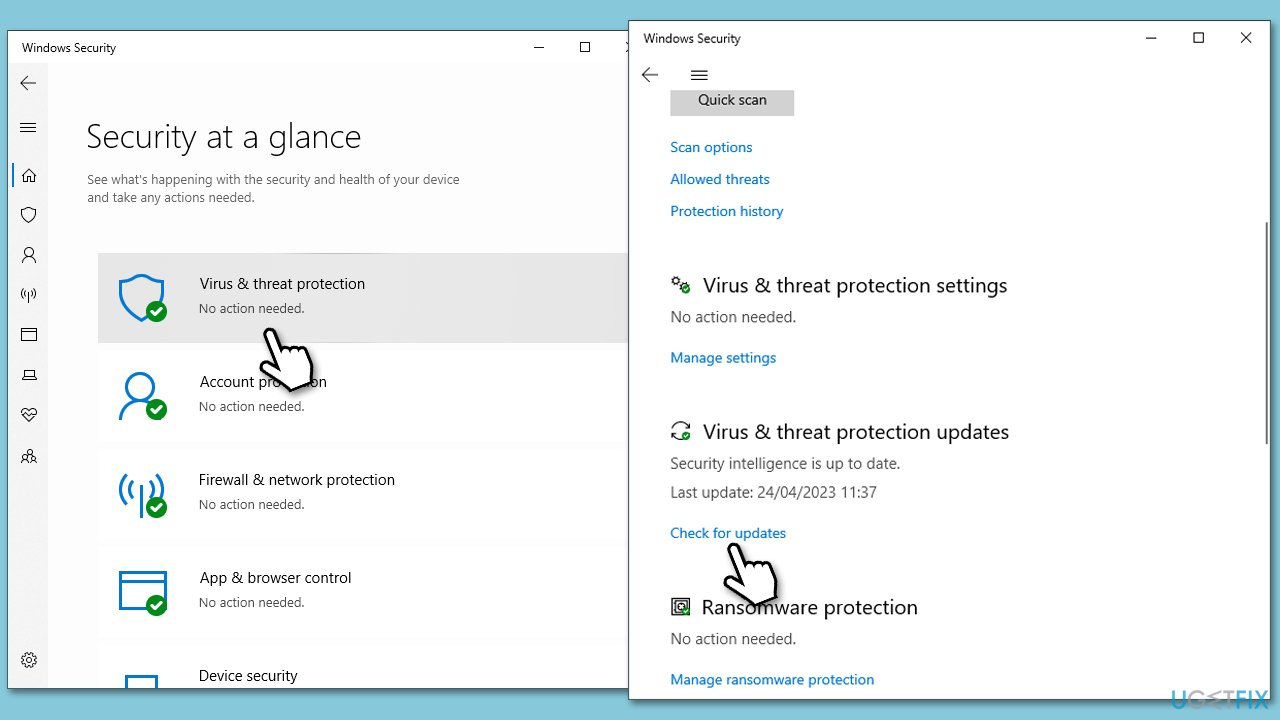
- Open Windows Windows Security.
- Click on Virus & threat protection
- Scroll down to locate Virus & threat protection updates.
- Click Check for updates.
- Wait till all the updates are installed and restart your PC.
Bottom line
To fix the Windows Defender error 0x8007139f, you can disable or remove conflicting security apps, run a full system scan using a potent PC repair tool, and ensure your computer is up-to-date with the latest software updates. If these steps do not resolve the issue, further troubleshooting may be necessary.
Frequently asked questions
The error 0x8007139f typically indicates that Windows Defender is unable to start due to a corrupted or missing file. This can occur after a system update or due to malware interference.
To fix this error, you can try resetting Windows Defender using the Command Prompt or running the Windows Security Troubleshooter. Additionally, make sure your system is updated and perform a full malware scan.
Yes, you can open Command Prompt as an administrator and run commands like 'sfc /scannow' and 'DISM /Online /Cleanup-Image /RestoreHealth' to repair system files that may be causing the error.




Report an issue
What's wrong with this guide? We review every report and update or remove content.
Report received — thank you. We'll review and fix it.
You need a free account to submit a report.
Be the first to comment