How to fix
Windows Defender Error Code 0x8e5e021f
on Windows
Resolve Windows Defender Error Code 0x8e5e021f quickly with expert-tested solutions that restore security in Windows 10 and 11. Fixed in minutes!

What causes How to Fix Windows Defender Error Code 0x8e5e021f?
- Corrupted registry entries
- Malware infection
- Conflict with another anti-virus program
- Failed Windows Defender update
Repairs Windows system files, removes malware, and restores a clean OS state — without reinstalling.
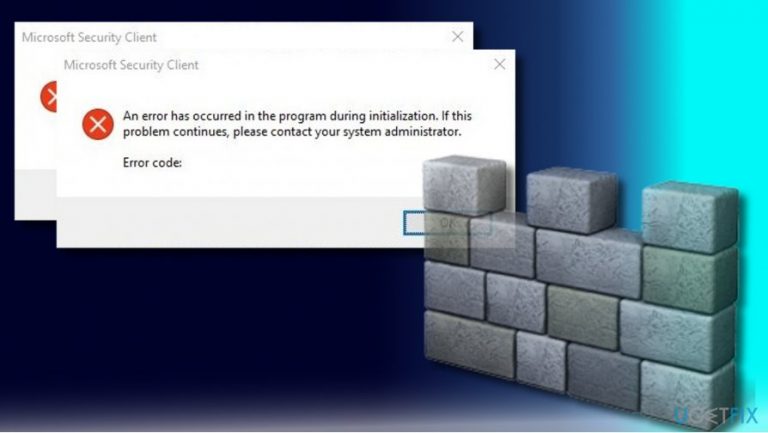
Hello all. I have a problem with Windows Defender. When I try to open it, I keep getting Microsoft Security Client error message saying: “An error has occurred in the program during initialization. If this problem continues, please contact your system administrator.” Error Code 0x8e5e021f. I suppose that the error was triggered due to failed Windows Defender update, which has been aborted in the middle of the process. I have no ideas what should I do to fix that. Could you please help?
Windows Defender is an anti-virus utility developed and signed by Microsoft. Windows XP, Vista, and 7 users were able to install it for free, except that it functioned as an antispyware tool solely. It means that for full Windows protection people had to install additional anti-virus program.
Currently, Windows Defender comes as a constituent part of Windows 8 and 10 and offers a full anti-virus service. Although the question whether Windows Defender is good enough for system’s protection is still debatable, Microsoft Community seems to believe that it’s trustful. AV-TEST test revealed that it is capable of removing 94.5% of cyber infections.
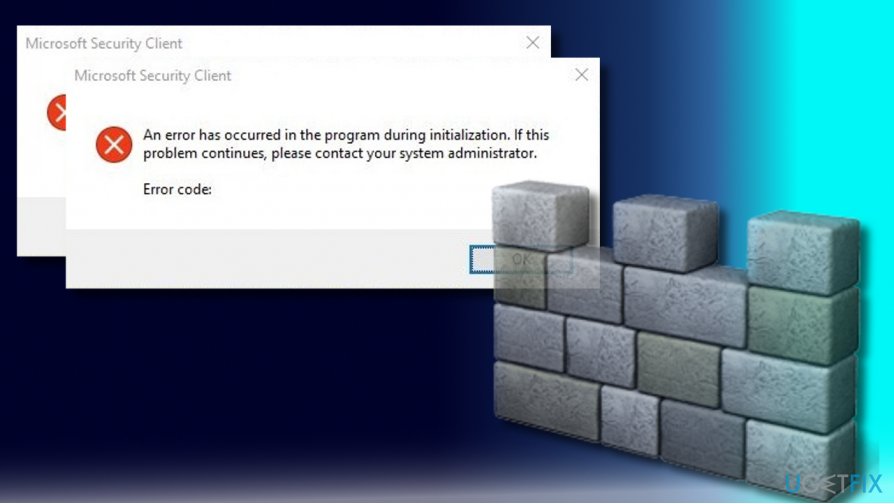
Unfortunately, Windows Defender may fail to start automatically and deliver errors when trying to open it via Action Center manually. One of the known Windows Defender bugs says: “An error has occurred in the program during initialization. If this problem continues, please contact your system administrator.” The error message indicates an Error Code 0x8e5e021f.
The culprit of the 0x8e5e021f error may be related to corrupted registry entries, malware infection, conflict with another anti-virus program, and similar issues. The exact reason for this bug differs in each instance, so try all below given methods starting from the easiest one.
A Guide on How to Fix Windows Defender Error Code 0x8e5e021f
Before trying the more advanced methods for fixing 0x8e5e021f error, please try to reboot your system a couple of times. Some people reported that the reboot was enough to resolve the problem. If that did not help, scan the system for malware. Since currently Windows Defender is not working properly on your PC, use another anti-virus tool.
However, if the scan did not help, we would highly recommend you to uninstall any third-party anti-virus and anti-spyware software even if it’s disabled currently. If you have been using another anti-virus some time ago, check the Windows Registry for its leftovers because the smallest anti-virus components may be conflicting with Windows Defender.
For thorough removal of useless system files and leftovers, you can use [d1], while [rev id="Perfect Uninstaller"] would be of use for full software removal.
Restart Security Center Service
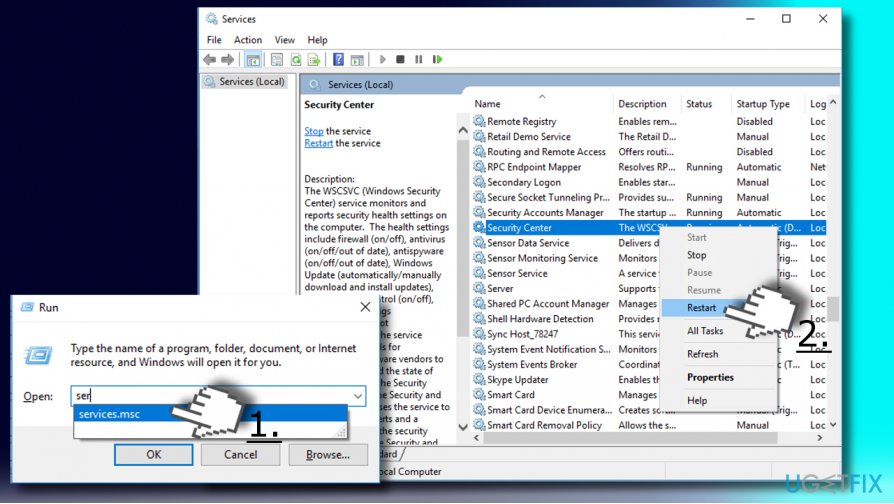
If the above-given steps did not help, we would recommend restarting Security Center Service. For this purpose, you have to:
1. Press Windows key + R, type services.msc, and press Enter.
2. Locate Security Center and right-click on it.
3. Select Restart.
Remove Conflicting Registry Entries
1. Press Windows key + R, type regedit, and press Enter.
2. Navigate to the HKEY_LOCAL_MACHINE\\Software\\Microsoft\\Windows NT\\CurrentVersion\\Image File Execution Option.
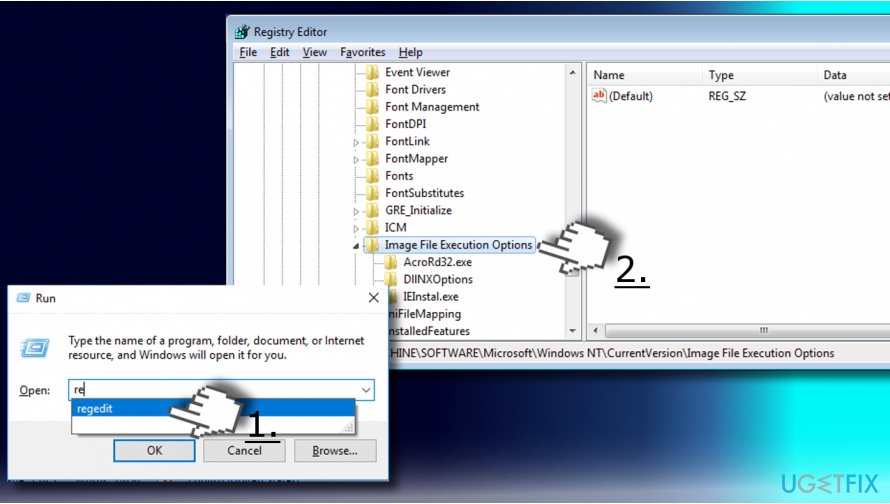
3. In the current location, look for the MSASCui.exe, MpCmdRun.exe or MsMpEng.exe entries.
4. If any of them are here, right-click in them and select Delete. In case none of the mentioned entries exist, it means that everything is OK and you don’t have to do anything.
Enable Windows Defender from Group Policy
In case the error code 0x8e5e021f says that “This app is turned off by Group Policy,” it means that Windows Defender might have been disabled by third-party antivirus. Therefore, remove third-party antivirus and then enable Windows Defender using Group Policy:
1. Press Windows key + R, type regedit, and press Enter.
2. Navigate to HKEY_LOCAL_MACHINE\\SOFTWARE\\Policies\\Microsoft\\Windows Defender directory.
3. Look for the DisableAntiSpyware entry on the right pane. If you found it, click it and change its value to 0.
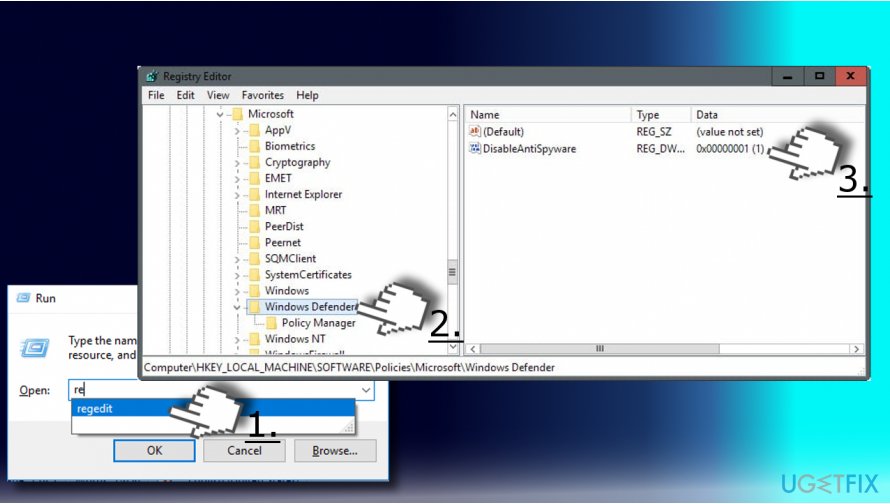
4. In case such key doesn’t exist, right-click on an empty space on Windows Defender key.
5. Select New -> DWORD and name it as DisableAntiSpyware.
6. Set its value to 0.
7. Close Registry Editor and reboot the system.
Bottom line
To fix the Windows Defender Error Code 0x8e5e021f, start by rebooting your system a couple of times, as this has resolved the issue for some users. If that doesn't work, scan your system for malware using another anti-virus program. If none of these solutions work, further advanced troubleshooting may be necessary.
Frequently asked questions
The error code 0x8e5e021f in Windows Defender suggests that there is an issue with the security settings or the antivirus definitions on your Windows 10 or Windows 11 system.
To fix this error, try updating Windows to the latest version, running a system file checker scan, or resetting Windows Defender settings in Windows 10 or Windows 11.
Yes, having a third-party antivirus installed can interfere with Windows Defender and lead to error code 0x8e5e021f; consider disabling or uninstalling the third-party software.




Report an issue
What's wrong with this guide? We review every report and update or remove content.
Report received — thank you. We'll review and fix it.
You need a free account to submit a report.
Be the first to comment