How to fix
Windows Defender Protection history missing
on Windows
Resolve the missing Windows Defender Protection history issue in Windows 10 and 11 effortlessly. Expert-tested solutions for quick fixes!

What causes How to fix Windows Defender Protection history missing in Windows?
- General bugs
- Corrupted system files
- Missing Windows updates
- Issues with Microsoft Defender application
- False positive detections
Repairs Windows system files, removes malware, and restores a clean OS state — without reinstalling.
Last week, I began experiencing an issue that caused the protection history for Windows Defender to show empty results despite receiving notifications of programs being blocked. Before that, whenever I used to get a false positive and I would like to unblock the app, it would be easy to do via Protection history, which is now missing.
Microsoft Defender (previously known as Windows Defender) is a comprehensive security solution from Microsoft that helps protect your computer systems, networks, and data from malicious actors. It utilizes a host of tools, such as anti-malware, firewall protection, and other security features to defend against common threats.
With Microsoft Defender, you can detect and prevent viruses and other types of malicious software before they can cause damage to your organization or its data. Additionally, Microsoft Defender helps you monitor and respond to potential security incidents in a timely manner. As this happens, users would get a notification at the bottom-right of their screens, which would indicate that a threat has been found.
Unfortunately, some users have experienced issues with the app, and there are plenty. This time, we will be talking about Microsoft Defender not showing Protection history, which may sound insignificant but is actually quite a big problem. After users get a pop-up about the infection, they can not check properly what the detection is, or how to handle it further.
Usually, missing Protection history is caused by general bugs or corrupted system files. These issues can be addressed in numerous ways - we provide them below. If you want to try a quicker solution, we recommend running a scan with an automatic PC repair tool [d1] as well.
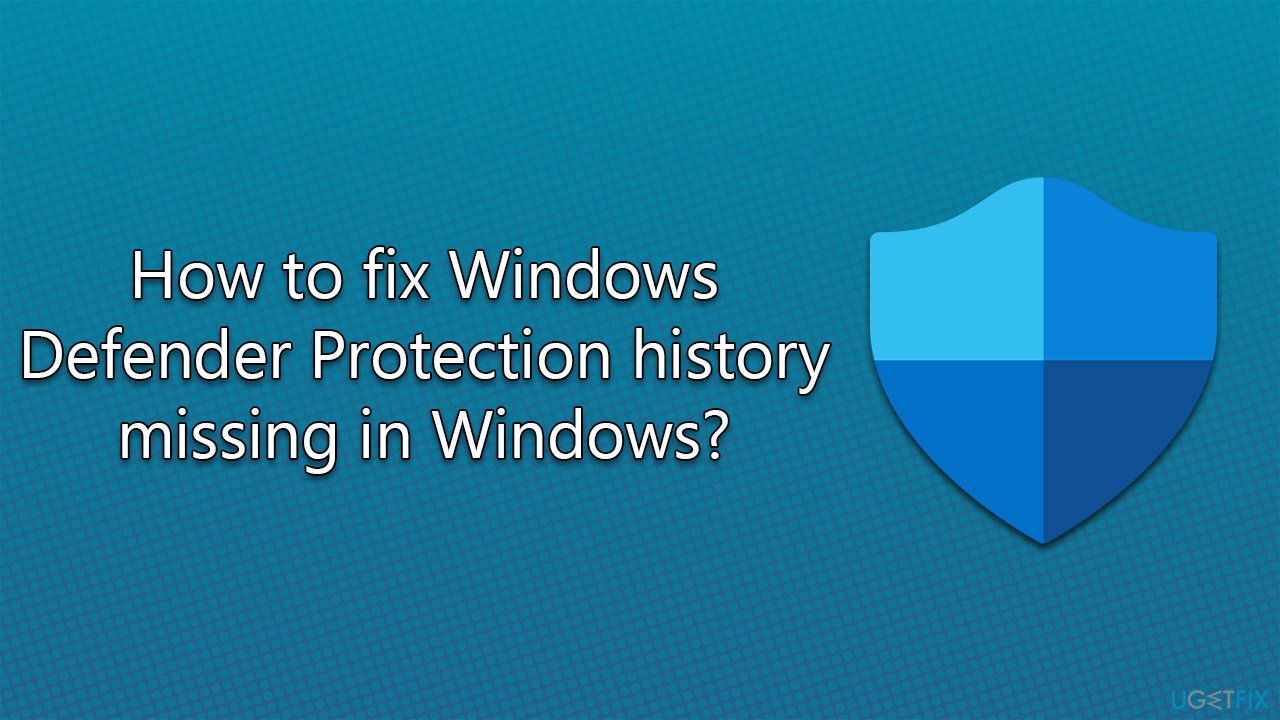
Fix 1. Install all available Windows updates
- Type Updates in Windows search and hit Enter
- On the right side, click Check for updates
- Wait till all the data is downloaded and installed, and don't forget to install all the optional updates
- After it's done, reboot the computer
Fix 2. Check for corrupted system files
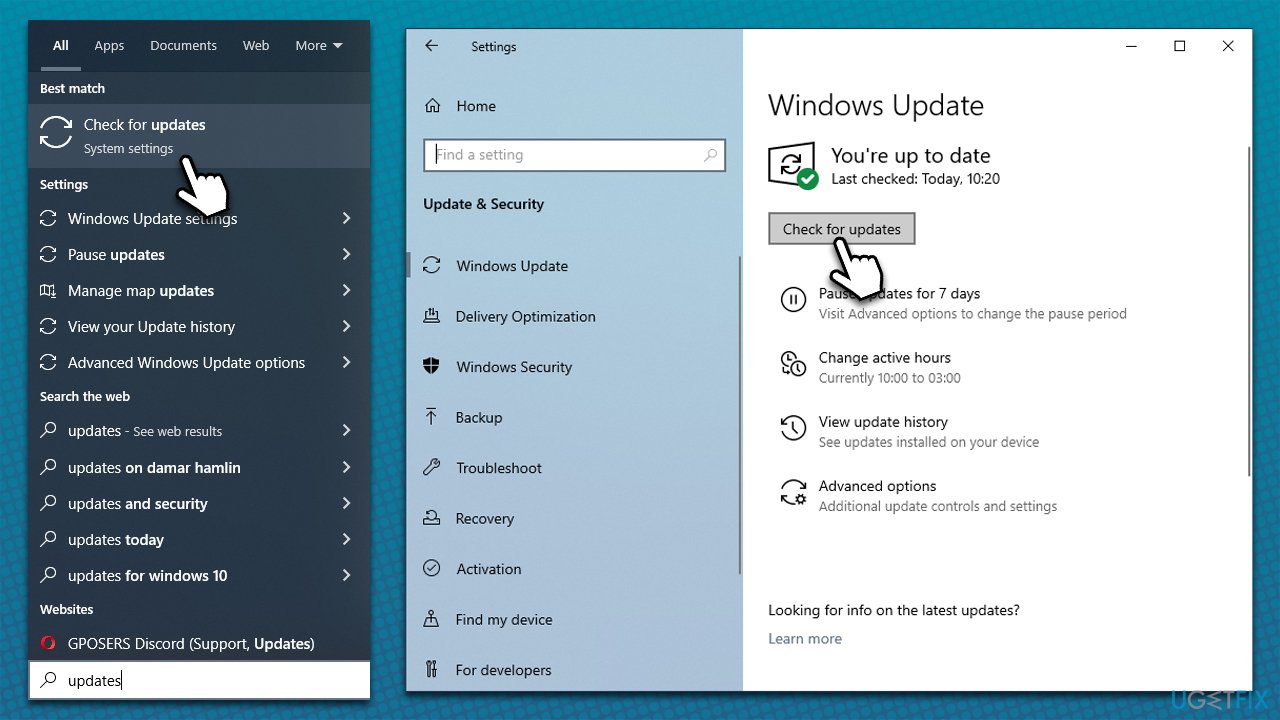
System file corruption is one of the most common reasons for Windows apps malfunctioning, so make sure you repair those files using SFC and DISM commands via an elevated Command Prompt.
- Type cmd in Windows search
- Right-click on the Command Prompt result and select Run as administrator
- When User Account Control (UAC) window shows up, click Yes
- In the new window, type in the following commands, pressing Enter after each:
sfc /scannow
How to fix windows error 0x800701e1 run sfc scan
DISM /Online /Cleanup-Image /CheckHealth
DISM /Online /Cleanup-Image /ScanHealth
DISM /Online /Cleanup-Image /RestoreHealth - Restart your system after each of these commands is executed.
Fix 3. Reset Windows Defender
Resetting the app may help, so please follow these steps:
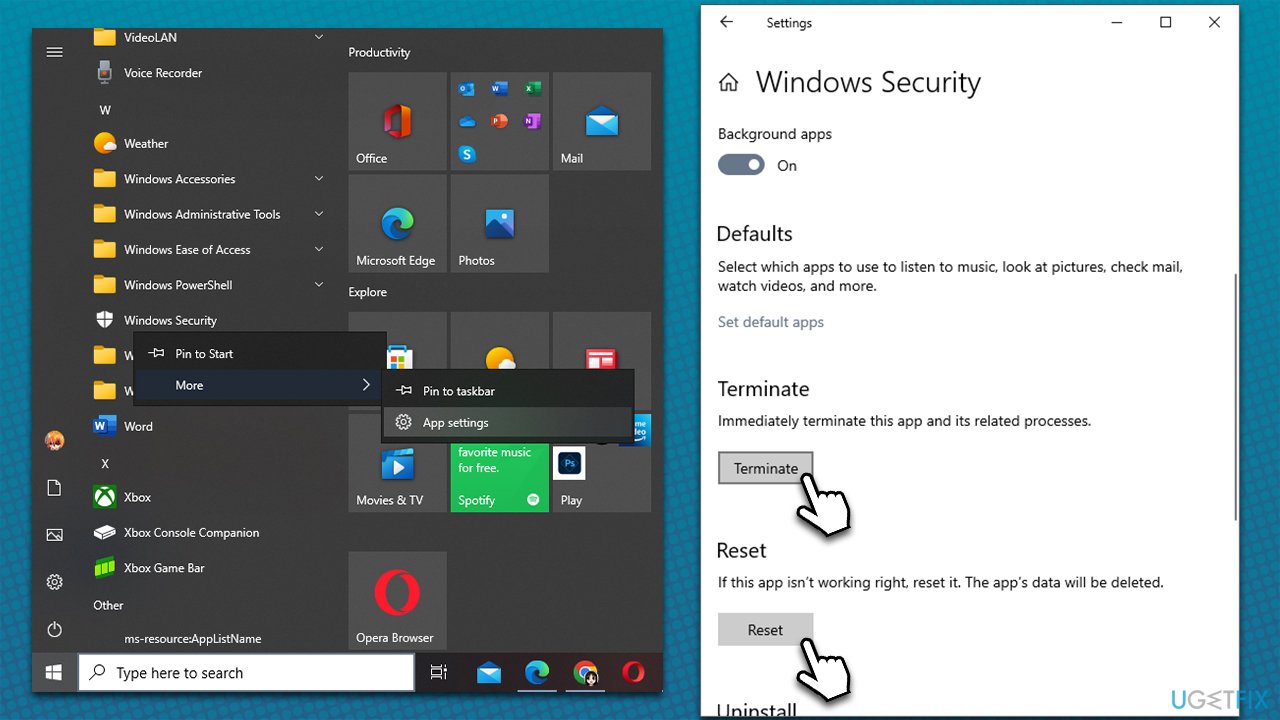
- Click Start and scroll down to find the Windows Security entry from the list
- Right-click on Windows security and go to More tools, then select App settings
- Scroll down and click Terminate
- Next, click Reset and wait
- Open Windows Defender and see if the Protection history is back.
Fix 4. Check if another program is interfering with Windows Defender
If you have another app installed for security, it may interfere with the work of Defender. To check this, please follow these steps:
- Type Security and Maintenance in the Windows search field and hit Enter
- Expand Security section
- If another app (not Windows Defender) is listed here, you should uninstall it.
Fix 5. Delete detection history
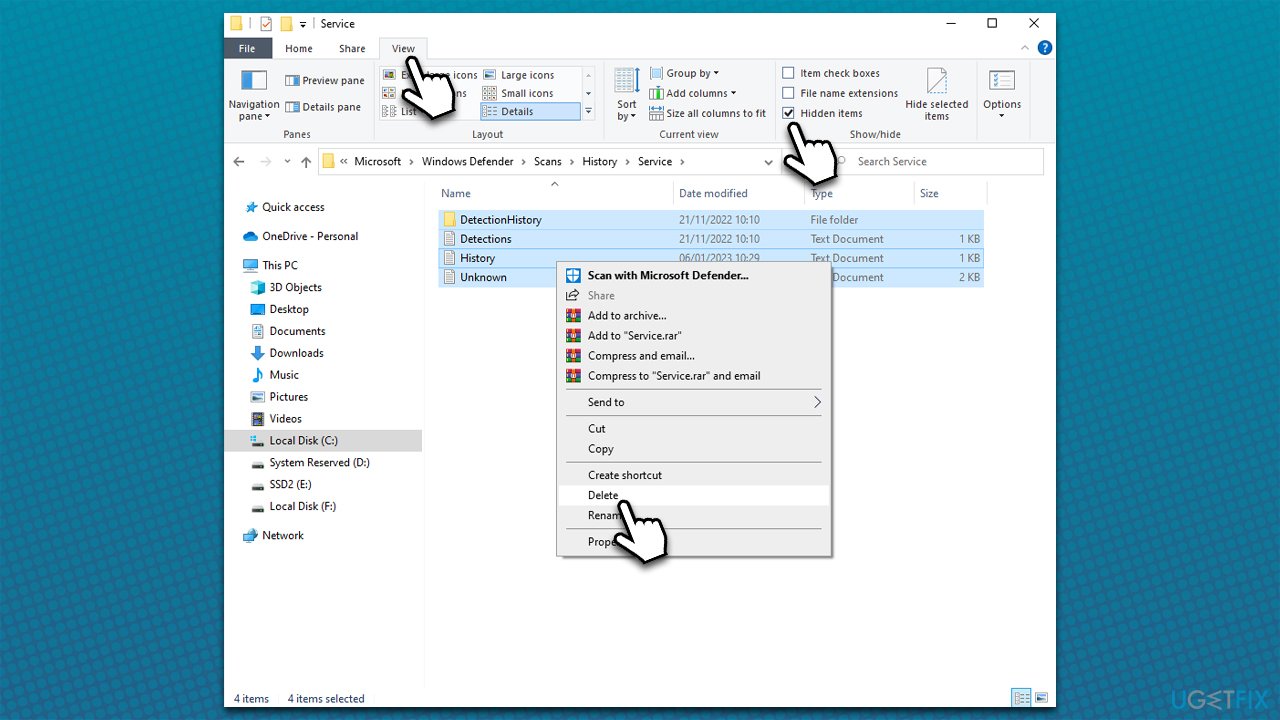
- Open File Explorer by pressing Win + E
- At the top of the window, select the View tab
- Mark the Hidden items checkbox
- Now navigate to the following location:
C:\ProgramData\Microsoft\Windows Defender\Scans\History - Delete the contents of Service folder by pressing Shift + Del on your keyboard or right-click > Delete
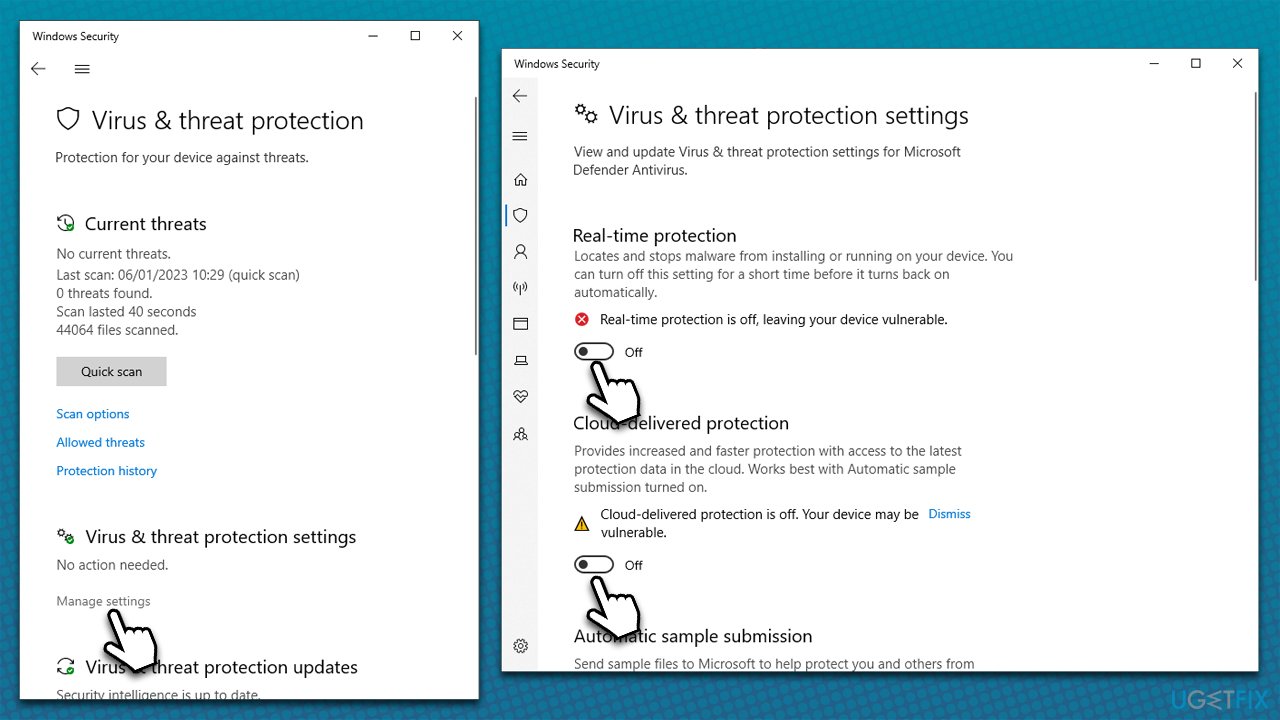
- Next, open Windows Security
- Go to Virus and threat protection > Virus & threat protection settings > Manage settings
- Disable Real-time protection and Cloud-delivered protection
- Restart your PC.
In case any of these steps fail to work, use Command Prompt instead:
- Open Command prompt as administrator as we explained earlier
- In the new window, copy and paste the following commands, pressing Enter after each:
del "C:\ProgramData\Microsoft\Windows Defender\Scans\mpcache*" /s > NUL 2>&1
del "C:\ProgramData\Microsoft\Windows Defender\Scans\History\Service\DetectionHistory\*"
del "C:\ProgramData\Microsoft\Windows Defender\Scans\mpenginedb.db" - Close down Command Prompt and restart your system.
Bottom line
To fix the missing Protection history in Windows Defender, you can install all available Windows updates and check for corrupted system files. If these solutions do not resolve the issue, consider running a scan with an automatic PC repair tool.
Frequently asked questions
First, try restarting your computer to see if it resolves the issue. If not, check for Windows updates and ensure that Windows Defender is enabled in the settings.
You can reset the Windows Security app by going to Settings > Apps > Apps & features, finding Windows Security, and selecting 'Advanced options' to reset it. Additionally, running a System File Checker scan might help fix any underlying issues.
You can try accessing the history through the Windows Security app by navigating to 'Virus & threat protection' and clicking on 'Protection history.' If it still doesn't appear, consider reinstalling Windows Defender.




Report an issue
What's wrong with this guide? We review every report and update or remove content.
Report received — thank you. We'll review and fix it.
You need a free account to submit a report.
Be the first to comment