How to fix
Windows Defender Runtime error 1297
on Windows
Resolve Windows Defender Runtime error 1297 effortlessly with our expert-tested solutions. Get your Windows 10 or Windows 11 system running smoothly again!

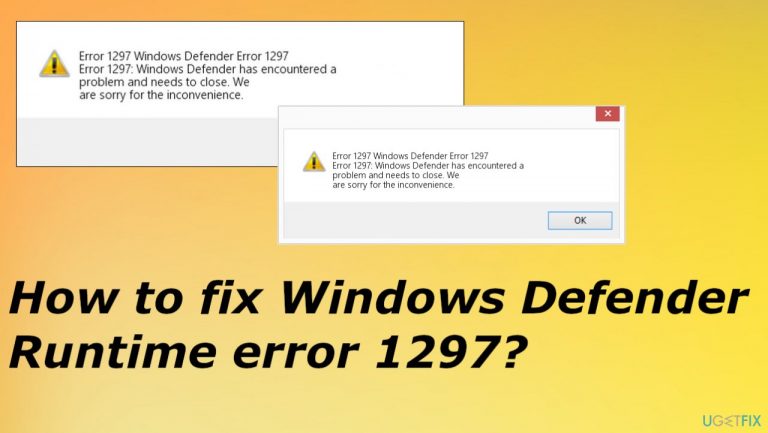
What causes How to fix Windows Defender Runtime error 1297?
- Conflicting third-party applications
- Outdated drivers
- Corrupted system files
- Incompatible operating system versions
- Malware interference
Repairs Windows system files, removes malware, and restores a clean OS state — without reinstalling.
I have defender problems after the upgrade to Windows 11. I need help. It is not opening for me and I get the error code 1297 and an indication that there are some problems and it needs to close. It sometimes opens up, runs, but crashes and still shows the runtime error code. I guess it is inaccessible, so the machine is not kept secure. Can you help me?
Windows Defender Runtime error 1297 is the problem that occurs when Windows Defender fails or crashes during a common operation. This is one of many errors that users report[ref en-1] encountering with the Windows security solution. The error is not indicating that the program is corrupted or not performing.
Different programs can interfere with the process of this feature, and Runtime code appears. This application can be incompatible and clash, so third-party apps should be uninstalled to solve this scenario. That can be an issue triggered by outdated or corrupted drivers too for these functions or programs.
It is common when data is corrupted or altered to receive error messages. Those files can be damaged by malware[ref en-2] or other programs and be leftover for the incorrect installation. Windows Defender Runtime error 1297 can be fixed by running a tool like [d1] that finds and repairs those affected system pieces.
Outdated operating systems and incorrectly installed Windows can be the reason for this error and program failure. When it happens, system functions become incompatible with other installed applications, so these errors get displayed. You might want to check for the latest OS versions to fix Windows Defender Runtime error 1297.
It is common for the latest versions of the operating system to be still corrupted,[ref en-3] so the newer upgrade can solve common errors for you. You should solve these common issues and then see if the error still appears to bother you. Pay attention to these steps for the best results.
1. Uninstall conflicting applications
- Type Control Panel in the search area of the taskbar and click Open.
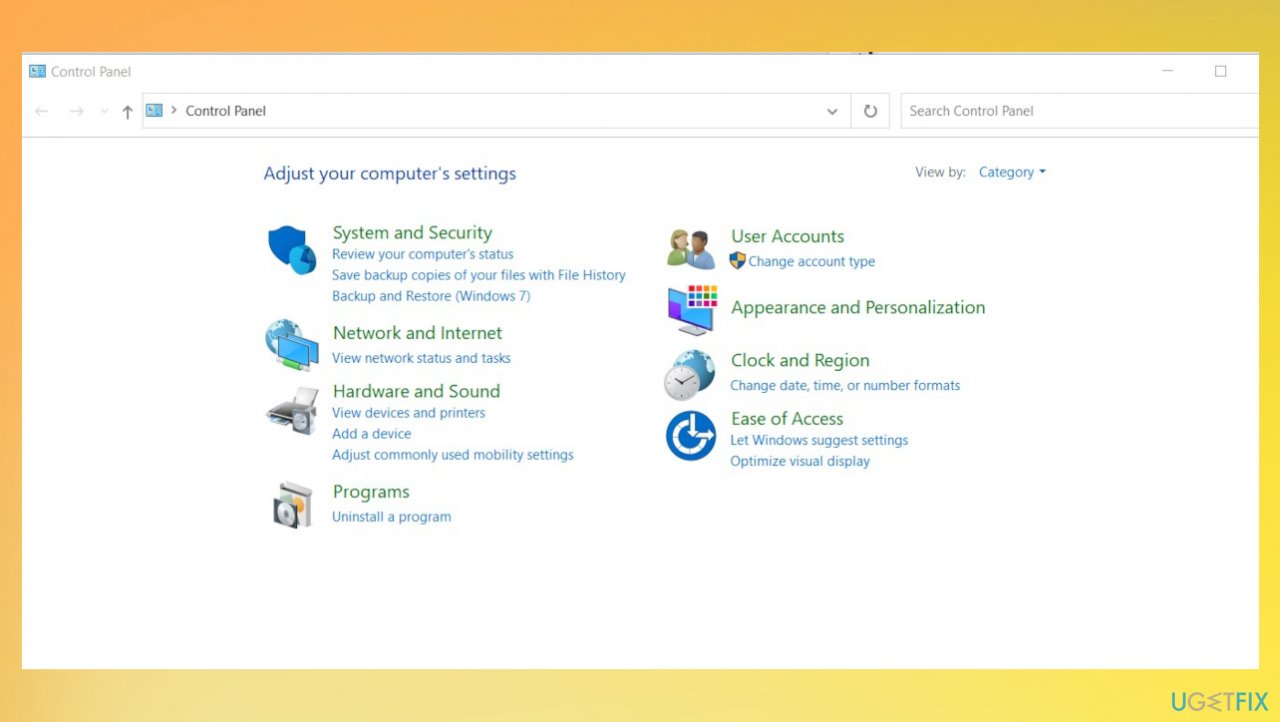
Windows defender runtime error 1297 control panel - Inside the Control Panel window, click on Uninstall a program.
- Now, locate and right-click on the targeted application in the Programs and Features window.
- Choose Uninstall from the context menu.
- Wait for the uninstallation process to complete.
2. Check for the latest Windows updates
- Press Windows + I keys together to open Settings.
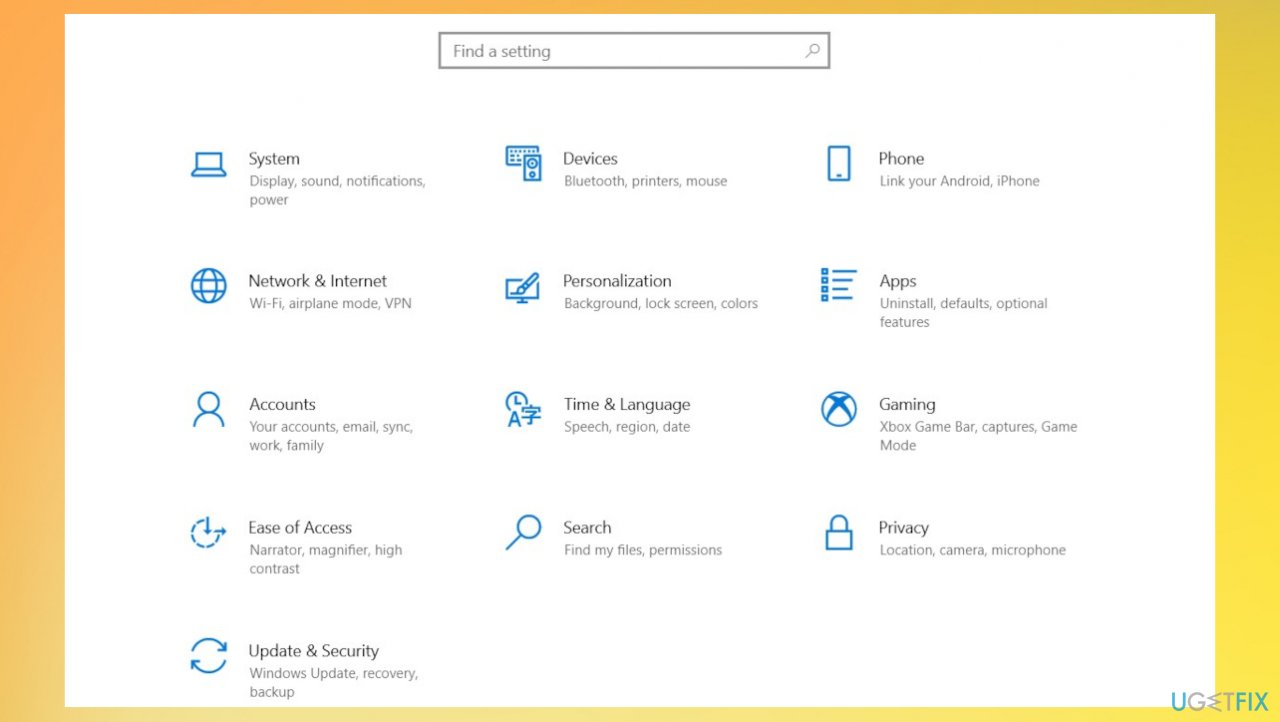
Windows defender runtime error 1297 settings - Click on Updates & Security in the following window.
- Click on Check for updates on the right side of the window.
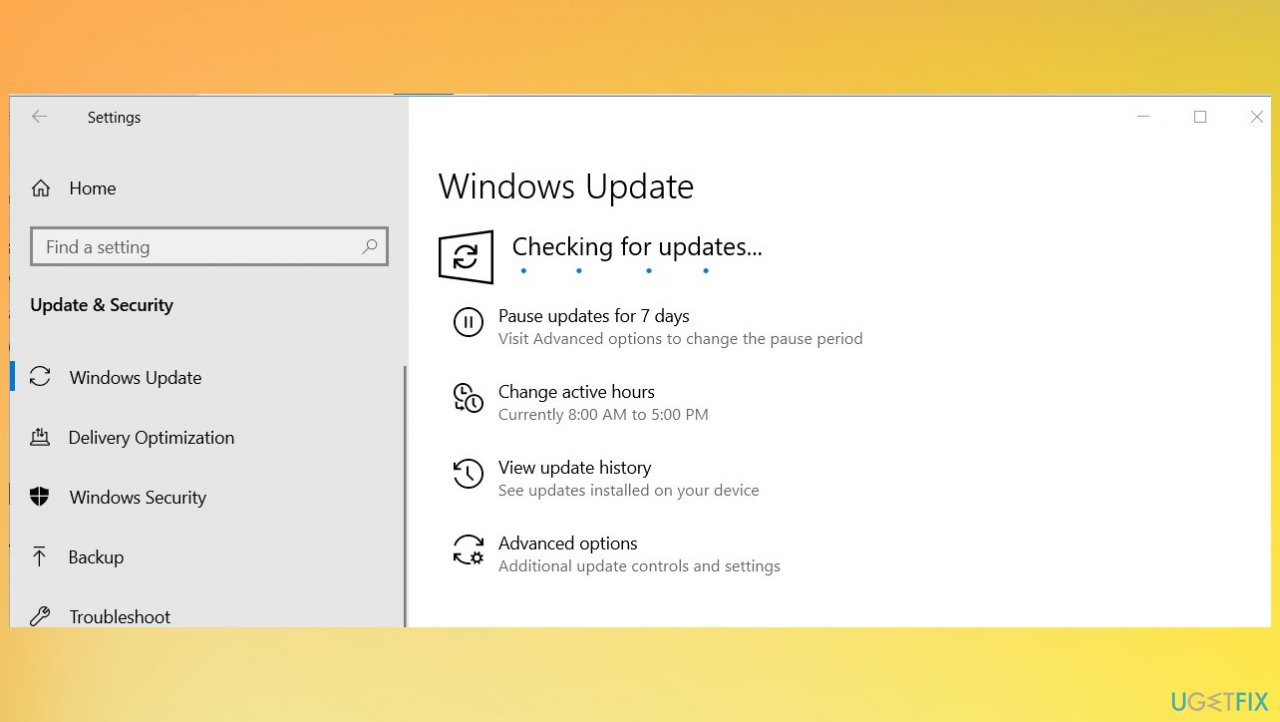
Windows defender runtime error 1297 update - Windows will now initiate a scan for updates, so wait.
3. Update the graphics driver
- Type Device Manager in the search and click Open.
- Find Display adapters and expand the list by clicking on the arrow.
- Locate your graphics driver and right-click on it.
- Choose Update driver from the context menu.
- Choose Search automatically for drivers and wait for the available update to show up.
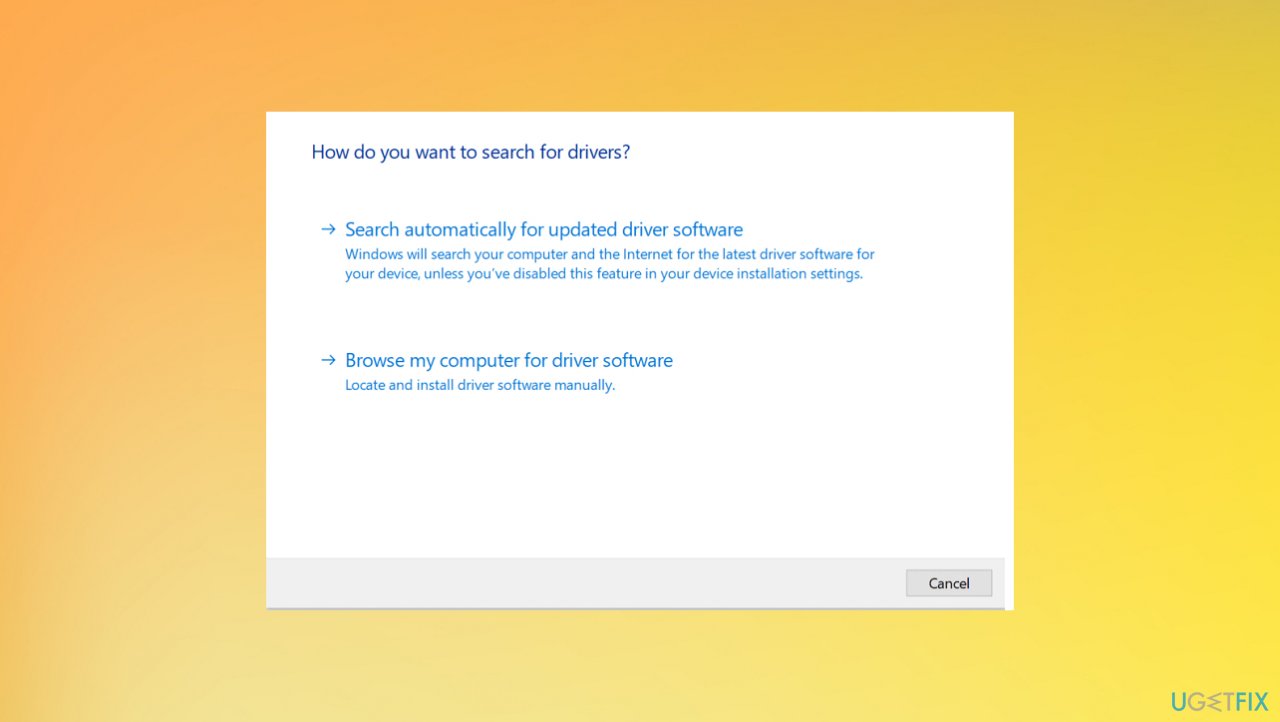
Windows defender runtime error 1297 driver option - You can also use the automatic tool like [rev id="DriverFix"] for this.
4. Repair corrupted files
- Search for CMD in the search bar.
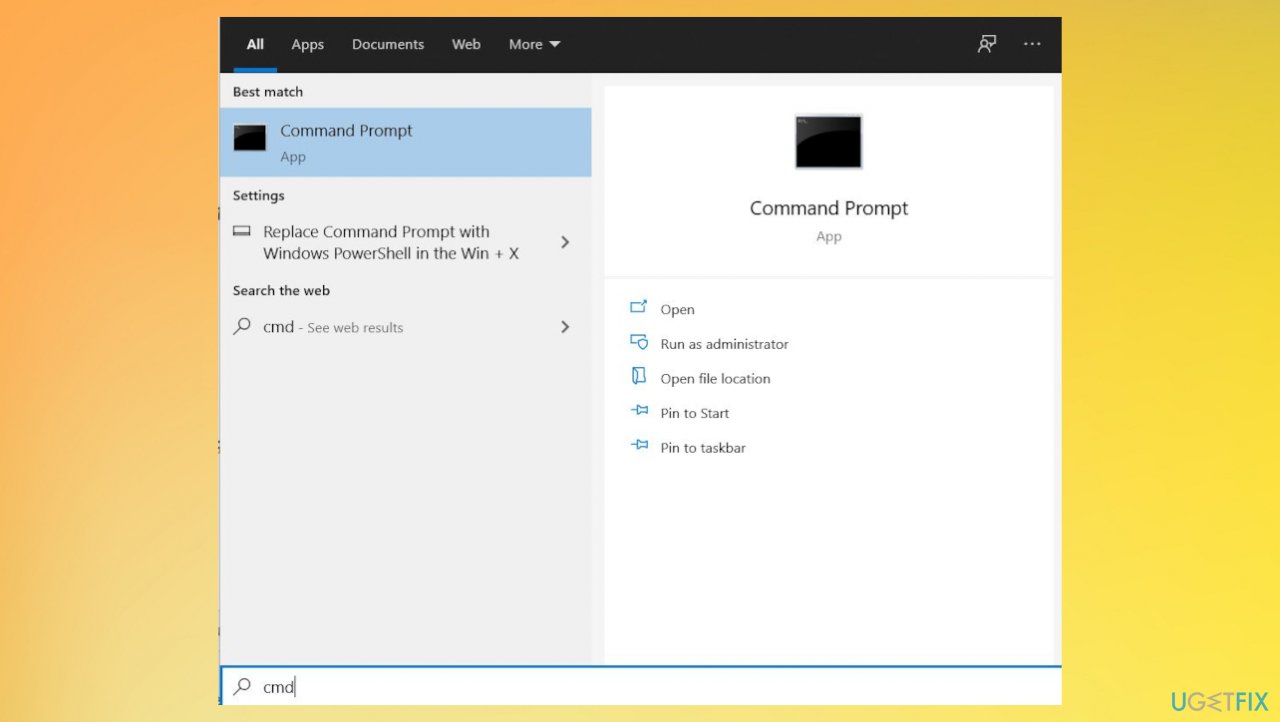
Windows defender runtime error 1297 cmd - Choose Command Prompt with Admin rights.
- Type sfc /scannow and hit Enter.
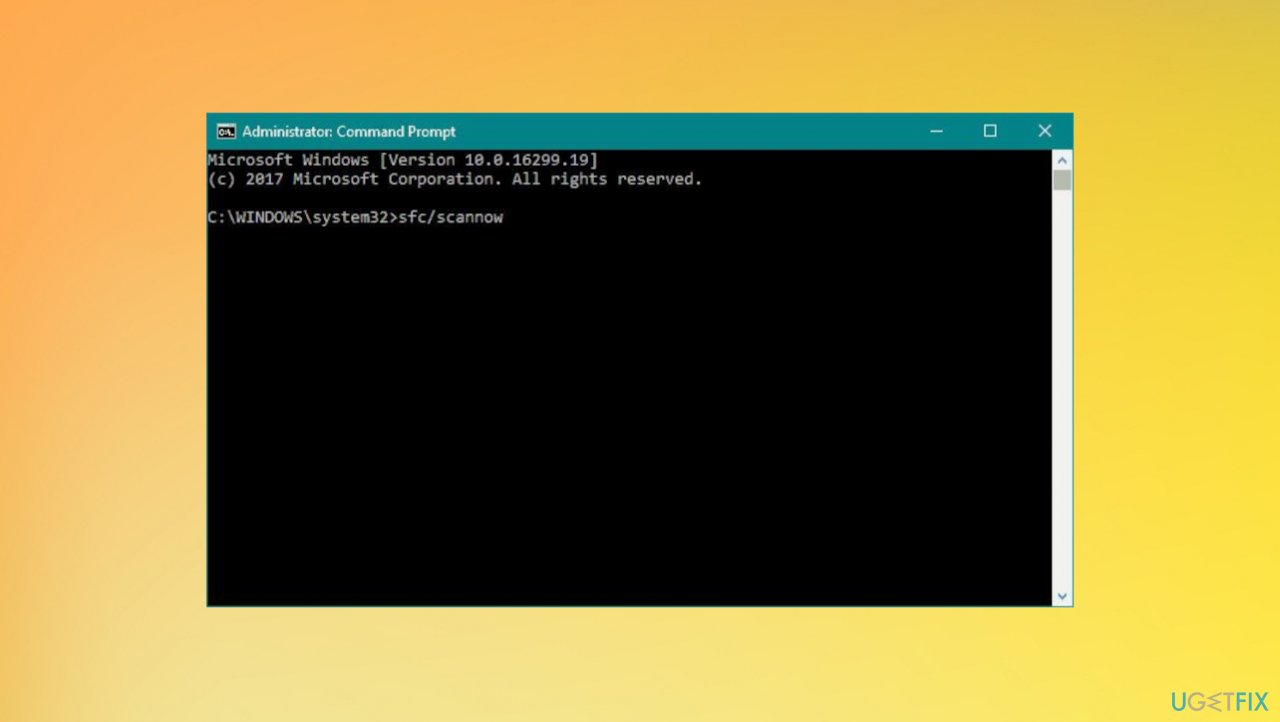
Windows defender runtime error 1297 sfc scan - Wait for the process to end and repair any files if that is possible.
5. Reset Windows
- Open Settings.
- Choose Recovery under the System tab.
- Or Search for Recovery in settings.
- Locate the Reset PC section.
- Hit the Get started button.
Bottom line
To fix Windows Defender Runtime error 1297, you can uninstall conflicting applications, check for outdated drivers, and ensure your operating system is up to date. If these solutions do not resolve the issue, consider running a repair tool to fix affected system components.
Frequently asked questions
Windows Defender Runtime error 1297 typically occurs due to corrupted system files, incorrect settings, or conflicts with other security software installed on your system.
You can resolve error 1297 by running the System File Checker tool and performing a full system scan to repair any corrupted files affecting Windows Defender.
To prevent error 1297, ensure that your Windows 10 or Windows 11 system is regularly updated and avoid using multiple antivirus programs simultaneously.




Report an issue
What's wrong with this guide? We review every report and update or remove content.
Report received — thank you. We'll review and fix it.
You need a free account to submit a report.
Be the first to comment