How to fix
Windows Defender Update Failure with an Error Code 0x80070643
on Windows
Resolve Windows Defender update issues and error code 0x80070643 effortlessly. Follow our expert-tested solutions for a hassle-free fix today!


What causes How to Fix Windows Defender Update Failure with an Error Code 0x80070643?
- Conflicts with third-party antivirus software
- Corrupted Windows Update components
- Outdated Windows Defender definitions
- Issues with system files
- Improperly configured system settings
Repairs Windows system files, removes malware, and restores a clean OS state — without reinstalling.
Hello. Windows Defender update (KB2267602) fails to install due to the error 0x80070643. Does anyone know why this error shows up and how to fix it? Thanks!
Windows Defender[ref en-1] is a built-in security tool that protects your computer in real-time against various threats such as viruses, malware, and spyware. Microsoft regularly releases updates for Windows Defender to ensure that it is always up to date with the most recent virus definitions and security patches.
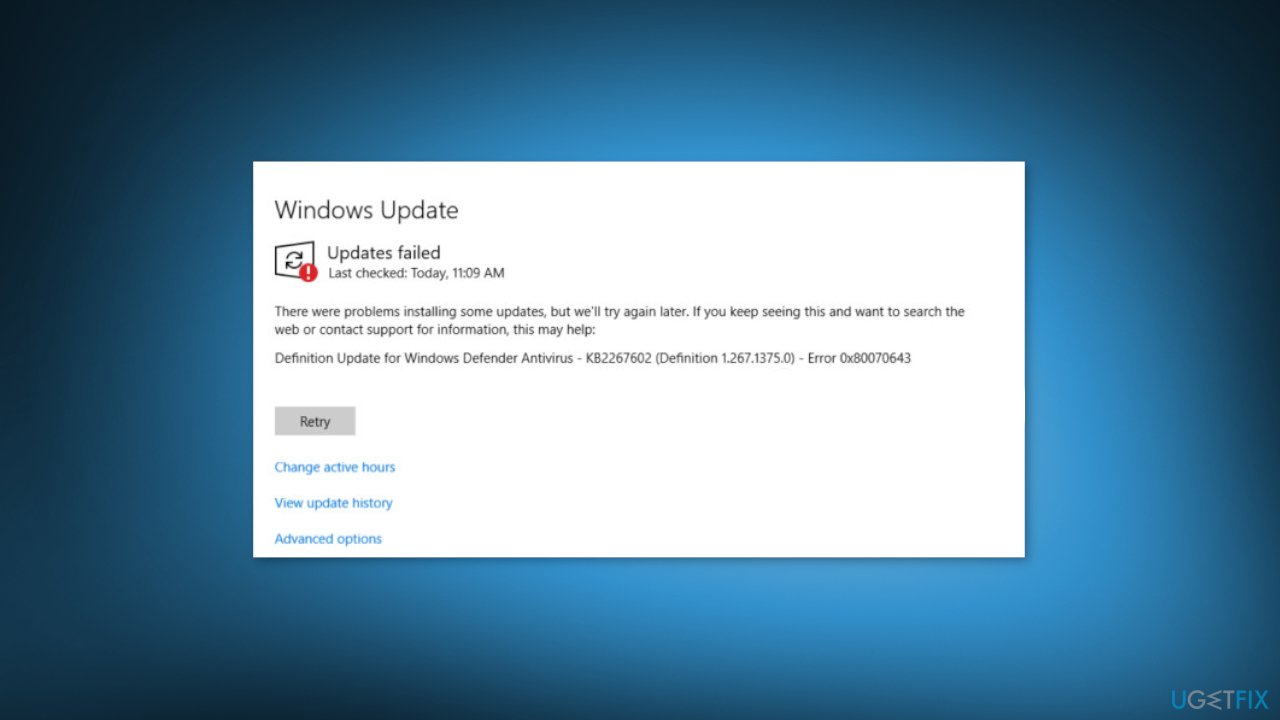
When attempting to install Windows Defender updates, such as the KB2267602 update, some users have reported receiving the error code 0x80070643. This error can prevent updates from properly installing, leaving the system vulnerable to security threats. The complete error message is as follows:
There were problems installing some updates, but we’ll try again later. If you keep seeing this, and want to search the web or contact support for information, this may help. Definition Update for Windows Defender - Error 0x80070643.
Windows Defender updates are important because they help to protect your computer from the most recent security threats, such as viruses, malware, and spyware. If the updates fail to install or are out of date, your computer may be infected with malicious software.
Restarting the Windows Update service, running the Windows Update troubleshooter, or manually downloading and installing updates from the Microsoft Update Catalog are all possible solutions to this problem. It should be noted, however, that these solutions may differ depending on the specific cause of the error code 0x80070643 and the user's system configuration.
In this guide, you will find 8 steps that should help you fix Windows Defender Update Error Code 0x80070643. You can also consider using a system repair tool like [d1] that can fix most system errors, BSODs,[ref en-2] corrupted files, and registry[ref en-3] issues. Otherwise, follow the step-by-step instructions.
Method 1. Remove Third-party Antivirus
It's likely that you're already aware that two antivirus programs cannot effectively operate on the same system simultaneously. Each security tool is made up of numerous files that are installed in different locations throughout the system. As a result, if one antivirus program is not uninstalled properly, it may cause issues with the installation or operation of another program, which could lead to system errors like the Windows Defender update error 0x80070643.
If you've previously used a different antivirus program, it's important to check for any remaining files or components. To do this, you can use a specific antivirus removal tool that can typically be found on the official website of the software you previously used.
Method 2. Fix Corrupted System Files
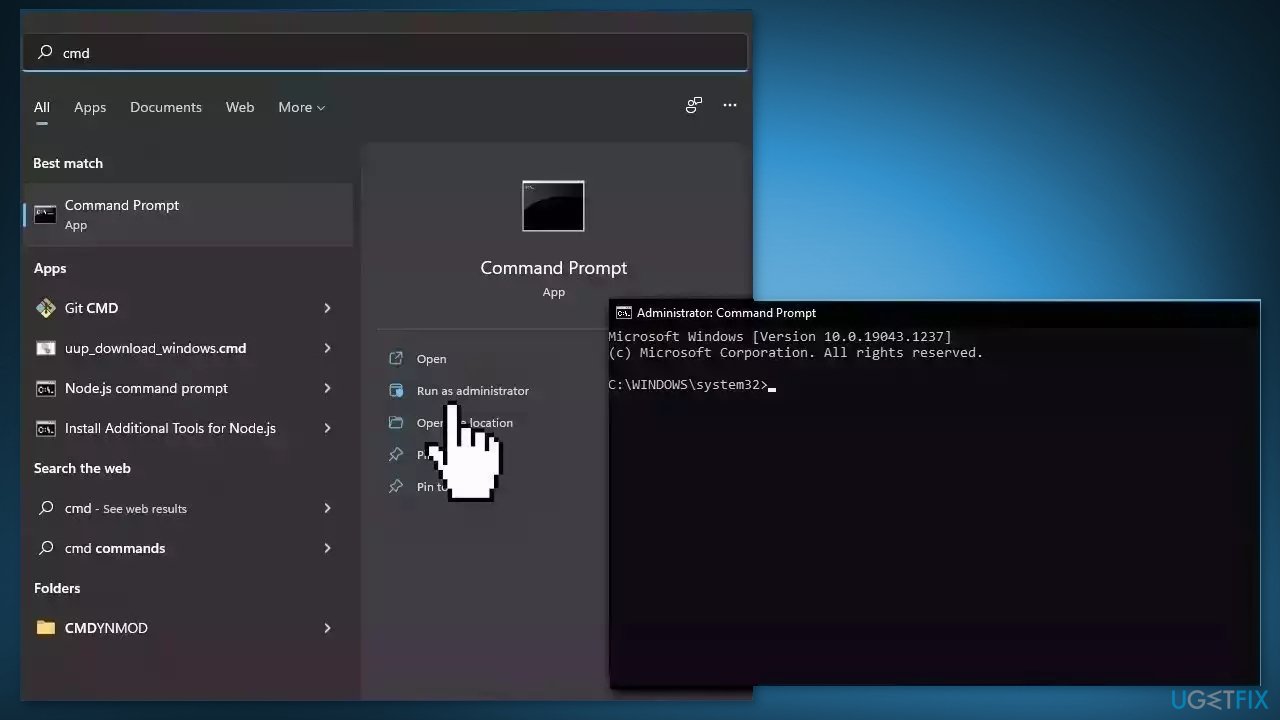
Use Command Prompt commands to repair system file corruption:
- Open Command Prompt as administrator
- Use the following command and press Enter:
sfc /scannow
- Reboot your system
- If SFC returned an error, then use the following command lines, pressing Enter after each:
DISM /Online /Cleanup-Image /CheckHealth
DISM /Online /Cleanup-Image /ScanHealth
DISM /Online /Cleanup-Image /RestoreHealth
Method 3. Restart the Security Center Service
- Press the Windows key + R to open the Run dialog box.
- Type services.msc in the Run box and press Enter. This will open the Services window.
- Look for Security Center in the list of services.
- Right-click on Security Center and select Restart from the context menu.
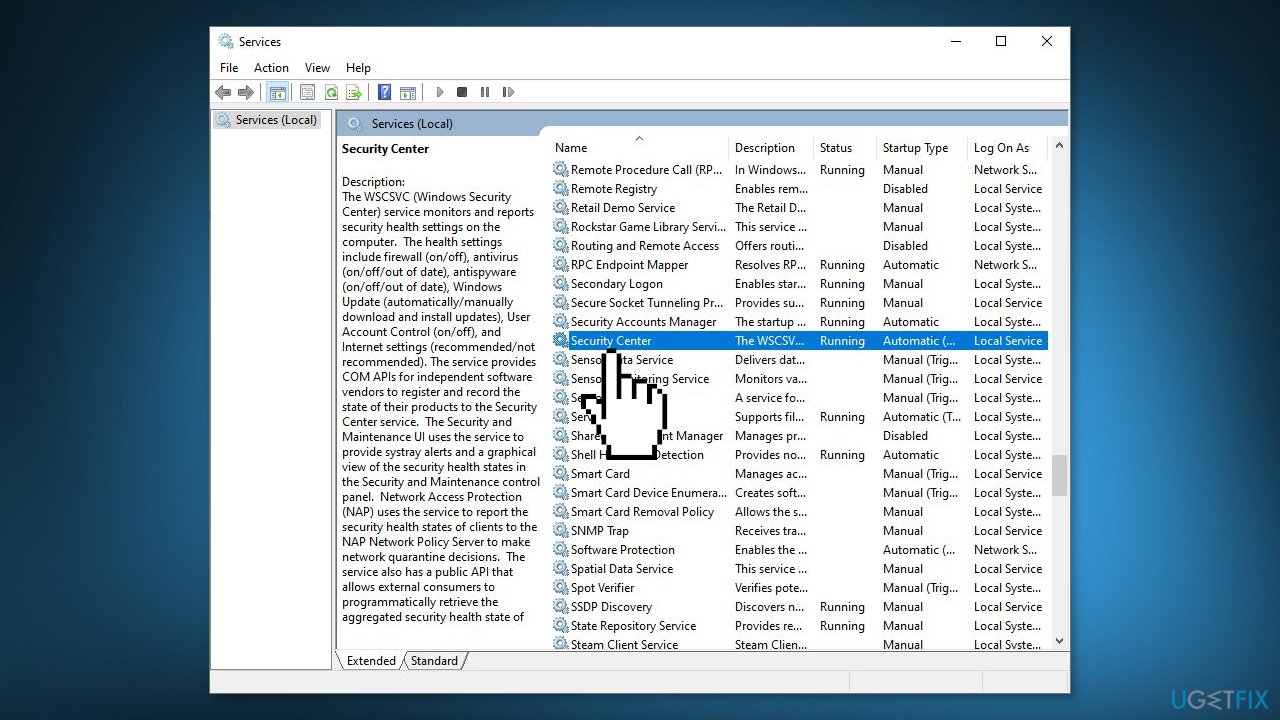
- Wait a few seconds for the Security Center service to restart.
- Once the service has restarted, close the Services window.
Method 4. Reset Windows Update Components
- Click on the Windows Start menu and search for Command Prompt
- Right-click on Command Prompt and select Run as administrator
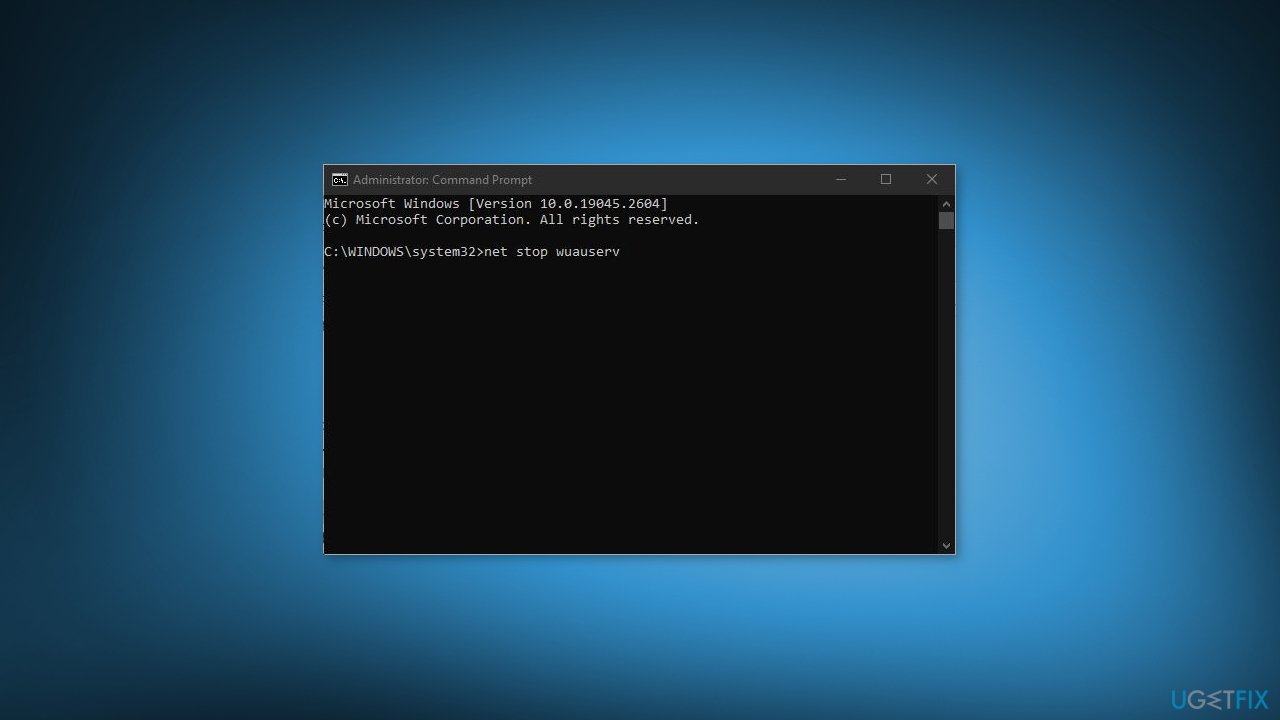
- Type the following commands one by one and press Enter:
net stop wuauserv
net stop cryptSvc
net stop bits
net stop msiserver
ren C:WindowsSoftwareDistribution SoftwareDistribution.old ren C:WindowsSystem32catroot2 Catroot2.old
net start wuauserv
net start cryptSvc
net start bits
net start msiserver
- Close the Command Prompt and check if the issue is fixed.
Method 5. Try Clean Boot
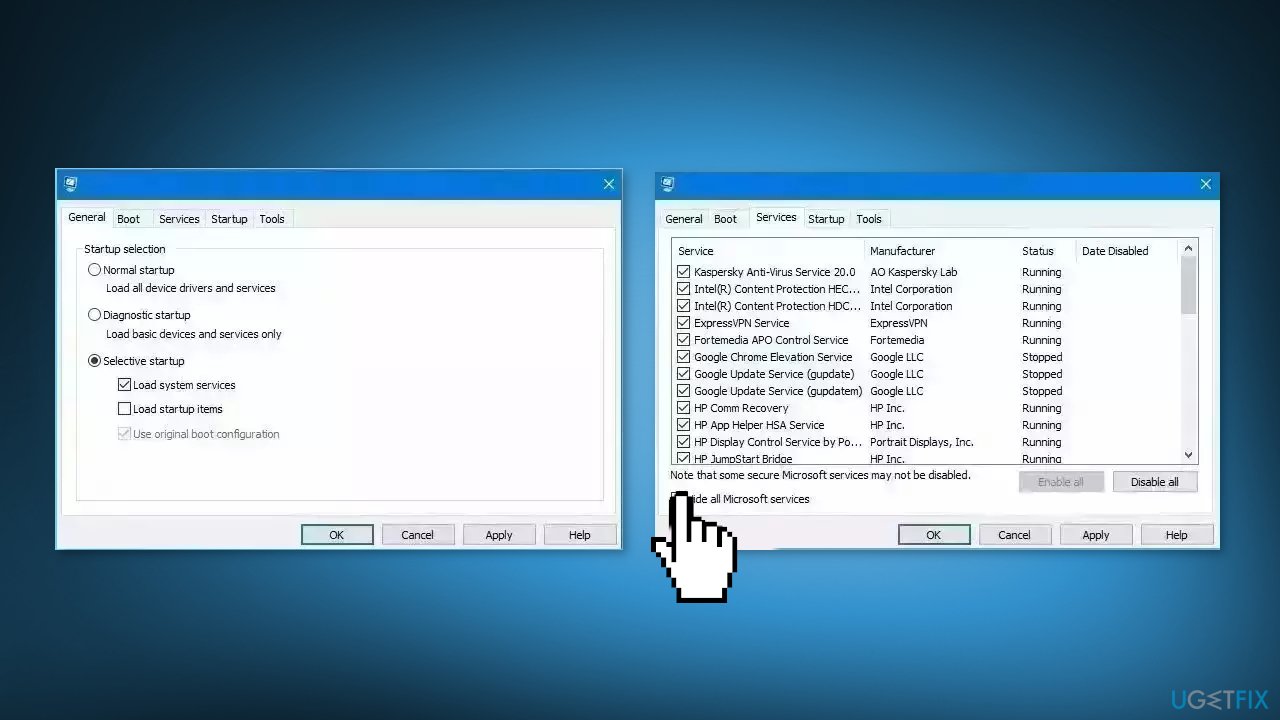
- Open the Search menu, type in system configuration, and press Enter
- Under the Services tab, tick the Hide all Microsoft services box
- Click on Disable all button
- Head over to the Startup tab and click on Open Task Manager
- Select a third-party program and click on Disable at the top
- Repeat this step to disable all third-party apps and programs
- Restart your PC to enter the clean boot state and see if the issue persists
- If the issue disappeared in the clean boot state, then you can be certain that a third-party app is causing it
- Go through all recently installed apps or programs and remove them one by one
Method 6. Install the Update Manually
- Open a web browser and go to Microsoft's Malware Protection Center portal.
- Navigate to the Updates section of the website.
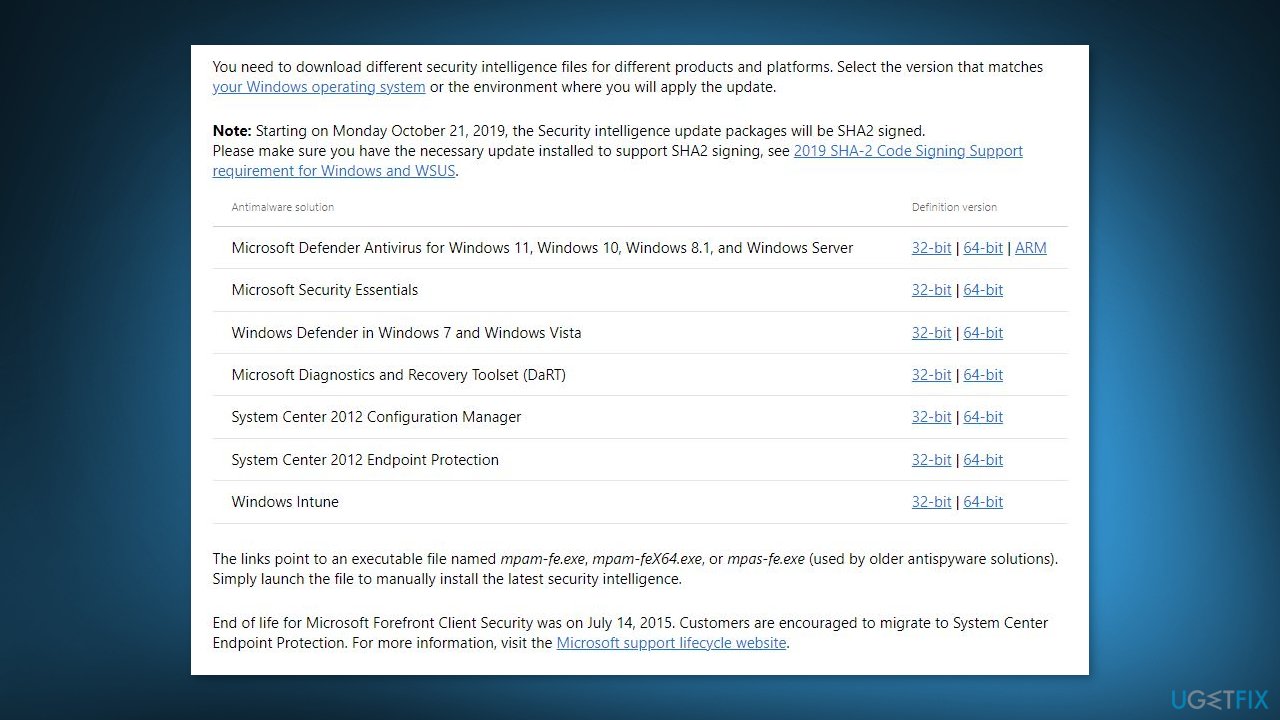
- Locate the Antimalware, antispyware updates, and Network Inspection System updates that are available for your system.
- Click on the download link for the updates you want to install.
- Follow the on-screen instructions to download the update files to your computer.
- Once the update files have been downloaded, double-click on each file to begin the installation process.
- Follow the on-screen instructions to complete the installation of each update.
- Restart your computer if necessary to ensure that the updates are properly installed.
Note: To confirm that the update was successful, you can check the Windows Defender Client UI to verify that it shows the latest version of the threat definitions.
Method 7. Disable .NET Framework
- Press the Windows key + S on your keyboard.
- In the search bar, type features and select Turn Windows features on or off from the results.
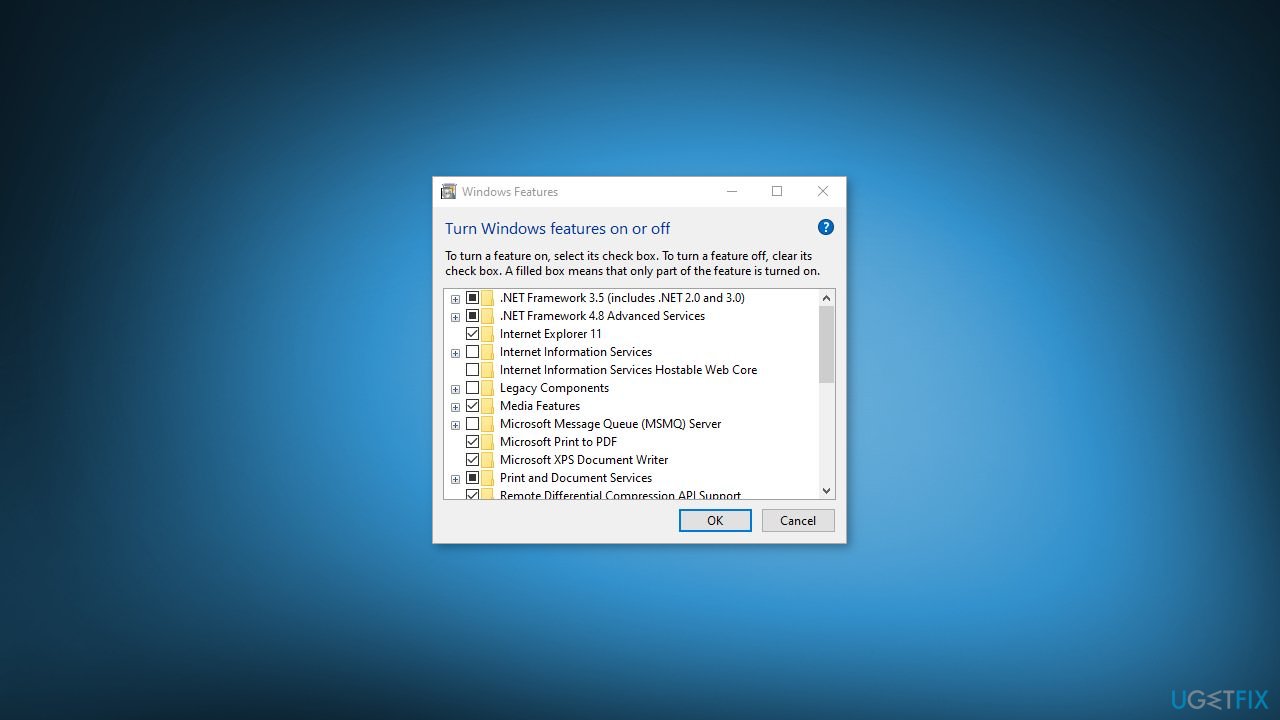
- In the Windows Features window that appears, scroll down to find Windows Communication Foundation HTTP Activation and Windows Communication Foundation Non-HTTP Activation.
- Uncheck the boxes next to both of these features to disable them.
- Click OK to save the changes.
- Restart your computer to ensure that the changes take effect.
- After the computer restarts, check to see if the problem has been resolved.
Method 8. Check Windows Defender Updates
- Press the Windows key + I on your keyboard to quickly open the Settings app.
- Go to the Update & Security section.
- In the left pane, select Windows Defender.
- Click on the Open Windows Defender Security Center button.
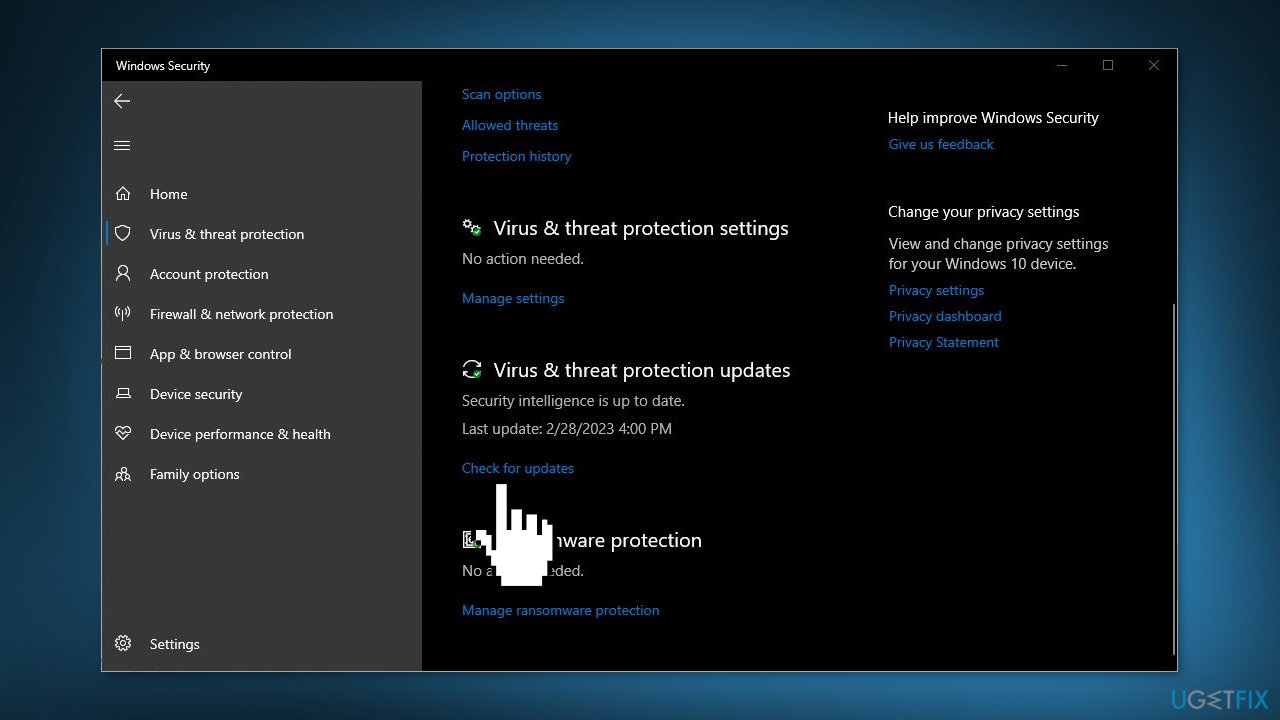
- In the Windows Defender Security Center, go to the Virus & threat protection section.
- Now, click on Protection updates.
- Click on the Check for updates button.
Bottom line
To fix the Windows Defender update failure with error code 0x80070643, you can try removing any third-party antivirus software, restarting the Windows Update service, running the Windows Update troubleshooter, or manually downloading updates from the Microsoft Update Catalog. If these solutions do not resolve the issue, consider using a system repair tool or further investigating the specific cause of the error.
Frequently asked questions
The error code 0x80070643 signifies a problem with the installation of Windows Defender updates, often related to corrupted files or issues with the Windows Update service.
You can resolve the error by running the Windows Update Troubleshooter, resetting the Windows Update components, or performing a System File Checker scan to repair corrupted system files.
Yes, you can run the 'sfc /scannow' command in Command Prompt to check for and repair corrupted files, and also use 'DISM /Online /Cleanup-Image /RestoreHealth' to fix any issues with the Windows image.




Report an issue
What's wrong with this guide? We review every report and update or remove content.
Report received — thank you. We'll review and fix it.
You need a free account to submit a report.
Be the first to comment