How to fix
Windows Defender won’t open
on Windows
Resolve Windows Defender issues quickly on Windows 11. Our expert-tested guide ensures your security is restored in minutes, with clear instructions.


What causes How to fix Windows Defender won’t open in Windows 11?
- Missing or corrupted files on the machine
- Missing system data or components needed for the upgrade
- User account issues
- Administrative privileges not used
- Improper completion of the operating system upgrade
Repairs Windows system files, removes malware, and restores a clean OS state — without reinstalling.
Hello. I think the update to Windows 11 was a mistake. I have problems with Windows Defender now. It won't open and I cannot launch Windows Security at all. It sometimes opens, but disappears and it cannot be launched. I don't know if it is running on the computer or not at this point. I am desperate, so please, help me.
Windows Security is the antivirus program that is designed to protect the computer from various outside threats. The issue when Windows Defender won't open in Windows 11 is the problem that users report online these days.[ref en-1] If this happens and you don't have a reliable antivirus tool running, security issues and cyber attacks might occur.
It is crucial for the security of the machine to have the program working all the time and at its best, so malware[ref en-2] infections can be avoided. You might need to change user accounts, log in as admin to check for the issues, or use one of the fixes that are listed below.
Windows Defender won't open in Windows 11 problem can sometimes occur due to the missing or corrupted files on the machine. You can experience additional issues because of the missing system data or components that were needed for the upgrade of the operating system. Once those are missing, the procedure is not properly ended.
If you experience these issues, errors, or see some performance problems, you can run a system check with [d1] that indicates any issues with files or virus damage. This is the way to check for Windows OS update[ref en-3] issues and the way to possibly fix Windows Defender won't open in Windows 11. Other solutions we listed include your involvement, so you should pay attention to these steps below.
1. Repair and Reset the Windows Security App
- Go to Settings.
- Select Apps.
- Go to Apps & features.
- Locate the Windows Security app.
- Click on the three dots and select Advanced options.
- Hit the Repair button.
- If the issue persists, hit the Reset button.
2. Run SFC and DISM scans
- Click on the Search icon and enter cmd in the Search field.
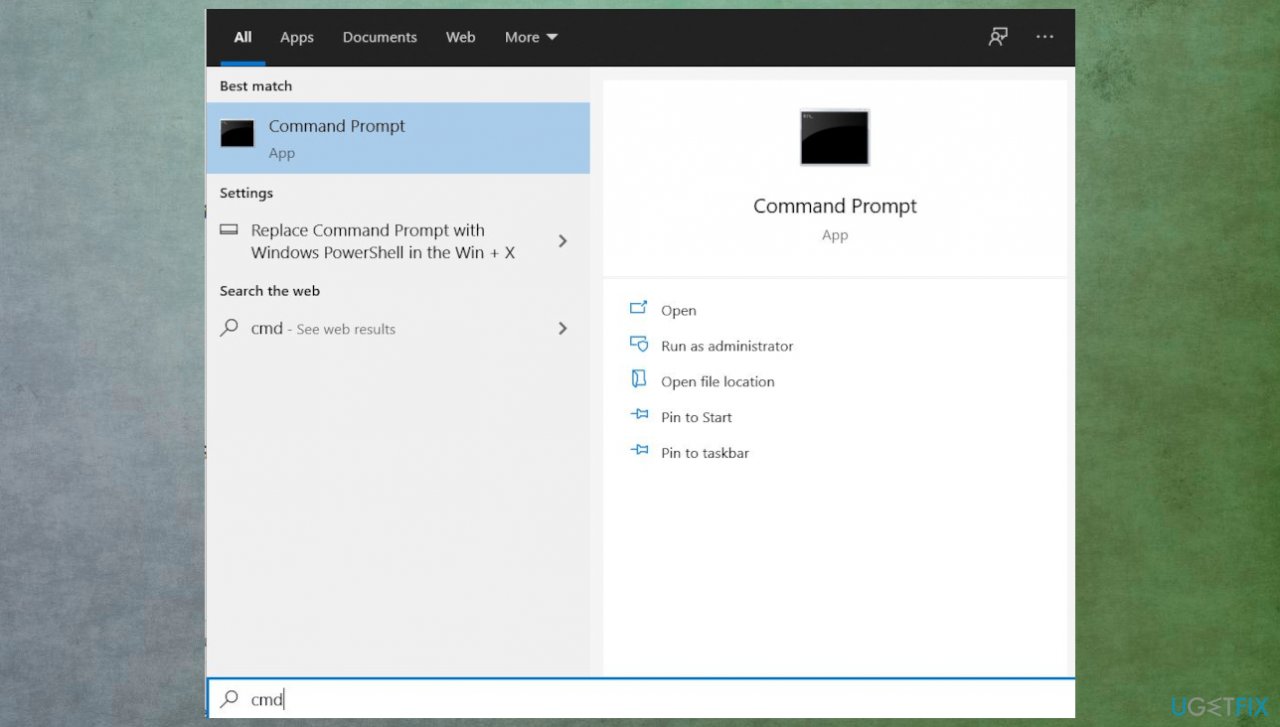
Windows defender not working windows 11 cmd - Right-click on Command Prompt and select Run as administrator.
- Then, run the sfc /scannow command. Wait until the SFC tool scans your system.
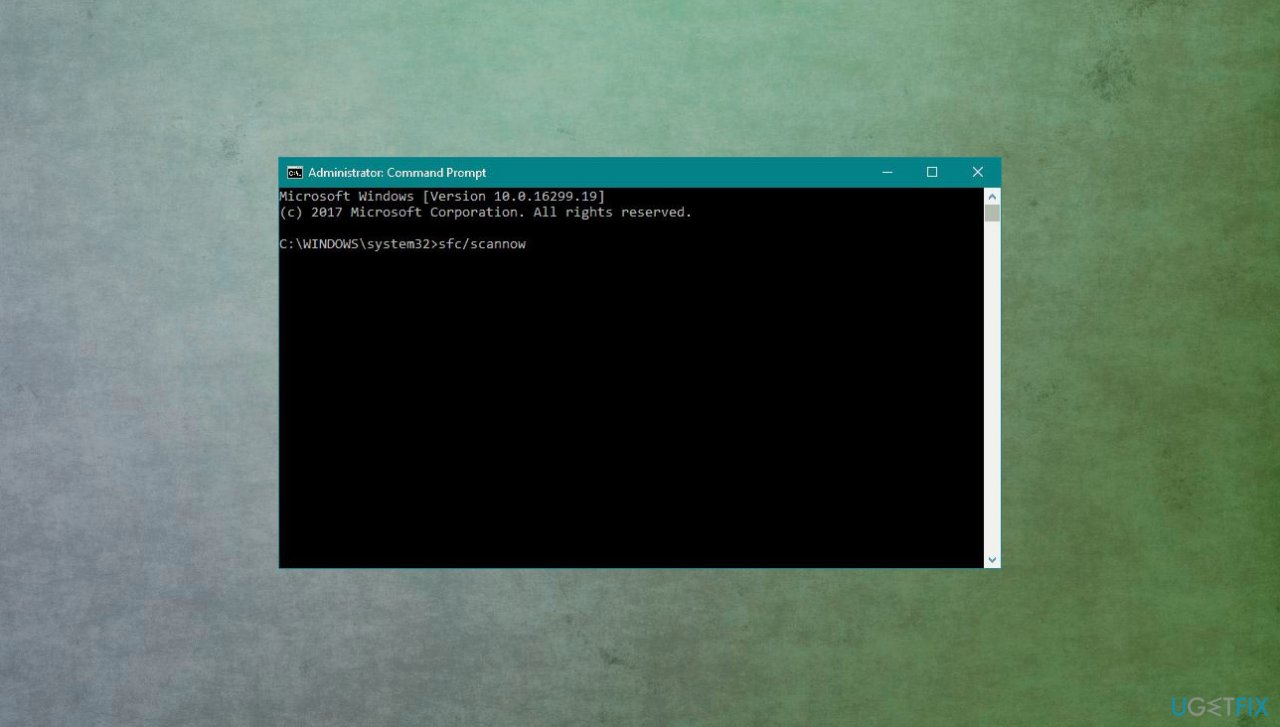
Windows defender not working windows 11 sfc - Run the Dism/Online/Cleanup-Image/RestoreHealth command as well.
- Restart your computer and check if the issue is gone.
3. Run PowerShell command
- In search, type PowerShell.
- As PowerShell appears, press Run as Administrator
- Click Yes on the following prompt.
- Enter the following commands:
Set-ExecutionPolicy Unrestricted - Type y after the text prompt and enter the command:
Get-AppXPackage -AllUsers | Foreach {Add-AppxPackage -DisableDevelopmentMode -Register “$($_.InstallLocation)\AppXManifest.xml”} - Check if Windows Security is working or not.
4. Update Windows
- Press Win + I together to open Windows Settings.
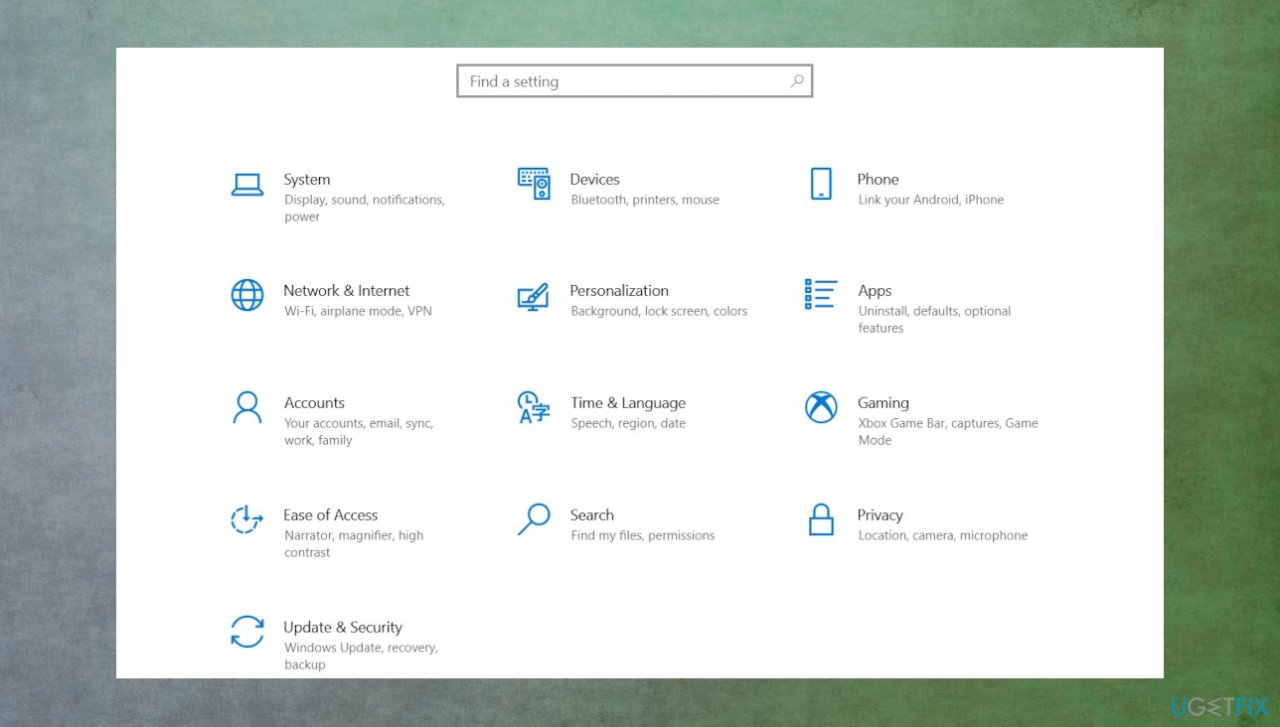
Windows defender not working windows 11 setings - Scroll down and select Windows Update.
- Now click on Check for updates and the Windows will start checking for updates in your PC.
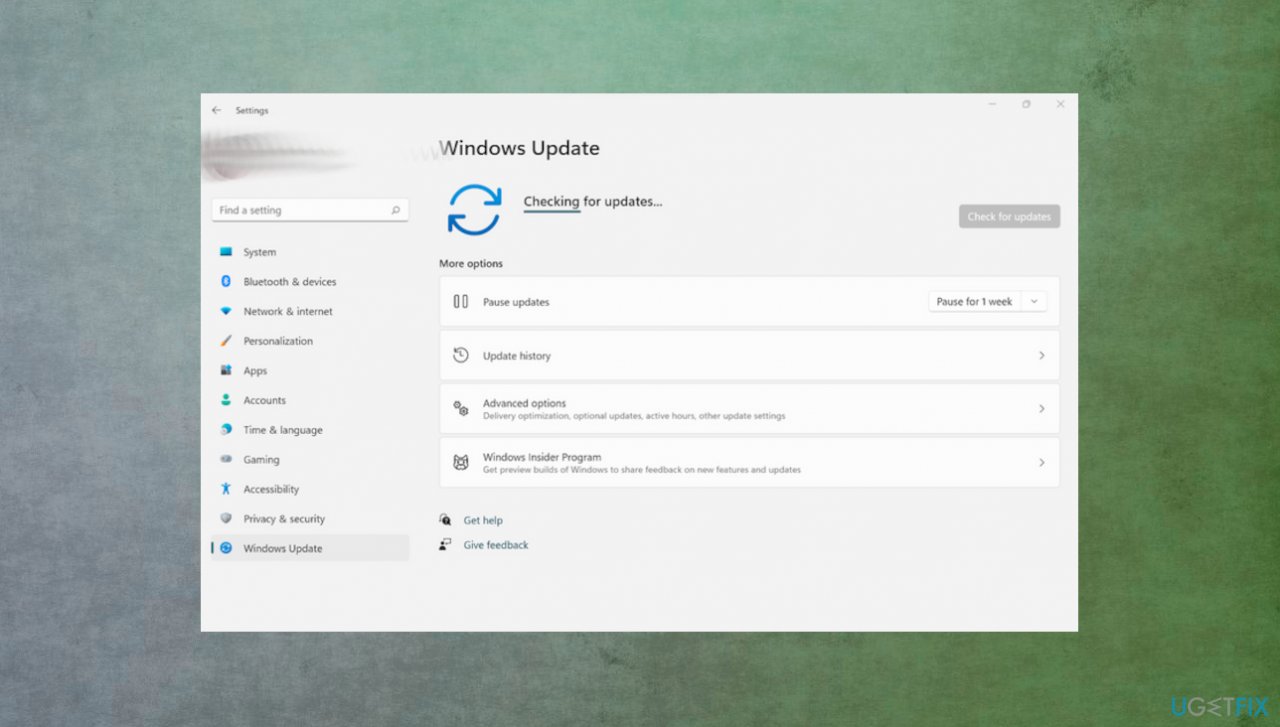
Windows defender not working windows 11 updates - Download and install if you see any available.
5. Reset Security Center Service
- To open the Run dialog box, press Win + R.
- Type services.msc into the box and click OK to open Services.
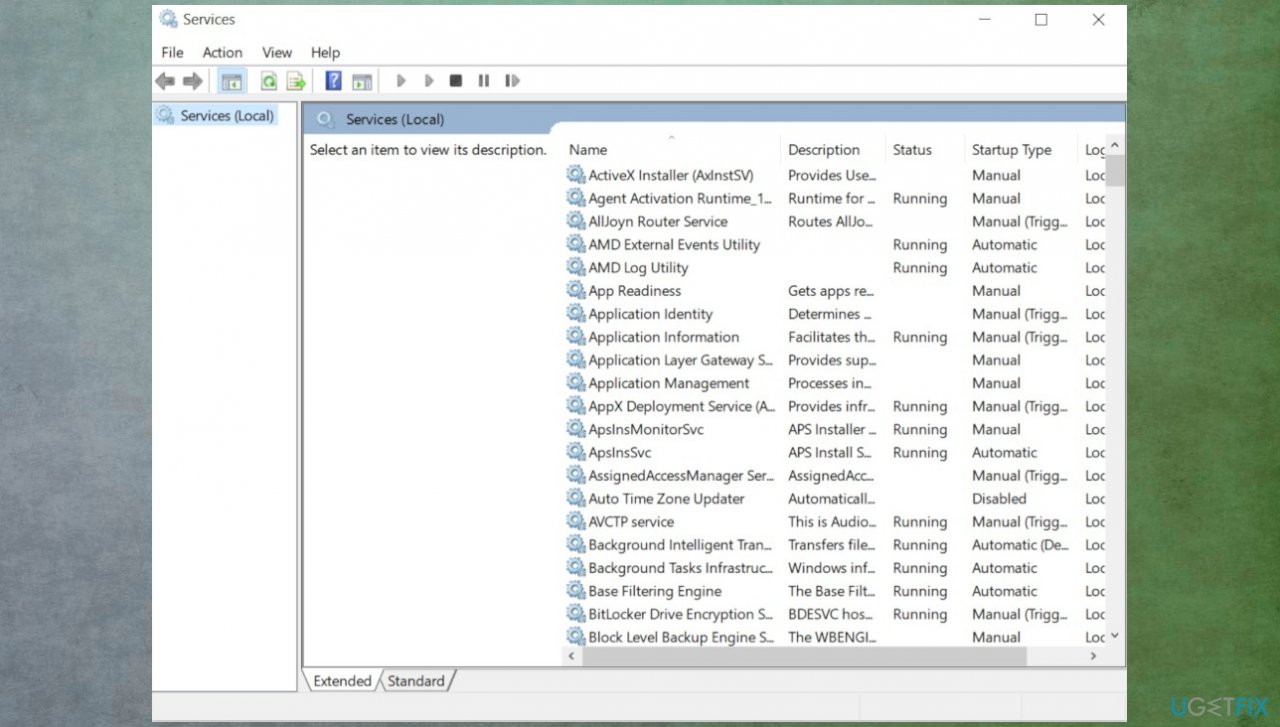
Windows defender not working windows 11 services - Go to find the Security Center service from the right pane.
- Right-click it and choose Restart.
Bottom line
To fix the issue of Windows Defender not opening in Windows 11, you can repair and reset the Windows Security app, or run SFC and DISM scans. If these solutions do not resolve the problem, consider seeking further assistance or using a reliable third-party antivirus tool.
Frequently asked questions
Try restarting your PC, as this can often resolve temporary issues. If that doesn't work, check for any pending updates for Windows 11 and install them.
You can reset Windows Defender by navigating to Settings > Privacy & security > Windows Security > Virus & threat protection and selecting 'Manage settings' to restore defaults.
Yes, you can boot into Safe Mode and then attempt to open Windows Defender from there, which may allow it to run without interference from other programs.




Report an issue
What's wrong with this guide? We review every report and update or remove content.
Report received — thank you. We'll review and fix it.
You need a free account to submit a report.
Be the first to comment