How to fix
“Windows Firewall has blocked some features”
on Windows
Resolve the "Windows Firewall has blocked some features" issue on Windows 10 effortlessly. Get it fixed in minutes with expert-tested solutions!


What causes How to fix “Windows Firewall has blocked some features” on Windows 10?
- False Firewall rules
- Third-party VPN applications
- Virus infection
- Software or hardware changes
- New programs or updates installed
Repairs Windows system files, removes malware, and restores a clean OS state — without reinstalling.
I’ve left my PC idle for some time and it went on a sleeping mode. I was home alone, so nobody could touch it. However, when I woke my PC up from sleep, I’ve found a message box saying: "Windows Firewall has blocked some features of this app. ”While I’m using my PC every day, I’m not a very technology inclined person, so I don’t know what I could do. Could you please provide me fixes in a very comprehensive manner? Would highly appreciate your help!
"Windows Firewall has blocked some features" is an error that may occur on any Windows OS version (10, 8, 8.1, 7, etc.). Windows Firewall[ref en-1] is an in-built Microsoft Windows application that filters information coming to the system from the Internet and potentially dangerous applications (PUA).
The "Windows Firewall has blocked some features" error is typically triggered by false Firewall rules or third-party VPNs, such as Hotspot Shield[ref en-2], Tunnelbear, VPNFilter[ref en-3], VPNTop, AdVPN, and others. In general, Windows Firewall is used for allowing or rejecting the connections under the domain, private, and public levels. The firewall is a basic security measure ensuring a secure connection between the two hosts via IP address, port, or WiFi.
Although the "Windows Firewall has blocked some features" error is not the most common one, people keep reporting in on Microsoft forum from time to time for many years. Although experts agree that the issue is most frequently triggered by a third-party VPN application, which hasn't been allowed in the Firewall, some people claim that this issue may be caused by virus infection. Therefore, we would strongly recommend scanning the machine with a reputable AV engine in the first place.
Besides, try to fix "Windows Firewall has blocked some features" error on Windows with the help of [d1] repair software. This Windows-compatible recovery application is capable of fixing altered Windows Registries, compromised system files, or any deleted Windows-owned entries.

In most of the cases, the problem happens when the PC owner initiates some software or hardware changes on the system, for example, when new programs or updates are installed. According to users' reports, "Windows Firewall has blocked some features of this app" error tends to show up when trying to launch Google Chrome, HD games (very often), or other random apps that require the Internet connection[ref en-4]. Sometimes it may show up when a web browser (Chrome, IE, Edge, etc.) is running with a random game running in the background.
Whatever the cause of this problem is, it's possible to fix "Windows Firewall has blocked some features" error in several ways and we'll list all of them below. However, don't underestimate our recommendation to scan the machine with an AV engine and repair tool before taking extra measures to get rid of an error because these scans may be sufficient.
Methods that can help to fix “Windows Firewall has blocked some features” error
- As a starting point, you should try to perform these basic steps:
- Run a scan with a professional antivirus;
- If a scan did not help, scan the machine with [d1] repair tool;
- Boot the system into the Safe Mode with Networking and perform a virus scan. Once done, check if the problem persists;
- Try Microsoft Safety Scanner;
- Reinstall Windows updates;
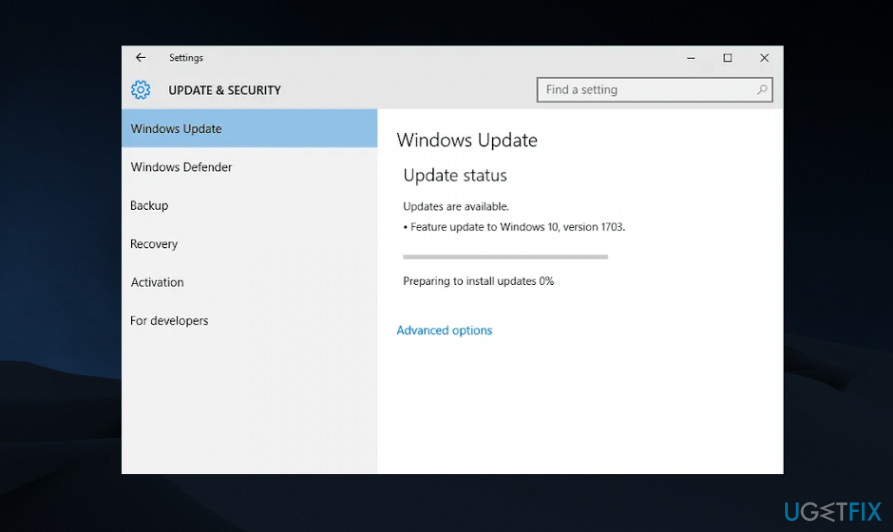
Install updates - Try to turn off Windows Firewall and then turn it on again.
- In case none of these steps helped to fix Windows Firewall has blocked some features error on Windows, then you should try the following:
Method 1. Disable Network Adapters
As one of the Windows users reported, Windows Firewall has blocked some features issue may be triggered by a VPN (Virtual Private Network) clients ran in the system. First of all, check the list of web browser’s extensions and disable the ones that are related to VPN services. After that, do the following:
- Right-click Win key and select Device Manager.
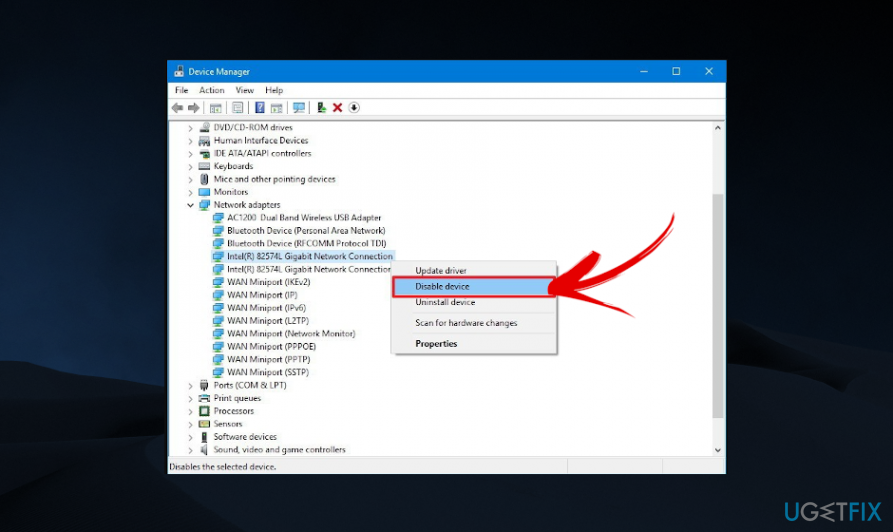
Disable network adapters - Select Network adapters and disable them one by one.
When you disable the first adapter, check if the issue still persists. If it’s gone, then no other adapters have to be disabled. If Windows Firewall has blocked some features message still occurs, disable another adapter.
Method 2. Give apps the permission to pass Windows Firewall manually
- Click Windows key + X and select Control Panel.
- Find Windows Firewall and select the link Allow an app through Windows Firewall.
- Click the Change settings button.
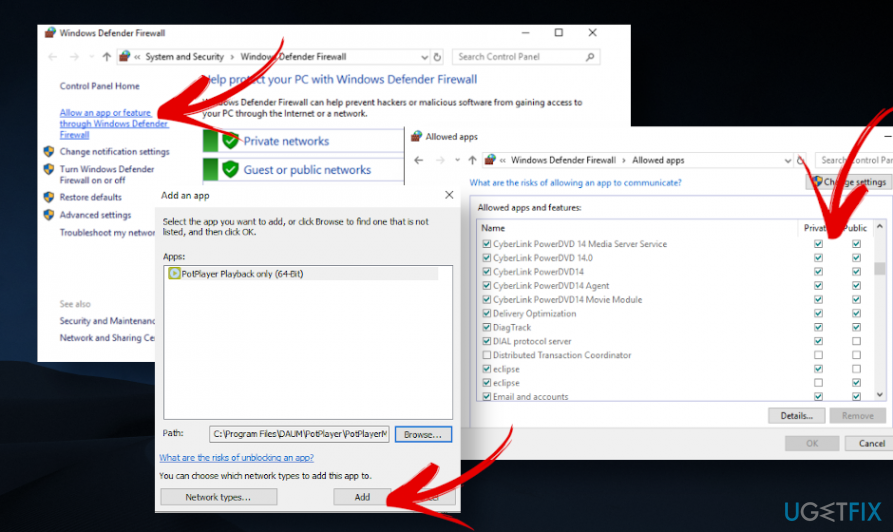
Add exception in windows firewall - Scroll down and check Private and Public options.
- Select the app that you need to enable, click OK, and close everything.
Method 4. Uninstall third-party VPNs
- Press Windows key + I to open Settings.
- Open Apps and Features section.
- Locate the VPN application that you opt for removing. Click on it and select Uninstall.
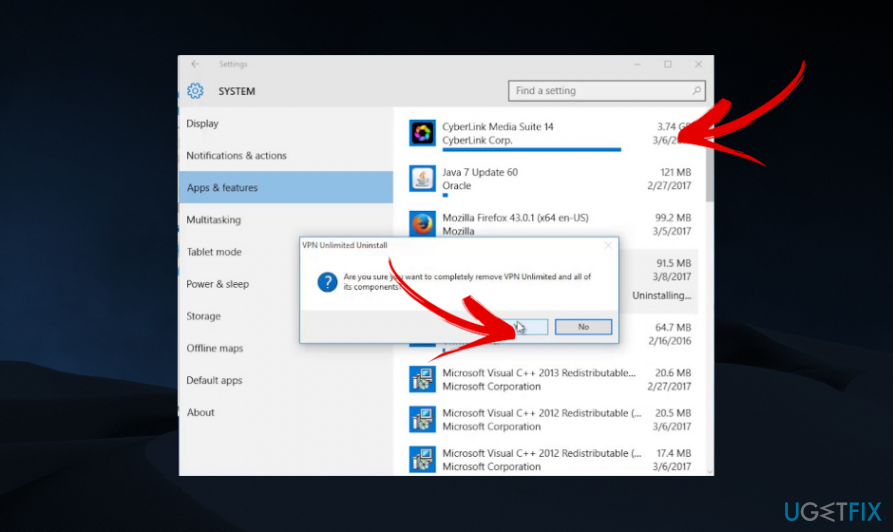
Uninstall vpn apps - After that, press Windows key + R, and type regedit in the dialog box.
- Type the name of the recently deleted application in the search of the Registry Editor. Delete everything that is related to it.
- Finally, restart the PC and check if the problem has successfully been resolved.
Bottom line
To fix the 'Windows Firewall has blocked some features' error, you can scan your machine with a reputable antivirus engine, use repair software to fix system issues, and ensure that your VPN is allowed in the Firewall. If none of these solutions work, consider seeking further technical assistance.
Frequently asked questions
You can go to Windows Firewall settings, select 'Allow an app or feature through Windows Firewall', and then add the blocked app to the list of allowed apps.
You can reset Windows Firewall by opening Command Prompt as an administrator and typing 'netsh advfirewall reset', which will restore the firewall to its default settings.
Yes, you can open Windows Security, go to 'Firewall & network protection', and then click on 'Allow an app through firewall' to see the list of blocked features.




Report an issue
What's wrong with this guide? We review every report and update or remove content.
Report received — thank you. We'll review and fix it.
You need a free account to submit a report.
Be the first to comment