How to fix
Windows Foundation Driver high CPU usage
on Windows
Resolve high CPU usage from Windows Foundation Driver effortlessly with proven solutions. Keep your system running smoothly, expert-tested.

What causes How to fix Windows Foundation Driver high CPU usage?
- Outdated drivers
- Corrupt drivers
- Software conflicts
- Faulty hardware
- Aging hardware
Repairs Windows system files, removes malware, and restores a clean OS state — without reinstalling.
Every few minutes Windows Foundation Driver causes high CPU usage which in turn also makes the PC run at higher temperatures (up to 75%). Is there something I can do about it?
High CPU use linked to the Windows Foundation Driver is one of the many performance problems that Windows users face sometimes. This issue may cause your computer to run slowly, result in battery life, and perform less efficiently overall. Understanding what the Windows Foundation Driver is and why it sometimes consumes a lot of CPU resources can help you address this issue effectively.
What is the Windows Foundation Driver?
The Windows Foundation Driver, referred to as WFD, is an essential part of the Windows operating system that serves as a link between the computer's hardware and the Windows kernel. It makes communication easier and guarantees that your software and hardware are functional.
Thus, it’s essential for the proper functioning of your system, handling tasks related to hardware interaction. That's why it's very important to fix the Windows Foundation Driver high CPU usage issue in Windows.
Causes of high CPU usage
The high CPU usage by the Windows Foundation Driver often stems from several potential issues:
- Outdated or corrupt drivers. If the drivers are not up to date or are corrupted, the WFD may require more processing power to communicate with the hardware, leading to high CPU usage.
- Software conflicts. Sometimes, software installed on your system might conflict with the operations of the WFD. This could force the driver to execute additional processes, thus using more CPU.
- Hardware issues. Faulty or aging hardware can also cause the WFD to work harder to maintain performance, contributing to increased CPU load.
How to fix high CPU usage by Windows Foundation Driver
Windows Foundation Driver High CPU usage is a manageable issue with the right approach. You can try running appropriate troubleshooters, updating Windows, setting the service to manual, scanning for malware, running a clean boot, and much more. To make things easier, we provided a detailed going below. For a more hands-off approach, we recommend trying a powerful PC repair application [d1].
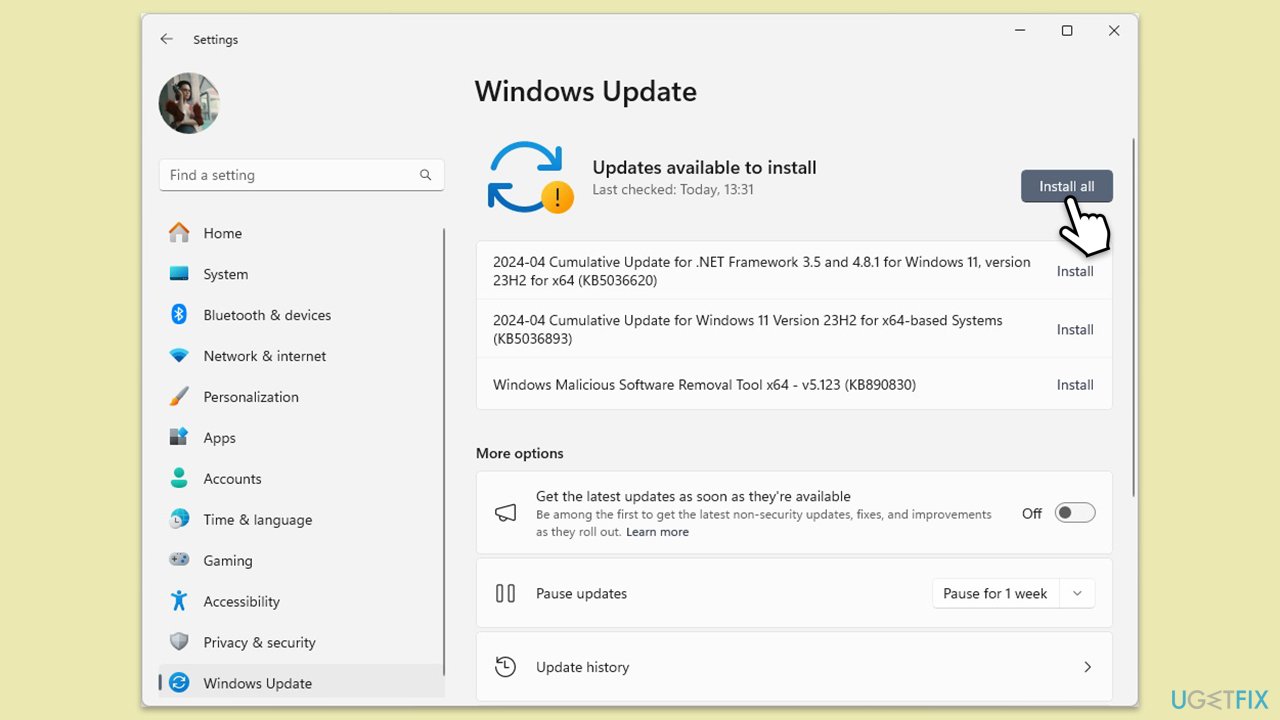
Fix 1. Install Windows updates
Keeping your system updated is crucial for fixing bugs and improving overall stability. Windows updates often include patches for security issues and performance enhancements that could resolve excessive CPU usage.
- Type Updates in Windows search and press Enter.
- If updates are available, click Install updates.
- Otherwise, click Check for updates.
- If optional updates are available, install them as well.
- When all the update processes are complete, restart your computer.
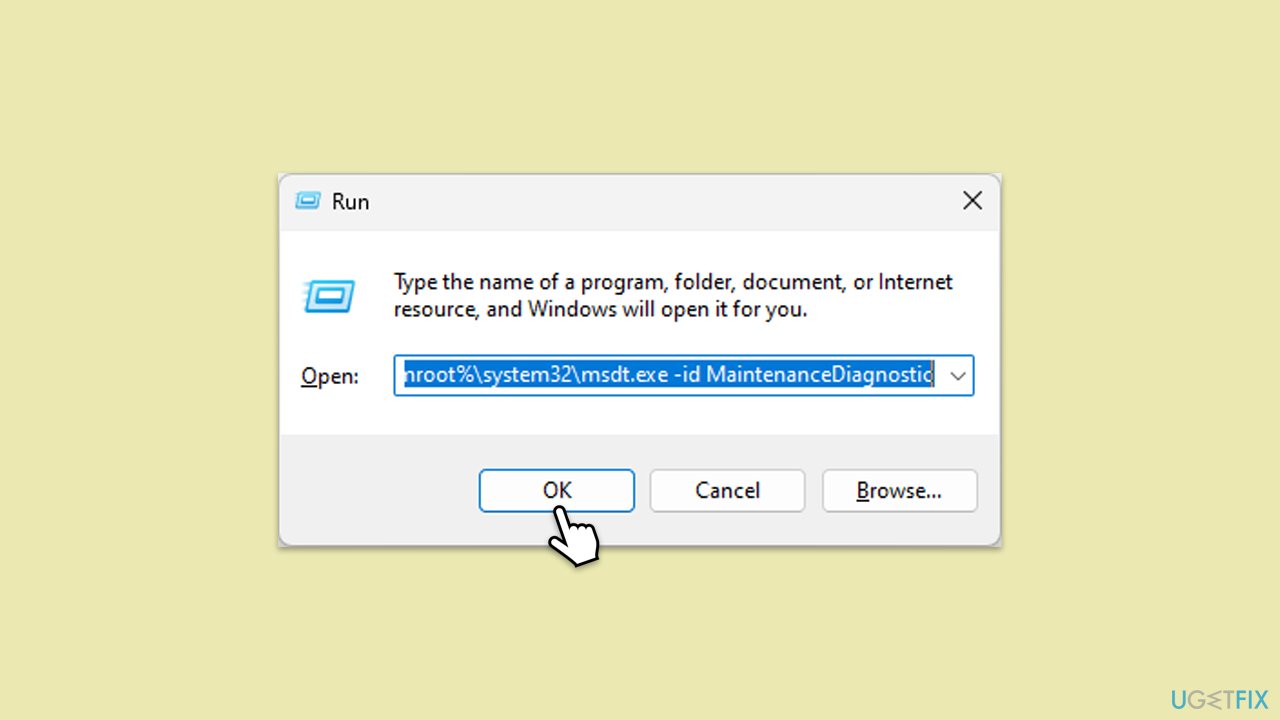
Fix 2. Run system maintenance troubleshooter
This troubleshooter can help resolve issues by looking for unused files and shortcuts and performing maintenance tasks.
- Press Win + R on your keyboard to open the Run dialog.
- Type in the following in the field:
%systemroot%\system32\msdt.exe -id MaintenanceDiagnostic - Click OK or press Enter.
- Run the troubleshooter.
Fix 3. Repair Windows update components
Sometimes Windows update components get corrupted, which can affect system performance and stability. Repairing these can restore CPU usage to normal levels.
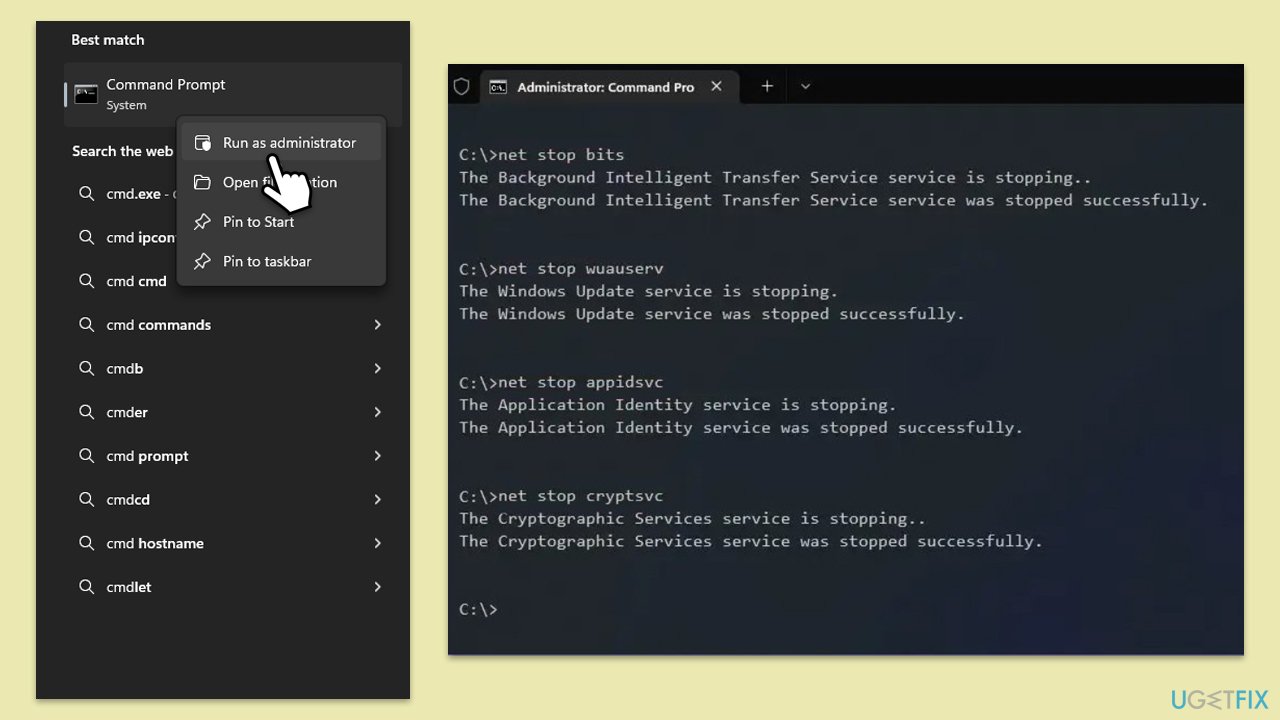
- Type cmd in Windows search.
- Right-click on Command Prompt and pick Run as administrator.
- User Account Control will ask you whether you want to allow changes – click Yes.
- Copy and paste the following commands one by one in Command Prompt and press Enter after each:
net stop bits
net stop wuauserv
net stop appidsvc
net stop cryptsvc
Del "%ALLUSERSPROFILE%\Application Data\Microsoft\Network\Downloader\*.*"
rmdir %systemroot%\SoftwareDistribution /S /Q
rmdir %systemroot%\system32\catroot2 /S /Q
regsvr32.exe /s atl.dll
regsvr32.exe /s urlmon.dll
regsvr32.exe /s mshtml.dll
netsh winsock reset
netsh winsock reset proxy
net start bits
net start wuauserv
net start appidsvc
net start cryptsvc - Restart your device and see if the update can be installed.
Fix 4. Update wireless drivers
Outdated or corrupt drivers can cause high CPU usage. Updating your wireless drivers can help minimize conflicts and improve system performance.
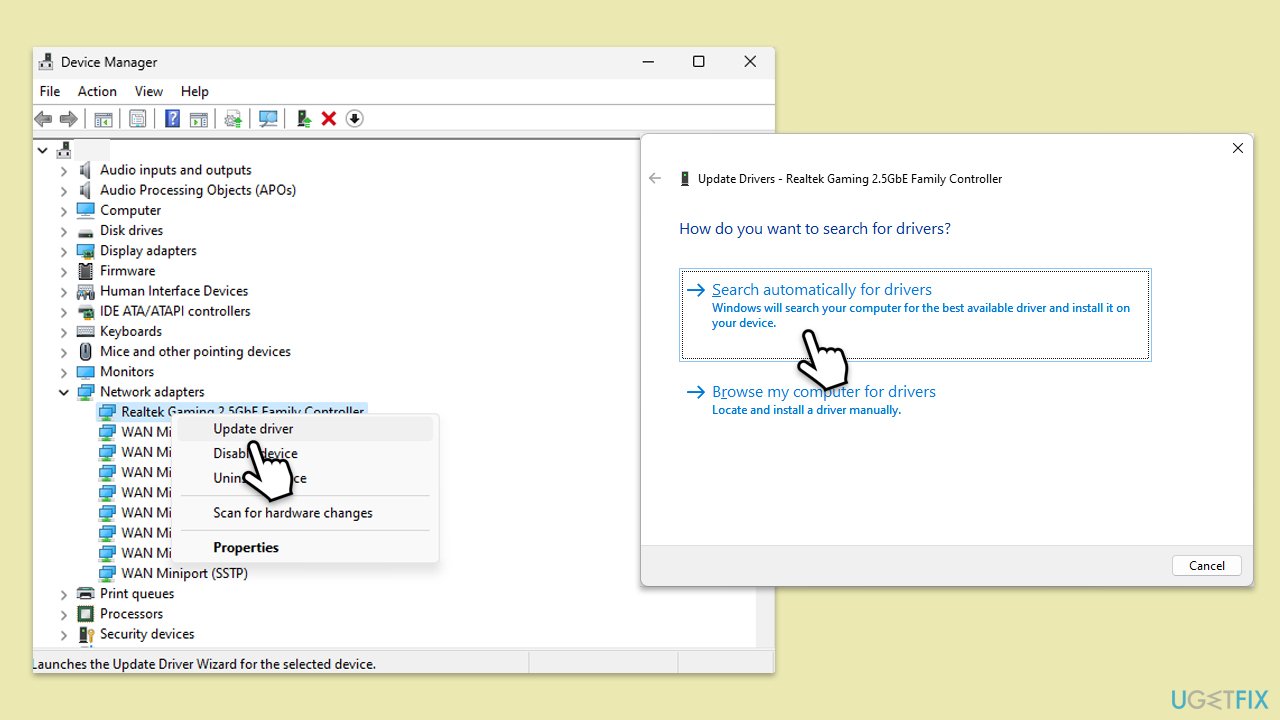
- Right-click on the Start menu and select Device Manager.
- Expand the Network adapters section.
- Right-click on your network adapter and choose Update driver.
- Select Search automatically driver.
- Follow the prompts to complete the driver update and restart your computer.
Fix 5. Scan for malware
Malware can cause unusual system behavior including high CPU usage. If you want, you can employ trusted third-party security software, although Microsoft Safety Scanner or the built-in Windows Defender can do the job just as well:
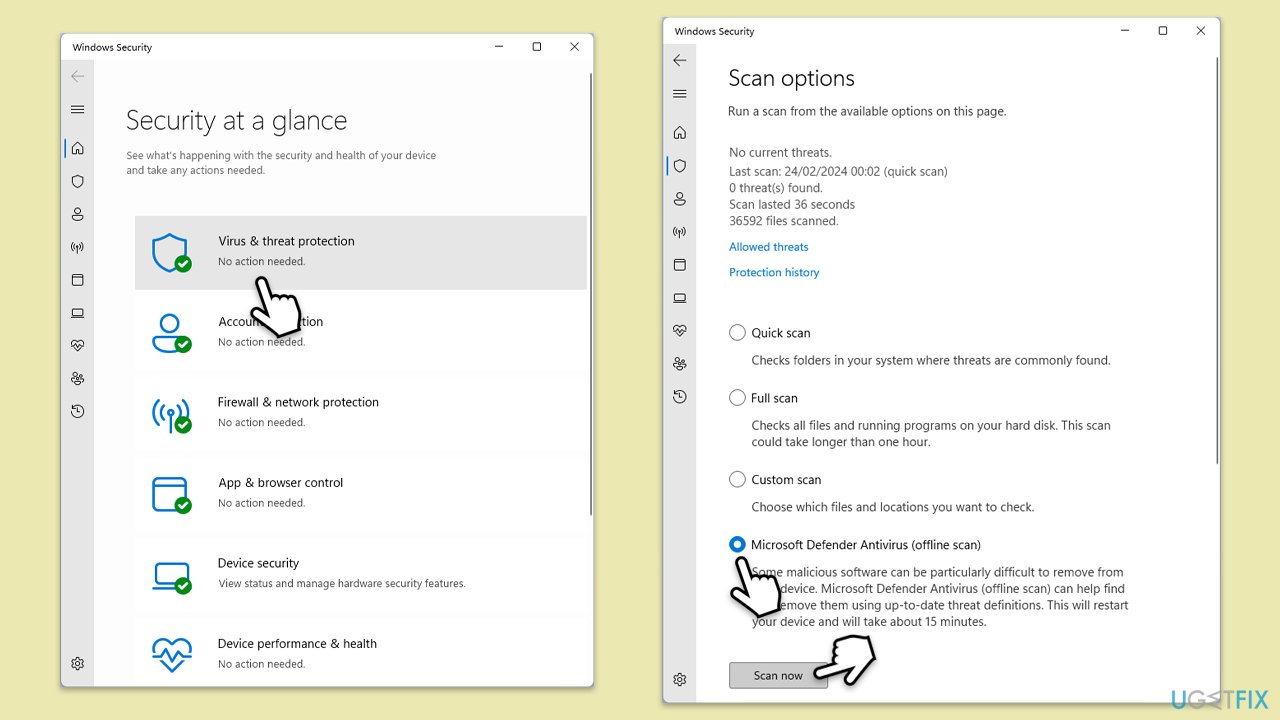
- Type Windows Security in the Windows search bar and hit Enter.
- Select Virus & threat protection.
- Pick Scan options.
- Choose Microsoft Defender Offline scan and click Scan now.
- Your computer will immediately reboot and begin a deep scan.
Fix 6. Run SFC and DISM
Repair corrupted system files as follows:
- Open Command Prompt as administrator.
- Copy and paste this command and hit Enter:
sfc /scannow - Wait for the scan to finish.
- As soon as it finishes, Windows will report whether integrity violations were found and if they could be fixed. Regardless of the outcome, use these commands next, pressing Enter after each:
Dism /Online /Cleanup-Image /CheckHealth
Dism /Online /Cleanup-Image /ScanHealth
Dism /Online /Cleanup-Image /RestoreHealth - Close down the Command Prompt and reboot your PC.
Fix 7. Perform a Clean Boot
Performing a clean boot starts Windows with a minimal set of drivers and startup programs. This can help identify if background applications are causing high CPU usage.
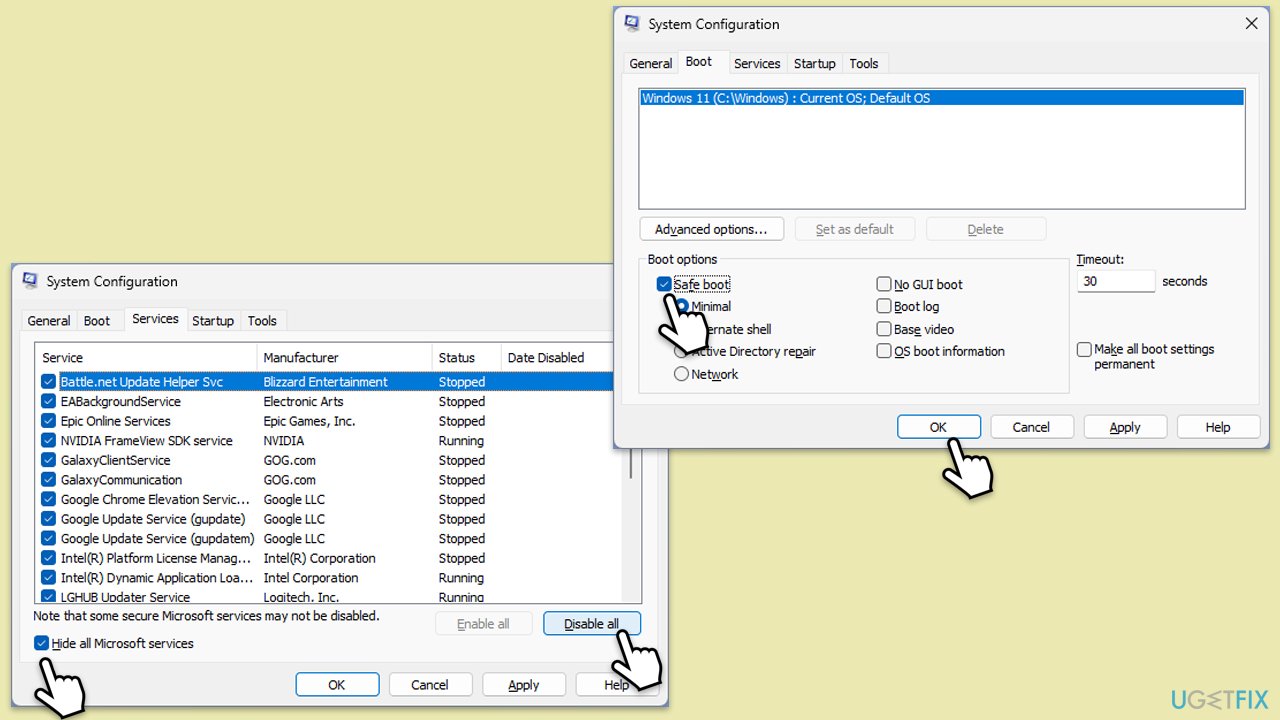
- Type msconfig in Windows search and press Enter.
- In the System Configuration window, go to the Services tab and check the box next to Hide all Microsoft services.
- Click Disable all to disable all non-Microsoft services.
- Go to the Startup tab and click Open Task Manager.
- In Task Manager, disable all startup items.
- Close Task Manager and click OK in the System Configuration window.
- Go to the Boot tab and select Safe Boot.
- Click OK and restart your computer.
- Once in the clean boot state, monitor CPU usage to identify if the issue persists. If improved, enable services and startup items one by one (or in groups) to isolate the cause.
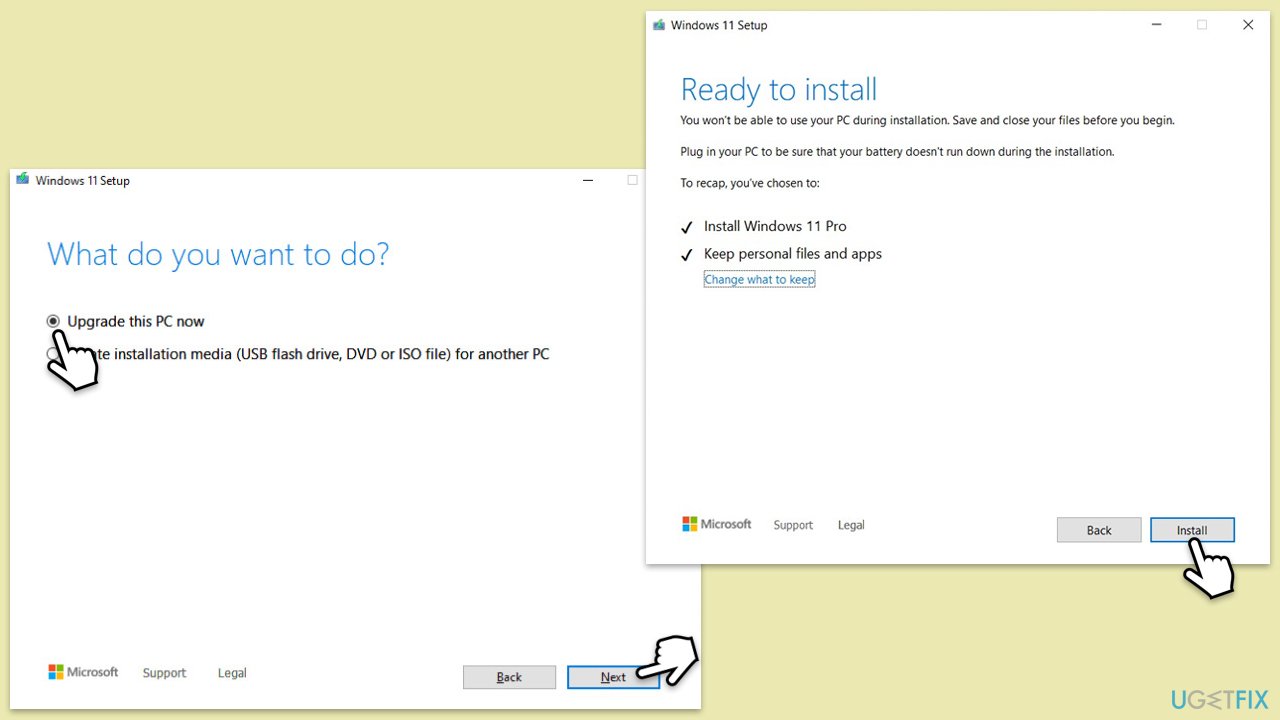
Fix 8. Repair-install Windows
If other fixes don’t resolve the issue, performing a repair-install can refresh Windows while keeping your files and settings intact.
- Visit the official Microsoft website and download Windows 10 installation media (Windows 11 version).
- Double-click the installer and select Yes when UAC shows up.
- Agree to terms.
- Select Upgrade this PC now and select Next.
- Windows will now download all the necessary files – it might take a while.
- Agree to terms once again and click Next.
- Before installing, make sure that you are happy with your choices (otherwise, you can click the Change what to keep option).
- Click Install to begin the upgrade process.
Bottom line
To fix high CPU usage by the Windows Foundation Driver, you can run troubleshooters, update Windows, set the service to manual, scan for malware, and perform a clean boot. If these steps do not resolve the issue, consider using a powerful PC repair application.
Frequently asked questions
High CPU usage by the Windows Foundation Driver can be caused by outdated drivers or software conflicts. Ensuring your system and drivers are up to date can help resolve this issue.
To reduce CPU usage, you can try disabling the Windows Foundation Driver service or updating your system drivers via Device Manager. Always create a system restore point before making changes.
A permanent solution may involve reinstalling or repairing the Windows Foundation Driver, along with performing a system scan for corrupted files using the System File Checker tool. Regularly updating your Windows 10 or Windows 11 system can also help prevent this issue.




Report an issue
What's wrong with this guide? We review every report and update or remove content.
Report received — thank you. We'll review and fix it.
You need a free account to submit a report.
Be the first to comment