How to fix
Windows Hello error 0x801c0451
on Windows
Resolve Windows Hello error 0x801c0451 effortlessly with expert tips. Get your login back on track—fixed in minutes by our tech specialists.

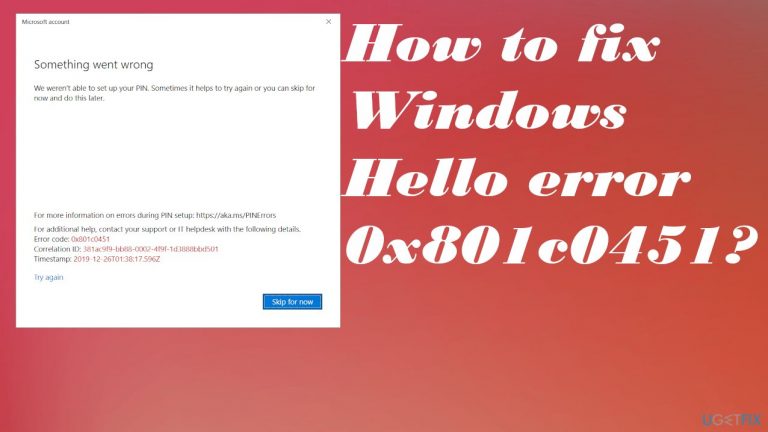
What causes How to fix Windows Hello error 0x801c0451?
- Recent changes on the machine
- Upgrading from one OS version to another
- Updating Windows entirely
- System compatibility issues
- File corruption
Repairs Windows system files, removes malware, and restores a clean OS state — without reinstalling.
I get the issue with Hello on Windows. The error code appears - 0x801c0451. It states that something is wrong and I can't set up the PIN for the laptop. I want to set up the thing successfully and have no idea how to fix this issue. I need your help, do you have any solutions for this?
Windows Hello error 0x801c0451 issue occurs on the machine when users try to set up the PIN in Windows, and it happens in Windows 10 and 11[ref en-1] versions. The issue can disappear after a few reboots, but the persistent problem indicates an issue with the machine. Configuring the hello sign-in options are needed, and it is impossible when the error appears.
The unsolved problem can lead to system crashes and unsuspected issues, additional errors on the system. Users[ref en-2] encounter these issues, and it is frustrating since the problem comes out of nowhere and there are no particular causes or solutions that could be quick and successful.
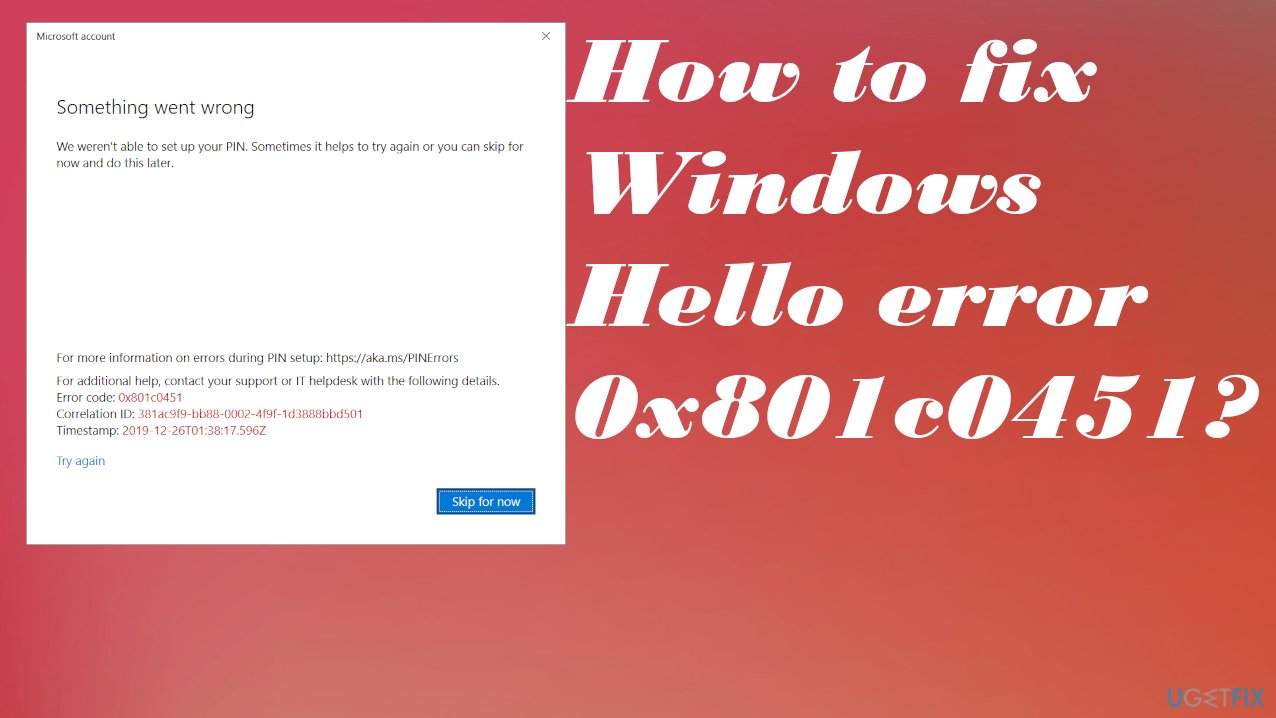
The "Something went wrong, We aren’t able to set up your PIN. Sometimes, it helps to try again, or you can skip for now and do this later. Error code: 0x801c0451" message can sometimes be stopped with the sleep mode setting alterations. This is not the crucial system error that can lead to BSOD[ref en-3] issues or major damage, but it is serious enough to encourage you to solve it as soon as possible.
The issue often occurs after recent changes on the machine, when you upgrade from one OS version to another or update the Windows entirely. Turning off the sleep more or resetting passwords, switching user options can be considered possible fixes for the issue. Issues like this can often occur due to system compatibility issues caused by file corruption.
Try to fix Windows Hello error 0x801c0451 with the methods listed below. You can also run the [d1] full system scan for the file damage issues and repair problems occurring in the system folders and files. This can ensure that other needed processes are working for you smoothly, so you can solve the problem easier. Try a few methods and do not skip steps.
1. Disable the Sleep Mode
- Type control.exe in the search in the taskbar.
- Hit Enter.
- Set the View by option to Large icons.
- Choose Power Options.
- On the right pane, click Change plan settings link located beside your selected plan.
- Set Put the computer to sleep to Never for both On battery and Plugged in options.
- Save changes.
2. Reset PIN
- Type in sign in options in the search.
- When the settings page shows up in search result, hit Enter.
- From the right side, select the PIN (Windows Hello) or Windows Hello PIN.
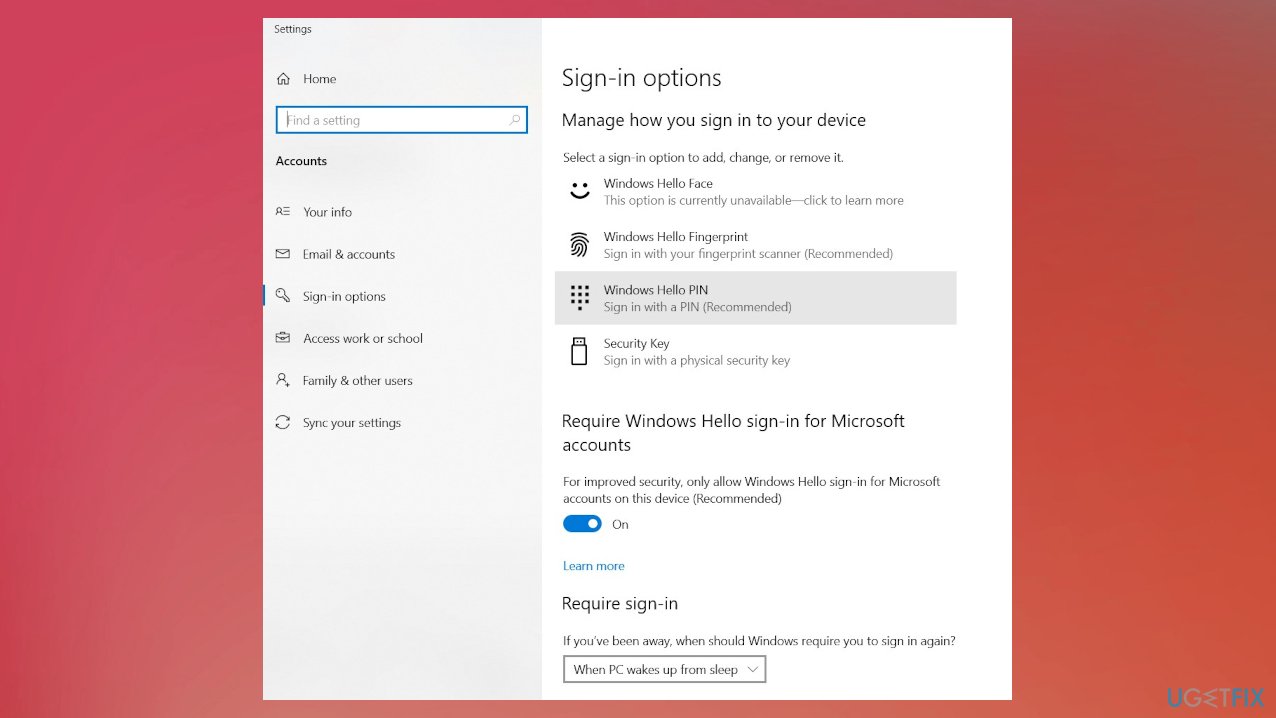
Windows hello error 0x801c0451 sign in - Click I forgot my PIN.
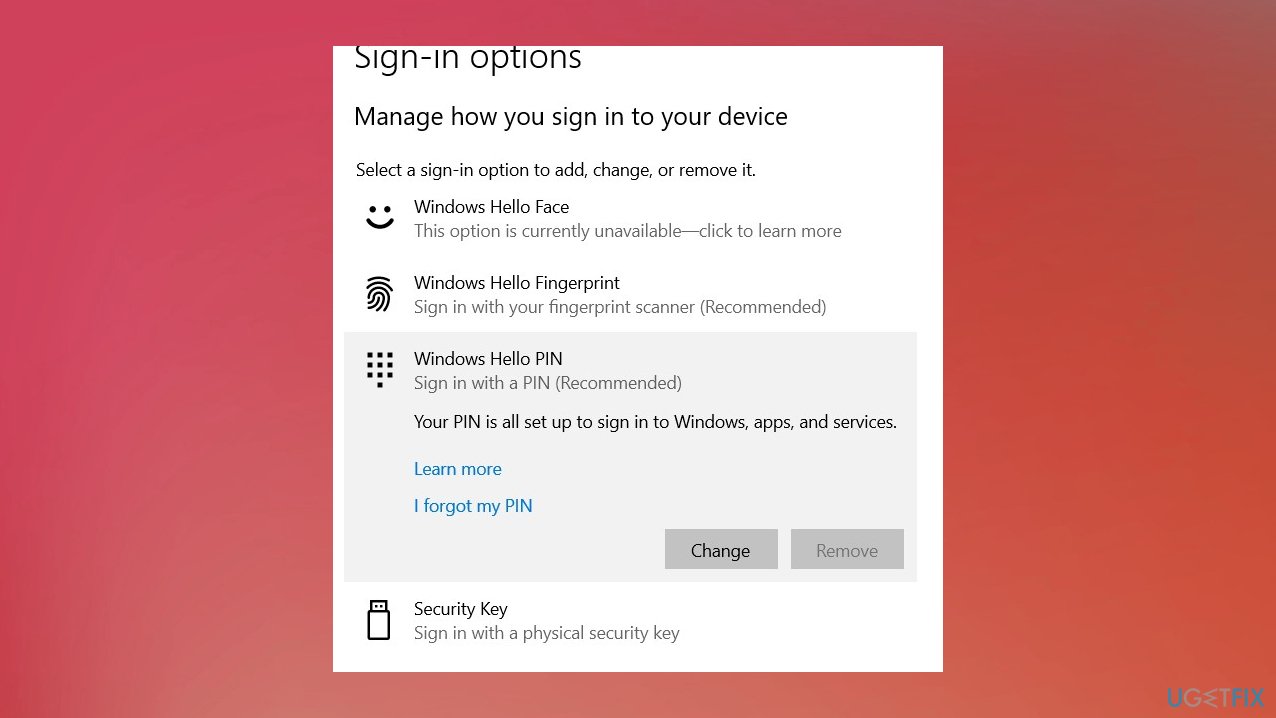
Windows hello error 0x801c0451 fortgot my pin - Enter credentials for your Microsoft accounts.
- Click Continue on the verification message.
- Insert new PIN twice to set it up.
3. Uninstall the OS update
- Press Windows + R.

Windows hello error 0x801c0451 run box - Type appwiz.cpl in the Run box.
- Click OK.
- Click on View installed updates.
- Find the KB version your system installed lately under Microsoft Windows section.
- Right-click on the update and select Uninstall.
- Click again Uninstall to confirm if asked.
- Follow further instructions to completely get rid of the update.
- Reboot.
4. Check for recent updates
- Press Windows + X.
- Choose Run.
- In the command box, type ms-settings:windowsupdate.
- Hit Enter.
- From the right-pane, click Check for updates.
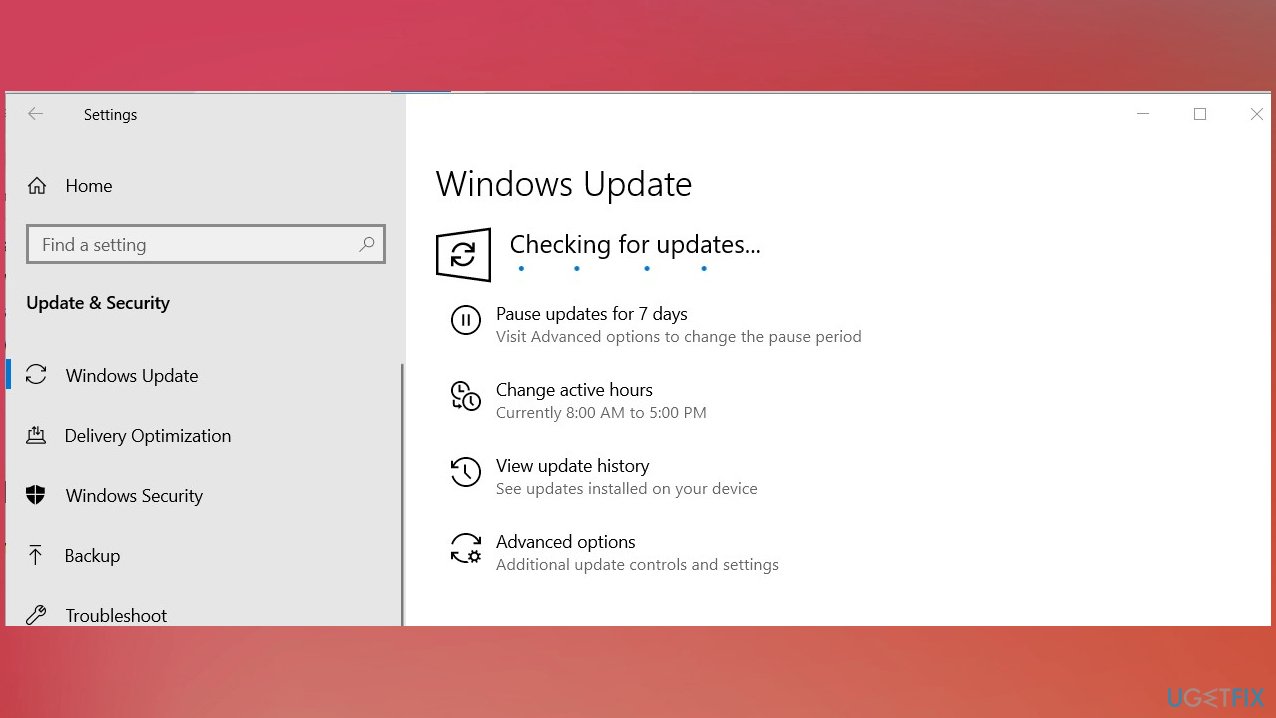
Windows hello error 0x801c0451 windows update - If any update is available, install them.
- After completion - Restart.
5. Change accounts
- Go to Settings.

Windows hello error 0x801c0451 settings - Select Accounts.
- Click on Your info.
- Select Sign in with a local account instead.
- Provide your Microsoft account password.
- Click Next.
- Type the name you want to set for your account.
- Set a new password.
- Follow other instructions.
- Click on Sign out followed by Finish.
- Sign back.
6. Use the System Restore option
- Press Windows+S.
- Type in control panel follow up with Enter.
- In the search bar of the appearing window, type recovery.
- Select Recovery first and then Open System Restore.
- Click Next.
- Choose the restore point.
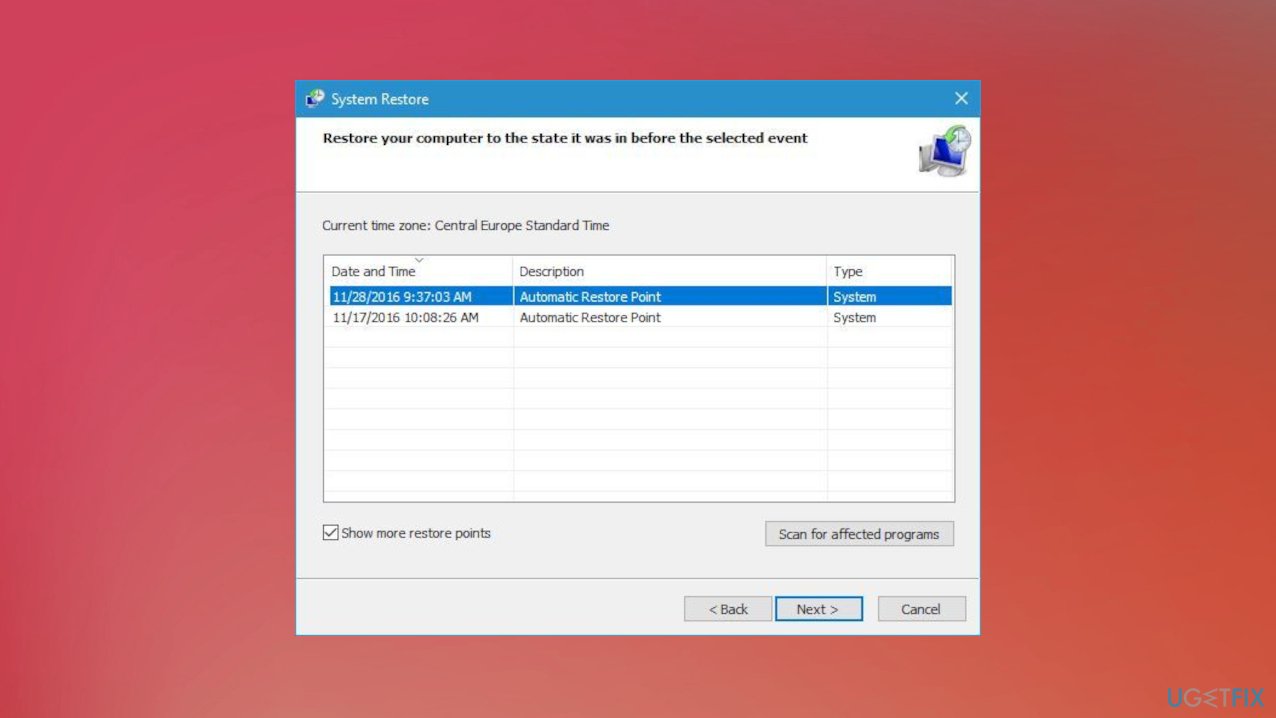
Windows hello error 0x801c0451 restore points - Click on Next on the System restore wizard.
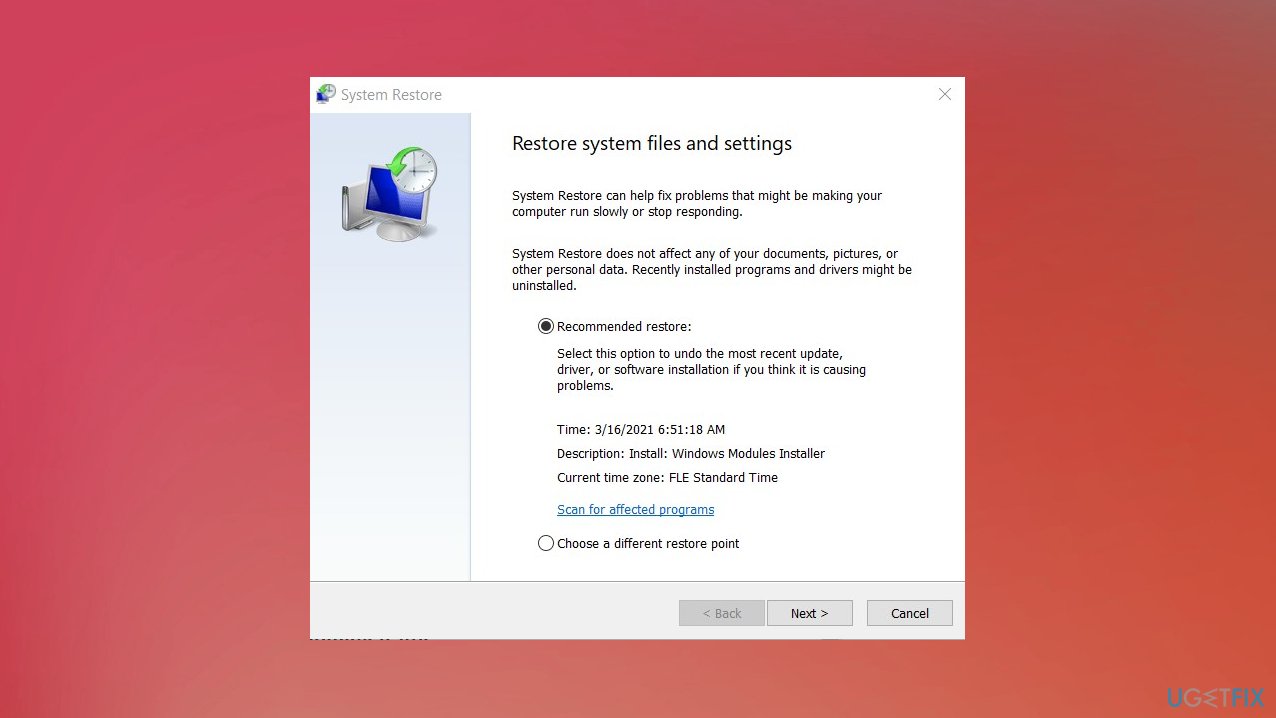
Windows hello error 0x801c0451 restore - Select Finish.
- Click on Yes to confirm.
Bottom line
To fix the Windows Hello error 0x801c0451, you can try turning off sleep mode, resetting passwords, or switching user options. Additionally, running a full system scan for file damage may help resolve the issue. If none of these solutions work, further troubleshooting may be necessary.
Frequently asked questions
Start by ensuring that your Windows 10 system is fully updated, as updates may include crucial fixes for Windows Hello issues.
Yes, resetting the Windows Hello settings can help; go to Settings > Accounts > Sign-in options, and remove the current Windows Hello setup before re-adding it.
Make sure that the 'Windows Biometric Service' is running, as this service is essential for Windows Hello to function correctly.




Report an issue
What's wrong with this guide? We review every report and update or remove content.
Report received — thank you. We'll review and fix it.
You need a free account to submit a report.
Be the first to comment