How to fix
Windows installation error 0x800704DD-0x90016
on Windows
Resolve Windows installation error 0x800704DD-0x90016 quickly with our expert-tested solutions for Windows 10 and 11. Fixed in minutes!

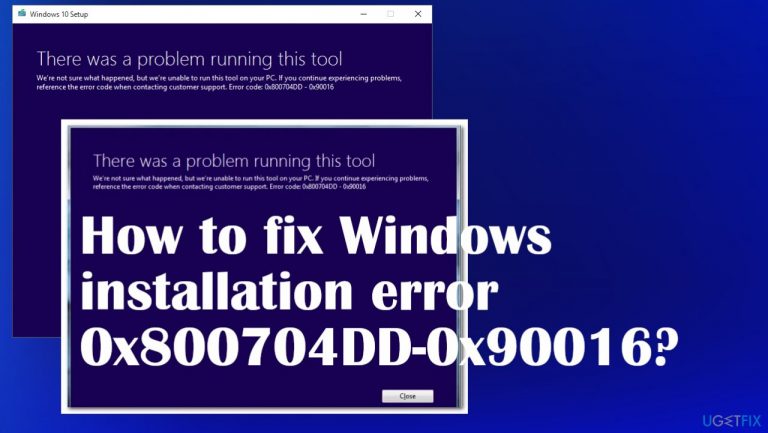
What causes How to fix Windows installation error 0x800704DD-0x90016?
- Insufficient permissions on the account
- Third-party anti-malware solutions interfering
- External hardware issues connected via USB
- User's standard account lacking administrative permissions
- Alterations or startup entries left by threats
Repairs Windows system files, removes malware, and restores a clean OS state — without reinstalling.
Hey. I try to upgrade the system to Windows 10, and I get this error code 0x800704DD-0x90016. I cannot download the update right now. I receive the installation error and cannot move with the update anymore. I get no other indications or explanation. Can you help me fix this issue?
Windows installation error 0x800704DD-0x90016 is the problem that can occur when the person upgrades from an older version like Windows 7 or 8. Still, users report the problem appearing when the machine requires the Windows 10 upgrade.[ref en-1] This issue keeps the Windows 10 setup from loading, so there is no permission to move with the update.[ref en-2]
It can occur due to insufficient permissions on the account or hen security solution on the machine that interferes with the operating system. The error can be frustrating since the message pop-up does not indicate a particular trigger or reason behind the problem.
Various factors like: can trigger this error 0x800704DD-0x90016
- third-party anti-malware solutions when you use a separate security tool on the machine;
- external hardware issues when the piece connected via USB interferes with processes;
- the user's standard account can be why Media Creation Tools is not permitting these update processes to users without administrative permissions.
Malicious pieces[ref en-3] shouldn't trigger such an issue, so you can uninstall the antivirus you use and check if the installation can happen. Unfortunately, sometimes threats leave some files behind, so those alterations or startup entries can lead to the issue with system processes.
You can fix Windows installation error 0x800704DD-0x90016 by running a tool like [d1] that finds and fixes such data damage for you or repairs entries and files corrupted on the machine. You can perform a clean boot after other settings and solve the problem yourself. For that, follow the steps below closely.
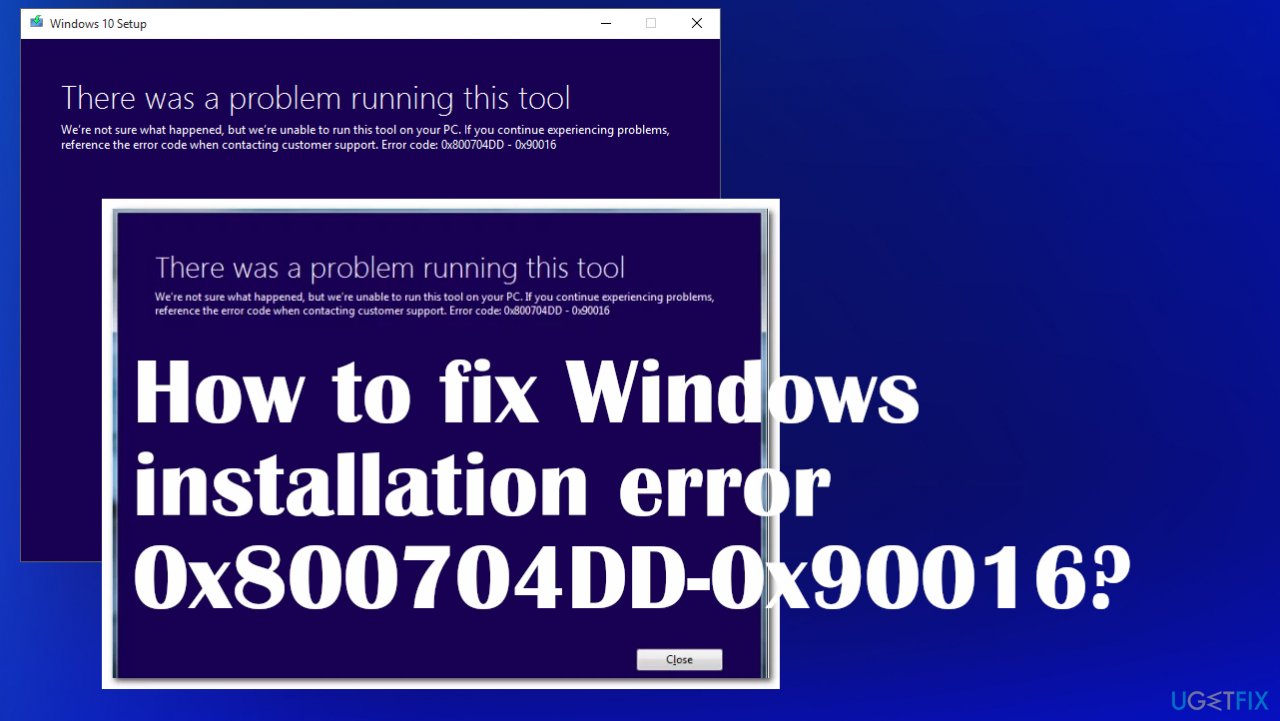
#1 Switch to an administrator account
- Go to Settings.
- Click Accounts.
- Find Family& other people.
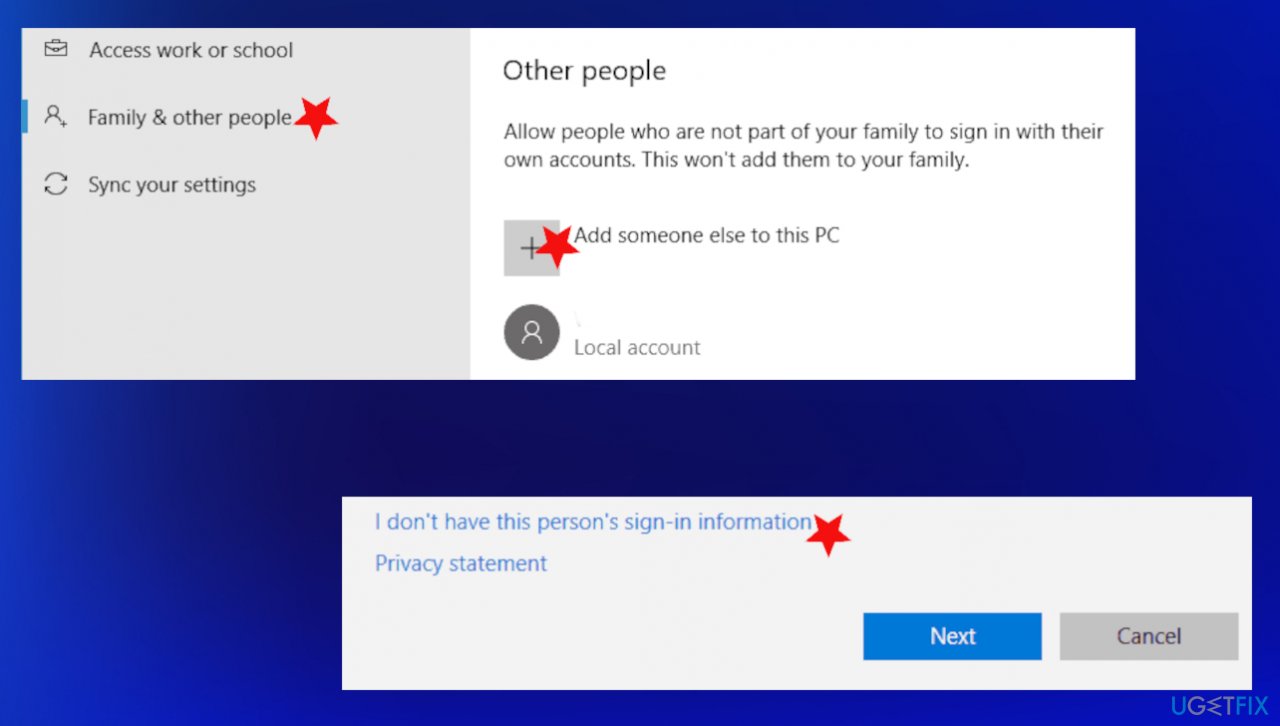
Installation error 0x800704dd 0x90016 fix change account - Choose Add someone else to this PC.
- Click I don't have this person's sign-in information.
- Then Add a user without Microsoft account.
- Enter the information and click Next.
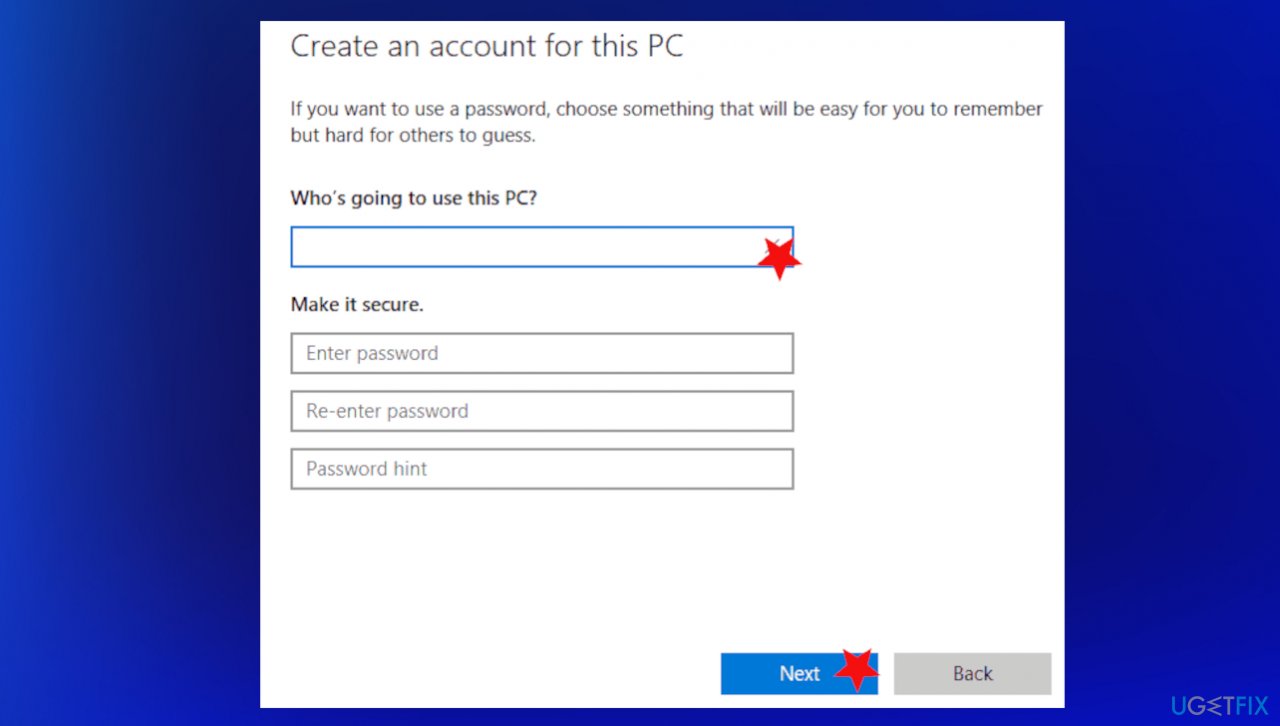
Installation error 0x800704dd 0x90016 fix account user - When that is done, go to Accounts again.
- Choose Family & other people.
- Find the new account and choose Change account type.
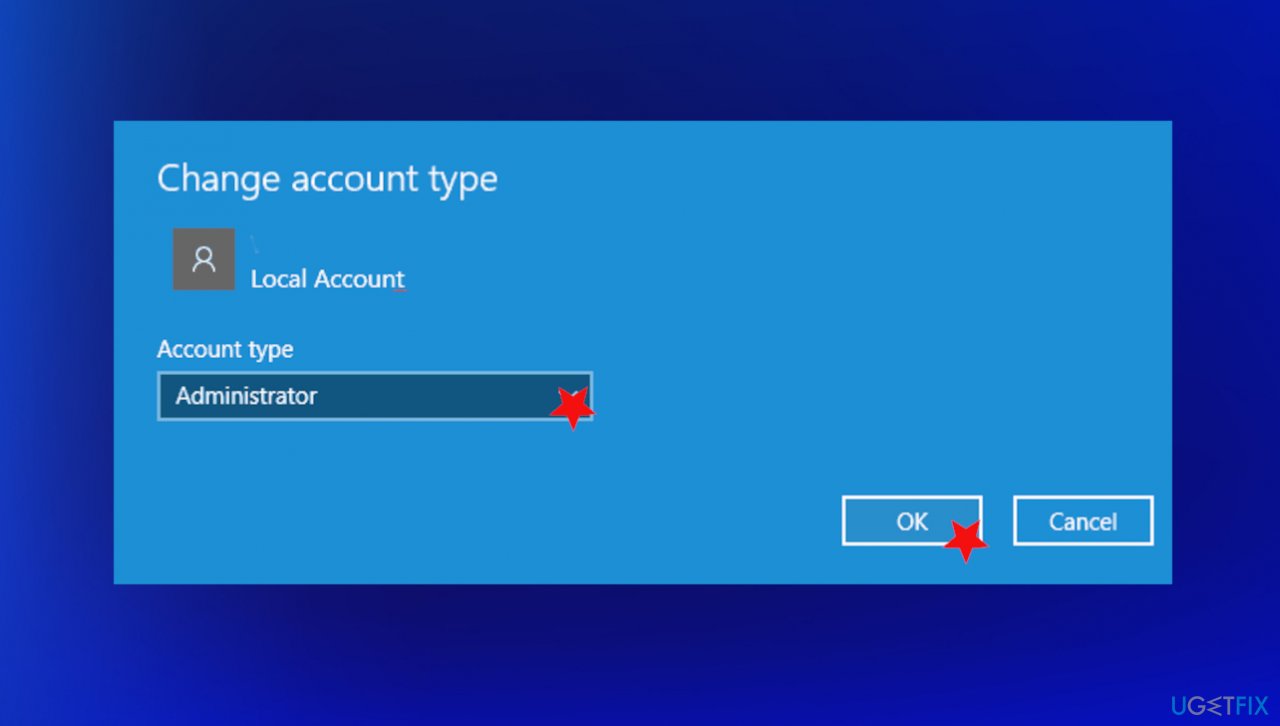
Installation error 0x800704dd 0x90016 fix account type - Set it to Administrator and click OK.
- Switch to this account and then try to install the upgrade.
#2 Disable the network
- On the right-hand side of the taskbar, click on the Network icon.
- Select Open Network & Internet settings.
- Choose Change adapter options.
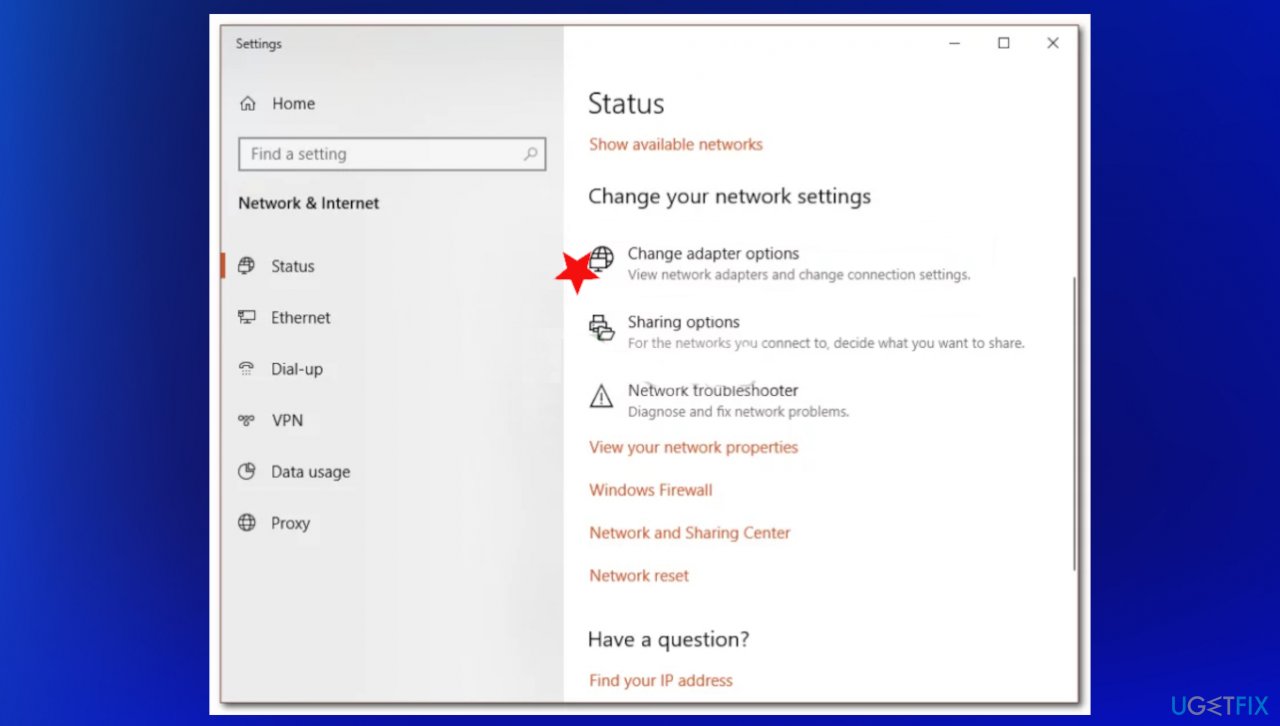
Installation error 0x800704dd 0x90016 fix network - Right-click on your network and click Disable.
- Run the upgrade.
- Enable the network afterward.
#3 Enable hidden administrator account
- Start the Command Prompt as administrator.
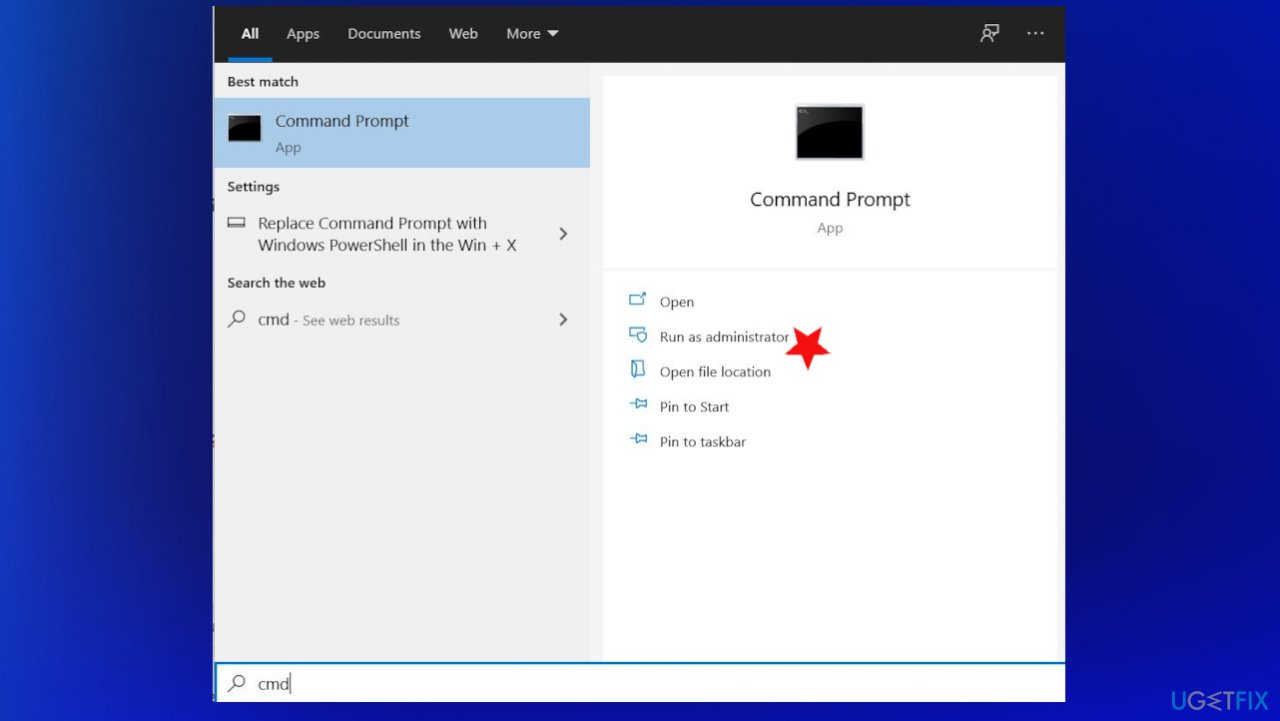
Installation error 0x800704dd 0x90016 fix cmd - Put the following command and click Enter:
net user administrator /active:yes - The account should've enabled after this process and you will be able to access it.
- You can disable the hidden administrative with net user administrator /active:no command.
#4 Perform a clean boot
- Open Run box with Windows and R keys.
- Type msconfig in Windows search and press Enter.
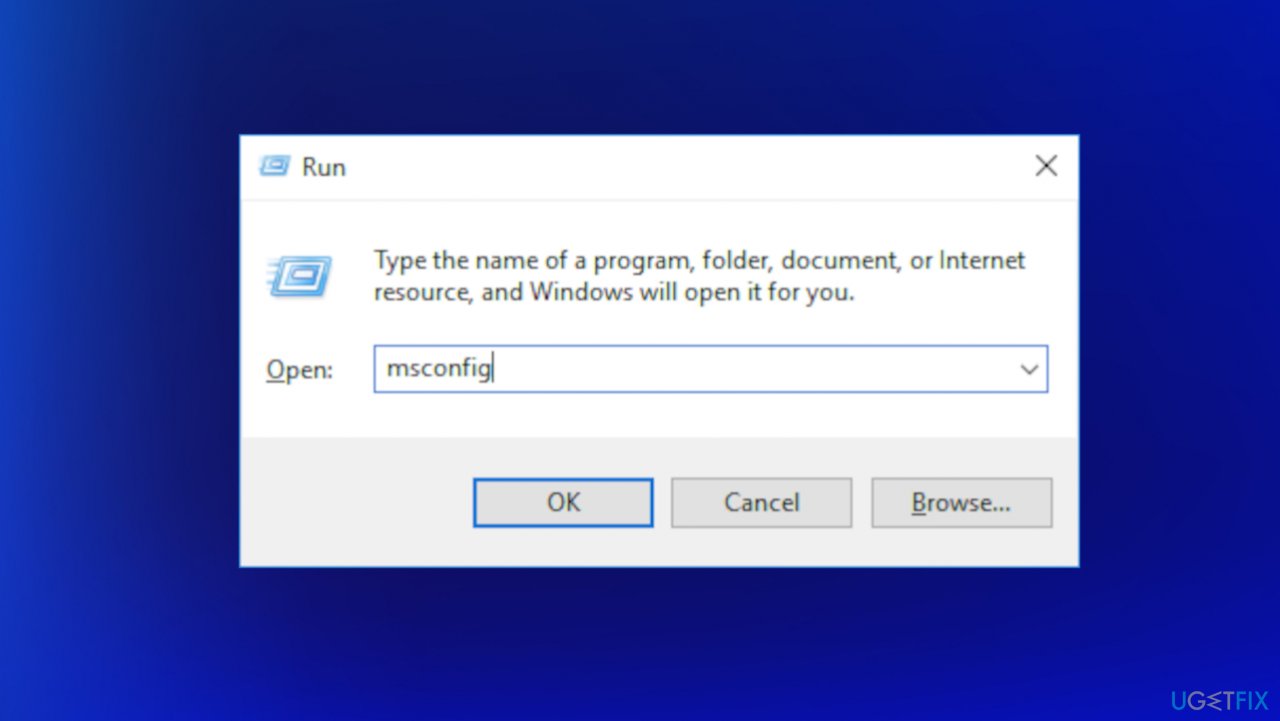
Installation error 0x800704dd 0x90016 fix msconfig - Go to Services tab.
- Mark Hide all Microsoft services and select Disable all.
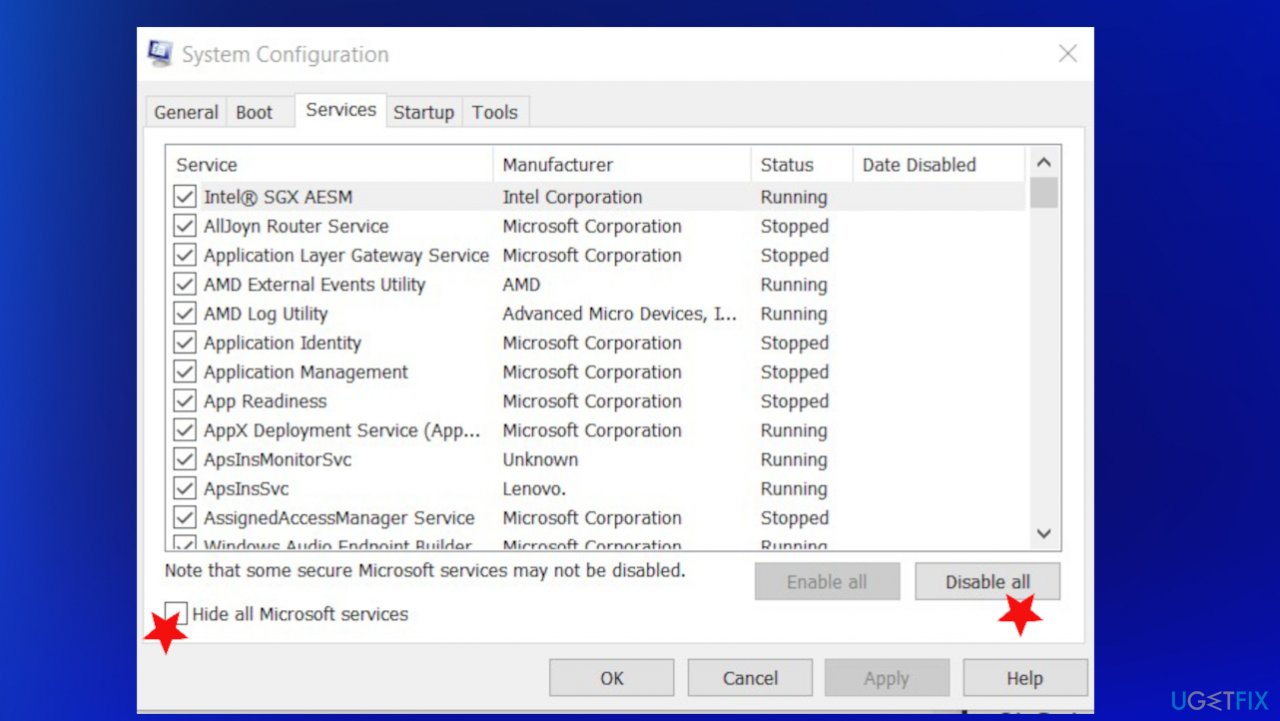
Installation error 0x800704dd 0x90016 fix services - Go to Startup tab and click Open Task Manager.
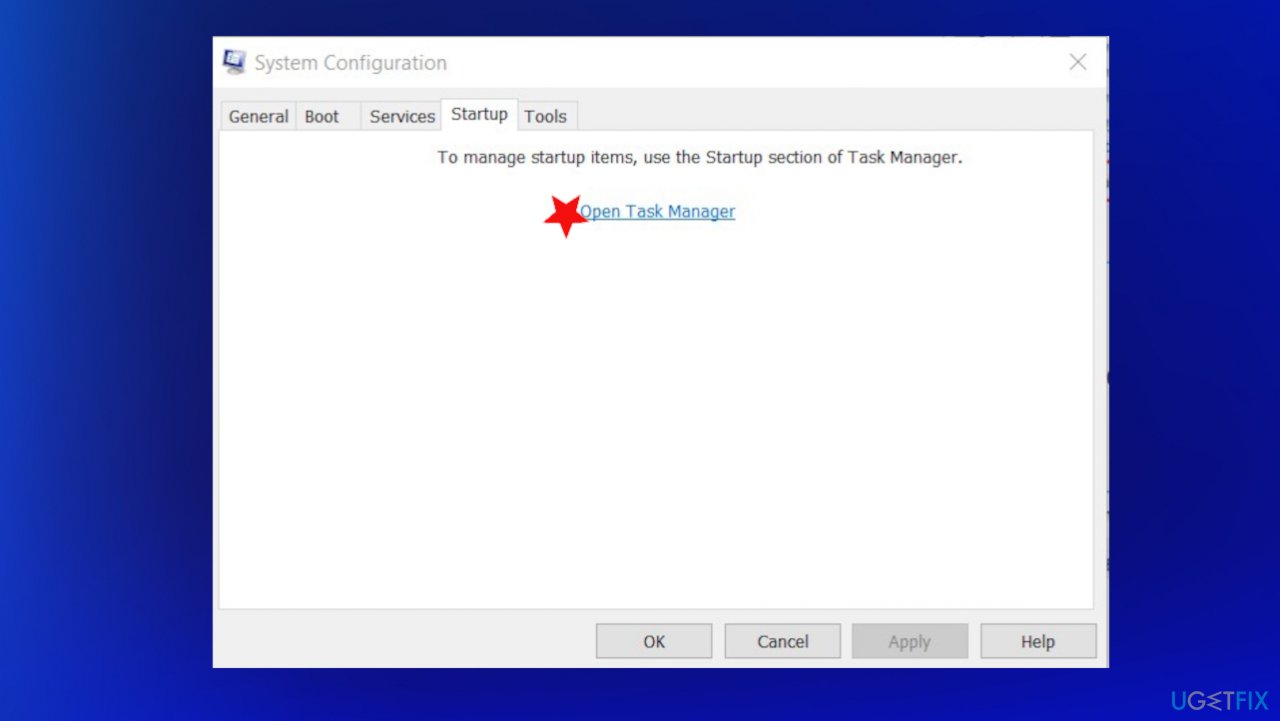
Installation error 0x800704dd 0x90016 fix open task manager - In the Task Manager, right-click on each of the items and select Disable, then close the Task Manager.
- Go to System Configuration window and click Apply, then OK to safe changes.
#5 Troubleshoot Windows Update
- Press Windows Key + I to open the Settings app.
- Navigate to Update & Security section.
- Select Troubleshoot from the menu.
- Select Windows Update.
- Click the Run the troubleshooter button.
Bottom line
To fix the Windows installation error 0x800704DD-0x90016, you can switch to an administrator account, run a tool to repair corrupted files, or perform a clean boot. If these solutions do not resolve the issue, consider uninstalling your antivirus and checking for any remaining malicious files.
Frequently asked questions
This error typically indicates that the Windows installation process has been interrupted, possibly due to a conflict with the system's current state or due to issues with Windows Update services on Windows 10 or Windows 11.
To fix this error, you can try restarting the Windows Update service through the Services application, or perform a clean boot to eliminate software conflicts during installation.
To minimize the chances of encountering this error in the future, ensure that your Windows 11 system is fully updated and that any third-party antivirus software is temporarily disabled during the installation process.




Report an issue
What's wrong with this guide? We review every report and update or remove content.
Report received — thank you. We'll review and fix it.
You need a free account to submit a report.
Be the first to comment