
How to fix Windows installation error 0x80300002?

Prefer to fix it yourself? The manual steps follow.
- 6methods
- 5 to 45 minutes
- Intermediate
Applies to A clean or custom install of Windows 11 or Windows 10 from a USB stick or DVD, on the Where do you want to install Windows? screen
6 methods in this guide
I am trying to reinstall Windows, but I keep getting error code 0x80300002, which says "Windows cannot install to the selected drive." Why is this?
Windows Setup shows 0x80300002 when it refuses the drive or partition you picked on the "Where do you want to install Windows?" screen. Old partitions, a second drive or a stick started in the wrong firmware mode cause most cases. Delete the target drive's partitions, unplug other drives and start the stick from its UEFI entry.
Save your files first. On Where do you want to install Windows? select each partition of the target drive, select Delete, then pick the single Unallocated Space and select Next (Fix 1), with every other drive unplugged (Fix 2). If 0x80300002 stays even on a wiped drive, start the stick from its UEFI: boot entry (Fix 3).
| Error | We couldn't install Windows in the location you chose. Please check your media drive. Here's more info about what happened: 0x80300002. Older Setup versions say Windows is unable to install to the selected location. Error: 0x80300002. |
|---|---|
| Where it appears | In Windows Setup booted from a USB stick or DVD, after Custom and Next on Where do you want to install Windows? |
| Main cause | Setup will not use the selected location: old partitions, a second drive, or a stick started in legacy BIOS mode while the drive or firmware expects UEFI (or the reverse). |
| Fastest fix | Delete all partitions on the target drive and install to the Unallocated Space with other drives unplugged (Fix 1 and Fix 2). This erases that drive. |
| Also written as | "Windows cannot install to the selected drive (0x80300002)", "error 0x80300002", and the typo 0x80030002. Close relatives on the same screen: 0x80300001, 0x80300024, 0x8030002c. |
| Affects | Clean installs of Windows 11 and Windows 10, on SATA SSDs, NVMe SSDs and hard drives. It is not an error of an in-place upgrade from a running Windows. |
| Microsoft's status | Not a known issue and not fixed by an update. In what we read on 15 October 2026, Microsoft does not describe 0x80300002 itself. It documents the UEFI and GPT rules that sit behind most cases. |
| When it is hardware | The drive disappears after Refresh, or diskpart can clean it but convert gpt fails with The specified device doesn't exist. |
| Time to fix | 5 minutes for Fix 1 and Fix 2. 10 to 15 minutes for Fix 3 and Fix 4. About 30 minutes to make a new stick. Then the install itself. |
Facts checked on 15 October 2026. Steps written for Windows 11 25H2 and 26H2 and Windows 10 22H2 Setup started from a USB stick, against Microsoft's guide to the MBR and GPT partition styles and two Microsoft Q&A cases with 0x80300002.
What Windows installation error 0x80300002 means
The code comes from Windows Setup during a clean install, not from a running Windows. You started the PC from a USB stick or DVD, chose Custom, picked a drive or partition and selected Next. Setup then refused that location before copying anything, so your drive is still as it was.
| What you see | What it refers to | What it tells you |
|---|---|---|
| We couldn't install Windows in the location you chose | The partition or unallocated space you selected in the drive list. | The problem is the target drive, its layout or the other drives in the PC. |
| Please check your media drive | A general hint Setup adds to several location errors. | It does not prove that the stick is bad. Check the stick after Fix 1 to Fix 4. |
| Here's more info about what happened: 0x80300002 | The code Setup returned for this refusal. | Microsoft publishes no text for it. Microsoft Q&A cases tie it to the firmware mode and the drive. |
| Windows cannot install to the selected drive | How many readers and older Setup versions word the same refusal. | Same error and the same fixes. |
People search 0x80300001, 0x80300024, 0x8030002c and 0x8030002f together with 0x80300002. Microsoft does not describe these codes one by one, and we could not confirm a separate meaning for each. They come from the same drive selection step, so the same order of fixes applies. For the 0x80300024 variant, see our guide to "We couldn't install Windows in the location you chose" 0x80300024.
Why Windows Setup refuses the drive with 0x80300002
Microsoft lists no causes for this code. The ranking below joins Microsoft's partition style rules for Setup with the answers given in Microsoft Q&A threads about 0x80300002. Each cause points to one fix.
| Cause | How often | How to tell | Fix |
|---|---|---|---|
| Old partitions from an earlier Windows remain, and you picked one of them. | Most often | Drive 0 shows Recovery, System, MSR (Reserved) and Primary lines. | Fix 1 |
| A second internal drive or a USB disk confuses where Setup puts its boot files. | Often on desktops | The list shows Drive 1 or a large USB disk next to the target. | Fix 2 |
| The stick started in legacy BIOS mode while the firmware or drive expects UEFI, or the reverse. | Often, and the usual reason a wiped drive still fails | Even one Unallocated Space after diskpart clean gives 0x80300002. | Fix 3 |
| Firmware settings: CSM or Legacy on, SATA set to RAID instead of AHCI, outdated firmware. | Sometimes | The PC was built or set up by hand, or the board was replaced. | Fix 4 |
| A badly made install stick or a weak USB port. | Less often | The stick came from a third-party tool or Setup shows read errors. | Fix 5 |
| A failing drive, cable, port or motherboard. | Rarely, but it ends the search | The drive vanishes after Refresh, or diskpart says The specified device doesn't exist. | Fix 6 |
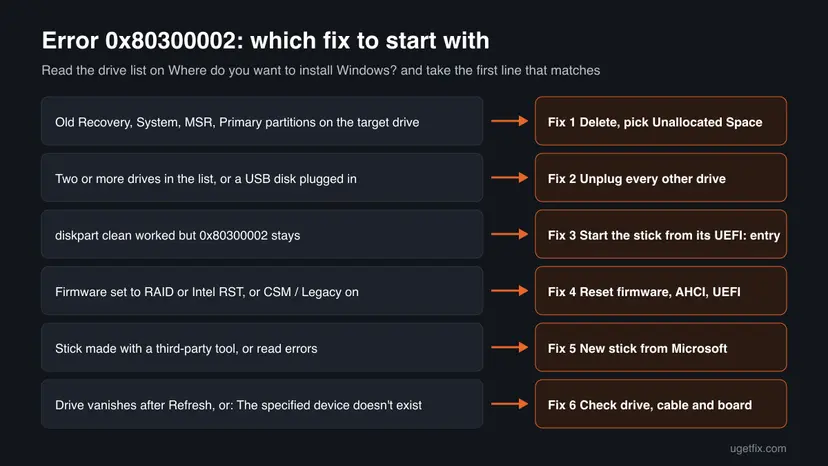
How to fix Windows installation error 0x80300002
Fix 1 and Fix 2 solve most cases in minutes, but Fix 1 erases the target drive, so save your files first. Fix 3 and Fix 4 match the firmware mode and the drive, which is what helps when a wiped drive still fails. Fix 5 replaces the stick, and Fix 6 tells you when the hardware is at fault.
| What you see or have | Start with |
|---|---|
| The target drive shows partitions from an old Windows. | Fix 1 |
| Two or more drives are listed, or a USB disk is plugged in. | Fix 2 |
| You already ran diskpart clean, and 0x80300002 stays on the Unallocated Space. | Fix 3 |
| The firmware has CSM or Legacy on, or the SATA mode is RAID or Intel RST. | Fix 4 |
| The stick was made with a third-party tool, or Setup shows read errors. | Fix 5 |
| The drive disappears after Refresh, or diskpart says The specified device doesn't exist. | Fix 6 |
Fix 1. Delete the old partitions and install to the Unallocated Space
5 minutesRead the warningYou are reinstalling on a drive that held Windows before, and you picked one of its partitions.
Microsoft's steps for Setup are to delete each partition on the target drive and select the unallocated space. Setup then creates the partitions it needs in the style that matches how the PC started, instead of reusing a layout it refused.
Delete removes the partition and everything on it, including the old Windows and your files. Copy what you need first: Back up your files (Windows Backup, File History, Time Machine). If the PC has several drives, Microsoft warns to make sure you delete partitions on the correct drive, so check the size of each one.
- Boot from the Windows install stick and go through Setup until the installation type. Select Custom: Install Windows only (advanced).
- On Where do you want to install Windows?, find the target drive by its size, for example Drive 0.
- Select its first partition, select Delete and confirm with OK. Repeat for every partition of that drive.
- When the drive shows a single line, Drive 0 Unallocated Space, select it.
- Select Next. Do not use New or Format first: Setup creates and formats the partitions itself.
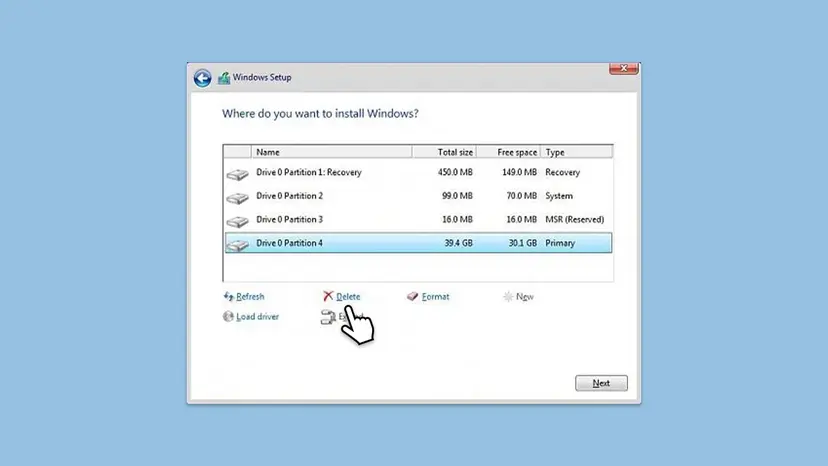
It worked if: Setup accepts the Unallocated Space and moves on to Installing Windows with the copy progress.
If not: If 0x80300002 comes back, unplug the other drives with Fix 2. If it still appears on a single empty drive, go to Fix 3.
Fix 2. Unplug every drive except the target and the install stick
5 to 15 minutesLow riskThe drive list shows more than one drive, or a USB hard drive, SD card or phone is connected.
With several drives, Setup can try to place its boot files on a drive you did not choose. The Windows MVP answering a Microsoft Q&A thread on 0x80300002 starts with this step, and Microsoft warns against deleting partitions on the wrong drive.
- Shut the PC down fully and unplug USB hard drives, card readers, SD cards and phones. Keep only the install stick, keyboard and mouse.
- On a desktop, with the power cord out, unplug the data cable of every internal drive you are not installing to.
- If the cables are hard to reach, disable the other drives or their ports in the firmware setup instead.
- Boot from the stick again. Where do you want to install Windows? should now list only the target drive.
- Repeat Fix 1 on that drive and select Next.
- Reconnect the other drives after Windows has finished its first start.
In one Microsoft Q&A case, Windows installed fine on the second hard drive while the SSD kept failing with 0x80300002. When only one drive fails, the fault sits with that drive or its port, not with the stick: see Fix 6.
It worked if: Only one drive appears in the list, and Setup starts copying after Next.
If not: If the error stays with one empty drive, the firmware mode is the next suspect: go to Fix 3.
Fix 3. Start the stick in UEFI mode and convert the drive to GPT
10 minutesRead the warningThe target drive is already one Unallocated Space (or you ran diskpart clean), and 0x80300002 still appears.
Microsoft explains that the drive's partition style must match how the PC started: GPT for UEFI, MBR for legacy BIOS. The most helpful answer in a Microsoft Q&A thread on 0x80300002, after clean had failed, was a stick started in the wrong mode, fixed by picking the UEFI USB entry.
- Plug in the install stick and restart the PC.
- Press the boot menu key shown on the start screen or in your PC maker's manual.
- If the stick is listed twice, pick the entry with UEFI in its name, for example UEFI: USB. A plain USB entry starts it in legacy mode.
- On the first Setup screen, press Shift + F10 to open a command prompt.
- Type
diskpartand press Enter, thenlist diskand press Enter. Note the target drive's number by its size. - Wipe and convert that drive. Press Enter after each line and replace 0 with your disk number:
select disk 0 clean convert gpt exit - Close the command prompt, choose Custom, select the Unallocated Space and select Next.
There is no undo. Back up first with Back up your files (Windows Backup, File History, Time Machine), pick the disk by its size and unplug other drives as in Fix 2. clean also clears a disk that diskpart lists as foreign or dynamic, so no separate conversion is needed.
Want to keep an MBR drive with its data? Microsoft's other option is to start in legacy BIOS mode, but Windows 11 requires UEFI. Microsoft's MBR2GPT tool converts with data kept, from a working Windows, not from this screen.
It worked if: Each diskpart line ends with a success message, and Setup starts copying on the Unallocated Space.
If not: If no UEFI entry appears for the stick, check the firmware with Fix 4. If convert gpt fails with a device error, go to Fix 6.
Fix 4. Reset the firmware and set UEFI, CSM off and AHCI
10 to 15 minutesLow riskThe stick shows no UEFI entry, the PC was built or repaired recently, or the SATA mode is RAID or Intel RST.
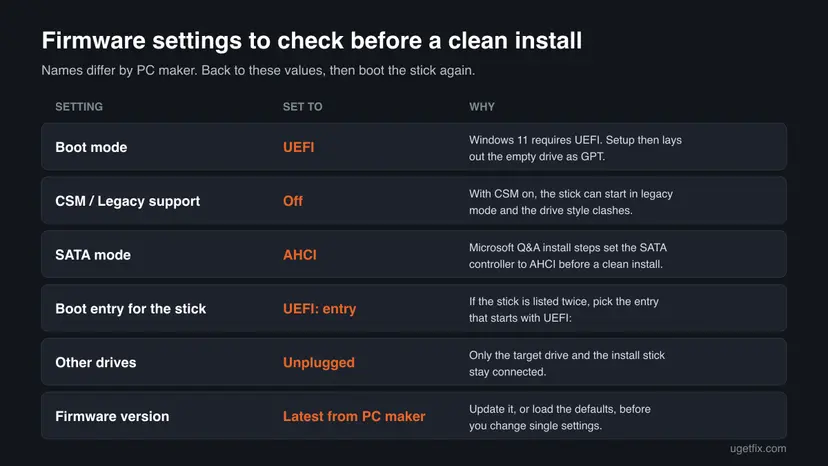
The install checklist from a Windows MVP in Microsoft Q&A for 0x80300002 is to update or reset the firmware, set the SATA controller to AHCI, enable UEFI and disable CSM or Legacy BIOS. A wrong storage mode or a legacy start keeps Setup away from the drive layout it expects.
- Restart the PC and press the firmware key shown at start, often Del, F2 or F10.
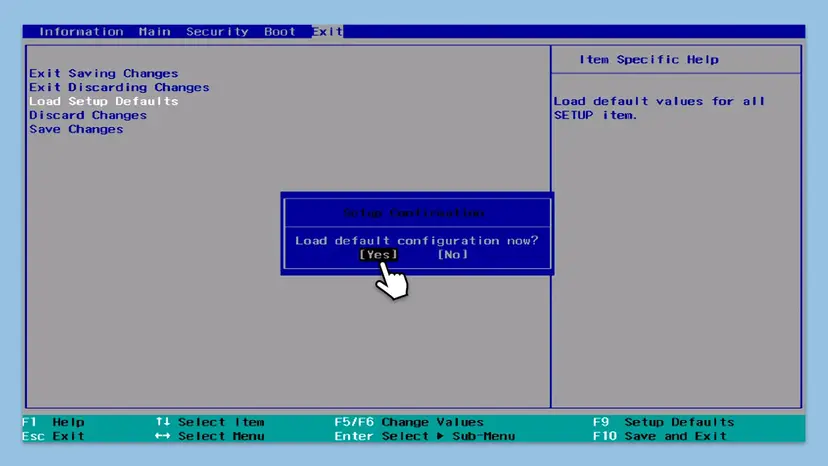
- Find Load Setup Defaults, Load Optimized Defaults or a similar entry, confirm with Yes, then save and exit.
- Open the firmware setup again. Set the boot mode to UEFI and turn CSM or Legacy support off, if your firmware has these options.
- In the storage settings, set the SATA mode to AHCI, unless the PC maker's manual says the PC needs RAID or Intel RST.
- Save with F10 or Save and Exit, boot the stick from its UEFI entry and repeat Fix 1.
- If the PC maker offers a newer firmware version, install it with the maker's own tool and instructions first.
If you switch from RAID or Intel RST to AHCI and then cancel the install, an existing Windows on that drive may no longer start until you switch back. On a drive you are wiping anyway, this does not matter.
It worked if: The stick appears with a UEFI entry, and the drive list accepts the Unallocated Space.
If not: If a firmware setting will not stay saved, the board itself may be faulty: see Fix 6. Otherwise try a new stick with Fix 5.
Fix 5. Make a new install stick with Microsoft's tool and use a rear USB port
30 to 45 minutesLow riskThe stick was made with a third-party tool or from an old download, or Setup also shows copy or read errors.
One Microsoft Q&A answer on 0x80300002 suspected corrupt install media, and a stick built only for legacy start gives no UEFI entry. A fresh stick from Microsoft's own tool rules both out.
- On a working PC, open Microsoft's Download Windows 11 page (or Download Windows 10) and download the Media Creation Tool.
- Plug in a USB stick of at least 8 GB. Everything on it will be erased.
- Run the tool, accept the license, choose language and edition, then USB flash drive and your stick.
- On the failing PC, plug the new stick into a port on the back, directly on the motherboard, not a hub or front panel.
- Boot it from its UEFI entry as in Fix 3 and repeat Fix 1.
It worked if: Setup starts from the new stick and installs to the Unallocated Space without 0x80300002.
If not: If the same code appears with a new stick, one drive and correct firmware settings, check the hardware with Fix 6.
Fix 6. Check the drive, its cable and the motherboard
20 to 45 minutesLow riskThe drive vanishes after Refresh, diskpart can clean but not convert it, or nothing else has helped.
In a Microsoft Q&A case, the SSD disappeared after Refresh, and create partition, format and convert gpt all failed with The specified device doesn't exist. The PC maker's support found a faulty motherboard and replaced it. No partition fix helps when the hardware drops the drive.
- Turn the PC off and unplug it. Reseat the drive's data and power cables, or move the SSD to another M.2 or SATA slot and another SATA port.
- Boot Setup again and watch whether the drive stays in the list after Refresh.
- If it still drops out, connect the drive to another Windows PC with a USB adapter or enclosure and look at it in Disk Management.
- On that PC, check the drive for errors: Check a disk for errors (chkdsk). Then run the drive maker's own test tool if there is one.
- If the drive passes elsewhere but fails in this PC, contact the PC or motherboard maker. If it fails everywhere, replace it under warranty.
It worked if: Either the drive stays listed and installs after a cable or slot change, or you know which part is failing.
If not: Read the section below for what to send to support.
If Windows Setup still fails with 0x80300002
Setup does not explain 0x80300002 on screen. The best clue is diskpart from Fix 3. Run list disk and look at the Status and Gpt columns, then select disk 0 and detail disk for the target. A drive that is Offline, shows a wrong size or refuses commands is not a partition problem.
| What you find | What to do |
|---|---|
| The drive disappears from the list after Refresh | Reseat the cable, try another port or slot, then test the drive in another PC (Fix 6). |
| diskpart: The specified device doesn't exist | In the Microsoft Q&A case this was a faulty motherboard. Contact the PC or board maker. |
| A firmware setting such as UEFI will not stay saved | Update or reflash the firmware with the maker's tool. If that fails, it is a warranty case. |
| The target drive is not listed at all | Setup may need a storage driver, or the drive is off in the firmware. Check the storage settings and the PC maker's support page. |
| Windows installs to another drive but not this one | That drive, its slot or its cable is the problem, not the stick. |
- What to send to support: the full message with the code, the PC or motherboard model, the drive model and size, and the output of
list disk. - Say whether the stick started in UEFI or legacy mode, the SATA mode, and how many drives were connected.
- List the fixes you tried and what changed after each one.
Suspect the hardware when the same drive fails with a new stick, alone in the PC, after clean and with the firmware reset. A drive that drops out after Refresh, a device error in diskpart and settings that will not save are the signs.
How to avoid 0x80300002 on the next clean install
- Back up your files before you boot the install stick.
- Unplug every drive except the target before a clean install.
- Start the stick from its UEFI entry and install to the Unallocated Space.
- Make the stick with Microsoft's Media Creation Tool.
- Do not install to an old Primary partition while the old System and Recovery partitions stay.
- Do not use Format to clear a drive Setup refused: use Delete.
- Do not add
create partition primaryandactiveaftercleanon a UEFI PC: Setup partitions the drive itself. - Do not keep reinstalling on a drive that drops out after Refresh.
Windows 10 left support on 14 October 2025. If you are reinstalling anyway and the PC meets the Windows 11 requirements, install Windows 11 from a stick started in UEFI mode. That also gives the GPT layout this error tends to trip over.
If your current Windows still starts and you only want a fresh system, you can skip this screen entirely. Reinstall from inside Windows and keep your files: Reinstall Windows without losing files.
Frequently asked questions
What is error 0x80300002?
It is the code Windows Setup shows when it refuses the drive or partition you selected during a clean install. The full message is usually "We couldn't install Windows in the location you chose. Please check your media drive." Microsoft does not publish a text for the code. Microsoft Q&A cases tie it to old partitions, other drives, a stick started in the wrong firmware mode and, rarely, failing hardware. Nothing has been installed or erased when you see it.
Does "Please check your media drive" mean my USB stick is broken?
Usually not. Setup adds that hint to several errors on the drive selection screen, whatever the cause. In most cases the stick works and the target drive or the firmware mode is the issue. Try Fix 1 to Fix 4 first. Remake the stick with Microsoft's Media Creation Tool (Fix 5) when it was made with another tool, gives no UEFI entry or Setup also shows read errors.
I deleted all partitions and ran diskpart clean, but 0x80300002 is still there. Why?
Then the drive layout is no longer the problem, and the firmware mode is the next suspect. A Microsoft Q&A reader had exactly this case, and the most helpful answer was a stick started in legacy mode on a UEFI PC. Start the stick from the boot menu entry with UEFI in its name, run clean and convert gpt (Fix 3), and check that CSM is off and SATA is AHCI (Fix 4).
Will deleting the partitions erase my files?
Yes. Delete on the Where do you want to install Windows? screen removes the partition and everything in it, and diskpart clean wipes the whole selected disk. Neither can be undone from Setup. Copy your files to another drive or a cloud service before you boot the stick. If the old Windows does not start, connect the drive to another PC to copy them first.
Is the error different on a SATA SSD or an NVMe SSD?
The message and the fixes are the same on both. On a SATA SSD, the SATA mode in the firmware matters: Microsoft Q&A install steps set it to AHCI. On an NVMe SSD, check that the slot is enabled in the firmware and the drive is listed. If a new SSD fails while an older hard drive installs fine, test the SSD and its slot with Fix 6.
What do 0x80300001, 0x8030002c and 0x8030002f mean?
They appear on the same Setup screen and people search for them together with 0x80300002. Microsoft does not describe these codes, so we cannot give an official meaning for each one. In practice they come from the drive selection step, and the same order of fixes applies: delete old partitions, unplug other drives, start the stick in UEFI mode, check the firmware, then the hardware.
Is 0x80030002 the same error?
Most people who type 0x80030002 mean 0x80300002 and swapped two digits. Check the code on your screen. If it reads 0x80300002 during Windows Setup, this guide applies. A real 0x80030002 is a different code that we could not tie to the drive selection screen, so it is not covered here.
What is windowsinstaller-kb893803-v2-x86?
It is the file name of an old Windows Installer update package, a program installer for very old Windows versions. It has nothing to do with Windows Setup or with error 0x80300002, which appears when you install Windows itself. This page does not cover that package, and you do not need it for a Windows 11 or Windows 10 install.
I tried a fix and it still does not work. What now?
Go down the list in order and do not skip Fix 2: one forgotten drive is enough. If the error stays with a new stick, one drive, UEFI start and reset firmware, stop changing partitions and test the hardware with Fix 6. The same applies to readers writing in other languages: the screen and the fixes are the same in every language of Windows Setup.
Sources
- Microsoft Learn: Windows Setup, installing using the MBR or GPT partition style (UEFI and legacy modes, deleting partitions, diskpart clean and convert gpt) (learn.microsoft.com)
- Microsoft Q&A: Windows Installation Fails: 0x80300002 (clean did not help; stick started in legacy instead of UEFI mode) (learn.microsoft.com)
- Microsoft Q&A: Windows cannot install to the selected drive (0x80300002) (MVP install checklist: AHCI, UEFI, CSM off; drive vanishing after Refresh, faulty motherboard) (learn.microsoft.com)
Did this fix work?
One click, no account. It tells the next reader which guides are worth their time.
Questions and experiences: fix Windows installation error 0x80300002
Still broken, or found a fix we did not cover? Ask here: members and our editors answer. Reading is open; writing needs a free account.
…